The best RAID for SSD drives is RAID 1 for safety, or RAID 0 for speed when backups are ready.
A failed drive can turn work files, game saves, and family photos into a stressful recovery job. A good SSD RAID setup helps by adding speed, capacity, or drive protection, depending on the RAID level you choose. I reviewed these SSDs, enclosures, and ready-made RAID devices for home users, gamers, creators, and small offices. I also looked closely at endurance, cooling, connection type, ease of setup, and the limits of each product. The right choice depends less on peak speed and more on how much risk you can accept.
Gigastone 1TB High Endurance SSD 2-Pack

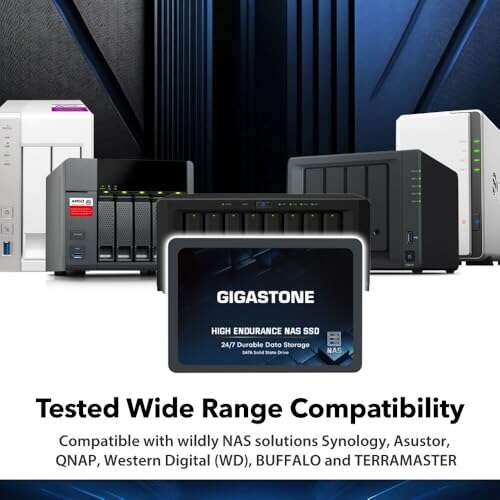
The Gigastone 1TB High Endurance SSD 2-Pack is a practical starting point for a two-drive RAID setup. Each 2.5-inch SATA SSD uses TLC flash and supports up to 550MB/s, according to the listed specifications. The pair gives you two matching drives, which makes installation and testing simpler. For many home systems, that balanced format is more useful than buying one large drive.
SLC caching can help the drives feel quick during normal file work, game loading, and daily desktop use. The high-endurance design also suits systems that write data often, such as a gaming PC, media box, or home NAS. Still, SATA limits performance compared with modern NVMe storage. I would use RAID 1 when protecting important files matters more than maximum speed, or RAID 0 only when I keep a separate backup.
Pros:
- Two matching 1TB SSDs simplify RAID setup
- TLC flash offers a useful balance of speed and cost
- Up to 550MB/s SATA read speed for everyday work
- High-endurance design suits frequent use
- Five-year warranty adds confidence
- Works well in many PCs and NAS systems
Cons:
- SATA performance is slower than PCIe NVMe
- RAID 0 removes drive-failure protection
- Actual speed depends on the host system and workload
My Recommendation
I recommend this kit for users who want a clean, low-cost path into SSD RAID. It is especially suitable for a home NAS, gaming PC, or small workstation with two SATA bays. The matching drives reduce guesswork, while the endurance rating makes the pair more reassuring for regular writes. If you need the best RAID for SSD drives on a SATA budget, this two-pack is a strong place to start.
Gigastone 4TB High Endurance SSD

The Gigastone 4TB High Endurance SSD focuses on capacity rather than a ready-made pair. Its 2.5-inch SATA format fits many desktop computers, enclosures, and NAS devices. The drive uses SLC caching and is rated for speeds up to 530MB/s in the product details. That is enough for large game libraries, photo collections, and many video projects.
A single SSD cannot create RAID by itself, but this model can become part of a larger array when you add a second compatible drive. Two 4TB drives can create a spacious RAID 1 mirror, although usable capacity drops to about 4TB before formatting. RAID 0 can provide more capacity and speed, but one failed drive can make the whole volume unavailable. I like this drive for users who already own a matching unit or plan a staged upgrade.
Pros:
- Large 4TB capacity reduces storage pressure
- High-endurance design supports regular workloads
- 2.5-inch SATA size fits many systems
- SLC caching helps with common file transfers
- Five-year warranty provides long-term support
- Useful for building a high-capacity RAID 1 array
Cons:
- Only one drive is included
- A second matching drive adds to the total cost
- SATA interface limits peak throughput
My Recommendation
This Gigastone is best for buyers who need a large SSD now and want the option to add RAID later. It makes sense for a media library, a home server, or a workstation with limited drive bays. I would pair two units in RAID 1 for important data and keep a third backup for extra safety. As a single-drive foundation, it offers good value, but it is not a complete RAID solution on its own.
Gigastone 512GB High Endurance SSD 2-Pack

The Gigastone 512GB High Endurance SSD 2-Pack is aimed at smaller systems and budget RAID builds. You get two 2.5-inch SATA SSDs, each with TLC flash, SLC caching, and a listed speed of up to 550MB/s. Together, they provide a simple way to test RAID 0 or RAID 1 without buying a large amount of storage. The compact capacity also works well for an operating system and a few key applications.
In RAID 1, the usable space is close to 512GB, since the second drive mirrors the first. That trade-off is often worth it for a boot volume or small office file store. In RAID 0, the system can use both drives for a larger volume, but there is no protection if either drive fails. I would avoid using RAID 0 for files that do not exist somewhere else.
Pros:
- Affordable two-drive entry into SSD RAID
- Matching drives make setup more straightforward
- TLC flash supports steady daily performance
- Up to 550MB/s listed SATA speed
- High-endurance design suits active system drives
- Five-year warranty is useful for a budget kit
Cons:
- 512GB may feel small for modern games and video
- RAID 1 cuts usable capacity in half
- Requires a compatible RAID controller or software setup
My Recommendation
I see this pack as a good fit for a compact PC, office workstation, or test server. It is also useful for learning how RAID works before moving to larger drives. Choose RAID 1 for a safer boot or work volume, and use an external backup as well. For shoppers seeking the best RAID for SSD drives at a lower entry price, this kit offers a sensible starting point.
Gigastone 2TB High Endurance SSD

The Gigastone 2TB High Endurance SSD sits between the smaller 512GB model and the larger 4TB option. It uses a 2.5-inch SATA design with TLC flash and SLC caching. The listed speed reaches up to 550MB/s, which suits normal desktop work, game storage, and many home server tasks. Its 2TB size also gives users more room without the higher cost of a 4TB drive.
For RAID, I would buy two units and use RAID 1 when the data matters. That creates a mirrored volume with roughly 2TB of usable space. RAID 0 can provide about 4TB of combined capacity, but it increases the chance of a full array failure because either drive can stop the volume. The five-year warranty is helpful, yet no warranty replaces a tested backup.
Pros:
- Useful 2TB capacity for home and office storage
- High-endurance design is suited to frequent use
- TLC flash offers balanced value
- Up to 550MB/s listed read performance
- Easy-to-fit 2.5-inch SATA form factor
- Five-year warranty supports long-term ownership
Cons:
- Requires a second drive for a two-drive RAID array
- Not as fast as PCIe NVMe storage
- Usable space falls to about 2TB in RAID 1
My Recommendation
This is one of the most balanced choices for a home RAID project. It gives you enough space for documents, photos, applications, and a moderate game collection. I would use two drives in RAID 1 inside a desktop or NAS, then copy the most important files to a separate backup. It is a strong value pick when you want the best RAID for SSD drives without moving to a more costly NVMe system.
PNY CS900 500GB SATA SSD

The PNY CS900 500GB is a simple 2.5-inch SATA III internal SSD for users who need an affordable system drive. It is a good match for an older desktop or laptop that still uses a SATA bay. The drive can also serve as one member of a small RAID array when the system supports software or hardware RAID. Its modest capacity keeps the cost low, but it may not suit a large media library.
For a mirrored setup, two 500GB drives provide roughly 500GB of usable space before formatting. That can be enough for an operating system, office programs, and key work files. The CS900 is better suited to light and moderate workloads than heavy write tasks that run all day. I would choose it for a basic RAID 1 boot volume, not as my first choice for a demanding server.
Pros:
- Low purchase cost for a SATA SSD
- 500GB capacity fits many boot-drive needs
- 2.5-inch design works with many older computers
- SATA III connection is easy to support
- Solid upgrade from a mechanical hard drive
- Can serve as a budget RAID 1 member
Cons:
- Smaller capacity than most modern storage needs
- Not designed as a high-endurance enterprise SSD
- A second unit is needed for RAID
- Performance depends on the computer and workload
My Recommendation
I recommend the PNY CS900 for a low-cost office PC, older desktop, or light-duty home server. It is a practical way to replace a slow hard drive and create a small mirrored boot volume. Users who write large video files or run a busy database should look at a higher-endurance model. Still, for basic needs, it can be part of the best RAID for SSD drives when price matters most.
CENMATE 3-Bay SATA Drive Enclosure

The CENMATE 3-Bay enclosure gives you a tool-free way to connect up to three 2.5-inch or 3.5-inch SATA drives. It includes USB-A and USB-C 3.0 connections and a cooling fan. The hot-swappable design can make drive changes easier when the host computer and operating system support safe removal. This product is a direct-attached storage enclosure, not a built-in RAID or NAS system.
That last point matters when shopping for the best RAID for SSD drives. The listing clearly identifies this unit as DAS with no RAID or NAS function, so the computer must manage each drive separately. You may create software RAID through the operating system, but support varies by platform and file system. I like this enclosure for backup rotation, drive testing, and simple multi-drive access rather than automatic redundancy.
Pros:
- Three drive bays add flexible storage options
- Supports both 2.5-inch and 3.5-inch SATA drives
- USB-A and USB-C connections improve compatibility
- Cooling fan helps manage drive heat
- Tool-free design makes installation easier
- Hot-swap support can simplify drive changes
Cons:
- Does not include RAID or NAS functions
- USB 3.0 limits shared bandwidth across drives
- Software RAID support depends on the host system
- Requires separate drives and power arrangements
My Recommendation
This enclosure is best for users who want several SATA drives in one desk-friendly box. It works well for backup drives, file transfers, drive checks, and a custom software RAID project. It is not the right choice for someone who expects automatic RAID 1 protection out of the box. If you understand that limit, the CENMATE 3-Bay is a flexible and useful storage accessory.
Oyen Digital 16TB MiniPro RAID V4

The Oyen Digital 16TB MiniPro RAID V4 is the most complete storage product in this group. It combines a large SSD capacity with a portable USB-C design and built-in RAID hardware. The product is listed with TLC storage, which generally offers a useful balance of endurance, speed, and cost. A ready-made unit can save time for creators who do not want to install and configure separate drives.
Before buying, check the supported RAID modes, usable capacity, cable type, and computer port. A 16TB label does not mean every byte will be available, since formatting and RAID settings affect the final space. RAID 0 may focus on capacity and speed, while RAID 1 may trade half the capacity for a mirror, if supported by the unit. For portable editing or large project files, this is a compelling option, but I would still keep a second copy elsewhere.
Pros:
- Large 16TB SSD storage for demanding projects
- Portable form factor is easier to move than a rack system
- USB-C connection suits newer computers
- Built-in RAID design reduces setup work
- TLC storage is a sensible choice for active files
- Useful for video, photo, and audio workflows
Cons:
- Higher cost than separate small SATA SSDs
- Actual speed depends on the USB-C host port
- RAID settings affect usable capacity and protection
- Portable storage can still be lost, damaged, or stolen
My Recommendation
I would choose the Oyen Digital MiniPro for a video editor, photographer, music producer, or mobile professional who needs a large fast workspace. It is also a good fit for a user who wants less setup work than a custom RAID build. Confirm the RAID mode before purchase, then create a backup plan that does not depend on the same enclosure. For a ready-to-use option, this is among the strongest candidates for the best RAID for SSD drives.
Dual-Bay M.2 NVMe RAID Enclosure

This dual-bay enclosure is built for 2280 M.2 NVMe SSDs rather than 2.5-inch SATA drives. It supports RAID 0, RAID 1, and JBOD modes, and it also includes a clone mode for copying one drive to another. The listed 20Gbps connection gives it more interface headroom than basic USB 3.0 storage. It is a flexible choice for users who already own compatible NVMe drives.
RAID 1 is the safer choice when the goal is drive protection, while RAID 0 can improve throughput and combine capacity. JBOD treats the drives as separate or combined storage, depending on the host and enclosure mode. The clone feature may help with system upgrades, but I would verify the destination drive size and back up important files first. Heat control also matters because two NVMe drives can become warm during long transfers.
Pros:
- Supports fast 2280 M.2 NVMe SSDs
- Offers RAID 0, RAID 1, and JBOD modes
- 20Gbps connection supports high transfer speeds
- Clone mode helps with drive upgrades
- Dual-bay design supports flexible storage plans
- Portable alternative to a desktop RAID card
Cons:
- Does not include the M.2 SSDs
- Requires careful drive compatibility checks
- Host ports may not reach the advertised interface speed
- NVMe heat can reduce sustained performance
My Recommendation
This enclosure is best for technical users, PC builders, and creators who want a custom portable NVMe RAID system. It gives you more control than a sealed drive and supports both mirroring and speed-focused modes. I would use two matching NVMe drives in RAID 1 for important work, then keep a separate backup. If you want the best RAID for SSD drives with NVMe flexibility, this enclosure deserves close attention.
CENMATE 2-Bay SATA Drive Enclosure

The CENMATE 2-Bay enclosure is a smaller version of the three-bay model. It accepts 2.5-inch and 3.5-inch SATA HDDs or SSDs and connects through USB-A or USB-C 3.0. Its cooling fan and tool-free design are useful for a compact desk setup. The bays are hot-swappable when the computer, operating system, and drive support safe removal.
This enclosure does not contain a RAID controller, and the listing identifies it as DAS rather than RAID or NAS. That makes it a poor match for buyers who want simple hardware RAID. However, it can work well with software RAID or with two independent backup drives. I would pick it when easy access and low clutter matter more than automatic array management.
Pros:
- Two bays fit a wide range of SATA drives
- Supports both 2.5-inch and 3.5-inch sizes
- USB-A and USB-C options improve device support
- Cooling fan helps during longer sessions
- Tool-free installation saves time
- Smaller footprint than a three-bay enclosure
Cons:
- No built-in RAID or NAS function
- USB 3.0 may limit combined drive speed
- Requires software RAID for an array
- Separate power may be needed for 3.5-inch drives
My Recommendation
I recommend this enclosure for home users who want two removable SATA drives in one unit. It is useful for rotating backups, moving files, or creating a software-managed RAID setup. Do not buy it expecting a hardware RAID menu or automatic mirroring. For simple direct storage, it offers good flexibility, but it is not the best RAID for SSD drives without help from the host computer.
How to Choose the Best RAID for SSD Drives
RAID means combining multiple drives into one logical storage system. It can improve speed, provide redundancy, or increase capacity. It cannot protect you from accidental deletion, malware, fire, theft, or a damaged enclosure. That is why I always treat RAID as part of a backup plan, not as the backup itself.
RAID 0 stripes data across two or more drives. It can improve sequential speed and gives you the combined capacity of the drives. The risk is high: if one drive fails, the whole array may become unusable. RAID 0 suits scratch files, game installs, and replaceable project data, but it is a poor choice for your only copy of family photos or business files.
RAID 1 mirrors data across two drives. If one drive fails, the other should still hold the data. You give up half of the raw capacity, but the setup is simple and easier to recover. For most home users who ask about the best RAID for SSD drives, RAID 1 is the safest starting point.
RAID 5 and RAID 6 use parity and need more drives. They can offer a better balance of capacity and protection, but SSD arrays need a suitable controller, proper monitoring, and careful rebuild planning. RAID 10 combines mirroring and striping, but it needs at least four drives. These modes make more sense in a NAS, server, or professional workstation than in a basic two-bay enclosure.
Also check the connection. SATA SSDs usually reach around the 500MB/s class in ideal conditions. NVMe drives use PCIe and can be far faster, but an external USB bridge may limit them. A 20Gbps USB connection has more bandwidth than USB 3.0, yet real speed depends on the computer port, cable, controller, thermal limits, and file type.
Best For Table
| Best for | Why |
|---|---|
| Budget SATA RAID 1 | Gigastone 512GB and 1TB two-packs provide matching drives for a simple mirror. |
| Large creator workspaces | Oyen Digital MiniPro offers high capacity, portability, and built-in RAID convenience. |
| Custom NVMe RAID | The dual-bay M.2 enclosure supports RAID 0, RAID 1, JBOD, and drive cloning. |
Setup Tips for SSD RAID
Start by checking the motherboard, NAS, or enclosure manual. Not every two-bay device supports RAID, and not every operating system handles software RAID in the same way. If you mix drive sizes, the array often uses the capacity of the smallest drive. Matching models are not always required, but matching capacity and similar performance reduce surprises.
Update the firmware before moving important data. Install the drives firmly, connect the correct power supply, and provide airflow. SSDs run cooler than hard drives in many cases, but sustained writes can still cause heat. A thermal slowdown may look like a failing drive when the real issue is poor ventilation.
After creating the array, test it before trusting it. Copy sample files, shut down safely, and check whether the system reports the expected RAID status. If your platform supports health data, monitor drive temperature and error reports. I also suggest testing a restore from backup because a backup that cannot be restored is only a comforting story.
For RAID 1, simulate a drive failure only if the device maker explains a safe test method. Some hardware units let you remove one drive while powered on. Others require a full shutdown. Never pull a drive at random, especially during a rebuild, because a second problem can place the data at risk.
Common Buying Mistakes
The first mistake is confusing RAID with backup. RAID can keep a system running after one drive fails, but it does not restore a file that you deleted yesterday. Keep at least one backup that is disconnected or stored in another location. For valuable business or personal files, an additional cloud or off-site copy adds much stronger protection.
The second mistake is chasing speed without checking the workload. RAID 0 may look impressive in a benchmark, but many small files and normal apps may not feel twice as fast. External enclosures also share bandwidth between drives. Buy for your real work, not only for a large number on a product page.
The third mistake is buying an enclosure that does not include RAID. The CENMATE units in this guide are useful DAS products, but they do not create hardware RAID. They can still support independent drives or a software array, but that task belongs to the host computer. Read the product description carefully before ordering.
The fourth mistake is using unlike drives without a plan. A small drive can limit a larger one in an array. Different endurance levels may also create an uneven system. When possible, use drives with similar capacity, interface, and intended workload. Keep the original receipt and warranty details in case a replacement is needed.
FAQs Of best raid for ssd drives
What is the best RAID level for SSD drives?
RAID 1 is usually the best choice for users who value data availability. It mirrors two drives and continues working if one drive fails. RAID 0 is faster in some tasks, but it has no redundancy and needs a reliable backup.
Is SSD RAID faster than one SSD?
RAID 0 can improve large sequential transfers, especially with a capable controller and fast connection. The gain varies by workload. RAID 1 often improves protection more than speed, and an external interface may limit the benefit.
Does RAID replace a backup?
No. RAID does not protect against deletion, viruses, theft, fire, or damage to the enclosure. Keep a separate backup on another drive, computer, or trusted cloud service.
Can I use SATA SSDs in a RAID enclosure?
Only if the enclosure supports 2.5-inch SATA drives and includes RAID control or works with software RAID. A SATA enclosure cannot accept M.2 NVMe drives unless it specifically lists NVMe support.
Are matching SSDs required for RAID?
They are not always required, but matching drives make setup easier and performance more predictable. In many arrays, the smallest drive sets the usable capacity. Similar endurance and speed are also helpful.
Final Verdict: Which Should You Buy?
For most buyers, the Gigastone 1TB High Endurance SSD 2-Pack is the best RAID for SSD drives because it offers matching SATA drives, solid capacity, and a simple RAID 1 path. Choose the Oyen MiniPro for a ready-made high-capacity system, or the M.2 enclosure for custom NVMe RAID.
Pick RAID 1 for safer storage, RAID 0 only for replaceable data, and always keep a separate backup. These products cover budget PCs, NAS builds, creative work, and portable storage needs.

Everett Ashford is a tech reviewer at mytechgrid.com specializing in SSDs, cameras, TVs, earbuds, headphones, and other consumer electronics. He provides honest, data-driven reviews based on hands-on testing and real-world performance analysis. Everett simplifies complex tech details to help readers make smart, confident buying decisions.