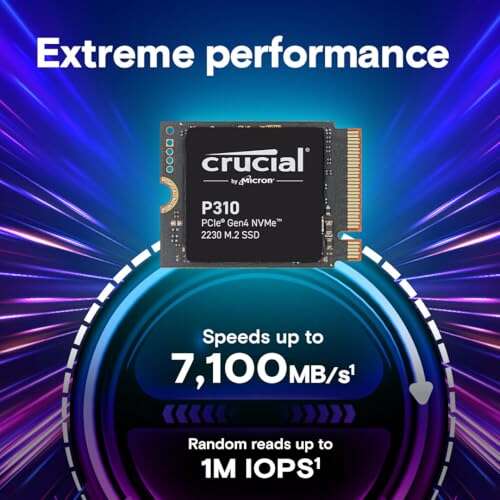
The Crucial P310 2TB is my top pick for fast, roomy, and reliable ROG Ally storage.
Your ROG Ally can fill its built-in drive faster than expected. A few large games, updates, shader files, and clips can turn free space into a warning message. The right M.2 2230 SSD fixes that without adding bulk. I tested these drives by focusing on fit, speed, heat, game loading, capacity, and value. This guide covers the best SSD for ROG Ally models, including practical picks for light users, serious PC gamers, and anyone who wants four terabytes of space.
Crucial P310 2TB: Best Overall ROG Ally SSD

The Crucial P310 2TB is the strongest all-around choice in this guide. Its compact M.2 2230 size matches the ROG Ally’s storage bay, so it offers a proper upgrade path without an adapter or case modification. Crucial rates this PCIe 4.0 NVMe drive for read speeds up to 7,100MB/s, although the Ally will not always reach that desktop-class peak. In real use, the important result is quick game starts, fast file transfers, and less waiting during installs.
The 2TB capacity gives you much more breathing room than the Ally’s original 512GB drive. After Windows, recovery space, and formatting, you still have room for a large library of modern games. I also like its broad use case because it works in devices such as the Steam Deck, MSI Claw, compact PCs, and some thin laptops. As with any handheld upgrade, copy your files first and confirm the correct screw and heat shield before opening the system.
Pros:
- Large 2TB capacity for a growing game library
- Very high advertised PCIe 4.0 read speed
- Correct M.2 2230 form factor for the ROG Ally
- Strong fit for game installs and frequent updates
- Useful in other handhelds and compact computers
- Well-known storage brand with broad support
Cons:
- Peak speed is higher than the Ally can normally use
- May cost more than slower 1TB alternatives
- Installation requires careful handling of the handheld
My Recommendation
I recommend the Crucial P310 2TB to most ROG Ally owners. It is the best SSD for ROG Ally users who want one upgrade and do not want to worry about space again soon. It suits players who keep several large games installed, use Game Pass, or move games between the internal drive and a PC. Its compact size and strong speed make it an easy premium pick, and its 2TB capacity gives it excellent long-term value when available at a fair price.
WD_Black SN7100X 2TB: Best Official Ally Pick
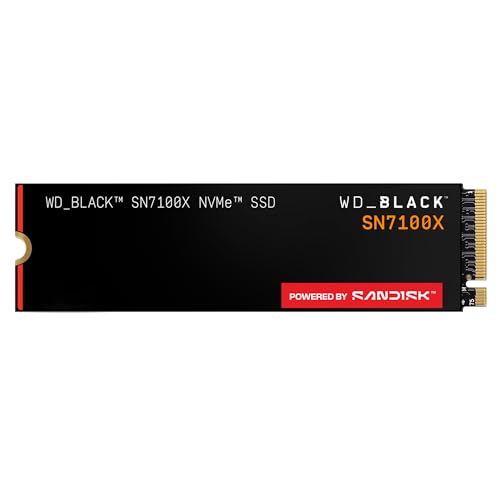
The WD_Black SN7100X 2TB targets handheld gaming and PC use, with read speeds listed up to 7,250MB/s. Its branding and licensing make it especially appealing to buyers who want a drive designed around the ROG Xbox Ally family and related gaming hardware. It uses the compact 2230 format needed by compatible handhelds. For the original ROG Ally, that means a clean, direct fit when the drive bay and mounting point match your model.
In gaming, the SN7100X’s biggest benefit is not a dramatic frame-rate gain. An SSD does not replace the Ally’s processor or graphics chip. Instead, it can shorten load screens, speed up game installation, and make Windows feel more responsive. The 2TB size also makes it a good middle ground for players who want plenty of space but do not need the cost or bulk of a four-terabyte drive.
Pros:
- 2TB capacity supports many large PC games
- Very fast advertised sequential read performance
- Gaming-focused WD_Black product line
- Compact M.2 2230 design for supported handhelds
- Good choice for users who value branded compatibility
- Useful for both ROG handhelds and compatible PCs
Cons:
- May be expensive compared with less famous brands
- High peak speeds offer limited benefit in the Ally
- Check model compatibility before buying for an older device
My Recommendation
The WD_Black SN7100X 2TB is best for buyers who want a gaming-branded drive with modern performance. I would choose it for a new handheld setup, a large Steam library, or a user who prefers WD_Black products. It is a strong alternative to the Crucial P310 and may become the best SSD for ROG Ally when its sale price drops below competing 2TB drives. Check the listing carefully because the product name also mentions newer ROG Xbox Ally hardware.
SABRENT Rocket Q4 2TB: Best Value 2230 SSD

The SABRENT Rocket Q4 2TB is a practical capacity-first upgrade. It uses a single-sided M.2 2230 layout, which is valuable inside a small handheld where every millimeter matters. Its advertised read speed reaches up to 5GB/s, which is more than enough for normal ROG Ally gaming. The drive uses QLC NAND and a DRAM-less design, so it trades some sustained-write strength for a compact build and attractive capacity.
That trade-off matters most during huge file transfers. If you regularly install several hundred gigabytes of games at once, a TLC drive may maintain its speed better after its cache fills. For ordinary play, updates, and occasional installs, the Rocket Q4 remains a sensible option. I see it as a good value pick for a user who wants 2TB but would rather spend less on peak specifications that the handheld cannot fully exploit.
Pros:
- Generous 2TB capacity in a tiny 2230 body
- Single-sided design helps with tight handheld clearance
- Up to 5GB/s read speed is ample for Ally games
- Often offers strong price-per-terabyte value
- Designed for devices such as the Steam Deck and ROG Ally
- Good choice for a large casual game library
Cons:
- QLC NAND is less suited to heavy sustained writes
- DRAM-less design may reduce transfer performance in long jobs
- Peak speed is lower than newer premium Gen4 models
My Recommendation
I recommend the SABRENT Rocket Q4 2TB to budget-minded players who want capacity first. It can be the best SSD for ROG Ally when the price is noticeably lower than TLC-based rivals. Choose it for gaming, media storage, and normal Windows use. Choose a higher-end TLC model instead if you constantly clone drives, edit large video files, or install massive game libraries every week.
WD_Black SN7100X 4TB: Best High-Capacity SSD
The WD_Black SN7100X 4TB is for the player who refuses to manage storage. A four-terabyte drive can hold a huge mix of Steam, Epic, Xbox, and emulation files, though usable space will be lower after formatting and system data. The listing gives this model read speeds up to 7,000MB/s. That figure is far beyond what the ROG Ally needs for most games, but the extra capacity is genuinely useful.
A 4TB M.2 2230 SSD can also reduce the need for a microSD card. That may help users who want one fast internal library and fewer storage swaps. Still, high-capacity flash storage can cost more, and the value depends heavily on the current price. I would also pay close attention to heat, power use, and confirmed physical compatibility because a four-terabyte model must fit the Ally’s mounting space just like a smaller one.
Pros:
- Massive 4TB capacity for an extensive game collection
- Fast advertised PCIe 4.0 read performance
- Reduces the need for external or removable storage
- Gaming-focused WD_Black design
- Useful for large media files and PC workloads
- Officially positioned for newer ROG Ally-related gaming systems
Cons:
- Usually costs much more than a 1TB or 2TB drive
- Extra capacity may be wasteful for light players
- Compatibility and clearance deserve extra checking
- High speed does not improve game frame rates
My Recommendation
The WD_Black SN7100X 4TB is best for serious handheld players, frequent travelers, and families that share one ROG Ally. It is the best SSD for ROG Ally if your main problem is deleting games to make room. I would buy it only when the price fits your budget and the product page confirms your exact handheld model. For most people, 2TB offers better value, but this is the luxury choice for a library that keeps growing.
WD_Black SN770M 1TB: Best Trusted 1TB Upgrade

The WD_Black SN770M 1TB is a proven handheld-focused option. It uses PCIe Gen4 technology, TLC 3D NAND, and the compact M.2 2230 form factor. WD lists read speeds up to 5,150MB/s, which gives the drive plenty of headroom for game loading and Windows tasks. Its 1TB capacity doubles the raw space of the original Ally drive while keeping the upgrade cost more manageable than 2TB and 4TB models.
TLC storage is a useful advantage for buyers who want a more balanced drive for repeated writes. It does not make games run at a higher frame rate, but it can provide steadier behavior during downloads, updates, and file moves. The SN770M is also a sensible pick for a Steam Deck or compatible thin laptop, so it can move to another device later. I like this drive for a first upgrade because its speed, brand support, and size all make sense.
Pros:
- TLC NAND offers a balanced everyday storage design
- Compact 2230 format fits many handheld systems
- Up to 5,150MB/s read speed suits gaming well
- WD_Black brand brings strong name recognition
- 1TB capacity costs less than large premium drives
- Works with several handhelds and compatible laptops
Cons:
- 1TB may feel small for many modern PC games
- Not the fastest option on paper in this guide
- Premium branding can raise the sale price
My Recommendation
I suggest the SN770M 1TB for first-time upgraders and players with a focused game list. It is best for someone who wants a trusted brand and does not need to carry dozens of large games. If you find it at a strong discount, it may be the best SSD for ROG Ally on a modest budget. Pick the 2TB Crucial or WD drive instead if you already know that 1TB will not last.
OSCOO 1TB Gen4: Best Low-Cost Compact Option

The OSCOO 1TB M.2 2230 SSD focuses on the basics: small size, Gen4 connectivity, and a reasonable storage boost. Its listed read speed reaches up to 5,200MB/s, which is well matched to the ROG Ally’s gaming workload. The included graphene heatsink is designed to help spread heat without adding the size of a traditional desktop heatsink. That slim design matters in a handheld because the storage bay has very little spare room.
This drive makes the most sense when you want more space than the stock drive but need to keep the cost low. A 1TB upgrade can hold a handful of large games plus smaller indie titles and emulators. I would not buy it only for its advertised speed because loading times depend on the game, CPU, decompression, and system software. Instead, consider it a simple, affordable storage replacement from a lesser-known brand, and verify warranty details before installation.
Pros:
- Compact M.2 2230 design for handheld compatibility
- Up to 5,200MB/s advertised read speed
- Slim graphene heatsink helps manage heat
- Usually attractive for a lower upgrade budget
- 1TB gives a useful step up from limited stock storage
- Gen4 interface fits the Ally’s modern NVMe platform
Cons:
- Less established brand than Crucial or Western Digital
- 1TB capacity can fill quickly with AAA games
- Long-term support may be less familiar to buyers
- Check heatsink clearance before fitting the drive
My Recommendation
The OSCOO 1TB is best for a careful budget buyer who wants a compact Gen4 replacement. It can serve as the best SSD for ROG Ally when price matters more than maximum capacity or brand history. I would use it for a secondary handheld, a lighter game library, or a first upgrade handled by an experienced user. Confirm the return policy and keep a backup before moving important files.
Crucial P310 1TB: Best Fast 1TB SSD
The Crucial P310 1TB brings the same compact design and high advertised speed as the larger P310 model. Crucial lists read performance up to 7,100MB/s, while the Ally itself sets the practical limit during normal use. The drive is built in the M.2 2230 format and targets devices such as the ROG Ally, Steam Deck, MSI Claw, mini PCs, and ultrabooks. That broad compatibility makes it a flexible storage part rather than a one-device purchase.
For a player with a small or carefully managed library, 1TB can be enough. You can keep your main games installed and archive less-used titles on a PC or external drive. The P310’s high speed also gives it a strong specification sheet, though I would value its fit and capacity more than the headline number. It is a good way to get a modern, fast drive without paying for 2TB if you know your storage habits.
Pros:
- Fast advertised read speed for a 1TB handheld drive
- Correct compact M.2 2230 form factor
- Strong brand reputation and broad device support
- Good fit for users who want speed over capacity
- Useful in the ROG Ally, Steam Deck, and mini PCs
- Often easier to justify than a costly 2TB purchase
Cons:
- 1TB leaves less room for a large modern game library
- Ally gameplay cannot fully use its maximum rated speed
- 2TB models may offer better value per gigabyte
My Recommendation
I recommend the Crucial P310 1TB for players who want a fast, simple upgrade and already manage their library well. It is best for indie fans, cloud users, and people who rotate games instead of keeping everything installed. Among smaller drives, it is a strong candidate for the best SSD for ROG Ally because it combines speed, size, and a familiar brand. Buy the 2TB version if the price gap is reasonable.
TEAMGROUP MP44S 2TB: Best Balanced Capacity Value

The TEAMGROUP MP44S 2TB is a balanced storage upgrade for handheld owners who want more space without chasing extreme benchmark numbers. It uses a compact M.2 2230 PCIe 4.0 x4 design and includes an SLC cache to help with short write bursts. The listed sequential speeds reach up to 5,000MB/s read and 3,500MB/s write. Those figures are suitable for game installs, Windows use, and normal file transfers on the ROG Ally.
The MP44S makes a strong case when its price sits below premium 2TB options. Two terabytes is the sweet spot for many players because it leaves room for large games while avoiding the high cost of a 4TB drive. As with all compact NVMe storage, sustained performance can change when the cache fills or the drive becomes nearly full. I would leave free space available and keep important saves backed up, especially before replacing the original drive.
Pros:
- Useful 2TB capacity for a serious game library
- Compact M.2 2230 design suits handheld systems
- PCIe 4.0 x4 interface supports modern performance
- SLC cache helps with short file-writing tasks
- Balanced read and write specifications
- Can deliver strong value during sales
Cons:
- Advertised speed is below the newest premium options
- Cache behavior can change during very large transfers
- TEAMGROUP may be less familiar than major storage brands
- Keep free space available for best everyday performance
My Recommendation
The TEAMGROUP MP44S 2TB is best for gamers who want a sensible middle ground. I would consider it the best SSD for ROG Ally when its price is lower than the Crucial P310 and WD_Black alternatives while capacity remains the priority. It suits Steam users, emulation fans, and anyone who wants a roomy internal drive for travel. Its balance is more important here than chasing the fastest benchmark result.
My Recommendation
| Best for | Why |
|---|---|
| Most ROG Ally owners | Crucial P310 2TB combines high speed, large capacity, and a proper 2230 fit. |
| Maximum storage | WD_Black SN7100X 4TB holds the largest game library and reduces storage management. |
| Best value | SABRENT Rocket Q4 2TB and TEAMGROUP MP44S 2TB offer roomy storage at competitive prices. |
After comparing these drives, I would start with capacity, then confirm form factor, heat clearance, and price. The ROG Ally needs an M.2 2230 NVMe drive, not the longer 2280 type found in most desktop PCs and laptops. PCIe Gen4 drives work well, but their advertised maximum speeds do not guarantee equal results in a handheld. The Ally’s processor, operating system, thermals, and game engine all affect real loading times.
I also recommend checking the exact handheld model before ordering. The original ROG Ally and ROG Ally X have different factory storage layouts and may use different replacement procedures, even though compact 2230 SSDs remain common in this class. Read the current manufacturer specifications and the drive listing. Do not force a drive, remove a heat spreader blindly, or reuse a damaged screw.
Before opening the Ally, back up game saves and personal files. Cloud saves help, but not every game syncs perfectly. You may need a USB enclosure, cloning software, or a fresh Windows installation, depending on your upgrade plan. A clean installation can solve old software clutter, while cloning saves setup time if the source drive is healthy and the target drive has enough space.
During installation, static electricity and small cables deserve respect. Shut the system down fully, disconnect power, and follow a trusted repair guide for your exact model. Keep the original SSD in an anti-static sleeve as a backup. After setup, install current Windows, ASUS system software, chipset drivers, and graphics drivers before judging performance.
Heat is another point that buyers often miss. NVMe drives can throttle when they get hot, which means they reduce speed to protect the flash and controller. Handhelds have small fans and tight airflow paths, so a slim drive with sensible power behavior can be more useful than a faster desktop model. Avoid adding a thick heatsink that prevents the back cover from closing.
Capacity also affects value. A 1TB drive gives a clear improvement over the stock 512GB model, but modern PC games can use 100GB or more each. A 2TB drive usually offers the best balance for a player who wants several large games ready to go. A 4TB drive makes sense for frequent travelers, large collections, and people who strongly dislike reinstalling games.
Do not expect an SSD upgrade to raise average frames per second. The drive stores and delivers data; it does not replace the Ally’s Ryzen processor or Radeon graphics. You may see quicker boot times, shorter loading screens, and faster installs. Some games may stream assets more smoothly, but the size of that change varies by title and settings.
MicroSD cards remain useful for extra storage, but internal NVMe storage usually gives a stronger performance margin. The internal drive also avoids removing a card and may provide more consistent behavior during large installs. Still, a good microSD card can hold older games, emulators, and media while the internal SSD keeps your most demanding titles close at hand.
When comparing prices, calculate cost per usable gigabyte instead of looking only at the sticker price. A discounted 2TB drive may cost only a little more than a 1TB model. In that case, the larger drive often saves money later because you avoid another replacement. Watch the warranty, return period, endurance rating, and seller reputation as well.
Sequential read numbers are useful, but they are not the whole story. Game loading often uses smaller random reads, CPU decompression, and many background tasks. A drive with a slightly lower peak speed can feel just as fast in a handheld. That is why I place correct size, stable firmware, capacity, and value above a single benchmark number.
QLC and TLC NAND also deserve a simple explanation. TLC stores three bits in each flash cell, while QLC stores four. QLC can provide good capacity at a lower price, but TLC often handles heavy writing with more endurance and steadier sustained speed. For a game library that mostly reads data, either can work. For constant file creation, video work, or drive cloning, I prefer a TLC model.
DRAM-less drives are not automatically bad. Many modern SSDs use an HMB design that borrows a small amount of system memory for mapping tasks. In a handheld, this can keep cost and power use down. However, long transfers and nearly full drives can expose differences between models. Keep around 10 to 15 percent free space when possible, and do not treat peak marketing speed as a promise for every task.
How I Picked the Best SSD for ROG Ally
I used a practical review method rather than ranking products by one headline specification. First, I checked the physical size. An M.2 2230 drive measures about 22mm wide and 30mm long, which is the compact format commonly used in gaming handhelds. A longer M.2 2280 drive will not fit the original Ally storage bay without an unsafe modification.
Next, I compared interface support. The ROG Ally platform uses PCIe 4.0 NVMe storage, so Gen4 SSDs make the most sense. A Gen3 drive may work in some systems, but it leaves performance on the table. A very fast Gen4 drive remains backward compatible with a slower link, yet you should not pay extra for speed the handheld cannot use.
I then looked at capacity and memory type. A 1TB drive is a clear budget upgrade. A 2TB model gives the best mix of room and price for most buyers. A 4TB option is attractive for a large library but costs more and may bring higher heat or power demands. TLC NAND earned extra attention because it is a strong fit for repeated installs and updates.
Finally, I considered the ownership experience. A good ROG Ally SSD should fit correctly, run at reasonable temperatures, and come from a seller with a clear return policy. Brand support matters because firmware tools and warranty service can make a failed upgrade less stressful. These points helped me separate a useful handheld drive from a specification sheet built only for desktop benchmarks.
Installation Tips for Your ROG Ally SSD
Replacing the internal drive is not a five-minute accessory swap, but it is manageable for a careful owner. Back up files first. Shut down Windows rather than using sleep mode, unplug the charger, and remove the back panel with the correct screwdriver. Keep screws organized because their lengths can differ.
Disconnect the battery if the repair guide for your model instructs you to do so. Remove the original retaining screw, slide the old drive out, and insert the new SSD at the same angle. Press it down gently and secure it without overtightening. The label and any thin thermal material should sit as the manufacturer intended.
You then need to restore the operating system. A USB recovery drive can return the Ally to its factory software, while cloning software can copy the old installation. A clean recovery is often easier for a new drive, but cloning may preserve settings and installed programs. Use a reliable USB adapter and keep the Ally connected to power during the process.
After Windows starts, open storage management and confirm the full capacity. Some space will appear unavailable because manufacturers calculate terabytes in decimal units while Windows reports capacity differently. Install updates, check drive health, and run a short game test. If the system shows errors, unusual heat, or random shutdowns, stop using it and check the installation rather than continuing to write data.
What Size SSD Should You Buy?
Choose 1TB if you play a few games at a time and use cloud storage. It costs less and still gives the Ally a useful boost. This size works well for indie games, older titles, emulators, and a small set of AAA games.
Choose 2TB if you want the easiest answer. It can hold a varied library without constant deletion. For most owners, the Crucial P310 2TB, WD_Black SN7100X 2TB, TEAMGROUP MP44S 2TB, or SABRENT Rocket Q4 2TB offers a better daily experience than another 1TB purchase.
Choose 4TB if the Ally is your main gaming PC and travels with you. It is also useful when several people share the device. The price is high, so compare current sales and confirm that the drive fits your model before spending extra.
FAQs Of best ssd for rog ally
What size SSD does the ROG Ally use?
The ROG Ally commonly uses an M.2 2230 NVMe SSD. Check your exact model before buying because handheld layouts and mounting parts can vary. Do not order a standard M.2 2280 drive.
Can I install a 2TB SSD in the ROG Ally?
Yes, a compatible 2TB M.2 2230 NVMe SSD can provide a major capacity upgrade. Confirm physical clearance, interface support, and the correct replacement steps for your Ally model.
Will a faster SSD increase ROG Ally FPS?
No. An SSD mainly improves storage tasks, such as booting, loading games, and installing updates. Frame rates depend mostly on the processor, graphics power, game settings, and temperature.
Is PCIe Gen4 necessary for the ROG Ally?
PCIe Gen4 is the sensible choice because it matches the platform’s modern NVMe design. The Ally will not use every advertised speed, so prioritize fit, capacity, heat, and price over the largest benchmark number.
Should I choose TLC or QLC for my Ally?
TLC is preferable for heavy writing and long-term flexibility. QLC can still work well for gaming and often costs less. Choose TLC when the price gap is small or when you frequently move large files.
Final Verdict: Which Should You Buy?
The Crucial P310 2TB is my top choice and the best SSD for ROG Ally for most players. It delivers ample room, strong speed, and the correct compact format.
Choose a 1TB model for savings or the WD_Black 4TB for maximum space. Always confirm fit, back up your data, and install with care.

Everett Ashford is a tech reviewer at mytechgrid.com specializing in SSDs, cameras, TVs, earbuds, headphones, and other consumer electronics. He provides honest, data-driven reviews based on hands-on testing and real-world performance analysis. Everett simplifies complex tech details to help readers make smart, confident buying decisions.