Introduction
For most people in the United States, the best laptop for Zoom meetings is the 13-inch MacBook Air with the M4 chip, 16GB of memory, and at least 512GB of storage. It has a sharp webcam, clear microphones, long battery life, low fan noise, and enough power for Zoom, web apps, documents, and screen sharing.
A Windows laptop can be a better fit if your job uses Microsoft tools, Windows-only software, or business security systems. In that case, the Microsoft Surface Laptop 7th Edition is a strong choice.
The key is not raw speed. Zoom works well on many modern laptops. The more important features are the camera, microphones, speakers, wireless connection, battery, and screen.

Quick Answer: Which Laptop Should You Buy?
Choose based on your computer system, budget, and meeting needs.
| Best for | Recommended laptop | Why it fits |
|---|---|---|
| Most users | MacBook Air M4, 13-inch | Strong camera, quiet design, long battery life, simple setup |
| Windows users | Microsoft Surface Laptop 7th Edition | High-quality webcam, strong battery, good microphones |
| Tight budgets | A recent Windows laptop with 1080p webcam | Good value if it has 16GB RAM and an SSD |
| Heavy work and Zoom | MacBook Pro or premium Windows laptop | More power for video editing, coding, and many apps |
| Large text and easier viewing | MacBook Air 15-inch or a 15–16-inch Windows laptop | Bigger screen for shared documents and chat |
| Frequent travel | MacBook Air 13-inch or a 13–14-inch Windows laptop | Light, quiet, and easier to carry |
For most buyers, avoid paying for a gaming laptop just for Zoom. Gaming models often have strong processors, but they may be heavy, loud, and less convenient for video calls.
What Makes a Laptop Good for Zoom Meetings?
A good Zoom laptop needs more than a fast processor. It should give you a clear image, clean sound, stable performance, and enough battery power for long calls.
1. A 1080p webcam or better
A 1080p camera can show more detail than a basic 720p camera. This helps other people see your face clearly, especially on larger screens.
Camera quality also depends on lighting, lens design, image processing, and software. A 1080p camera in a dark room may look worse than a good 720p camera in bright, soft light.
Apple’s current MacBook Air models include a 12-megapixel Center Stage camera. Microsoft lists a 1080p camera on the Surface Laptop 7th Edition. These specifications do not guarantee perfect video in every room, but they are useful signs of a modern camera system.
2. Good microphones
Your microphone may matter more than your camera. A poor microphone can make every meeting tiring.
Look for:
- Two or more built-in microphones
- Noise reduction
- Voice pickup from a normal sitting distance
- A 3.5mm headphone jack or Bluetooth support
- USB-C ports for a headset or external microphone
Built-in microphones work well in quiet rooms. A wired headset is often better in a busy home, shared office, or room with hard floors.
3. A modern processor
Zoom does not require a high-end processor for ordinary calls. A recent Intel Core, AMD Ryzen, Apple M-series, or Qualcomm Snapdragon processor is usually enough.
The processor matters more when you:
- Share your screen while using several apps
- Run a browser with many tabs
- Use virtual backgrounds
- Record meetings
- Edit documents during a call
- Use Zoom with other demanding software
For most users, 16GB of RAM is a better target than an expensive processor. RAM helps the laptop keep Zoom, email, browsers, and documents open at the same time.
4. At least 16GB of memory
A laptop with 8GB of RAM may handle simple Zoom calls. However, 16GB gives you more room for multitasking and future software updates.
Choose 16GB if you often use:
- Zoom and Google Chrome together
- PowerPoint or Keynote presentations
- Large spreadsheets
- Cloud storage apps
- Messaging tools such as Slack or Microsoft Teams
- Screen recording
Memory cannot always be upgraded later. Check the exact configuration before you buy.
5. An SSD instead of a hard drive
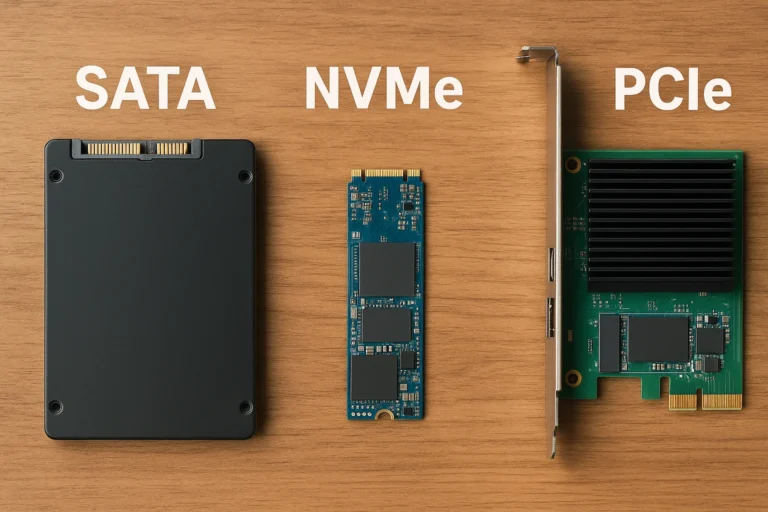
A solid-state drive, or SSD, makes a laptop start faster and load apps more quickly. Most new laptops use SSD storage.
A 256GB SSD can work for Zoom and office tasks. A 512GB SSD is a safer choice if you store photos, videos, downloads, and work files on the laptop.
6. A stable Wi-Fi connection
A strong laptop cannot fix a weak internet connection. Zoom recommends a broadband connection and publishes different bandwidth needs for video calls, group meetings, and high-quality video.
The actual speed you need depends on:
- One-to-one or group calls
- HD video
- Screen sharing
- Gallery view
- Other people using the same network
- Wi-Fi signal strength
If your calls freeze, test the network before replacing the laptop. A wired Ethernet connection or a closer Wi-Fi router may solve the problem.

The Best Laptops for Zoom Meetings
Best overall: MacBook Air with M4
The MacBook Air with the M4 chip is the best all-around choice for many US buyers.
It combines:
- A modern 12-megapixel webcam with Center Stage
- Built-in microphone technology for voice calls
- A quiet, fanless design
- Strong battery performance
- A bright display
- Enough power for Zoom and normal work
- Support for macOS versions that meet Zoom’s current requirements
The 13-inch model is easier to carry. The 15-inch model gives you more room for Zoom chat, a shared screen, notes, and other windows.
Choose the 13-inch model if you travel often or use an external monitor. Choose the 15-inch model if you work from home and want a larger built-in screen.
Best configuration: 16GB memory and 512GB storage.
Limitations: macOS cannot run every Windows-only business application. The laptop also has limited ports compared with some business Windows models. You may need a USB-C hub for HDMI, USB-A devices, or wired Ethernet.
Apple provides current technical specifications on its MacBook Air page. Zoom lists its supported operating systems and hardware needs on its system requirements page.
Best Windows option: Microsoft Surface Laptop 7th Edition
The Microsoft Surface Laptop 7th Edition is a strong Windows choice for Zoom meetings.
Its useful meeting features include:
- A 1080p front-facing camera
- Studio microphones
- Windows Hello support on supported configurations
- A sharp screen
- Long battery claims from Microsoft
- A thin design that works well for home and office use
It is a good match for people who use Microsoft 365, Windows security tools, OneDrive, Excel, or Windows-only work programs.
Some Surface Laptop 7 models use Qualcomm Snapdragon X processors. These chips use an ARM-based design. Most common apps work well, but some older programs, drivers, plug-ins, and business tools may need special support.
Before buying an ARM-based Windows laptop, check the apps you use for work. Ask your employer whether its VPN, security software, printer drivers, and meeting tools support Windows on ARM.
See Microsoft’s Surface Laptop specifications for current model details.
Best budget choice: A recent Windows laptop with 16GB RAM
You do not need a premium laptop for Zoom. A budget or midrange Windows laptop can work well if it has the right parts.
Look for:
- Intel Core i5 or Core Ultra 5
- AMD Ryzen 5
- 16GB of RAM
- A 512GB SSD
- A 1080p webcam, if possible
- Wi-Fi 6 or newer
- A USB-C port
- A headset jack
- A return policy
Avoid the cheapest laptops with 4GB of RAM, small eMMC storage, or very old processors. They may open Zoom, but they can feel slow when you share your screen or keep several apps open.
A budget laptop may also have a weaker camera and microphone. If the computer is otherwise good, a USB webcam or wired headset can improve the meeting more than a processor upgrade.
Best for demanding work: MacBook Pro or a premium Windows laptop
Buy a MacBook Pro or premium Windows laptop when Zoom is only one part of a heavy workload.
This class of laptop makes sense for people who:
- Edit 4K video
- Run virtual machines
- Work with large data sets
- Use several external displays
- Build software
- Record and edit meetings
- Run demanding design applications
For ordinary Zoom meetings, the extra power may not be noticeable. You pay more for sustained performance, ports, display quality, cooling, and professional software support.

MacBook or Windows Laptop for Zoom: Which Is Better?
Both platforms can run Zoom well. The better choice depends on your other software and devices.
Choose a MacBook when you want:
- A quiet laptop
- Long battery life
- A high-quality built-in camera
- Simple setup
- Strong integration with an iPhone
- A light laptop for travel
Choose Windows when you need:
- Windows-only programs
- Microsoft business tools
- Wider hardware choice
- More port options on some models
- Easier access to lower-cost laptops
- Specific company security or VPN software
Zoom supports both macOS and Windows. However, “Zoom works” does not mean every related tool works in the same way. Check your employer’s requirements for browser extensions, virtual camera software, meeting-room systems, VPN tools, and device management.
If you use an iPhone, a MacBook may make it easier to share files, messages, and calls across devices. That convenience should not outweigh a work requirement for Windows software.
How Much Should You Spend?
For Zoom alone, spending more does not always produce a better meeting.
A practical US buying range is:
- Under $500: Basic calls and school meetings, but inspect the webcam and memory closely.
- $500 to $900: Better displays, cameras, processors, and build quality.
- $900 to $1,500: Strong long-term choices for work and frequent meetings.
- More than $1,500: Useful for demanding work, premium displays, large storage, or specialized software.
Prices change by retailer, sale, storage size, memory, and model year. Compare the exact configuration, not just the laptop name.
A $700 laptop with 16GB of RAM and a 1080p camera may be a better Zoom purchase than a $1,200 laptop with 8GB of RAM and a basic 720p camera.
How to Set Up a Laptop for Better Zoom Calls
The best laptop still needs a good setup. Follow these steps before an important meeting.
1. Update the laptop and Zoom
Install operating system updates, driver updates, and the current Zoom app. Restart the laptop after major updates.
Do not wait until five minutes before a job interview or client call. Updates can change settings or require a restart.
2. Test the camera
Open Zoom’s settings and select Video. Check that:
- Your face is centered
- The camera shows your eyes clearly
- The image is not too dark
- The lens is clean
- The camera points at eye level
Raise the laptop on a stand or a few stable books if the camera looks up at you. Keep the setup secure and do not block vents.
3. Test the microphone
In Zoom’s audio settings, select the correct microphone. Record a short test.
Listen for:
- Echo
- Fan noise
- Low volume
- Crackling
- Background conversations
- Keyboard noise
A wired headset often solves echo and sound pickup problems at once.
4. Improve the light
Face a window or place a lamp behind the camera. Avoid a bright window directly behind your head.
Soft front light makes the image clearer. You do not need expensive studio gear. A small lamp near the screen can help.
5. Check your internet
Run a speed test near the place where you will take calls. Test at the same time of day when meetings usually occur.
If the connection drops:
- Move closer to the router.
- Pause large downloads and cloud backups.
- Ask other users to pause high-bandwidth activity.
- Restart the router if needed.
- Try Ethernet with a compatible adapter.
- Contact your internet provider if the problem continues.
6. Test screen sharing
Open the document or presentation before the meeting. In Zoom, confirm that you can share the correct window.
Sharing a single window can protect private information. It also reduces the chance of showing email, passwords, or unrelated files.

Common Buying Mistakes
Buying based only on processor speed
A fast processor does not improve a poor webcam. Check the full meeting system: camera, microphones, speakers, wireless connection, and screen.
Choosing 8GB of RAM for long-term work
8GB can be enough for light use. It gives you less room for Zoom, browsers, office apps, and background services at the same time.
Ignoring ports
Some thin laptops have only USB-C ports. That may be fine, but you could need an adapter for:
- A wired network
- HDMI
- USB-A accessories
- A presentation clicker
- An external webcam
- A wired headset
Forgetting privacy
A laptop camera can expose more than your face. Check the room behind you before joining a call.
Use Zoom’s background blur or a virtual background when suitable. A physical camera shutter can also help prevent accidental camera use.
Assuming a new laptop fixes every call problem
Meeting quality also depends on lighting, the Zoom version, network conditions, microphone placement, and the other people on the call.
If your current laptop has a recent processor, 16GB of RAM, an SSD, and a working camera, try improving the room and network before replacing it.

Frequently Asked Questions
Is 8GB RAM enough for Zoom?
Yes, 8GB can run ordinary Zoom calls. However, 16GB is a better choice if you use Zoom with many browser tabs, documents, screen sharing, recording, or other work apps.
Is a Chromebook good for Zoom meetings?
A Chromebook can work for basic Zoom meetings through supported web or app features. It may not support every desktop Zoom feature, business tool, plug-in, or security system. Check your required Zoom functions and employer software before buying one.
Do I need a 4K webcam for Zoom?
No. A 1080p webcam is enough for most Zoom calls. Room lighting, camera position, and microphone quality often have a larger effect on the meeting than moving from 1080p to 4K.
Can I use an external webcam with a laptop?
Yes. A USB webcam can improve image quality when the built-in camera is weak. Place it near eye level and check that Zoom selected the external camera rather than the built-in one.
Does Zoom use a lot of battery?
Video meetings use more power than simple writing or web browsing. Charge the laptop before long calls, keep the charger nearby, and close apps you do not need. Battery life varies with brightness, camera use, network strength, and computer model.
What internet speed is best for Zoom?
Use a stable broadband connection that meets Zoom’s current guidance for your meeting type. A group HD call needs more capacity than a one-to-one audio call. Stability and low congestion matter as much as the advertised download speed.
Is a MacBook Air good for business Zoom meetings?
Yes, if your business tools support macOS. The MacBook Air offers a strong built-in camera, microphones, battery life, and enough performance for most meetings. Confirm that your company’s VPN, security software, printers, and other tools support macOS.
Final Recommendation
The MacBook Air M4 with 16GB of memory and 512GB of storage is the best laptop for Zoom meetings for many US buyers. It balances camera quality, microphones, battery life, portability, and everyday speed.
Choose the Microsoft Surface Laptop 7th Edition if you need Windows or Microsoft business software. Choose a recent midrange Windows laptop if your budget is limited, but prioritize 16GB of RAM, an SSD, and a 1080p webcam.
Before you buy, check three things: the software your work requires, the laptop’s exact camera and memory configuration, and the return policy. Then test the camera, microphone, lighting, and Wi-Fi before your first important call.

Everett Ashford is a tech reviewer at mytechgrid.com specializing in SSDs, cameras, TVs, earbuds, headphones, and other consumer electronics. He provides honest, data-driven reviews based on hands-on testing and real-world performance analysis. Everett simplifies complex tech details to help readers make smart, confident buying decisions.