Introduction
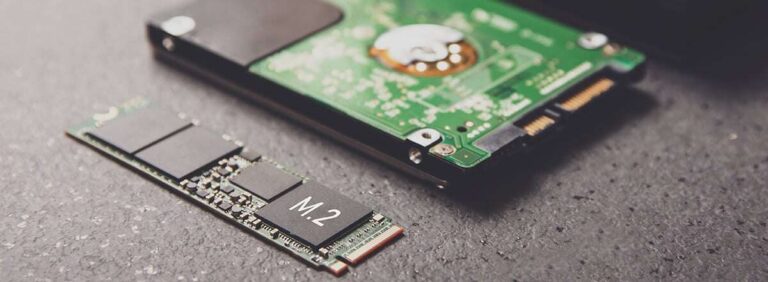
For people upgrading a Windows PC, laptop, or gaming system in the United States, the main difference is simple: a SATA SSD uses the SATA connection, while a PCIe SSD uses PCI Express. PCIe SSDs, usually paired with the NVMe protocol, can move much more data and respond faster than SATA SSDs.
That does not mean every PCIe SSD is the right choice. Your computer must support the drive, your workload must benefit from the extra speed, and the price and heat level must fit your system. For basic web use, office work, and many games, a SATA SSD can still feel fast.
This guide explains how SATA and PCIe SSDs work, how much faster PCIe can be, which drive fits your computer, and what to check before you buy.
PCIe SSD vs. SATA SSD: The Short Answer
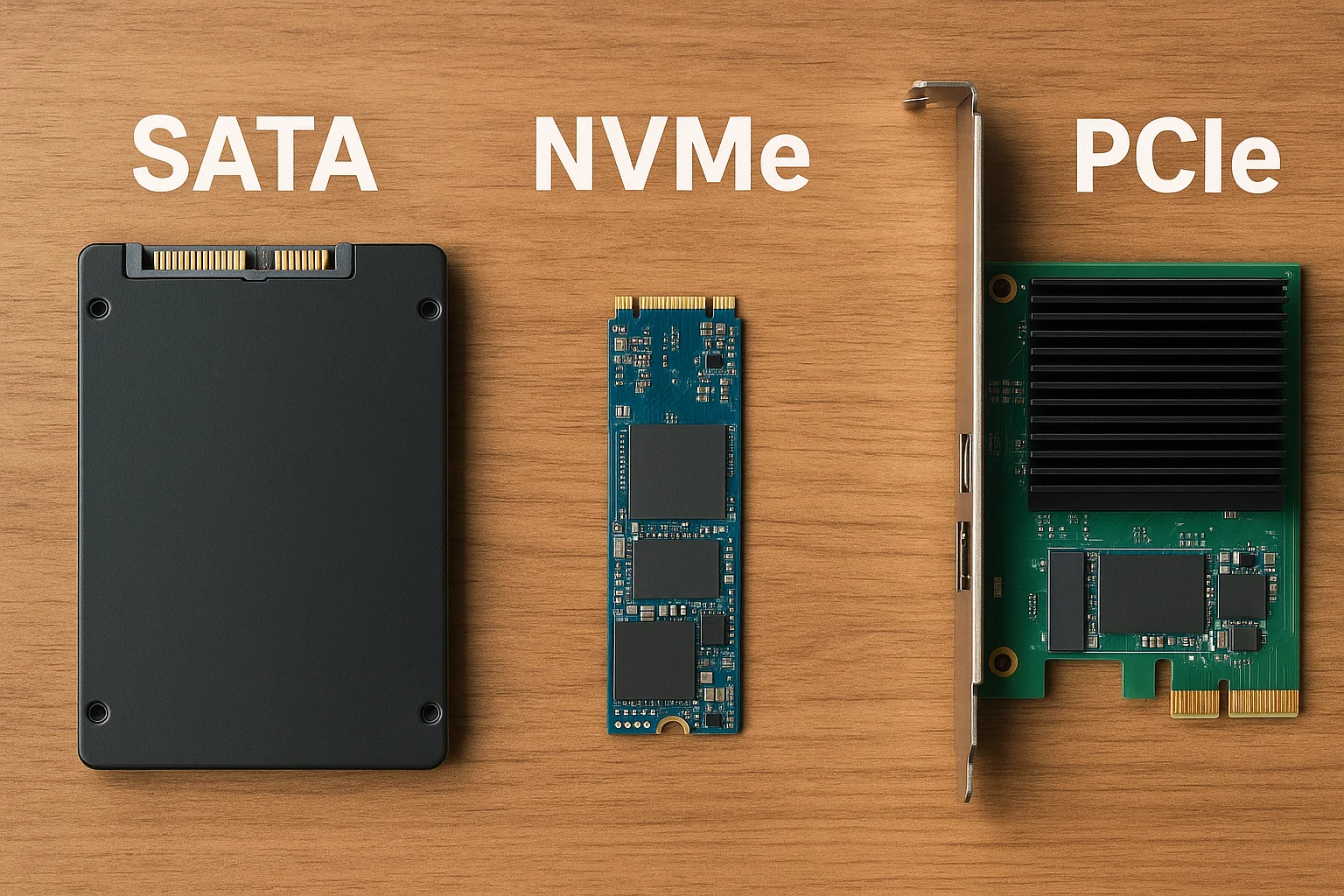
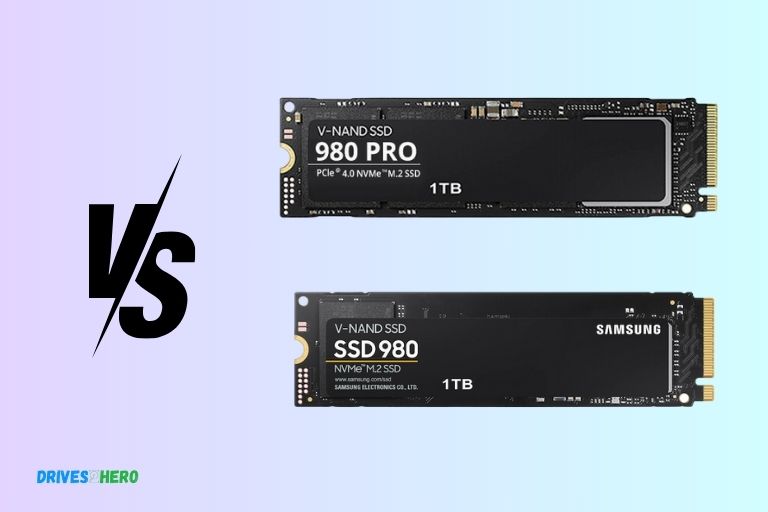
A SATA SSD connects through the Serial ATA interface. Most SATA SSDs use the SATA III standard, which has a link speed of 6 gigabits per second (Gbps). In real use, SATA SSDs often reach about 500 to 560 megabytes per second (MB/s) for sequential reads and writes.
A PCIe SSD connects through PCI Express lanes on the motherboard. Most modern PCIe SSDs use NVMe, a storage protocol built for flash memory and high-speed PCIe connections. Depending on the PCIe generation and lane count, a PCIe SSD may deliver several gigabytes per second.
| Feature | SATA SSD | PCIe SSD |
|---|---|---|
| Main connection | SATA | PCI Express |
| Common protocol | AHCI | NVMe |
| Common form factors | 2.5-inch, M.2 SATA | M.2, add-in card |
| Typical sequential speed | About 500–560 MB/s | About 2,000–14,000+ MB/s, depending on model |
| Latency | Low | Usually lower |
| Power and heat | Usually lower | Can be higher |
| Compatibility | Broad in older systems | Depends on motherboard and slot |
| Best fit | General upgrades and older PCs | New systems, heavy workloads, large file transfers |
The biggest practical difference is the connection between the SSD and the computer. A SATA SSD is limited by the SATA interface. A PCIe SSD has a much wider and faster path.
What Is a SATA SSD?
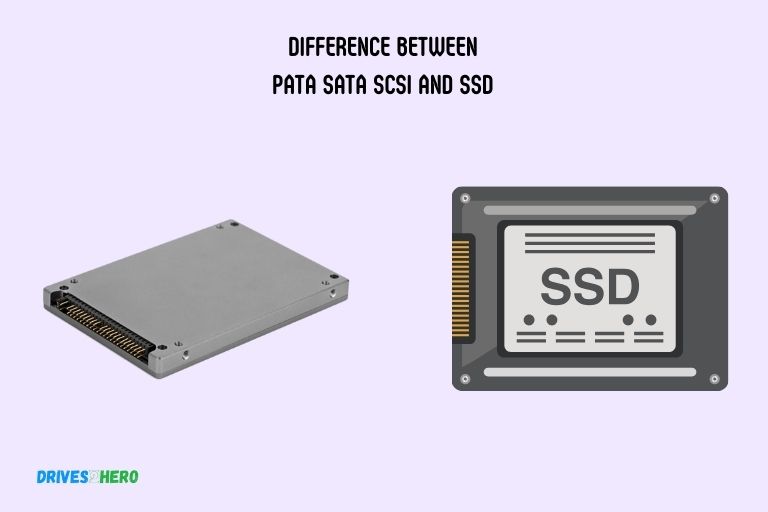
A SATA SSD is a solid-state drive that uses the SATA interface to communicate with a computer. SATA was first designed for hard disk drives, but it also became a common interface for flash-based SSDs.
Most SATA SSDs use SATA III, also called SATA 6Gb/s. The 6Gb/s figure describes the link rate, not the amount of user data you will see in a file transfer. After encoding and protocol overhead, practical speeds are much lower.
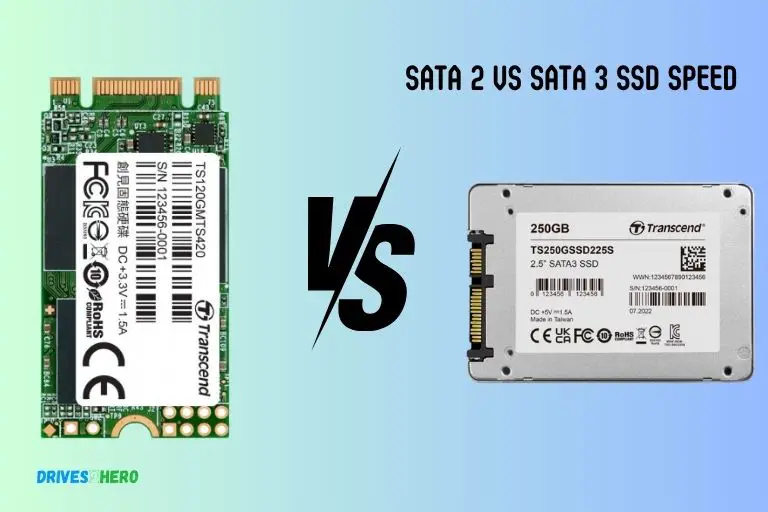
SATA SSDs commonly appear in two forms:
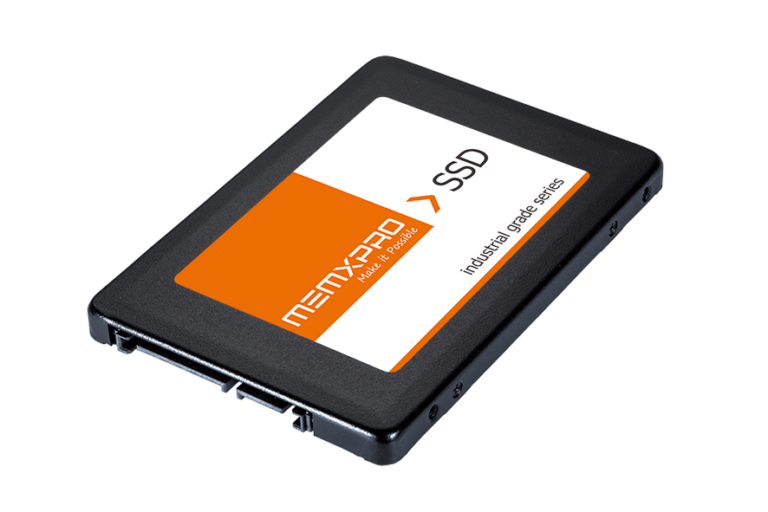
- 2.5-inch SATA SSDs: These use a small rectangular drive case and connect with a SATA data cable and a SATA power cable.
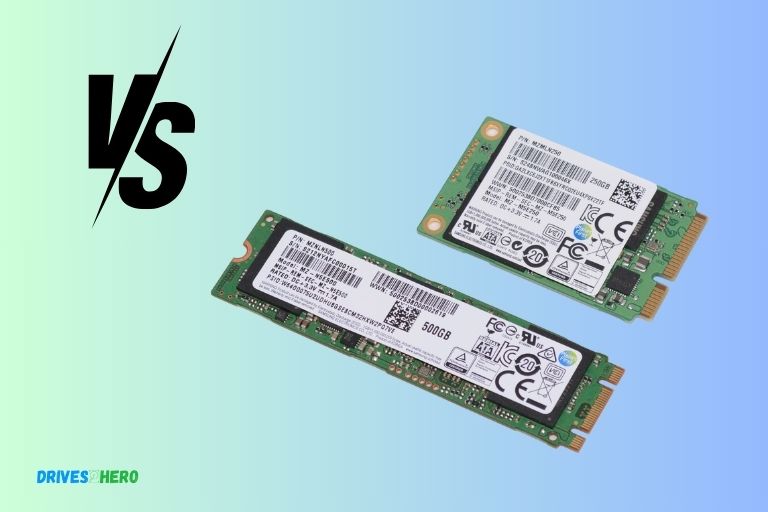
- M.2 SATA SSDs: These are slim circuit boards that fit into some M.2 slots. They still use SATA, even though they look like PCIe NVMe drives.
A SATA SSD is much faster and more responsive than a mechanical hard disk drive. It has no spinning platters or moving read heads. That means faster boot times, quicker application launches, and better resistance to movement than a hard drive.
However, SATA remains the limit. Installing a faster flash chip inside a SATA SSD does not allow it to exceed the practical limit of the SATA connection.
SATA SSD strengths
A SATA SSD may be a good fit when you need:
- A low-cost upgrade from a hard drive
- Compatibility with an older desktop or laptop
- A 2.5-inch drive for a system with a SATA bay
- Lower heat and modest power use
- Simple storage for documents, photos, games, or office work
SATA SSDs also work well as secondary storage. If your computer has an open SATA port and drive bay, adding one may be easier than replacing the motherboard.

What Is a PCIe SSD?
A PCIe SSD uses the computer’s PCI Express bus. PCIe is the same general expansion system used by graphics cards and other high-speed devices.
Most current PCIe SSDs use NVMe, which stands for Non-Volatile Memory Express. NVMe was designed for solid-state storage. It supports many command queues and commands, which helps the drive handle multiple operations with less delay than older storage protocols.
A PCIe SSD can connect in several ways:
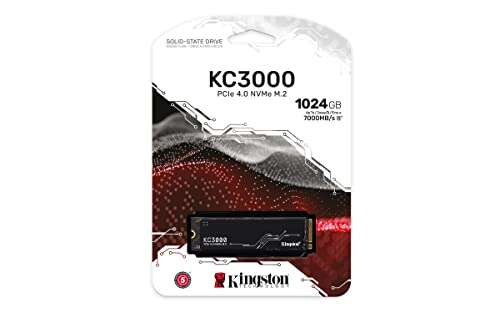
- M.2 slot: This is the most common format for consumer NVMe SSDs.
- PCIe add-in card: The SSD is installed in an expansion slot, often in a desktop PC.
- U.2 or other cable-based formats: These are more common in workstations and servers.
The term “PCIe SSD” describes the connection. The term “NVMe SSD” describes the storage protocol. Most consumer drives use both, so people often use the terms as if they mean the same thing. Technically, they are not identical.
A PCIe SSD can use one or more PCIe lanes. Consumer M.2 NVMe drives usually use four lanes, written as PCIe x4. More lanes and newer PCIe generations provide more bandwidth, although the drive and computer must support the same features.

PCIe Generations and SSD Speed
PCIe speed depends on the generation and lane count. Each new generation increases the data rate per lane.
| PCIe generation | Transfer rate per lane | Approximate x4 link bandwidth before overhead |
|---|---|---|
| PCIe 3.0 | 8 GT/s | About 3.94 GB/s |
| PCIe 4.0 | 16 GT/s | About 7.88 GB/s |
| PCIe 5.0 | 32 GT/s | About 15.75 GB/s |
| PCIe 6.0 | 64 GT/s | Higher, but not common in consumer SSDs |
GT/s means gigatransfers per second. It is not exactly the same as gigabytes per second. Encoding, protocol traffic, and other overhead reduce the usable figure.
Drive labels often show much lower or higher numbers than this theoretical bandwidth. For example:
- A PCIe 3.0 NVMe SSD may read at about 3,000 to 3,500 MB/s.
- A PCIe 4.0 NVMe SSD may read at about 5,000 to 7,400 MB/s.
- A PCIe 5.0 NVMe SSD may reach roughly 10,000 MB/s or more on supported hardware.
These are broad examples, not guarantees. Exact performance depends on the SSD controller, NAND type, firmware, cooling, workload, drive capacity, and whether the drive is full.
A PCIe 4.0 SSD installed in a PCIe 3.0 system usually operates at PCIe 3.0 speeds. A PCIe 5.0 SSD in a PCIe 4.0 slot generally falls back to the older generation. PCIe is designed to be backward compatible, but the slower component sets the limit.

PCIe vs. SATA SSD Performance
PCIe SSDs are faster in both bandwidth and, in many cases, latency. The difference is largest during large file transfers, video work, software development, data analysis, virtual machines, and other tasks that create many storage requests.
Sequential performance
Sequential performance measures large, orderly reads or writes. It matters when you:
- Copy large video files
- Move disk images
- Load large project files
- Work with high-resolution media
- Back up a large drive
A SATA SSD normally reaches the practical limit of the SATA interface at around 500 to 560 MB/s. A PCIe NVMe drive may reach several thousand MB/s.
Random performance and latency
Random performance measures small reads and writes scattered across the drive. This often matters more for starting programs, loading system files, and handling many small tasks.
NVMe can reduce storage delay because it was designed for flash memory and can manage many command queues. Still, the visible difference is not always as large as the specification sheet suggests. A computer also spends time on the CPU, memory, software, security checks, and application startup process.
Everyday use
For web browsing, email, office software, and light photo work, both SSD types usually feel fast. Moving from a hard drive to any SSD often creates the biggest improvement.
The jump from SATA to PCIe is more noticeable when the task can use high storage bandwidth. A large video export may benefit. Opening a small document may not.
Gaming
A PCIe NVMe SSD may reduce some game load times, but the difference varies by game and computer. Many games do not read data fast enough for a SATA SSD to become the main limit.
Newer game technologies can make faster storage more useful. Even then, the graphics card, processor, game engine, memory, and level design also affect loading. Do not assume that a PCIe SSD will double frame rates. Storage speed normally affects loading and asset streaming, not the core rendering rate.

Form Factor vs. Interface: Why M.2 Causes Confusion
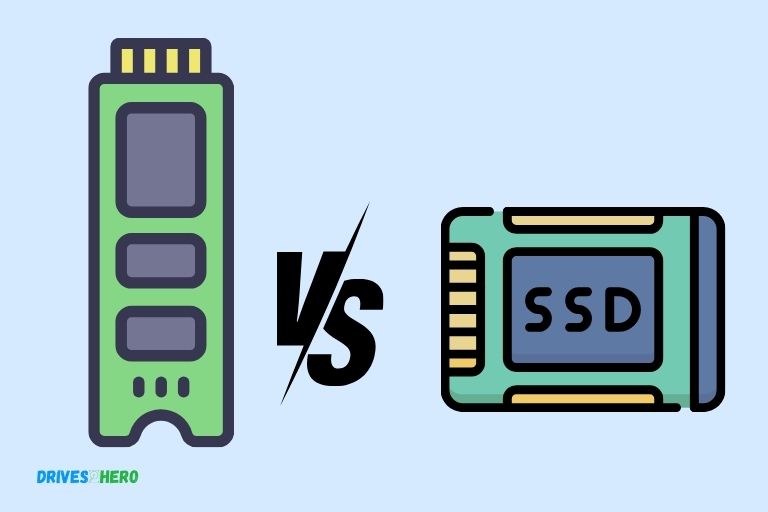
M.2 describes the shape and connector style, not the speed.
An M.2 drive can use:
- SATA
- PCIe with NVMe
- In some cases, other supported device types
Two M.2 drives can look almost identical but work in different slots. A motherboard may have an M.2 slot that supports only SATA, only PCIe, or both. The motherboard manual is the safest source.
The key notch pattern can offer a clue, but it is not enough for every system. A drive may fit physically and still fail to work if the slot does not support its interface.
For example, an M.2 SATA SSD placed in an NVMe-only slot may not be detected. An NVMe SSD placed in a SATA-only M.2 slot may also fail to work.
Before buying an M.2 SSD, check these specifications:
- The slot supports M.2 storage.
- The slot supports SATA, PCIe, or both.
- The slot supports the drive’s key type.
- The slot supports the drive’s physical length, such as 2280.
- The slot shares bandwidth with another port or device.
- The system firmware supports booting from that type of drive.
The number in M.2 2280 refers to size: 22 millimeters wide and 80 millimeters long. It does not identify whether the drive is SATA or NVMe.
Compatibility: Which SSD Will Work in Your Computer?
Compatibility should come before speed. A fast PCIe SSD is not useful if your computer cannot detect it or boot from it.
For a desktop PC
Check the motherboard manual or manufacturer support page for:
- Available M.2 slots
- Supported SATA and PCIe modes
- Supported PCIe generation
- Supported M.2 lengths
- CPU or chipset lane limits
- Shared ports
- Boot support
- Required heatsinks or covers
A desktop may also accept a 2.5-inch SATA SSD through an available SATA data port. You may need a mounting bracket if the case does not include a 2.5-inch bay.
For a laptop
Laptop upgrades are more restricted. Check the exact model number, not just the product family. Look for:
- The existing drive type
- M.2 SATA or M.2 NVMe support
- Drive length
- Single-sided or double-sided drive limits
- Maximum supported capacity
- Manufacturer repair instructions
- Whether the drive is replaceable at all
Some thin laptops use soldered storage. Others accept only one specific M.2 type.
For an older computer
A 2.5-inch SATA SSD is often the safer choice for an older computer. If the system has an M.2 slot, confirm its mode before buying. An older motherboard may support an M.2 SATA drive but not boot from an NVMe drive.
If the computer supports only SATA, a PCIe NVMe adapter may not solve the problem. A physical adapter can provide a connector, but it cannot always add firmware support or the correct data path.

Which Is Better: PCIe or SATA SSD?
PCIe is better for maximum speed. SATA is often better for broad compatibility, lower cost, and simple upgrades.
Choose a PCIe NVMe SSD when:
- Your computer supports NVMe
- You regularly move large files
- You edit video or large photo projects
- You run virtual machines
- You compile large software projects
- You want a fast primary drive in a modern PC
- The price difference is reasonable
Choose a SATA SSD when:
- Your computer has only SATA support
- You need a 2.5-inch replacement drive
- You are upgrading from a hard drive
- You need inexpensive secondary storage
- Your workload is light
- Lower heat or power use matters
- The computer cannot boot from NVMe
For many users, capacity and reliability matter more than peak benchmark speed. A larger SATA SSD may be more useful than a small PCIe SSD that fills quickly.
A simple buying rule
Use this order:
- Confirm compatibility.
- Choose the capacity you need.
- Compare endurance, warranty, and price.
- Consider speed for your actual workload.
- Check heat and cooling.
Do not pay for PCIe 5.0 performance if your system supports only PCIe 3.0. Do not choose a small drive only because its sequential read number is higher.
Power, Heat, and SSD Endurance
PCIe SSDs can use more power than SATA SSDs, especially during sustained transfers. Some high-speed NVMe drives also produce more heat.
When an SSD becomes too warm, its controller may reduce speed. This process is called thermal throttling. A motherboard heatsink, laptop heat spreader, or suitable airflow may help, but the right solution depends on the system.
SATA SSDs often produce less heat because the SATA interface limits their maximum transfer rate. That can make them easier to cool in a small laptop or compact desktop.
Endurance is another factor. SSD endurance is often listed as TBW, or terabytes written. TBW is an estimate of how much data a drive can write under the manufacturer’s test conditions. It is not a promise that the drive will fail immediately after that amount.
For normal home and office use, most modern SSDs can last for many years. Heavy write workloads, poor cooling, power loss, and low free space can change the result. Keep backups of important files regardless of whether the drive is SATA or PCIe.
Common Mistakes to Avoid
Mistake 1: Assuming every M.2 SSD is NVMe
M.2 is a form factor. Read the product specifications for the interface and protocol.
Mistake 2: Comparing 6 Gbps with 7,000 MB/s directly
Gbps and MB/s use different units. Also, SATA’s 6Gb/s link rate includes overhead. Compare real drive specifications under similar test conditions.
Mistake 3: Ignoring the motherboard manual
A drive can fit into a slot and still be unsupported. Confirm the slot’s mode and boot capability.
Mistake 4: Expecting faster storage to improve every task
PCIe helps most when the workload moves enough data to use the extra bandwidth. It may have little effect on simple web browsing or small office files.
Mistake 5: Filling the SSD completely
An SSD often needs free space for background management, caching, and wear leveling. Performance may decline when a drive is nearly full. Keep a reasonable amount of free space, based on the drive maker’s guidance.
Mistake 6: Treating benchmark results as daily experience
Benchmarks use specific file sizes, queue depths, and test settings. A high sequential read score does not guarantee a matching improvement in every application.
How to Check Your Current SSD Type
You can identify the installed drive in several ways.
In Windows
- Open Settings.
- Select System.
- Choose Storage.
- Open Disks & volumes or the related advanced storage details.
- Check the drive model.
- Search the model on the manufacturer’s support page.
You can also open Device Manager, expand Disk drives, and copy the model name. The model number usually reveals whether the drive is SATA or NVMe.
In a desktop PC
Turn off the computer and disconnect power before opening the case. Do not touch components unnecessarily. A 2.5-inch drive with two cables is usually SATA. A small stick mounted directly to the motherboard may be M.2, but you still need the model or motherboard manual to confirm its interface.
In a laptop
Do not open the laptop unless you are comfortable with the manufacturer’s instructions. Some laptops contain delicate clips, hidden screws, or batteries that should be disconnected before drive work.
Before replacing the boot drive, create a backup and confirm that you have a way to reinstall or clone the operating system.

Frequently Asked Questions
Is PCIe SSD the same as NVMe SSD?
No. PCIe describes the connection, while NVMe describes the storage protocol. Most modern consumer NVMe drives use PCIe, so the terms are closely linked in product listings.
Is a SATA SSD still worth buying?
Yes. A SATA SSD remains useful for older computers, 2.5-inch drive bays, inexpensive storage, and many everyday tasks. It is also a major upgrade over a mechanical hard drive.
Can I put an NVMe SSD in a SATA M.2 slot?
Usually, no. The drive may fit physically but will not work if the slot lacks PCIe support. Check the motherboard or laptop manual before buying.
Is PCIe 4.0 faster than PCIe 3.0?
Yes, when the SSD and computer both support it. PCIe 4.0 provides about twice the per-lane transfer rate of PCIe 3.0. Real performance still depends on the SSD and workload.
Does a PCIe SSD make games run at higher FPS?
Usually, no. A PCIe SSD can reduce some loading times and may help asset streaming in supported games. Frame rates mainly depend on the graphics processor, processor, memory, game settings, and software.
Does an M.2 SSD need a heatsink?
Not always. Many PCIe NVMe SSDs work without an added heatsink in light use. A heatsink may help during long transfers, but it must fit the drive and motherboard correctly. Follow the motherboard and SSD manufacturer’s instructions.
Conclusion
The difference between PCIe and SATA SSDs is mainly the connection used to transfer data. SATA SSDs are limited to roughly the performance of the SATA III interface, while PCIe SSDs—usually using NVMe—can deliver much higher bandwidth and lower storage latency.
For a modern desktop or laptop that supports NVMe, a PCIe SSD is usually the stronger performance choice. For an older computer, a 2.5-inch upgrade, or a system with limited M.2 support, SATA may be the safer and more practical option.
Before you buy, check the exact computer model, confirm the supported interface, choose enough capacity, and consider heat and workload. The best SSD is not simply the one with the highest benchmark number. It is the one your computer supports and your work can actually use.
Sources for technical verification
- Serial ATA International Organization
- PCI-SIG PCI Express specifications
- NVM Express specifications
- Microsoft support for storage and Windows device information

Everett Ashford is a tech reviewer at mytechgrid.com specializing in SSDs, cameras, TVs, earbuds, headphones, and other consumer electronics. He provides honest, data-driven reviews based on hands-on testing and real-world performance analysis. Everett simplifies complex tech details to help readers make smart, confident buying decisions.