Introduction
For a typical PC in the United States, an NVMe SSD can be about 4 to 14 times faster than a SATA SSD in sequential speed. A SATA SSD usually reaches about 500–550 MB/s, while NVMe drives may reach 3,000–14,000 MB/s, depending on the PCIe generation.
That headline number does not describe every task. In Windows, an NVMe drive may make large file transfers much faster, but game loading, app startup, and everyday use often feel only modestly faster because the CPU, software, memory, and network can become the new limits.
Short answer: NVMe is much faster on paper and in heavy storage work. A SATA SSD is still fast enough for many everyday computers.


NVMe vs. SSD: What Is the Difference?
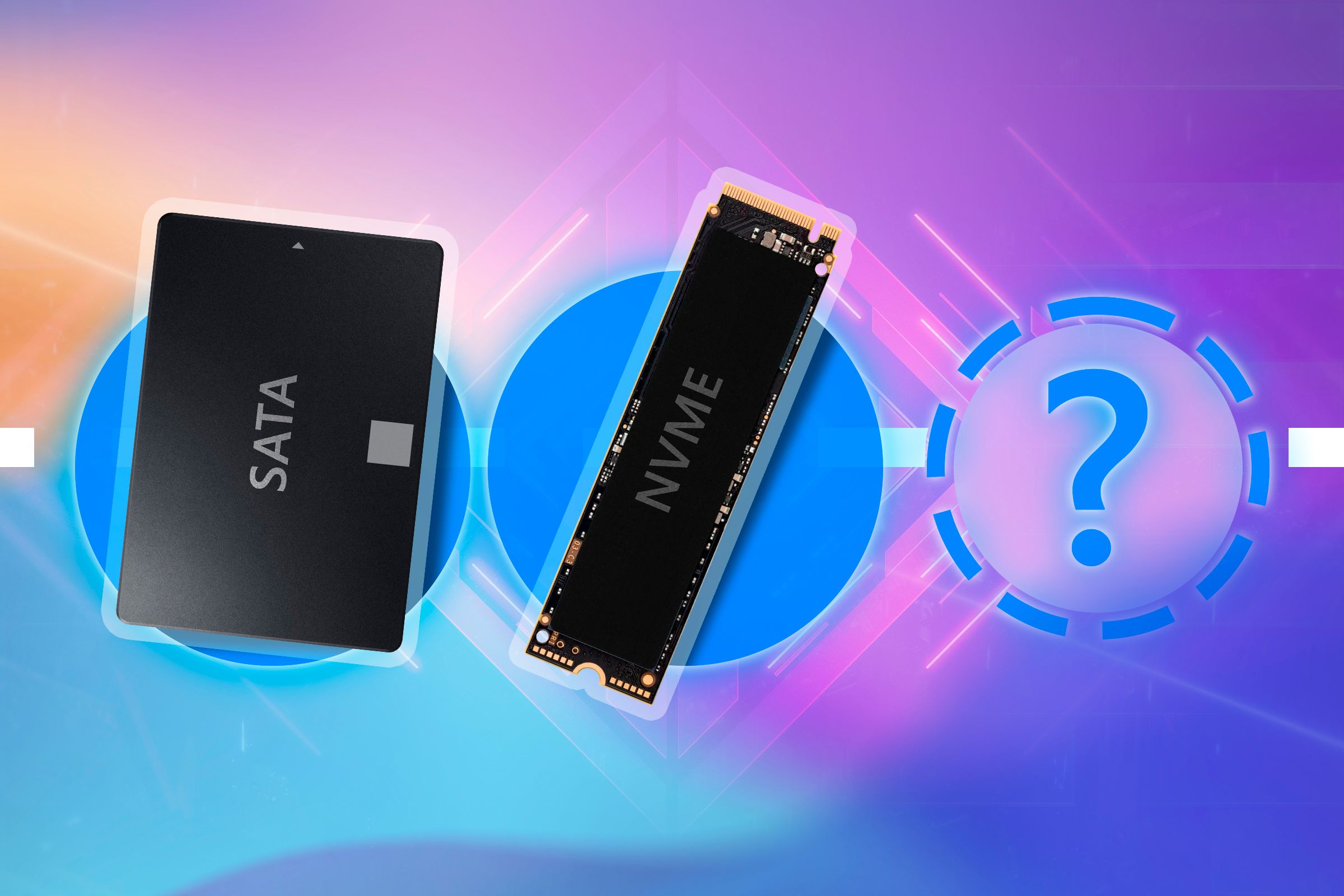
NVMe and SSD are not direct opposites. SSD describes the storage device. NVMe describes the communication protocol used by many modern SSDs.
The two common types are:
- SATA SSD: Uses the older SATA interface and usually the AHCI protocol.
- NVMe SSD: Uses the PCIe interface and the NVMe protocol.
Both store data on NAND flash memory. Neither uses a spinning disk. The main difference is how the drive connects to the computer and how efficiently it handles many storage requests.
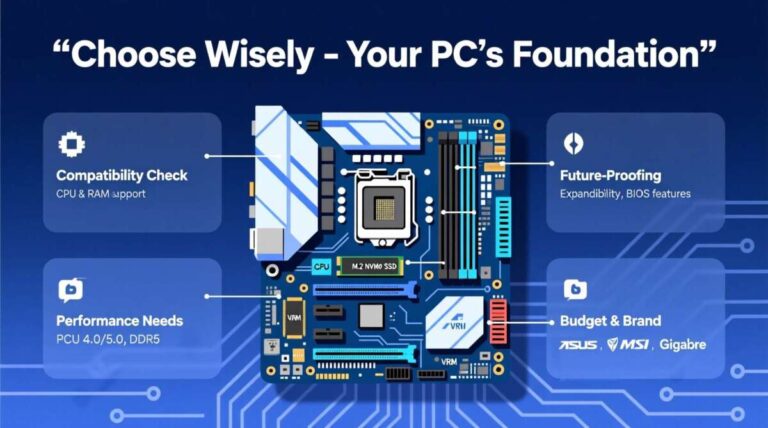
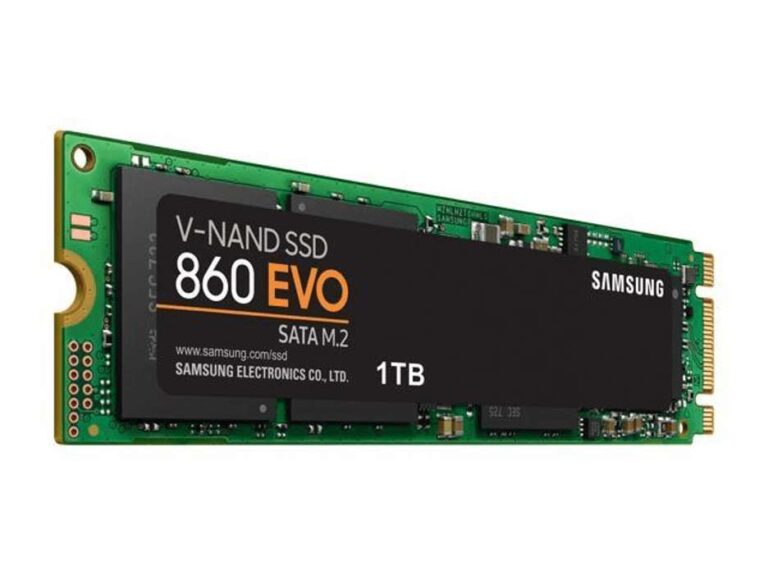
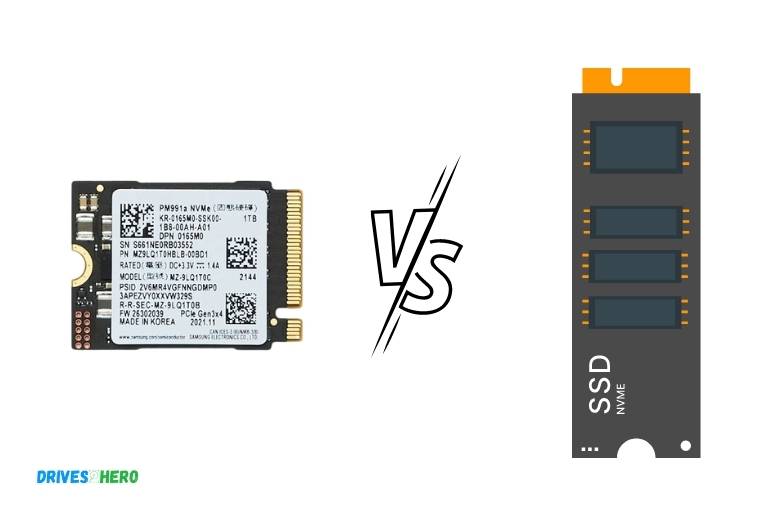
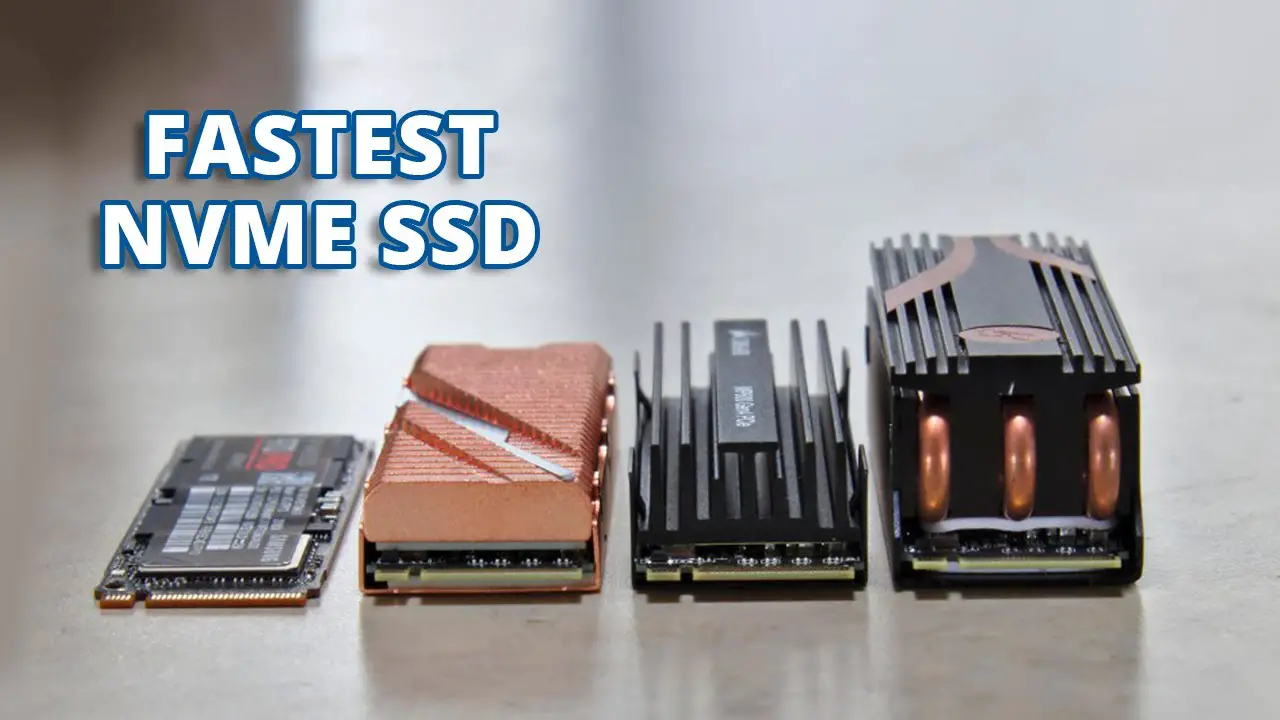
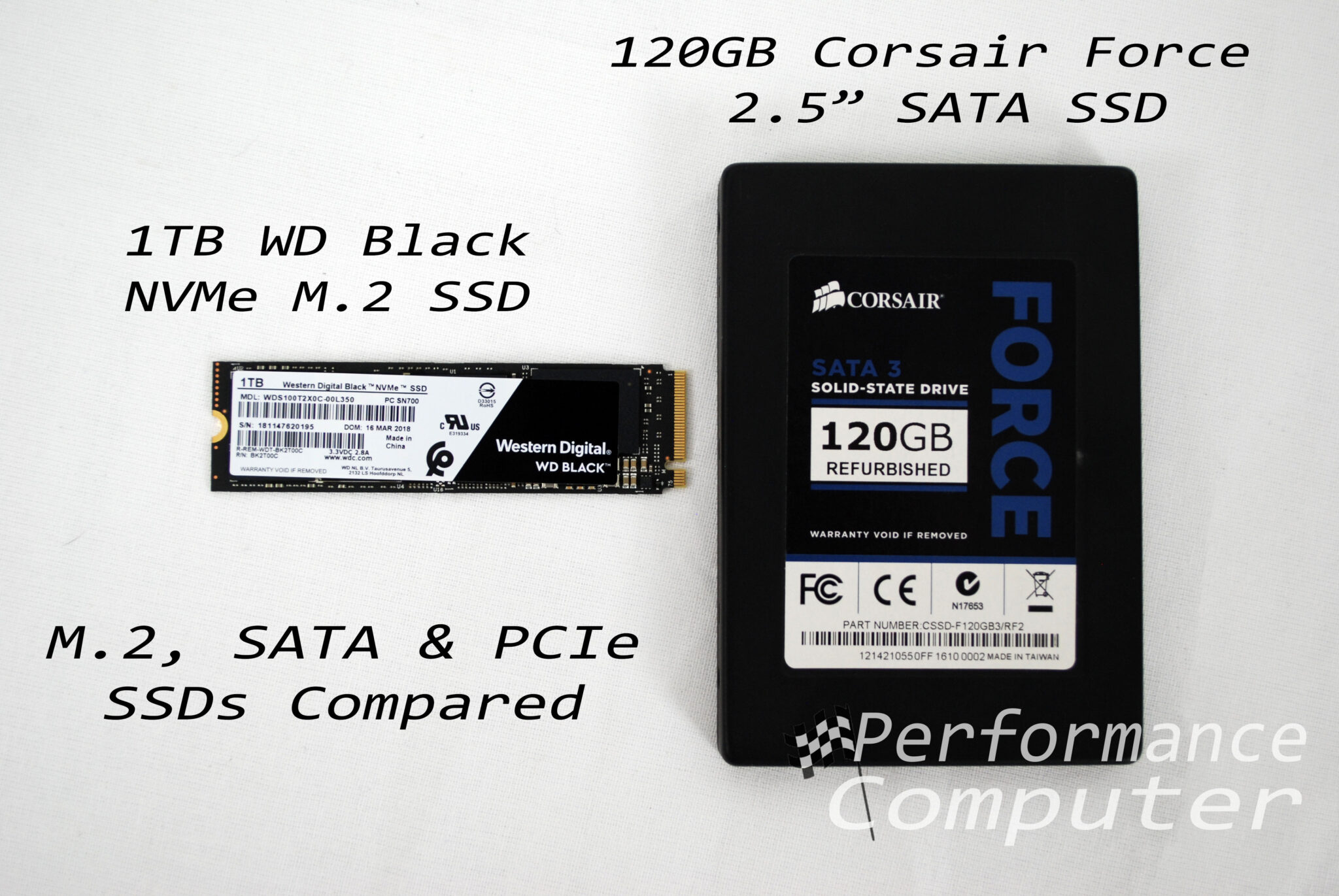
A SATA SSD often uses a 2.5-inch case and connects with a SATA data cable. An NVMe SSD commonly uses a small M.2 card that plugs into a motherboard slot. However, M.2 describes the shape, not the speed. Some M.2 drives use SATA, while others use NVMe.
The role of PCIe
NVMe drives use PCIe lanes to move data. Newer PCIe versions provide more bandwidth:
| Drive type | Typical interface | Approximate sequential read speed |
|---|---|---|
| SATA SSD | SATA III | 500–550 MB/s |
| PCIe 3.0 NVMe | PCIe 3.0 x4 | 2,000–3,500 MB/s |
| PCIe 4.0 NVMe | PCIe 4.0 x4 | 5,000–7,500 MB/s |
| PCIe 5.0 NVMe | PCIe 5.0 x4 | 10,000–14,000+ MB/s |
These are common manufacturer-rated ranges, not guaranteed results for every computer. The exact speed depends on the drive model, motherboard, cooling, workload, free space, and firmware.


For documented interface limits, see the SATA-IO specifications and the PCI-SIG PCIe specifications.

How Much Faster Is NVMe in Real Numbers?
A PCIe 3.0 NVMe drive is commonly five to seven times faster than a SATA SSD for sequential reads. A PCIe 4.0 model may be nine to fourteen times faster, while a high-end PCIe 5.0 drive can exceed that comparison.
Here is a simple example:
- SATA SSD: 550 MB/s
- PCIe 3.0 NVMe: 3,500 MB/s
- PCIe 4.0 NVMe: 7,000 MB/s
Using the rated speeds:
- 3,500 ÷ 550 = 6.4 times faster
- 7,000 ÷ 550 = 12.7 times faster
These figures describe sequential transfers, such as copying one large video file. They do not mean Windows will boot 12 times faster.
Example: copying a large file
A hypothetical 100 GB file would take roughly:
| Drive | Rated speed used in example | Theoretical transfer time |
|---|---|---|
| SATA SSD | 550 MB/s | About 3 minutes |
| PCIe 3.0 NVMe | 3,500 MB/s | About 29 seconds |
| PCIe 4.0 NVMe | 7,000 MB/s | About 14 seconds |
actual times will be longer. File-system overhead, source-drive speed, thermal throttling, controller limits, and background activity all matter. If the source drive can only read at 500 MB/s, a faster destination drive cannot receive data faster than the source can provide it.

Sequential Speed vs. Random Speed
Sequential speed matters when the computer reads or writes large blocks of data in order. Random speed matters when it handles many small files in different locations.
Sequential performance
Sequential performance affects tasks such as:
- Copying large video files
- Moving virtual machines
- Loading large project files
- Creating disk images
- Editing high-bitrate video
- Installing large games
- Running some professional data workloads
NVMe has a clear advantage in these tasks because PCIe offers far more bandwidth than SATA.
Random performance and latency
Random performance affects tasks such as:
- Opening many small files
- Starting applications
- Loading parts of an operating system
- Running databases
- Compiling software
- Handling many virtual machine requests
NVMe can also provide lower latency and higher input/output operations per second, commonly called IOPS. That advantage is real, but it is less dramatic during light desktop use. A modern SATA SSD already responds much faster than a hard disk drive.
This creates an important practical rule:


NVMe is dramatically faster than SATA when the workload can use its bandwidth. It is often only moderately faster when the workload consists of short, light requests.
How Much Faster Is NVMe for Everyday Use?
For common desktop tasks, NVMe usually feels somewhat faster, not many times faster.
You may notice a difference when:
- Opening very large applications
- Working with large photo or video libraries
- Installing or moving large games
- Extracting large compressed archives
- Running several demanding programs at once
- Using virtual machines or development tools
You may notice little difference when:
- Browsing the web
- Reading email
- Editing documents
- Streaming video
- Playing most games
- Starting small applications
A computer does not spend all of its time transferring data at maximum drive speed. Startup tasks may wait on the CPU, security software, memory, device checks, or network services.
Boot time
An NVMe drive can reduce boot time, but the difference is often measured in seconds rather than a dramatic multiple. Modern Windows systems may also use fast startup, which changes how boot performance behaves.
The full boot process includes:
- Firmware initialization
- Hardware checks
- Windows loading
- Driver startup
- Login services
- Background applications
Only part of that process depends on storage speed. Replacing a hard drive with any SSD usually creates a major improvement. Replacing a good SATA SSD with NVMe is a smaller upgrade.
Application startup
Large applications may open faster from NVMe, especially when they read many files. Small applications often open nearly as quickly from SATA because the storage request is brief.
CPU speed, memory capacity, antivirus scanning, and application design can have as much impact as the SSD interface.
Is NVMe Faster for Gaming?
NVMe can reduce some game installation, update, and loading times, but it does not automatically increase frame rates.
Frame rate depends mainly on the graphics card, processor, game engine, memory, and settings. Storage affects how quickly the game can load its data, not how many frames the graphics card renders once the game is running.
The difference between NVMe and SATA SSDs in game loading varies by title. Some games load only slightly faster from NVMe. Others use large asset files and may benefit more. Newer game technologies, including Microsoft DirectStorage, are designed to improve the way games stream assets from fast storage, but support depends on the game, Windows version, hardware, and implementation.


Microsoft describes DirectStorage through its official developer documentation. The technology does not make every game use the full speed of an NVMe drive.
Gaming recommendation
Choose NVMe when:
- You are building a new gaming PC
- The price is close to a SATA SSD
- You install large games often
- You want a newer platform for future software
A SATA SSD remains a sensible choice when:
- You already own one
- Your budget is tight
- You mainly play games that are already installed
- Your system lacks a suitable NVMe slot
Is NVMe Worth It for Video Editing and Large Files?
NVMe is often worth the extra cost for large-file work, but the rest of the system must keep up.
Video editors may benefit from NVMe when they:
- Import large media files
- Create proxy files
- Scrub high-resolution footage
- Render previews
- Move projects between drives
- Use multiple streams of high-bitrate video
The best setup may use more than one drive:
- A fast NVMe drive for active projects and cache files
- A larger SSD or hard drive for stored footage
- A separate backup drive for protection against drive failure
A single NVMe drive will not solve every editing bottleneck. The video codec, processor, graphics card, RAM, editing software, and source media can limit performance.
For large file transfers, the slowest device in the chain sets the practical limit. An NVMe drive cannot deliver its full write speed if the source is a slow external disk or an older SATA drive.

Does NVMe Use More Power or Run Hotter?
Some NVMe drives use more power and produce more heat than SATA SSDs, especially high-end PCIe 4.0 and PCIe 5.0 models.
Heat can cause thermal throttling, which lowers drive speed to protect the controller and memory. A drive that reaches a high benchmark score for a short burst may run much slower during a long transfer if it lacks adequate cooling.
Before installing an NVMe drive, check:
- Whether the motherboard includes an M.2 heatsink
- Which PCIe generation the slot supports
- Whether the slot shares lanes with another device
- Whether the drive fits under the graphics card
- Whether the computer maker lists NVMe support
- Whether the laptop requires a specific M.2 size
Laptop users should also consider battery use and cooling. A SATA SSD may be slower but can use less power in some systems.
Do not remove a heatsink or alter a drive while it is powered. Shut down the computer, disconnect power, and follow the motherboard or laptop service guide.


Will NVMe Work in Your Computer?
NVMe works only when the computer supports an NVMe-compatible PCIe slot or adapter.
Check these items before buying:
- M.2 slot support: Confirm that the slot supports PCIe NVMe, not SATA-only storage.
- Physical size: Common sizes include 2280, meaning 22 millimeters wide and 80 millimeters long.
- PCIe generation: A PCIe 4.0 drive can usually operate in a PCIe 3.0 slot, but it will run at the older slot’s speed.
- Boot support: Older motherboards may store data on an NVMe drive but may not boot from it without a firmware update.
- Lane sharing: Installing an M.2 drive may disable certain SATA ports or reduce access to another expansion slot.
- Operating system: Current versions of Windows and modern Linux distributions generally support NVMe, but the system must still meet the drive’s boot requirements.
A PCIe 5.0 NVMe drive in a PCIe 3.0 computer does not provide PCIe 5.0 performance. The drive works at the fastest speed supported by both the drive and the system.
NVMe vs. SATA SSD: Which Should You Buy?
The better choice depends on workload, price, capacity, and compatibility.
| Your situation | Better fit |
|---|---|
| Replacing a hard drive in an older computer | SATA SSD, if NVMe is unsupported |
| Building a new mainstream PC | NVMe SSD |
| Editing large video files | NVMe SSD |
| Storing games on a budget | Whichever offers better price and capacity |
| Upgrading a laptop | The type and size supported by the laptop |
| Running virtual machines | NVMe SSD |
| Basic web and office use | SATA SSD is usually sufficient |
| External storage over USB | The USB connection may limit both drive types |
For a new desktop, NVMe is often the practical default because M.2 installation is simple and modern drives offer much higher bandwidth. For an upgrade, a SATA SSD may deliver better value if the computer has no NVMe support.
Do not replace a working SATA SSD solely because a benchmark chart shows a much higher NVMe number. The upgrade makes the most sense when your work includes large transfers or storage-heavy applications.

Common Mistakes When Comparing NVMe and SSDs
Mistake 1: Treating all SSDs as the same
A SATA SSD and a PCIe 5.0 NVMe drive can have very different performance. Always check the interface, PCIe generation, capacity, and rated speeds.
Mistake 2: Assuming M.2 always means NVMe
M.2 is a physical format. Read the motherboard manual and the drive specifications before buying.
Mistake 3: Comparing only maximum read speed
Maximum sequential read speed is useful but incomplete. Check sustained writes, random performance, endurance rating, warranty terms, and thermal behavior.
Mistake 4: Expecting a 10-times faster computer
A 10-times faster storage benchmark does not make every task 10 times faster. The processor, software, memory, and network may limit the result.
Mistake 5: Ignoring sustained write performance
Some SSDs use a fast temporary cache. After that cache fills, write speed may fall. This matters during long transfers and large project workloads.
Mistake 6: Forgetting backups
NVMe and SATA SSDs can both fail. Speed does not protect files. Keep important data in at least one separate backup location.
How to Measure Your Own Storage Speed
Use a disk benchmark only after saving important work and closing demanding programs. A benchmark can create substantial read and write activity.
Useful tools include:
- CrystalDiskMark for Windows
- Windows Task Manager for basic drive activity
- DiskBench or similar file-copy tools for practical tests
fiofor advanced Linux testing
For a useful comparison:
- Check the drive model and interface.
- Confirm that the benchmark is testing the correct drive.
- Run the same test settings on both drives.
- Test sequential and random performance.
- Repeat the test after a short rest and during a longer transfer.
- Record temperature if the software supports it.
- Compare real file-copy times, not only benchmark scores.
A result far below the manufacturer’s rating does not always mean the drive is defective. The system may use a slower PCIe slot, lack cooling, have little free space, or be testing a nearly full drive.

Key Takeaways
- NVMe is usually 4 to 14 times faster than a SATA SSD in sequential speed.
- SATA SSDs commonly reach about 500–550 MB/s.
- PCIe 3.0 NVMe drives commonly reach 2,000–3,500 MB/s.
- PCIe 4.0 NVMe drives commonly reach 5,000–7,500 MB/s.
- PCIe 5.0 NVMe drives may exceed 10,000 MB/s.
- Everyday tasks usually do not feel 10 times faster.
- NVMe helps most with large transfers, demanding applications, virtual machines, and content creation.
- A SATA SSD remains far faster than a hard drive and is still suitable for many computers.
- Check motherboard compatibility, cooling, PCIe support, and lane sharing before buying.
Frequently Asked Questions
Is NVMe always better than a SATA SSD?
No. NVMe is faster, but SATA may be the better choice for an older computer, a low-cost storage upgrade, or a system without an NVMe-compatible slot. For basic office and web use, the practical difference may be small.
Can I use an NVMe drive in a SATA M.2 slot?
Usually not. A SATA M.2 slot may not support PCIe NVMe drives. Check the motherboard or laptop manual before installation. The M.2 shape alone does not confirm compatibility.
Is PCIe 4.0 NVMe twice as fast as PCIe 3.0 NVMe?
In sequential bandwidth, PCIe 4.0 can approach twice the speed of PCIe 3.0 when both drives use similar designs. Real applications may show a smaller gain because software and other hardware can become the limiting factors.
Does NVMe improve FPS?
Usually no. NVMe can reduce some loading and installation times, but frame rates depend mainly on the graphics card, processor, memory, game engine, and graphics settings.
Is a SATA SSD still worth buying?
Yes. A SATA SSD remains a strong upgrade from a hard drive and can provide fast, quiet, reliable storage at a low cost. It is especially useful when capacity matters more than maximum transfer speed.
Conclusion
NVMe is much faster than a SATA SSD when the task involves large files, sustained transfers, or many storage requests. Depending on the PCIe generation, its rated sequential speed can be roughly four to fourteen times higher.
The real-world gain is smaller for booting Windows, opening simple apps, browsing, and most games. For a new U.S. PC build, NVMe is often the sensible choice when pricing and compatibility are similar. For an older system or a basic upgrade, a SATA SSD may deliver nearly all the speed improvement that matters.
Before buying, check the computer’s M.2 support, PCIe generation, drive size, cooling, and available storage capacity. Then choose the fastest drive that your workload and system can actually use.

Everett Ashford is a tech reviewer at mytechgrid.com specializing in SSDs, cameras, TVs, earbuds, headphones, and other consumer electronics. He provides honest, data-driven reviews based on hands-on testing and real-world performance analysis. Everett simplifies complex tech details to help readers make smart, confident buying decisions.