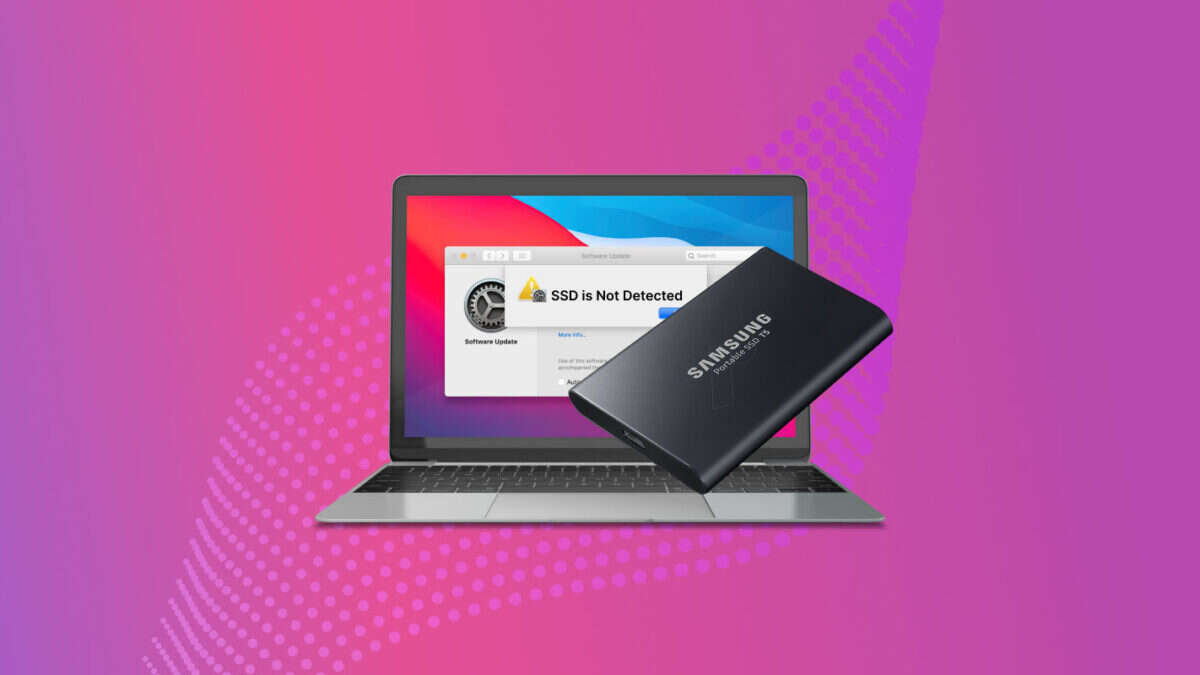
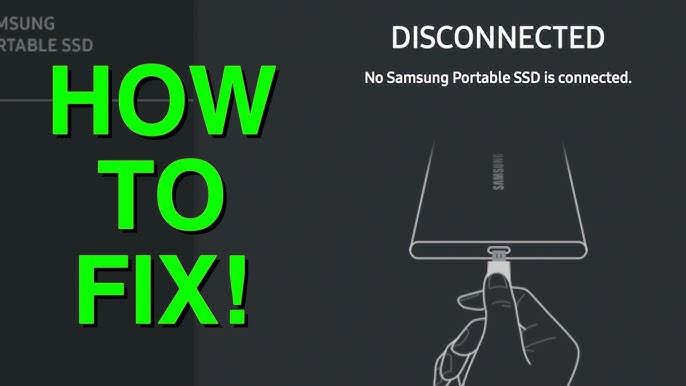
Driver, cable, or power issues usually explain why Samsung Portable SSD not detected.
I’ve worked with external storage for years, tested Samsung T5 and T7 drives, and helped users fix detection problems dozens of times. This guide explains why samsung portable ssd not detected, how to troubleshoot step by step, when to escalate, and how to protect your data. Read on to get clear, practical fixes you can try right now.

Common causes of why samsung portable ssd not detected
Understanding the common reasons helps you pick the fastest fix. Here are the usual suspects when you ask why samsung portable ssd not detected.
-
Faulty USB cable or port.
A damaged cable or a low-power USB port often prevents the drive from getting enough power or a good data connection. -
Missing or outdated drivers.
Operating systems sometimes need updated drivers or firmware to recognize newer SSD models. -
Power limitations on laptops or hubs.
Some USB-C ports provide only limited power. Using an unpowered hub can stop detection. -
File system or partition issues.
If the drive is uninitialized, has a corrupted partition table, or uses an unsupported format, the OS may not mount it. -
Hardware failure.
Internal controller faults or physical damage can make the SSD invisible to the computer. -
Incompatibility with OS settings.
Security settings, disabled USB controllers, or blocked devices in managed environments can block detection. -
Bad enclosure or adapter.
An adapter or enclosure with a failing bridge chip can cause intermittent detection or no detection at all.
Why samsung portable ssd not detected often ties back to one or more of these causes. Start with the simple checks first; they solve most cases.
How to troubleshoot why samsung portable ssd not detected
Work through these steps from quick checks to deeper fixes. Try each step, and test the drive after.
-
Check the basics
- Try a known-good USB cable and a different USB port.
- Connect directly to the laptop or desktop, not a hub.
- Test on another computer to narrow whether the SSD or the machine is the issue.
-
Confirm the drive is getting power
- Look for a drive LED or feel for slight warmth after a few minutes.
- Use a powered USB hub if the port may be underpowered.
-
Inspect Device Manager or System Information
- On Windows, open Device Manager and check for unknown devices or disabled USB controllers.
- On macOS, open System Information and look under USB to see if the SSD appears.
-
Initialize or mount the drive safely
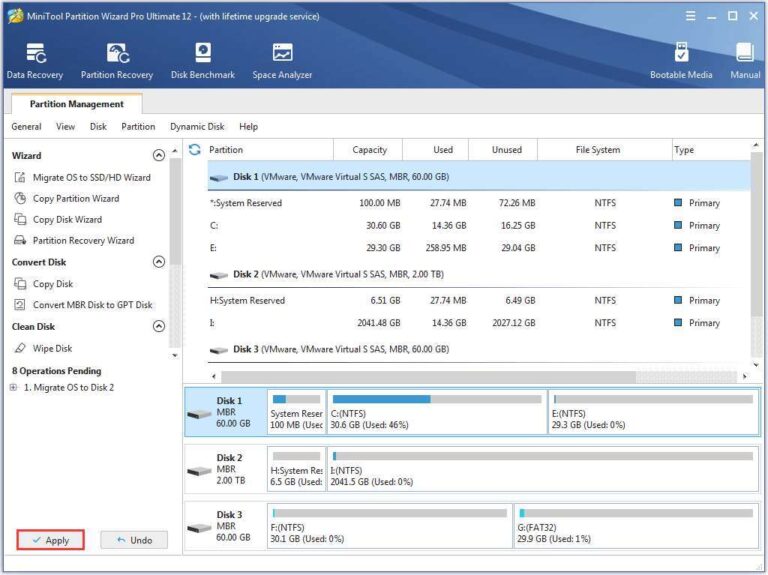
- On Windows, open Disk Management to see unallocated disks. If it appears, assign a drive letter or initialize (only if you don’t need existing data).
- On macOS, use Disk Utility to mount or repair the volume with First Aid.
-
Update drivers and firmware
- Install the latest Samsung Portable SSD driver and firmware using official update tools.
- Update your OS to ensure USB controller compatibility.
-
Try safe mode or a live OS
- Booting into safe mode or a Linux live USB helps rule out software conflicts from third-party apps.
-
Check for encryption or security software conflicts
- Some encryption tools or corporate policies can block or hide external drives. Temporarily disable such software if possible.
PAA-style question: Why samsung portable ssd not detected in BIOS?
If the SSD doesn't show in BIOS, the problem is often hardware, cable, or power-related. Check the cable, try a different controller port, and test on another machine.
PAA-style question: Can I fix a Samsung Portable SSD not detected without losing data?
Often yes—mounting, driver updates, or simple repairs can restore access. Avoid initializing or formatting if you need the existing data.
Advanced fixes and data recovery for why samsung portable ssd not detected
If basic troubleshooting fails, use advanced techniques carefully.
-
Try a different interface or enclosure.
Moving the internal SSD electronics to a new enclosure or adapter with a known-good bridge chip can restore access. -
Use disk repair utilities.
Tools that repair partition tables, rebuild MBR/GPT, or recover files sector-by-sector can help. Work on a disk image when possible. -
Create a raw disk image first.
If data is important, image the drive to another disk with a bit-for-bit copy. That preserves data for later recovery. -
Use professional recovery when necessary.
If the controller is dead or the drive has firmware corruption, a specialized data recovery service is safest. -
Firmware re-flash as a last resort.
Firmware updates can fix detection bugs, but flashing carries risk. Follow official instructions and backup first.
Personal note: I once rescued a client’s T7 where the controller needed a fresh firmware install. A careful firmware re-flash restored detection without data loss. The key was making a full disk image before the operation.
Prevention and maintenance to avoid why samsung portable ssd not detected issues
Protecting your drive reduces future headaches.
-
Use quality cables and powered hubs.
Cheap cables can fail silently. Use the cable provided or a certified replacement. -
Keep firmware and OS updated.
Periodic updates fix compatibility and reliability issues. -
Eject safely and avoid physical stress.
Use OS eject functions and keep drives away from shocks and magnets. -
Monitor drive health.
Use Samsung’s software to check SMART data and get alerts for potential faults. -
Keep backups.
Even reliable SSDs can fail; maintain at least one backup copy of critical files.
Why samsung portable ssd not detected can be prevented with small daily habits and the right gear.
When to contact Samsung support or a data recovery service
Reach out to support or pros if:
- The drive is under warranty and shows hardware faults.
- You see controller-level errors or the drive disappears entirely from every system.
- You need professional data recovery because the data is critical.
Document what you tried. Note model number, firmware version, and symptoms. That helps support or recovery specialists diagnose faster.
Frequently Asked Questions of why samsung portable ssd not detected
Why is my Samsung Portable SSD not showing up on Windows?
Often a driver, cable, or power issue prevents Windows from recognizing the drive. Check Device Manager, try a different cable, and ensure the drive is initialized but do not format if you need existing data.
Why won’t my Samsung Portable SSD mount on Mac?
macOS may not mount incompatible file systems or a corrupted partition. Use Disk Utility’s First Aid and try connecting with a different cable or port before reformatting.
Can a USB adapter cause my Samsung Portable SSD not to be detected?
Yes, a failing adapter or enclosure bridge chip can stop communication. Swap to the original cable or a tested adapter to rule this out.
Will firmware updates help if my Samsung Portable SSD not detected?
Firmware updates can fix detection bugs and performance issues, but install them carefully and back up data when possible. If the drive is invisible to update tools, try on another machine or consult support.
Is data lost if my Samsung Portable SSD suddenly isn’t detected?
Not always. Many detection issues are fixable without data loss. Stop using risky commands like initialize or format and consider imaging the disk before deeper repairs.
Conclusion
You now have a clear path to diagnose and fix why samsung portable ssd not detected. Start with simple checks: cable, port, and power. Move to software fixes like drivers and mounting, and only use advanced recovery steps when needed. Protect your data with regular backups and good hardware choices. Take one step today: try a different cable and run a quick disk check to see what you learn. If this guide helped, share your experience or ask a question below — I’ll respond with practical advice.

Everett Ashford is a tech reviewer at mytechgrid.com specializing in SSDs, cameras, TVs, earbuds, headphones, and other consumer electronics. He provides honest, data-driven reviews based on hands-on testing and real-world performance analysis. Everett simplifies complex tech details to help readers make smart, confident buying decisions.