If you want to get more done without feeling overwhelmed, setting up dual monitors could be a game-changer for your remote work. Imagine having twice the screen space to organize your tasks, compare documents side by side, or keep an eye on your emails while working on a project.
This simple upgrade can boost your focus, reduce the hassle of switching windows, and save you valuable time every day. You’ll discover easy steps to set up dual monitors quickly and tips to arrange them for maximum comfort and productivity.
Ready to transform your workspace and work smarter, not harder? Let’s dive in.
Benefits Of Dual Monitors
Using dual monitors offers many advantages for remote workers. It creates a wider digital workspace that helps handle tasks more easily. This setup improves focus and keeps work organized. Clear views of multiple applications save time and effort. These benefits combine to make remote work smoother and more efficient.
Boosting Productivity
Dual monitors increase the amount of visible work space. You can keep important documents open while working on others. This reduces the need to switch between tabs. The extra screen space helps complete tasks faster. Studies show workers with two screens finish work with fewer mistakes.
Enhancing Multitasking
Having two monitors makes managing several tasks easier. You can run communication tools on one screen and work on the other. This setup keeps you updated without interrupting your workflow. It also helps compare data side by side. Multitasking becomes less confusing and more natural with dual screens.
Reducing Eye And Neck Strain
Dual monitors help position screens at proper heights and angles. This setup keeps your head and eyes in a comfortable position. You avoid frequent twisting or turning to see your work. Reduced strain lowers the chance of headaches and tired eyes. Comfortable posture supports longer and healthier work hours.
Choosing The Right Monitors
Choosing the right monitors is key for a smooth dual monitor setup. The right screens help reduce eye strain and increase work speed. This section guides you through important features to consider for your monitors. Focus on size, resolution, panel types, and stands. These factors shape your remote work experience.
Matching Screen Sizes And Resolutions
Choose monitors with similar sizes. This creates a balanced view across both screens. Matching resolutions prevent image distortion and make moving windows easier. A 24-inch screen with 1080p resolution is a common and affordable choice. Avoid mixing very different sizes or resolutions. This can cause discomfort and reduce productivity.
Considering Panel Types And Refresh Rates
Panel type affects color and viewing angles. IPS panels offer better colors and wider angles. They suit tasks like writing and video calls. TN panels are cheaper but have narrow viewing angles. Refresh rate matters for smooth motion. A 60Hz refresh rate is enough for most work tasks. Higher rates benefit gamers but add little for remote work.
Selecting Adjustable Stands Or Mounts
Adjustable stands help set comfortable monitor height and tilt. This reduces neck and eye strain. Look for stands that allow height, tilt, and swivel adjustments. Monitor mounts free up desk space and offer more flexibility. Wall or arm mounts help align screens perfectly. Proper positioning improves posture and comfort during long work hours.
Hardware Setup
Setting up dual monitors enhances your remote work efficiency. The hardware setup is the first step. It involves making sure your devices connect smoothly. Proper connections prevent delays and screen issues. Follow simple steps to get your monitors ready for use.
Checking Compatibility And Ports
Check if your computer supports two monitors. Look at the video output ports on your computer. Common ports include HDMI, DisplayPort, VGA, and USB-C. Your monitors must have matching input ports. If ports differ, use the right adapters. Also, verify your graphics card can handle dual displays. Consult your device manual if unsure.
Connecting Monitors To Your Computer
Turn off your computer before connecting monitors. Plug each monitor cable into the correct port. Secure the connections to avoid loose cables. After connecting, power on the monitors and then the computer. Your system should detect both screens automatically. Open display settings to arrange monitor positions. Adjust resolution and orientation for comfort.
Using Kvm Switches For Multiple Devices
A KVM switch lets you control several computers with one keyboard and mouse. It connects multiple devices to your dual monitors. This setup saves desk space and simplifies switching. Connect each computer to the KVM switch inputs. Then connect the KVM output to your monitors. Use the switch to toggle between computers easily. This method suits those managing many devices.
Credit: www.autonomous.ai
Configuring Display Settings
Configuring display settings is a key step in setting up dual monitors for remote productivity. Proper configuration ensures smooth workflow across screens. It helps you avoid confusion and improve comfort during work hours.
Adjusting these settings lets you control how your monitors work together. It includes setting up displays, arranging their layout, and optimizing resolution and scaling. Each step is simple and adds to a better experience.
Setting Up Multiple Displays In Windows
Start by connecting both monitors to your computer. Then, right-click on your desktop and select “Display settings.” You will see your monitors labeled as 1 and 2. Click “Detect” if both are not shown.
Scroll down to “Multiple displays.” Choose “Extend these displays” to use both screens separately. This mode lets you move apps between monitors and increases your workspace.
Click “Apply” to save the changes. Your computer now treats the two monitors as one large desktop.
Arranging Monitor Layouts
In the display settings window, you see boxes representing your monitors. Drag these boxes to match the physical position of your screens on your desk. For example, put monitor 2 to the right or left of monitor 1.
Matching the layout avoids cursor confusion when moving between screens. You can also set which monitor is the main display by selecting it and checking “Make this my main display.”
The main display shows your taskbar and start menu. Arrange monitors to fit your natural eye and head movement.
Optimizing Resolution And Scaling
Scroll down in display settings to find resolution options. Set each monitor to its recommended resolution for clear visuals. This prevents blurry or stretched images on your screens.
Next, adjust scaling to make text and icons easy to read. Typical scaling values are 100%, 125%, or 150%. Use higher scaling for high-resolution monitors or small text.
Test different settings and pick what feels best for your eyes and workspace. Proper resolution and scaling reduce strain during long work sessions.
Optimizing Workspace Ergonomics
Optimizing workspace ergonomics improves comfort and focus during long work hours. Proper setup reduces strain on the neck, eyes, and back. It helps maintain a natural posture. This section explains key steps to arrange dual monitors for the best ergonomic support.
Positioning Monitors At Eye Level
Place your main monitor so the top of the screen is at eye level. This keeps your neck straight and reduces strain. Your eyes should look slightly downward at the screen center. Avoid placing screens too high or too low. Adjust monitor height using stands or adjustable arms.
Aligning Screens Side By Side
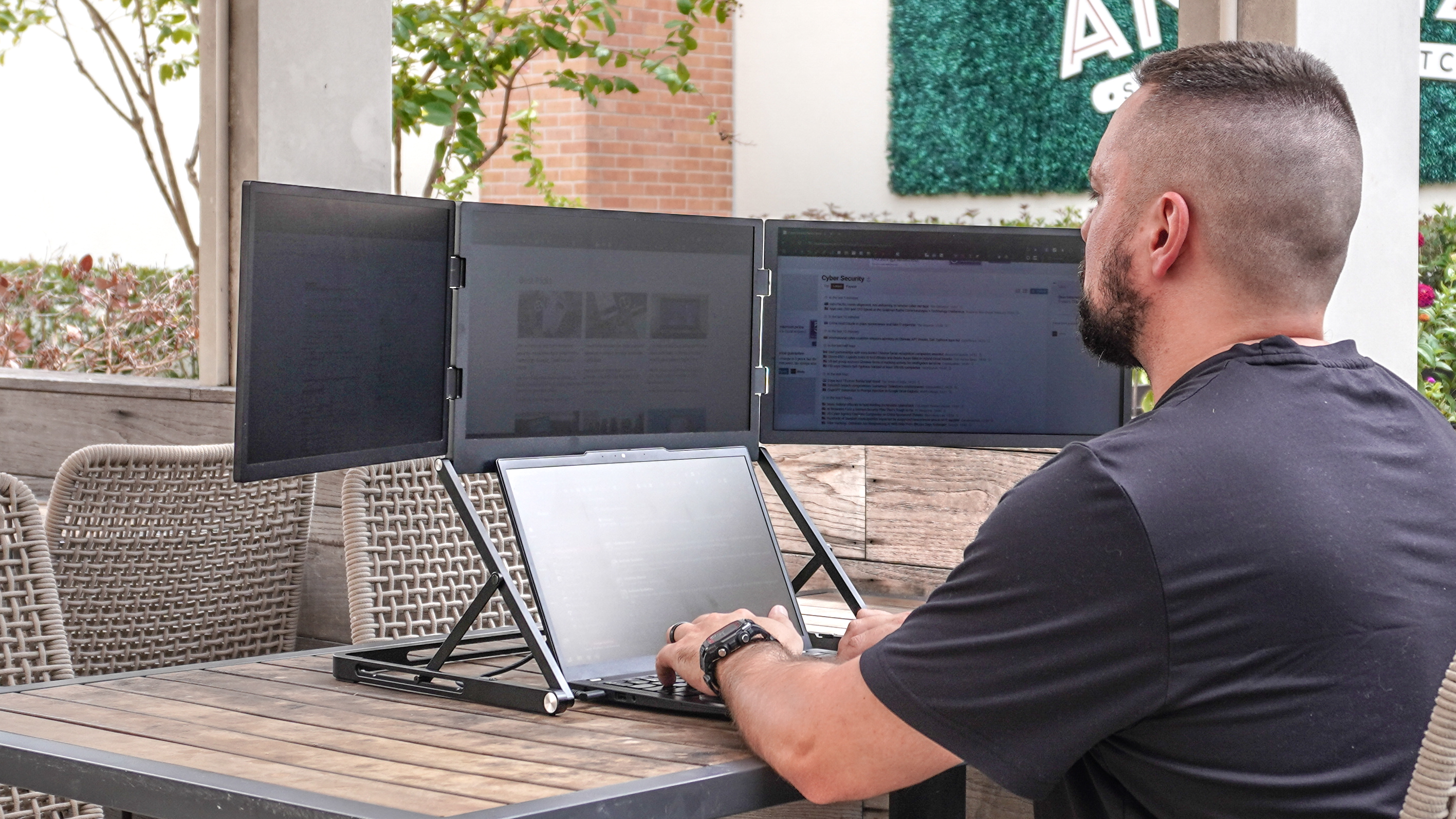
Set your monitors side by side with minimal gap. Align their tops and bottoms evenly for a smooth visual flow. Angle the screens slightly inward to match your natural viewing angle. This setup reduces neck twisting and helps you switch views easily. Keep the primary monitor directly in front of you.
Adjusting Brightness And Color Settings
Match brightness levels on both monitors to prevent eye fatigue. Use softer light settings to reduce glare. Adjust color temperature to a neutral or warmer tone for comfort. Avoid harsh blue light by using night mode or blue light filters. Proper settings protect your eyes during long work sessions.
Credit: www.tomsguide.com
Improving Remote Workflows
Using dual monitors can greatly improve your remote work experience. It allows you to see more information at once. This helps reduce the need to switch between windows. Better visibility leads to faster work and less stress. Organizing your digital workspace well makes daily tasks easier to handle. The right setup supports smoother workflows and keeps you focused.
Using Remote Access Tools With Dual Monitors
Remote access tools let you connect to your work computer from anywhere. These tools often support dual monitor setups. You can view both screens as if you were at your desk. This makes it easier to use multiple apps side by side. Some tools show one monitor at a time or both monitors together. Choose the option that fits your work style best. This setup saves time and keeps your workflow steady.
Managing Communication And Task Windows
Keep your communication apps on one screen. Use the other screen for your main tasks. This way, you do not miss important messages or calls. You can reply quickly without stopping your work. Arrange windows so you can see chat, email, and video calls easily. This reduces distractions and keeps your focus on tasks. Managing windows well helps you stay organized and efficient.
Customizing Taskbars And App Behavior
Customize taskbars for each monitor to improve navigation. You can set taskbars to appear on both screens or just one. Pin frequently used apps on the taskbar for quick access. Some apps let you choose which monitor they open on. Use these settings to keep your workspace tidy. Adjusting taskbar and app behavior speeds up your daily routine. A clean setup supports better concentration and productivity.
Troubleshooting Common Issues
Setting up dual monitors can greatly improve remote productivity. Sometimes, issues arise that slow work down. Troubleshooting common problems helps keep your workflow smooth. Understanding how to fix these issues saves time and frustration.
Resolving Display Detection Problems
Sometimes the second monitor is not detected by your computer. Check all cable connections first. Use the correct ports on your device. Restart your computer to refresh the display settings. Open display settings and click “Detect” to find the second monitor. Update your graphics drivers to the latest version. If the problem continues, try a different cable or port.
Fixing Screen Flickering Or Lag
Screen flickering can cause eye strain and reduce productivity. Ensure cables are secure and not damaged. Lower the refresh rate in display settings if flickering persists. Update or reinstall your graphics drivers to fix lag issues. Close unnecessary background programs that use heavy resources. Adjust resolution to a setting supported by both monitors. Test the monitor on another device to check for hardware faults.
Dealing With Color Calibration
Colors may look different between your two monitors. This can cause confusion when working on graphics or documents. Use built-in calibration tools in your operating system. Adjust brightness, contrast, and color temperature on both monitors. Calibrate each monitor under similar lighting conditions. Consider using third-party calibration software for better accuracy. Save your calibration settings for future use. Regular calibration keeps colors consistent and reduces eye fatigue.
Advanced Tips And Accessories
Enhancing a dual monitor setup involves more than just placing two screens side by side. Advanced tips and accessories can improve comfort, organization, and efficiency. These additions help create a clean, flexible workspace that supports long hours of remote work.
Utilizing Monitor Arms And Stands
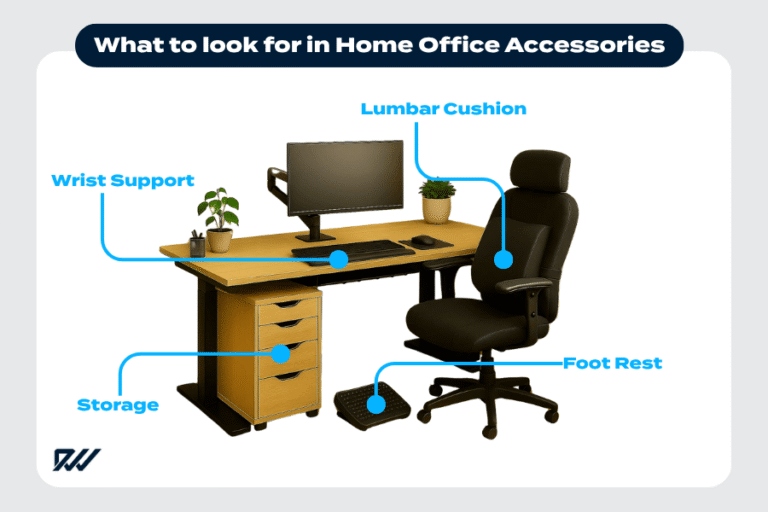
Monitor arms save desk space by lifting screens off the surface. They allow easy adjustment of height, tilt, and angle for better viewing comfort. Stands offer stability and can raise monitors to eye level, reducing neck strain. Both options improve ergonomics and create a tidy workspace.
Implementing Cable Management
Cable management keeps your desk neat and reduces clutter. Use cable clips, sleeves, or trays to group and hide wires. Organized cables prevent tangling and make cleaning easier. A clean setup looks professional and helps maintain focus during work.
Enhancing Setup With Keyboard And Mouse Sharing
Sharing one keyboard and mouse between two computers saves space and cost. Tools like KVM switches or software enable seamless control across devices. This setup reduces desk clutter and improves workflow by allowing smooth transitions between systems.

Credit: www.reddit.com
Frequently Asked Questions
How To Use Two Monitors When Working Remotely?
Connect both monitors to your computer and configure display settings via Start > Settings > System > Display. Arrange monitors side by side at eye level for comfort. Use remote access tools like Splashtop to manage multiple screens efficiently during remote work.
What Is The Best Dual Monitor Layout For Productivity?
Place the main monitor directly in front at eye level. Position the secondary monitor side-by-side and aligned at the same height for comfort and efficiency.
How To Set Up Dual Monitors For Work From Home?
Connect both monitors to your computer using compatible ports. Adjust display settings in System > Display to extend screens. Position monitors at eye level side-by-side. Customize resolution and orientation for comfort. Save settings and arrange windows for efficient multitasking.
How To Optimize Dual Monitor Setup?
Place monitors side by side at eye level to reduce strain. Match display settings and resolution. Use monitor stands for alignment. Adjust taskbar and app preferences for seamless workflow. Ensure proper cable management for a clean, efficient setup.
Conclusion
Setting up dual monitors can truly improve your remote work experience. You see more information at once and switch tasks faster. Arrange screens to reduce neck and eye strain. Adjust settings so windows remember their places. Keep your workspace tidy for better focus.
With practice, using two monitors feels natural and smooth. This simple setup helps you stay organized and productive. Give it a try and notice the difference in your daily work.

Everett Ashford is a tech reviewer at mytechgrid.com specializing in SSDs, cameras, TVs, earbuds, headphones, and other consumer electronics. He provides honest, data-driven reviews based on hands-on testing and real-world performance analysis. Everett simplifies complex tech details to help readers make smart, confident buying decisions.