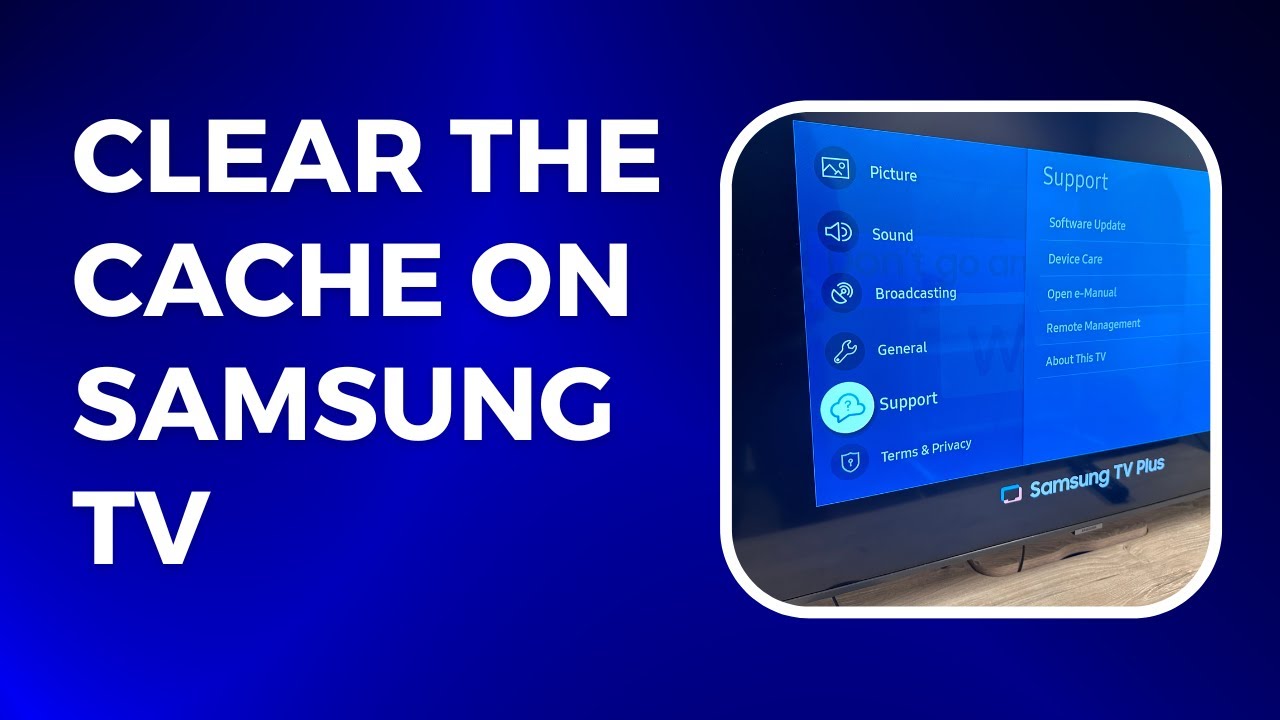
Clear your Samsung TV cache quickly via Settings > Apps or by power-cycling the TV.
I’ve worked with dozens of Samsung Smart TVs and troubleshoot them every week. This guide on how to clear cache on samsung tv explains simple, safe steps you can use right now. I’ll show step-by-step instructions for modern Tizen-based TVs and older models, handy troubleshooting tips, and real-world advice I learned from fixing slow apps and playback issues. Read on to get your TV running smoothly again.
Why clearing cache matters on Samsung TV
Cache stores temporary data to speed up apps and channels. Over time, the cache grows and becomes stale. That can cause apps to freeze, crash, load slowly, or display outdated content. Knowing how to clear cache on samsung tv helps restore performance without deleting personal settings.
Clearing cache is low risk. It rarely affects your account data. It removes temporary files that apps no longer need. When done properly, it often fixes app glitches and streaming stutters.

How to clear cache on Samsung Smart TV (step-by-step)
Below are clear, short steps. Follow the set that matches your TV model. If unsure which you have, try the Tizen steps first.
-
For Tizen-based Samsung Smart TVs (2015 and newer)
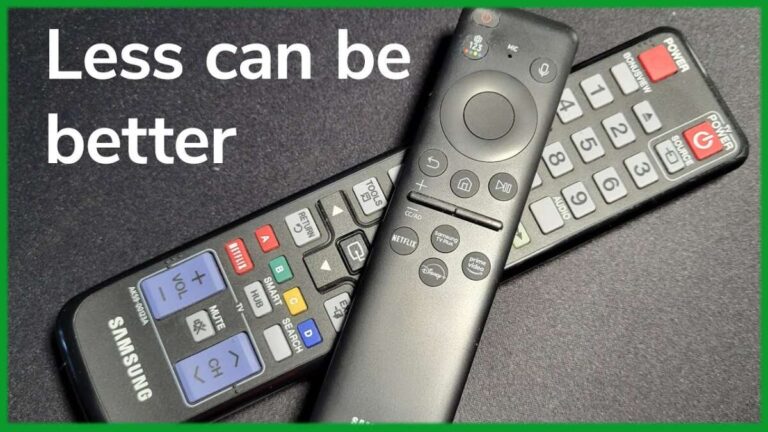
- Press the Home button on your remote.
- Navigate to Settings, then select Apps.
- Choose the app that’s acting up (for example, Netflix).
- Select Clear Cache or Clear Data. Use Clear Cache first.
- Restart the app and check performance.
-
For older Samsung Smart TVs or non-Tizen models
- Press the Smart Hub or Home button.
- Go to Apps and open the My Apps section.
- Highlight the app you want and press the tools/options button on the remote.
- Select Delete or Clear Cache if available, then reinstall the app.
- Power cycle the TV (turn off, unplug 30 seconds, plug back in) and test the app.
-
If the Clear Cache option isn’t visible
- Uninstall the app from the Apps menu.
- Power cycle the TV to clear residual temp files.
- Reinstall the app from the Samsung App Store.
I often clear cache on samsung tv apps like YouTube and Netflix when they act sluggish. Uninstalling and reinstalling fixes deeper issues, but try cache clearing first. It’s faster and usually fixes the problem.

Alternative methods and troubleshooting
If basic steps don’t work, try these proven fixes.
- Soft reset (power cycle)
- Turn off the TV, unplug it for 30–60 seconds, then plug it back in. This clears temporary system cache.
- Update apps and TV software
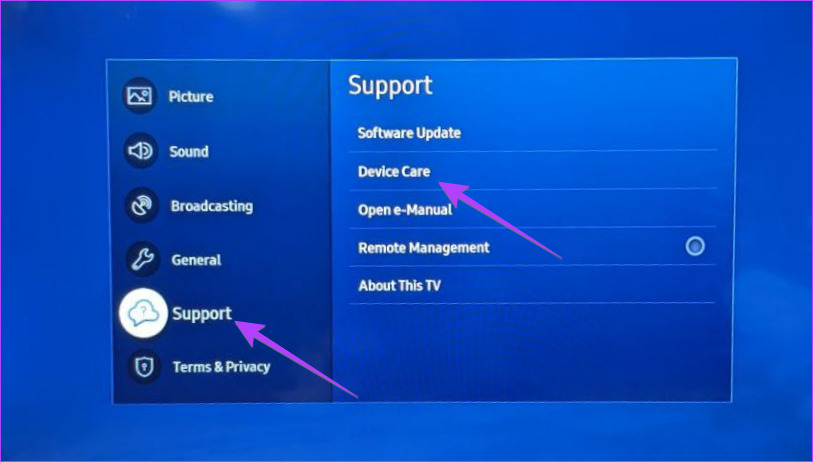
- Go to Settings > Support > Software Update and install updates. Updated software can prevent cache problems.
- Reset smart hub
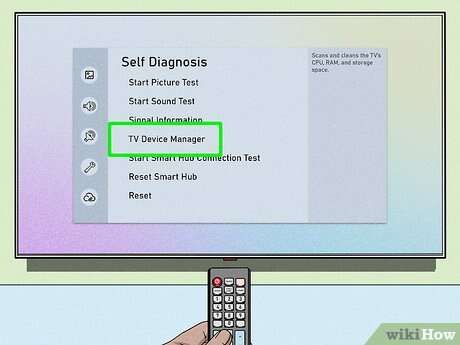
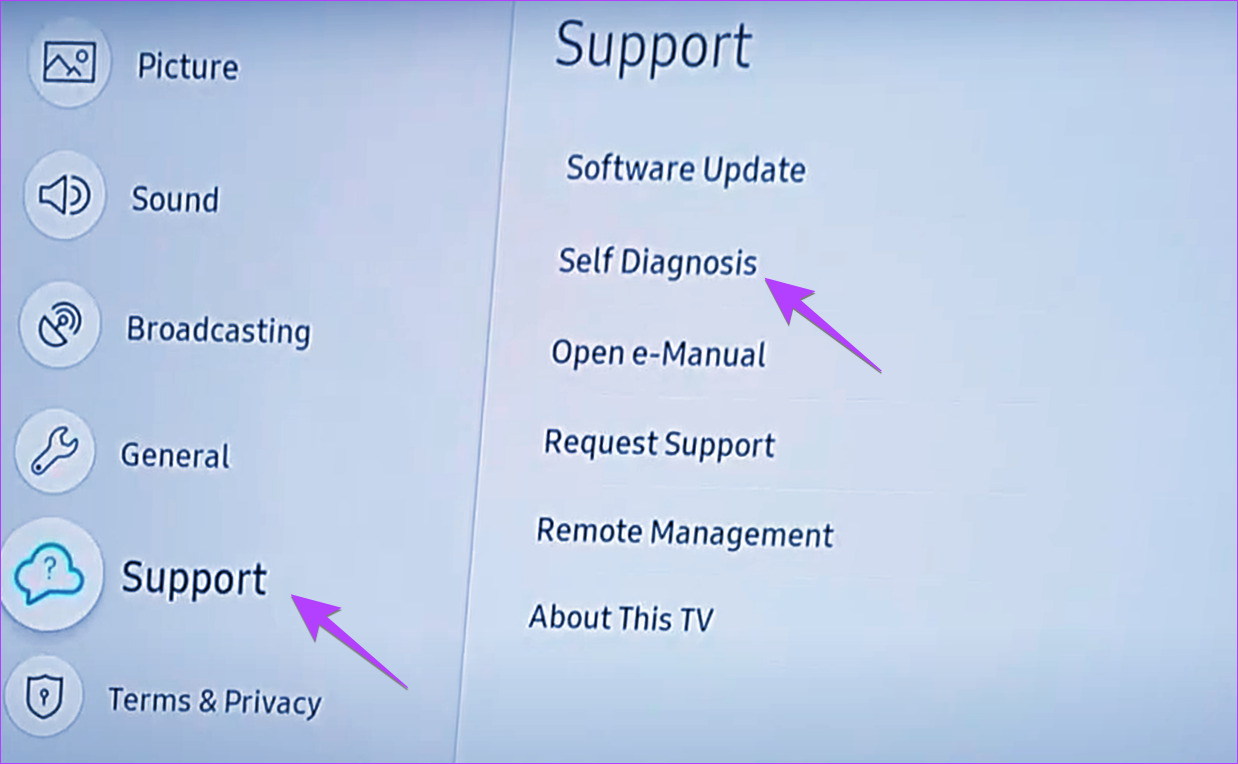
- Settings > Support > Self Diagnosis > Reset Smart Hub. This signs you out and resets app settings. Use only if other methods fail.
- Clear DNS or change network settings
- A bad network can mimic cache problems. Try switching to a wired connection or updating DNS settings.
- Factory reset as last resort
- Settings > Support > Self Diagnosis > Reset. This wipes all settings. Back up account info first.
When I troubleshoot, I try the soft reset and cache clear first. They are fast and non-destructive. Reset Smart Hub has fixed stubborn UI issues for me, but it forces sign-ins again.
Best practices: how often to clear cache on Samsung TV and maintenance tips
Regular maintenance keeps apps smooth. Here are simple habits that work.
- Clear cache only when needed
- Don’t clear cache too often. Do it when apps misbehave or after major app updates.
- Keep software updated
- Check for TV and app updates monthly to reduce cache-related bugs.
- Reboot weekly
- A weekly power cycle helps clear transient caches and keeps performance steady.
- Use wired connections for streaming
- A stable network reduces buffering and prevents repeated cache buildup from failed downloads.
- Avoid unnecessary app installs
- Fewer apps mean fewer caches and less chance for conflicts.
From my experience, clearing cache on samsung tv once every 2–3 months is enough for most households. Clear immediately when you see slow loading, stuttering, or frozen apps.
Frequently Asked Questions of how to clear cache on samsung tv
How long does it take to clear cache on a Samsung TV?
Clearing cache usually takes under a minute for a single app. Reinstalling apps or resetting Smart Hub takes longer and can take 5–15 minutes.
Will clearing cache delete my account or app data?
Clearing cache removes temporary files only. It does not remove login details in most cases. Use Clear Data or uninstalling apps if you need a full reset.
My TV has no Clear Cache option. What should I do?
Uninstall the app, power cycle the TV, then reinstall the app. If issues persist, update the TV software or try resetting the Smart Hub.
Does clearing cache improve streaming quality?
It can. Clearing cache removes corrupted temporary files that may cause buffering or playback errors. Stable internet also plays a big role.
Can clearing cache fix a frozen Smart Hub or slow menus?
Yes. Clearing cache and performing a power cycle often unfreezes the Smart Hub. If not, resetting the Smart Hub can resolve deeper issues.
Conclusion
Clearing cache on samsung tv is a simple, effective step to fix slow apps, playback issues, and glitches. Start with the app-level Clear Cache option, use power cycles, update software, and resort to Smart Hub reset or reinstalling apps only when needed. Try these steps now to get smoother streaming and faster app launches.
Take action: clear the cache on a slow app today, note the improvement, and subscribe or comment with your TV model if you want tailored help.

Jamie Lee is a seasoned tech analyst and writer at MyTechGrid.com, known for making the rapidly evolving world of technology accessible to all. Jamie’s work focuses on emerging technologies, product deep-dives, and industry trends—translating complex concepts into engaging, easy-to-understand content. When not researching the latest breakthroughs, Jamie enjoys exploring new tools, testing gadgets, and helping readers navigate the digital world with confidence.