To connect Plantronics earbuds, turn on Bluetooth, open the charging case, and select the earbuds from your device.
Learning how to connect Plantronics earbuds is usually simple, but the exact steps can vary by model, phone, and operating system. Plantronics earbuds are now sold under the Poly brand, and models such as the BackBeat FIT, BackBeat PRO, Voyager Free, and newer wireless earbuds may use different controls. This guide explains the pairing process, troubleshooting steps, device switching tips, and ways to keep your connection stable.
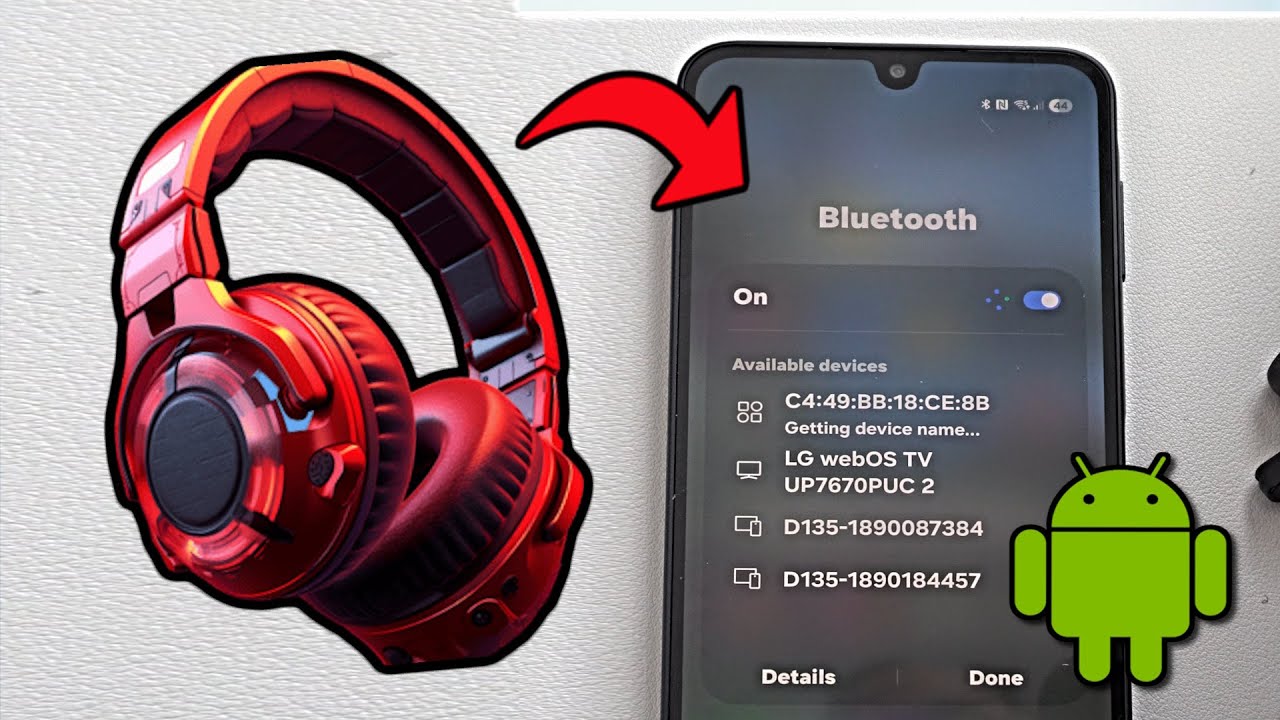
What you need before connecting Plantronics earbuds
Before you start, check a few basic items. A small amount of preparation can prevent most pairing problems.
• Charge the earbuds and charging case. Low battery power may stop pairing or cause repeated disconnections.
• Keep the earbuds close to your phone, tablet, computer, or smart TV. Bluetooth usually works best within about 30 feet, with no thick walls or major obstacles.
• Turn off Bluetooth on devices that were previously connected. Your earbuds may try to reconnect to an old phone instead of the device you want to use.
• Remove the earbuds from the case if the model does not enter pairing mode automatically.
• Check the model name. You may see “Plantronics,” “Poly,” “BackBeat,” or “Voyager” printed on the earbuds, case, or box.
Plantronics became part of Poly, so newer product pages, apps, and support tools may use the Poly name. This does not change the basic Bluetooth pairing process.
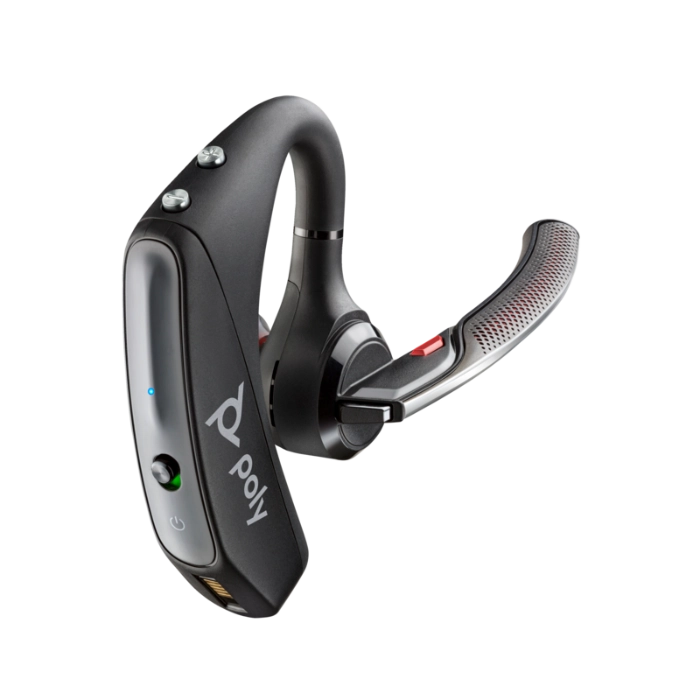
How to connect Plantronics earbuds to an iPhone
The fastest way to connect Plantronics earbuds to an iPhone is through the Bluetooth menu. Keep the earbuds near the iPhone while you follow these steps.
-
Open the charging case and remove both earbuds.
-
Press and hold the power or control button if the earbuds do not turn on by themselves.
-
Put the earbuds into pairing mode. On many models, you do this by pressing and holding the main button until the LED flashes red and blue, blue and white, or another pairing pattern.
-
Open Settings on your iPhone.
-
Tap Bluetooth.
-
Turn Bluetooth on if it is disabled.
-
Look under Other Devices.
-
Tap the name of your Plantronics earbuds.
-
Wait for the status to change to Connected.
When learning how to connect Plantronics earbuds to an iPhone, the most common mistake is releasing the button too soon. A quick press may only turn the earbuds on. A longer press, often lasting several seconds, usually activates pairing mode.
If your earbuds appear under My Devices but will not connect, tap the information icon beside the name and choose Forget This Device. Then place the earbuds back into pairing mode and connect again.
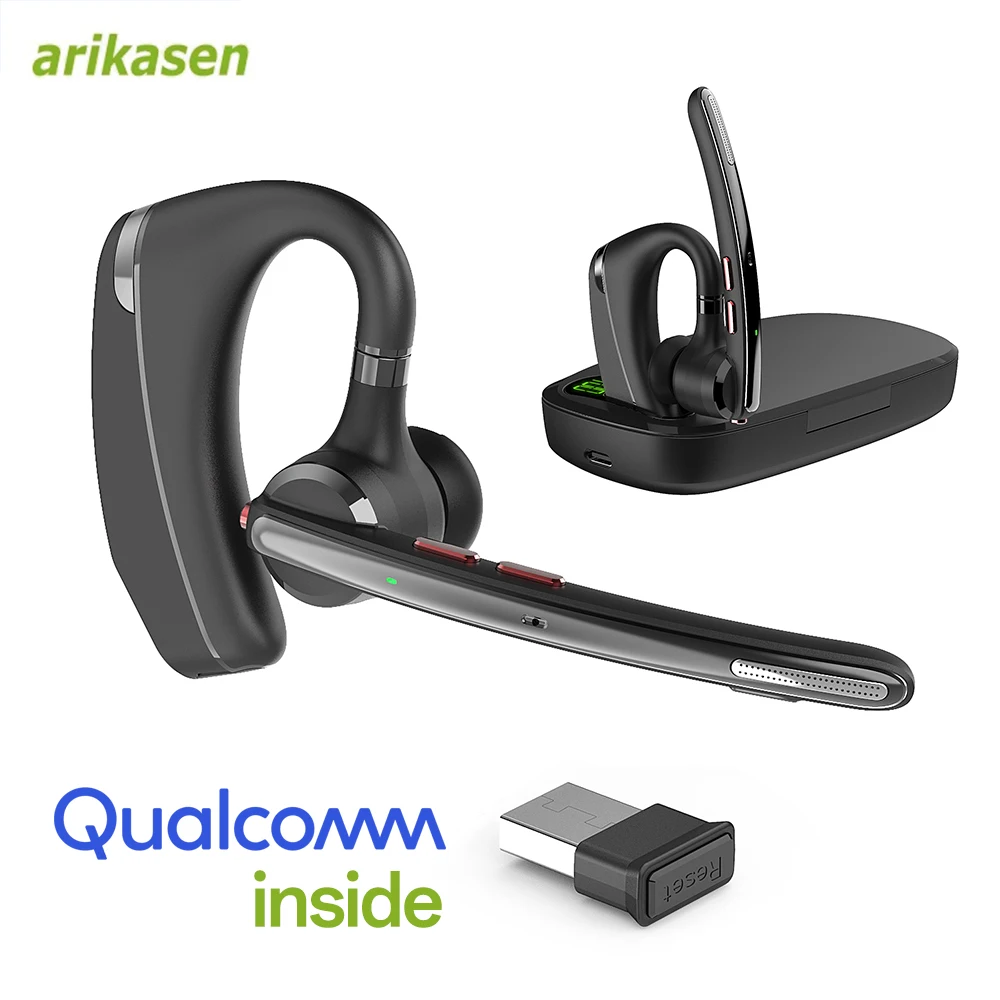
How to connect Plantronics earbuds to an Android phone
Android phones use a similar process, although menu names can differ between Samsung, Google Pixel, Motorola, and other brands.
-
Open the earbud case.
-
Remove the earbuds or press the pairing button on the case.
-
Hold the control button until the indicator light flashes.
-
Open Settings on your Android phone.
-
Tap Connected devices, Connections, or Bluetooth.
-
Select Pair new device if needed.
-
Tap your Plantronics earbuds when they appear in the list.
-
Confirm the pairing request.
Some Android phones display a pop-up notification when compatible earbuds are nearby. If you see one, tap Connect and follow the instructions on screen.
If you are unsure how to connect Plantronics earbuds on Android, use the phone’s main Bluetooth settings instead of relying on the pop-up. This method works across more Android versions and gives you better control over saved devices.
You may also see a request to access contacts or call history. That permission is useful for call features, but it is not always required for music playback.
How to connect Plantronics earbuds to a Windows PC
You can use Plantronics earbuds for music, video calls, gaming, and work meetings on a Windows computer. First, make sure the earbuds are not actively connected to your phone.
-
Place the earbuds into pairing mode.
-
On your Windows PC, open Settings.
-
Select Bluetooth & devices.
-
Turn Bluetooth on.
-
Click Add device.
-
Choose Bluetooth.
-
Select your Plantronics earbuds.
-
Wait for Windows to show that the device is connected.
After pairing, open Settings, select System, and choose Sound. Under Output, select your Plantronics earbuds. For calls, also check the Input section and select the earbud microphone.
Windows may show two audio options, such as Stereo and Hands-Free AG Audio. Stereo normally provides better music quality. Hands-Free mode activates the microphone but may reduce audio quality during calls.
In my experience, this is one of the most confusing parts of connecting wireless earbuds to a computer. The earbuds may be connected, yet sound still comes from the laptop speakers. Selecting the earbuds as the output device solves that issue.

How to connect Plantronics earbuds to a Mac
Pairing Plantronics earbuds with a Mac takes only a few steps.
-
Put the earbuds into pairing mode.
-
Click the Apple menu.
-
Open System Settings or System Preferences.
-
Select Bluetooth.
-
Find the Plantronics earbuds in the nearby devices list.
-
Click Connect.
-
Open the Sound settings and select the earbuds for output.
On older macOS versions, Bluetooth appears under System Preferences. On newer versions, it appears under System Settings. The names may differ, but the pairing process is nearly the same.
If the earbuds connect but the microphone does not work, open System Settings, select Sound, and choose the earbuds under Input. Also check the microphone settings inside apps such as Zoom, Microsoft Teams, or Google Meet.
How to connect Plantronics earbuds to a new device
Plantronics earbuds can often remember more than one paired device. However, many models connect to only one or two devices at a time. This feature is known as multipoint or connected-device switching.
To connect the earbuds to a new device:
-
Disconnect the earbuds from the current device.
-
Turn Bluetooth off on the old device, or move it out of range.
-
Put the earbuds into pairing mode.
-
Open Bluetooth settings on the new device.
-
Select the earbuds from the available devices list.
-
Confirm the connection.
If the earbuds do not appear, clear the old Bluetooth connection. You may need to remove the earbuds from the Bluetooth list on the previous phone or computer.
When learning how to connect Plantronics earbuds to several devices, remember that saved pairing and active connection are different. The earbuds may remember a laptop and phone, but they may not play audio from both at once.

How to put Plantronics earbuds into pairing mode
Pairing mode allows a phone or computer to discover the earbuds. Without it, the earbuds may remain connected to a previous device or stay invisible.
The method depends on the model, but these steps work for many Plantronics wireless earbuds:
• Open the charging case and remove the earbuds.
• Press and hold the main button on one earbud or the case.
• Continue holding until the LED flashes or a voice prompt says “pairing.”
• Open the Bluetooth menu on your device.
• Select the Plantronics or Poly product name.
Some earbuds enter pairing mode automatically the first time you remove them from the case. If they have already been paired, you may need to hold the button for several seconds.
Avoid pressing random buttons repeatedly. That can turn the earbuds off, start a reset, or activate another feature. Check the quick-start guide for the exact button timing when possible.

How to connect Plantronics earbuds using the Poly app
Some Poly and Plantronics products work with a companion mobile app. Depending on the model and region, the app may help with setup, firmware updates, battery information, controls, and device management.
A typical setup looks like this:
-
Download the supported Poly or Plantronics app from the official app store.
-
Turn on Bluetooth.
-
Open the app and allow nearby-device access if requested.
-
Put the earbuds into pairing mode.
-
Select the earbuds inside the app.
-
Follow the on-screen setup instructions.
The app does not replace Bluetooth pairing. Your phone still needs to connect to the earbuds through its Bluetooth settings. The app simply adds extra controls and support features.
Firmware updates can improve stability, but they also take time. Keep the earbuds charged and close to the phone during an update. Do not close the app or place the earbuds back in the case until the process finishes.
How to fix Plantronics earbuds that will not connect
If you cannot connect Plantronics earbuds, use the following fixes in order. Start with simple steps before attempting a reset.
Check the battery
Charge both earbuds and the case for at least 15 to 30 minutes. If one earbud has no power, the pair may not enter pairing mode correctly.
Restart Bluetooth
Turn Bluetooth off on your phone or computer. Wait about 10 seconds, then turn it on again. This refreshes the wireless connection without changing your saved settings.
Forget the old connection
Open your device’s Bluetooth settings and remove the Plantronics earbuds. This is often called Forget, Remove, or Unpair. Then pair the earbuds again as if they were new.
Move away from other Bluetooth devices
Nearby wireless devices can sometimes make pairing confusing. Turn off unused Bluetooth devices and keep the earbuds near the device you want to connect.
Restart the phone or computer
A simple restart can clear a temporary Bluetooth error. This is especially useful after a system update or when the device has many saved Bluetooth connections.
Reset the earbuds
A reset can erase saved connections and restore the earbuds to a clean state. The method varies by model, so use the model’s official guide rather than guessing.
In my testing, forgetting the earbuds and pairing them again solves more problems than a full reset. Use a reset only when the normal pairing process fails or the earbuds keep connecting to the wrong device.
How to reset Plantronics earbuds
Resetting Plantronics earbuds usually removes saved Bluetooth information. It can help when the earbuds do not appear, connect to the wrong phone, or show different behavior in each earbud.
Before resetting, try these steps:
-
Charge the earbuds and case.
-
Forget the earbuds from every nearby phone and computer.
-
Turn off Bluetooth on those devices.
-
Place the earbuds in the case.
-
Follow the reset instructions for your exact model.
-
Remove the earbuds from the case and place them into pairing mode.
-
Search for them again in your device’s Bluetooth menu.
There is no single reset method for every Plantronics model. Some use a case button, while others require holding earbud controls for a set amount of time. Using the wrong sequence may only power the earbuds off.
A reset is helpful, but it also removes stored connections. Be ready to pair the earbuds again with each device you use.
How to improve the Bluetooth connection
Once you know how to connect Plantronics earbuds, a few habits can make the connection more reliable.
• Keep the phone or computer within a reasonable range.
• Avoid placing the phone in a crowded bag or behind a thick wall.
• Keep the earbuds and case updated through the supported app.
• Do not connect the earbuds to many devices at the same time unless the model supports multipoint.
• Keep the charging contacts clean and dry.
• Store the earbuds in the case when you are not using them.
• Avoid using damaged earbuds or cases with loose charging connections.
Bluetooth uses short-range radio signals. Walls, metal objects, crowded wireless areas, and body movement can affect performance. Occasional skips do not always mean the earbuds are defective.
For work calls, place the phone or laptop on a desk rather than in a pocket. This small change often gives the signal a clearer path.
Common mistakes to avoid
Many connection problems come from a simple setup mistake. Watch for these issues:
• Selecting the wrong device name when several Bluetooth products are nearby.
• Trying to pair while the earbuds are still connected to another phone.
• Holding the button too briefly to activate pairing mode.
• Forgetting to select the earbuds as the computer’s audio output.
• Resetting the earbuds before trying a basic Bluetooth restart.
• Pairing only one earbud when the model requires both earbuds to be placed in the case.
• Ignoring low battery warnings.
Another common mistake is assuming that “connected” means “ready for every function.” Your device may support music but not the earbud microphone, or it may connect to the earbuds while sending sound to another output.
Check both Bluetooth settings and sound settings. This two-step check prevents many frustrating call and audio problems.
Frequently Asked Questions About How to Connect Plantronics Earbuds
How do I put Plantronics earbuds into Bluetooth pairing mode?
Open the case and remove the earbuds, then press and hold the main control button until the LED flashes or a voice prompt announces pairing mode. The exact button and timing depend on the model.
Why are my Plantronics earbuds not showing up on Bluetooth?
Make sure the earbuds have power and are in pairing mode. If they still do not appear, turn Bluetooth off and on, forget any old connection, and try restarting both devices.
Can I connect Plantronics earbuds to an iPhone and Android phone?
Yes, Plantronics earbuds generally work with both iPhone and Android devices through Bluetooth. You may need to disconnect the earbuds from one phone before pairing them with the other.
Can Plantronics earbuds connect to a Windows laptop?
Yes, most Bluetooth Plantronics earbuds can connect to a Windows laptop. After pairing, select the earbuds under Windows Sound settings for both output and microphone use.
How do I connect Plantronics earbuds when they are connected to another device?
Turn off Bluetooth on the old device or disconnect the earbuds from its Bluetooth menu. Then place the earbuds into pairing mode and select them from the new device’s Bluetooth list.
Do I need an app to connect Plantronics earbuds?
No, an app is not required for basic Bluetooth pairing. A supported Poly or Plantronics app may provide firmware updates, battery details, and extra control options.
How do I reset Plantronics earbuds?
The reset steps differ by model. Check the official instructions for your exact earbuds, because some models use the case button while others use a specific combination of earbud controls.
Conclusion
Connecting Plantronics earbuds usually takes less than a minute: charge them, place them in pairing mode, open Bluetooth settings, and select the correct device name. If the connection fails, restart Bluetooth, forget the old pairing, check audio output settings, and reset the earbuds only as a last step.
The best way to connect Plantronics earbuds is to keep the setup simple and work through one device at a time. Try these steps with your earbuds today, and explore the official model guide or companion app for firmware updates and advanced features.

Everett Ashford is a tech reviewer at mytechgrid.com specializing in SSDs, cameras, TVs, earbuds, headphones, and other consumer electronics. He provides honest, data-driven reviews based on hands-on testing and real-world performance analysis. Everett simplifies complex tech details to help readers make smart, confident buying decisions.