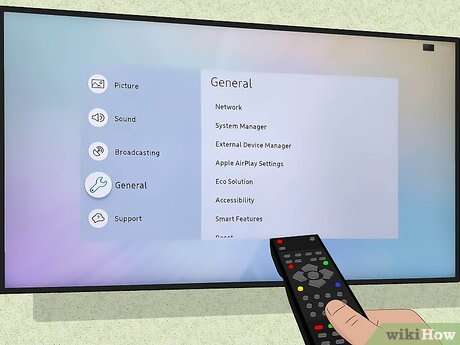
Connect your smart TV to Wi-Fi using the TV’s network settings and your Wi‑Fi password.
I’ve helped dozens of friends and clients set up TVs. I know the common hiccups and the quick fixes. This guide walks you through how do i connect smart tv to wifi step by step. You’ll get clear setup instructions, platform-specific tips, troubleshooting help, and practical advice I’ve learned from on-the-job installs. Read on and you’ll have your smart TV online in minutes.
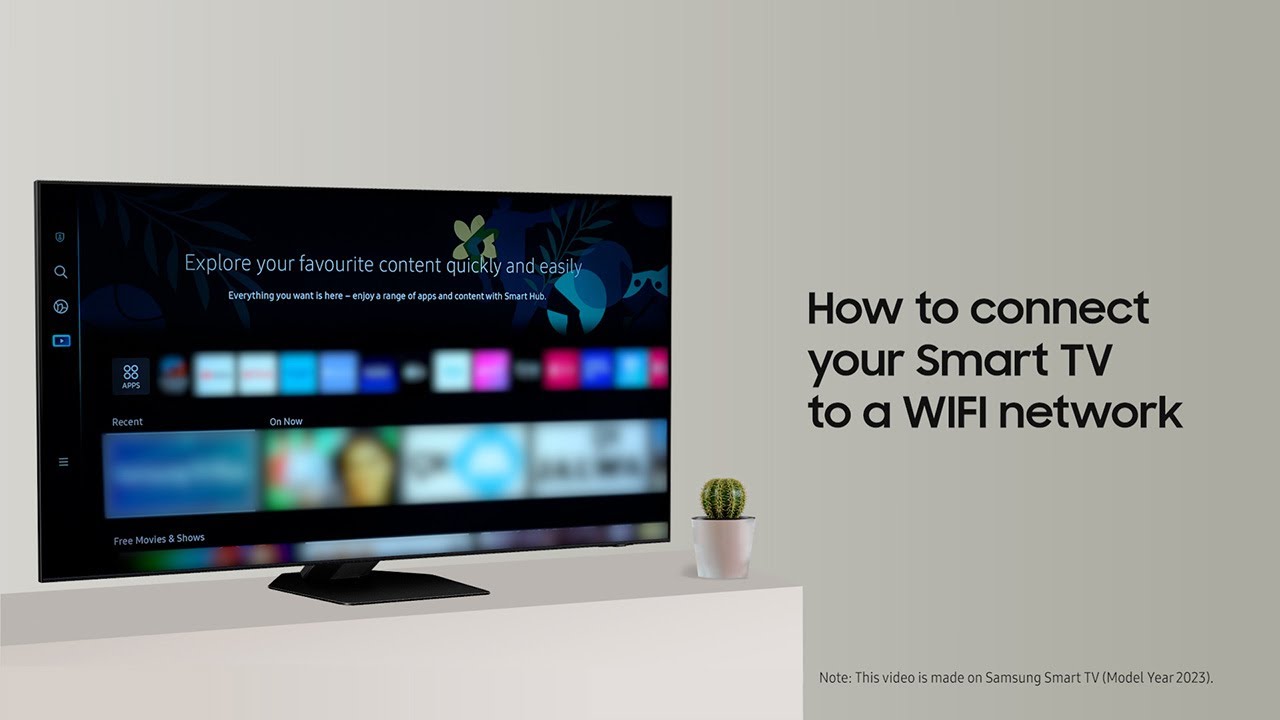
Why connect your smart TV to Wi‑Fi
A Wi‑Fi connection unlocks apps, streaming, software updates, and voice features. Without Wi‑Fi, your smart TV is just a large screen with limited uses. Knowing how do i connect smart tv to wifi makes your setup fast and reliable.

What you need before you start
- A working Wi‑Fi network name (SSID) and password.
- Your router is on and near the TV for the first setup.
- If available, an Ethernet cable for wired connections.
- Your TV remote and model name handy for device-specific steps.
- If using a public or guest network, check login steps on a phone or laptop first.

Step-by-step: how do i connect smart tv to wifi
Below are simple instructions that match most TV brands. If your TV has a setup wizard, start there. If not, follow the manual steps.
- Turn on the TV and open Settings or Network from the home screen.
- Choose Network or Network Settings. Some TVs say Wireless or Wi‑Fi.
- Select Set Up Wireless or Connect to Wi‑Fi. Your TV scans for networks.
- Pick your Wi‑Fi name (SSID) from the list. If you don’t see it, choose Add Network.
- Enter your Wi‑Fi password carefully. Use the on‑screen keyboard.
- Confirm and wait for the TV to show Connected or a checkmark.
- Test by opening a streaming app. If video plays, you are online.
How do i connect smart tv to wifi if the TV uses a wired connection? Plug an Ethernet cable into the TV and router. The TV should auto-detect a wired network. Choose Wired or Ethernet in Network settings.
How do i connect smart tv to wifi when the network is hidden? Choose Add Network, type the SSID exactly, choose the right security type (usually WPA2), and enter the password.
How do i connect smart tv to wifi if it asks for a PIN? Some routers or guest networks use a PIN or WPS. If your router supports WPS, press the router’s WPS button, then select WPS on the TV within two minutes.
Personal tip: I always double-check the password on my phone before typing it into the TV. Typing errors cause many failed attempts. I’ve learned to keep the remote close and use a phone camera to read long passwords on sticky notes.
Samsung TV (Tizen)
- Go to Settings > General > Network > Open Network Settings.
- Choose Wireless and select your SSID. Enter the password.
- Confirm and test a streaming app.
LG TV (webOS)
- Go to Settings > All Settings > Network > Wi‑Fi Connection.
- Select your network and enter the password.
- LG shows a connection status when done.
Roku TV
- Press Home, go to Settings > Network > Set up connection > Wireless.
- Choose your network and enter the password.
- Roku may update before you can stream.
Amazon Fire TV
- Go to Settings > Network.
- Choose your Wi‑Fi network and enter the password.
- Fire TV shows IP and signal strength once connected.
Android TV / Google TV
- Open Settings > Network & Internet > Wi‑Fi.
- Select your SSID and enter the password.
- If using Google TV, use the companion app for faster typing.
How do i connect smart tv to wifi for each brand? These steps cover most models. If yours differs, check the quick start guide that came with the TV.
:max_bytes(150000):strip_icc()/samsung-ku6300-settings-menu-network-settings-5c69ce3b46e0fb0001f0e441.jpg)
Troubleshooting common Wi‑Fi connection problems
If your TV won’t connect, try these fast fixes.
- Check password accuracy: Re-enter it slowly using the on‑screen keyboard.
- Restart devices: Turn off the TV, unplug it for 10 seconds, and restart the router.
- Move the router closer: Weak signal can block setup. Temporarily move the router near the TV.
- Switch bands: Try the 2.4 GHz network if 5 GHz fails. Some older TVs only support 2.4 GHz.
- Static IP vs DHCP: If your network uses static addressing, ensure the TV has the correct IP, gateway, and DNS.
- Firmware updates: If the TV connects but apps fail, update the TV software via Settings.
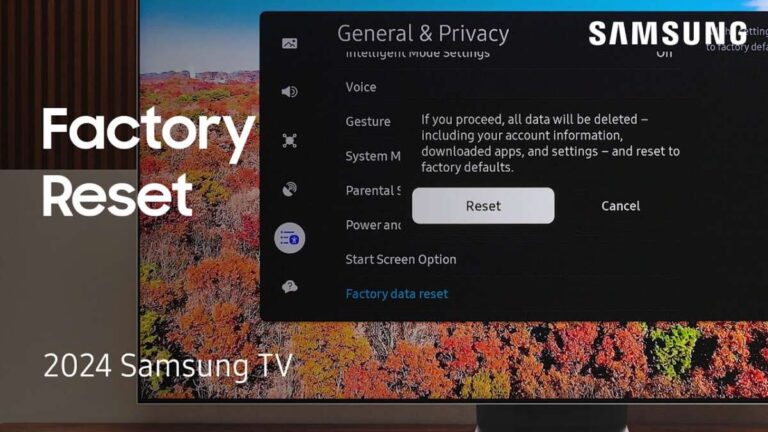
- Factory reset as last resort: If nothing works, reset network settings or the whole TV, but back up any preferences first.
Personal experience: I once spent an hour trying to connect a new TV. The issue was a router setting that blocked new devices. Logging into the router and allowing new devices fixed it immediately. That’s an easy check before a full reset.

Tips to improve Wi‑Fi performance for your smart TV
Small tweaks can boost streaming quality and reduce buffering.
- Use Ethernet for best stability and speed when possible.
- Place the router on a shelf, not the floor, and avoid metal obstructions.
- Set Quality of Service (QoS) to prioritize your smart TV’s traffic if the router supports it.
- Keep firmware updated on both router and TV.
- Use 5 GHz for higher speeds when your TV and router support it, but use 2.4 GHz for longer range.
- Limit other heavy traffic when streaming 4K. Pause large downloads and backups.
I recommend running a quick speed test on a phone near the TV. For HD streaming aim for 5–10 Mbps, and for 4K aim for 25 Mbps or higher.

Privacy and security when connecting your smart TV to Wi‑Fi
Smart TVs collect data and receive updates. Protect your privacy with a few steps.
- Use a strong Wi‑Fi password and WPA2 or WPA3 encryption on your router.
- Disable voice control and automatic data sharing if you value privacy. Many TVs let you turn off data collection.
- Create a guest network for smart devices to keep them separate from your main devices.
- Regularly update TV firmware to patch security vulnerabilities.
- Review app permissions and remove apps you do not use.
I once found an old TV sending analytics to a vendor. Turning off smart features and updating firmware reduced unwanted data sharing.
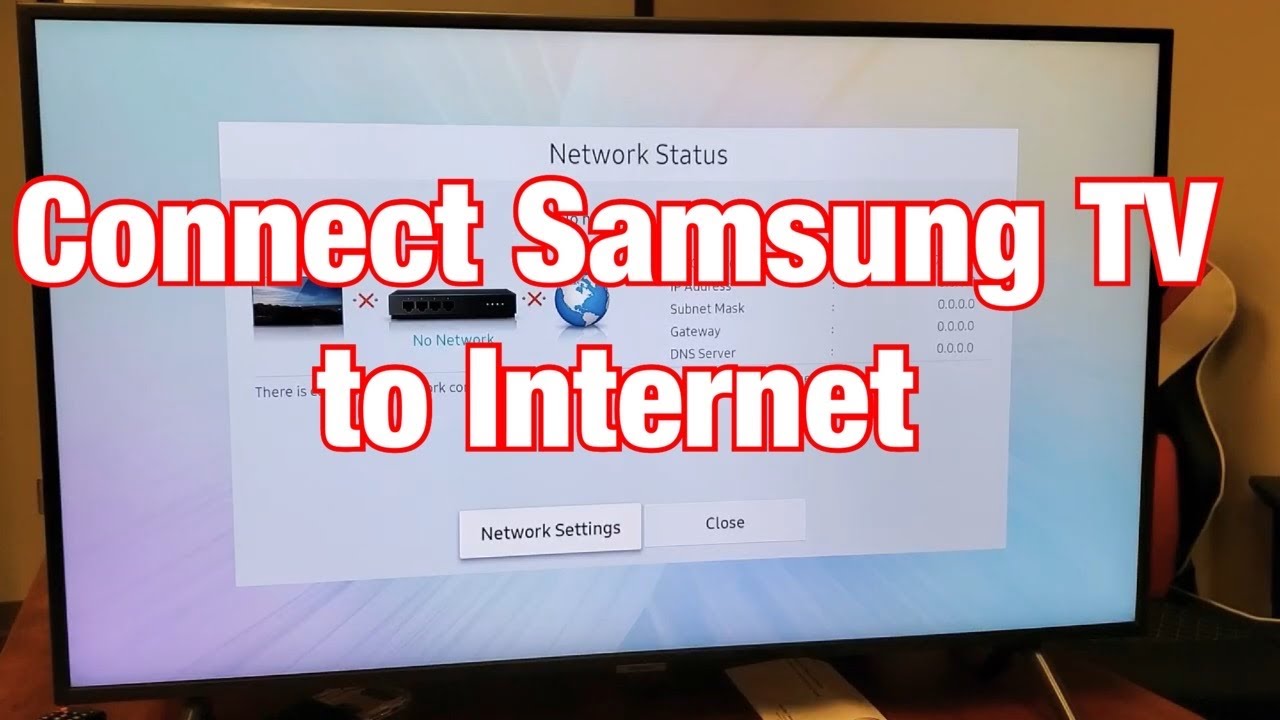
Frequently Asked Questions of how do i connect smart tv to wifi
How do i connect smart tv to wifi if it keeps failing?
Try restarting both the TV and the router. If that fails, check the password and try the 2.4 GHz network or a wired Ethernet connection.
How do i connect smart tv to wifi without a remote?
Use the TV’s mobile app if available, or connect a USB keyboard to the TV. Many brands let you control network settings from their phone apps.
How do i connect smart tv to wifi if my router uses a captive portal?
Open a browser on a laptop or phone connected to the same network and complete the login page. Then try connecting the TV again, as some networks require that initial acceptance.
How do i connect smart tv to wifi for Netflix and other apps?
After the TV connects to Wi‑Fi, sign in to each streaming app using your account. If streaming is slow, check speed and consider Ethernet or 5 GHz.
How do i connect smart tv to wifi when the network name has special characters?
Enter the SSID exactly as shown, using the TV’s on‑screen keyboard. If the TV fails, rename the Wi‑Fi SSID on the router to a simpler name and try again.
What if my smart TV only supports 2.4 GHz?
Connect to your router’s 2.4 GHz network. If your router uses a single combined name, check router settings to split bands or create a 2.4 GHz SSID.
Conclusion
You now have clear, tested steps for how do i connect smart tv to wifi. Start with the basics: correct SSID, password, and TV network settings. Use Ethernet when possible, try simple fixes like restarts, and follow brand-specific steps for Samsung, LG, Roku, Fire TV, and Android TV. Take small security steps to protect your network and privacy.
Try connecting your TV now and test a streaming app. If you run into trouble, revisit the troubleshooting section or leave a comment about your exact TV model and error. Subscribe or bookmark this guide for quick reference and share your setup wins.

Jamie Lee is a seasoned tech analyst and writer at MyTechGrid.com, known for making the rapidly evolving world of technology accessible to all. Jamie’s work focuses on emerging technologies, product deep-dives, and industry trends—translating complex concepts into engaging, easy-to-understand content. When not researching the latest breakthroughs, Jamie enjoys exploring new tools, testing gadgets, and helping readers navigate the digital world with confidence.