To cast to Fire TV from Android, connect both devices to Wi-Fi, enable mirroring, and select your Fire TV.
Learning how to cast to Fire TV from Android is simple once you know which method your phone supports. Some Android phones use built-in screen mirroring, while others need a casting app because Fire TV does not support Google Cast in the same way as Chromecast. This guide explains both options, common problems, practical fixes, and the best method for your device.
What You Need Before Casting to Fire TV
Before you cast to Fire TV from Android, check that your devices meet a few basic requirements. Most connection problems come from the phone and Fire TV being on different networks or from using a phone that does not support wireless display technology.
You will need:
• An Amazon Fire TV Stick, Fire TV Cube, or smart TV with Fire TV built in
• An Android phone or tablet
• A stable Wi-Fi network
• The latest Fire TV and Android software updates
• A screen mirroring feature or a compatible casting app
Your Android phone and Fire TV should use the same Wi-Fi network. Avoid connecting one device to a guest network and the other to your main network. Some routers isolate guest devices, which prevents them from finding each other.
Also, turn off mobile data for a moment if your phone keeps choosing the wrong connection. In my testing, this small step has helped when Android shows no available Fire TV devices.
Amazon Fire TV models vary. Many support Miracast screen mirroring, but newer models and some Fire TV televisions may handle mirroring differently. Your Android phone may also use a different name, such as Smart View, Wireless Display, Screen Share, or Cast.
How to Cast to Fire TV From Android Using Screen Mirroring
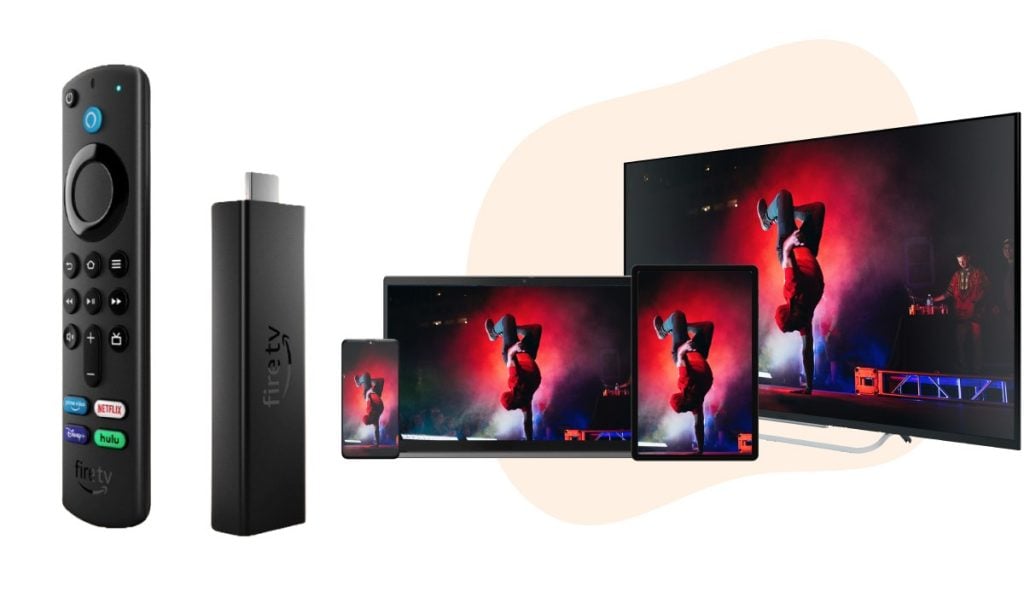
The easiest way to cast to Fire TV from Android is to use the built-in screen mirroring feature. This method shows your entire phone screen on the television, including apps, photos, web pages, and games.
Step 1: Open the Fire TV mirroring screen
Use your Fire TV remote and follow these steps:
- Turn on your television and Fire TV device.
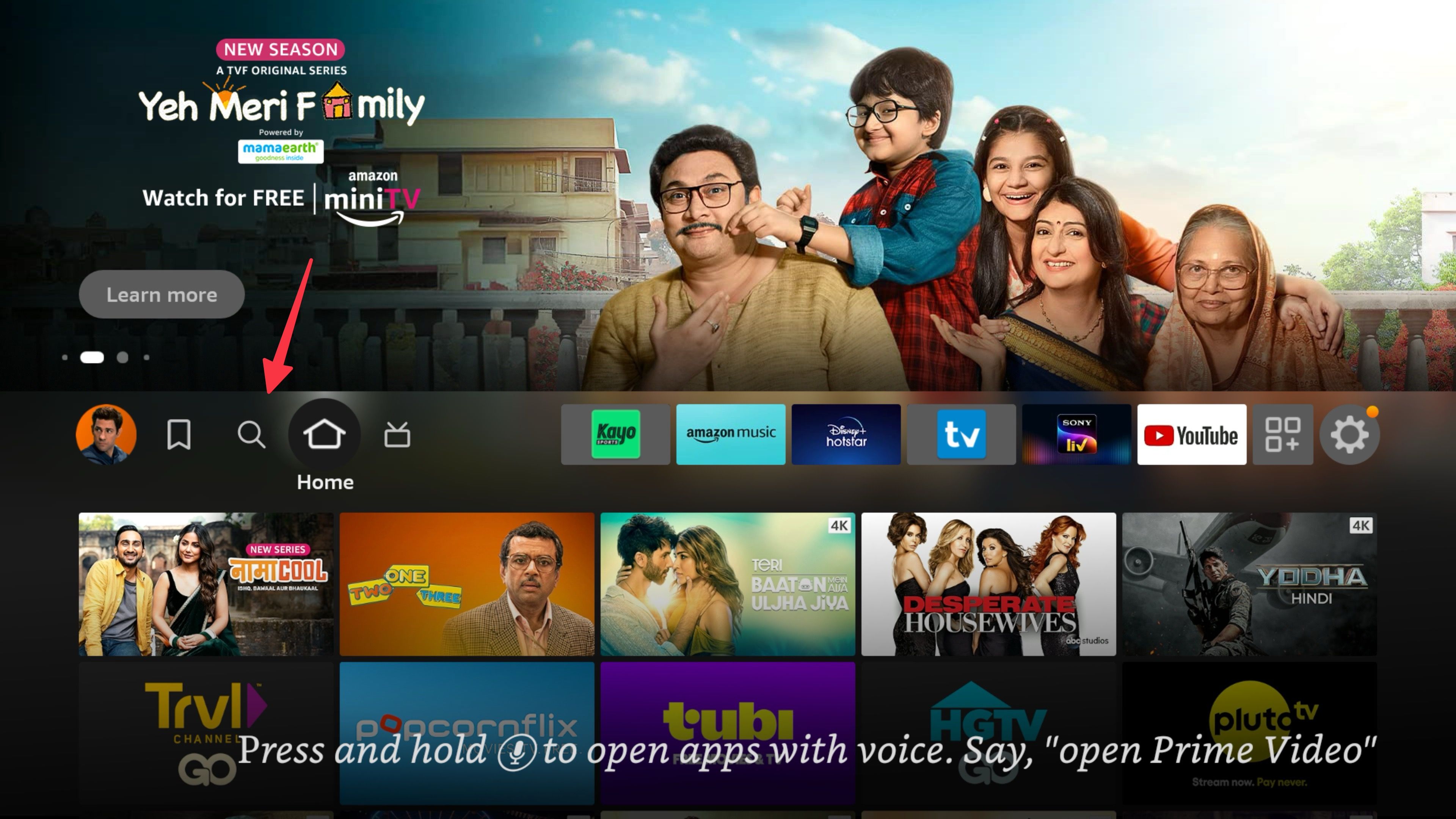
- Press and hold the Home button on the remote.
- Choose Mirroring, Display Mirroring, or Screen Mirroring.
On some Fire TV versions, you can open Settings, select Display & Sounds, and then choose Enable Display Mirroring. Leave this screen open while you connect your phone. Fire TV may stop waiting if you take too long.
Step 2: Open the Android casting menu
On your Android phone, swipe down twice from the top of the screen to open Quick Settings. Look for one of these options:
• Cast
• Screen Cast
• Screen Mirroring
• Smart View
• Wireless Display
• SmartShare
If you do not see the option, tap the pencil or edit icon and add it to Quick Settings. You can also open the Settings app and search for “cast” or “mirror.”
Step 3: Select your Fire TV
Tap the casting or mirroring option. Wait for your Fire TV name to appear, then tap it. The first connection may take several seconds.
If a permission message appears on the television, choose Allow. Your Android screen should now appear on the TV.
Step 4: Stop mirroring
To stop casting, open the same Android casting menu and tap Disconnect. You can also press a button on your Fire TV remote and leave the mirroring screen.
Screen mirroring copies everything on your phone. That includes notifications, calls, and private messages. Turn on Do Not Disturb before watching a movie or showing personal photos.

How to Cast to Fire TV From Android With a Casting App
Some Android phones cannot mirror directly to Fire TV. Google Pixel phones are a common example because many Pixel models focus on Google Cast and do not include Miracast support. In this case, you can use a third-party receiver app on Fire TV.
Popular options include AirScreen and similar wireless display receiver apps. These apps create a bridge between your Android phone and Fire TV. Features, costs, privacy terms, and performance can vary, so install apps only from the official Amazon Appstore and review their permissions.
General setup process
- Open the Appstore on Fire TV.
- Search for a trusted screen mirroring receiver.
- Install and open the app.
- Follow the app’s setup instructions.
- Make sure your Android device and Fire TV use the same Wi-Fi network.
- Open the matching cast or mirror feature on Android.
- Select the receiver name shown by the Fire TV app.
Some receiver apps support Miracast, Google Cast, or both. Read the app description carefully. A receiver that works with one Android phone may not work well with another.
When I test this method, I first try a short video and a photo slideshow. If both work without delay, the setup is usually ready for longer viewing. If the picture freezes, the issue is often Wi-Fi congestion rather than the app itself.
How to Cast YouTube and Other Supported Apps
You may not need full screen mirroring to watch videos. Many Fire TV apps, including YouTube, offer their own connection or pairing features. This can provide better video quality and reduce battery use because your phone acts as a remote instead of sending the whole screen.
To cast YouTube from Android:
- Open YouTube on Fire TV.
- Open YouTube on your Android phone.
- Tap the Cast icon.
- Select your Fire TV or use the TV code pairing option.
- Choose a video and control playback from your phone.
The Cast icon may not appear if your phone and Fire TV are on different networks. It may also be missing when the Fire TV app is outdated.
For apps that do not support direct casting, use screen mirroring instead. Streaming services may block screen capture or wireless mirroring because of licensing rules. A black screen, audio without video, or an error message can indicate this restriction.
A useful rule is simple:
• Use direct app casting for supported video apps.
• Use screen mirroring for photos, presentations, web pages, and compatible apps.
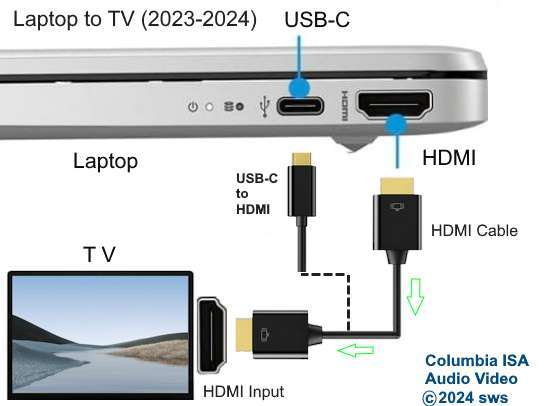
• Use an HDMI adapter when wireless methods are unreliable.

How to Cast to Fire TV From Samsung Android Phones
Samsung phones often include Smart View, which makes it easy to cast to Fire TV when the television supports the right wireless display standard.
To try Smart View:
- Swipe down twice to open Quick Settings.
- Tap Smart View.
- Wait for nearby devices to appear.
- Select your Fire TV or a receiver app installed on Fire TV.
- Approve the connection on the television if asked.
Some Samsung phones may not see Fire TV directly. Installing a compatible receiver app on Fire TV can solve this problem. Keep both devices close to the router during the first connection.
Samsung also includes settings that can affect performance. Turn off power-saving mode if the connection repeatedly stops. Make sure the phone screen stays active during a presentation or photo display.
This is one of the most reliable ways to cast to Fire TV from Android when using a recent Samsung Galaxy phone. However, exact menu names can change after software updates.

How to Cast to Fire TV From Google Pixel Phones
Google Pixel phones usually work best with apps that support Google Cast. Fire TV is not a built-in Google Cast receiver, so a Pixel may not find Fire TV in the standard Cast menu without an additional receiver app.
To cast from a Pixel:
- Install a compatible receiver app on Fire TV.
- Open the app and keep it active.
- Confirm that both devices are on the same Wi-Fi network.
- Open Google Home or the supported casting menu on your Pixel.
- Select the receiver shown on Fire TV.
If the Pixel cannot connect, check whether the receiver supports Google Cast rather than only Miracast. This difference is important. Miracast and Google Cast are separate wireless technologies, even though both can display content on a television.
For Pixel users, direct app casting may be more dependable than full screen mirroring. You can also connect the phone to Fire TV with a compatible USB-C to HDMI adapter if wireless casting is not available.

Troubleshooting Fire TV Casting Problems
If you cannot cast to Fire TV from Android, work through the following checks in order. Start with simple network fixes before changing advanced settings.
Fire TV does not appear
• Confirm both devices are on the same Wi-Fi name.
• Turn off any VPN on the Android phone.
• Restart the Android phone, Fire TV, and router.
• Open the Fire TV mirroring screen before searching on Android.
• Move the phone closer to the router.
• Check whether your Android phone supports Miracast or Google Cast.
A guest Wi-Fi network can prevent device discovery. If your router has separate 2.4 GHz and 5 GHz networks, connect both devices to the same band for testing.
The connection keeps dropping
Weak Wi-Fi is the most common cause. Thick walls, crowded apartment networks, Bluetooth interference, and heavy downloads can reduce stability.
Try these fixes:
• Pause large downloads and cloud backups.
• Move Fire TV closer to the router or use a wired Ethernet adapter.
• Restart the router.
• Update Fire TV and Android.
• Disable battery saver on the phone.
• Keep the phone screen awake during mirroring.
Fire TV may also disconnect when the phone locks. Increase the screen timeout for the duration of your viewing session, then restore your usual setting.
The video lags or looks blurry
Screen mirroring compresses video as it travels across your network. Fast action, high-resolution video, and busy Wi-Fi can expose that delay.
For better performance:
• Use direct casting inside the streaming app when available.
• Reduce network traffic from other devices.
• Place Fire TV near the router.
• Close unused Android apps.
• Avoid mirroring a high-resolution game over a weak connection.
The phone’s screen resolution may also affect the image. A modern television cannot create missing detail if the original mirrored image is low quality.
You hear sound but see a black screen
Some apps block mirroring because of digital rights rules. Try the official Fire TV version of the app instead. If no Fire TV app exists, use a supported direct casting method or a wired connection that complies with the service’s rules.
Do not rely on unofficial workarounds that claim to bypass content protection. They may violate service terms and can expose your devices to security risks.
Audio and video are out of sync
Restart the stream and reconnect the devices. If the delay remains, reduce network traffic and try direct app casting. Wireless mirroring can introduce more delay than native playback, especially with games and live broadcasts.

Best Practices for a Better Casting Experience
A few habits can make it easier to cast to Fire TV from Android every time.
Keep Fire TV and Android updated. Updates often improve wireless compatibility, fix bugs, and patch security issues. Avoid installing unknown APK files that promise better casting because they may contain unwanted software.
Use a strong Wi-Fi connection. A router in an open area usually performs better than one hidden inside a cabinet. If your Fire TV is far from the router, consider a mesh Wi-Fi system or an official Ethernet adapter.
Choose the right method for the job:
• Use screen mirroring for photos, documents, and websites.
• Use app casting for movies and online videos.
• Use an HDMI adapter for presentations, games, or places with poor Wi-Fi.
Protect your privacy. Turn on Do Not Disturb, close private apps, and stop mirroring when you finish. Remember that anything visible on your phone can appear on the television.
One mistake I often see is leaving a receiver app open and assuming it will always be safe to use. Review permissions and remove apps you no longer need. A clean setup is easier to troubleshoot and safer for your account data.
Wireless Casting Versus an HDMI Cable
Wireless casting is convenient, but it is not always the best choice. A wired HDMI connection can provide a steadier image with less delay, especially for games, work presentations, and long viewing sessions.
Wireless casting is best when:
• You want to share photos quickly.
• You are watching short videos.
• You do not want extra cables.
• Your Wi-Fi signal is strong.
An HDMI connection is best when:
• Your phone does not support wireless mirroring.
• The video must stay stable.
• You need low input delay.
• You are traveling or using unreliable Wi-Fi.
USB-C phones do not all support video output. Before buying an adapter, check whether your exact Android model supports DisplayPort Alt Mode or another wired video standard. An adapter cannot add a feature that the phone hardware does not provide.
Frequently Asked Questions About How to Cast to Fire TV From Android
Can I cast to Fire TV from Android without Wi-Fi?
Most wireless casting methods require both devices to share a Wi-Fi network. Some phones and Fire TV models may support Wi-Fi Direct or hotspot connections, but compatibility varies and setup is less reliable.
Why does my Android phone not see Fire TV?
Your phone may not support the same wireless display standard as Fire TV. Check that both devices use the same network, open the Fire TV mirroring screen, disable VPN services, and install a compatible receiver app if needed.
Can I cast Netflix from Android to Fire TV?
Netflix and other streaming services may limit screen mirroring. Use the official Netflix app on Fire TV whenever possible, then sign in and play the content directly on the television.
Does Fire TV work with Google Cast?
Fire TV does not function as a native Google Chromecast receiver. Some Fire TV receiver apps can support Google Cast features, but results depend on the app, phone, Fire TV model, and streaming service.
Can I cast my Android phone to Fire TV for gaming?
Yes, but wireless mirroring may add noticeable input delay. For fast games, a compatible USB-C to HDMI connection or a dedicated gaming setup usually provides a smoother response.
How do I stop casting from Android to Fire TV?
Open the Cast, Smart View, or Screen Mirroring control on your Android phone and tap Disconnect. You can also close the receiver app or leave the mirroring screen on Fire TV.
Conclusion
Learning how to cast to Fire TV from Android starts with matching the right technology to your phone. Use built-in screen mirroring when your Android device and Fire TV support the same standard, use a receiver app for phones such as many Google Pixel models, and choose direct app casting for supported streaming services.
Keep both devices on the same Wi-Fi network, update their software, and protect your privacy before mirroring. If wireless casting remains unstable, an HDMI adapter can be the more dependable option. Try the method that fits your Android model today, and share your results or questions in the comments.

Everett Ashford is a tech reviewer at mytechgrid.com specializing in SSDs, cameras, TVs, earbuds, headphones, and other consumer electronics. He provides honest, data-driven reviews based on hands-on testing and real-world performance analysis. Everett simplifies complex tech details to help readers make smart, confident buying decisions.