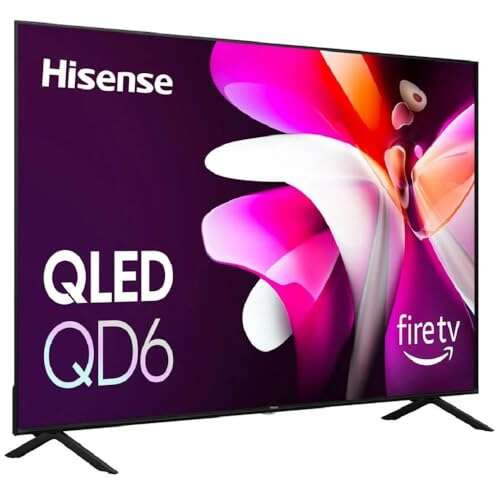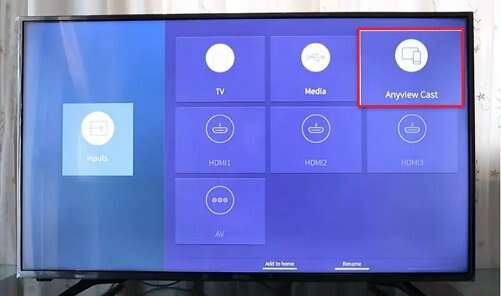
You can cast to Hisense TV via Chromecast, AirPlay, Miracast, or an external streaming stick.
I’ve helped dozens of friends and clients get apps and screens from their phones and laptops onto a Hisense TV. This guide explains exactly how to cast to Hisense TV, step by step, with easy checks, real tips from my experience, and clear fixes for common problems. Read on and you’ll be casting reliably in minutes.
Which Hisense TVs support casting?
Hisense sells TVs with different platforms. Some use Android TV, some use Roku TV, and some use Vidaa OS. Each platform supports different casting methods. Knowing your TV model helps you pick the right method for how to cast to Hisense TV.
- Check your TV’s settings menu to find the OS name and model number.
- Look for built-in labels like Chromecast built-in, AirPlay, or Screen Mirroring in the network or apps settings.
- If the TV is older or basic, plan to use an external device like Chromecast or Apple TV.
Preparation: network, firmware, and settings
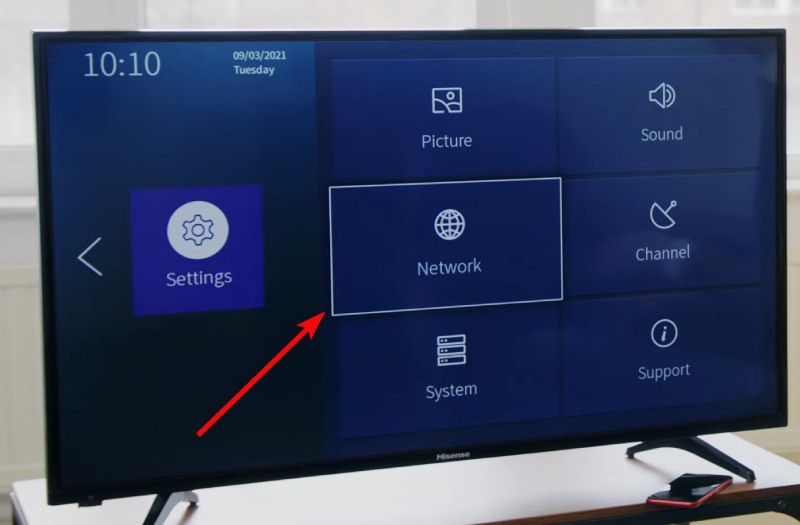
Good casting starts with basics. Make sure your phone, laptop, and Hisense TV are on the same Wi-Fi network. Update your TV firmware and the casting app on your device. These simple steps often fix many issues when trying to cast to Hisense TV.
- Connect all devices to the same 2.4 GHz or 5 GHz Wi-Fi network as supported.
- Update TV firmware from Settings > System > Software Update or similar.
- Allow permissions or enable screen mirroring in TV settings when prompted.
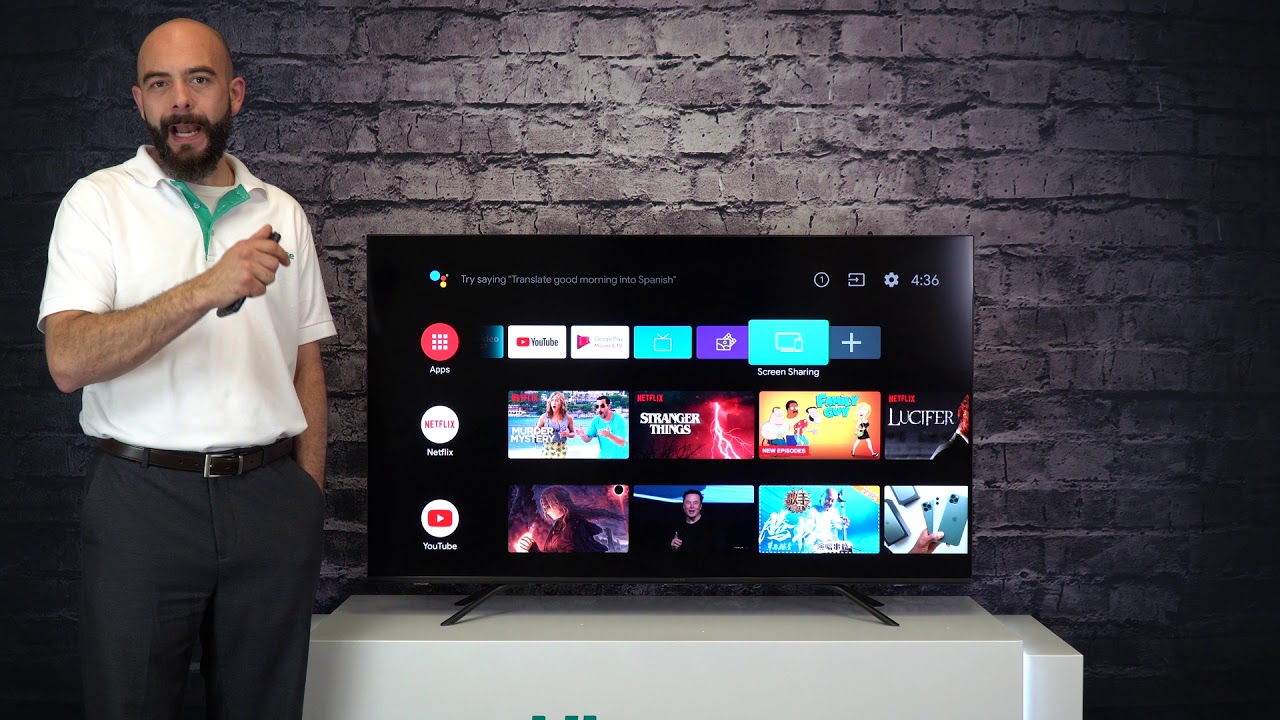
Method 1: Cast from Android devices (Google Cast and Miracast)
Android phones and tablets offer two common ways to cast. Some Hisense models have Chromecast built-in. Others support Miracast screen mirroring. Both work well for apps, photos, and screen sharing.
Cast with Chromecast built-in:
- Open a Chromecast-compatible app (YouTube, Netflix, etc.) on your Android device.
- Tap the Cast icon and select your Hisense TV listed.
- Tap Play; the content should show on your TV.
Mirror with Miracast (screen mirror):
- Open Settings > Connected devices > Cast on your Android.
- Enable Wireless display from the menu.
- Select the Hisense TV from the device list to mirror the screen.
If your TV does not show, restart both devices and try again. In my tests, enabling Wireless Display after a reboot fixed most connection issues.
Method 2: Cast from iPhone and Mac (AirPlay and Screen Mirroring)
Many newer Hisense TVs that run Roku, Android, or Vidaa OS support AirPlay 2. If your TV supports AirPlay, casting from an iPhone or Mac is fast and smooth.
Using AirPlay from iPhone:
- Open Control Center and tap Screen Mirroring.
- Select your Hisense TV from the list.
- Enter any code shown on the TV to pair and start casting.
Using AirPlay from Mac:
- Click the AirPlay icon in the menu bar or use Display settings.
- Choose your Hisense TV to mirror or extend the display.
- Use full-screen apps or mirror the desktop as needed.
If AirPlay isn’t available, use an Apple TV device connected to the HDMI port. I often recommend the Apple TV for stable, low-latency casting from Apple devices.

Method 3: Cast from Windows PC and Chrome browser
Casting from Windows or Chrome browser is useful when you want to share tabs, video, or your desktop. Chrome’s built-in cast feature works with Chromecast-capable TVs and devices.
From Chrome browser:
- Open Chrome, click the three-dot menu, and select Cast.
- Choose your Hisense TV or Chromecast device from the list.
- Pick Cast tab, Cast desktop, or Cast file depending on what you need.
From Windows (Miracast):
- Open Action Center and use Connect or Project.
- Choose Wireless display and select your Hisense TV.
- Approve the connection on the TV if prompted.
In a real case, casting a presentation via Chrome tab gave the best balance of quality and battery life. Use desktop casting for apps that need whole-screen sharing.

Method 4: Use external devices (Chromecast, Apple TV, Fire TV)
If your Hisense TV lacks built-in casting, an external dongle or box fixes that instantly. These devices add modern casting support.
- Chromecast: Adds Google Cast to any HDMI TV. Use it for Android and Chrome casting.
- Apple TV: Best for AirPlay from iPhone and Mac. Also supports apps.
- Amazon Fire TV Stick: Offers apps and screen mirroring for many phones.
Plug the device into an HDMI port, set the TV input, and follow on-screen setup. In my experience, a Chromecast dongle is the simplest and cheapest way to add casting to older Hisense TVs.

Troubleshooting common casting issues
Casting sometimes fails. Here are fast fixes I use.
- Restart devices: power cycle the TV, phone, or dongle first.
- Check Wi-Fi: ensure devices are on the same network and not isolated by guest mode.
- Update apps and firmware: outdated software often blocks casting.
- Reduce interference: move routers or devices if the signal is weak.
- Reinstall apps: uninstall and reinstall the casting app on your device.
If casting is laggy, switch to 5 GHz Wi-Fi or connect the TV to Ethernet. I’ve seen that change clear up buffering and lag immediately.
Tips, security, and best practices
Casting is handy but keep these tips in mind for a smooth, secure experience.
- Use strong Wi-Fi passwords and keep firmware updated to avoid vulnerabilities.
- Turn off guest network isolation if you want casting from guest devices.
- Limit automatic screen mirroring in public places to avoid accidental sharing.
- For best quality, use wired Ethernet for the TV when streaming high-resolution content.
From my experience, scheduled firmware checks save time. Set a reminder to check TV updates monthly.
Frequently Asked Questions of how to cast to hisense tv
What if my Hisense TV doesn't show up in the cast list?
Check that the TV and casting device are on the same Wi-Fi network. Restart both devices and enable screen mirroring or casting in the TV settings.
Can I use AirPlay on any Hisense TV?
Not all Hisense TVs support AirPlay. Newer models with Roku, Android TV, or Vidaa OS may have AirPlay 2 built-in. If not, use Apple TV for AirPlay support.
Do I need a Chromecast to cast to a Hisense TV?
No. Some Hisense TVs have Chromecast built-in or support Miracast and AirPlay. If your TV lacks these features, a Chromecast is an affordable option.
Why is casting lagging or buffering on my Hisense TV?
Lag often comes from weak Wi-Fi, network congestion, or a slow source device. Use 5 GHz Wi-Fi, reduce other network load, or connect the TV to Ethernet.
How do I enable screen mirroring on a Hisense Roku TV?
Open Settings on the TV, go to System > Screen mirroring, and set the mode to Prompt or Always allow. Then start the cast from your device and accept the prompt on the TV.
Can I cast from a Chromebook to a Hisense TV?
Yes. Use Chrome’s Cast feature to send a tab, your desktop, or a file to a Chromecast-enabled Hisense TV or external Chromecast device.
Conclusion
Now you know multiple ways to cast to Hisense TV: built-in Chromecast, Miracast screen mirroring, AirPlay, and external devices like Chromecast and Apple TV. Follow the preparation steps, use the method that matches your device, and apply the troubleshooting tips when needed. Try one method now, update your firmware, and you’ll be streaming to your Hisense TV with confidence. If this guide helped, leave a comment, subscribe for more tips, or share your casting experience.

Jamie Lee is a seasoned tech analyst and writer at MyTechGrid.com, known for making the rapidly evolving world of technology accessible to all. Jamie’s work focuses on emerging technologies, product deep-dives, and industry trends—translating complex concepts into engaging, easy-to-understand content. When not researching the latest breakthroughs, Jamie enjoys exploring new tools, testing gadgets, and helping readers navigate the digital world with confidence.