Place both earbuds in the case, hold the Bluetooth button for 30 seconds, then pair them again.
Knowing how to reset Bose QC Earbuds 2 can save you from pairing errors, uneven sound, charging issues, and app connection problems. The reset process is simple, but the timing and order matter. This guide explains the official reset method, what to do before and after it, and how to fix common problems when the reset does not work.
When to Reset Bose QC Earbuds 2
A reset returns the earbuds to a clean connection state. It can remove stored Bluetooth data and help the earbuds communicate correctly with your phone, tablet, or computer.
You may need to reset Bose QC Earbuds 2 if you notice:
• The earbuds will not pair with a device
• Only one earbud produces sound
• The Bose Music app cannot find the earbuds
• The earbuds connect but quickly disconnect
• Touch controls stop responding
• Audio cuts out or sounds uneven
• The earbuds remain linked to an old phone
• Charging or sleep behavior seems unusual
A reset is not always the first step. If one earbud is silent, first check that both earbuds are seated correctly in the case. Clean the charging contacts with a dry cotton swab, charge the case, and try pairing again.
What You Need Before You Start
Before you reset Bose QC Earbuds 2, prepare the earbuds and your phone. A little preparation prevents the most common reset mistakes.
Make sure you have:
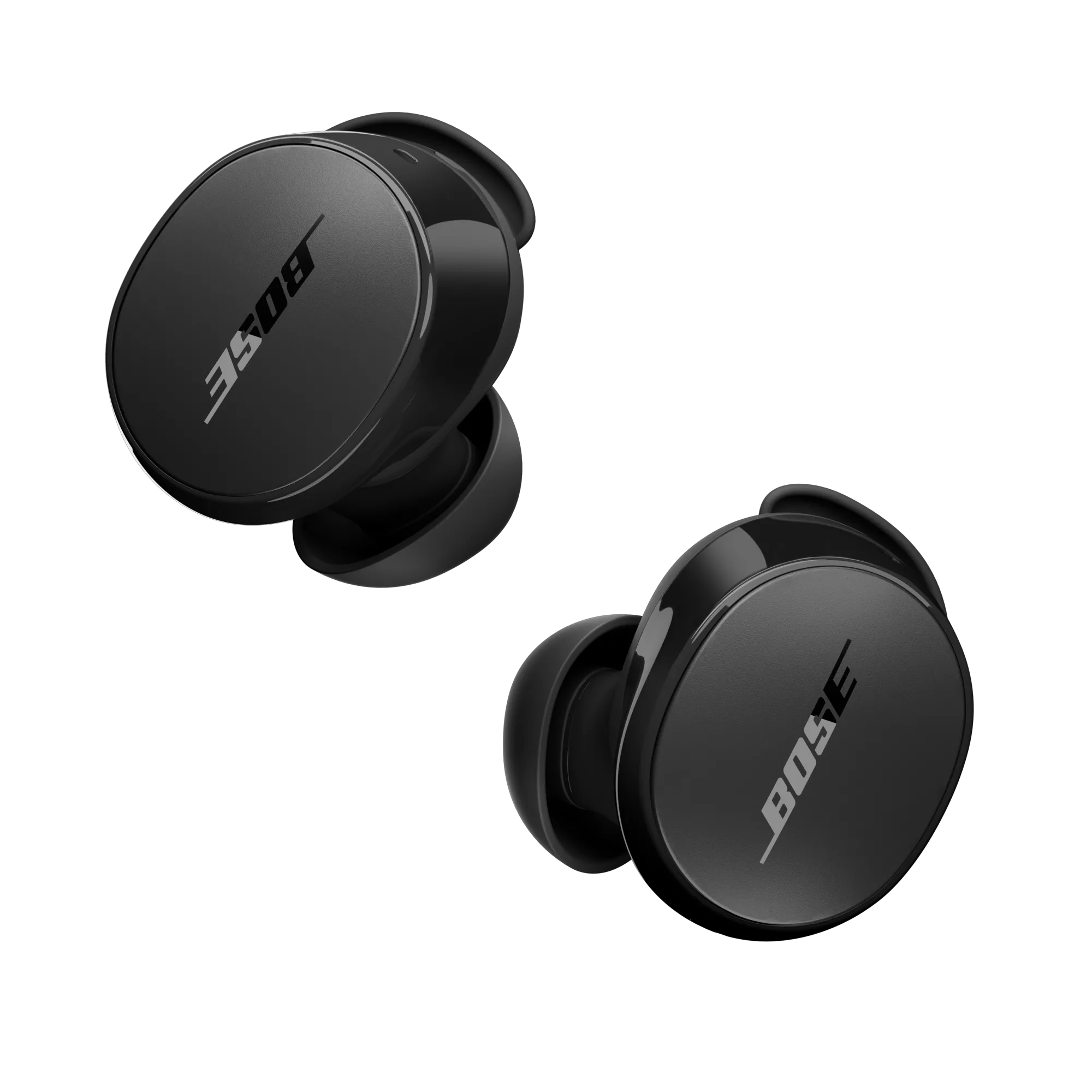
• The Bose QC Earbuds 2 and their charging case
• A charged charging case
• Your phone or other Bluetooth device
• The Bose Music app, if you use app-based setup
• A clean, dry surface for the earbuds
The charging case should have enough power to complete the reset. If the case is empty, connect it to power with the included USB-C cable and let it charge for a few minutes first.
It also helps to remove the old Bluetooth connection from your phone. On an iPhone, open Settings, choose Bluetooth, tap the information icon beside the earbuds, and select Forget This Device. On Android, open Bluetooth settings, choose the earbuds, and tap Forget, Unpair, or Remove.
You do not always need to uninstall the Bose Music app. However, closing the app during the reset can prevent it from trying to reconnect too soon.

How to Reset Bose QC Earbuds 2
The following method is the standard way to reset Bose QC Earbuds 2 through the charging case.
Step 1: Put both earbuds in the case
Place the left and right earbuds into their matching slots. Press each earbud down gently so it makes contact with the charging pins.
The earbud lights should respond when the buds are seated. If one light does not turn on, remove that earbud and clean the small metal contacts on both the earbud and case.
Step 2: Leave the case open
Keep the charging case lid open. The earbuds should remain inside the case while you perform the reset.
Closing the lid too soon can interrupt the process. Think of the open case as the control panel for the reset.
Step 3: Find the Bluetooth button
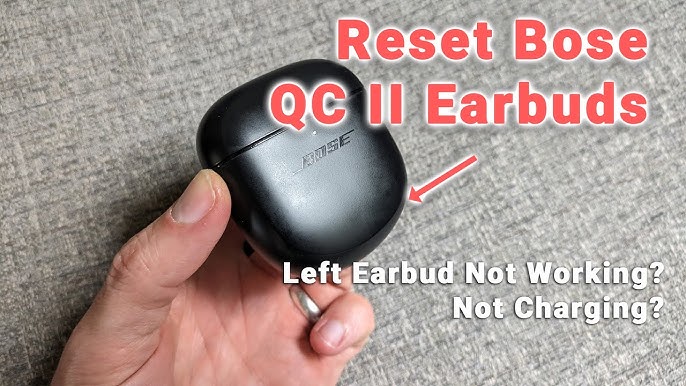
Look for the small Bluetooth button on the back of the charging case. This button is separate from the touch controls on the earbuds.
Do not press the earbud surfaces during this process. Use only the Bluetooth button on the case.
Step 4: Press and hold the button
Press and hold the case Bluetooth button for about 30 seconds. Keep holding it even if the lights change during the process.
The earbud status lights should blink white, then blue, and then turn off. After that, the lights should slowly blink blue. This pattern indicates that the reset has completed and the earbuds are ready to pair.
Step 5: Release the button
Release the Bluetooth button after the lights show the reset sequence. Give the earbuds a moment to enter pairing mode.
If the lights do not respond, charge the case and repeat the steps. A weak case battery, poor charging contact, or an interrupted button press can prevent the reset.
Step 6: Pair the earbuds again
Open Bluetooth settings on your phone and look for Bose QC Earbuds II. Select the earbuds and approve the pairing request.
You can then open the Bose Music app and complete setup. The app may ask you to sign in, assign earbud controls, adjust noise cancellation, or install a firmware update.
That is the complete process for how to reset Bose QC Earbuds 2. The earbuds should now behave like a fresh Bluetooth connection rather than a device tied to old pairing data.

What Happens After a Reset?
A successful reset Bose QC Earbuds 2 procedure can solve software and connection issues, but it does not repair physical damage. The reset mainly clears the communication state between the earbuds and connected devices.
After the reset, you may need to:
• Pair the earbuds with your phone again
• Reconnect them to a computer or tablet
• Reconfigure noise cancellation settings
• Set your preferred touch controls
• Recreate shortcuts in the Bose Music app
• Download a firmware update
The reset does not improve the physical battery condition. It cannot restore battery capacity lost through normal aging. It also cannot fix a damaged speaker, broken charging contact, water damage, or a worn case battery.
In testing and troubleshooting, one common mistake is assuming that the reset failed because the Bose Music app does not open the setup screen immediately. Close the app, turn Bluetooth off and on, and then search for the earbuds in the phone’s Bluetooth menu.
How to Pair Bose QC Earbuds 2 After Resetting
Pairing after a reset is usually quick. Keep the earbuds in the open case while the status lights slowly blink blue.
Follow these steps:
-
Open your phone’s Bluetooth settings.
-
Turn Bluetooth on.
-
Select Bose QC Earbuds II from the available devices.
-
Accept the pairing request.
-
Open the Bose Music app if you want to change settings.
-
Install any available firmware update.
If the earbuds do not appear, move them close to the phone. Turn off Bluetooth on nearby devices that may try to connect first. You can also restart the phone before searching again.