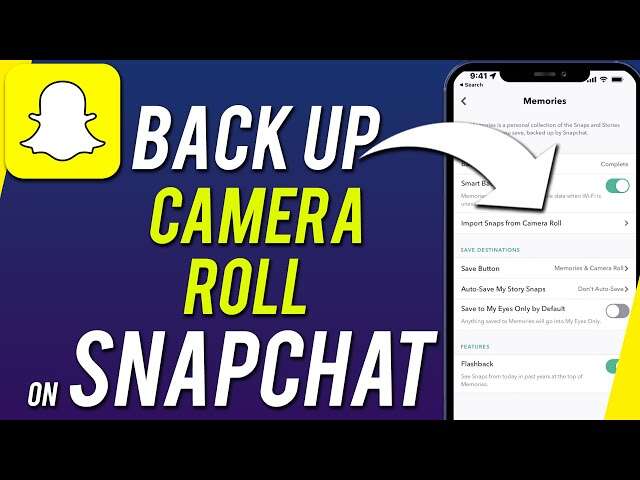
Turn on iCloud/Google Photos, enable Snapchat Memories, auto-save, and confirm backups.
If you want a clean, safe way to protect every Snap and photo, you’re in the right place. I’ll show you how to backup Snapchat camera roll on iPhone and Android with clear steps, pro tips, and real-world checks so nothing goes missing. By the end, you’ll know exactly how to backup Snapchat camera roll, how to verify it worked, and how to keep it hands-off for the future.

Camera Roll vs Memories: What Snapchat Actually Backs Up
Before we dive into how to backup Snapchat camera roll, you need one key idea. Snapchat does not back up your device’s Camera Roll by default. It only backs up Snaps saved to Memories, which live in Snapchat’s cloud when backup is complete.
Here’s the simple map:
- Camera Roll lives on your phone. It is backed up by iCloud Photos, Google Photos, or another cloud app.
- Memories live inside Snapchat. They are backed up by Snapchat’s servers when you see Backup Complete in Memories.
To fully protect your stuff, you’ll back up both: Camera Roll to your cloud, and Memories to Snapchat. This is the safest plan for how to backup Snapchat camera roll.
Quick-Start: How to Backup Snapchat Camera Roll In 60 Seconds
If you need a fast win, follow this mini plan. It covers the basics for how to backup Snapchat camera roll right now.
- On iPhone, open Settings, tap your name, iCloud, Photos, and turn on Sync this iPhone.
- On Android, open Google Photos, tap your profile, Photos settings, Back up, and turn on Backup.
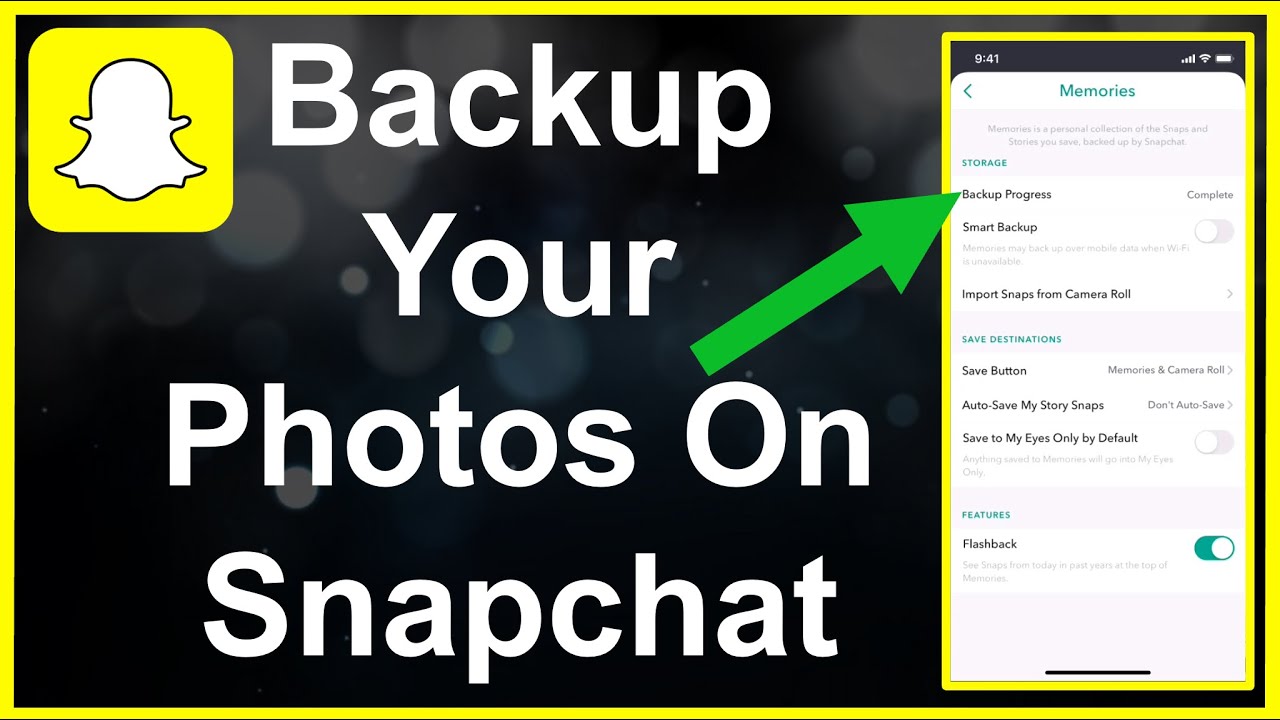
- In Snapchat, go to your profile, Settings, Memories, and turn on Smart Backup and Auto-Save to Memories.
- In Memories, tap the cloud icon to confirm it says Backup Complete.
- Open your Photos or Google Photos app. Check that recent photos show the cloud tick or upload progress.
This quick flow nails the core steps for how to backup Snapchat camera roll and keep it safe.

Step-by-Step on iPhone: iCloud Photos, Google Photos, and Snapchat Settings
If you’re on iPhone and you want a reliable way for how to backup Snapchat camera roll, start here.
Turn on iCloud Photos:
- Open Settings, tap your name, iCloud, Photos.
- Turn on Sync this iPhone. Choose Optimize iPhone Storage to save space.
- Leave the phone charging on Wi‑Fi to upload your library.
Optional: Add Google Photos for a second backup:
- Install Google Photos and sign in.
- Tap your profile, Photos settings, Back up.
- Choose Original quality if you have storage or Storage saver for smaller files.
Set up Snapchat to save and back up:
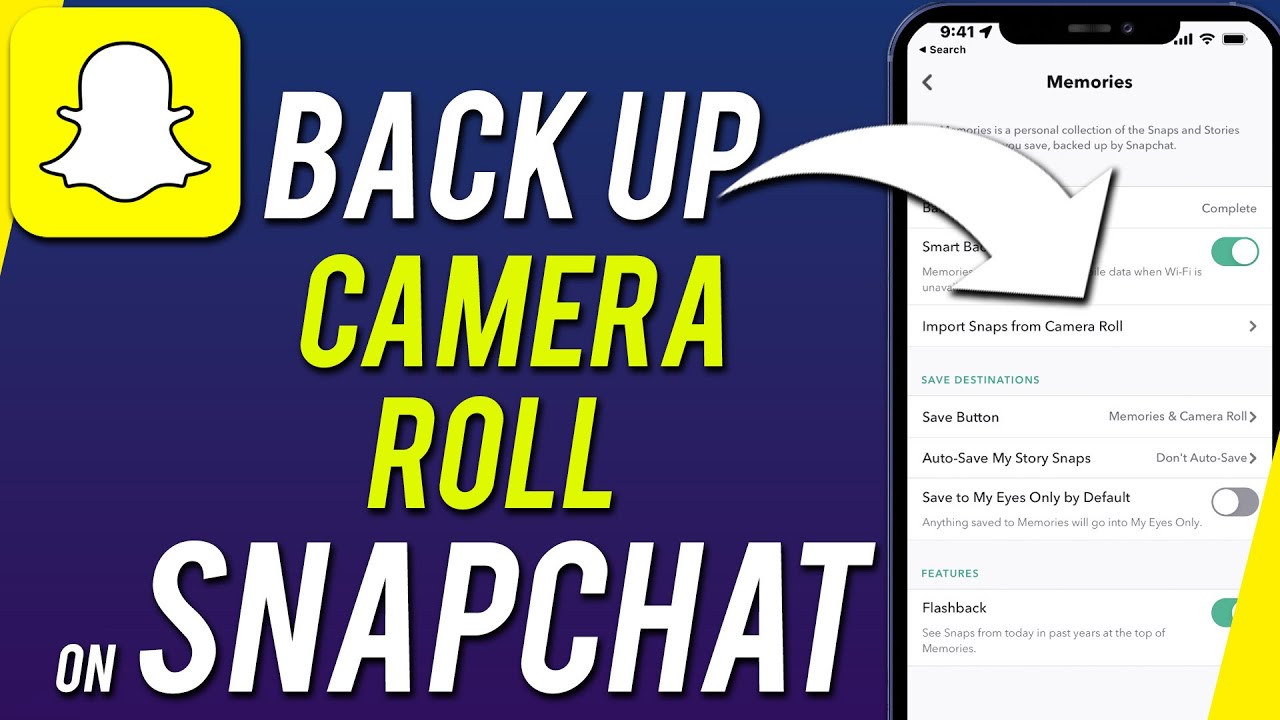
- In Snapchat, tap your profile, Settings, Memories.
- Turn on Auto-Save to Memories and Smart Backup.
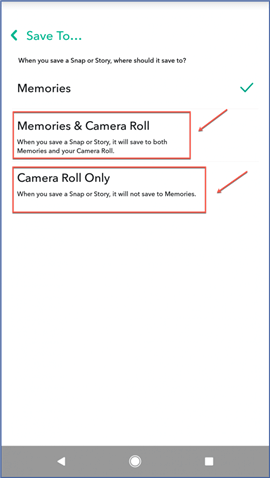
- Under Save Button, pick Memories & Camera Roll if you want both saved.
- Tap Import from Camera Roll if you want older photos in Memories too.
- In Memories, tap the cloud icon. Wait for Backup Complete.
This combo lets iCloud or Google Photos protect the Camera Roll while Memories syncs to Snapchat. It is the most dependable path for how to backup Snapchat camera roll on iPhone.
Step-by-Step on Android: Google Photos, Device Folders, and Snapchat Settings
Android makes how to backup Snapchat camera roll simple with Google Photos. You can also add OneDrive or Dropbox if you want more redundancy.
Turn on Google Photos backup:
- Open Google Photos, sign in.
- Tap your profile, Photos settings, Back up.
- Choose folders to back up, including Camera and the Snapchat folder if you want Snaps saved locally to upload.
Set up Snapchat to save and back up:
- In Snapchat, go to your profile, Settings, Memories.
- Turn on Auto-Save to Memories and Smart Backup for cellular uploads when Wi‑Fi is weak.
- Under Save Button, choose Memories & Camera Roll if you want local copies too.
- Tap the cloud icon in Memories and wait for Backup Complete.
This is the fastest way for how to backup Snapchat camera roll on Android while keeping your Snaps safe in both places.
Back Up to Cloud Services: iCloud, Google Photos, OneDrive, Dropbox
Want extra certainty for how to backup Snapchat camera roll? Add one more cloud. Each service has perks.
- iCloud Photos. Deep iPhone integration. Great for set-and-forget. Storage upgrades may be needed.
- Google Photos. Works on iOS and Android. Smart search. Easy sharing and cross-device access.
- OneDrive. Solid if you already use Microsoft 365. Good Windows integration.
- Dropbox. Strong sync and sharing. Great for work folders and archives.
Tips to avoid duplicates:
- Pick one primary cloud for automatic Camera Roll backup.
- If you use a second cloud, turn off auto-upload there and do manual exports monthly.
This layered approach hardens how to backup Snapchat camera roll against lost devices or account issues.

Export, Organize, and Verify Your Backups
Even a great plan needs checks. Here is how to make sure your how to backup snapchat camera roll workflow is actually working.
Export from Snapchat when needed:
- In Snapchat Memories, long-press items, select, Export, Save to Camera Roll or Save to Files.
- For big batches, export in smaller groups to avoid timeouts.
Organize cleanly:
- In Photos/Google Photos, create albums like 2024 Snaps or Trips.
- Use simple names so search works later.
Verify your backups:
- In Snapchat Memories, tap the cloud icon. It should say Backup Complete.
- In iCloud Photos, check Settings, iCloud, Account Storage for usage growth.
- In Google Photos, open the app and confirm the cloud checkmark on new photos.
If you can restore one item on another device, your how to backup snapchat camera roll setup is solid.

Troubleshooting: Fix Common Backup Problems Fast
Things go wrong. Here is how to fix the usual snags in how to backup snapchat camera roll.
If Memories says Snaps Need Backup:
- Open Snapchat, Settings, Memories, and turn on Smart Backup.
- Leave the app open on Wi‑Fi and charging.
If iCloud Photos is stuck:
- Ensure you have iCloud storage. Free space is critical.
- Toggle Sync this iPhone off, then on. Plug in and wait.
If Google Photos won’t upload:
- Check Back up over cellular if Wi‑Fi is poor.
- Confirm Battery Saver and Data Saver are off or allow Google Photos.
If Snapchat cannot see your Camera Roll:
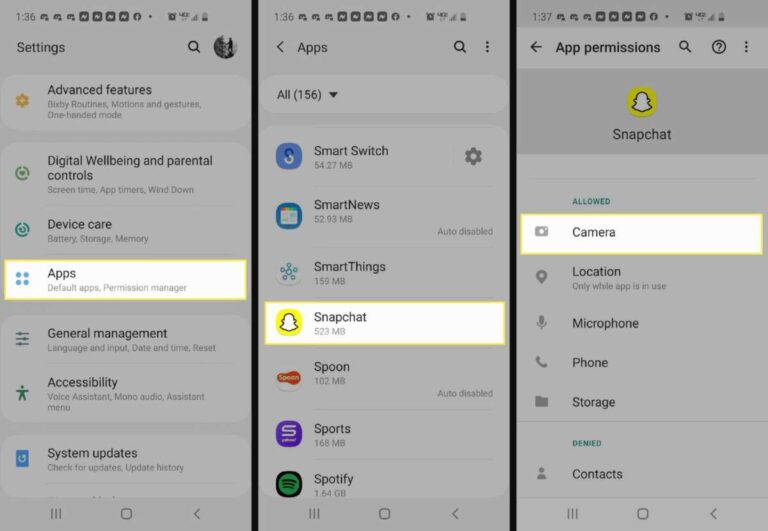
- In iOS Settings or Android App permissions, allow Photos/Media access.
- Restart the phone. Reopen Snapchat.
If you see duplicates:
- Keep only one automatic cloud uploader on. Disable others or switch them to manual.

Privacy, Security, and Data Limits You Should Know
Backing up means trusting services with your memories. Be smart and safe with how to backup snapchat camera roll.
- Use a strong passcode or Face ID on your phone.
- Turn on two-factor authentication for Snapchat, Apple ID, and Google.
- Avoid public Wi‑Fi for first-time bulk uploads. Use home Wi‑Fi or a trusted network.
- Watch data use. Smart Backup can use cellular. Turn it off if needed.
- Remember storage caps. Plan for paid tiers if your library is large.
These habits lower your risk while you handle how to backup snapchat camera roll.

My Proven Workflow and Mistakes to Avoid
Here is what works for me after helping clients and friends with how to backup snapchat camera roll. Keep it simple, automate, and verify once a week.
My workflow:
- Auto-save Snaps to Memories and Camera Roll.
- iPhone uses iCloud Photos. Android uses Google Photos.
- Monthly, I export key Memories to Camera Roll, then to a second cloud for archival.
Mistakes to avoid:
- Only saving to Camera Roll with no cloud backup.
- Relying on Wi‑Fi only and never letting the phone sit and upload.
- Ignoring the Snapchat Memories backup status. Always check Backup Complete.
Once you bake this in, how to backup snapchat camera roll feels effortless.
Frequently Asked Questions of how to backup snapchat camera roll
How do I know my Snapchat Memories are backed up?
Open Memories and tap the cloud icon at the top. If it says Backup Complete, you’re done. If it says Snaps Need Backup, leave the app open on Wi‑Fi.
Does Snapchat back up my Camera Roll automatically?
No. Snapchat backs up Memories, not your Camera Roll. Use iCloud Photos, Google Photos, or another cloud to back up your Camera Roll.
What is the fastest way for how to backup snapchat camera roll?
Turn on iCloud Photos or Google Photos, then enable Auto-Save to Memories and Smart Backup in Snapchat. Check the cloud icon in Memories and the cloud status in your Photos app.
Will this use a lot of data?
Large uploads can use data. Use Wi‑Fi for initial backups, and disable Smart Backup over cellular if you have a tight plan.
Can I back up only select photos from Camera Roll?
Yes. In Google Photos, pick specific device folders to back up. On iPhone, use albums and export only selected items from Snapchat to Camera Roll or Files.
What if I switch phones?
Sign into the same Snapchat, iCloud, or Google accounts on your new phone. Memories and cloud photos will sync down once the device is on Wi‑Fi and charging.
Is Google Photos or iCloud better for how to backup snapchat camera roll?
Use the one that fits your ecosystem. iCloud is seamless on iPhone. Google Photos works great on both iPhone and Android and has strong search.
Conclusion
You now have a clear plan for how to backup snapchat camera roll on iPhone and Android. Set up cloud backup for your Camera Roll, turn on Snapchat Memories with Smart Backup, and verify with quick status checks. Once you do this once, it runs on autopilot.
Take five minutes today to set it up and test a restore. Protect your memories before you need them. If this helped, share it with a friend, subscribe for more bite-size guides, or drop your questions in the comments.

Jamie Lee is a seasoned tech analyst and writer at MyTechGrid.com, known for making the rapidly evolving world of technology accessible to all. Jamie’s work focuses on emerging technologies, product deep-dives, and industry trends—translating complex concepts into engaging, easy-to-understand content. When not researching the latest breakthroughs, Jamie enjoys exploring new tools, testing gadgets, and helping readers navigate the digital world with confidence.