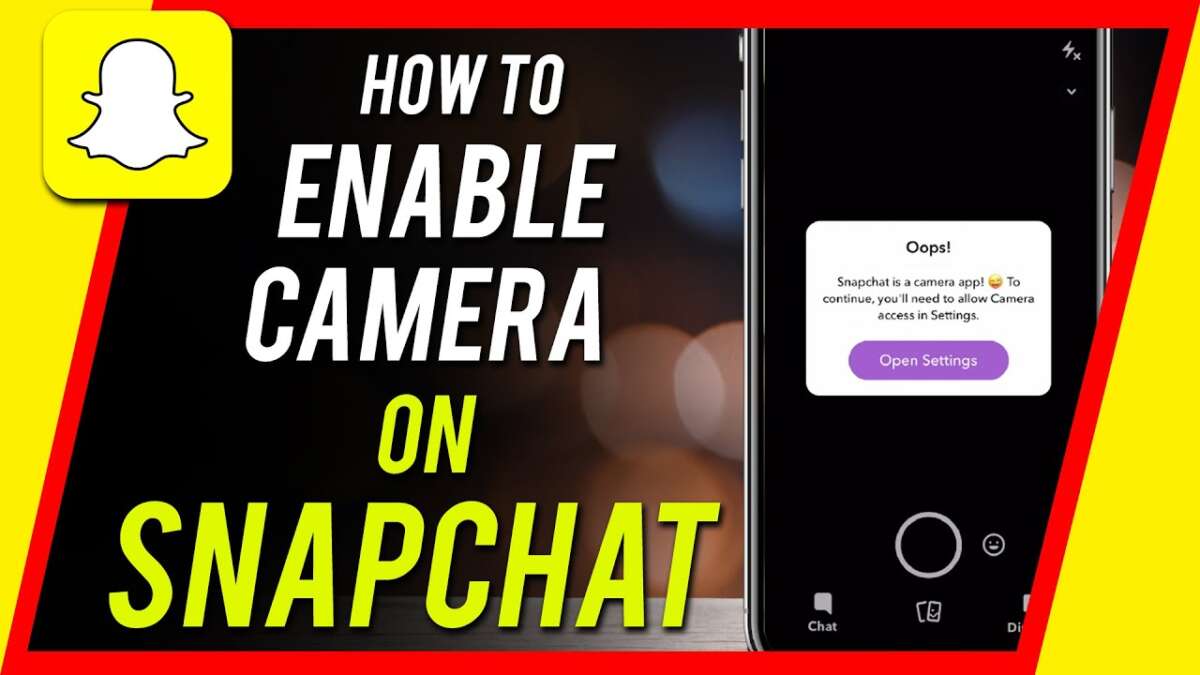
Allow Snapchat to use your camera in Settings by enabling Camera permission for Snapchat.
I’ve helped dozens of friends and clients fix permission problems on phones. This guide explains exactly how to give Snapchat access to camera on both iPhone and Android. You’ll get step-by-step instructions, troubleshooting tips, privacy advice, and real-world examples so you can open the camera in Snapchat fast and safely. Read on to fix permission blocks and get snapping.

Why Snapchat needs camera access
Snapchat is a camera-first app. It needs camera access to take photos, record videos, scan Snapcodes, and use AR lenses. Without camera permission, the app will show a black screen or prompt you to enable permissions. Knowing why the app asks helps you decide when to grant or revoke access.
:max_bytes(150000):strip_icc()/B5-AllowCameraonSnapchat-annotated-82428d3371a940c5b3cb6c4ca49afd20.jpg)
How to give Snapchat access to camera on iPhone
Follow these steps to enable camera access on iPhone. The steps work for most iOS versions from iOS 13 onward.
- Open Settings on your iPhone.
- Scroll down and tap Snapchat.
- Toggle Camera to On.
- If Camera is already On but Snapchat won’t use it, toggle it Off then On again.
- If prompts appear in Snapchat, accept them to allow access.
If Snapchat still can’t use the camera, open Settings > Privacy & Security > Camera and make sure Snapchat appears in the allowed list. Restart the phone after changing permissions. These steps will reliably resolve most permission issues and show how to give Snapchat access to camera on iPhone.

How to give Snapchat access to camera on Android
Android has more variation across devices. Use these general steps that cover Android 8 and newer.
- Open Settings on your Android phone.
- Tap Apps or Apps & notifications.
- Find and tap Snapchat.
- Tap Permissions.
- Tap Camera and choose Allow while using the app or Allow only while app is in use.
On some phones you’ll see a toggle labeled Camera; switch it on. If you see “Don’t allow,” change it to allow. For phones with special permission managers (like Samsung or Xiaomi), check the phone’s privacy settings. These steps explain how to give Snapchat access to camera on Android in most cases.

Troubleshooting common issues when granting camera access
Sometimes permissions look correct but the camera still fails. Try these quick fixes.
- Restart the app
- Close Snapchat fully and reopen it.
- Restart your phone
- A reboot clears temporary system glitches.
- Update the app
- Open the App Store or Google Play and install updates.
- Clear app cache (Android)
- Settings > Apps > Snapchat > Storage > Clear cache.
- Reinstall Snapchat
- Delete and reinstall to reset app-level settings.
If the camera is physically blocked or damaged, Snapchat won’t work even with permission allowed. Also check for OS updates; outdated software can cause permission conflicts. These steps cover how to give Snapchat access to camera and handle common follow-ups.
Privacy, security, and permissions best practices
Granting camera access is a trust decision. Use these rules to stay safe while using Snapchat.
- Grant only what you need
- Allow camera access only while using the app whenever possible.
- Review permissions regularly
- Check app permissions once a month.
- Check app reputation
- Keep Snapchat updated from official stores to avoid spoofed apps.
- Revoke if suspicious
- If an app behaves oddly, revoke camera permission and investigate.
I once left camera permission enabled for an old app that no longer needed it. Periodic reviews prevented potential misuse. These tips show how to give Snapchat access to camera responsibly and safely.
:max_bytes(150000):strip_icc()/C5-AllowCameraonSnapchat-annotated-e5b9605157ec47b48a0b8d048fdaf298.jpg)
Tips, tricks, and my real-world experience
Here are quick tips I use and teach clients when they ask how to give Snapchat access to camera.
- Use the in-app prompt
- When Snapchat asks for camera access, accept it; it saves steps.
- Toggle permissions to reset
- Turning the permission off and on often fixes glitches.
- Check for background camera use
- Some phones show which apps accessed camera recently; use that to monitor activity.
- Backup your settings
- If you change phones often, note permission settings to reapply quickly.
I fixed a friend’s issue by toggling Camera permission, then clearing cache. It worked within a minute. Small actions often fix big headaches when you need to give Snapchat access to camera.

Frequently Asked Questions of how to give snapchat access to camera
How do I give Snapchat access to camera if the button is grayed out?
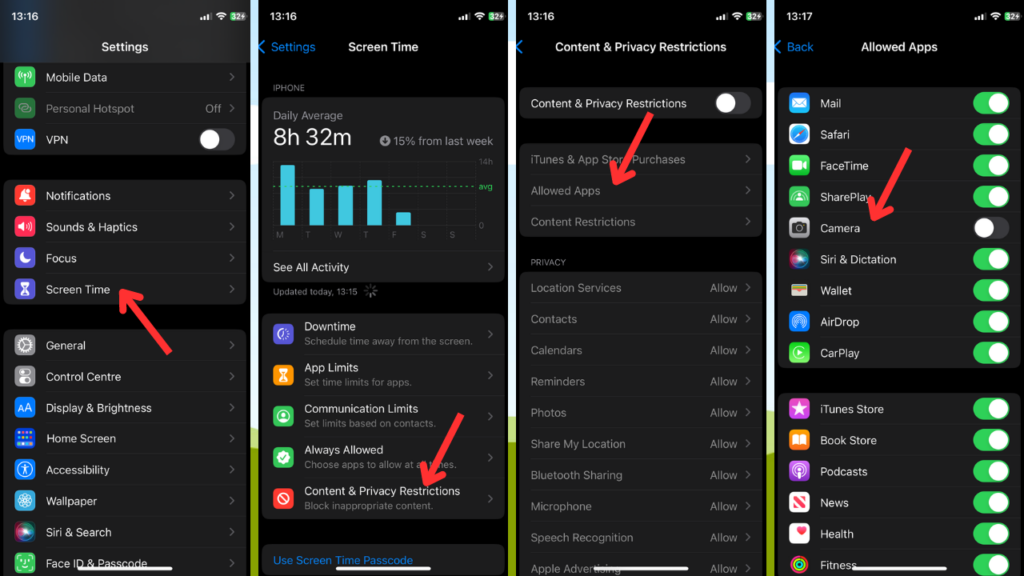
A grayed out button usually means a device-level restriction. Check Screen Time (iPhone) or parental controls and disable the restriction before toggling camera permission.
Why does Snapchat say camera permission is denied even after I enabled it?
If you enabled permission but still see a denied message, restart the app and phone. If the problem continues, reinstall Snapchat to reset internal settings.
Can Snapchat use the camera without permission?
No. Both iOS and Android require user consent for camera access. Snapchat cannot legally or technically use the camera without that permission.
Will giving Snapchat camera access let it record without my knowledge?
Allowing camera access gives the app the ability to use the camera while allowed. Modern OS versions show indicators when the camera is active, and you can revoke permissions immediately if you’re unsure.
How do I limit Snapchat to use the camera only while the app is open?
On iPhone choose “While Using the App” in Settings > Snapchat > Camera. On Android choose “Allow only while using the app” in Snapchat’s permissions. This restricts background access.
Conclusion
You now know clear, step-by-step ways to give Snapchat access to camera on iPhone and Android. Follow the simple steps, use the troubleshooting tips, and apply privacy best practices to keep your data safe. Try the steps now and test the camera in Snapchat; if it works, you’re ready to snap. Leave a comment with your issue or subscribe for more phone and app guides.

Everett Ashford is a tech reviewer at mytechgrid.com specializing in SSDs, cameras, TVs, earbuds, headphones, and other consumer electronics. He provides honest, data-driven reviews based on hands-on testing and real-world performance analysis. Everett simplifies complex tech details to help readers make smart, confident buying decisions.