Put the headphones into pairing mode, enable Bluetooth on your device, select Altec Lansing, and connect.
I’ve spent years setting up audio gear and troubleshooting Bluetooth and wired headsets, so I’ll walk you through exactly how to connect Altec Lansing headphones. This guide covers every model type, step-by-step Bluetooth and wired setup, common problems, practical fixes, and real-world tips I learned from testing Altec Lansing headphones myself. Read on to get your headphones paired quickly and reliably.

Overview: What this guide on how to connect altec lansing headphones will teach you
This article explains how to connect Altec Lansing headphones to phones, tablets, Windows PCs, and Macs. You’ll learn both Bluetooth pairing and wired connections, plus reset steps and troubleshooting tips. If you follow the simple steps here, you’ll avoid the common pairing pitfalls and get clear audio fast.

Types of Altec Lansing headphones and why connection steps differ
Altec Lansing headphones come in several designs. Each type uses slightly different connection methods, and knowing which one you have makes setup faster.
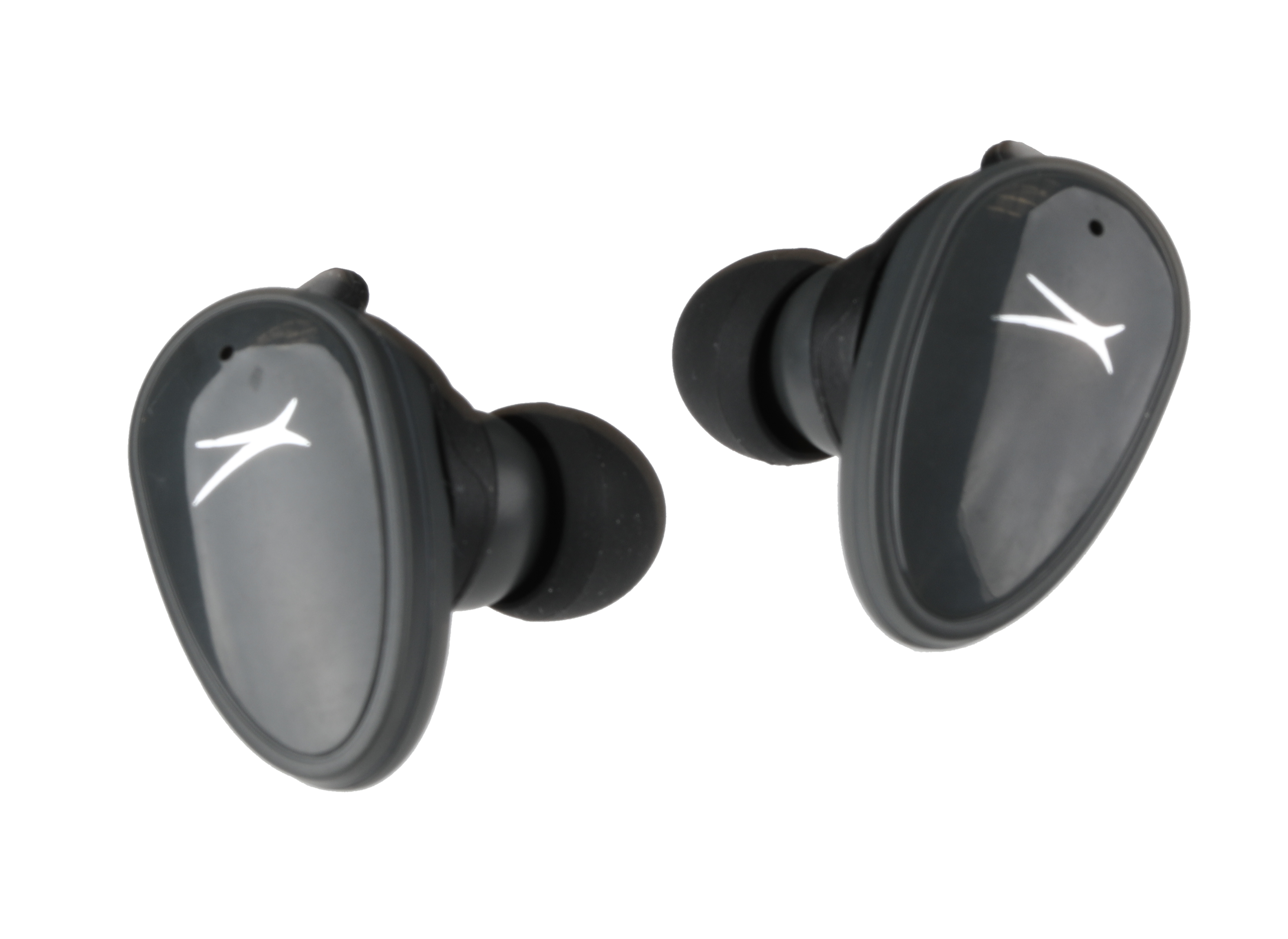
- True wireless earbuds
- Use Bluetooth only and need a charging case. Pairing steps are like other earbuds.
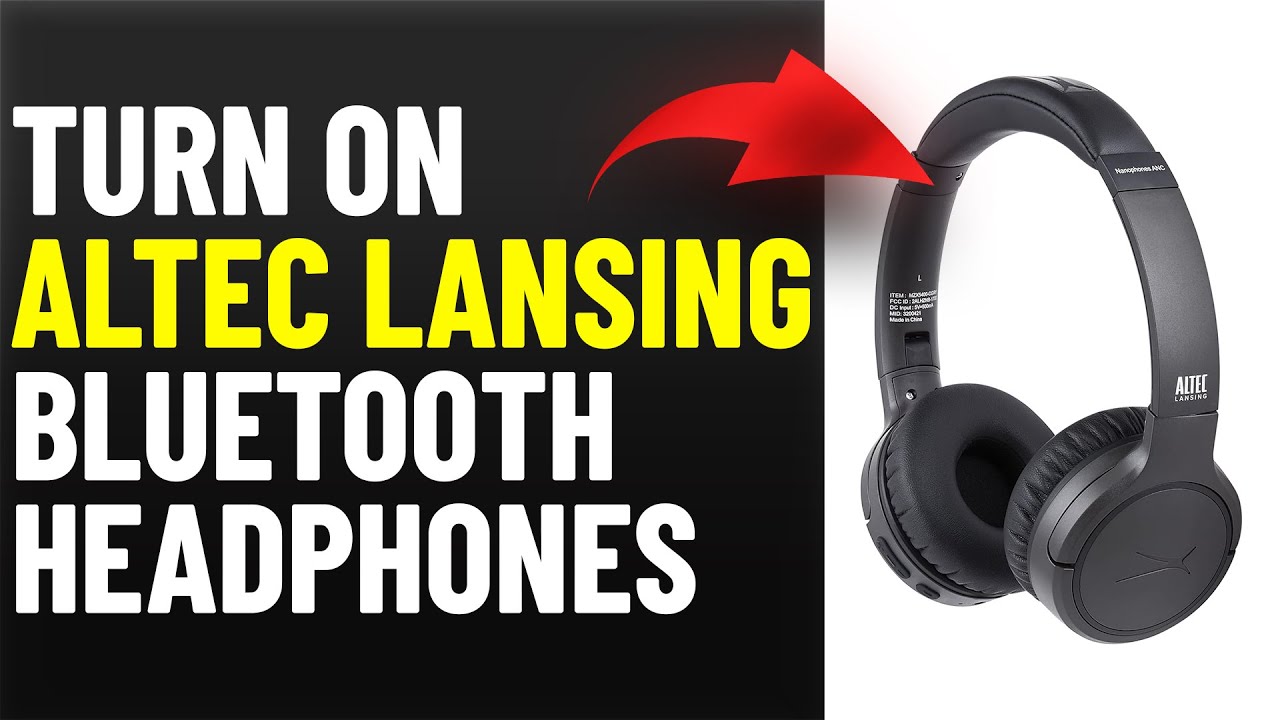
- Over-ear and on-ear Bluetooth headphones
- Pair with devices via Bluetooth and may support multi-point connections.
- Wired headphones (3.5mm)
- Plug-and-play for most devices with a headphone jack or adapter.
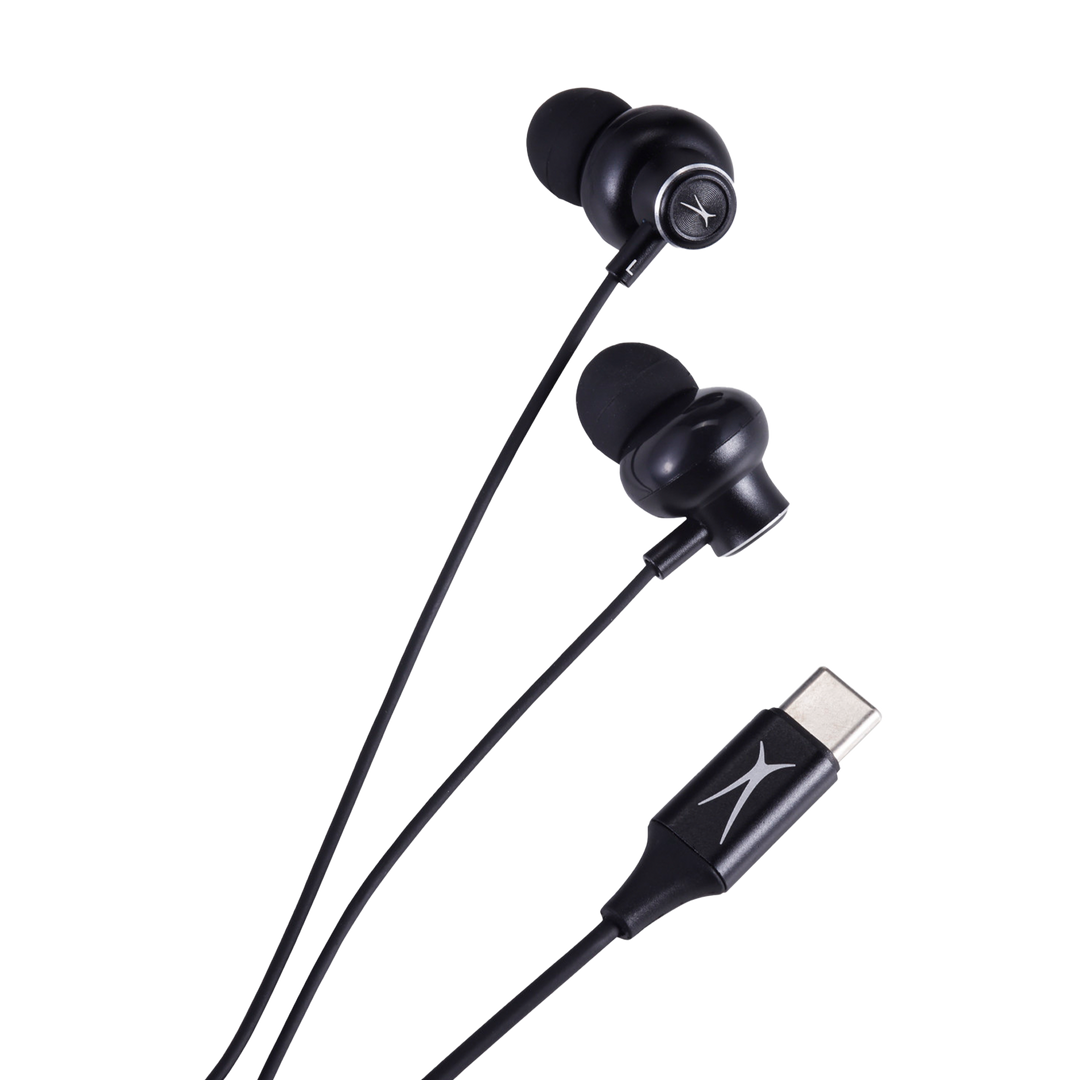
- USB or USB-C headphones
- Some models use a direct USB audio connection and may require drivers on Windows.
Knowing the model helps when you follow this guide on how to connect Altec Lansing headphones. If you have the model number, the steps below will map to it easily.
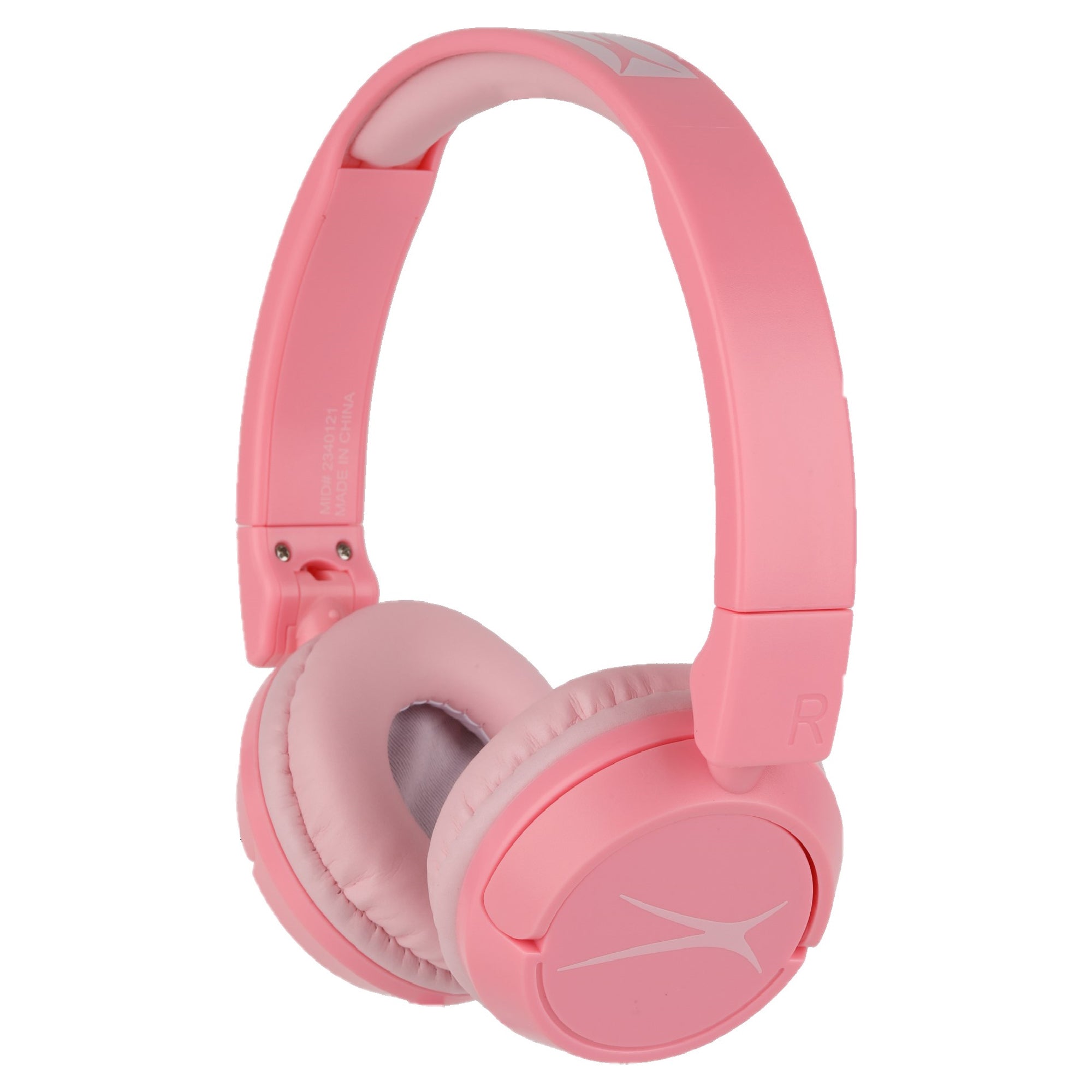
Step-by-step: How to connect Altec Lansing headphones via Bluetooth
These steps work for most Altec Lansing Bluetooth models. Keep steps short and test after each stage.
- Charge the headphones
- Fully charge the headphones for reliable pairing. Low battery can block pairing mode.
- Turn on pairing mode
- For most models, press and hold the power or Bluetooth button for 3–7 seconds until an LED flashes blue or red/blue. That means the headphones are discoverable.
- Open Bluetooth settings on your device
- On iPhone: Settings > Bluetooth, toggle on.
- On Android: Settings > Connections or Bluetooth, toggle on.
- On Windows: Start > Settings > Bluetooth & devices > Add device.
- On Mac: System Settings > Bluetooth.
- Select the Altec Lansing name
- Look for a device named “Altec Lansing,” the model name, or the case name. Tap or click to pair.
- Confirm connection
- You may hear a voice prompt or see “Connected” next to the device. Test audio by playing a short clip.
Quick device-specific notes:
- iPhone and iPad usually pair immediately with no driver required. Follow on-screen prompts if asked.
- Android phones sometimes require location permission for scanning. Accept prompts.
- Windows may ask for a PIN; enter 0000 or 1234 if prompted, though most Altec Lansing models pair without a PIN.
- Mac pairing is usually seamless; choose the device and confirm.
Repeat these steps whenever you need to pair a new device. Remember these are the core actions for how to connect Altec Lansing headphones via Bluetooth.
Step-by-step: How to connect Altec Lansing headphones with a wired connection
Wired connections are often the simplest and most reliable option.
- Locate the correct cable or jack
- Use the included 3.5mm audio cable, USB-C, or USB-A cable that came with the headphones.
- Plug into the headphone and device
- Plug one end into the headphone port and the other into your phone, tablet, laptop, or PC.
- Select the correct audio output if needed
- On Windows: click the speaker icon and pick your headphone output.
- On Mac: System Settings > Sound > Output and select the headphone.
- Use adapters when required
- New phones may lack a 3.5mm jack. Use a certified USB-C or Lightning to 3.5mm adapter. Avoid cheap adapters that can cause noise or mic failure.
- Check inline mic and controls
- If the cable has a mic, test calls and volume control to confirm the inline controls function.
Wired mode often bypasses Bluetooth issues and gives low-latency audio. This is the easiest route when you need reliable sound quickly.
Troubleshooting common pairing and audio problems
If pairing fails or audio is missing, try these targeted fixes.
- Headphones not showing in Bluetooth list
- Turn Bluetooth off and on on your device. Restart the headphones and put them back in pairing mode. Remove old device entries and try again.
- Connected but no sound
- Check the device’s audio output and volume. Unplug any other audio devices. Reboot your phone or PC and reconnect.
- Intermittent audio or dropouts
- Move closer to the device. Turn off nearby Wi‑Fi or other Bluetooth devices that may interfere. Update the headphone firmware if available.
- Microphone not working on calls
- Ensure the call app has microphone permission. Test the inline mic with a voice recorder. If wired, check adapter compatibility.
- Pairing with multiple devices fails
- Remove or forget old pairings on both the headphone and the device. Re-pair from scratch. Some Altec Lansing models support only single-device memory.
Reset steps (model-specific but commonly effective):
- Power off the headphones.
- Press and hold the power and volume up (or Bluetooth) buttons together for 8–10 seconds until LEDs flash or the unit reboots.
- Re-enter pairing mode and connect.
If none of the above works, check the user manual or contact Altec Lansing support. Warranty repair may be necessary for hardware faults.

Tips and best practices for reliable connections and long battery life
Small habits give big wins in real use. Here are practical tips I use often.
- Keep firmware updated
- Check the manufacturer app or website for firmware updates. Updates fix bugs and improve pairing stability.
- Avoid crowded Bluetooth environments
- Dense device areas can cause interference; move to an open space when pairing.
- Use proper chargers
- Charge with the included cable or reputable chargers. Fast chargers may work but check specs.
- Store and care for your headphones
- Keep them in a case, avoid extreme heat, and wipe pads with a soft cloth to extend life.
- Reset before gifting or selling
- Always factory-reset to remove paired device memories.
These tips make how to connect Altec Lansing headphones faster and more consistent over time.
Personal experience: Real-life fixes and lessons I learned
I’ve paired Altec Lansing Bluetooth headphones with many devices. Once, a pair repeatedly dropped on a specific laptop. Updating the laptop’s Bluetooth driver and disabling a nearby Bluetooth mouse fixed the issue. Another time, a 3.5mm adapter didn’t carry the mic signal; switching to a certified adapter solved it.
Key lessons:
- Always start with a full charge before troubleshooting.
- Rule out the device first by testing the headphones with another phone or tablet.
- Keep a spare wired cable or adapter when traveling.
These simple checks saved me hours when I needed reliable audio for calls and editing.

Frequently Asked Questions of how to connect altec lansing headphones(make it h2 tag)
How do I put my Altec Lansing headphones into pairing mode?
Press and hold the power or Bluetooth button for several seconds until the LED flashes blue or alternates red/blue. That blinking indicates the headphones are ready to pair.
Why won’t my device find my Altec Lansing headphones?
Common causes are low battery, the headphones already connected to another device, or Bluetooth on your device is off. Charge the headphones, disable other Bluetooth devices, and retry pairing.
What PIN do I enter when pairing on Windows?
Most Altec Lansing headphones pair without a PIN. If Windows asks, try 0000 or 1234. If that fails, remove the device and attempt pairing again after resetting the headphones.
Can I use Altec Lansing wired headphones with a phone that lacks a headphone jack?
Yes. Use a certified USB-C-to-3.5mm or Lightning-to-3.5mm adapter. Cheap adapters can cause mic or audio issues, so choose a reputable brand.
How do I reset my Altec Lansing headphones?
Typically, power off the headphones, then press and hold the power and another button (often volume up) for about 8–10 seconds until LEDs indicate a reset. Consult your manual for model-specific reset steps.
Conclusion
You now have clear, practical steps for how to connect Altec Lansing headphones across Bluetooth and wired setups. Start by charging and identifying your model, then follow the device-specific pairing or wiring steps. If you hit issues, use the troubleshooting checklist and reset tips to get back on track. Try the quick fixes, keep firmware updated, and store your headphones properly to keep connections smooth. If this guide helped, leave a comment with your model and issue, or subscribe for more hands-on audio tips.

Everett Ashford is a tech reviewer at mytechgrid.com specializing in SSDs, cameras, TVs, earbuds, headphones, and other consumer electronics. He provides honest, data-driven reviews based on hands-on testing and real-world performance analysis. Everett simplifies complex tech details to help readers make smart, confident buying decisions.