Grant Snapchat camera access in Settings or App Permissions to take snaps and record video.
I’ve helped hundreds of people fix app permission problems, and I’ll walk you through exactly how to allow snapchat access to camera on both iPhone and Android. This guide covers clear, step-by-step instructions, common problems, privacy tips, and troubleshooting so you can quickly restore camera function and keep your privacy in check. Read on to get your Snapchat camera working again with confidence and ease.

Why Snapchat needs camera access
Snapchat is a camera-first app. It needs permission to use your camera to take photos, record videos, apply lenses, and scan snaps. Without camera access, the app will show a black screen or a permissions prompt. Granting access only while using the app limits risk and keeps features working.
Camera access also interacts with microphone, storage, and location for some features. That’s normal. Knowing why the app asks helps you decide which permissions to allow.
:max_bytes(150000):strip_icc()/B5-AllowCameraonSnapchat-annotated-82428d3371a940c5b3cb6c4ca49afd20.jpg)
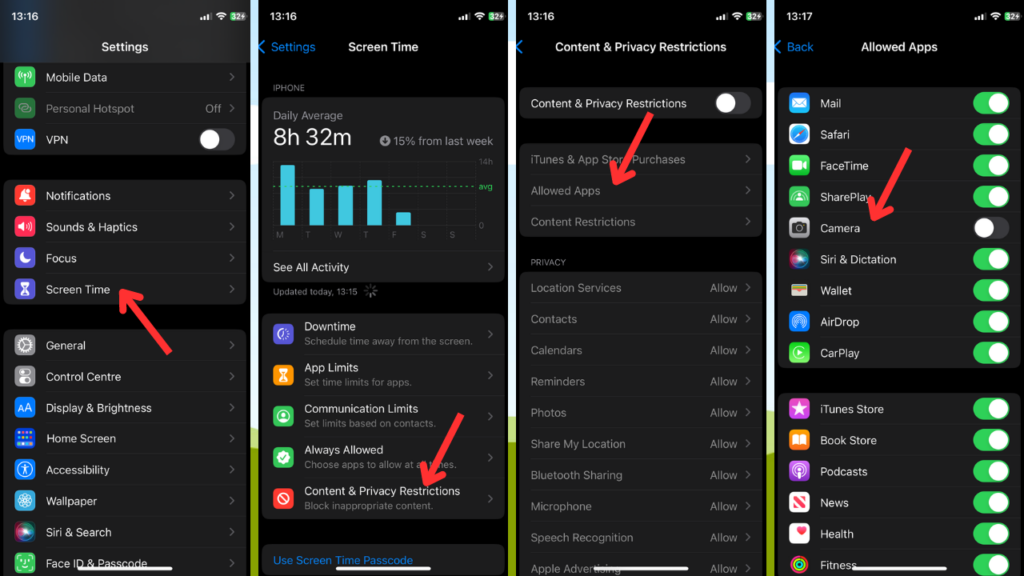
How to allow snapchat access to camera on iPhone (step-by-step)
If you use an iPhone, here are the fastest ways to grant camera permission. These steps work on recent iOS versions.
- Open Settings.
- Scroll and tap Snapchat.
- Toggle Camera to ON.
- If prompted, choose Allow While Using App.
Alternate route:
- Open Settings.
- Tap Privacy & Security.
- Tap Camera.
- Find Snapchat and enable it.
If Snapchat still shows no camera:
- Force-close Snapchat and reopen it.
- Restart your iPhone.
- Update Snapchat in the App Store.
If you ever revoke permission, repeat these steps to re-enable camera access. Knowing how to allow snapchat access to camera on iPhone saves time when updates or resets change settings.
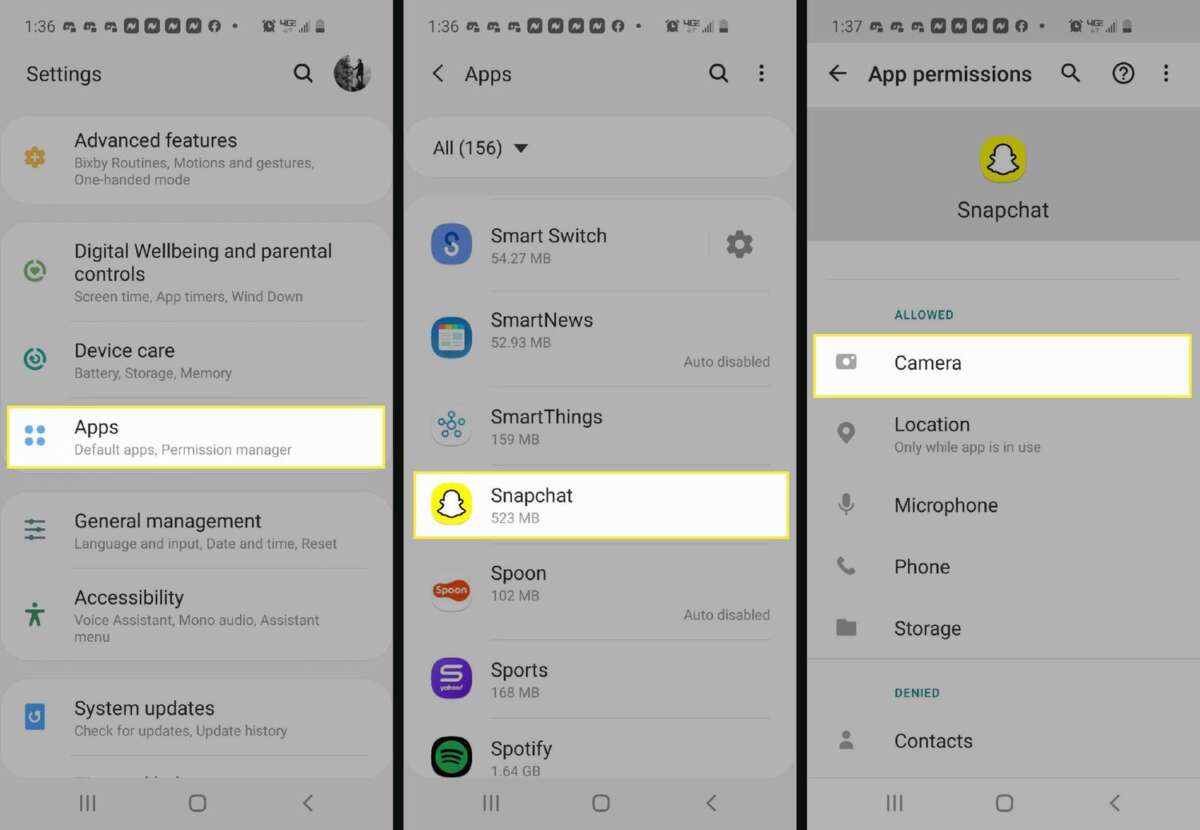
How to allow snapchat access to camera on Android (step-by-step)
Android settings vary by phone, but the pattern is similar. Follow these steps for most devices.
- Open Settings.
- Tap Apps or Apps & notifications.
- Find and tap Snapchat.
- Tap Permissions.
- Tap Camera and select Allow.
On some phones:
- Open Settings > Privacy > Permission manager > Camera.
- Find Snapchat and grant permission.
If Snapchat still cannot access camera:
- Clear Snapchat cache: Settings > Apps > Snapchat > Storage > Clear cache.
- Update Snapchat from Google Play.
- Restart your phone.
Knowing how to allow snapchat access to camera on Android fixes most permission issues quickly and keeps the app functioning.

Common troubleshooting and fixes
If granting permission doesn’t help, try these fixes in order.
- Check the system camera: Open your phone’s camera app to confirm hardware works.
- Revoke and re-grant permission: Toggle Camera off and on for Snapchat.
- Update the app: Install the latest Snapchat update.
- Clear app cache or data: This can fix corrupted settings.
- Reinstall Snapchat: Uninstall, restart, then reinstall and grant permissions when prompted.
- Reset app preferences (Android): Settings > System > Reset options > Reset app preferences.
- Restart your device: Simple restarts solve many permission bugs.
- Check battery saver or data restrictions: These can block camera functions.
- Check for screen overlays (Android): Some overlays prevent permission dialogs.
Why can’t Snapchat access my camera even after allowing permission?
- Sometimes a cached setting or an app conflict blocks access. Clear the app cache, restart, and re-grant permission to resolve this.
How do I reset app permissions on iPhone?
- Go to Settings > General > Transfer or Reset iPhone > Reset > Reset Location & Privacy to reset permissions back to defaults.
Does Snapchat need microphone permission too?
- Yes. For video snaps and voice notes, Snapchat needs microphone permission. Grant both camera and microphone for full functionality.

Privacy and security considerations
Granting camera access gives an app control to capture images and video while you use it. Be mindful and follow these tips.
- Use Allow While Using App instead of Always Allow when possible.
- Review permissions periodically and revoke any you don’t need.
- Check Snapchat’s internal settings for story, Snap Map, and camera roll access separately.
- Keep your OS and Snapchat app updated to patch privacy issues.
- If you want additional privacy, restrict background app activity and avoid granting persistent location or storage access unless necessary.
Being intentional about permissions reduces risk while letting you use core Snapchat features. Understanding how to allow snapchat access to camera with safe defaults empowers you to control your data.
:max_bytes(150000):strip_icc()/C5-AllowCameraonSnapchat-annotated-e5b9605157ec47b48a0b8d048fdaf298.jpg)
Personal experience and best practices
I once helped a friend who lost camera access after an OS update. Re-granting camera permission didn’t work until we cleared the app cache and restarted the phone. That solved it. From that case and many others, I learned these practical tips:
- Always grant permissions from the system Settings, not inside the app alone.
- After updates, re-check key permissions like camera and microphone.
- If a permission step fails, try clearing cache first before reinstalling.
- Keep a short checklist on your phone with steps to follow when apps stop working.
How to allow snapchat access to camera taught me that small system conflicts, not the app, often cause issues. A calm, stepwise approach fixes most problems.

Tips to prevent future camera permission issues
- Update your OS and apps regularly.
- Grant permissions only when you need them.
- Avoid apps that ask for persistent or unrelated permissions.
- Use a consistent troubleshooting routine: check camera app, permissions, cache, updates, and restart.
- Back up important snaps or memories to avoid data loss during reinstalls.
Following these tips reduces downtime and gives you control over how apps use your camera. Practicing these steps keeps you prepared and secure when learning how to allow snapchat access to camera.

Frequently Asked Questions of how to allow snapchat access to camera
How do I quickly enable camera permission for Snapchat?
Open Settings, find Snapchat, and toggle Camera to On. Alternatively use Settings > Privacy > Camera and enable Snapchat.
Why does Snapchat still show a black screen after granting camera permission?
A black screen usually means a cache or app conflict. Clear the Snapchat cache, restart your phone, and re-open the app.
Can I limit Snapchat’s camera access to only when I use the app?
Yes. On iPhone choose Allow While Using App. On Android select the Allow only while using the app option in Permissions.
Will reinstalling Snapchat remove my snaps and chats?
Reinstalling can remove local data but your saved snaps and chats stored on Snapchat’s servers will remain. Back up any unsaved memories before reinstalling.
Could another app block Snapchat from using the camera?
Yes. Apps with overlay permissions or aggressive privacy tools can block permission prompts. Disable overlays and try again.
Conclusion
You now have clear, practical ways to handle how to allow snapchat access to camera on both iPhone and Android. Follow the step-by-step instructions, use the troubleshooting checklist, and apply privacy best practices to keep your snaps safe and the camera working. Try the steps now, and if you run into problems, check the quick fixes listed here or leave a comment describing your issue. Subscribe or return for more device guides and troubleshooting tips.

Everett Ashford is a tech reviewer at mytechgrid.com specializing in SSDs, cameras, TVs, earbuds, headphones, and other consumer electronics. He provides honest, data-driven reviews based on hands-on testing and real-world performance analysis. Everett simplifies complex tech details to help readers make smart, confident buying decisions.