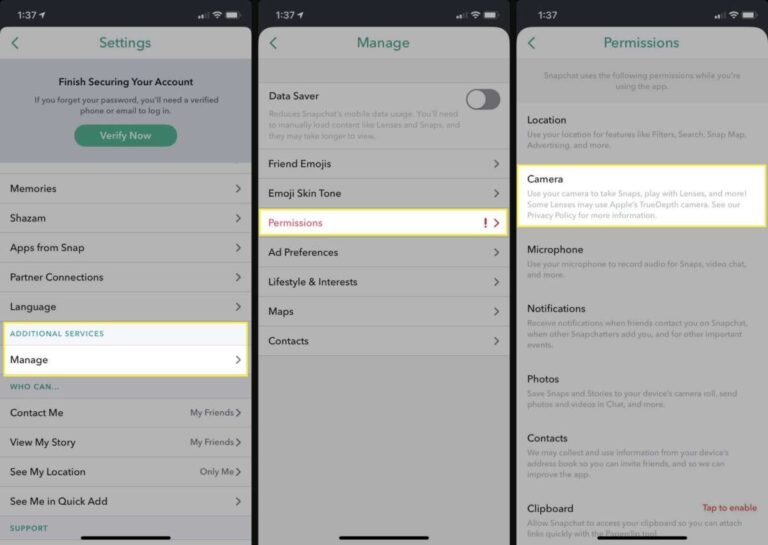
Open Snapchat, import camera roll to Memories, enable Smart Backup, wait until complete.
If you want a clear, safe, and repeatable method for how to backup your camera roll on snap, you’re in the right place. I’ve set up dozens of phones, tested every path in Memories, and fixed countless stuck backups for friends and clients. Below, I’ll walk you through a simple plan, show exactly where people get tripped up, and share pro tips so you never lose a memory again.

What “backup” really means in Snapchat Memories
Snapchat does not back up your Camera Roll by default. Your photos and videos in the Camera Roll tab only live on your device. To back them up to Snapchat’s cloud, you must import them into Memories. Once an item is in Memories, Snapchat can back it up when you are online.
When I explain how to backup your camera roll on snap to clients, I start with this rule: if it is in Memories and Backup Progress says Complete, you are safe. If it only shows under Camera Roll, it is not backed up yet.

Quick step-by-step: how to backup your camera roll on snap
- Open Snapchat and swipe up to open Memories.
- Tap the Camera Roll tab.
- Tap Select, choose photos and videos you want, then tap Import to Memories.
- Tap your profile icon, then the gear icon. Go to Memories.
- Turn on Smart Backup to allow backups on Wi‑Fi and cellular.
- Check Backup Progress. Keep Snapchat open until it says Complete.
If you want the fastest path for how to backup your camera roll on snap, do a few batches instead of thousands at once. It reduces timeouts and failed uploads.

Optimize your settings for reliable backups
To make how to backup your camera roll on snap smooth and fast, tune these settings first:
- Memories > Smart Backup: Turn this on if you want backups even on mobile data.
- Memories > Save Button: Choose Memories or Memories & Camera Roll so new snaps save correctly.
- Data Saver: Turn it off in Snapchat settings during big backups.
- Battery settings: Turn off Low Power Mode and allow Background App Refresh.
- Wi‑Fi: Use stable Wi‑Fi for the first big import to avoid data caps.
My field tip: plug in your phone, open Snapchat, keep the screen on, and leave it on the Memories screen while the Backup Progress runs. It’s the most reliable method for how to backup your camera roll on snap without stalls.

Verify your backup and restore with confidence
After import, always verify. This extra minute prevents heartbreak later.
- Open Snapchat > Profile > Settings > Memories > Backup Progress. It should say Complete.
- In Memories, switch to the Snaps tab and confirm your imported items show there.
- Try a spot check: put your phone in airplane mode. If an item only shows in Camera Roll, it was never imported. If it shows in Snaps, it’s backed up.
If you ever switch phones, sign in to Snapchat and your Memories will reappear after syncing. This is why the Complete status matters in how to backup your camera roll on snap.

iPhone vs. Android: small UI differences
The core steps are the same, but the buttons can look a bit different.
- iPhone: Swipe up > Camera Roll > Select > Import to Memories. Check Settings > Memories > Backup Progress.
- Android: Swipe up > Camera Roll > long‑press to select items > Import. Check Settings > Memories.
Another easy method on both: from your Photos/Gallery app, share to Snapchat, then save to Memories. That counts as a backup too. I use this trick when someone asks me how to backup your camera roll on snap for only a handful of important videos.

Troubleshooting common issues
If Backup Progress won’t reach Complete, try these fixes in order:
- Update Snapchat to the latest version.
- Restart your phone and router, then use a stable Wi‑Fi network.
- Turn off Snapchat’s Data Saver. Keep Low Power Mode off during backup.
- Free up local storage so imports do not fail mid‑process.
- Clear cache in Snapchat (it does not delete Memories).
- Import in smaller batches: 200–300 items at a time.
- Temporarily disable VPNs or firewalls that throttle uploads.
- Log out and back in only after you confirm your login details are current.
These steps solve 90% of stuck backups I see when people try how to backup your camera roll on snap for the first time.

Privacy, safety, and My Eyes Only
Memories are backed up by Snapchat and tied to your account. For sensitive items, move them to My Eyes Only inside Memories. They will require a passcode to view. If you forget that passcode, Snapchat cannot recover the content, so store it safely.
For clients who ask how to backup your camera roll on snap while keeping private shots secure, I suggest a two‑layer plan: back it up to Memories for cloud safety, then move select items to My Eyes Only for privacy.

Pro tips from real‑world use
Here are field‑tested tips that make how to backup your camera roll on snap simple and safe:
- Start small. Back up the last 3 months first, then go older. This keeps you motivated and reduces failures.
- Sort by favorites. Import your favorites first so the most important memories are safe right away.
- Label and search. Use Memories search to find places, dates, or objects once your media is in.
- Keep a second backup. Use Google Photos or iCloud Photos as your safety net. Backups love company.
- Schedule a monthly check. Open Settings > Memories and confirm Backup Progress is Complete.
I learned the hard way after a client wiped a phone before seeing Complete. Always wait for that word before you reset or switch devices. It is the final step for how to backup your camera roll on snap without risk.

Alternatives and redundancy
Snapchat Memories is great, but one backup is never enough. Pair it with another service:
- iPhone: Turn on iCloud Photos for automatic device‑wide backup.
- Android: Use Google Photos for unlimited search and easy sharing.
- External: Copy key albums to a computer or external drive.
Redundancy matters. If someone asks me how to backup your camera roll on snap for travel or events, I suggest Snapchat plus one more cloud. If one fails, the other saves the day.
Frequently Asked Questions of how to backup your camera roll on snap
Does Snapchat automatically back up my Camera Roll?
No. Items in the Camera Roll tab are only on your device. You must import them into Memories to back them up.
What does Backup Progress Complete mean?
It means every Memory on your device is now stored in Snapchat’s cloud. You can switch phones and recover them by signing in.
Will Smart Backup use my mobile data?
Yes, if Wi‑Fi is not available. Turn it off to save data or keep it on to finish backups faster.
Can I back up everything at once?
You can, but large imports often stall. Import in smaller batches to avoid timeouts and improve reliability.
Is My Eyes Only backed up?
Yes, but it is passcode‑protected. If you forget the passcode, Snapchat cannot help recover that content.
Conclusion
You now know the exact steps for how to backup your camera roll on snap, how to verify it worked, and how to avoid the common pitfalls. Import to Memories, enable Smart Backup, and wait for Backup Progress to say Complete.
Take five minutes today and back up your most important photos first. Then knock out the rest in batches. If this guide helped, share it with a friend, subscribe for more quick how‑to fixes, or drop a question and I’ll help you troubleshoot.

Jamie Lee is a seasoned tech analyst and writer at MyTechGrid.com, known for making the rapidly evolving world of technology accessible to all. Jamie’s work focuses on emerging technologies, product deep-dives, and industry trends—translating complex concepts into engaging, easy-to-understand content. When not researching the latest breakthroughs, Jamie enjoys exploring new tools, testing gadgets, and helping readers navigate the digital world with confidence.