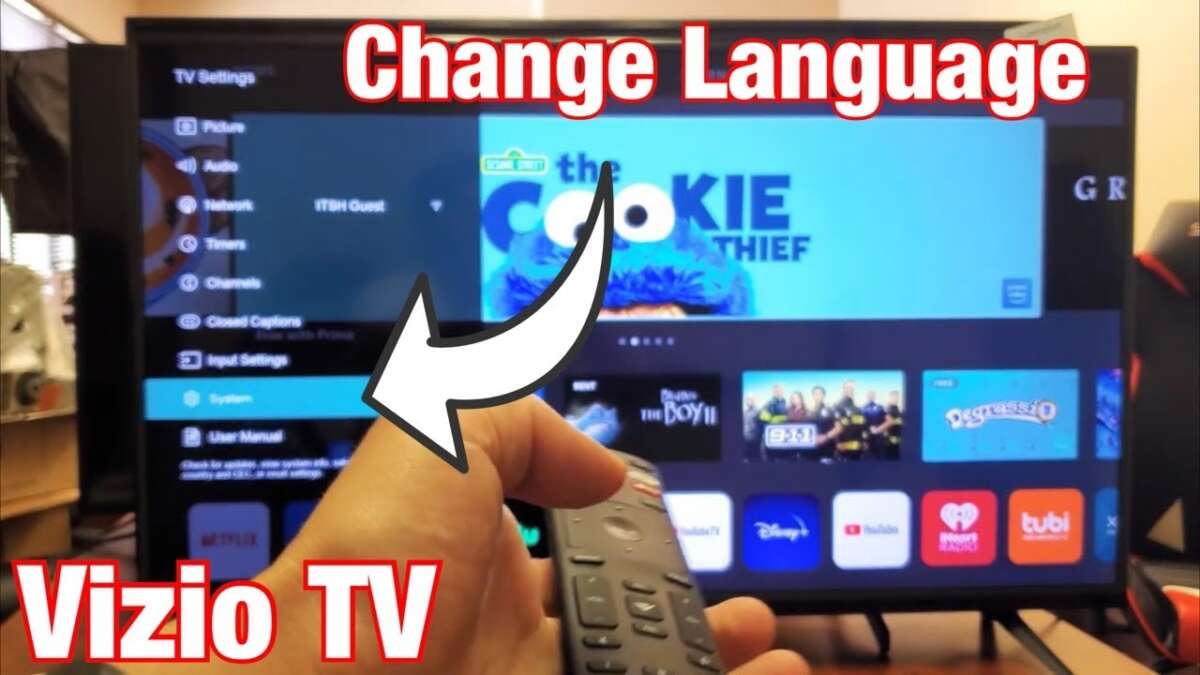
Open Menu > System > Language on your Vizio TV and choose your preferred language.
I’ve spent years fixing TV settings for friends and clients, and I know how frustrating a wrong language can feel. This guide explains exactly how to change language on vizio tv step by step. I’ll show simple methods for modern SmartCast TVs and older Vizio models, cover app and caption settings, share troubleshooting tips, and give real-world fixes I’ve used. Read on and you’ll have your TV menus in the language you want in minutes.
Why you might need to change the language on your Vizio TV
Many people buy TVs for family or move to a new country. The default language may not match your needs. Changing language helps you use menus, guides, and settings with ease. It also fixes situations where on-screen text is in the wrong language after an update or power cycle. Knowing how to change language on vizio tv saves time and prevents frustration.

Which Vizio TVs this applies to
Most Vizio SmartCast models use the same menu layout. Older Vizio sets have similar but slightly different menus. The steps in this guide work for:
- Vizio SmartCast TVs from recent years
- Vizio M, V, P, and D series TVs
- Older VIA or earlier Vizio models with a Menu button
If a menu item name differs, the path is usually Settings, System, or Language. This guide covers variations so you can follow along.
Quick step-by-step: how to change language on vizio tv (standard method)
Follow these short steps to change the TV menu language. This is the most common method I use when helping people.
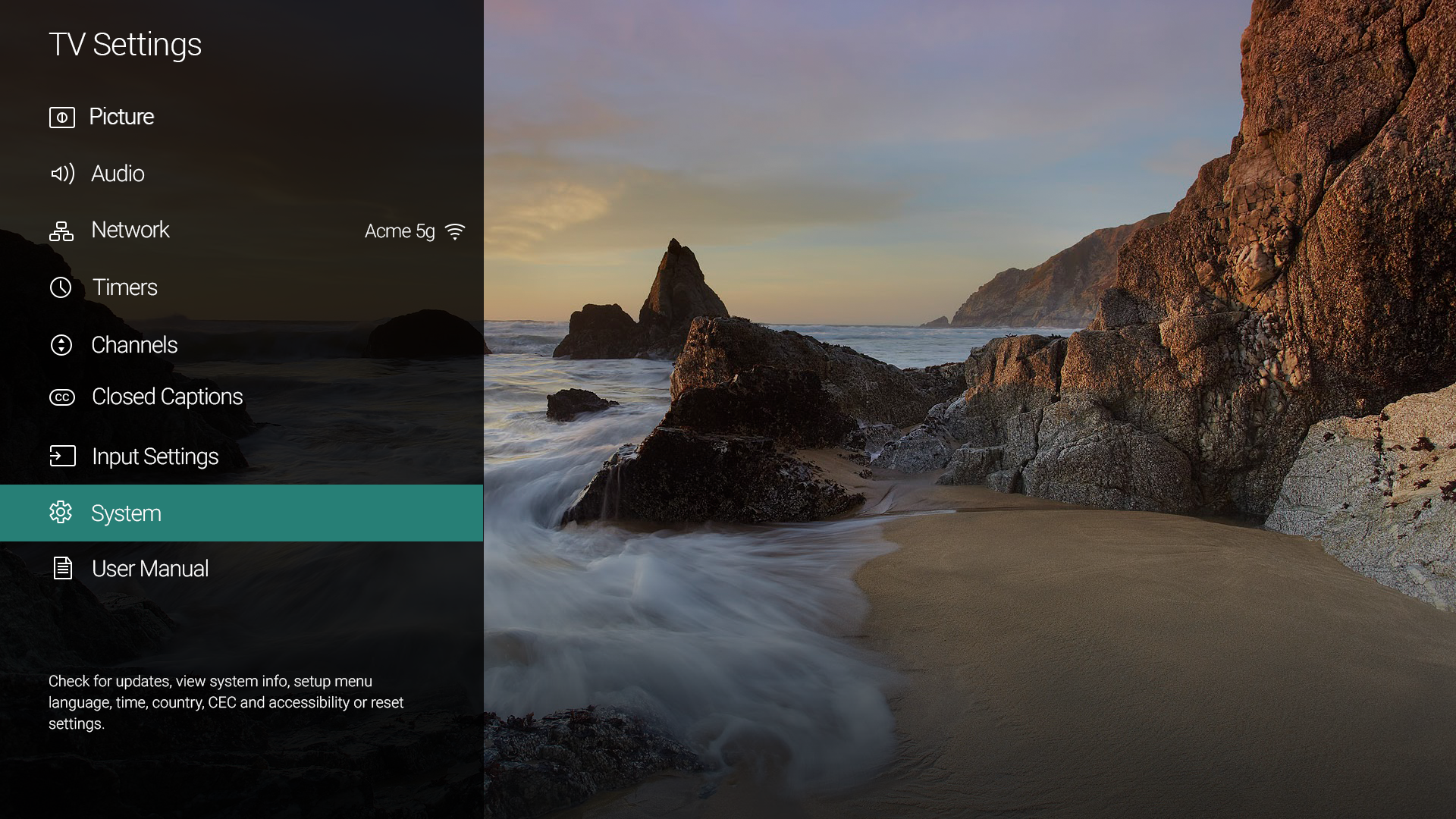
- Turn on your Vizio TV and press the Menu or Settings button on the remote.
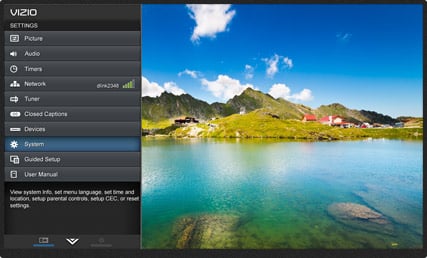
- Select System or Settings from the on-screen menu.
- Choose Language or Menu Language.
- Select your preferred language from the list.
- Press OK or Exit to save and return to the TV.
These steps cover the usual path for how to change language on vizio tv. If you can’t find Menu, try the gear icon or the SmartCast Home button. If the TV uses a touch-based home screen, look for Settings on the Home screen.

Alternate methods: using the SmartCast app or voice assistants
If your remote is missing or unresponsive, try these options.
- SmartCast Mobile App
- Download the Vizio SmartCast app on iOS or Android.
- Connect the app to the same Wi-Fi network as the TV.
- Open the app, select your TV, go to Settings, and look for Language.
- Voice Assistants
- If your TV is linked to Google Assistant or Alexa, you can try voice commands to open the Settings menu.
- Follow with on-screen navigation to change language.
These options can be lifesavers when the remote doesn’t work. I’ve used the app many times to change language on vizio tv when remotes were lost.
Device-specific notes and differences
Vizio models can vary. Here are specific tips for common cases.
- SmartCast TVs
- Most have Menu > System > Language.
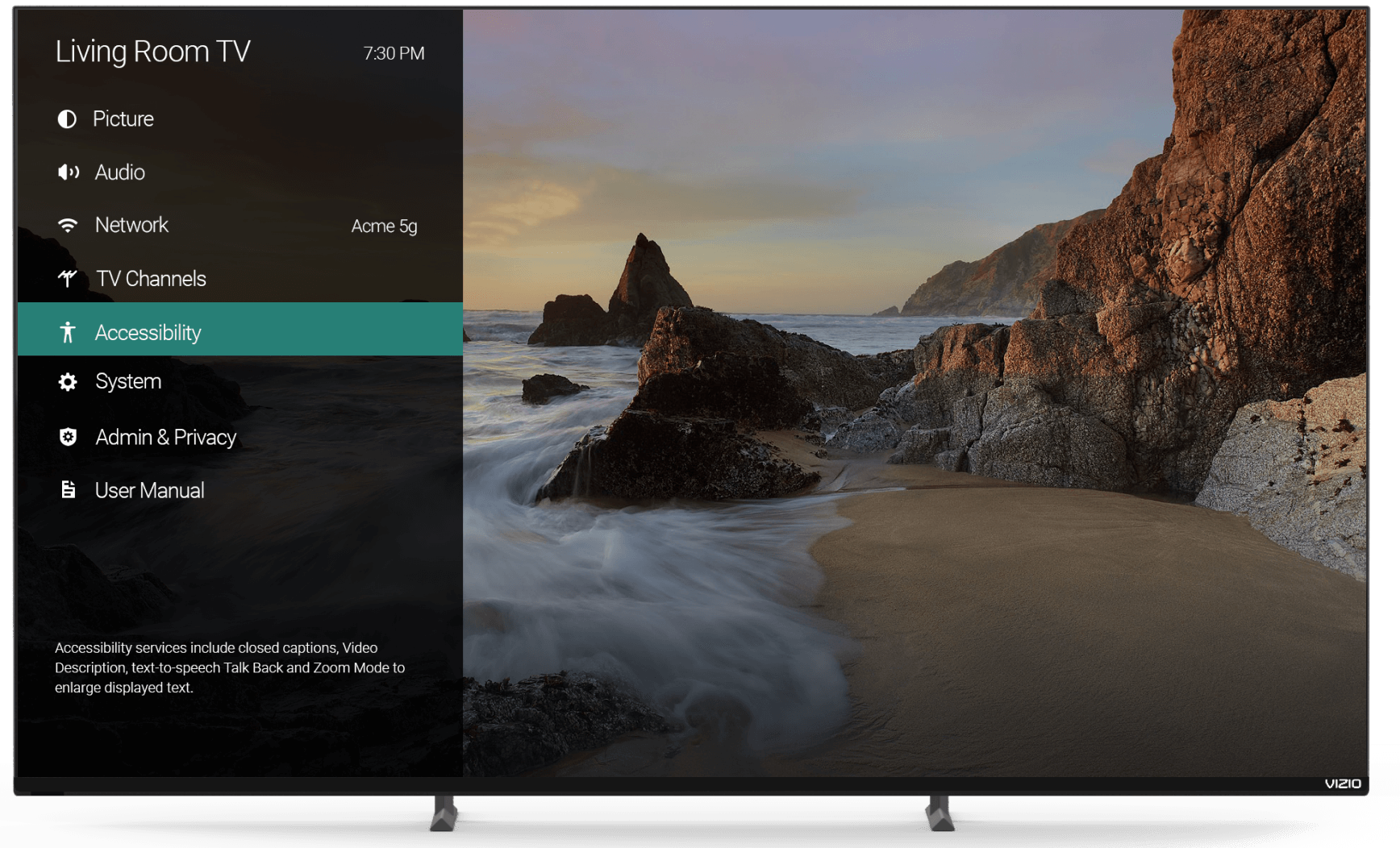
- Firmware updates can change menu labels to Settings > System > Language.
- Older Vizio models
- Look for Menu > Setup or Menu > Options.
- Language might be under Display or Preferences.
- Apps and streaming services
- Changing the TV language does not always change app languages.
- Change language inside apps like Netflix or Prime Video separately.
These notes help you when menu names differ. If you follow these tips, you’ll still be able to change how to change language on vizio tv across many models.

How to change closed captions and audio language separately
Menu language and captions are different. Many users want captions or audio in another language. Here’s how to adjust those.
- Closed captions
- Press Menu or Settings, choose Accessibility or Closed Captions, then set Caption Language.
- You can enable or disable captions and change caption style.
- Audio language
- Open the streaming app or source that plays the content.
- Look for Audio or Language options in the app player.
- Some HDMI devices offer language settings through their menus.
This separation is important. When you learn how to change language on vizio tv, remember to set captions and audio where needed.

Troubleshooting common issues
If the language won't change or returns to the wrong language, try these fixes.
- Remote not responding
- Replace batteries and point the remote directly at the TV.
- Use the SmartCast app as an alternate control method.
- Language option missing
- Update TV firmware from Settings > System > Check for Updates.
- Power-cycle the TV by unplugging for 30 seconds.
- TV stuck in a foreign language
- Use icons and position to navigate to System > Language if text is unreadable.
- Perform a factory reset as a last resort. Note this erases settings.
I once had a TV stuck in Spanish after an update. Updating firmware and a quick reboot fixed it. These steps often solve most problems when learning how to change language on vizio tv.

Tips, best practices, and things I learned
Small habits save time later. Here are tips from my experience.
- Keep your remote batteries fresh to avoid control problems.
- Note the menu path by taking a photo after you set it. It helps if you need to change it again.
- Update firmware regularly to avoid bugs that affect settings.
- If you share the TV, create a short how-to note for family members.
- If apps show a different language, change each app’s language in its settings.
I follow these steps when I help others. They make changing how to change language on vizio tv quick and painless.

Frequently Asked Questions of how to change language on vizio tv
How do I access the settings menu to change language on my Vizio TV?
Press the Menu or Settings button on your Vizio remote, or open Settings from the SmartCast home screen. Then navigate to System or Preferences to find Language.
My TV language is stuck after an update. What should I do?
Try a full power cycle by unplugging the TV for 30 seconds, then plug it back in. If that fails, check for firmware updates or consider a factory reset as a last step.
Does changing the TV language affect streaming apps?
Changing the TV menu language does not always change app languages. Change audio or subtitle language inside each app’s player settings.
Can I change the language without the remote?
Yes. Use the Vizio SmartCast mobile app or connect a USB keyboard to navigate settings. Voice assistants linked to the TV may also help.
Where are closed captions and audio language settings located?
Closed captions are usually under Accessibility or Closed Captions in the Settings menu. Audio language is set inside the streaming app or the source device’s settings.
Conclusion
You now have clear, tested ways to change the language on your Vizio TV. Start with Menu > System > Language or use the SmartCast app if your remote is missing. If you run into issues, try a firmware update, power cycle, or the troubleshooting tips above. Take a minute now to set the language you and your family prefer. If this guide helped, try the steps on your TV and leave a comment or subscribe for more simple tech tips.

Everett Ashford is a tech reviewer at mytechgrid.com specializing in SSDs, cameras, TVs, earbuds, headphones, and other consumer electronics. He provides honest, data-driven reviews based on hands-on testing and real-world performance analysis. Everett simplifies complex tech details to help readers make smart, confident buying decisions.