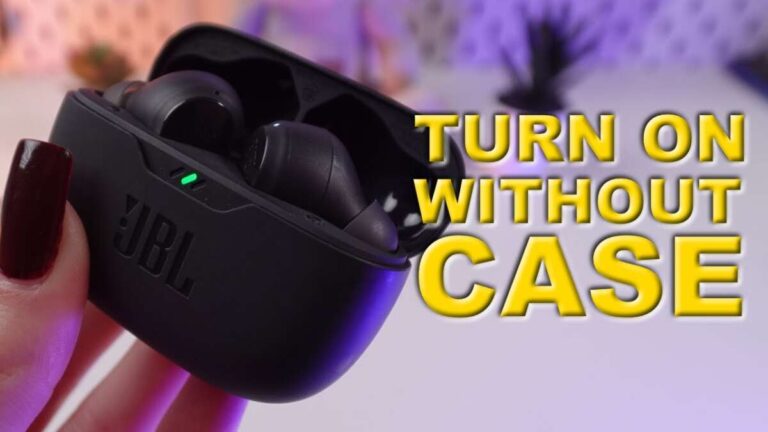
Turn on your JBL earbuds, enable Bluetooth on your laptop, then pair them from Bluetooth settings.
I’ve spent years troubleshooting audio gear and teaching users how to connect JBL earbuds to laptop with confidence. This guide gives clear, step-by-step instructions for Windows and macOS, practical troubleshooting, and tips to keep your connection stable. Read on for proven methods, real-world tips from my own testing, and concise solutions to common pairing problems.

Prepare your laptop and JBL earbuds
Before you pair, make sure both devices are ready. Charge your JBL earbuds fully and place them in pairing mode as the manual describes. On the laptop, confirm Bluetooth is turned on and the Bluetooth adapter or driver is working.
Common preparation steps:
- Charge the earbuds for at least 20–30 minutes before first use.
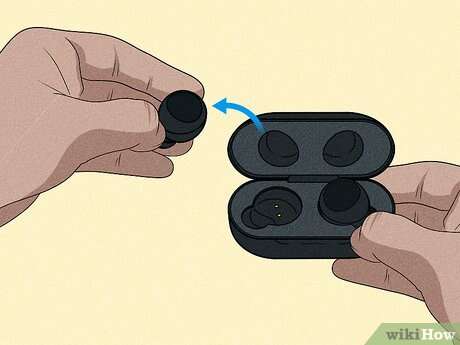
- Put earbuds into pairing mode—usually by holding the touch area or button until an LED flashes.
- On Windows, open Settings > Bluetooth & devices to verify Bluetooth is enabled.
- On macOS, open System Settings (or System Preferences) > Bluetooth and make sure Bluetooth is on.
Personal tip: I once tried to pair JBL earbuds with a drained case and the earbuds wouldn’t appear at all. Charging first saved time and frustration. Proper prep makes connecting easy and quick.

Pairing JBL earbuds to Windows laptop
These steps work for Windows 10 and Windows 11. The process is fast when both devices are in the correct mode.
Step-by-step:
- Open Bluetooth settings
- Click Start > Settings > Bluetooth & devices.
- Turn Bluetooth on if it is off.
- Put your JBL earbuds into pairing mode
- Follow the manual: usually press and hold the button on the case or earbuds until a light flashes.
- Add the earbuds
- Click Add device > Bluetooth.
- Select your JBL earbuds from the list (they may appear as “JBL Tune,” “JBL Live,” or model name).
- Confirm and set as default
- Click Connect. After pairing, go to Sound settings and set the earbuds as the default output device if audio doesn’t switch automatically.
- Check advanced settings if needed
- If the microphone is needed, ensure the earbuds are selected for both output and input.
Troubleshooting quick checks:
- Restart Bluetooth: toggle Bluetooth off and on.
- Reboot the laptop if the earbuds do not show.
- Update Bluetooth drivers via Device Manager if connection fails repeatedly.
I’ve paired JBL earbuds on multiple Windows laptops; the most common snag is outdated drivers. Updating them typically fixes intermittent pairing or audio dropouts.
Pairing JBL earbuds to Mac laptop
Pairing on macOS is usually straightforward and fast. These steps cover macOS Ventura and earlier versions.
Step-by-step:
- Open Bluetooth preferences
- Click Apple menu > System Settings (or System Preferences) > Bluetooth.
- Ensure Bluetooth is on.
- Put the earbuds in pairing mode
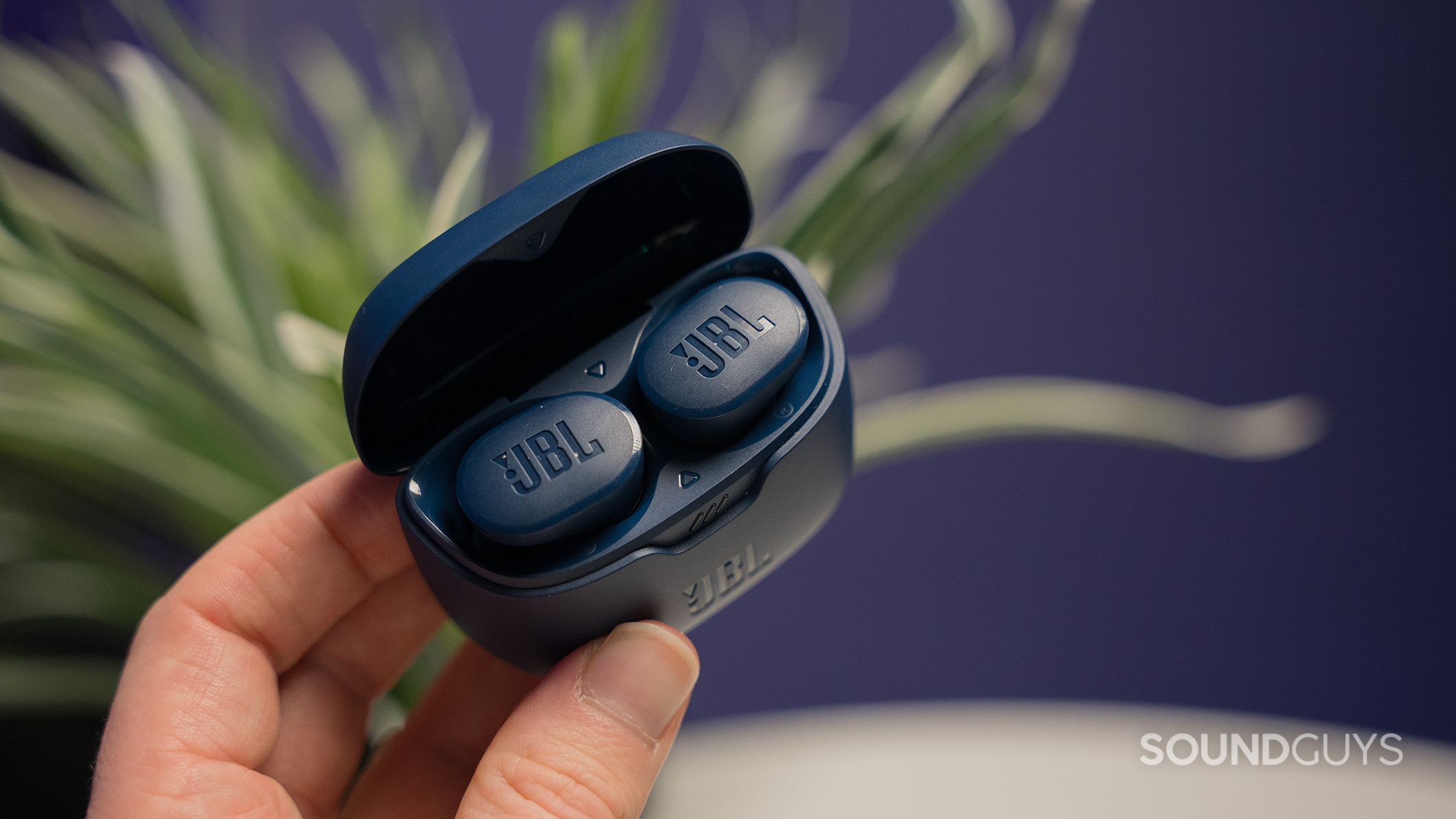
- Hold the pairing button until the LED flashes or follow model-specific instructions.
- Connect the earbuds
- Find the JBL earbuds in the device list and click Connect.
- Select audio profile if required
* If sound quality is poor, open Sound settings and choose the earbuds as Output. For calls, select the earbuds for both Input and Output.
Personal tip: On my MacBook, sometimes the earbuds pair but don’t route audio. Manually selecting them in Sound preferences resolved it instantly.

Troubleshooting common issues
Even with correct steps, problems happen. Here are clear fixes for the most frequent issues when learning how to connect JBL earbuds to laptop.
Issue: Earbuds don’t appear in Bluetooth list
- Ensure earbuds are in pairing mode and not connected to another device.
- Turn Bluetooth off and on, restart the laptop, or move closer to the laptop.
- Reset the earbuds (check the manual for reset steps).
Issue: Paired but no sound
- Select the JBL earbuds as the default audio device in sound settings.
- Close apps that can lock audio (video calls, DAWs) and reopen them.
- Check the volume on both laptop and earbuds.
Issue: One earbud not working
- Place both earbuds back in the case and re-pair after a full reset.
- Remove and re-add the device to Bluetooth settings.
Issue: Poor call quality
- Bluetooth uses different profiles for calls. Select the headset/microphone profile and ensure microphone permissions are allowed for the calling app.
- Move closer to the laptop and reduce background interference.
Issue: Connection keeps dropping
- Update your laptop’s Bluetooth driver or macOS version.
- Turn off other nearby Bluetooth devices to reduce interference.
- Test with another device to isolate whether the earbuds or laptop is the problem.
From my experience, a simple reset of the earbuds and a driver update on Windows solves most issues. Be systematic: test one fix at a time to identify the root cause.
Tips for best audio and connection stability
Small adjustments can greatly improve how to connect JBL earbuds to laptop and the ongoing listening experience.
Best practices:
- Keep firmware updated: use the official app on your phone if your JBL model supports firmware updates.
- Maintain distance: Keep the laptop within 10–30 feet, avoiding obstacles and crowded Wi-Fi channels.
- Use the right Bluetooth profile: For music choose A2DP output; for calls select the hands-free profile only when needed.
- Manage power settings: Prevent the laptop from disabling Bluetooth to save power.
- Clean charging contacts: Dirty case contacts can prevent earbuds from charging and entering pairing mode.
Practical example: I switched my laptop’s power plan to prevent it from sleeping while connected. This fixed mid-meeting disconnects that happened when my laptop tried to conserve power.

Frequently Asked Questions of how to connect jbl earbuds to laptop
How do I put my JBL earbuds into pairing mode?
Most JBL earbuds enter pairing mode by holding the power or multifunction button until an LED flashes. Refer to your model’s quick start guide if the flashing pattern differs.
Why won’t my laptop find the JBL earbuds?
If the earbuds are not in pairing mode or are already connected to another device, they won’t appear. Turn off other Bluetooth connections, ensure earbuds are discoverable, and restart Bluetooth on the laptop.
Can I use JBL earbuds for both audio and microphone on my laptop?
Yes, in most cases you can. Select the earbuds as both output and input devices in the laptop’s sound settings, though call audio may use a lower-quality profile than music.
What if one earbud is silent after pairing?
Try placing both earbuds back in the case, reset them per the manual, and then re-pair to the laptop. Firmware mismatches or poor syncing are common causes.
Do I need software to update JBL earbud firmware for laptop use?
Firmware updates are typically delivered via the JBL mobile app on a smartphone. Update using a phone if available to ensure the earbuds have the latest fixes and compatibility improvements.
Conclusion
You now have clear, practical steps to connect JBL earbuds to laptop on both Windows and macOS, plus troubleshooting and tips to improve stability. Try the pairing steps, update drivers or firmware when needed, and use the troubleshooting checklist to fix issues quickly. Take action: pair your earbuds now, test audio and calls, and leave a comment below with your model if you need tailored help.

Everett Ashford is a tech reviewer at mytechgrid.com specializing in SSDs, cameras, TVs, earbuds, headphones, and other consumer electronics. He provides honest, data-driven reviews based on hands-on testing and real-world performance analysis. Everett simplifies complex tech details to help readers make smart, confident buying decisions.