Plug in, pair, and press the buttons — basic JBL pairing and controls work in minutes.
I’ve used and tested many JBL headphones over the years, and I’ll walk you through how to use JBL headphones from unboxing to advanced tweaks. This guide covers setup, pairing, controls, sound settings, maintenance, troubleshooting, and practical tips. You’ll get clear steps, real-life tips from my experience, and trustworthy advice so you can use your JBL headphones confidently for calls, music, workouts, and travel. Read on to master how to use JBL headphones the right way.
Quick start: unbox, charge, power on, and pair
Unbox your JBL headphones and check the box for the charging cable, ear tips, and quick guide. Most JBL models include a USB-C or micro-USB charging cable and a carrying case for true wireless models. Inspect the earbuds or headset for stickers that indicate charging ports or side labels.
Charge before first use. Plug the cable into the headphones’ charging port and into a wall adapter or computer USB port. Charge until the LED shows full or until the manual’s charging time has passed. New devices often need a first full charge for best battery life.
Power on and pair. For over-ear and on-ear models, press and hold the power button until you hear a voice prompt or see the LED flash. For true wireless earbuds, remove them from the case; many models auto-power on. Put the headphones into pairing mode by holding the Bluetooth or power button until the LED blinks rapidly.
Pair with your phone or computer:
- Open Bluetooth settings on your device.
- Select the JBL model name shown.
- Confirm pairing; you may be asked to accept a pairing request.
- Look for a voice prompt or solid LED to confirm the connection.
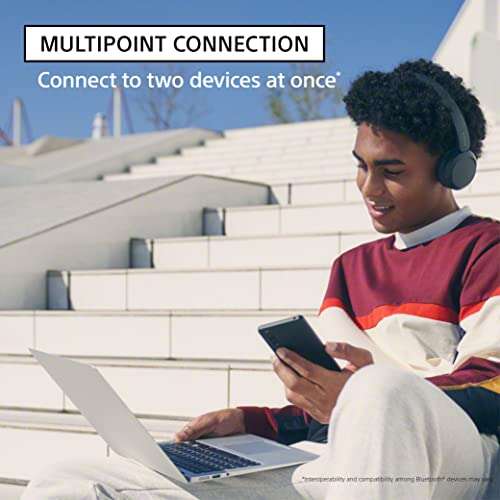
If your phone supports Bluetooth multipoint, enable it in the JBL Connect app or the device settings to pair with two sources at once. Multipoint behavior varies by JBL model, so check the manual for specific support.
Understanding controls and features
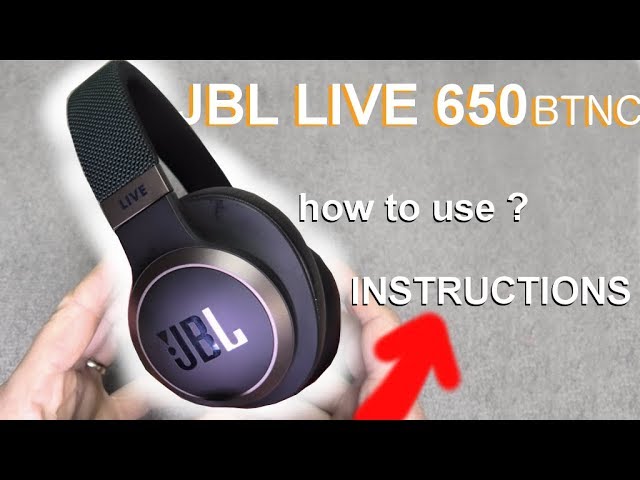
Most JBL headphones have physical buttons or touch controls. Learn what each control does for your model.
Common buttons and functions:
- Power button: turns device on or off and may also enter pairing mode.
- Play/pause button: tap to play or pause music, answer calls.
- Volume up/down: press to raise or lower sound.
- Multifunction button: often used for skipping tracks (double or triple press).
- ANC or Ambient button: toggles active noise cancellation (if available).
- Voice assistant button: activates Google Assistant, Siri, or Alexa.
Touch controls can be sensitive. Use a firm but quick tap. If touch controls misbehave, clean the surface and ensure firmware is up to date.
Using the microphone and calling:
- During a call, press the play/pause or call button to answer or end calls.
- Some models have noise-rejecting mics and a call EQ. Hold the call button to reject a call.
- For better voice clarity, position the microphone toward your mouth but not directly in front of it.
My experience: I once struggled with touch controls during a rainy run. Switching to a secure ear tip and checking for firmware updates fixed erratic taps.

Sound settings, equalizer, and the JBL App
Get better sound by using the JBL app. The app offers an equalizer, presets, firmware updates, and feature toggles. It’s available on iOS and Android for many JBL models.
Steps to use the app:
- Download and open the JBL app.
- Allow Bluetooth access and select your model.
- Update firmware if prompted for stability and new features.
- Use the EQ to save a custom sound profile or choose a preset like Bass Boost or Vocal.
Tips for EQ:
- For clear vocals, boost mid-range slightly.
- For bass-heavy tracks, use a small boost under 150 Hz.
- Avoid extreme boosts that distort at high volume.
Codec and latency:
- JBL models support SBC, AAC, and sometimes aptX. Use AAC on Apple devices for better sound and SBC or aptX on Android depending on support.
- Low latency modes or gaming modes are useful for video and gaming. Turn them on in the app if available.

Maintenance, battery care, and storage
Take care of your headphones to extend life and performance. Simple maintenance prevents problems and keeps sound clear.
Cleaning tips:
- Wipe ear cups and ear tips with a soft, damp cloth.
- Use a dry toothbrush to remove debris from mesh.
- Replace ear tips periodically for hygiene and seal.
Battery care:
- Avoid leaving headphones at 100% or 0% for long periods. Aim to store them at around 40–70% for long-term storage.
- Charge at room temperature. Extreme heat or cold reduces battery life.
- Use the provided cable or a certified replacement to avoid damage.
Storage and travel:
- Keep true wireless earbuds in their case when not in use to avoid loss and ensure they stay charged.
- Use a protective case for over-ear models to prevent crushing and wear.
- Avoid moisture; if exposed to sweat, wipe and air dry.
Personal tip: I kept a small microfiber pouch in my gym bag. It prevents scratches and keeps cables tidy.
Troubleshooting common issues and fixes
Here are fast fixes for typical problems when you use JBL headphones.
No sound or low volume:
- Check device volume and media player volume separately.
- Ensure the headphones are connected and not paired to another device.
- Try unpairing and re-pairing.
One side not working:
- Clean the earbud contacts and mesh.
- Reset the earbuds using the manual’s steps.
- Check if mono audio or accessibility settings are enabled on your phone.
Bluetooth disconnects or pairing fails:
- Turn Bluetooth off and on, or restart your device.
- Forget the device in Bluetooth settings and re-pair.
- Move away from interference like Wi-Fi routers or other Bluetooth devices.
Noise cancellation issues:
- Ensure ANC mode is enabled and firmware is updated.
- Try different ear tips for a better seal with in-ear models.
- If ANC is weak, perform a factory reset.
Factory reset basics:
- Reset steps vary by model. Usually by holding power and other buttons together for a set time.
- A reset clears paired devices and restores default settings.

Advanced tips and real-world uses
Use these tips to get the most out of how to use JBL headphones in daily life.
For workouts:
- Choose a snug fit ear tip to avoid slippage.
- Use a sweat-proof model for intense sessions.
- Keep ear tips dry and replace if saturated.
For travel:
- Enable ANC for noisy flights. Use ambient mode to hear announcements.
- Download offline playlists to save phone battery and reduce buffering.
For gaming and streaming:
- Use low-latency mode if your model supports it.
- Keep the device firmware updated for improved microphone and latency fixes.
Personal example: I tested a JBL model on a long flight. Switching to ambient mode when flight attendants spoke made it easy to hear announcements while retaining music clarity.

Frequently Asked Questions of how to use jbl headphones
How do I pair JBL headphones with my phone?
Turn on pairing mode by holding the power or Bluetooth button until the LED flashes, open Bluetooth settings on your phone, and select the JBL model name. Confirm pairing and listen for a voice prompt or solid LED.
Why won’t my JBL headphones charge?
Check the cable and charger for damage, clean the charging contacts, and try a different power source. If the battery still won’t charge, a warranty repair or replacement may be needed.
How do I reset my JBL earbuds or headphones?
Reset steps vary by model, but usually involve holding the power and multifunction buttons for 10–15 seconds or placing earbuds back in the case and holding a button until LEDs flash. Consult your manual for exact steps.
Can I use JBL headphones for calls and voice assistant?
Yes. Press the call or voice assistant button to answer calls or summon Siri/Google Assistant. Use the app to configure assistant features if your model supports it.
Why is one earbud quieter than the other?
This may be due to earwax, debris in the mesh, Bluetooth codec issues, or a poor fit. Clean the earbud, check fit, and try re-pairing or resetting the device.
Conclusion
You now have a clear, practical roadmap for how to use JBL headphones — from unboxing and pairing to tuning sound and fixing common problems. Start by charging and pairing, learn the controls, use the JBL app for EQ and updates, and follow simple maintenance to keep them working well. Try the tips above and adjust settings to your taste. If you found this helpful, test a few features today, subscribe for more guides, or leave a comment with your JBL model and questions — I’ll help you get it running perfectly.

Everett Ashford is a tech reviewer at mytechgrid.com specializing in SSDs, cameras, TVs, earbuds, headphones, and other consumer electronics. He provides honest, data-driven reviews based on hands-on testing and real-world performance analysis. Everett simplifies complex tech details to help readers make smart, confident buying decisions.