Turn on the earbuds, enable Bluetooth on your device, select the Raycon model in Bluetooth settings, and confirm pairing.
I’ve paired Raycon earbuds dozens of times across phones, tablets, and laptops. This guide explains exactly how to connect Raycon earbuds step by step. I will walk you through prep, pairing for iPhone and Android, troubleshooting, and tips I learned from real use. Expect clear steps, simple fixes, and practical advice so you can connect quickly and keep them working reliably.
Prepare before pairing
Before you learn how to connect Raycon earbuds, do a quick prep. This saves time and avoids frustration.
- Charge both earbuds and the case. Low battery can stop pairing.
- Turn off any nearby Bluetooth audio that might auto-connect.
- Make sure the device you want to pair has Bluetooth turned on.
- If these are new, remove the plastic tabs and read any quick-start notes.
From experience, a charged case and phone reboot often fix pairing problems fast. If you skip prep, you may repeat steps. Follow the prep list for smoother pairing.

How to pair Raycon earbuds — step-by-step
This section shows a general method to pair Raycon earbuds. Many Raycon models use similar steps, but model names can vary slightly.
- Remove both earbuds from the charging case.
- Allow them to power on. You may see blinking lights to show they are in pairing mode.
- Open Bluetooth settings on your phone, tablet, or computer.
- Look for the Raycon name that matches your model (for example, Raycon E25 or Raycon X).
- Tap the Raycon name to connect. Wait for confirmation like “Connected” or a tone from the earbuds.
- If only one earbud connects, place them back in the case for 5 seconds, then retry.
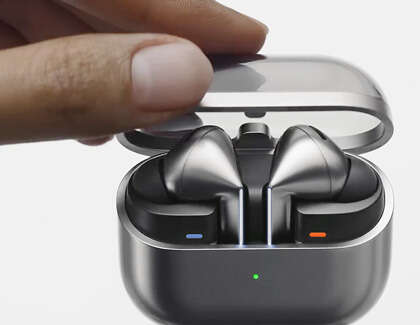
I often pair with the earbuds in their case lid open. That forces them into pairing mode reliably. If your Raycon model uses a single master earbud, ensure the master is in pairing mode as you follow the steps.

How to connect Raycon earbuds to iPhone
Pairing to iPhone is fast and usually seamless.
- Open Settings and tap Bluetooth.
- Keep the Bluetooth menu visible.
- Remove both earbuds from the case to enter pairing mode.
- Tap the Raycon name when it appears under “Other Devices.”
- Confirm any pop-up prompts.
If the earbuds previously paired with another Apple device, you may need to select them from the iPhone’s device list and choose “Forget This Device” on the old device first. I once had an issue where AirPlay tried to route audio to another device; toggling Bluetooth off and on fixed it instantly.

How to connect Raycon earbuds to Android
Most Android phones pair the same way as iPhone, with a few extra steps for some models.
- Open Settings and tap Connections or Bluetooth.
- Turn on Bluetooth and keep the screen active.
- Remove earbuds from the case to enter pairing mode.
- Tap the Raycon name in the list of available devices.
- If your phone asks for permission to access contacts or media, allow media access for audio.
For older Android versions, you may need to select “Pair new device” first. If connection fails, clear the Bluetooth cache in Settings > Apps > Bluetooth and retry. I used this cache clear trick once on a phone that refused to see the earbuds until that was done.

Pairing Raycon earbuds with a laptop or PC
Connecting to a Windows PC or Mac is similar but uses system Bluetooth menus.
- Windows: Click Start > Settings > Devices > Bluetooth & other devices. Turn Bluetooth on and click “Add Bluetooth or other device.” Choose Bluetooth and select the Raycon name.
- Mac: Open System Preferences > Bluetooth. Turn Bluetooth on and click Connect next to the Raycon model.
If you use the earbuds for calls on PC, set them as both the output and input device in Sound settings. On Windows, you may need to change the audio profile from “Hands-Free” to “Stereo” to get full audio quality.

Troubleshooting common pairing issues
If you still need help with how to connect Raycon earbuds, try these fixes.
- No device name appears: Put earbuds back in case for 10 seconds, then remove to reenter pairing mode.
- One earbud pairs only: Reset the earbuds by placing them in the case and holding the touch controls for 10 seconds (varies by model). Then repeat pairing.
- Paired but no sound: Check volume on both device and earbuds. On some devices, you must set the audio output to Raycon in control center or sound settings.
- Rapid disconnects: Update your phone OS, move away from Wi-Fi routers or other interference, and ensure firmware for earbuds is up to date if an update exists.
- Forgotten device: On your phone, choose “Forget This Device” for Raycon, then repeat the pairing steps fresh.
I once fixed constant dropouts by turning Wi-Fi 5GHz on. That reduced congestion on the 2.4GHz band where some Bluetooth interference was happening. Small environment changes can matter.

Resetting Raycon earbuds
A reset often fixes stubborn pairing problems.
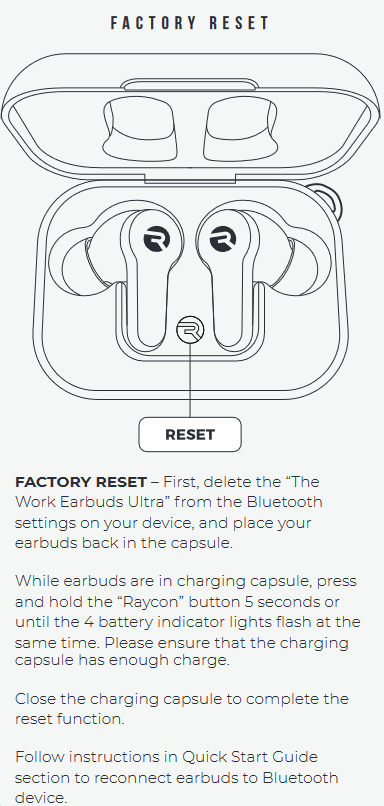
- Place earbuds in the case and leave the lid open.
- Hold down both touch controls for 10 to 15 seconds until lights flash a certain way (check your model instructions for exact light pattern).
- Remove earbuds and attempt pairing anew.
If your Raycon model uses a physical button, press and hold the button on both earbuds instead. Resetting clears saved pairings and returns the earbuds to factory pairing mode. I recommend a reset before contacting support.

Tips for better connection and battery life
These practical tips come from testing many earbuds.
- Keep firmware updated if Raycon provides updates.
- Charge to at least 50% before long use to avoid mid-session dropouts.
- Store earbuds in the case when not in use to keep them charged and safe.
- Pair only one primary device if you want stable, fast connections.
- Turn off Bluetooth on unused nearby devices during initial pairing.
Avoid exposing earbuds to extreme heat or moisture. Proper care extends battery life and keeps Bluetooth stable.
Care, updates, and compatibility
Raycon earbuds work with most Bluetooth 4.2+ devices. Check your device’s Bluetooth version for best results.
- Clean ear tips regularly to avoid grime on contacts.
- Check Raycon support for firmware or app updates.
- Note that call quality can vary by device and Bluetooth profile.
Be aware of potential model differences. Some Raycon models have special pairing methods or app support. If you need precise instructions, consult the model-specific quick guide.
Frequently Asked Questions of how to connect raycon earbuds
How do I put Raycon earbuds into pairing mode?
Remove both earbuds from the case and keep them out until lights blink. If they don’t, press and hold touch controls to force pairing mode.
Why won’t my phone find the Raycon earbuds?
Ensure earbuds are charged and in pairing mode. Turn Bluetooth off and on, and remove other active Bluetooth devices that might interfere.
How do I reset Raycon earbuds if they won’t pair?
Place earbuds in the case, hold touch controls for 10–15 seconds until lights flash, then remove and try pairing again.
One earbud connects but the other doesn’t. What do I do?
Place both earbuds back in the case to re-sync them, then remove together to enter pairing mode. If that fails, perform a reset.
Can I connect Raycon earbuds to multiple devices?
Yes, but switching between devices may require manual disconnect and reconnect. For the most stable experience, pair primarily to one device.
Conclusion
You now have a clear, practical plan for how to connect Raycon earbuds to phones, tablets, and computers. Follow simple prep steps, use the step-by-step pairing method, and apply quick fixes when things go wrong. Try a reset if needed and keep firmware and device Bluetooth updated for best performance. Now go pair your earbuds and enjoy clear audio—leave a comment if you hit a snag or want model-specific help.

Everett Ashford is a tech reviewer at mytechgrid.com specializing in SSDs, cameras, TVs, earbuds, headphones, and other consumer electronics. He provides honest, data-driven reviews based on hands-on testing and real-world performance analysis. Everett simplifies complex tech details to help readers make smart, confident buying decisions.