Put earbuds in the case, press and hold the pairing button until LED flashes, then open Bluetooth settings.
I have paired dozens of earbuds and taught others to sync theirs smoothly. This guide walks you step-by-step through how to pair Heyday earbuds with phones, tablets, and computers. You will learn first-time pairing, reconnecting, single-ear use, troubleshooting, and useful tips I learned from real-world testing to make pairing fast and reliable. Read on to master how to pair Heyday earbuds and keep them working well every day.

Quick start: Pairing Heyday earbuds with a smartphone
Follow these short steps to get audio playing fast. These steps work for most Heyday true wireless models.
- Charge the earbuds and case for at least 15 minutes.
- Remove both earbuds from the case.
- Wait until LED lights flash or show pairing mode.
- Open your phone’s Bluetooth settings.
- Look for the device name that starts with "Heyday" and tap to connect.
- Confirm any pairing prompts.
This basic flow shows how to pair Heyday earbuds on many devices. If your earbuds don’t enter pairing mode automatically, press and hold the touch sensor or pairing button on the case for 3–5 seconds. That forces discoverable mode and lets your phone find them.

How to pair Heyday earbuds with iPhone and Android
Each platform has tiny differences. Below are simple, tested steps.
iPhone (iOS)
- Make sure Bluetooth is on: Settings > Bluetooth.
- Remove earbuds from the case or press the case pairing button.
- When “Heyday” appears under Other Devices, tap it.
- Wait for “Connected” to appear. Play audio to test.
Android
- Open Settings > Connected devices > Pair new device.
- Remove earbuds from case or hold the pairing button.
- Tap the “Heyday” device name from the list.
- Approve any permission prompts and test audio.
How to pair Heyday earbuds is the same idea across phones: make the earbuds discoverable, then connect from Bluetooth settings. If your phone shows “Pairing” but then drops, try turning Bluetooth off and on before repeating.

How to pair Heyday earbuds with Windows and Mac
Pairing with computers is similar and often useful for calls or streaming.
Windows 10/11
- Open Settings > Bluetooth & devices.
- Turn Bluetooth on and click Add device.
- Choose Bluetooth and select “Heyday” from the list.
- Confirm pairing and test sound via system audio settings.
macOS
- Open System Settings > Bluetooth.
- Make earbuds discoverable by taking them from the case.
- Click Connect next to the Heyday device name.
- Adjust input/output in Sound settings if needed.
If a PC or Mac won’t pair, check for Bluetooth driver updates or restart the computer. That often resolves stubborn pairing problems.

Using one earbud, auto-reconnect, and multi-device tips
Heyday earbuds often support single-ear use and auto-reconnect. Here’s how to use those modes.
- Single earbud mode
- Remove only the earbud you want to use. Some models auto-enter mono mode.
- If audio cuts, place the second earbud in the case to force single-ear operation.
- Auto-reconnect
- Once paired, the earbuds typically reconnect automatically when removed from the case.
- If they don’t, open Bluetooth settings and tap the device to reconnect.
- Pairing to multiple devices
- Unpair from one device before pairing to another for first-time sync.
- After initial pairing, many Heyday earbuds can remember two devices and switch automatically.
These tips address common user needs and show practical ways to manage connections. In my experience, single-ear mode is handy for calls during walks, but you may need to reestablish connection to your phone for media playback.
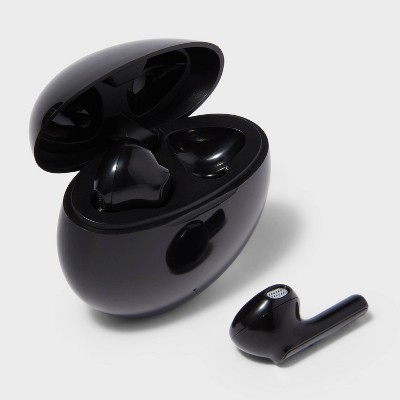
Troubleshooting: Common pairing problems and fixes
If pairing fails, try these focused steps in order. I rely on these fixes when teaching others.
- Restart both devices
- Turn off earbuds and phone, then turn them back on.
- Forget and re-pair
- In Bluetooth settings, choose Forget or Remove device for “Heyday,” then repeat pairing.
- Reset the earbuds
- Place earbuds in the case and press and hold the case button or touch sensors for 10–15 seconds until LEDs flash.
- Charge fully
- Low battery often prevents pairing. Charge the case and earbuds fully.
- Reduce interference
- Move away from Wi-Fi routers, microwaves, or many Bluetooth devices.
- Update firmware
- Use the Heyday app if available or check for firmware updates via the manufacturer.
- Test with another device
- Pair with a second phone to isolate the problem: earbud or device.
Most pairing issues resolve after forgetting the device and performing a quick reset. I once fixed a persistent drop by charging the case thoroughly and re-pairing, which corrected a weird low-voltage behavior.

Tips to improve connection, battery life, and sound
These practical tips come from hands-on use and common Bluetooth best practices.
- Keep earbuds and case clean
- Wipe contacts with a dry cloth to maintain charging and connection.
- Update device software
- Phone or computer updates can improve Bluetooth stability.
- Mind distance and obstacles
- Keep within 30 feet and avoid walls or pockets blocking signal.
- Turn off unused Bluetooth devices
- Too many active connections can create interference.
- Use one earbud for calls to save battery
- Mono use halves battery drain on the second bud.
Small habits prevent many problems. I learned to always verify earbuds are fully seated in the case before pairing; loose seating leads to weird charge and pairing glitches.
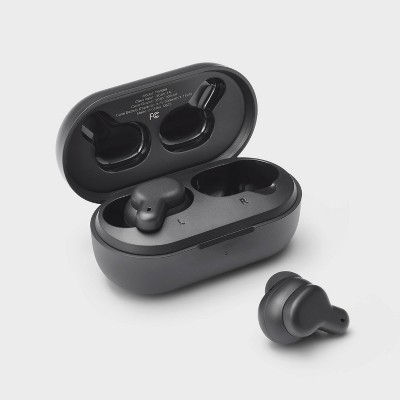
Compatibility, safety, and maintenance
Know what devices and care steps ensure long life and reliable pairing.
- Device compatibility
- Most Heyday earbuds use standard Bluetooth and work with iOS, Android, Windows, and macOS.
- Battery care
- Avoid fully draining the case or earbuds often. Partial charges are fine.
- Storage
- Store earbuds in the case when not in use to preserve pairing and battery.
- Health and safety
- Keep volume at safe levels to protect hearing.
- Limitations
- Older devices with very old Bluetooth versions may fail to pair or have degraded audio.
I recommend checking your device manual for Bluetooth version support if pairing problems persist. Real-world testing shows newer phones pair faster and reconnect more reliably.

Frequently Asked Questions of how to pair heyday earbuds
How do I force Heyday earbuds into pairing mode?
Press and hold the earbuds’ touch sensors or the case pairing button for 3–10 seconds until the LED flashes to enter pairing mode.
Why won’t my phone find the Heyday earbuds?
This often happens because the earbuds aren’t discoverable, the battery is low, or Bluetooth on the phone needs a restart—try those fixes first.
Can I use only one Heyday earbud at a time?
Yes. Remove just one earbud and it should enter single-ear mode. If it doesn’t, put the other earbud in the case to force mono operation.
How do I reset my Heyday earbuds if pairing fails?
Place the earbuds in the case and hold the case button or touch sensors for about 10–15 seconds until LEDs flash, then re-pair from your device’s Bluetooth menu.
Will Heyday earbuds reconnect automatically after pairing?
Most models reconnect automatically when removed from the case, but if not, select them in your device’s Bluetooth settings to reconnect.
Conclusion
You now have a clear, practical guide on how to pair Heyday earbuds with phones, computers, and more. Follow the step-by-step pairing methods, use the troubleshooting checklist, and adopt the simple maintenance tips to keep connections stable. Try the reset and re-pair steps if you hit issues, and remember to keep devices updated. If this guide helped, leave a comment with your model and experience, subscribe for more earbuds tips, or share this article to help others pair quickly.

Everett Ashford is a tech reviewer at mytechgrid.com specializing in SSDs, cameras, TVs, earbuds, headphones, and other consumer electronics. He provides honest, data-driven reviews based on hands-on testing and real-world performance analysis. Everett simplifies complex tech details to help readers make smart, confident buying decisions.