Open Settings, tap bluetooth, put headphones in pairing mode, then select them on your iPhone.
Learning how to connect headphones to iPhone Bluetooth takes less than a minute in most cases. This guide explains the exact steps, pairing modes, common problems, and simple fixes that work across AirPods, Beats, and most wireless headphones.
What You Need Before Pairing Bluetooth Headphones
Before you connect headphones to iPhone Bluetooth, check a few simple things. Your iPhone should run a recent version of iOS, and your headphones should have enough battery power. Low power can stop pairing or cause the connection to drop.
Keep the headphones close to your iPhone during setup. A distance of a few feet is best. Also, turn off Bluetooth on nearby phones, tablets, or laptops that may connect to the headphones first.
You should also know the difference between pairing and connecting:
• Pairing means your iPhone and headphones exchange information for the first time.
• Connecting means your iPhone uses headphones that it already remembers.
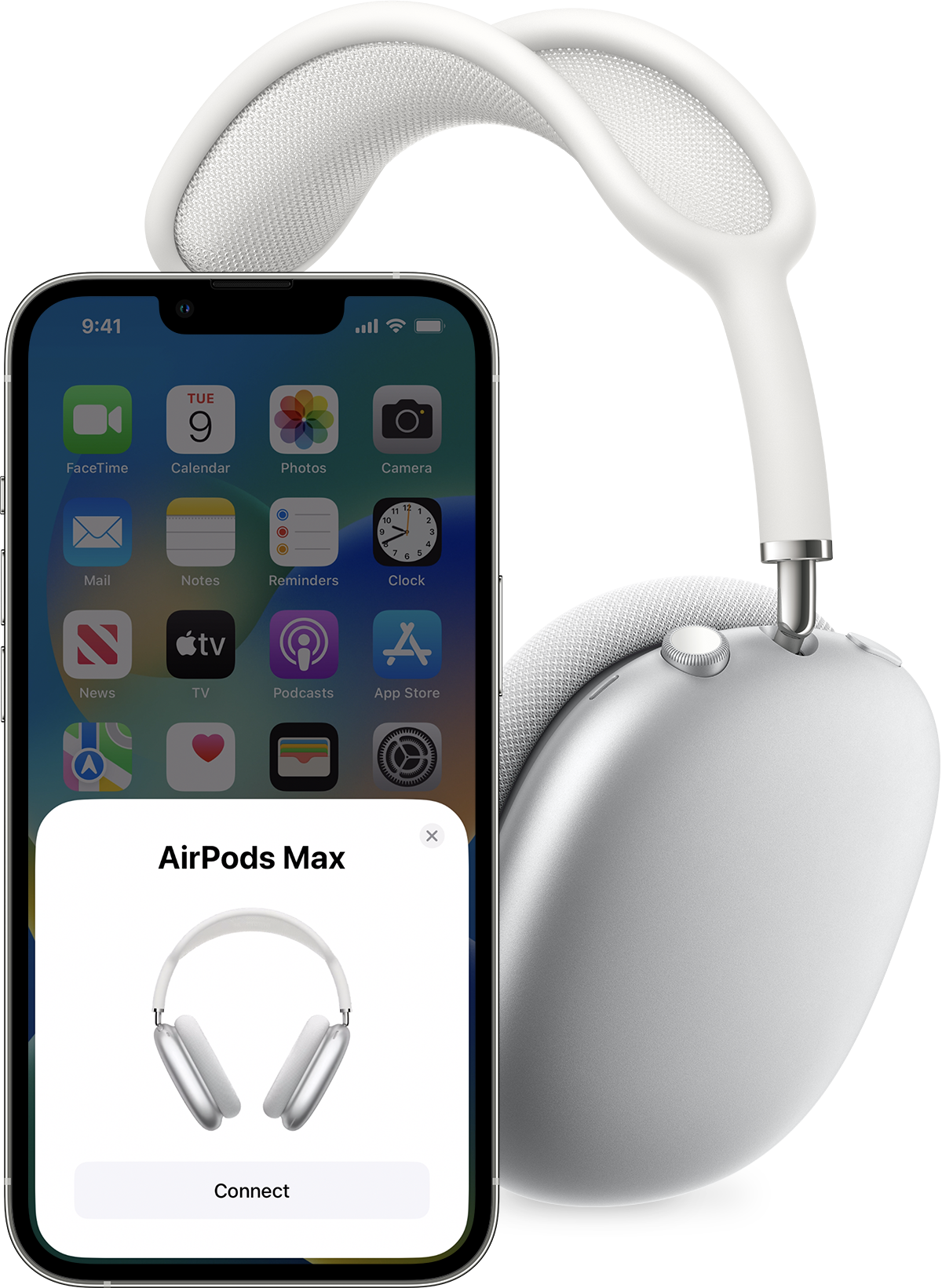
Most Bluetooth headphones use a small pairing button. AirPods and some Beats models enter pairing mode when you open the charging case and press the setup button.

How to Connect Headphones to iPhone Bluetooth
These steps work for most wireless headphones, earbuds, and headsets.
-
Turn on your Bluetooth headphones.
-
Put the headphones into pairing mode. Usually, you do this by holding the power or Bluetooth button for a few seconds. Look for a flashing white, blue, or red light.
-
Unlock your iPhone and open the Settings app.
-
Tap Bluetooth.
-
Turn on the Bluetooth switch if it is off.
-
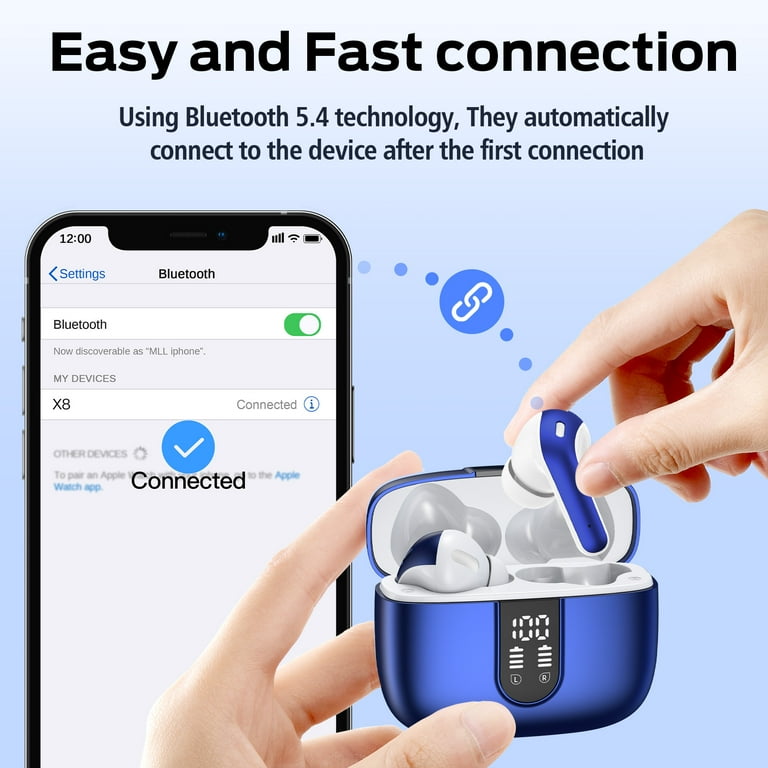
Wait for your headphones to appear under Other Devices.
-
Tap the name of your headphones.
-
Wait until the status changes to Connected.
Your headphones should now play calls, music, videos, and other audio from your iPhone. You may also see a battery level or headphone icon in the Control Center.
If the headphones do not appear, keep the Bluetooth screen open while pairing. Some headphones stop advertising themselves after a short time, so you may need to turn pairing mode off and on again.

How to Put Popular Headphones in Pairing Mode
The pairing process varies by brand. Knowing the correct button sequence makes it much easier to connect headphones to iPhone Bluetooth.
AirPods
Place both AirPods in the charging case and open the lid. Press and hold the button on the back of the case until the status light flashes white. Keep the case near your unlocked iPhone, then follow the setup message on the screen.
Some newer AirPods cases use a front touch control instead of a visible rear button. In that case, double tap the front of the case when prompted.
Beats headphones
Turn on the Beats headphones and hold the power button until the indicator light flashes. Open Settings, select Bluetooth, and tap the Beats name when it appears.
Some Beats models pair automatically with an iPhone signed in to the same Apple Account. If automatic pairing does not start, use the normal Bluetooth method.
Sony, Bose, JBL, and other headphones
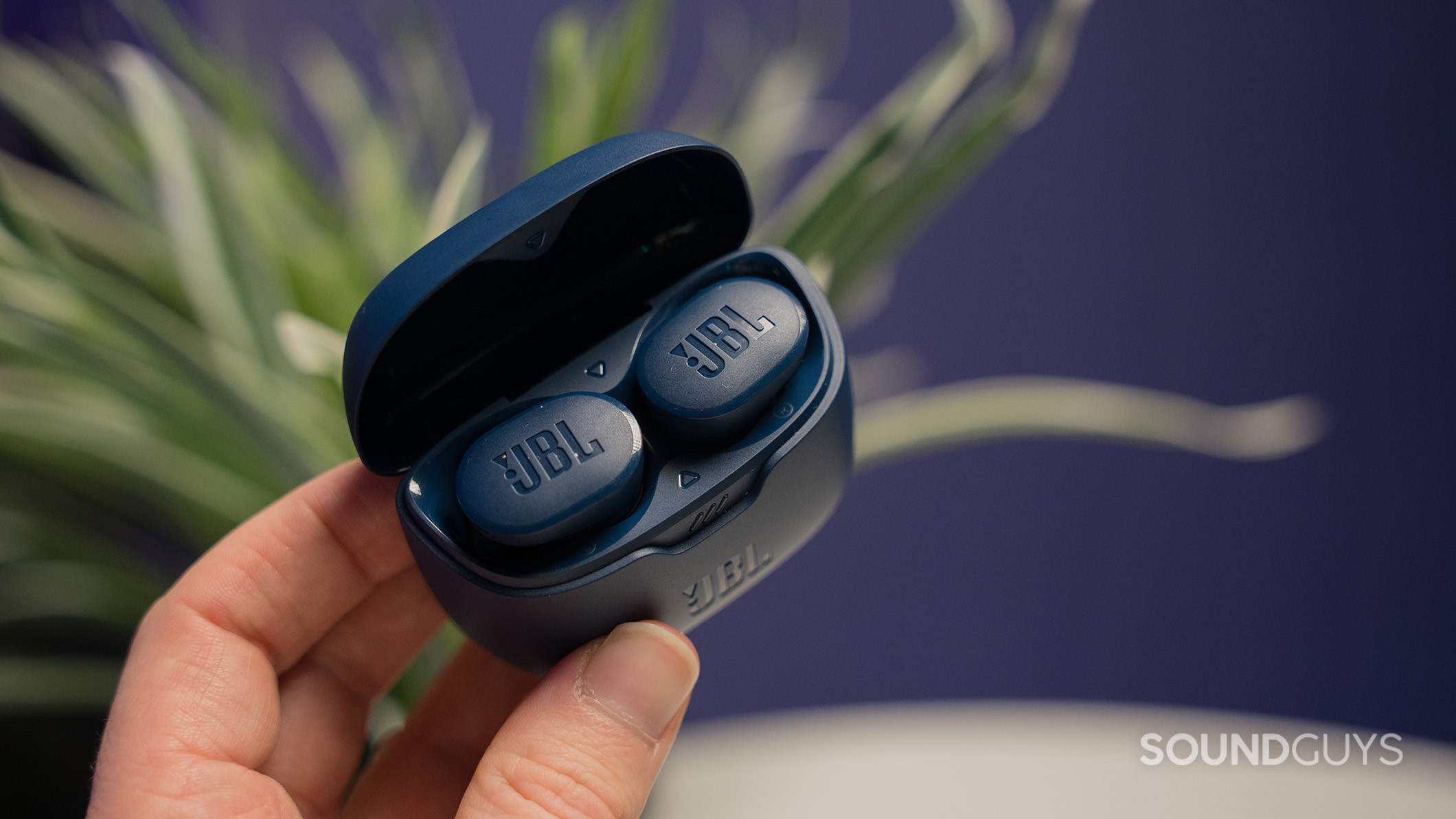
Most models enter pairing mode when you hold the power button or Bluetooth button for about five to seven seconds. A voice prompt may say “Pairing,” or a light may flash blue.
If the headphones were paired with another device, hold the button longer. A short press may only turn them on, while a long press starts pairing mode.

How to Reconnect Headphones to an iPhone
After the first setup, your iPhone usually remembers the headphones. To reconnect headphones to iPhone Bluetooth, turn them on and keep them near the phone.
Open Settings and tap Bluetooth if they do not connect on their own. Then tap the headphone name under My Devices. The status should change from Not Connected to Connected.
You can also open Control Center:
-
Swipe down from the top right on an iPhone with Face ID.
-
Swipe up from the bottom on an iPhone with a Home button.
-
Touch and hold the audio controls.
-
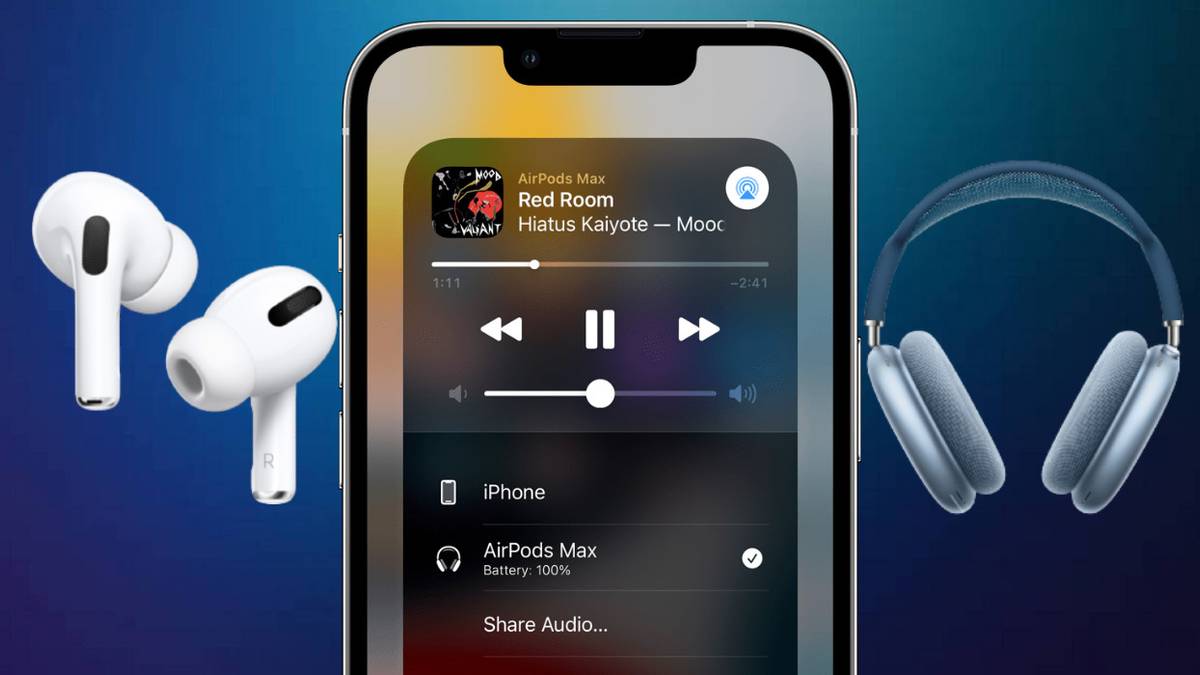
Tap the AirPlay or audio output icon.
-
Choose your headphones.
This method is helpful when your headphones are paired but the iPhone sends sound through its speaker. It lets you change the audio output without opening the full Settings menu.

How to Check Whether the Connection Works
Once you connect headphones to iPhone Bluetooth, test more than one type of audio. Play a song, watch a short video, and make a quick test call if possible.
Check these points:
• Sound should come from both earbuds or ear cups.
• The volume buttons should change headphone volume.
• The microphone should work during a call.
• Audio should pause when you remove the earbuds if your model supports automatic ear detection.
• The headphone name should show as Connected in Bluetooth settings.
If music plays through the iPhone speaker, open Control Center and select the headphones as the audio output. This is one of the most common issues after a successful pairing.
What to Do When Bluetooth Headphones Will Not Connect
Bluetooth problems are often simple. The headphones may already be connected to another device, or they may not be in pairing mode.
Try these fixes in order:
-
Move the headphones close to the iPhone.
-
Charge the headphones and their case.
-
Turn Bluetooth off, wait ten seconds, and turn it on again.
-
Turn the headphones off and back on.
-
Restart the iPhone.
-
Put the headphones back into pairing mode.
-
Check the Bluetooth list again.
Avoid tapping the headphone name repeatedly. Each tap can start a new connection attempt while the headphones are still searching. Give the phone a few seconds to complete the process.
If you still cannot connect headphones to iPhone Bluetooth, forget the saved connection. Go to Settings, tap Bluetooth, tap the information button next to the headphone name, and choose Forget This Device. Then pair the headphones again as if they were new.
How to Fix Bluetooth Headphones That Keep Disconnecting
A weak battery, distance, radio interference, or outdated software can cause repeated disconnections. Walls, crowded Wi-Fi areas, and other active Bluetooth devices may also affect performance.
Keep the iPhone and headphones on the same side of your body when walking. Your body can block some wireless signals, especially with small earbuds.
Use these additional steps:
• Update the iPhone through Settings > General > Software Update.
• Install the headphone maker’s app if it offers firmware updates.
• Remove unused Bluetooth devices from the iPhone.
• Keep the headphones within about 30 feet in an open space.
• Reset the headphones according to the manufacturer’s instructions.
Bluetooth range varies by device, room layout, and interference. The advertised range is often measured in ideal conditions, not through walls or inside a busy office.
How to Improve Sound and Call Quality
Pairing is only the first step. Good fit, clean speakers, and correct audio settings can make a bigger difference than many people expect.
For earbuds, try different ear tips if they are included. A proper seal improves bass and reduces the need to raise the volume. Keep the speaker mesh clean, but do not push sharp objects into it.
During calls, make sure the microphone openings are not covered by hair, clothing, or a case. If call audio sounds poor, check whether the iPhone is using the headphone microphone.
You can adjust sound settings under Settings > Accessibility > Audio & Visual. Options such as Balance, Mono Audio, and Headphone Accommodations may help some listeners. These features vary by iPhone model, iOS version, and headphone type.

Why Your Headphones May Not Appear on the Bluetooth List
If the headphones do not show under Other Devices, they are probably not in pairing mode. Being powered on is not always enough. Pairing mode normally requires a separate button press.
Other possible causes include:
• The headphones are connected to another phone or computer.
• The headphones are too far away.
• The battery is nearly empty.
• The pairing memory is full.
• The headphones are still connected to a charging case.
• Bluetooth software needs a fresh restart.
Resetting the headphones often clears old connections. The exact reset method differs by brand, so follow the instructions made for your model. A factory reset removes saved devices and lets you start over cleanly.
How to Reset iPhone Network Settings
If several Bluetooth devices fail to connect, the issue may involve the iPhone rather than the headphones. You can reset network settings as a last resort.
Go to Settings > General > Transfer or Reset iPhone > Reset > Reset Network Settings. Enter your passcode if asked, then confirm the reset.
This removes saved Wi-Fi networks, VPN settings, and Bluetooth connections. It does not erase photos, apps, messages, or other personal files. You will need to reconnect your headphones and enter Wi-Fi passwords again afterward.
Use this step only after easier fixes fail. In most cases, restarting the iPhone or forgetting the headphone connection is enough.
Bluetooth Headphone Compatibility and Limits
Most modern Bluetooth headphones work with an iPhone. However, some features depend on the brand and model.
Basic functions usually include:
• Wireless audio
• Phone calls
• Microphone access
• Volume control
• Play and pause controls
Advanced features may require a specific app or Apple device. Automatic switching, spatial audio, head tracking, battery displays, and device-finding tools may not work fully with third-party headphones.
Bluetooth audio can also have a small delay. This may be noticeable when playing games or editing video. Newer headphones often reduce delay, but no wireless connection is perfect in every situation.
The best way to connect headphones to iPhone Bluetooth is to use headphones with current Bluetooth support and updated firmware. Still, Bluetooth version numbers alone do not guarantee every feature will work.
Practical Tips From Real-World Pairing
In hands-on testing, the most common mistake is trying to pair headphones that are still linked to a laptop. The fix is simple: turn off Bluetooth on the old device or disconnect the headphones there first.
Another common mistake is tapping the iPhone name too soon. Wait for the flashing pairing light or voice prompt before opening Bluetooth settings. The iPhone can only find headphones that are actively announcing themselves.
I also recommend giving headphones clear names. If you own several similar devices, rename them in Bluetooth settings so you can quickly select the right pair. A name such as “Work Earbuds” is easier to recognize than a string of model numbers.
Finally, keep the charging case nearby during setup. Some earbuds must remain close to the case while they complete their first connection. Small details like this can save several frustrating attempts.
Frequently Asked Questions About How to Connect Headphones to iPhone Bluetooth
Why will my Bluetooth headphones not connect to my iPhone?
Your headphones may not be in pairing mode, may be connected to another device, or may have a low battery. Restart both devices, forget the old Bluetooth connection, and pair the headphones again.
How do I connect headphones to iPhone Bluetooth for the first time?
Turn on pairing mode on the headphones, open Settings > Bluetooth on the iPhone, and tap the headphone name under Other Devices. Wait for the status to show Connected.
Can I connect two Bluetooth headphones to one iPhone?
Some iPhone models support Audio Sharing with compatible AirPods and Beats headphones. Open Control Center, tap the audio output icon, and look for the Audio Sharing option.
Why are my headphones connected but playing no sound?
The iPhone may still be using its built-in speaker as the audio output. Open Control Center, tap the audio output icon, and select your connected headphones.
How do I remove old Bluetooth headphones from my iPhone?
Open Settings > Bluetooth, tap the information button next to the device, and choose Forget This Device. You can pair the headphones again later if needed.
Do Bluetooth headphones work with every iPhone?
Most Bluetooth headphones work with iPhones that support Bluetooth audio. However, advanced features may require a newer iPhone, a compatible iOS version, or the manufacturer’s app.
Conclusion
To connect headphones to iPhone Bluetooth, place the headphones in pairing mode, open Settings, select Bluetooth, and tap the headphone name. If the connection fails, charge the headphones, disconnect other devices, restart Bluetooth, or forget the old pairing and try again.
Once connected, check the audio output, microphone, fit, and software updates for the best experience. Try these steps with your headphones today, and share this guide with anyone who needs help pairing wireless audio.

Everett Ashford is a tech reviewer at mytechgrid.com specializing in SSDs, cameras, TVs, earbuds, headphones, and other consumer electronics. He provides honest, data-driven reviews based on hands-on testing and real-world performance analysis. Everett simplifies complex tech details to help readers make smart, confident buying decisions.