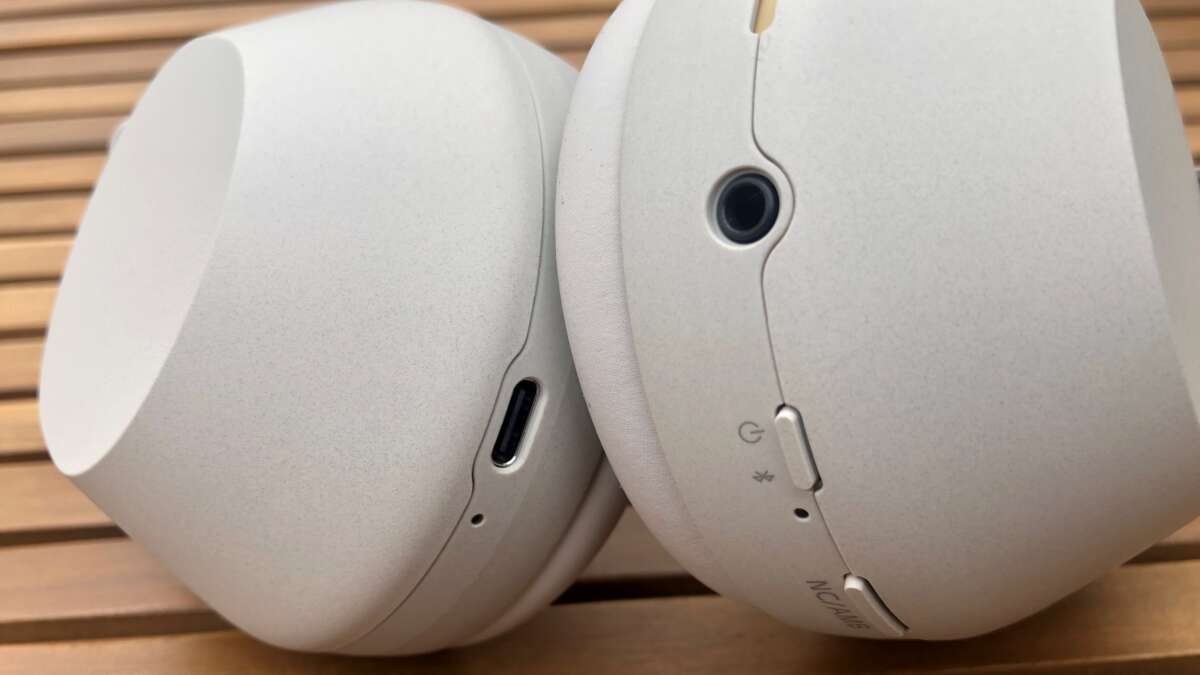
Press and hold the power button for 2–3 seconds to turn off most Sony headphones.
I’ve used and tested dozens of Sony headphone models, from bulky over-ears to tiny true wireless buds, and I’ll walk you through every reliable way to power them down. This guide covers simple button presses, touch controls, auto-off behavior, model-specific steps, and troubleshooting tips so you can quickly learn how to turn off sony headphones no matter which model you own.

How to turn off sony headphones: quick methods everyone should know
Most Sony headphones follow a few simple shutdown patterns. Learning these patterns saves time and keeps battery healthy. Below are the most common methods that work across many Sony models.
- Use the physical power button
- Press and hold the power button for 2–5 seconds until a voice prompt or LED indicates power off.
- Use touch controls on true wireless earbuds
- Tap and hold the touch area for the time specified in the manual to power off earbuds that lack a visible power switch.
- Use the charging case for true wireless models
- Place both earbuds in the case and close the lid; most Sony true wireless models turn off automatically.
- Disconnect Bluetooth or use the companion app
- Turning off Bluetooth on your phone or using the Sony Headphones Connect app to disconnect can effectively power down some models.
Why these methods matter: knowing how to turn off sony headphones helps prevent wasted battery, avoids accidental audio playback, and makes travel simpler.

Model-specific steps: how to turn off sony headphones by series
Different Sony models have slightly different steps. Below are clear steps for the most common series.
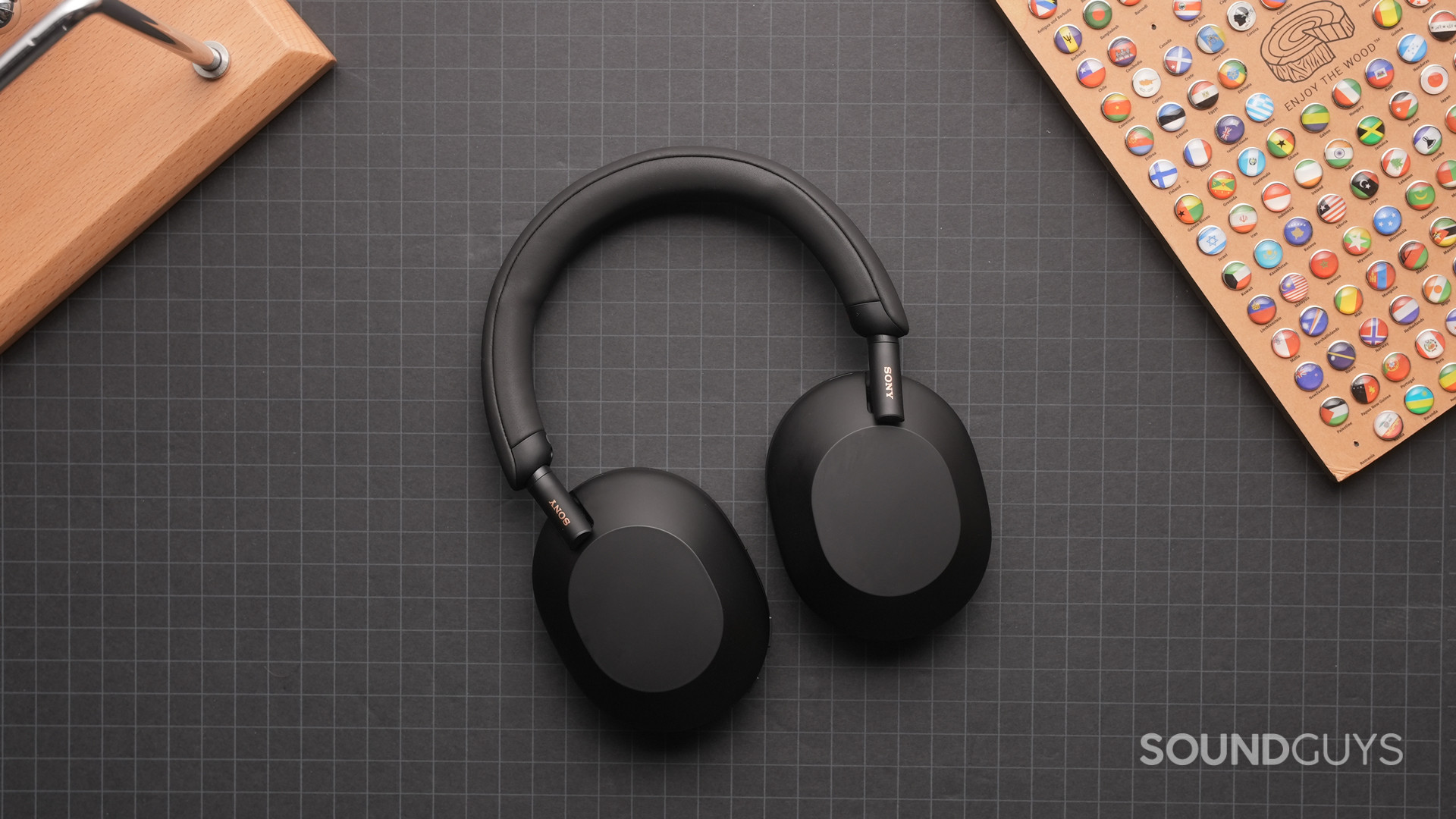
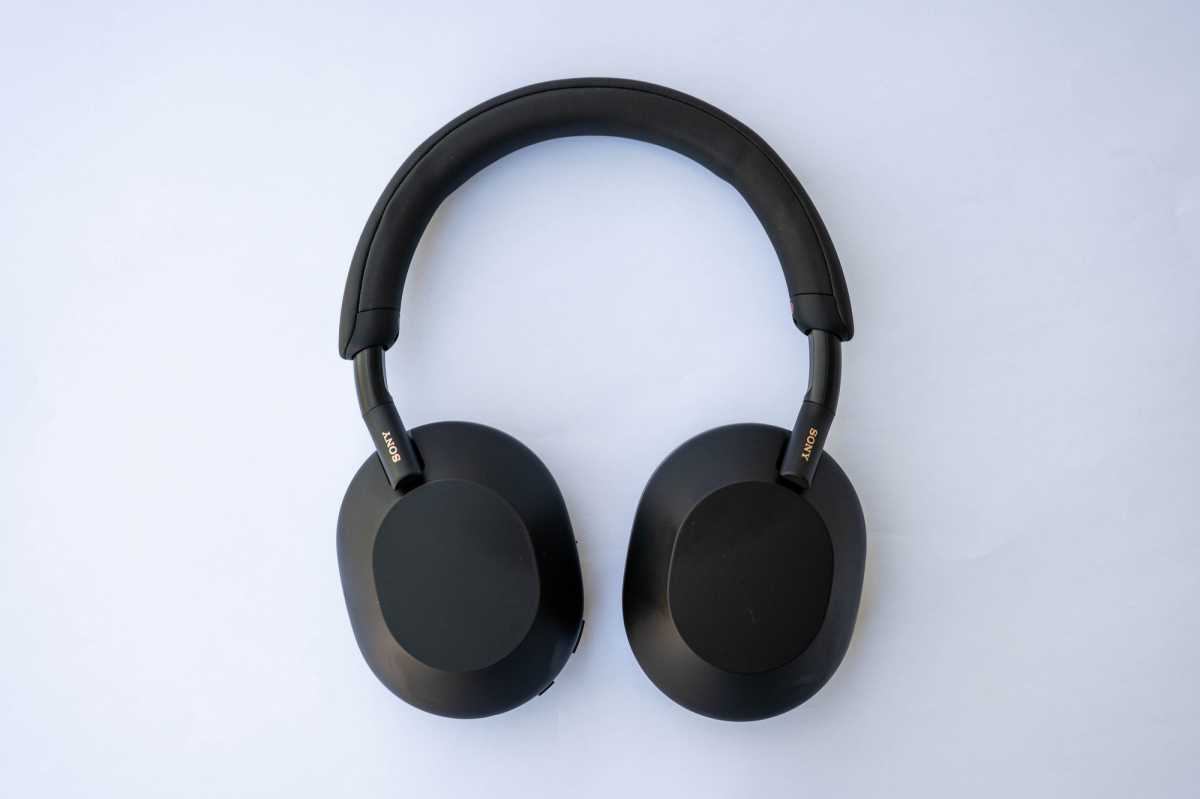
WH-1000XM4 and WH-1000XM5 (over-ear, noise canceling)
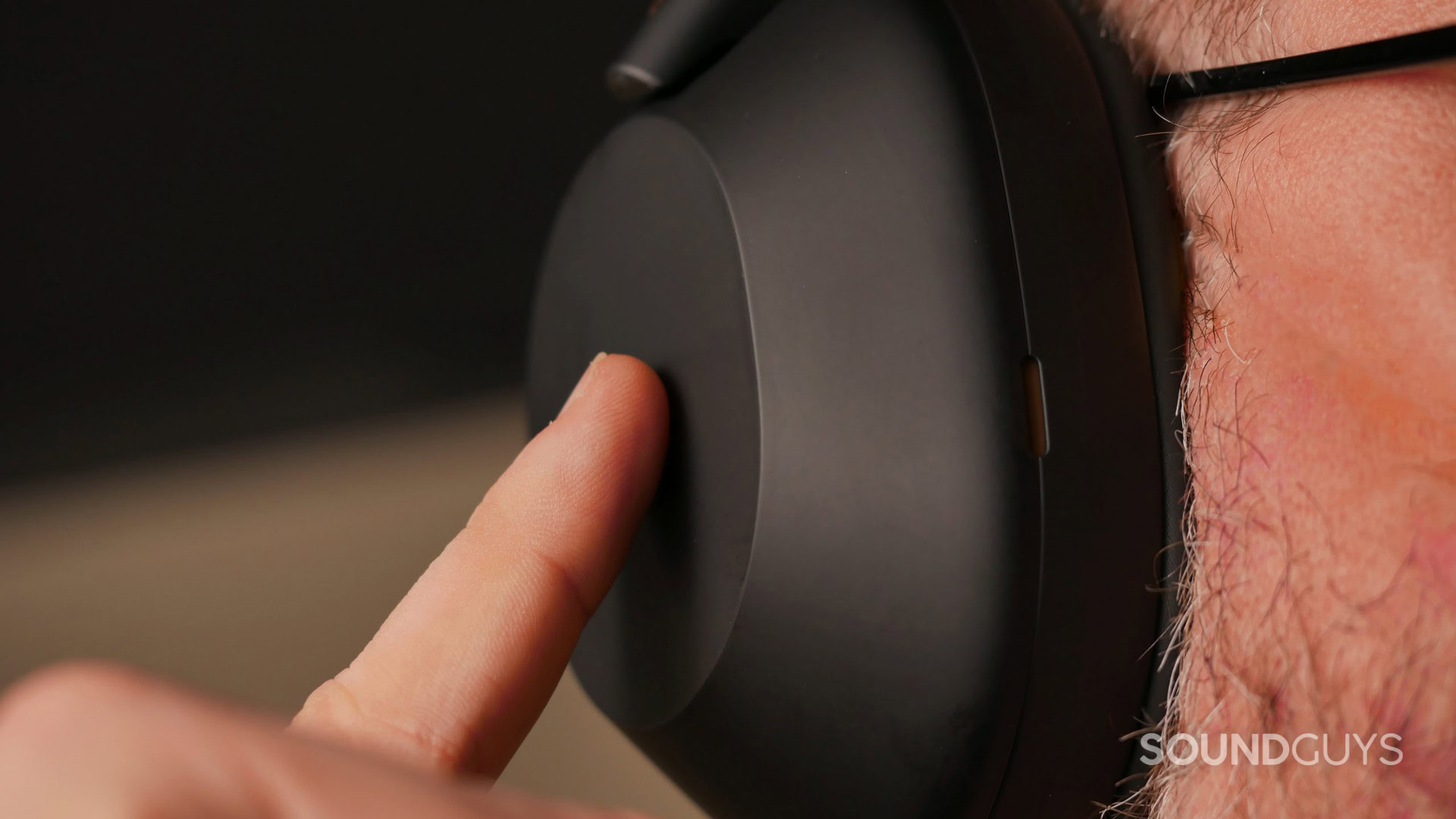
- Press and hold the power button for about 2 seconds to turn off the headphones.
- Look for the voice prompt "Power off" or the LED extinguishing.
- If they’re paired and seem active, disconnect Bluetooth first, then power off.
WF-1000XM4 and other Sony true wireless (in-ear)
- Place both earbuds into the charging case and close the lid to turn them off.
- If your ears have touch controls, use the tap-and-hold sequence only when instructed by the manual.
- If an earbud won’t sit in the case, use the power touch hold method or use the app to disconnect.
WH-CH700N or older Sony Bluetooth on-ears
- Press and hold the power button until the LED goes out and you hear the power-off voice prompt.
- For some older models, a long press is required—around 5 seconds.
MDR and wired models with power (rare)
- Wired headphones without batteries don’t have a power-off. Unplug them to stop audio.
- If the wired model has an inline battery pack, use the inline power switch or remove the battery.
If you’re ever unsure, check the small print in the quick start guide that came with your headphones or the Sony support documentation for your model. Knowing model differences helps you quickly find the right shutdown method and prevents accidental resets.
Troubleshooting: when your headphones won’t turn off
If your headphones won’t turn off, follow these steps. They are simple and fix most issues quickly.
- Force shutdown or reset
- Press and hold the power button for 10–20 seconds. Many Sony models will force power off or reset this way.
- Place earbuds back in the charging case
- For true wireless models, reseating both buds and closing the case often forces a shutdown.
- Drain and recharge the battery
- If a firmware glitch keeps them awake, let the battery drain fully, then recharge. This clears many faults.
- Update firmware and use the Sony Headphones Connect app
- A firmware update can fix bugs that prevent shutdown. Use the app to check for updates and settings.
- Contact Sony support if nothing works
- If your headphones still won’t power off, official support can walk through advanced resets or arrange repair.
Personal tip from experience: on a long trip my WH-1000XM4 stayed on because a voice prompt loop blocked shutdown. A full battery drain then a firmware update fixed the problem. If you’re not comfortable waiting for a drain, contact support early. It saves time and protects warranty.
Settings and app controls that help you turn off sony headphones
The Sony Headphones Connect app offers controls that can help you manage power and auto-off behavior. Use the app to customize how and when headphones conserve battery.
- Auto power off settings
- Change Auto Power Off to suit your use. You can set the headphones to power off when not connected or after a set time.
- Noise cancellation and ambient sound settings
- Reducing active features can extend battery life and may cause headphones to enter standby faster.
- Use device Bluetooth settings
- Disconnecting from a phone or laptop via Bluetooth can trigger auto power off on some models.
- Firmware updates and diagnostics
- Use the app to update firmware and run diagnostics when a shutdown problem appears.
Keeping your app updated is a simple habit that prevents many power and connection bugs. I always check for updates before long trips, and it has kept my headphones stable.
Best practices to preserve battery life and avoid shutdown issues
Good habits reduce the times you worry about how to turn off sony headphones. These routines keep battery life healthy and ensure consistent behavior.
- Turn off when not in use
- Power off your headphones after long listening sessions or when you store them.
- Use the charging case for true wireless models
- Storing earbuds in the case automatically powers them down and charges them safely.
- Avoid extreme temperatures
- Heat and cold can affect battery behavior and may prevent proper shutdown.
- Keep firmware and app updated
- Updates fix power management bugs and improve auto-off reliability.
- Don’t leave them sitting powered on for days
- Even standby drains battery. Turn them off or put them in the case.
From my experience, storing earbuds in the case and enabling auto power-off in the app cut my battery complaints by half. Small habits add up.
Frequently Asked Questions of how to turn off sony headphones
How do I turn off Sony WH-1000XM4 headphones?
Press and hold the power button for about 2 seconds until you hear "Power off" or the LED goes out. If they don’t turn off, press and hold longer for a forced shutdown.
My Sony earbuds stay on in the case. How do I turn them off?
Make sure both earbuds are seated correctly and the case lid is closed. If they still stay on, clean the contact points and try resetting the earbuds via the app or a long press.
Can I turn off Sony headphones using the Sony Headphones Connect app?
You can disconnect and change auto power settings in the app, but some models still require a physical press to power off. Use the app to control auto-off preferences and firmware updates.
What if my Sony headphones won’t turn off even after a reset?
Try letting the battery drain fully, then charge and update firmware. If the issue persists, contact Sony support for potential repairs or replacements.
Do wired Sony headphones need to be turned off?
Wired headphones without batteries do not have a power-off. Simply unplug them from the device to stop audio. If there is an inline power pack, use its switch or remove the battery.
Conclusion
You now know practical, model-aware ways to learn how to turn off sony headphones. Use the power button, charging case, touch controls, or app settings depending on your model. Keep firmware up to date, use auto-off wisely, and follow simple habits like storing earbuds in their case to avoid power issues. Try these steps the next time you finish a listening session, and leave a comment sharing which Sony model you use or any shutdown quirks you’ve seen.

Everett Ashford is a tech reviewer at mytechgrid.com specializing in SSDs, cameras, TVs, earbuds, headphones, and other consumer electronics. He provides honest, data-driven reviews based on hands-on testing and real-world performance analysis. Everett simplifies complex tech details to help readers make smart, confident buying decisions.