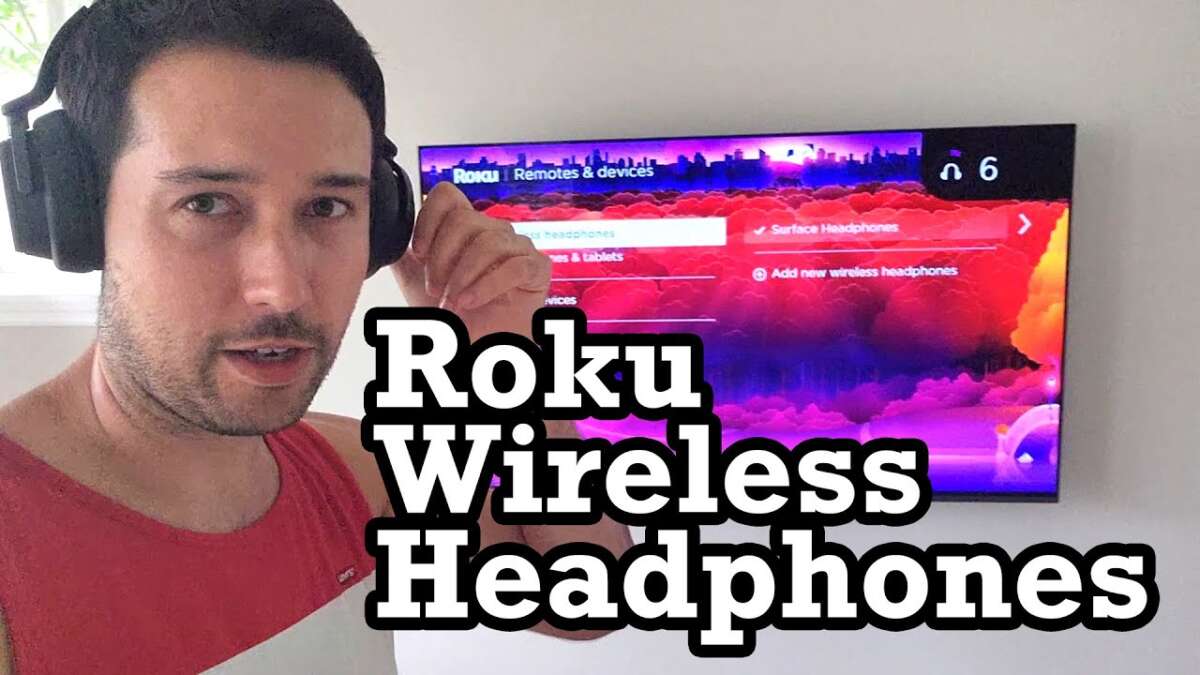
Pair via the Roku mobile app or add a Bluetooth transmitter for models without native support.
I’ve spent years setting up home theaters and smart TVs, so I’ll walk you through how to connect bluetooth headphones to roku step by step. This guide covers every method, model differences, troubleshooting tips, and real-world advice so you can get private listening working fast and with minimal fuss. Read on and you’ll know which method suits your Roku setup and how to fix common problems without guessing.
Why private listening matters and when to use Bluetooth headphones with Roku
Using Bluetooth headphones with your Roku gives you two big wins: private listening and clearer sound when the TV speakers are weak. Many people use headphones to watch late-night shows, block home noise, or get better audio detail without disturbing others.
You’ll learn different ways to connect bluetooth headphones to roku, the limits of each method, and which approach keeps audio in sync. I’ll explain when to use the Roku mobile app, when to buy a Bluetooth transmitter, and when a TV’s built-in Bluetooth is enough.

Which Roku models support Bluetooth or private listening
Not all Roku devices pair directly with Bluetooth headphones. Roku separates two features: private listening via the Roku mobile app and direct Bluetooth audio support in a few devices.
Common facts to note
- Roku models that support private listening through the Roku mobile app include Roku streaming sticks, Roku Express, Roku Premiere, Roku Ultra, and Roku TVs with compatible Roku OS versions.
- Some Roku models like the Roku Ultra can support direct Bluetooth accessories for remotes and headsets, but most rely on the mobile app for private listening.
- Roku TV manufacturers sometimes add TV-level Bluetooth support that is separate from Roku’s app. If your TV has system-level Bluetooth, it may pair with headphones directly.
If you’re wondering how to connect bluetooth headphones to roku for your specific model, check your device’s settings or Roku’s support pages to see whether private listening or direct Bluetooth pairing is available.
Methods to connect Bluetooth headphones to Roku
Below are the practical methods to connect bluetooth headphones to roku. I’ll show steps, pros, cons, and when to pick each.
Method 1 — Use the Roku mobile app (Private Listening)
This is the simplest and most common method.
Step-by-step
- Install the Roku mobile app on your iPhone or Android device.
- Connect your phone and Roku to the same Wi-Fi network.
- Open the app and tap the remote icon.
- Tap the headphones icon to enable Private Listening and plug in or pair your Bluetooth headphones to the phone.
Why it works
- Audio streams from the Roku to your phone, then to the headphones. This keeps setup easy and works with most headphones.
Limitations
- Audio passes through the phone, so a tiny delay can occur. Battery on your phone drains faster. This method requires the Roku app.
Method 2 — Pair directly through Roku device (limited models)
Some Roku devices and certain Roku TVs allow direct Bluetooth pairing.
How to check and pair
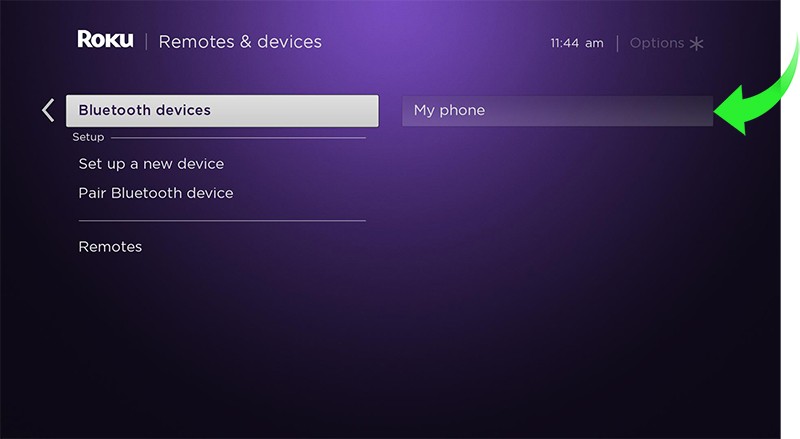
- Go to Settings > Remotes & devices > Bluetooth devices on your Roku (if the option exists).
- Put your headphones in pairing mode and select them on the Roku screen.
Pros and cons
- Pros: No phone required, fewer steps, lower latency on supported models.
- Cons: Very few Roku models support this. Many users won’t see the Bluetooth devices option.
Method 3 — Use a Bluetooth transmitter on the TV’s audio output
Best choice if your Roku doesn’t support app private listening or direct Bluetooth.
How to set up
- Buy a low-latency Bluetooth transmitter (aptX Low Latency recommended).
- Plug the transmitter into your TV’s headphone jack, optical audio out (with converter), or RCA outputs.
- Put the transmitter in pairing mode and pair your Bluetooth headphones.
Why choose this
- Works with any Roku connected to TVs. Offers better sync with aptX LL transmitters. Great for gaming and watching fast-action content.
Limitations
- Extra hardware cost. Some TVs lack a headphone jack, so you may need optical-to-3.5mm converters.
Method 4 — Use TV built-in Bluetooth (if available)
If your Roku is a Roku TV or your TV OS supports Bluetooth, pair straight from the TV settings.
Quick steps
- Go to TV Settings > Bluetooth or Sound > Bluetooth.
- Put headphones in pairing mode and choose them from the list.
Note
- This bypasses Roku app and phone. Latency and compatibility depend on TV hardware and codecs.
From my experience, the mobile app method is the fastest way to get private listening working. The Bluetooth transmitter gives the best audio sync for movies and games when your Roku or TV lacks proper Bluetooth. I once tried an inexpensive transmitter and had odd lag; upgrading to a low-latency model fixed it instantly.

Troubleshooting common issues when connecting Bluetooth headphones to Roku
Here are fixes for issues you’ll likely face and how to resolve them quickly.
Pairing won’t start
- Ensure headphones are in pairing mode and the Roku app/device is searching. Restart the headphone and the Roku device and try again.
Audio delay or lip sync issues
- Use a low-latency Bluetooth transmitter or enable any “audio sync” settings on your TV or Roku. The Roku mobile app method may show a slight delay.
One headphone plays, the other doesn’t
- Check headphone battery and mono/stereo settings. Try unpairing and re-pairing. Test headphones with another device to rule out hardware faults.
Audio cuts out or drops
- Move closer to the transmitter/router. Remove interference from microwaves or cordless phones. Update firmware on headphones and Roku OS if available.
Roku can’t find your headphones
- Verify headphones aren’t already paired to another nearby device. Turn off other Bluetooth devices, restart your phone, and try the Roku app method or a dedicated transmitter.
These fixes come from troubleshooting dozens of setups. If a solution doesn’t work, try a different method—often switching from app-based private listening to a transmitter resolves persistent problems.

Best Bluetooth transmitters and headphones for Roku setups
If you need external hardware, pick reliable gear to avoid latency and connectivity issues.
Recommended transmitter features
- aptX Low Latency support to minimize audio delay.
- Multiple pairing options: 3.5mm, RCA, and optical via adapter.
- Plug-and-play, with clear pairing indicators and low power draw.
Good headphone choices
- Over-ear Bluetooth headphones with low-latency codec support for movies and games.
- Comfortable on-ear models for long-watching sessions and private listening.
- Wireless earbuds that support stable pairing and decent battery life for travel.
Product tips
- Don’t buy the cheapest transmitter if you want low-latency playback.
- Check the transmitter’s maximum simultaneous connections if you need to share audio with another headset.
From testing, a mid-range transmitter with aptX LL and a comfortable over-ear headset gave me the best mix of sync and sound for Roku movie nights.

Tips to improve audio quality and reduce latency
Simple tweaks can make a big difference.
Practical tips
- Use aptX LL transmitters and headphones when possible to cut latency.
- Reduce wireless interference—move routers or devices away from transmitters.
- Keep firmware updated for Roku and headphones to fix compatibility bugs.
- Use wired audio when absolute zero latency matters (e.g., competitive gaming).
- Lower video streaming quality slightly if audio stutters; this frees CPU/bandwidth on streaming devices.
A personal tip: always test audio with a fast-paced scene to judge latency. That gives a real sense of whether you need a better transmitter or a different method.

Frequently Asked Questions of how to connect bluetooth headphones to roku
Can all Roku devices connect to Bluetooth headphones?
Most Roku devices support private listening via the Roku mobile app, but only a few support direct Bluetooth pairing. If your Roku lacks native Bluetooth, use the mobile app or a Bluetooth transmitter.
Why is audio delayed when using Bluetooth headphones with Roku?
Audio can lag because of wireless encoding and routing, especially when audio goes through your phone. Low-latency codecs or direct TV pairing usually reduce the delay.
How do I use the Roku mobile app for private listening?
Install the Roku app on your phone, connect the phone and Roku to the same Wi-Fi network, open the remote, and enable the headphones icon. Pair your Bluetooth headphones to your phone first and audio will route through the app.
Will a Bluetooth transmitter work with any Roku?
Yes, a Bluetooth transmitter connected to your TV or Roku audio output works with any Roku setup and is the best option if the Roku device doesn’t support direct Bluetooth.
What is the best way to minimize audio dropouts?
Keep the transmitter and headphones close, limit interference, update firmware, and use transmitters that support modern codecs. If problems persist, try replacing cables or the transmitter.
Conclusion
You have multiple reliable ways to connect bluetooth headphones to roku: use the Roku mobile app for quick private listening, pair directly on supported Roku models, or add a Bluetooth transmitter for full compatibility and better sync. Test each option to find what works best for your gear, and favor low-latency hardware for movies and games. Try one method tonight, tweak settings if needed, and enjoy private, high-quality audio—then come back and tell me which setup worked best for you.

Everett Ashford is a tech reviewer at mytechgrid.com specializing in SSDs, cameras, TVs, earbuds, headphones, and other consumer electronics. He provides honest, data-driven reviews based on hands-on testing and real-world performance analysis. Everett simplifies complex tech details to help readers make smart, confident buying decisions.