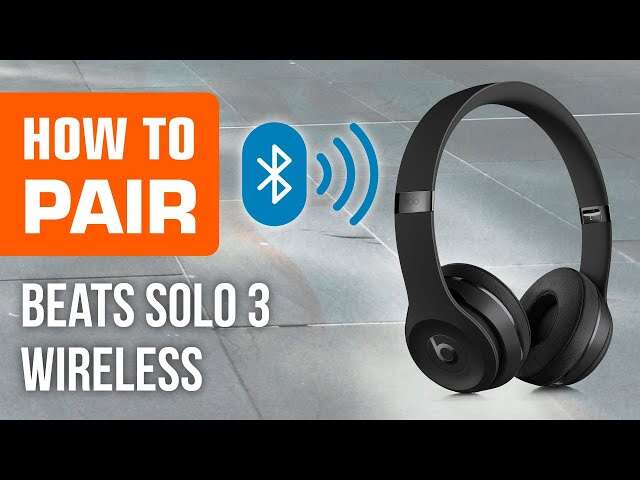
To pair Beats headphones, turn them on, enable Bluetooth on your device, and select your Beats.
I’ve paired dozens of Beats models across phones, tablets, and laptops, so I know what works and what trips people up. This guide explains how to pair Beats headphones step by step, covers model-specific tips, and shows troubleshooting tricks to get your audio working fast and reliably. Read on to learn clear, practical steps and avoid common mistakes when pairing your Beats.

How to Pair Beats Headphones: Step-by-Step
Start with basic checks. Make sure your Beats are charged. Turn off any nearby Bluetooth devices that might interfere. The general flow to pair is simple: put the headphones in pairing mode, open Bluetooth on your device, and choose the Beats name.
Steps to pair most Beats headphones:
- Turn on your Beats by pressing the power button. Wait until they show a light or sound that they’re active.
- Put the headphones into pairing mode. For many models, hold the power button until the LED flashes.
- Open Bluetooth settings on your phone, tablet, or computer.
- Select your Beats from the list. It may read as “Beats Solo3,” “Beats Studio3,” or a similar name.
- Confirm pairing if prompted. You’ll hear a chime or see a connected status.
I recommend pairing close to the device the first time. This reduces interference and helps the device remember the headphones. If the first try fails, power both devices off and try again.

Model-Specific Pairing Tips
Different Beats models have slightly different pairing steps. I’ll walk through the most common models and share quick tips I learned from testing.
Beats Solo and Beats Studio
- Turn on the headphones with the power button.
- Hold the power button longer to enter pairing mode until the LED blinks.
- Select the Beats name in Bluetooth settings.
Tip: If your Solo or Studio connects to Apple devices with the W1 or H1 chip, you may see a prompt on-screen for instant pairing.
Powerbeats and Powerbeats Pro
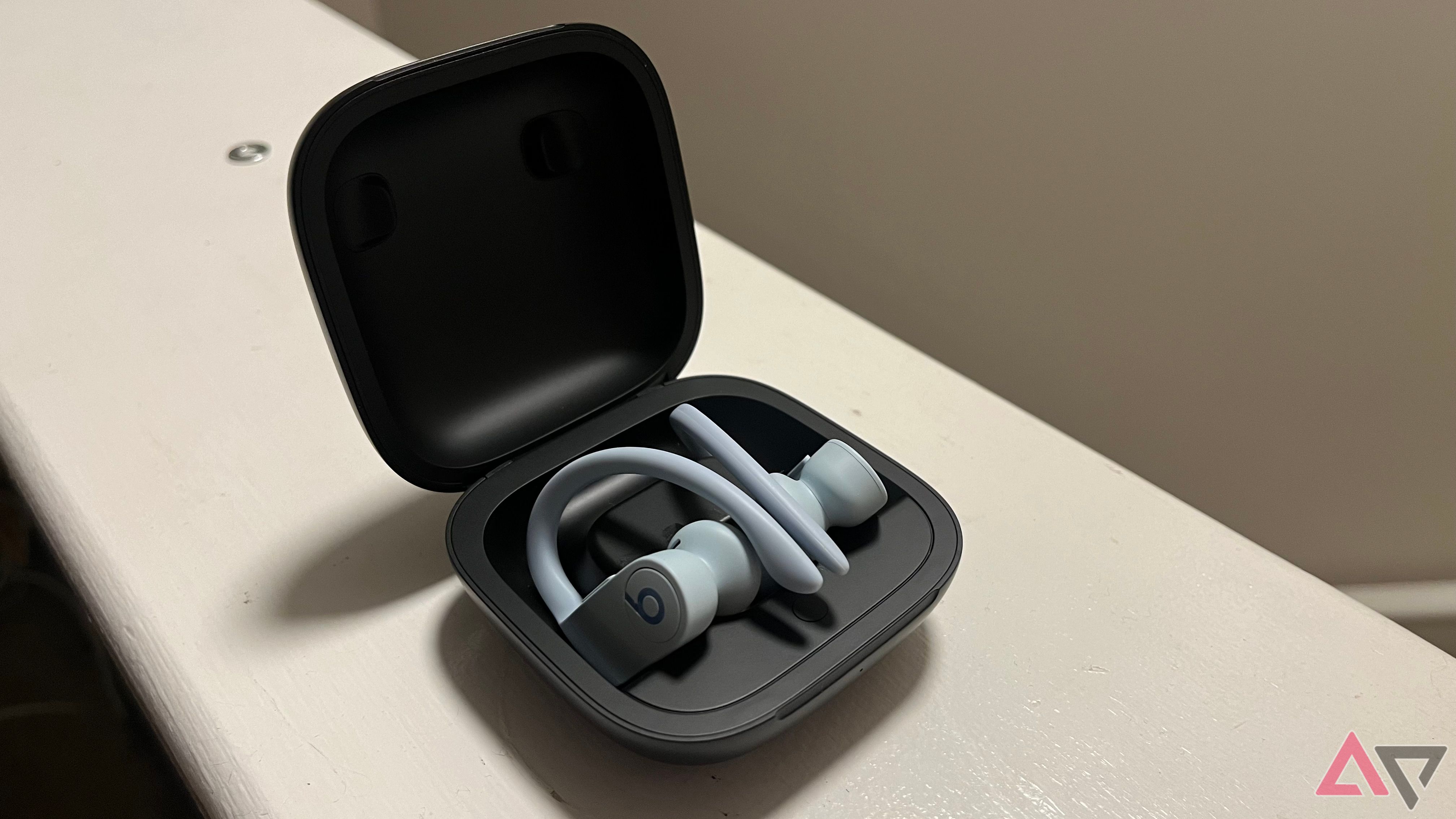
- Powerbeats: Hold the power button until the LED flashes to pair.
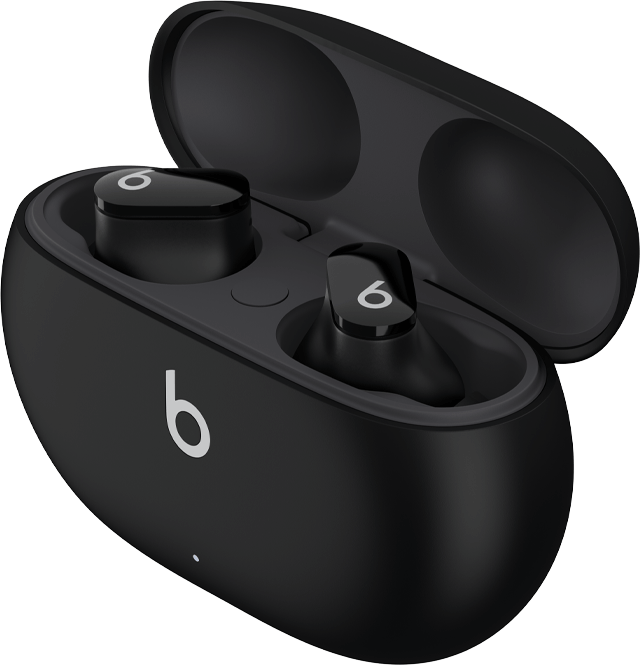
- Powerbeats Pro: Open the case with both earbuds inside and press the system button on the case if needed.
Tip: Powerbeats Pro can pair automatically with your iCloud account if you use an Apple device signed into iCloud.
Beats Flex and BeatsX
- Press and hold the power button until the LED flashes.
- Choose the Beats name on your device.
Tip: Neckband models use instant pairing when reconnected to a known device. Use the same account to sync faster.
Beats Fit Pro
- With an iPhone, open the case near the device. Or hold the power button until LED blinks.
- Follow on-screen prompts for full setup and spatial audio options.
Tip: Firmware updates often resolve connection bugs. Check the Beats or device app for updates.
If your model behaves differently, consult the quick manual. Small differences matter. I’ve seen users miss pairing mode by pressing the wrong button. Pay attention to LED cues and tone prompts.
Troubleshooting Common Pairing Issues
Pairing can fail. Here are fast fixes I use when pairing Beats headphones goes wrong.
Problem: Beats won’t appear in Bluetooth list
- Make sure headphones are in pairing mode. LED should flash.
- Turn Bluetooth off and back on your device.
- Restart both the device and the Beats.
Problem: Beats say “paired” but no sound
- Check the device’s audio output selection.
- Make sure volume is up on both device and headphones.
- Reconnect by selecting the Beats again in Bluetooth settings.
Problem: Intermittent dropouts
- Move closer to the device. Bluetooth range and obstacles matter.
- Turn off other Bluetooth devices that might interfere.
- Update firmware on both device and Beats.
Problem: Already paired to another device
- Turn off Bluetooth on other devices or forget the Beats on that device.
- Use the Beats’ pairing reset to clear old connections (see the reset section).
I learned to always check battery first. Low power often looks like complex pairing faults. Keep Beats charged before pairing attempts.

Tips for Better Bluetooth Performance and Battery Life
Small changes make pairing and use smoother. These tips come from frequent real-world testing.
Keep firmware updated
- Firmware fixes can improve stability and compatibility.
- Check the Beats app or your device for updates.
Limit active Bluetooth devices
- Too many paired devices cause confusion.
- Remove old entries from Bluetooth lists.
Optimize placement
- Avoid pockets, walls, and microwaves between devices.
- Keep the device in the front pocket for better range.
Manage battery
- Charge before extended use or pairing sessions.
- Turn off Beats when not in use to save battery.
I once spent an hour troubleshooting only to find a nearly dead battery. Charging first saves time.
Advanced: Resetting, Pairing Multiple Devices, and Tips for Specific Platforms
Resetting can clear stubborn problems. Pairing multiple devices works but needs management.
How to reset many Beats models
- Power off the headphones.
- Hold the power and volume down buttons together for about 10 seconds until the LED flashes.
- Open Bluetooth settings and forget the Beats, then pair again.
Pairing with multiple devices
- Most Beats remember several devices. Pair them one at a time.
- To switch devices, disconnect on the current device and select Beats on the new device.
- For seamless switching on Apple devices, use iCloud-based pairing if supported.
Pairing with Windows or Android
- Use Bluetooth settings. Look for “Add a device” on Windows.
- Android may require location permission for Bluetooth scanning on some versions.
- If a device prompts for a PIN, try 0000 or 1234.
I have reset many units after long use. Reset is a safe step before service. It often fixes odd bugs that mimic hardware failure.

Frequently Asked Questions of how to pair beats headphones
How do I put Beats headphones into pairing mode?
Hold the power button until the LED flashes or you hear a tone. Some models need a longer press to enter pairing mode.
Why won’t my device find my Beats?
Ensure the Beats are in pairing mode, charged, and within range. Turn Bluetooth off and on, then try again.
How do I disconnect Beats from one device to pair another?
Turn off Bluetooth on the current device or “forget” the Beats in Bluetooth settings. Then enter pairing mode and connect the new device.
Do Beats automatically pair with Apple devices?
Some Beats models with W1 or H1 chips can pair instantly with Apple devices signed into the same iCloud account. Follow on-screen prompts.
What if my Beats show connected but I have no sound?
Check the audio output on your device and the volume on both ends. Reconnect and restart both devices if needed.
Conclusion
You can pair Beats headphones quickly if you follow a few clear steps. Start by charging, enter pairing mode, and select your Beats in Bluetooth settings. If problems happen, reset, update firmware, or try the troubleshooting steps above. Take action now: try these steps with your device and leave a note below about which Beats model you have and how pairing went.

Everett Ashford is a tech reviewer at mytechgrid.com specializing in SSDs, cameras, TVs, earbuds, headphones, and other consumer electronics. He provides honest, data-driven reviews based on hands-on testing and real-world performance analysis. Everett simplifies complex tech details to help readers make smart, confident buying decisions.