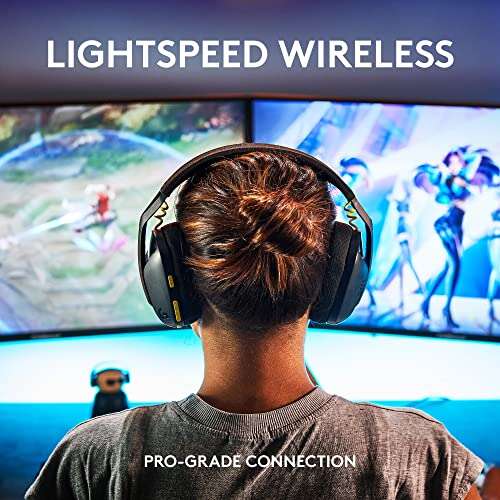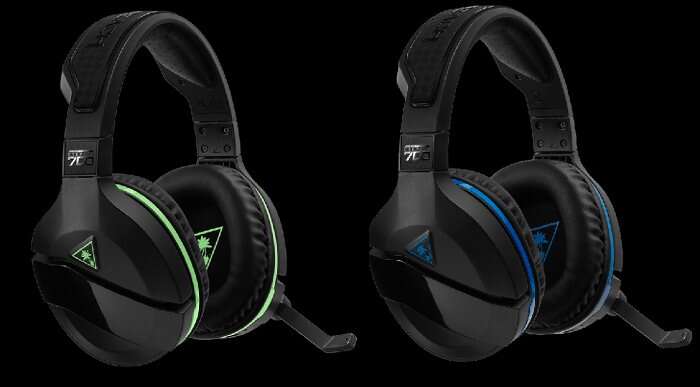
Plug the headset into the PS4 controller for wired use or pair the Turtle Beach USB wireless adapter.
I’ve spent years testing headsets across consoles, and I know the small steps and common snags when learning how to connect turtle beach headphones to ps4. This guide walks you through wired and wireless setups, PS4 limitations, troubleshooting, and audio tweaks. Read on for clear, tested steps you can follow right now.

What you need to know about how to connect turtle beach headphones to ps4
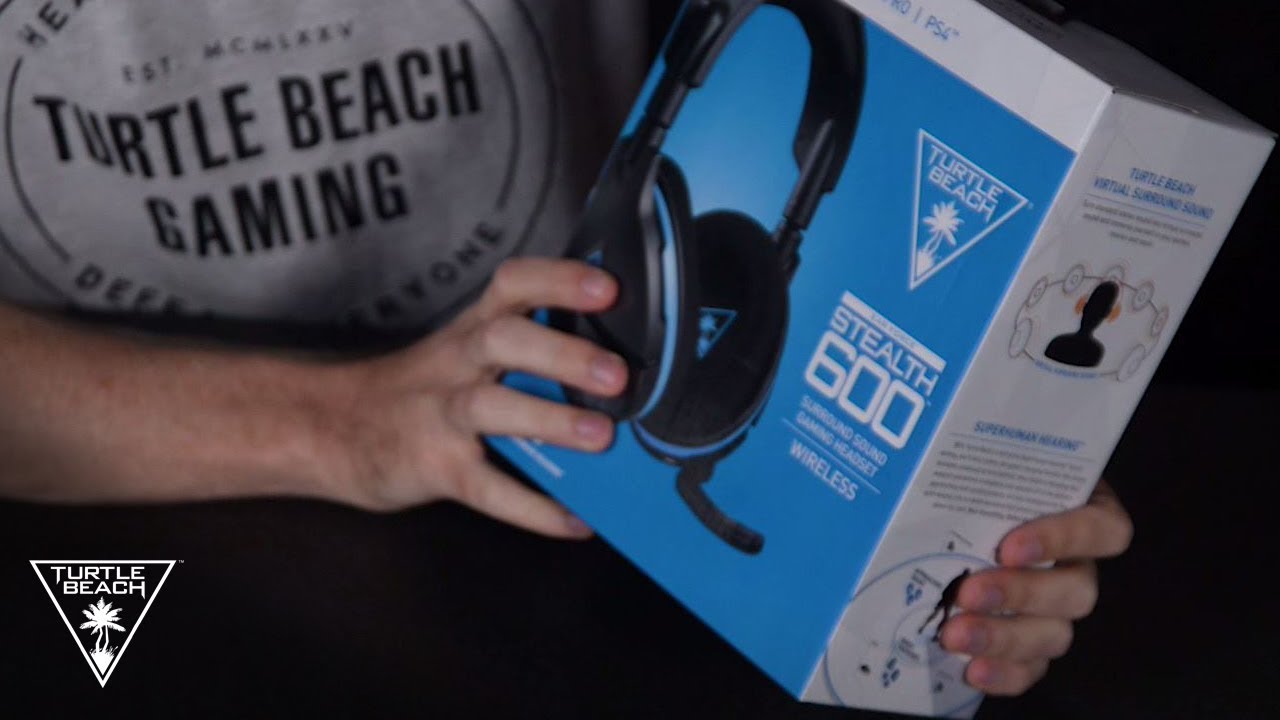
Before you start, pick the right connection for your Turtle Beach model. Some headsets use a 3.5mm cable. Others use a USB wireless adapter. A few newer models use Bluetooth but the PS4 has limits. Knowing which type you own stops guesswork and speeds setup.
I recommend checking the headset box or model page for “wired,” “USB wireless,” or “Bluetooth” labeling. If you bought a Stealth, Recon, or Elite series, take note of whether the package lists a USB transmitter or detachable cable. This helps you decide the exact steps when figuring out how to connect turtle beach headphones to ps4.
What you’ll need
- Turtle Beach headset with appropriate cable or USB wireless adapter.
- PS4 console (Slim or Pro works the same).
- PS4 controller with charged battery.
- Optional: a 3.5mm audio cable (if not included) or an optical cable for older dock setups.
- Optional: console firmware updated to the latest version.
I always keep a spare 3.5mm cable and the USB adapter in a drawer. That saved time when testing different headsets and learning how to connect turtle beach headphones to ps4.

Wired connection (3.5mm) — simple and fast
- Turn on your PS4 and controller.
- Plug the 3.5mm audio cable into the headset.
- Plug the other end into the PS4 controller’s headphone jack.
- On PS4 go to Settings > Devices > Audio Devices.
- Set “Output Device” to “Headset Connected to Controller.”
- Set “Output to Headphones” to “All Audio.”
- Adjust headset volume and mic level from the same menu.
Wired connection is the quickest path to get sound and chat working. If audio is low, increase volume on the headset inline control or in the PS4 menu. This wired method is the most reliable when you want to connect turtle beach headphones to ps4 without adapters.
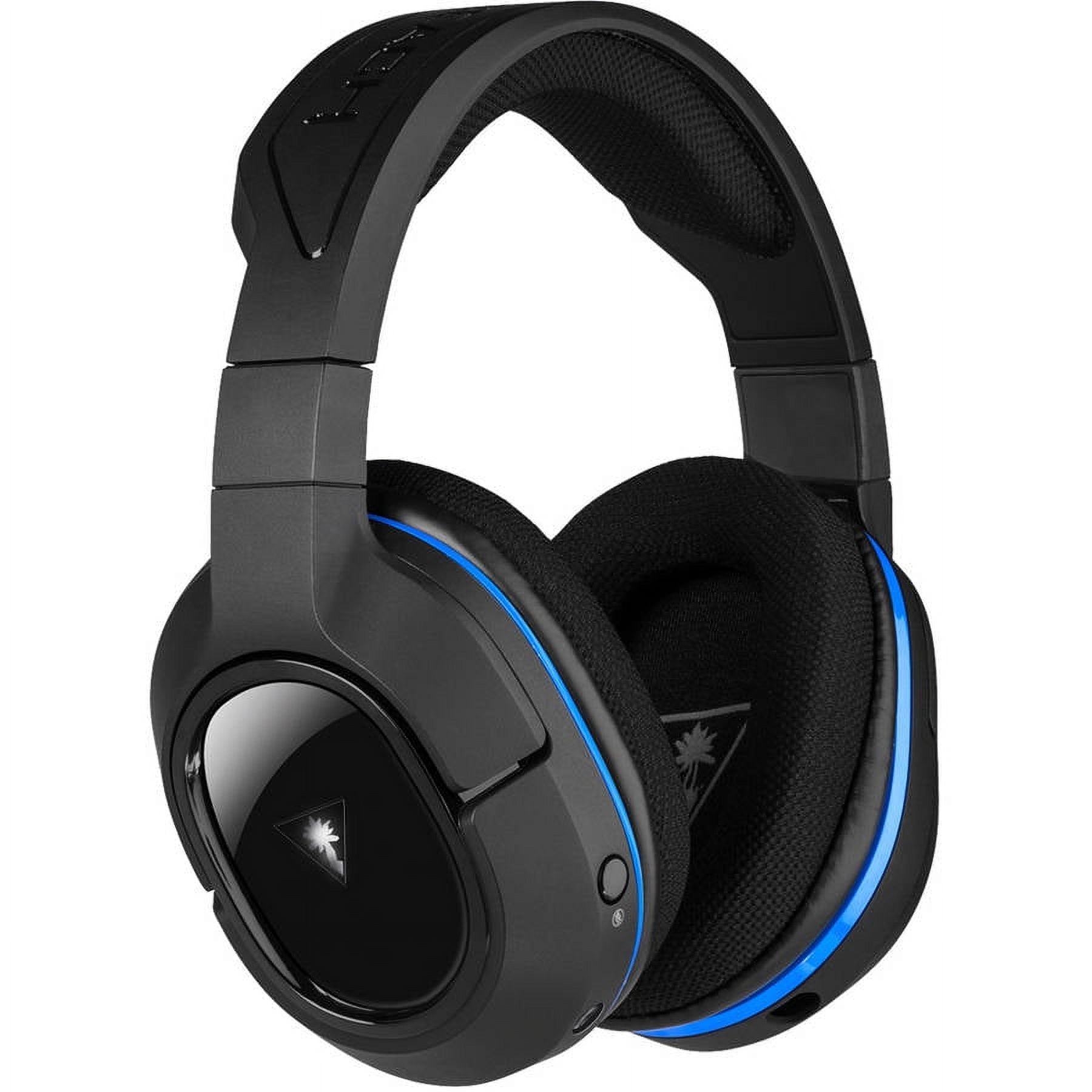
USB wireless adapter connection — most Turtle Beach wireless models
- Turn off the headset.
- Plug the USB transmitter into a free USB port on the PS4.
- Power on the headset; it should auto-pair with the transmitter.
- On PS4 go to Settings > Devices > Audio Devices.
- Set “Output Device” to the USB headset option if shown.
- Set “Output to Headphones” to “All Audio.”
- Adjust chat vs. game mix using the headset’s controls or the PS4 settings.
If pairing fails, try unplugging the USB adapter, restarting the PS4, and plugging it back in. Some models need the headset and adapter to be within a few feet during first pairing. This is the standard way to connect turtle beach headphones to ps4 wirelessly for full game audio and chat.

Bluetooth models and PS4 limitations
The PS4 does not support most Bluetooth headsets for both game audio and chat at once. The console allows only certain licensed audio devices via Bluetooth. That means:
- If your Turtle Beach headset relies solely on Bluetooth, you may get limited use or need a wired fallback.
- Use the USB transmitter included with many Turtle Beach wireless models to get full functionality.
- As a workaround, you can pair Bluetooth for chat on a phone, but game audio will still come from the TV or controller.
I hit this limit testing multiple headsets. Using the manufacturer’s USB adapter is the practical fix when you want to connect turtle beach headphones to ps4 and expect full features.
Troubleshooting common issues
- No sound after connecting
- Check PS4 Audio Devices are set to the correct output. Increase volume in Settings. Ensure inline volume on headset is not muted.
- Mic not working
- Verify “Input Device” is set to the headset in Settings > Devices. Check mic monitoring and mute toggle on the headset.
- Wireless lag or dropouts
- Move the USB adapter closer and remove obstacles. Avoid crowded 2.4GHz environments when possible.
- PS4 doesn’t recognize USB adapter
- Try a different USB port. Restart PS4 with adapter plugged in. Update PS4 system software.
When troubleshooting, test the headset on a phone or PC to confirm it functions. That isolates whether the problem is the headset or the PS4. These checks helped me quickly resolve most issues when learning how to connect turtle beach headphones to ps4.
Tips for best audio and chat mix
- Use the headset’s built-in mix control (if present) to balance game vs. chat.
- Set “Output to Headphones” to “All Audio” for the best immersive sound.
- Use the PS4 party chat vs. game sound balance to prevent clipping.
- Keep controller firmware and PS4 software updated for stability.
- If you stream, monitor audio through a second device or use a mixer for separate levels.
Small adjustments make a big difference. I usually set a neutral mix, then tweak after a warm-up game to get voice levels perfect.
Advanced PS4 settings to fine-tune performance
- Audio Format (Priority)
- Try switching this if you hear distortion. Some headsets handle different formats better.
- Microphone Level
- Adjust until your voice is clear without clipping. Test using voice messages.
- Mute Toggle Shortcuts
- Learn your headset’s mute button combos to quickly silence chat during streams.
These settings can help when you want finer control after you first figure out how to connect turtle beach headphones to ps4. Small changes often fix subtle audio issues.
Frequently Asked Questions of how to connect turtle beach headphones to ps4
How do I connect a Turtle Beach headset to my PS4 controller?
Plug the 3.5mm cable into the headset and the other end into the PS4 controller, then set Output Device to “Headset Connected to Controller” in Settings > Devices > Audio Devices.
Can I use Turtle Beach Bluetooth headphones with PS4?
Most Bluetooth headsets have limited or no full support on PS4. Use the included USB wireless adapter for full audio and chat functionality when available.
Why can’t other players hear me on PS4 with my Turtle Beach headset?
Check that the PS4 Input Device is set to your headset, ensure the mic isn’t muted on the headset, and raise the mic level in Settings > Devices > Audio Devices.
How do I fix audio delay with a wireless Turtle Beach headset?
Move the USB adapter closer, remove wireless interference, try another USB port, and ensure headset firmware is current to reduce lag.
Do I need a USB adapter to connect my Turtle Beach headset to PS4?
If your model is wireless and ships with a USB adapter, yes—the adapter provides full game audio and chat. Wired models only need a 3.5mm cable.
My headset shows in PS4 but sound is very low. What should I do?
Increase volume via the headset controls and PS4 audio settings. Confirm the headset is set to “All Audio” under Output to Headphones and check inline mute switches.
Will PS4 updates affect Turtle Beach headset compatibility?
Console updates can change audio handling. Keep your PS4 updated and check the headset’s support or firmware notes if you experience new issues.
Conclusion
You can connect Turtle Beach headsets to PS4 reliably by choosing the right method: plug into the controller for wired use or use the Turtle Beach USB adapter for wireless models. Know your headset type, follow the step-by-step setup, and use the troubleshooting tips here to solve common problems. Try one method at a time, test audio and mic, and adjust settings to fit your play style. If you found this helpful, share your experience below or subscribe for more hands-on console audio tips.

Everett Ashford is a tech reviewer at mytechgrid.com specializing in SSDs, cameras, TVs, earbuds, headphones, and other consumer electronics. He provides honest, data-driven reviews based on hands-on testing and real-world performance analysis. Everett simplifies complex tech details to help readers make smart, confident buying decisions.