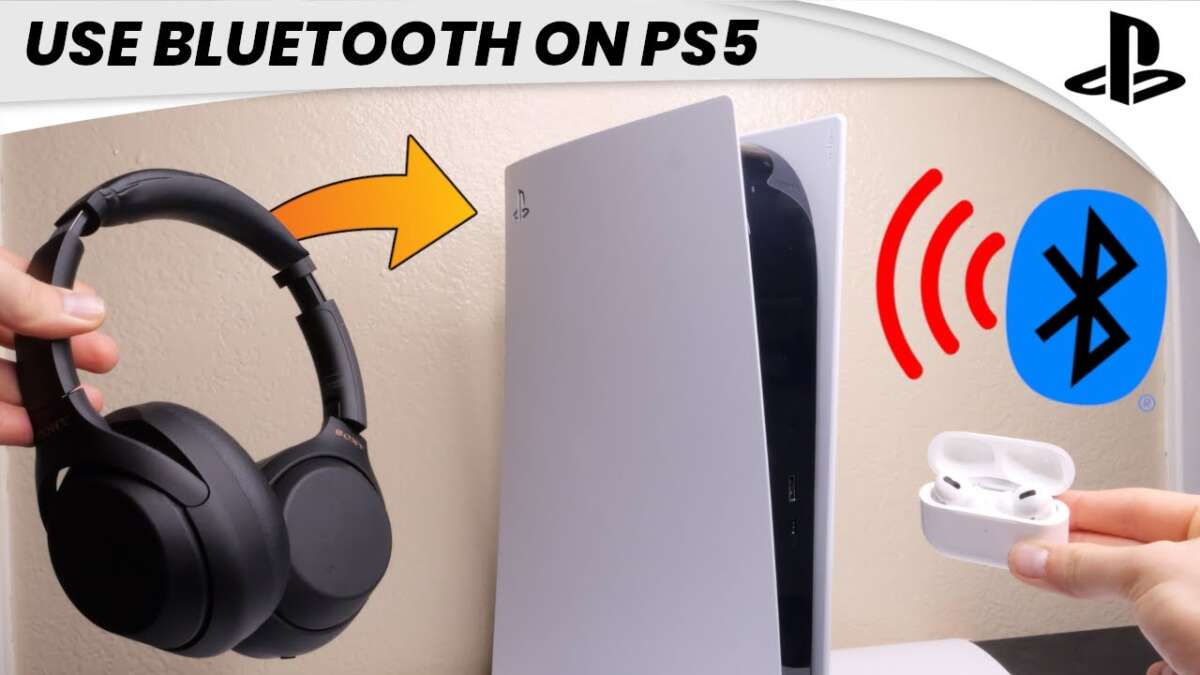
Plug wired headphones into the DualSense jack or use a compatible USB/wireless adapter for PS5.
I’ve guided hundreds of players on how to use headphones with PS5. This guide breaks the topic into clear steps, real-world tips, and fixes. You will learn which headphones work, how to connect them, how to set audio and mic options, and how to fix common issues. Read on to get confident with how to use headphones with PS5 and improve your game audio fast.
Types of headphones for PS5
There are three main headphone types you can use with PS5. Each type has pros and cons for sound quality, latency, and chat features.
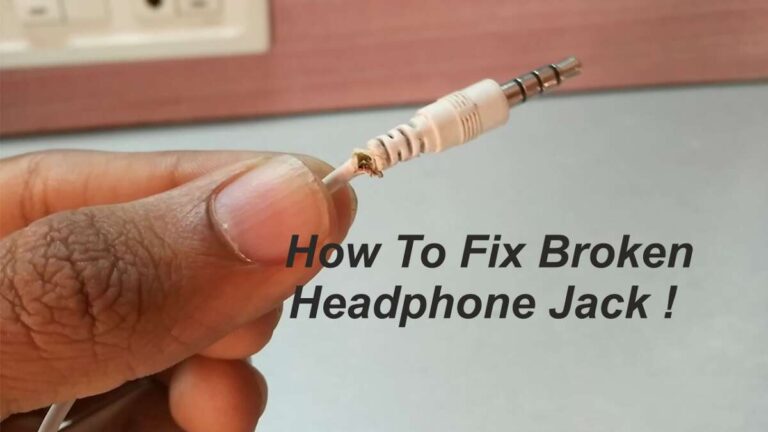
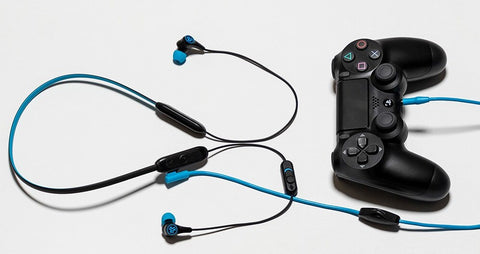
- Wired 3.5mm headsets: Plug into the DualSense controller. Low cost and low latency. Works out of the box for game and chat audio.
- USB headsets: Plug into the PS5 USB port. Often offer digital sound and built-in virtual surround. Some models switch mic and audio automatically.
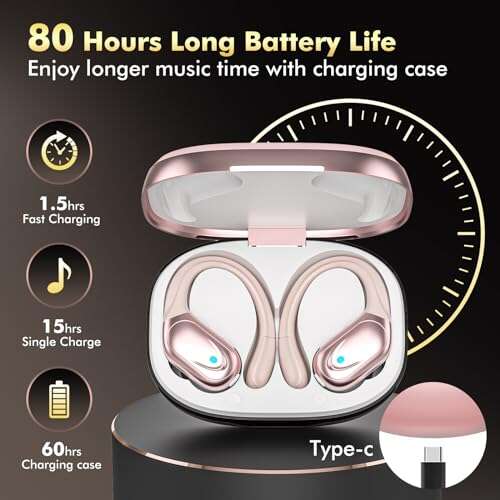
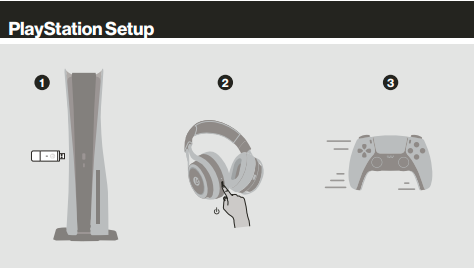
- Wireless headsets with a USB dongle: Use a dedicated adapter. Best wireless performance and full feature support. Many gaming brands use this method.
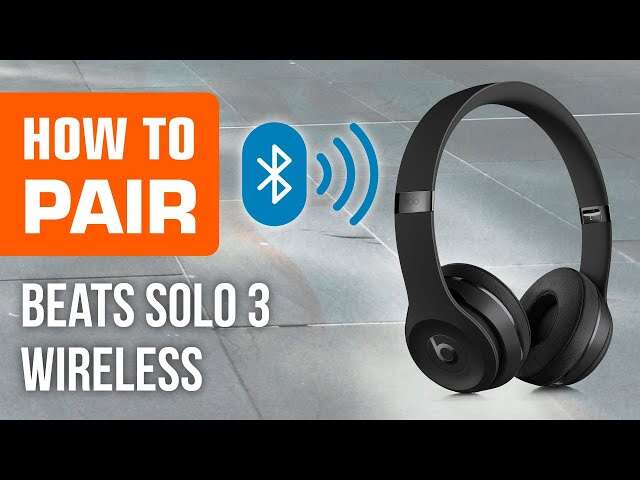
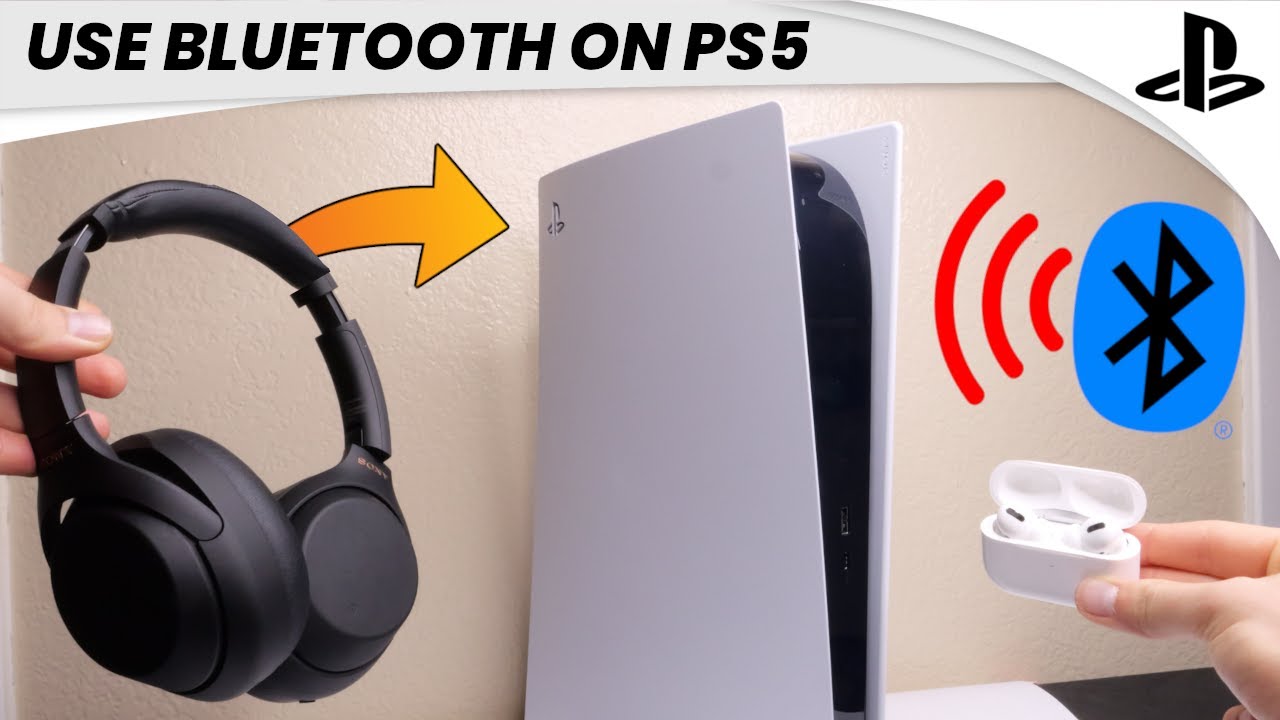
- Bluetooth headphones: PS5 blocks most Bluetooth audio. You need a compatible adapter to use generic Bluetooth headsets.
I tested all types and found the USB-dongle wireless headsets give the cleanest experience for games and chat. If you want simple setup, wired 3.5mm is the fastest choice.
Connecting wired headphones (3.5mm)
Wired 3.5mm headsets are the easiest. Follow these steps to connect and configure them.
- Plug the headset into the DualSense controller’s headphone jack.
- Turn on the PS5 and sign in to your account.
- Go to Settings > Sound > Audio Output. Choose “Controller Headset (Controller).”
- Set Output Device to “Headphones Connected to Controller” and set Output to Headphones to “All Audio” if you want game and chat sound.
Tips:
- If your mic is quiet, open Settings > Sound > Microphone and raise the input volume.
- Use the controller quick menu to mute or change levels during play.
Wired headsets are reliable and require no adapter. This makes them ideal for quick sessions or backup gear.

Connecting USB headphones
USB headsets plug straight into the PS5 USB ports. Many USB headsets give digital audio and virtual surround support.
Steps to connect USB headsets:
- Plug the headset into a front or rear USB port on the PS5.
- PS5 may auto-detect the device. If not, go to Settings > Sound > Audio Output and pick the USB device.
- Adjust speaker/headset settings and mic volume as needed.
Notes:
- Some USB headsets need a driver, which consoles do not support. Check headset compatibility first.
- USB headsets can offer better audio processing than analog 3.5mm sets.
Source: com.br
Connecting wireless headphones and Bluetooth limitations
PS5 does not natively support most Bluetooth audio headsets. That can confuse users. Here’s what works.
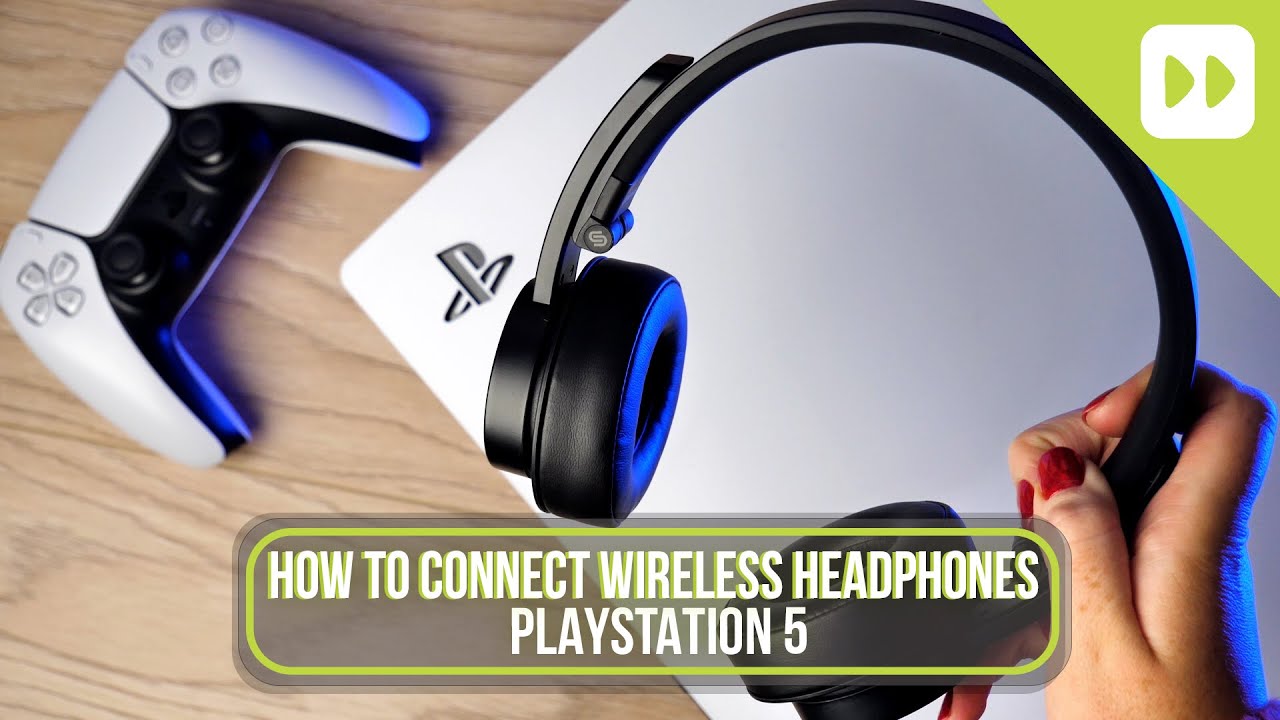
- Official wireless headsets with a USB dongle: Plug the dongle into the PS5. Follow headset pairing instructions. These offer the best latency and feature support.
- Third-party wireless headsets with USB adapters: Same as above. Make sure the dongle is included and labeled for PC/console use.
- Bluetooth headphones with a separate adapter: Buy a low-latency Bluetooth audio transmitter that plugs into PS5 USB or optical (via TV). Pair your headphones with this adapter.
Limitations to expect:
- Built-in PS5 Bluetooth pairing is mostly locked for controllers and accessories, not audio devices.
- Bluetooth audio can cause lag and poor chat performance unless the adapter uses a low-latency codec.
From testing, a wireless USB dongle headset gave the best balance of low latency and easy voice chat. If you choose Bluetooth, pick adapters that advertise low latency and gaming mode.

Using PS5 settings for audio
PS5 has useful audio settings you should know. These help control game sound, chat mix, and surround modes.
Key settings to check:
- Settings > Sound > Audio Output: Choose output device and format. Pick “Headphones Connected to Controller” for wired sets.
- Adjust Output to Headphones: Choose “Chat Audio” or “All Audio” depending on your need.
- Audio Format (Priority): For USB headsets, try “Bitstream (Dolby)” only if your headset supports it.
- Headphone Level and Microphone Level: Raise or lower these to balance game and chat.
Also use the Create button or Control Center to adjust mic mute and quick volume on the fly. These simple steps solve many sound balance complaints.

Voice chat and microphone setup
Good voice chat is as important as game sound. Here’s how to get clear voice and stable chat.
Steps for mic setup:
- Plug in or power on your headset and select it in Settings > Sound > Microphone.
- Set Microphone to the correct device and test with “Adjust Microphone Level.”
- In Party Settings, set voice chat priority. Use “Priority to Chat” if you want chat louder than game audio.
Practical tips:
- If your mic sounds hollow, lower echo cancellation or move the mic closer.
- Use sidetone if your headset supports it so you can hear your own voice at low volume.
- For team play, check party privacy and mic permissions to avoid unexpected mute or audio dropouts.
I once joined a ranked match with a near-silent mic. Raising mic level and enabling sidetone fixed it within minutes. Small settings matter.
Troubleshooting common issues
Here are fast fixes for common problems when learning how to use headphones with PS5.
- No audio from headset: Re-check output device in Settings > Sound. Unplug and replug the controller or USB dongle. Restart the PS5.
- Mic not working: Confirm the mic is selected in Settings > Microphone. Test on another device to rule out hardware failure.
- Low volume or audio imbalance: Set Output to Headphones = All Audio and raise headphone level. Adjust in-game audio mix if available.
- Wireless lag or dropouts: Move the dongle to a front USB port. Reduce wireless interference and keep headset charged.
- Bluetooth not pairing: Remember PS5 blocks most Bluetooth audio. Use a USB adapter or a headset with a dongle.
If a headset fails across devices, the hardware may be faulty. I once had a USB headset that worked on PC but not PS5 due to unsupported firmware. Checking compatibility saved me time and a return.

Tips and best practices from my experience
Here are practical tips I use every day for clear audio and no interruptions.
- Keep a wired backup: Bring a 3.5mm headset for quick swaps. It always works.
- Charge wireless headsets before sessions: Low battery can drop audio quality or cut features.
- Use a wired connection for competitive play: This reduces latency and keeps voice chat stable.
- Calibrate mic levels in quiet rooms: Background noise ruins clarity. Use noise gates if your headset offers one.
- Store dongles safely: Small USB dongles are easy to lose. Use a labeled case.
Mistakes to avoid:
- Don’t assume Bluetooth will work with PS5. Test before buying.
- Don’t set mic gain too high. It causes clipping and distortion.
These small habits saved me from many lost matches and frustrating nights of troubleshooting.

Frequently Asked Questions of how to use headphones with ps5
How do I connect headphones to my PS5 controller?
Plug a wired headset into the DualSense 3.5mm jack. Then go to Settings > Sound > Audio Output and select “Headphones Connected to Controller.”
Can I use Bluetooth headphones with PS5?
Not directly. PS5 blocks most Bluetooth audio devices. Use a USB dongle or a low-latency Bluetooth adapter to connect Bluetooth headsets.
Why is my headset mic not being detected?
Check Settings > Sound > Microphone and choose the correct device. If it still fails, test the headset on another device to rule out hardware issues.
How do I balance game audio and chat on PS5?
Go to Settings > Sound > Audio Output and set “Output to Headphones” to “All Audio.” Use in-game audio mix or the controller volume wheel to balance levels.
Will USB headsets work better than wired 3.5mm?
USB headsets often offer digital processing and virtual surround. But wired 3.5mm headsets usually have lower latency and broader compatibility.
Conclusion
You now have clear steps and tested tips on how to use headphones with PS5. Choose the right headset type, follow the connection steps, tweak PS5 audio settings, and use the troubleshooting checklist when things go wrong. Start with a wired 3.5mm set if you want an easy setup, or pick a USB-dongle wireless headset for top performance. Try a few settings and trust your ears—small changes make a big difference. If this guide helped, leave a comment with your headset model or subscribe for more tips and reviews.

Everett Ashford is a tech reviewer at mytechgrid.com specializing in SSDs, cameras, TVs, earbuds, headphones, and other consumer electronics. He provides honest, data-driven reviews based on hands-on testing and real-world performance analysis. Everett simplifies complex tech details to help readers make smart, confident buying decisions.