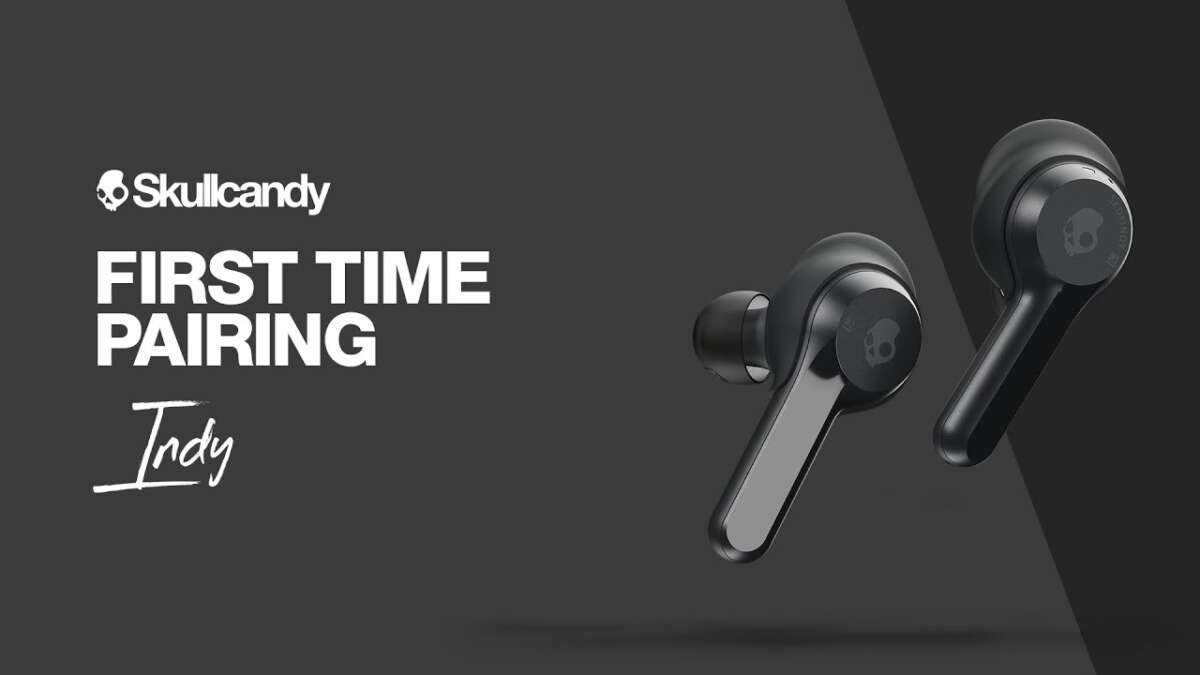
Turn on Bluetooth, open the case or hold the pairing button, then select Skullcandy in iPhone Bluetooth.
I’ve paired dozens of Skullcandy earbuds with iPhones across models and iOS versions. This guide shows clear steps, model-specific tips, troubleshooting fixes, and practical advice so you can quickly learn how to connect Skullcandy earbuds to iPhone and keep them working smoothly. Read on for step-by-step instructions, quick fixes, and real-world tips I’ve learned from testing and daily use.

how to connect skullcandy earbuds to iphone — quick pairing steps
- Charge both the earbuds and the charging case. Make sure the earbuds have juice.
- Open Settings on your iPhone. Tap Bluetooth and turn it on.
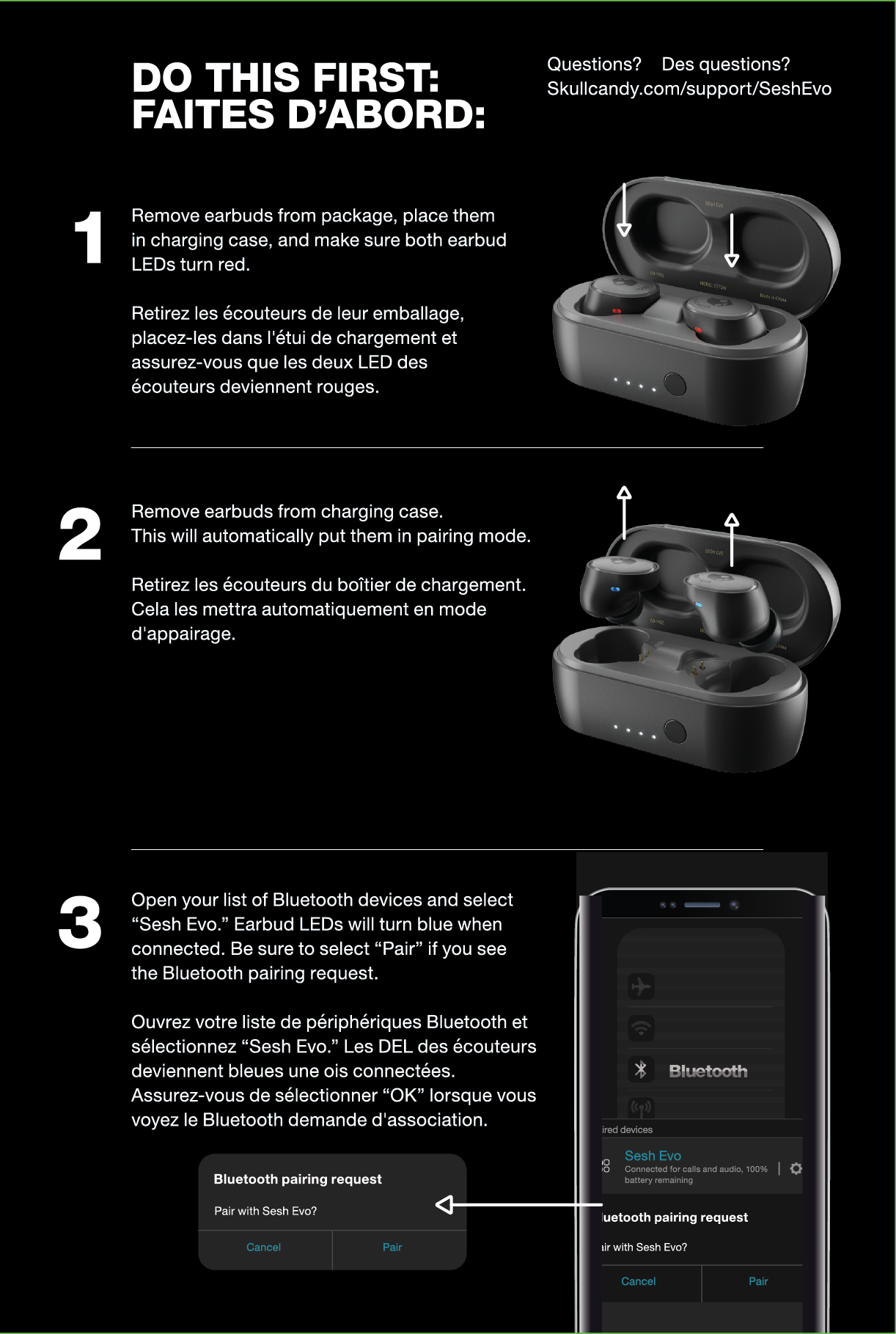
- Put your Skullcandy earbuds into pairing mode. For many models, open the case or press and hold the earbuds’ button until LEDs flash.
- Look for the Skullcandy name under Other Devices in Bluetooth. Tap to pair.
- Wait for the Connected status or a confirmation tone. Test audio by playing a song or a call.
- If asked for a PIN, try 0000 or 1234. Most Skullcandy models do not require a PIN.
- For future use, earbuds usually auto-reconnect when taken from the case with Bluetooth on.
- If you need to switch devices, turn off Bluetooth on the iPhone or disconnect from the Bluetooth menu before pairing the other device.
These steps cover the basics of how to connect skullcandy earbuds to iphone for most Skullcandy true wireless and Bluetooth models. If pairing does not start, try resetting the earbuds (covered below) or check model-specific notes.
Model-specific notes: Sesh, Indy, Push, and more
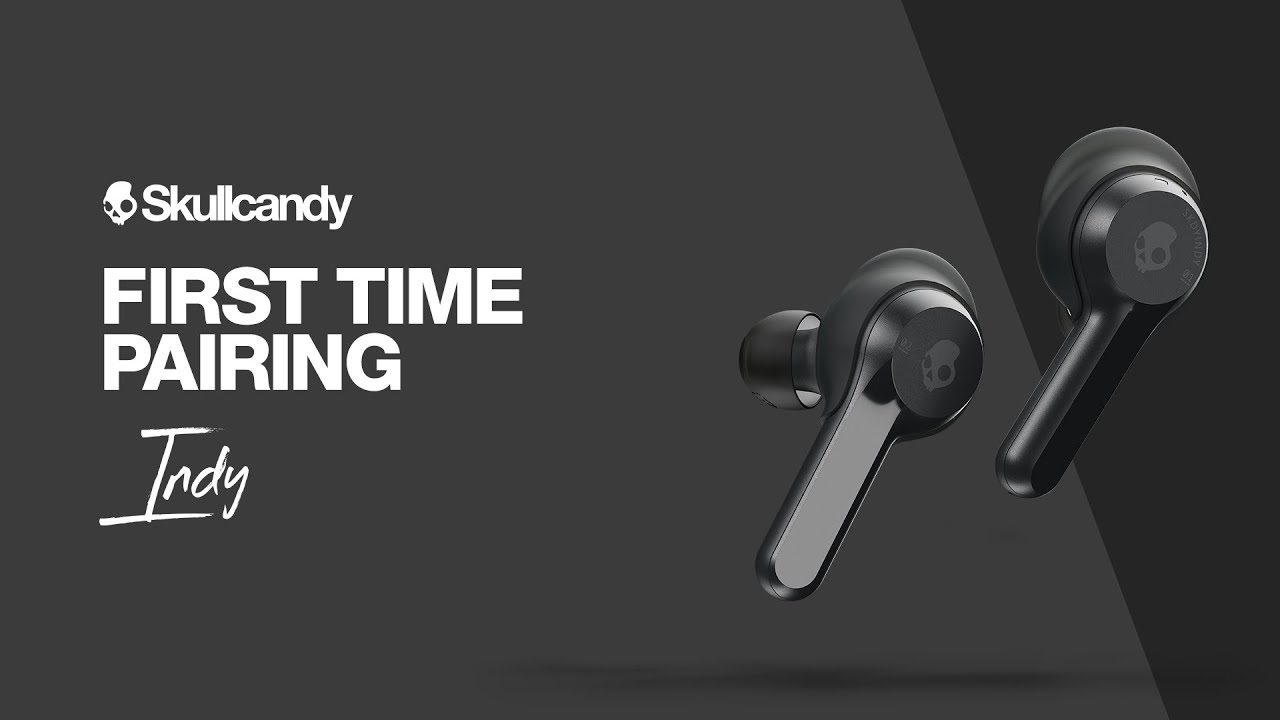
Skullcandy offers several models and each model can have small pairing differences. Sesh and Indy are true wireless models. These usually pair when the case lid opens and the earbuds are inside. Push and Ink’d may use a single-button press to enter pairing mode. Some models show two device names (left and right) during initial pairing; tap the one labeled with the brand or model number.
Tips by model:
- Sesh and Indy: Place both buds in the case, then open the lid. If that fails, hold the pairing buttons on both buds for 5–10 seconds.
- Push: Press and hold the button on the earbud until the LED blinks blue and red.
- Wired or neckband models: Use the power button to enter Bluetooth mode, then find the device on your iPhone.
Knowing your model helps when you follow how to connect skullcandy earbuds to iphone. Check the small print in your user manual for exact button combos for your model.
Troubleshooting common issues when pairing
If your earbuds don’t appear in iPhone Bluetooth, try these fixes.
- Toggle Bluetooth off and on. This is a fast fix.
- Restart your iPhone. A fresh start clears Bluetooth glitches.
- Reset the earbuds. Most models reset by holding buttons for 10 seconds or by using the case sequence.
- Forget the device on iPhone and re-pair. In Settings > Bluetooth tap the info icon and choose Forget This Device.
- Move closer to your iPhone and remove sources of interference like other Bluetooth devices or crowded Wi‑Fi.
Why won’t my Skullcandy pair with my iPhone? Often the cause is previously paired devices or the earbuds are not in pairing mode. Reset or forget previous pairs and repeat pairing steps. These tips help when you need to reconnect and learn how to connect skullcandy earbuds to iphone reliably.
 settings, firmware, and multi-device use”
style=”max-width: 100%; height: auto; border: 2px solid black; border-radius: 10px; display: block; margin: 0 auto;”
loading=”lazy”
/>
Advanced tips: iOS settings, firmware, and multi-device use
Check iOS settings for call routing and audio balance. Go to Settings > Accessibility > Audio/Visual to ensure balance is centered. Keep iOS up to date. New iOS versions sometimes improve Bluetooth stability. If your Skullcandy model supports firmware updates, update via the Skullcandy app or manufacturer instructions to fix bugs and improve range.
For multi-device use:
- Disconnect from one device before pairing another if automatic switching fails.
- Use the Skullcandy app when available to manage settings and updates.
- For low-latency needs like gaming, use devices and apps that support aptX or low-latency codecs if your model supports them.
Following these advanced steps improves how to connect skullcandy earbuds to iphone and keeps performance steady.

Maintaining battery life and connection stability
Good battery habits make pairing easier. Store earbuds in the case when not in use. Fully charge both case and earbuds before long trips. Avoid draining cases to zero often; lithium batteries last longer with partial charges. Keep Bluetooth on but close unused apps that stream background audio.
Connection stability tips:
- Keep clear line of sight between earbud and iPhone when possible.
- Avoid crowded Bluetooth areas, like busy gyms or mass transit, during initial pairing.
- Reboot both devices if you see frequent dropouts.
These daily habits help you avoid repeat attempts at how to connect skullcandy earbuds to iphone and create a smoother audio experience.
Personal experience and lessons learned about how to connect skullcandy earbuds to iphone
From my testing, simple steps beat complex workarounds. I once spent 20 minutes troubleshooting because my earbuds weren’t fully seated in the case. A quick reseat and a case charge solved it. I’ve learned to always reset a new pair before first use. That cleared pairing quirks and made the first connection instant.
Mistakes to avoid:
- Don’t assume the earbud is in pairing mode. Check LED behavior.
- Don’t skip charging before first pairing. Low battery can block pairing.
- Don’t pair without closing other active Bluetooth connections; they can interfere.
These practical tips come from repeated use and testing so you can quickly master how to connect skullcandy earbuds to iphone.

Frequently Asked Questions of how to connect skullcandy earbuds to iphone
How do I put my Skullcandy earbuds into pairing mode?
Most Skullcandy models enter pairing mode when you open the case with the earbuds inside or by holding the main button for 5–10 seconds. Watch for a flashing LED or a voice prompt to confirm pairing mode.
My iPhone shows the earbuds but they won’t connect. What do I do?
Tap Forget This Device for the Skullcandy entry in Bluetooth settings, then restart your iPhone and earbuds and try pairing again. Resetting the earbuds usually clears persistent pairing problems.
Do I need the Skullcandy app to connect to my iPhone?
No, most Skullcandy earbuds pair directly through iPhone Bluetooth without an app. The app can provide firmware updates and extra customization if you want more features.
Why does audio drop or stutter during calls?
Interference, low battery, or distance can cause dropouts. Move closer to your iPhone, charge the earbuds, and ensure no heavy Wi‑Fi or Bluetooth traffic nearby.
Can I connect Skullcandy earbuds to multiple devices?
Yes, many Skullcandy models can store multiple pairings but may not auto-switch smoothly. Disconnect or forget one device before pairing another for best results.
Final thoughts and next steps
You now have a clear, practical roadmap for how to connect skullcandy earbuds to iphone, from basic pairing to troubleshooting and long-term care. Try the step-by-step guide first, then use the model-specific tips if you hit issues. If problems persist, reset the earbuds and update firmware where possible.
Take action now: pair your earbuds following the steps above, note what works for your model, and leave a comment with your device and iPhone model if you need help. Subscribe or bookmark this guide for quick reference the next time you set up new earbuds.

Everett Ashford is a tech reviewer at mytechgrid.com specializing in SSDs, cameras, TVs, earbuds, headphones, and other consumer electronics. He provides honest, data-driven reviews based on hands-on testing and real-world performance analysis. Everett simplifies complex tech details to help readers make smart, confident buying decisions.