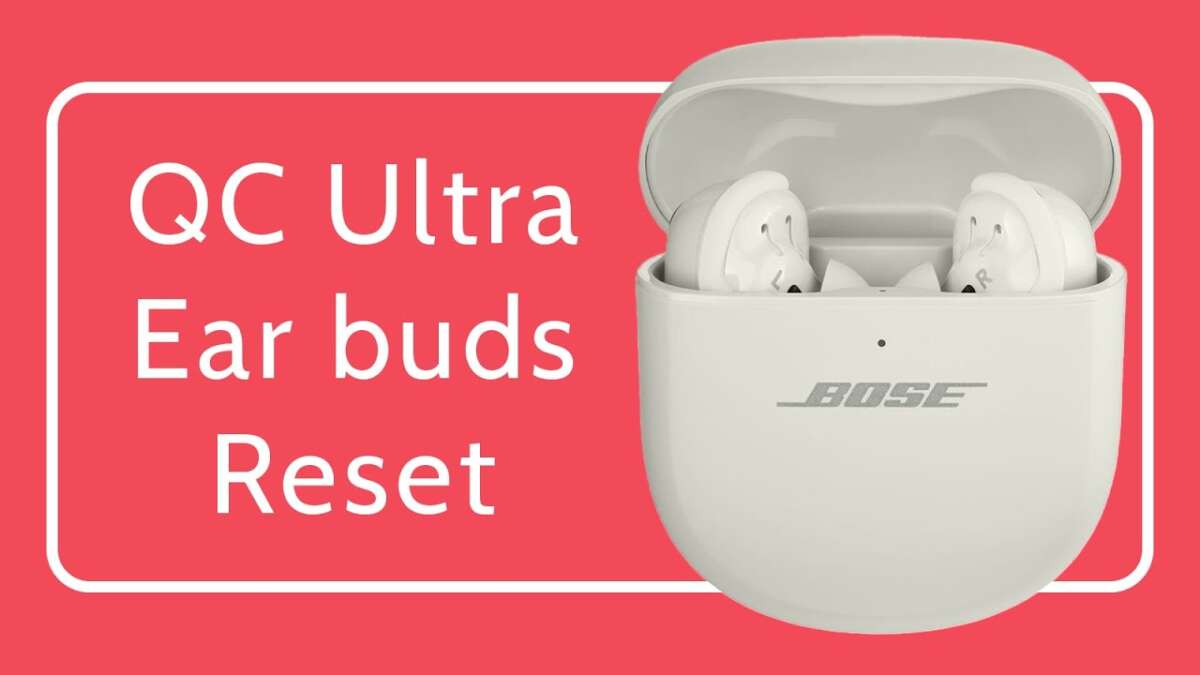
Put the earbuds in the case, open Bluetooth on your device, then hold the case button until the LED blinks to pair.
I’ve paired dozens of earbuds and tested Bose products extensively, so I’ll walk you through exactly how to pair Bose QC Ultra earbuds step by step. This guide covers preparation, pairing with phones and laptops, troubleshooting common problems, tips from real-world testing, and how to manage multiple devices so you can get the best sound and fastest connection every time.
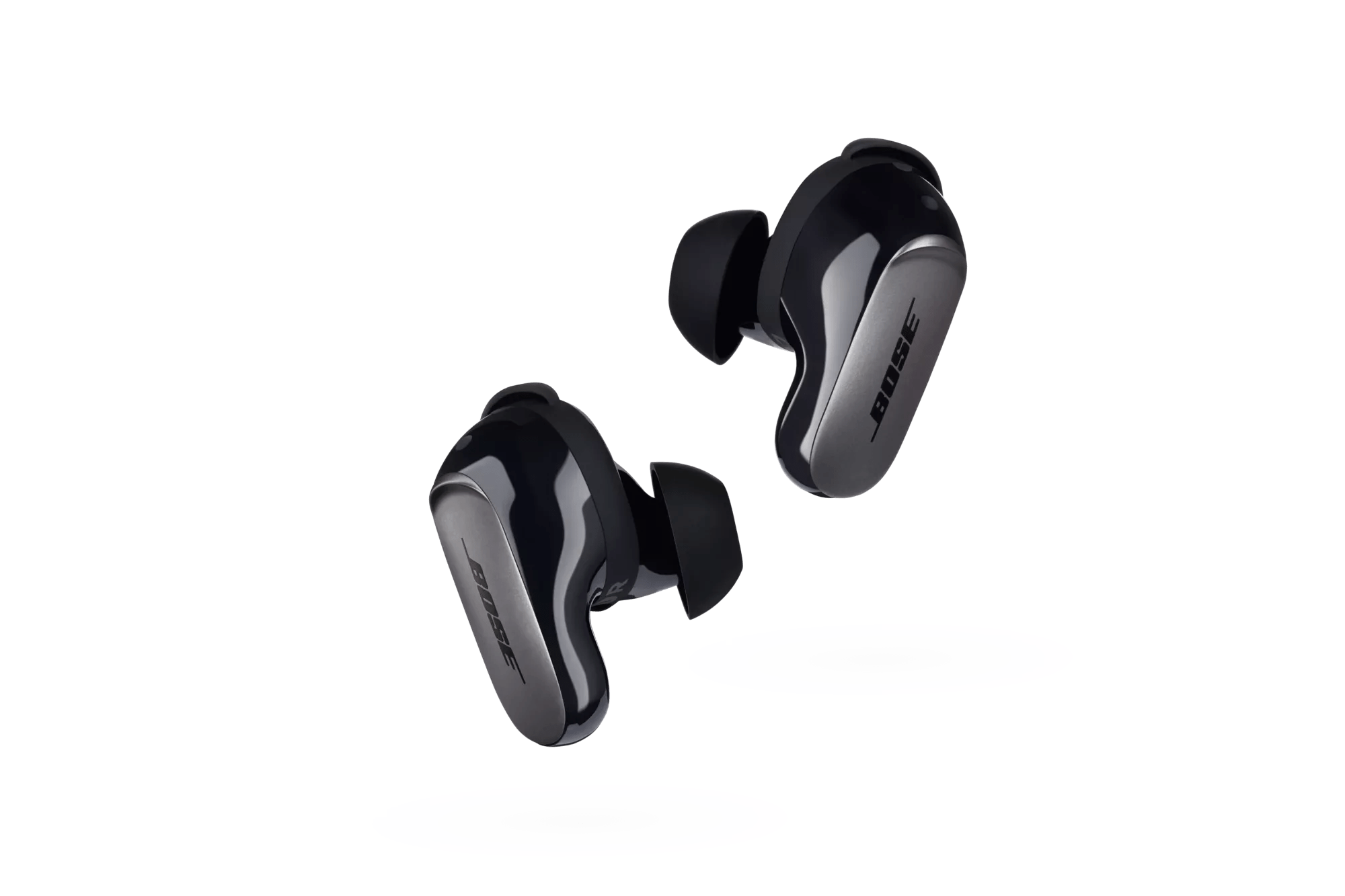
Quick checklist before pairing
- Make sure the earbuds have charge and are inside the case.
- Turn on Bluetooth on your phone, tablet, or computer.
- Update any device software and the Bose app if available.
- Remove older Bose QC Ultra earbuds entries from your device’s Bluetooth list to avoid conflicts.
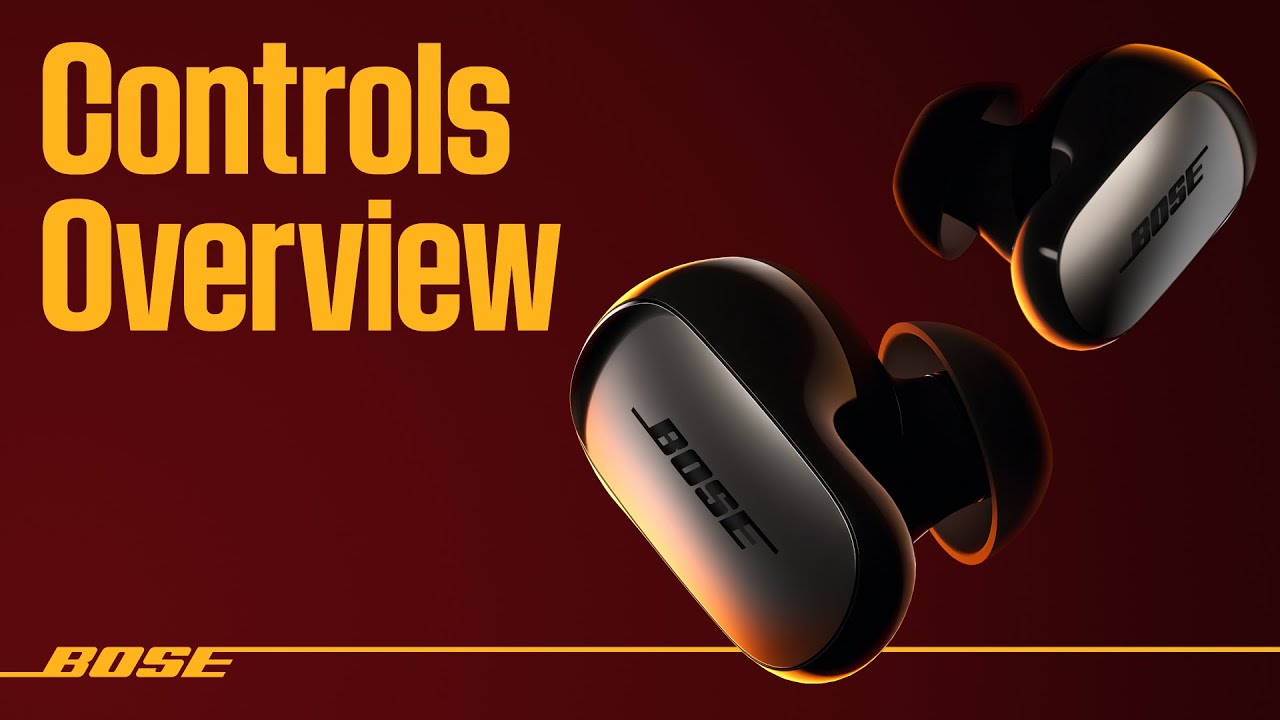
Step-by-step: how to pair Bose QC Ultra earbuds with a phone or tablet
- Charge the earbuds and case for at least 10 minutes if they are new or depleted.
- Open the case lid while the earbuds are inside. The earbuds normally enter pairing mode automatically the first time.
- If pairing doesn’t start, press and hold the case’s Bluetooth/pairing button for about 3–5 seconds until the LED flashes white or blue.
- On your phone or tablet, open Settings > Bluetooth and wait for “Bose QC Ultra” to appear.
- Tap the device name to connect. Wait a few seconds for confirmation and test audio playback.
Tips:
- Keep your device within 3 feet (1 meter) during the initial pairing.
- Turn off other nearby Bluetooth devices to avoid interference.

Pairing with a Windows PC or Mac
- On Windows: Settings > Bluetooth & devices > Add device > Bluetooth. Select “Bose QC Ultra.”
- On Mac: System Settings > Bluetooth. Click Connect next to “Bose QC Ultra.”
- If prompted for a PIN, enter 0000 or accept pairing on both devices.
- For best audio quality on PC, choose the “Bose QC Ultra (Hands-Free AG Audio)” only when using calls; pick the high-quality audio profile for music.
Common notes:
- Some laptops default to a call profile. Switch to the high-quality audio profile in sound settings for music.
- If the Mac or PC doesn’t see the earbuds, put the earbuds back into pairing mode by pressing the case button.

Using the Bose Music app and firmware updates
- Download the Bose Music app on iOS or Android. It helps with setup and keeps firmware updated.
- Open the app, sign in or skip, then follow on-screen prompts to add a new device.
- Firmware updates can fix pairing bugs and improve battery life; install them when available.
Why update:
- Updates often fix Bluetooth connection stability and add new features.
- I’ve seen pairing improve noticeably after a firmware update on several Bose models.

Pairing multiple devices and switching between them
- Bose QC Ultra earbuds support multipoint pairing on many models. This allows two devices to connect simultaneously.
- To pair a second device, keep the first connected and put the earbuds into pairing mode again. Then connect the second device from its Bluetooth settings.
- When both are connected, recent audio usually takes priority. Pause on one device to play audio from the other.
- If switching is slow, disconnect one device and reconnect the other manually for instant switching.
Practical tip:
- For phone + laptop use, set your phone for calls and the laptop for streaming music, then rely on manual switching when needed.

Troubleshooting common pairing problems
- Earbuds not showing in Bluetooth list: Close and reopen the case, press the pairing button again, and ensure they are charged.
- Repeated disconnects: Move closer to the device and remove obstacles like metal or other wireless devices.
- One earbud not connecting: Put both earbuds back in the case and restart pairing from step one.
- Device remembers old pairing: Delete the “Bose QC Ultra” entry and re-pair fresh.
- Stereo vs call audio low quality: Select the correct audio profile in your device’s sound/Bluetooth settings.
PAA-style quick questions:
What if my Bose QC Ultra won’t enter pairing mode?
- Ensure both earbuds are in the case, charge them, then press and hold the case’s pairing button until the LED blinks. If that fails, reset the earbuds.
How do I reset Bose QC Ultra earbuds?
- A typical reset is to place earbuds in case, close lid for 30 seconds, then open and hold the case button; follow model-specific reset steps in the app if needed.
How long does pairing take?
- Pairing usually completes in 5–15 seconds once the device detects the earbuds.

Battery, charging, and pairing reliability
- Charge the case and earbuds before pairing to avoid interruptions.
- Low battery often causes pairing failures. Keep earbuds charged to at least 20% when troubleshooting.
- Case charging ports can accumulate dust. Clean the port gently if charging fails.
- Use original or certified chargers to avoid power irregularities that can affect firmware and pairing.

Personal experience: lessons, mistakes to avoid, and practical tips
- Lesson learned: Firmware matters. I once struggled to pair until a firmware update fixed the Bluetooth stack. Always check for app updates.
- Mistake to avoid: Trying to pair while other Bluetooth headphones are actively discovering. That creates confusion on the device side.
- Practical tip: When traveling, keep your Bose QC Ultra in the case and only open when ready to pair. It reduces accidental battery drain and false pairings.
- Another tip: Label your earbuds in device Bluetooth settings if your phone allows custom names; it helps when multiple Bose devices are nearby.

Benefits and limitations of Bose QC Ultra Bluetooth pairing
Benefits:
- Fast first-time pairing when done correctly.
- Multipoint lets you stay connected to phone and laptop.
- App support improves reliability and adds settings.
Limitations:
- Older devices may not support high-quality audio profiles.
- Interference in crowded wireless environments can cause dropouts.
- Multipoint behavior varies by device OS and app updates.
Advanced tips for reliable connections
- Turn off Wi-Fi on your phone temporarily if you suspect 2.4 GHz interference.
- Use airplane mode with Bluetooth on to test pure Bluetooth performance.
- Keep the Bose Music app installed; it often reconnects faster after sleep.
- For persistent issues, uninstall and reinstall Bluetooth drivers on Windows or reset network settings on mobile devices.
Frequently Asked Questions of how to pair bose qc ultra earbuds
How do I put Bose QC Ultra earbuds into pairing mode?
Open the case and press the case’s Bluetooth/pairing button until the LED blinks. Then select “Bose QC Ultra” from your device’s Bluetooth list.
Why can’t my phone find the Bose QC Ultra earbuds?
Check battery levels, close other Bluetooth apps, and press the pairing button again. Also remove old device entries that might conflict.
How do I pair Bose QC Ultra with two devices at once?
Pair the first device normally, then put the earbuds back into pairing mode and connect the second device from its Bluetooth settings. Multipoint support may vary.
Do I need the Bose app to pair the earbuds?
No, basic pairing works through your device’s Bluetooth settings. The Bose app improves setup, firmware updates, and feature control.
How do I reset Bose QC Ultra earbuds if they won’t pair?
Place earbuds in the case, close the lid for 30 seconds, then reopen and hold the pairing button until the LED blinks. If the issue persists, follow the app’s reset steps.
What profile should I use for best audio on my laptop?
Choose the high-quality A2DP profile for music. Switch out of the hands-free profile when you don’t need call features to improve sound quality.
Conclusion
You now have a clear, practical roadmap for how to pair Bose QC Ultra earbuds with phones, tablets, and computers. Follow the step-by-step pairing instructions, keep firmware updated, and use the troubleshooting tips when things go wrong. Try the small tests suggested here and you’ll have reliable pairing and great sound quickly. If this guide helped, subscribe for more device how-tos, or leave a comment with the exact device you use so I can offer tailored steps.

Everett Ashford is a tech reviewer at mytechgrid.com specializing in SSDs, cameras, TVs, earbuds, headphones, and other consumer electronics. He provides honest, data-driven reviews based on hands-on testing and real-world performance analysis. Everett simplifies complex tech details to help readers make smart, confident buying decisions.