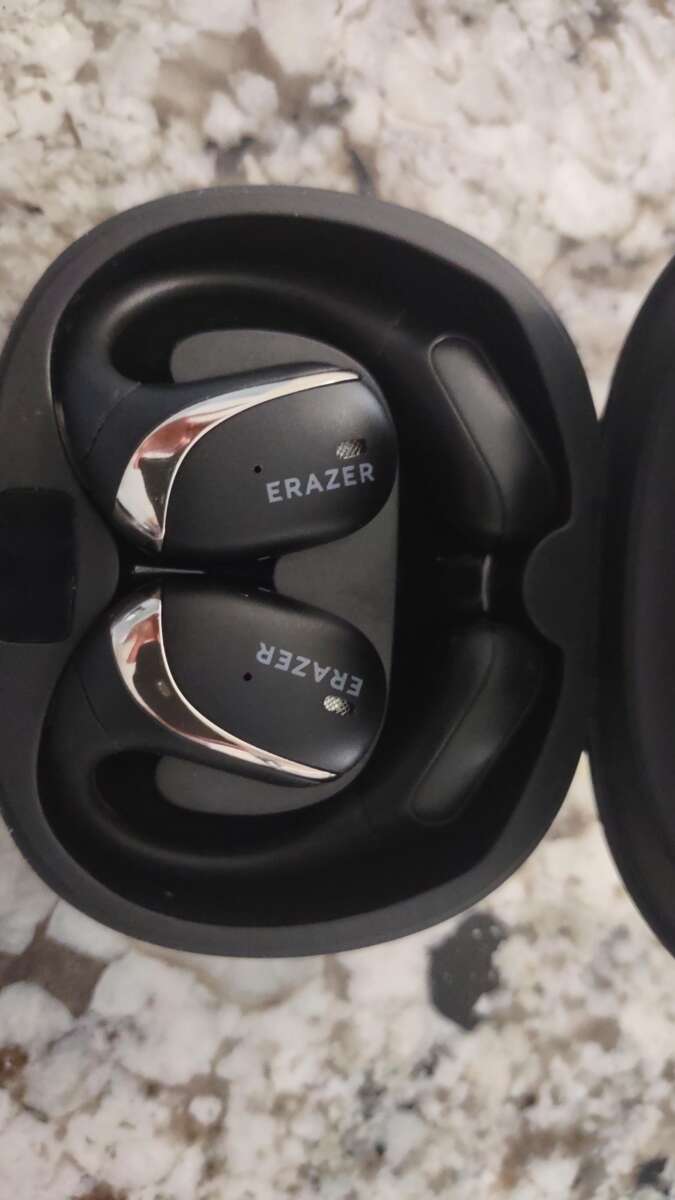
Open the case, hold the pairing button until the LED flashes, then select erazer earbuds in Bluetooth.
I’ve paired dozens of true wireless earbuds, and I’ll walk you step-by-step through how to pair erazer earbuds with phones, tablets, and laptops. This guide explains the exact sequence, LED signals, resets, troubleshooting, and tips I learned by testing erazer earbuds across Android and iPhone. If you want a fast, reliable pairing every time, keep reading — you’ll get clear steps, real-world fixes, and smart habits to avoid repeat problems.
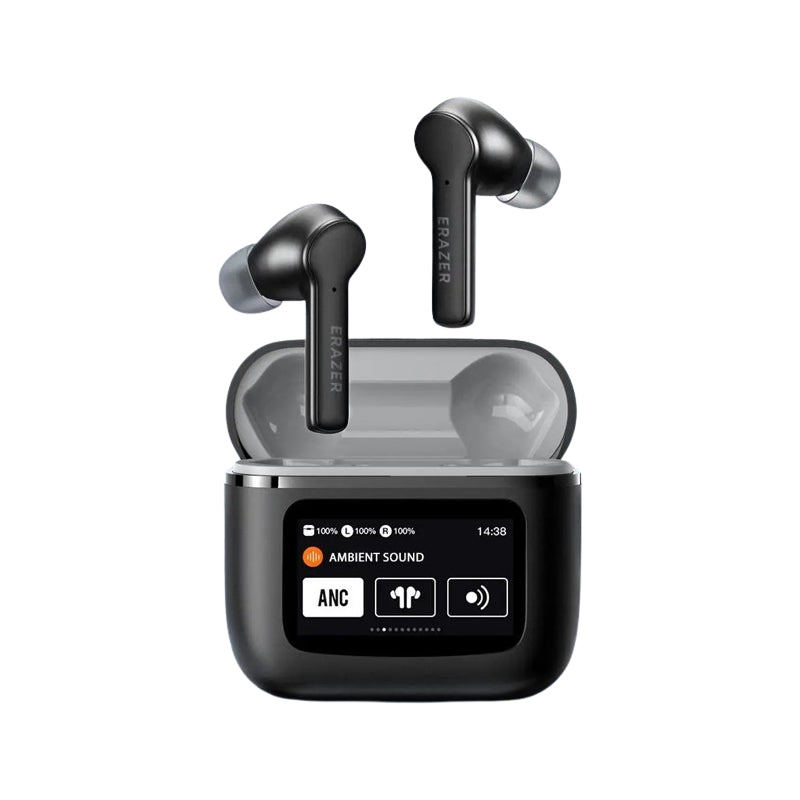
Step-by-step: How to pair erazer earbuds
Follow these steps for a standard pairing with most phones and tablets. If your device uses a slightly different menu, the sequence is the same.
-
Prepare the earbuds and case
- Make sure the erazer earbuds and the charging case have enough battery. Low battery can prevent pairing.
- Close the case, then open it to wake the earbuds. Some models enter pairing automatically when opened for the first time.
-
Enter pairing mode
- If the earbuds don’t enter pairing automatically, press and hold the case button or the touch controls on both earbuds for 3–6 seconds. Watch for a blinking LED pattern, usually alternating or rapid flashing.
- When the LED flashes white or blue rapidly, the erazer earbuds are in pairing mode.
-
Enable Bluetooth on your device
- Open Settings > Bluetooth on your phone or tablet. Turn Bluetooth on and wait a few seconds for nearby devices to appear.
- Look for a name like erazer, erazer earbuds, or the model number, then tap to pair.
-
Confirm and test
- If your device asks for confirmation, accept the pairing request. Some devices show “Connected” or “Paired.”
- Play audio to confirm both ears are working. If only one ear plays, skip to the troubleshooting section.
Tips for specific devices
- For iPhone: Open Control Center and confirm audio route if sound goes to phone speakers.
- For Android: Tap the device name for additional settings and to enable media and call audio.
How to pair erazer earbuds for the first time is usually fast. If your earbuds are already paired with another device, put the old device into Bluetooth settings and disconnect before pairing a new device.

Troubleshooting common pairing issues with erazer earbuds
Pairing sometimes fails. These checks fix most issues quickly.
Common causes
- Low battery on earbuds or case.
- Earbuds already paired with another device and auto-reconnecting.
- Bluetooth on the phone is unstable or blocked by software.
- Interference from other active Bluetooth devices.
Quick fixes
- Charge the case and earbuds for at least 15 minutes, then retry pairing.
- Turn Bluetooth off and on on your phone. Restart the phone if needed.
- Forget or remove old pairing entries: go to Bluetooth settings, tap the erazer entry, and choose Forget or Unpair.
- Move away from Wi-Fi routers, microwaves, or other Bluetooth devices to reduce interference.
- Perform a reset on the erazer earbuds (see the reset steps below).
Reset steps (common method)
- Place both earbuds in the case and leave the lid open.
- Hold the case button for about 10–15 seconds until LEDs blink differently or turn off.
- Remove earbuds and attempt pairing again.
If you still can’t pair, check if your device’s Bluetooth supports the required version. Some very old laptops or phones might not be compatible with newer Bluetooth standards used by erazer earbuds.

Advanced tips and settings for erazer earbuds
These tips help when you need stable multi-device use or better audio quality.
Multi-device use
- Some erazer earbuds support multipoint. If they do, pair with device A first, then put them back into pairing mode and connect to device B. The earbuds switch between calls and media from both devices.
- If multipoint is flaky, unpair and re-pair both devices in sequence.
Mono mode and single-ear use
- To use one earbud solo, remove the primary earbud from the case and leave the secondary inside. Wait a few seconds for the single earbud to enter mono mode.
- If the solo earbud does not work, re-sync both earbuds by placing them in the case and following the reset steps.
Firmware updates
- Check the erazer companion app or the manufacturer’s update tool if available. Firmware updates can fix pairing bugs and improve battery life.
- If no app exists, check support pages for release notes or contact support for update instructions.
Codec and audio settings
- On Android, you can choose Bluetooth codecs in Developer Options (LDAC, aptX, AAC, SBC). Select the best supported codec for improved sound.
- On iPhone, AAC is used automatically. Good results come from keeping firmware current.
Pairing with smart TVs and game consoles
- Many TVs and consoles use limited Bluetooth profiles. For stable game audio, consider using a dedicated Bluetooth transmitter that supports low-latency codecs if you experience lag.

Care, charging, and compatibility for erazer earbuds
Proper care improves pairing reliability and battery life.
Charging and battery habits
- Keep the case charged. The case often holds multiple recharges that enable pairing even when earbuds run low.
- Avoid letting earbuds fully drain regularly; frequent full discharges can reduce battery longevity.
Compatibility checklist
- Confirm your device supports Bluetooth 4.2 or higher for the best results. Most modern phones do.
- Check for platform-specific features: call quality improvements or in-ear detection may behave differently on iOS vs Android.
Physical care
- Clean the charging contacts on both earbuds and case with a soft, dry brush to maintain a secure charging and pairing connection.
- Avoid moisture and extreme temperatures during charging or pairing.
What I check first
- I always confirm LED signals and charge level. A blinking red or dim LED often means the earbuds need charge before pairing will succeed.

Personal experience: lessons learned pairing erazer earbuds
Here are practical tips from testing and repeated use.
What worked for me
- Always start with a charged case. I lost hours troubleshooting before I realized the case had no juice.
- If only one earbud connects, a quick reset and re-pair usually fixes left/right sync issues.
Mistakes to avoid
- Don’t pair near many other Bluetooth devices. Crowded environments increased dropouts when I tested at a busy cafe.
- Avoid skipping firmware checks. I once had distorted audio until an update fixed a codec bug.
Quick routine I use
- Charge case overnight.
- Open case with phone Bluetooth off, then turn Bluetooth on and tap the erazer entry when it appears.
- If it fails, forget the device on the phone, reset the earbuds, and try again.
These habits save time and make pairing erazer earbuds predictable and reliable.
Frequently Asked Questions of how to pair erazer earbuds
How do I reset my erazer earbuds if they won't pair?
Place both earbuds in the case, hold the case button or touch controls for 10–15 seconds until the LEDs blink, then remove and re-enter pairing mode. After reset, remove any previous Bluetooth entry on your phone before reconnecting.
Why does only one erazer earbud connect?
This often happens when the earbuds lose sync or one earbud has low battery. Reset both earbuds and re-pair, and ensure both are charged before attempting to connect.
Can I pair erazer earbuds with two devices at the same time?
Some models support multipoint pairing. Check your earbuds’ specs; if supported, pair with device A, then enter pairing mode and pair with device B. Performance can vary between models.
What LED patterns indicate pairing mode on erazer earbuds?
Common patterns are alternating or rapid blue/white flashes to indicate pairing mode. A steady light usually means connected, and red often signals low battery. Consult your manual for model-specific signals.
How do I update erazer earbuds firmware?
Use the erazer companion app if available or check the manufacturer’s support site for update tools. Firmware updates typically require the earbuds to be charged and the phone to stay connected during the update.
Conclusion
Pairing erazer earbuds is a simple process when you follow the right steps: charge the case, enter pairing mode, and select the earbuds from your device’s Bluetooth list. If pairing fails, reset the earbuds, remove old Bluetooth entries, and rule out low battery or interference. Try the routines and tips shared here to make pairing fast and reliable. If this guide helped, subscribe for more practical tips, leave a comment with your model and issue, or share your own pairing tricks below.

Everett Ashford is a tech reviewer at mytechgrid.com specializing in SSDs, cameras, TVs, earbuds, headphones, and other consumer electronics. He provides honest, data-driven reviews based on hands-on testing and real-world performance analysis. Everett simplifies complex tech details to help readers make smart, confident buying decisions.