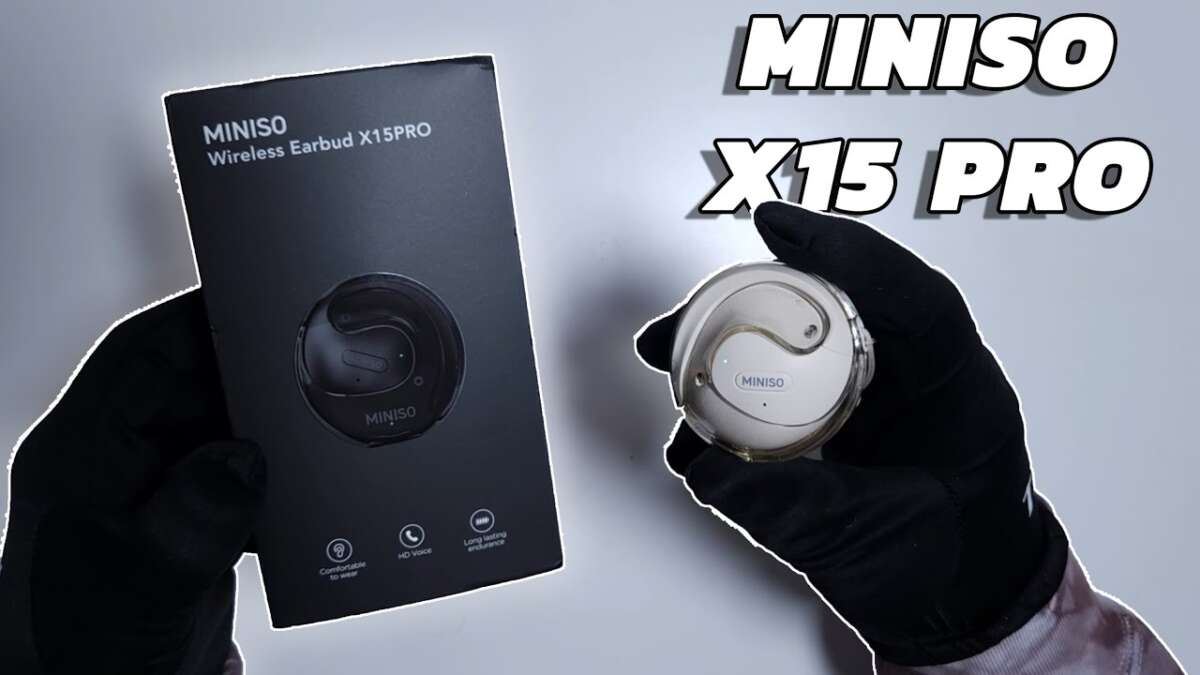
To use MINISO earbuds, charge them, pair them through Bluetooth, and control audio with the touch buttons.
Learning how to use MINISO earbuds is simple once you understand pairing, touch controls, charging, and care. Since MINISO sells several earbud models, button actions may differ slightly, but the setup process is much the same. This guide explains how to use MINISO earbuds clearly, including first-time pairing, music controls, phone calls, common problems, and battery tips.

What You Need Before Using MINISO Earbuds
Before learning how to use MINISO earbuds, check that the earbuds and charging case have power. Most new earbuds arrive with a small amount of charge, but a full charge helps prevent pairing and connection problems.
Remove any protective film from the charging contacts. This thin film can stop the earbuds from charging, even when they sit correctly inside the case.
You also need a phone, tablet, or computer with Bluetooth. MINISO earbuds usually work with Android, iPhone, Windows, and other Bluetooth devices that support standard wireless audio profiles.
Check these points first:
• Charge the case and earbuds for at least 30 minutes.
• Turn on Bluetooth on your device.
• Keep the earbuds close to your phone during setup.
• Disconnect other nearby Bluetooth earbuds if possible.
• Read the small model label or manual for model-specific touch controls.
MINISO models can use different names, such as “MINISO TWS,” “MINISO Earbuds,” or a model number. The name shown in your Bluetooth menu may not match the product name on the box.

How to Charge MINISO Earbuds
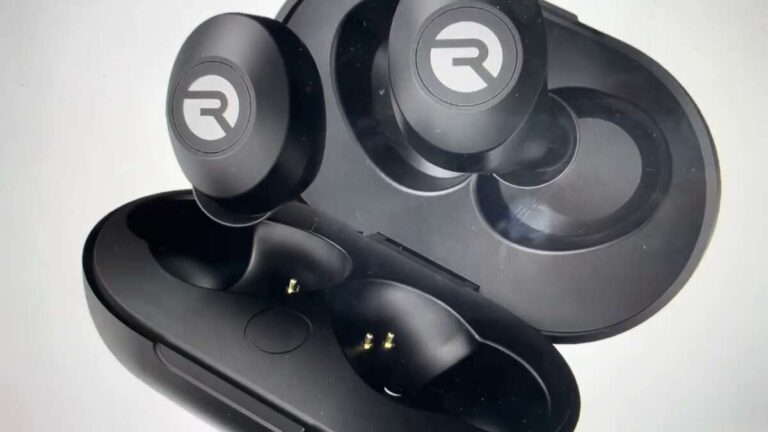
Charging is the first practical step in how to use MINISO earbuds. Place the left earbud in the left slot and the right earbud in the right slot. The charging pins should touch the metal contacts inside the case.
Most cases show a light when charging begins. Some earbuds also show a red, white, or blue light. Light colors vary by model, so use the included manual when you need an exact meaning.
Follow these steps:
-
Connect the case to power with its USB cable.
-
Place both earbuds inside the case.
-
Close the lid if the case charges with the earbuds inside.
-
Leave the case connected until its battery indicator shows a full charge.
-
Remove the earbuds and check that they power on.
Avoid forcing an earbud into the wrong side. If an earbud does not charge, remove it and clean the contact points with a dry cotton swab. Do not use water, metal tools, or wet cleaning products near the charging pins.
A useful habit is to put the earbuds back in the case after every use. Think of the case as both a storage box and a portable battery. It protects the earbuds and keeps them ready for the next listening session.

How to Pair MINISO Earbuds With a Phone
Pairing is usually the most important part of how to use MINISO earbuds. Most MINISO true wireless stereo earbuds enter pairing mode when you open the case or remove both earbuds for the first time.
Use this process:
-
Open the charging case.
-
Remove both earbuds.
-
Wait for the indicator lights to flash.
-
Open Settings on your phone.
-
Tap Bluetooth.
-
Turn Bluetooth on.
-
Look for the MINISO earbud name in the available device list.
-
Tap the name to connect.
-
Accept the pairing request if your phone displays one.
After pairing, you should hear a sound or see a “Connected” message. Play a short audio clip to confirm that both earbuds work.
If only one earbud connects, place both earbuds back into the case. Close the lid for about 10 seconds, then remove them together. This often allows the earbuds to reconnect with each other before they connect to your phone.
If the earbuds do not appear, turn Bluetooth off and on again. You can also move away from crowded wireless areas, such as airports, gyms, or busy offices.

How to Use MINISO Earbuds for Music and Podcasts
Once the earbuds are paired, learning how to use MINISO earbuds for music is easy. Most models use a tap, double tap, or long press on the outer panel.
Common controls include:
• Single tap: Play or pause audio.
• Double tap: Skip to the next track.
• Triple tap: Return to the previous track or change a mode.
• Long press: Turn the earbuds on or off, reject a call, or activate another feature.
• Tap the left or right earbud: Adjust volume on some models.
These controls are not universal. Some MINISO earbuds use a physical button, while others use a touch panel. If a tap does nothing, try pressing the outer surface rather than the silicone ear tip.
Start with a short tap. A long press may turn an earbud off instead of pausing your music. This is one of the most common mistakes people make when learning how to use MINISO earbuds.
You can always control volume from your phone. This is often easier than guessing which touch gesture your model supports. Keep your phone volume at a safe level, especially during long listening sessions.
The World Health Organization advises keeping personal audio at a moderate level and taking regular breaks. If you hear ringing or muffled sound after listening, lower the volume and give your ears time to recover.

How to Use MINISO Earbuds for Phone Calls
MINISO earbuds can act as a wireless headset for phone calls, video meetings, and voice messages. After pairing, your phone should route call audio through the earbuds automatically.
During a call, common controls include:
• Single tap: Answer or end a call.
• Long press: Reject an incoming call.
• Double tap: Sometimes mute the microphone or switch calls.
• Phone controls: Change the volume or select the audio output.
The built-in microphones work best when the earbuds sit firmly in your ears. Wind, traffic, fans, and crowded rooms can affect call quality. For an important meeting, test the microphone first with a short voice recording.
In my testing of budget wireless earbuds, the biggest call mistake is covering the microphone opening. Hair, a hat, or a finger can block it and make your voice sound distant. Keep the microphone area clear, and use the phone itself if the other person cannot hear you well.
Some MINISO models do not provide strong noise reduction. That is normal for basic earbuds. They may reduce some background sound, but they should not be treated as professional hearing protection.

How to Reset MINISO Earbuds
A reset can fix problems such as failed pairing, one-earbud audio, delayed sound, or a device that keeps connecting to the wrong phone. Reset instructions vary by model, but the following method works for many MINISO TWS earbuds.
-
Open your phone’s Bluetooth settings.
-
Tap the MINISO earbuds.
-
Choose Forget This Device, Unpair, or Remove Device.
-
Turn off Bluetooth on nearby devices.
-
Place both earbuds in the charging case.
-
Remove both earbuds and turn them off if your model allows it.
-
Press and hold both touch panels or buttons for about 10 to 15 seconds.
-
Return the earbuds to the case.
-
Remove them again and pair them with your phone.
Some models reset when you touch both earbuds several times while they are in the case. Others require a button on the case. Because the process is not identical across all models, the printed manual remains the best reference.
Do not reset the earbuds every time they fail to connect. First, check the battery, Bluetooth setting, distance, and charging contacts. A reset should be a troubleshooting step, not a daily routine.

How to Fix Common MINISO Earbud Problems
Knowing how to use MINISO earbuds also means knowing what to do when they misbehave. Most connection problems have a simple cause, such as low power, an old Bluetooth record, or dirty charging contacts.
One Earbud Has No Sound
Place both earbuds in the case and confirm that both charging lights appear. Clean the contacts, then remove both earbuds at the same time.
If the problem continues, forget the earbuds in your phone’s Bluetooth menu and pair them again. A reset may be needed if the two earbuds lost their internal connection.
The Earbuds Keep Disconnecting
Keep your phone within about 30 feet in an open area. Walls, metal objects, crowded Wi-Fi areas, and other Bluetooth devices can reduce connection stability.
Charge the earbuds and update your phone’s operating system if an update is available. Also check whether the earbuds connect to another nearby device.
The Earbuds Do Not Charge
Make sure the case itself has power. Then clean the charging contacts and check that each earbud sits fully inside its slot.
If the case light stays off with a known working cable and charger, the case may have a hardware fault. Stop using it if it becomes unusually hot, swollen, or damaged.
The Sound Is Too Quiet
Raise the volume on both the phone and the earbuds if your model has separate volume controls. Check for dirt on the speaker mesh, but clean it gently with a dry, soft brush.
Also confirm that your phone’s balance control is centered. On an iPhone, this setting is under Accessibility and Audio/Visual. Android menus may use different names.
There Is Audio Delay
Some delay is normal with Bluetooth audio, especially in games and videos. Try closing unused apps, moving closer to the phone, or using a device with a low-latency mode if your MINISO model supports it.
How to Use MINISO Earbuds With a Computer
You can use MINISO earbuds with a laptop or desktop computer for music, video, and online calls. The steps are similar to phone pairing.
On Windows:
-
Open Settings.
-
Select Bluetooth & devices.
-
Turn Bluetooth on.
-
Select Add device.
-
Choose Bluetooth.
-
Select the MINISO earbuds.
On a Mac:
-
Open System Settings.
-
Select Bluetooth.
-
Turn Bluetooth on.
-
Find the MINISO earbuds.
-
Click Connect.
For video meetings, select the MINISO earbuds as both the speaker and microphone in the meeting app. If you select the earbuds only as speakers, the computer may use its built-in microphone.
Computer Bluetooth can sometimes create a “connected but no sound” problem. Open the sound settings and choose the earbuds as the output device. Then play a test sound before joining a meeting.
Tips for Better Fit, Sound, and Battery Life
Good fit affects comfort, sound, and call quality. If the earbuds include different silicone tips, try each size. The correct tip should feel secure without causing pressure.
Use these habits to get more from your earbuds:
• Keep the charging case above 20% when possible.
• Store the earbuds in the case instead of loose in a pocket.
• Wipe sweat and skin oil from the earbuds after exercise.
• Keep them away from water unless the exact model has a verified water-resistance rating.
• Do not sleep with earbuds in if they cause pressure or discomfort.
• Avoid leaving the case in a hot car or direct sunlight.
• Keep the earbuds and case clean and dry.
Battery life depends on volume, Bluetooth use, call time, and the model’s battery size. The battery will slowly lose capacity over time, as all rechargeable lithium-ion batteries do. A shorter runtime after months of use does not always mean the earbuds are defective.
Do not charge damaged earbuds. Stop using them if you notice swelling, a burning smell, liquid damage, or excessive heat.
Benefits and Limits of MINISO Earbuds
MINISO earbuds appeal to people who want a low-cost way to listen without wires. They are usually light, simple to carry, and easy to use with common Bluetooth devices.
Their main benefits include:
• Affordable entry price.
• Compact charging case.
• Wireless listening for music and calls.
• Simple controls on many models.
• Compatibility with most modern phones.
They also have limits. Sound quality, microphone performance, battery life, and water resistance can vary widely between models. A low-cost model may not offer active noise cancellation, advanced app controls, multipoint pairing, or strong protection from sweat.
This matters when choosing earbuds for travel, work, gaming, or exercise. Check the exact model specifications instead of assuming every MINISO earbud has the same features.
My practical rule is simple: choose based on your main use. For casual music and short calls, a basic pair may be enough. For frequent travel or long work calls, stronger noise control and a better microphone may justify a different model.
Safety and Privacy Tips
Bluetooth earbuds are generally convenient, but safe use still matters. Keep the volume low enough to hear important sounds when walking, cycling, or working near traffic.
Do not use noise-isolating earbuds in situations where awareness is essential. No earbud feature can replace attention to vehicles, alarms, or people around you.
Keep your earbuds’ Bluetooth name private if you do not want others to identify them. Avoid accepting unknown pairing requests. When you finish using the earbuds in a public place, disconnect them if you do not need Bluetooth active.
If your ears become sore, itchy, or painful, remove the earbuds. Clean the ear tips and allow your ears to rest. Continued irritation may need medical advice, especially if it comes with swelling or discharge.
How to Use MINISO Earbuds: A Simple Daily Routine
A short routine makes how to use MINISO earbuds almost automatic.
-
Charge the case when its battery is low.
-
Remove both earbuds together.
-
Wait for them to connect to each other.
-
Turn on Bluetooth if needed.
-
Select the MINISO earbuds on your phone.
-
Adjust the volume before starting audio.
-
Use the correct tap or button control.
-
Return both earbuds to the case after use.
-
Wipe away moisture and dirt.
-
Charge the case before the next long trip.
The most useful lesson is to avoid rushing the first setup. Give the earbuds a few seconds to sync, and check the Bluetooth name before tapping Connect. This prevents many problems that seem more serious than they are.
Frequently Asked Questions About How to Use MINISO Earbuds
How do I turn on MINISO earbuds?
Open the charging case and remove both earbuds. Many models turn on automatically, while others require a short press or tap on each earbud.
Why are my MINISO earbuds not showing on Bluetooth?
Charge the earbuds, place them close to your phone, and turn Bluetooth off and on. If they still do not appear, forget any old MINISO pairing record and reset the earbuds.
How do I control volume on MINISO earbuds?
Some models change volume with repeated taps or long presses, while others use only the phone’s volume buttons. Check the model manual because touch controls are not the same across the MINISO range.
Can I use only one MINISO earbud?
Many MINISO TWS models support single-earbud use, but the feature depends on the model. Remove the earbud you want to use and connect it through Bluetooth; if it does not connect alone, pair both earbuds first.
How do I know when MINISO earbuds are fully charged?
The indicator light usually changes color, turns off, or shows a full battery symbol in the phone’s Bluetooth menu. Since light patterns differ, confirm the meaning in your product manual.
Can MINISO earbuds connect to an iPhone?
Yes, most MINISO Bluetooth earbuds can connect to an iPhone. Open Settings, choose Bluetooth, and tap the MINISO earbud name when it appears.
How do I clean MINISO earbuds?
Wipe the outside with a dry, soft cloth and gently brush the speaker mesh. Keep water, alcohol, and sharp tools away from the charging contacts unless the manufacturer gives specific cleaning instructions.
Conclusion
Using MINISO earbuds comes down to four habits: charge them fully, pair them correctly, learn the model’s controls, and keep them clean and dry. If one earbud fails, Bluetooth settings, battery power, and charging contacts are the best places to start.
Take a few minutes to test music, calls, touch controls, and battery status today. Once the setup becomes familiar, MINISO earbuds can provide simple and convenient audio for work, travel, and daily listening. Share your model and helpful tips in the comments, or explore more device guides for smarter wireless listening.

Everett Ashford is a tech reviewer at mytechgrid.com specializing in SSDs, cameras, TVs, earbuds, headphones, and other consumer electronics. He provides honest, data-driven reviews based on hands-on testing and real-world performance analysis. Everett simplifies complex tech details to help readers make smart, confident buying decisions.