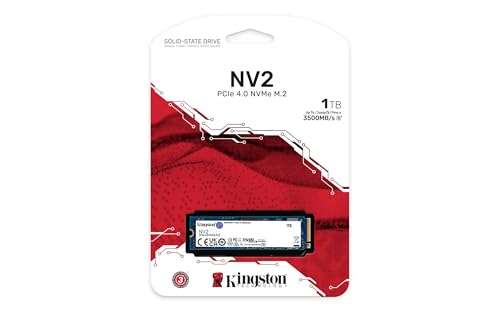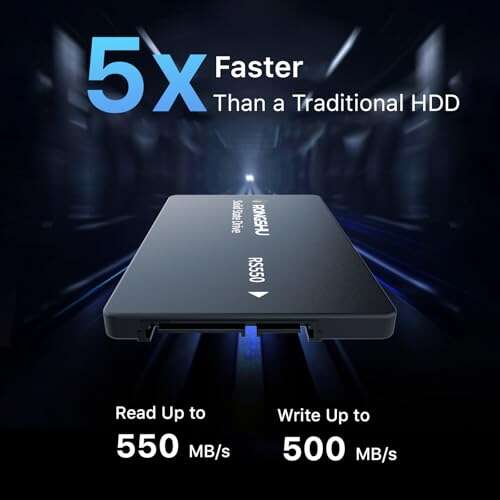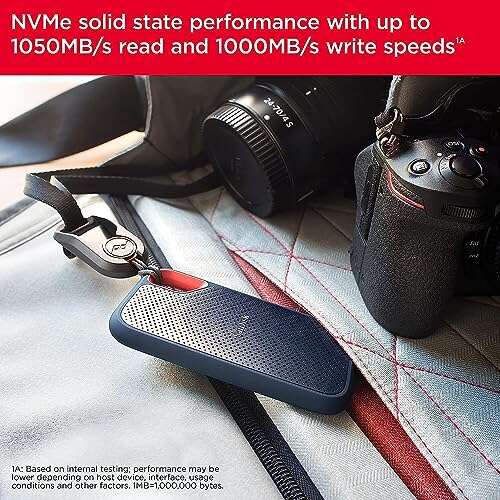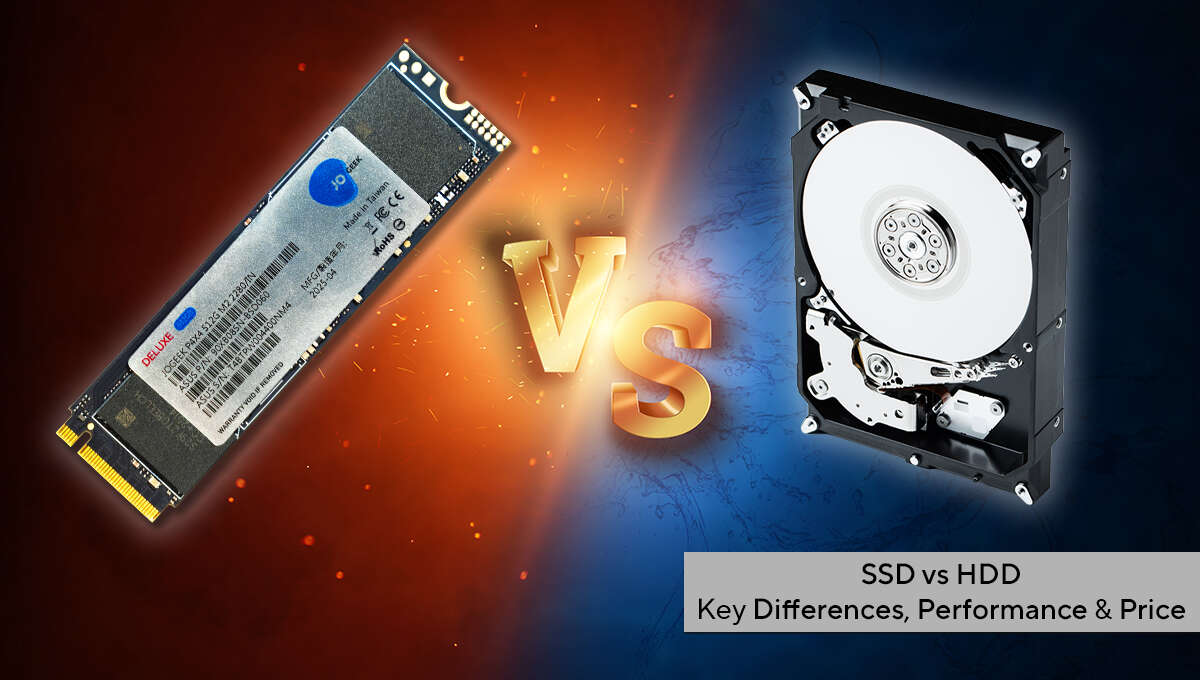
SSDs are usually safer from physical shock, but HDDs can be easier to recover after some failures.
Are SSDs safer than HDDs? The honest answer depends on what you mean by “safer.” SSDs have no moving parts, so they handle drops and vibration better. HDDs may offer lower cost and, in some cases, better chances of recovering data after certain failures. This guide explains the risks, benefits, and best choice for your computer, backup drive, or business system.
Are SSDs safer than HDDs for everyday use?
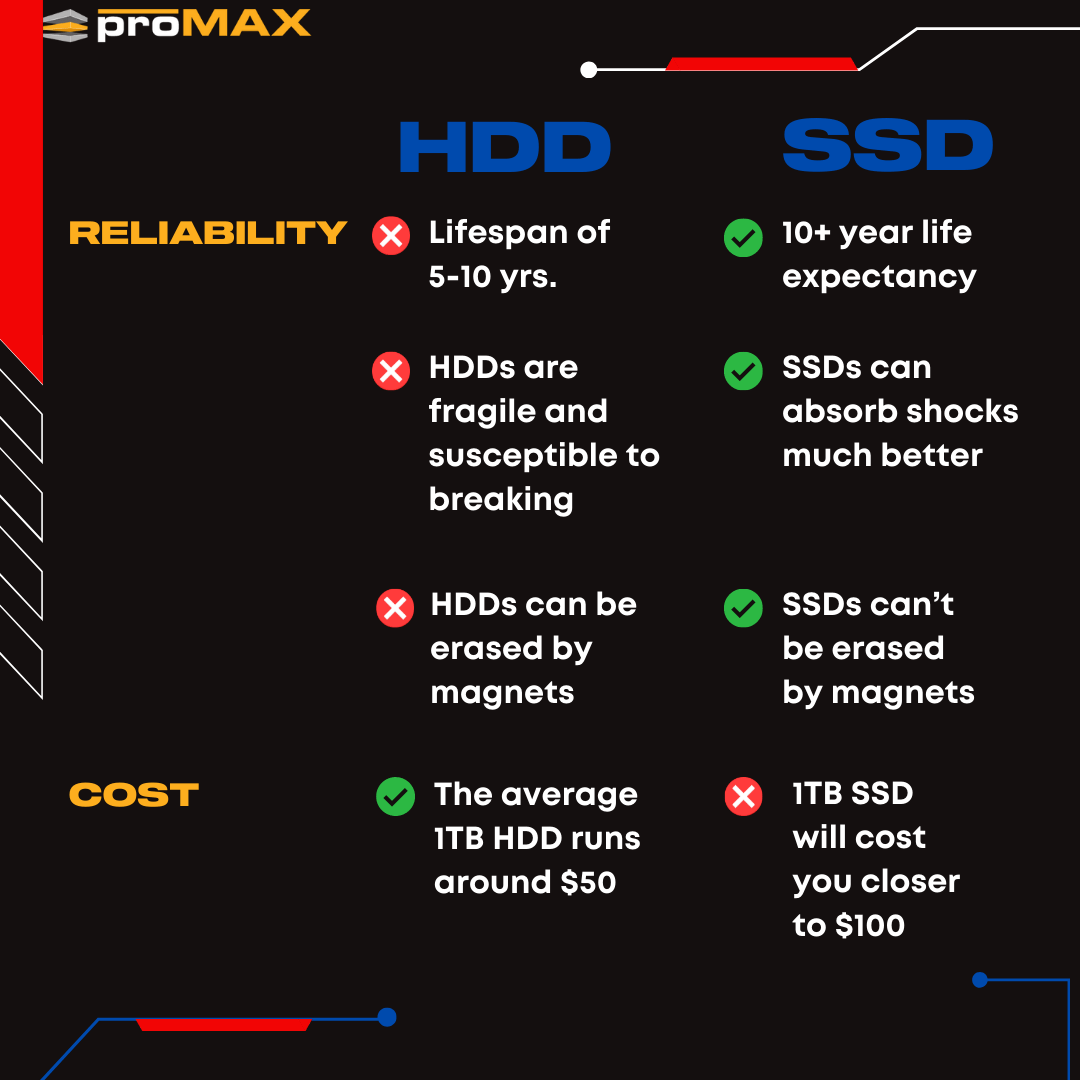
For most daily tasks, an SSD is safer from physical damage than an HDD. An SSD stores data on flash memory chips. An HDD stores data on spinning magnetic platters read by a moving head.
That difference matters. A laptop with an SSD can better handle small drops, bumps, and movement while it is running. An HDD has delicate moving parts that can suffer damage from shock, especially when its platters are spinning.
Still, the question “are SSDs safer than HDDs” has more than one answer. SSDs are not immune to failure, and they may fail without much warning. HDDs can show signs of trouble first, such as clicking sounds, slow file access, or repeated errors.
In simple terms:
• SSDs are usually safer against impact, vibration, and movement.
• HDDs can sometimes provide more warning before failure.
• Both drives can lose data from power problems, malware, user mistakes, or poor maintenance.
• Neither drive is safe without a separate backup.
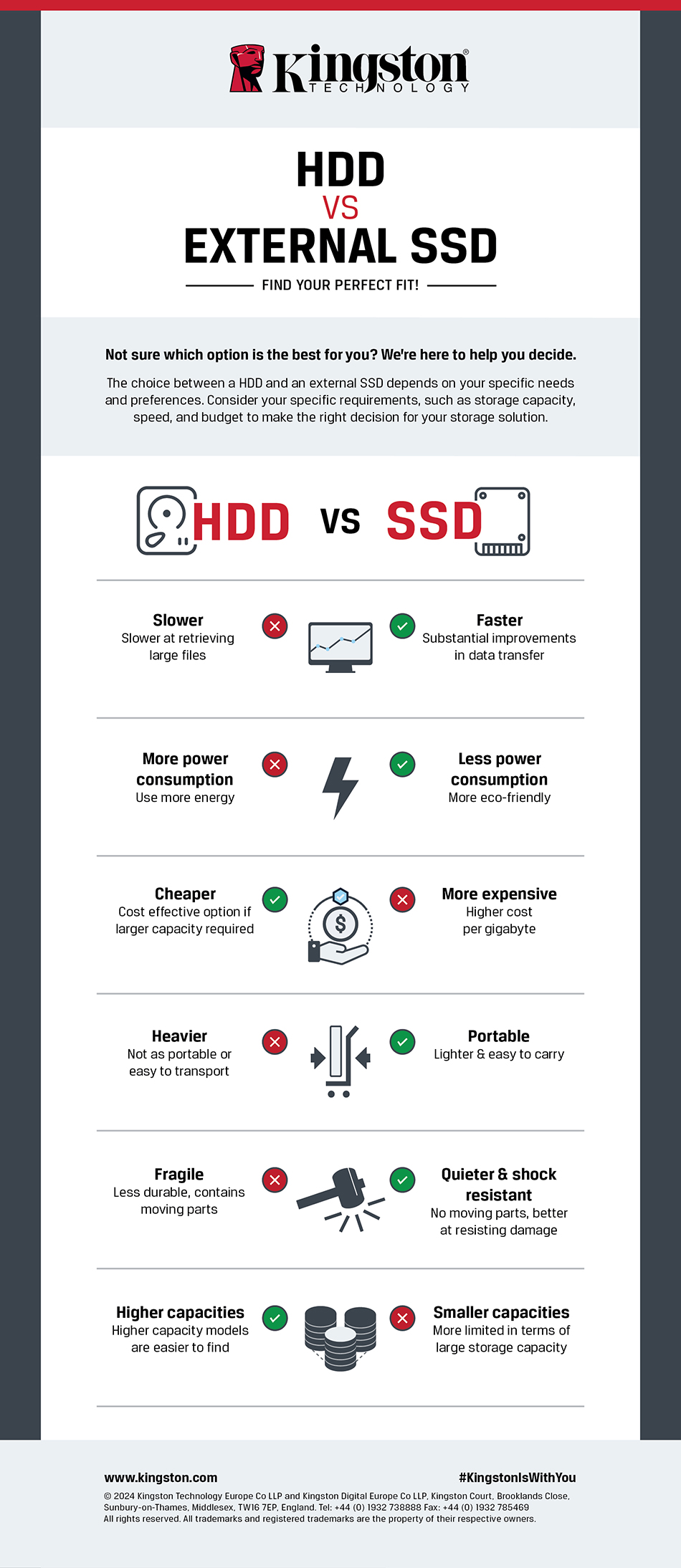
SSD vs. HDD reliability
Reliability means more than whether a drive lasts for many years. It also includes how the drive fails, how often it fails, and how much warning it gives you.
SSDs do not use motors, spindle bearings, or read heads. This gives them a strong advantage in mobile devices, laptops, cameras, and systems that face vibration. There are fewer mechanical parts that can wear out.
HDDs rely on precise mechanical movement. The read head floats very close to the spinning platter. A strong shock during operation can cause a head crash, which may damage the surface that stores your data.
However, SSDs use flash cells that have a limited number of write cycles. Modern SSDs manage this with wear leveling. The controller spreads writes across the memory cells, which helps extend drive life.
Important reliability factors include:
• Drive quality and controller design
• Total data written over time
• Heat and airflow
• Power stability
• Firmware quality
• Workload type
• Available free space
• Age and operating hours
Many consumer SSDs last for years under normal use. Many HDDs also last for years. But no average lifespan can guarantee the future of one specific drive. Manufacturing defects, heat, poor power supplies, and heavy workloads can shorten the life of either type.
So, are SSDs safer than HDDs for reliability? SSDs often win for physical durability, while the reliability gap depends heavily on the model and the workload.
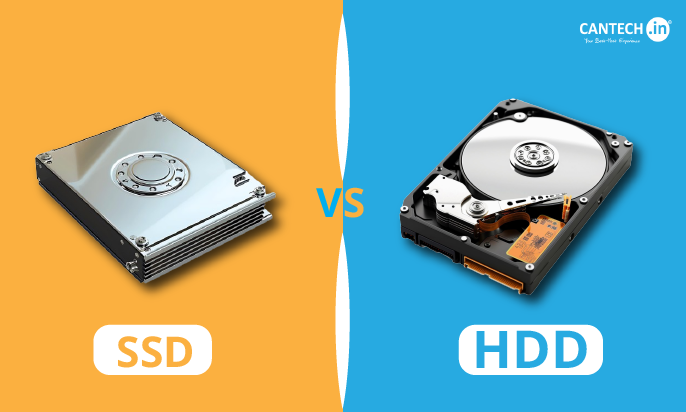
Physical safety: drops, shocks, and vibration
This is the area where SSDs have the clearest advantage.
Imagine an HDD as a tiny record player. It has a platter that spins and an arm that moves across it. A sudden impact can interrupt that movement or make the head touch the platter.
An SSD is more like a bank of digital memory cards working together. It has no spinning disk and no moving read head. A drop can still damage the circuit board or connection, but the stored data is less exposed to mechanical shock.
SSDs are a good choice for:
• Laptops used while traveling
• Portable external drives
• Cameras and video equipment
• Vehicles and industrial devices
• Computers used in workshops or busy homes
• Systems exposed to vibration
HDDs are more vulnerable when they are powered on. When powered off, the heads may park in a safer position, but the drive can still suffer damage from a hard fall.
A protective case helps portable HDDs. It does not make them as resistant to shock as SSDs. If you carry important files every day, an external SSD is usually the safer physical choice.
Data loss and sudden drive failure
One reason people ask “are SSDs safer than HDDs” is concern about sudden data loss. This concern is valid because SSDs and HDDs often fail in different ways.
An HDD may become slow before it fails. You might hear unusual sounds or see warnings from drive health tools. These signs can give you time to copy your files.
An SSD can also show warnings, but failure may happen more suddenly. A failed controller, damaged firmware, or power problem can make the drive unreadable. In some cases, the computer may stop detecting the SSD at all.
This does not mean every SSD fails without warning. Modern drives support health data, error tracking, and wear reports. You should check these reports, but never treat them as a promise that the drive will keep working.
Watch for these warning signs:
• Files take longer to open
• The computer freezes during file transfers
• The drive disappears and returns
• You see read or write errors
• The system reports a degraded drive health status
• Files become corrupted
• The drive becomes unusually hot
If you notice any warning, stop heavy use. Copy important files to another device. Do not run repeated scans or repair tools on a failing drive unless you understand the risks.
A practical lesson from storage work is simple: a drive can seem healthy until the moment it does not. Backups matter more than choosing SSD or HDD.
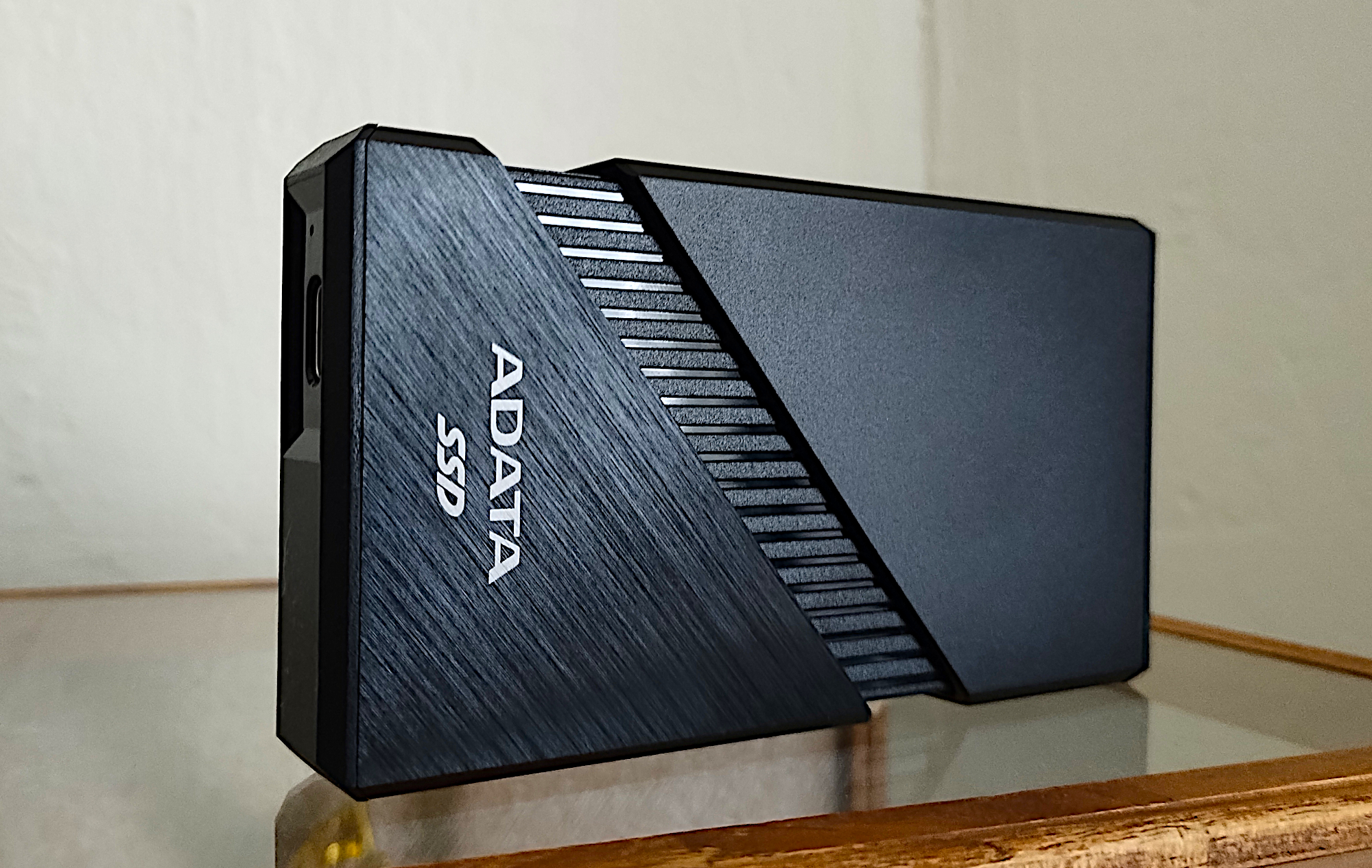
Which drive is safer for important files?
For important files, the safest choice is not one drive type. It is a backup plan that uses more than one copy.
A useful approach is the 3-2-1 backup rule:
-
Keep at least three copies of important data.
-
Store those copies on two different types of media.
-
Keep one copy in a different place or in secure cloud storage.
For example, you could keep your main files on an SSD, a local backup on an HDD, and a third encrypted copy in the cloud. This setup protects against drive failure, theft, fire, accidental deletion, and ransomware.
SSDs work well for active files and fast recovery. HDDs are often useful for large backups because they cost less per terabyte. Using both can reduce the weaknesses of each technology.
When deciding whether SSDs are safer than HDDs for important files, consider:
• How often you access the files
• Whether the drive will be moved
• How much storage you need
• How quickly you need to restore data
• Whether you can keep a second copy
• Whether the data is encrypted
A single premium SSD is still less safe than two ordinary drives with tested backups.
SSD and HDD data security
Drive safety also includes privacy. If someone steals your drive, the question is not only whether the hardware works. The question is whether they can read your files.
Both SSDs and HDDs can use encryption. Full-disk encryption protects data when the drive is locked or removed from the computer. Many modern computers support hardware-based or software-based encryption.
Use these security steps:
• Enable full-disk encryption.
• Use a strong account password.
• Keep recovery keys in a secure place.
• Install operating system and firmware updates.
• Use access controls on shared computers.
• Encrypt external backup drives.
• Test that encrypted backups can actually be restored.
Secure erase also differs between drive types. Overwriting an HDD several times was once common advice. For SSDs, repeated overwriting can add unnecessary wear and may not remove every hidden copy because of wear leveling.
For an SSD, use the manufacturer’s secure erase or sanitize feature when appropriate. For highly sensitive business or government data, follow a documented media disposal policy.
Neither an SSD nor an HDD automatically protects you from malware. Ransomware can encrypt files on both drives, including some connected backups. Keep backup drives disconnected when they are not being used, or use cloud backups with version history.

SSD vs. HDD for backup storage
HDDs remain popular for backups because they offer large capacity at a lower price. A desktop HDD can provide several terabytes of storage without the cost of a large SSD.
An HDD is often a good choice for:
• Monthly or weekly computer backups
• Large photo and video libraries
• Local archive storage
• Media collections
• Secondary copies that are rarely moved
An SSD is often better for:
• Daily working files
• Fast backup and restore tasks
• Portable backups
• Travel use
• Video editing projects
• Small, sensitive files that need quick access
The safest backup drive is one you use correctly. A cheap HDD that runs a scheduled backup is more useful than an expensive SSD that sits unused. An SSD that travels in a padded case may be safer than an HDD carried loose in a backpack.
Keep backup drives cool, dry, and away from unnecessary shocks. Label them clearly. Check backups on a schedule. A backup that cannot be opened is not a reliable backup.

SSD lifespan and HDD lifespan
People often ask whether SSDs wear out faster than HDDs. The answer depends on the workload.
SSD endurance is often measured with TBW, or terabytes written. This figure estimates how much data can be written before the drive reaches its rated endurance limit. It is not a precise expiration date.
HDD lifespan depends on mechanical wear, operating temperature, workload, and operating hours. An HDD may run for many years, but its moving parts can eventually degrade.
To extend the life of either drive:
• Keep the computer cool.
• Use a reliable power supply.
• Protect desktop systems from power surges.
• Avoid filling the drive completely.
• Install firmware updates from trusted manufacturers.
• Monitor health information.
• Replace old drives before they become critical.
• Maintain at least one independent backup.
A nearly full SSD may slow down because it has less free space for internal management. An HDD can also slow down as it fills and files become fragmented, though modern operating systems manage much of this automatically.
The key point is that lifespan estimates are planning tools, not guarantees. If a drive contains the only copy of your family photos, business records, or school work, its age should not be your only warning.

SSD and HDD recovery after failure
Data recovery is another important part of the answer to “are SSDs safer than HDDs.”
HDD recovery can sometimes be possible after logical problems, such as accidental deletion or file system damage. Specialist technicians may also recover data from some mechanical failures by repairing parts in a controlled lab.
SSD recovery can be more difficult. The controller may manage data across many flash chips, and features such as TRIM can remove deleted data blocks. If the controller fails, the memory chips may not provide files in a simple, usable form.
Recovery success depends on:
• The type of failure
• Whether the drive is detected
• Whether new data has overwritten old data
• Whether encryption is enabled
• The drive’s controller design
• The skill of the recovery service
Do not open a failed HDD at home. Dust can damage the platters, and improper handling can reduce recovery chances. Do not repeatedly power-cycle a failing SSD or use random repair software on valuable data.
If files are irreplaceable, shut down the device and contact a reputable data recovery company. Ask for a diagnosis before approving expensive work. Recovery is never guaranteed.
Are SSDs safer than HDDs for gaming and laptops?
For laptops, SSDs are usually the safer option because they handle movement better and use less power. They also load the operating system, applications, and games much faster.
For gaming, an SSD can reduce loading times. It does not automatically improve every part of game performance, because frame rates depend more on the processor, graphics card, and memory.
HDDs can still make sense for:
• Large game libraries
• Older computers
• Low-cost storage upgrades
• Files that are not used often
A good laptop setup often uses one SSD for the operating system and active files. A separate external drive can store backups and large media files.
If you move your laptop while it is running, the answer to “are SSDs safer than HDDs” is generally yes. But physical safety does not replace cloud synchronization or a local backup.
Evidence, standards, and expert guidance
Drive manufacturers publish endurance ratings, health metrics, and environmental limits for their products. These specifications are useful, but they are based on testing conditions and should not be treated as a promise for every user.
Storage research has also shown that failure rates vary by model, age, workload, and environment. Large-scale data center reports can reveal patterns, but their results may not match a home computer. A drive used in a cool office does not face the same demands as one used for nonstop server work.
Industry guidance consistently supports several principles:
• Maintain multiple copies of valuable data.
• Monitor drive health.
• Protect equipment from heat and unstable power.
• Encrypt sensitive information.
• Replace failed or suspect drives quickly.
• Test backup restoration.
This evidence supports a balanced view. SSDs have clear mechanical advantages. HDDs remain useful for affordable, high-capacity storage. The safest storage plan combines suitable hardware with good security and backup habits.
Practical tips to make either drive safer
You can reduce storage risk with a few simple habits. These steps matter more than choosing a drive based only on speed or price.
-
Use an SSD for the operating system and files you access often.
-
Use an HDD for large local backups when cost matters.
-
Keep at least one backup away from the computer.
-
Turn on encryption for laptops and external drives.
-
Check drive health once a month.
-
Replace drives that show errors, strange sounds, or repeated disconnections.
-
Keep external drives unplugged after backups finish.
-
Use surge protection for desktop computers and storage devices.
-
Avoid extreme heat, moisture, and physical impact.
-
Test file restoration every few months.
One mistake is especially common: people buy a backup drive but never test it. Open several files from the backup. Restore a folder. Confirm that the copies are complete and readable.
Another mistake is keeping the backup beside the main computer. A theft, flood, fire, or power event can destroy both. Distance is a simple but powerful layer of protection.
Frequently Asked Questions: Are SSDs Safer Than HDDs?
Are SSDs safer than HDDs for laptops?
Yes, SSDs are usually safer for laptops because they have no moving parts and handle shock and vibration better. They also use less power and produce less heat in many common workloads.
Do SSDs last longer than HDDs?
Neither type always lasts longer. SSDs avoid mechanical wear, but flash memory and controllers can fail; HDDs can operate for years but contain moving parts that may wear out.
Can an SSD fail suddenly?
Yes, an SSD can stop working with little warning if its controller, firmware, or electrical components fail. Health monitoring and regular backups reduce the risk of serious data loss.
Are HDDs better for long-term data storage?
HDDs can be cost-effective for large archives, but no drive should be treated as a permanent archive by itself. Keep multiple copies, check them from time to time, and move important data to new media as it ages.
Is an SSD more secure than an HDD?
An SSD is not automatically more secure. Both drives can use strong encryption, and both can be exposed to malware, theft, or unauthorized access if security controls are missing.
Which is better for backups, SSD or HDD?
An HDD is often better for large, low-cost backups, while an SSD is better for fast, portable backups. The best choice depends on capacity, movement, speed, and your budget.
Conclusion
So, are SSDs safer than HDDs? SSDs are generally safer against drops, vibration, and mobile use. HDDs can offer lower-cost capacity and may be easier to recover in some failure situations.
The most reliable plan uses the strengths of both. Keep active files on an SSD, store large backups on an HDD when practical, encrypt sensitive data, and maintain at least one separate backup copy. Choose your storage based on how you use it, then protect it with a tested backup routine.
Review your important files today, create a second copy, and check that you can restore it. Share your storage setup or explore more guides on data protection to build a safer digital routine.

Everett Ashford is a tech reviewer at mytechgrid.com specializing in SSDs, cameras, TVs, earbuds, headphones, and other consumer electronics. He provides honest, data-driven reviews based on hands-on testing and real-world performance analysis. Everett simplifies complex tech details to help readers make smart, confident buying decisions.