Install the Apple TV app from your device’s app store, then sign in with your Apple Account to start watching.
Learning how to get the Apple TV app is simple once you know which device you use. The app comes built in on many Apple products, while smart TVs, streaming players, game consoles, Android devices, and Windows PCs usually need a quick download. This guide explains each method, common problems, account needs, costs, and practical tips for a smooth setup.
What the Apple TV app does
The Apple TV app brings Apple TV+ shows and movies, purchased content, rentals, live sports, and supported third-party channels into one place. It is different from an Apple TV 4K device, which is a physical streaming box. You can use the app without buying Apple’s streaming hardware.
The exact features depend on your country, device, and software version. For example, some channels, sports content, rentals, and purchases may not be available in every region.
With the Apple TV app, you may be able to:
• Watch Apple TV+ original shows and films with a subscription
• Rent or buy movies from the Apple catalog
• Access movies and shows purchased with your Apple Account
• Subscribe to selected channels inside the app
• Continue watching across supported devices
• Download some content for offline viewing on compatible devices
The Apple TV app is like a digital front door. It gathers your Apple video content in one place, but it does not make every show or service free. Check the title page before starting playback because some content needs a subscription, rental fee, or purchase.

Supported devices for the Apple TV app
Before you search for the app, check whether your device supports it. Apple regularly adds support for new models, but menus and app names can differ by brand.
You can usually get the Apple TV app on:
• iPhone and iPad
• Mac computers
• Apple TV HD and Apple TV 4K
• Selected Samsung, LG, Sony, Vizio, Hisense, and other smart TVs
• Roku streaming players and Roku TVs
• Amazon Fire TV devices
• Google TV and selected Android TV devices
• PlayStation and Xbox consoles
• Windows PCs through the Microsoft Store
• Android phones and tablets where the official app is available
• Web browsers through the Apple TV website
Older devices may not support the latest version. If the app does not appear in your device’s store, update the device first. If it still does not appear, the model or region may not be supported.
How to get the Apple TV app on an iPhone or iPad
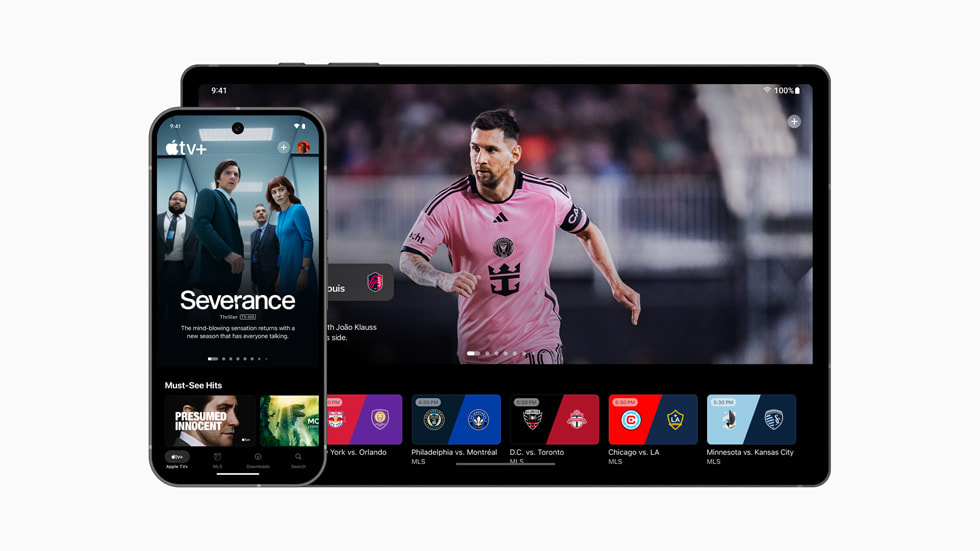
On most modern iPhones and iPads, the Apple TV app is already installed. Its icon is a black box with the Apple logo and the word “tv.” If you removed it, you can download it again from the App Store.
Follow these steps:
-
Open the App Store.
-
Tap Search.
-
Type Apple TV in the search bar.
-
Select the official app from Apple.
-
Tap Get or the cloud download icon.
-
Confirm the download with Face ID, Touch ID, or your Apple Account password.
-
Open the app after installation.
-
Sign in if the app asks for your Apple Account.
If you cannot find the app, check the spelling and look for Apple as the developer. Avoid unofficial apps with similar names. The official Apple TV app is free to download, although some content inside it requires payment.
On an iPhone or iPad, the app often signs in automatically through your Apple Account. You may still need to confirm your account before renting a movie, subscribing to Apple TV+, or viewing purchases.

How to get the Apple TV app on a Mac
Mac computers running a supported version of macOS normally include the Apple TV app. You do not need to download it from a separate website.
To open it:
-
Select the Apple menu.
-
Choose Applications or open Finder.
-
Open the Applications folder.
-
Select Apple TV.
You can also press Command and Space to open Spotlight, then type Apple TV. If the app is missing, install the latest macOS update that your Mac supports. Apple includes the TV app with supported macOS versions, so downloading random installer files is not necessary.
After opening the app, select Sign In. Use the same Apple Account connected to your purchases and subscriptions. If you use Family Sharing, confirm that you are signed in to the correct account. A different account may show an empty library even when you have purchased movies.
How to get the Apple TV app on Apple TV 4K or Apple TV HD
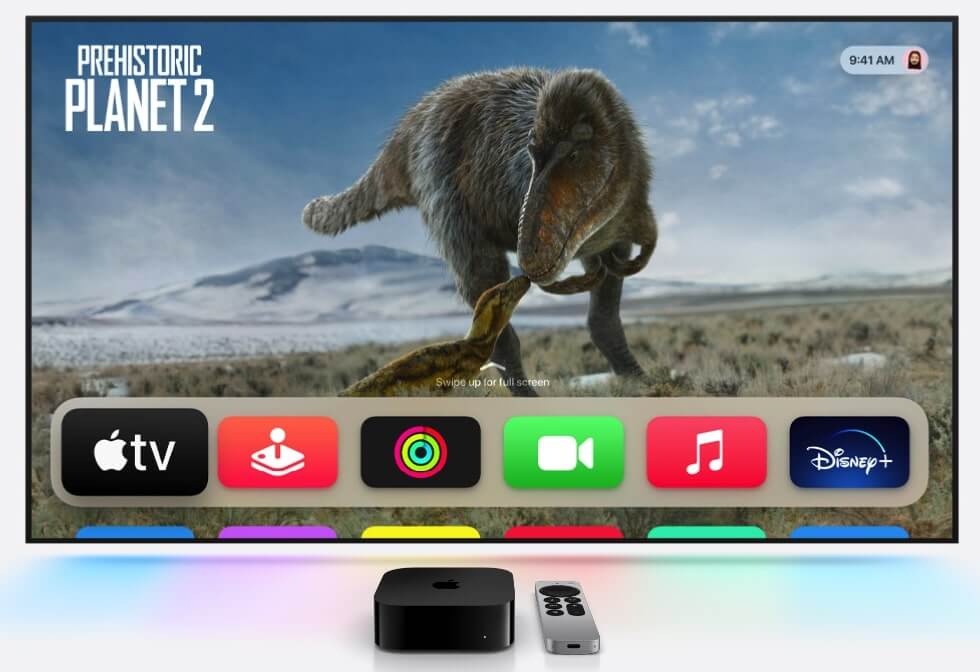
Apple TV hardware usually includes the Apple TV app. If you cannot see it on the Home Screen, use the App Store on the device.
-
Open the App Store.
-
Select Search.
-
Enter Apple TV.
-
Choose the official Apple TV app.
-
Select Get or Download.
-
Open the app and sign in.
You can enter your details with the remote, use a nearby Apple device when prompted, or scan the sign-in code shown on the screen. The exact sign-in method depends on your Apple TV model and software version.
Keep the device connected to the internet during setup. A wired Ethernet connection can help if Wi-Fi is weak, especially when you stream high-quality video.

How to get the Apple TV app on a smart TV
Many newer smart TVs include the Apple TV app. The steps vary, but the basic process is similar across brands.
-
Turn on the smart TV and connect it to the internet.
-
Open the TV’s app store.
-
Search for Apple TV.
-
Select the app published by Apple.
-
Choose Install or Add to Home.
-
Open the app after installation.
-
Sign in with your Apple Account.
On some televisions, the app appears in the app list after a software update. If the search returns no result, open the TV settings and install available firmware updates. You can also check the manufacturer’s support page for a compatibility list.
When I test streaming apps on smart TVs, the most common issue is not the app itself. It is an outdated TV system or a slow app store connection. Restarting the TV, updating its software, and checking the network often solves the problem faster than reinstalling the app several times.

How to get the Apple TV app on Roku
Roku users can add the Apple TV app through the Roku Channel Store.
-
Press the Home button on your Roku remote.
-
Select Streaming Store or Search.
-
Search for Apple TV.
-
Select the official Apple TV channel.
-
Choose Add app or Add channel.
-
Wait for the installation to finish.
-
Open the app and sign in.
You can sign in by entering your Apple Account details or by using a code on the Apple TV activation page. The wording may differ slightly between Roku models.
If the app does not appear after installation, restart the Roku device. You can also check for system updates under Settings, then System, and then Software update. Roku menus can change with software releases, so the labels may not be identical on every model.

How to get the Apple TV app on Amazon Fire TV
The Apple TV app is available on supported Fire TV devices through the Amazon Appstore.
-
From the Fire TV Home screen, select Find.
-
Choose Search.
-
Type Apple TV.
-
Select the official Apple TV app.
-
Choose Get or Download.
-
Open the app once installation ends.
-
Sign in with your Apple Account.
You may receive a code that lets you complete sign-in from a phone or computer. This can be easier than typing with the Fire TV remote.
If the app is not listed, confirm that your Fire TV device and country are supported. Update Fire OS, restart the device, and search again. Some older Fire TV models may not support newer app versions.
How to get the Apple TV app on Google TV and Android TV
On supported Google TV and Android TV devices, use the Google Play Store.
-
Open the Apps section.
-
Launch the Google Play Store.
-
Search for Apple TV.
-
Choose the official app from Apple.
-
Select Install.
-
Open the app and complete sign-in.
Google TV and Android TV devices differ by brand. A television may use Android TV but still have limited app support because of its age, region, or manufacturer settings.
For Android phones and tablets, open Google Play and search for the Apple TV app if it is available in your country. Install only the official version. Do not download an APK from an unknown website, since unofficial files can contain malware or outdated code.

How to get the Apple TV app on a Windows PC
You can install the Apple TV app on a supported Windows computer through the Microsoft Store.
-
Open the Microsoft Store.
-
Search for Apple TV.
-
Select the official Apple app.
-
Click Get or Install.
-
Launch the app from the Start menu.
-
Sign in with your Apple Account.
The Windows app may require a recent version of Windows and current system components. If installation fails, run Windows Update, restart the PC, and try the Microsoft Store again.
You can also watch through a supported web browser by visiting the Apple TV website. The web option is useful on a work computer or shared PC where you cannot install new software.
How to sign in after installing the Apple TV app
Installing the Apple TV app is only the first step. Sign-in connects the app to your purchases, subscriptions, viewing history, and Family Sharing benefits.
Open the app and choose Sign In. Depending on the device, you may enter your Apple Account email and password or use an activation code.
Use the same Apple Account that you use for:
• Apple TV+ billing
• App Store purchases
• Movie rentals and purchases
• Family Sharing
• Other Apple media services
A common mistake is creating a new Apple Account during setup. This can make your previous purchases seem missing. If your library looks empty, sign out and check the account email under the app’s settings.
Two-factor authentication may require a verification code from a trusted Apple device or phone number. This extra step protects your account and is worth keeping enabled.
Does the Apple TV app cost money?
The Apple TV app is generally free to install. However, the content inside the app may have different prices.
You may encounter:
• Apple TV+ subscription content
• Movie rentals
• Movie purchases
• Paid channel subscriptions
• Free promotional content
• Content included with a bundle or Family Sharing plan
The app should show the price or subscription requirement before playback. Read the details carefully, especially when a free trial is offered. Trials often renew as paid subscriptions unless canceled before the renewal date.
Apple TV+ pricing and availability can change by country. Check the current price shown in your account and review the renewal date in your subscription settings.
How to fix Apple TV app problems
Most setup problems have a simple cause. Work through these steps in order:
-
Check the internet connection.
-
Restart the device.
-
Update the device software.
-
Update the Apple TV app.
-
Confirm that the device supports the app.
-
Check that you are using the correct Apple Account.
-
Sign out and sign in again.
-
Reinstall the app if the device allows it.
-
Check Apple’s system status if sign-in or playback fails across several devices.
If video keeps buffering, test another app on the same device. If every service is slow, the issue is likely your Wi-Fi or internet provider. If only Apple TV has trouble, reinstalling the app or checking account settings may help.
For a black screen, close the app completely and reopen it. On a TV, also check the HDMI cable and input setting. For audio problems, confirm the TV volume, sound output, and surround-sound settings.
Tips for a better Apple TV app experience
A few small choices can make the app easier to use.
• Use one Apple Account across your devices.
• Keep your TV, streaming player, and app updated.
• Use a strong Wi-Fi signal or Ethernet for a TV.
• Turn on automatic updates when available.
• Add the app to your device’s Home screen.
• Review subscriptions after starting a free trial.
• Use Family Sharing only with people you trust.
• Avoid unofficial downloads and suspicious sign-in pages.
When I help people set up streaming devices, I recommend testing one short video before changing advanced settings. This quickly shows whether the problem is the account, app, television, or network. It also prevents unnecessary resets that erase useful device preferences.
Frequently Asked Questions
Is the Apple TV app free to download?
Yes, the Apple TV app is usually free to download on supported devices. Some shows, movies, channels, rentals, and subscriptions inside the app require payment.
Can I get the Apple TV app without an Apple TV device?
Yes. You can use the Apple TV app on many smart TVs, streaming players, game consoles, phones, tablets, computers, and web browsers. An Apple TV 4K device is optional.
Why can’t I find the Apple TV app?
Your device may be too old, unsupported in your region, or running outdated software. Update the device and search for the official app again; if it remains unavailable, use a supported browser or another compatible device.
Do I need an Apple Account to use the Apple TV app?
You can open the app without signing in on some devices, but an Apple Account is needed for Apple TV+, purchases, rentals, and personalized features. Use the account connected to your subscriptions and media purchases.
Can I watch Apple TV+ on more than one device?
Yes, you can use Apple TV+ on multiple supported devices. Family Sharing may also allow eligible family members to access the subscription under Apple’s current terms.
Why is my Apple TV app not playing videos?
Check your internet connection, app version, device software, and account status. Restarting the device and signing out, then back in, often fixes basic playback errors.
Conclusion
Getting the Apple TV app usually takes only a few minutes. Apple devices often include it already, while smart TVs, Roku, Fire TV, Google TV, Windows PCs, Android devices, and consoles use their own app stores. After installation, sign in with the correct Apple Account, update your device, and check the price of content before watching.
Start by searching your device’s official app store for Apple TV. Once it is installed, test a short video and explore the settings so you can enjoy your shows with fewer problems.

Everett Ashford is a tech reviewer at mytechgrid.com specializing in SSDs, cameras, TVs, earbuds, headphones, and other consumer electronics. He provides honest, data-driven reviews based on hands-on testing and real-world performance analysis. Everett simplifies complex tech details to help readers make smart, confident buying decisions.