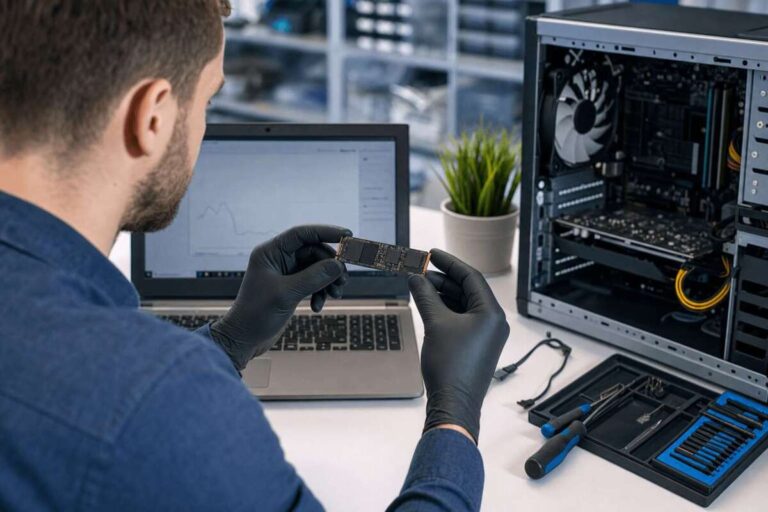
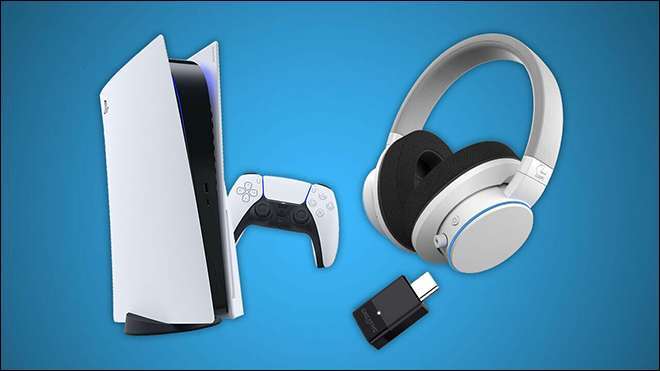
Install a compatible M.2 NVMe SSD, secure it in the PS5 slot, then format it in Settings.
I’ve guided dozens of players through how to add SSD to PS5, tested drives, and fixed common hiccups. This guide explains compatible SSD specs, step-by-step installation, formatting, performance expectations, and real-world tips from my experience. Read on to learn exactly how to add SSD to PS5 safely and get the most speed and storage from your upgrade.
Why add an SSD to your PS5
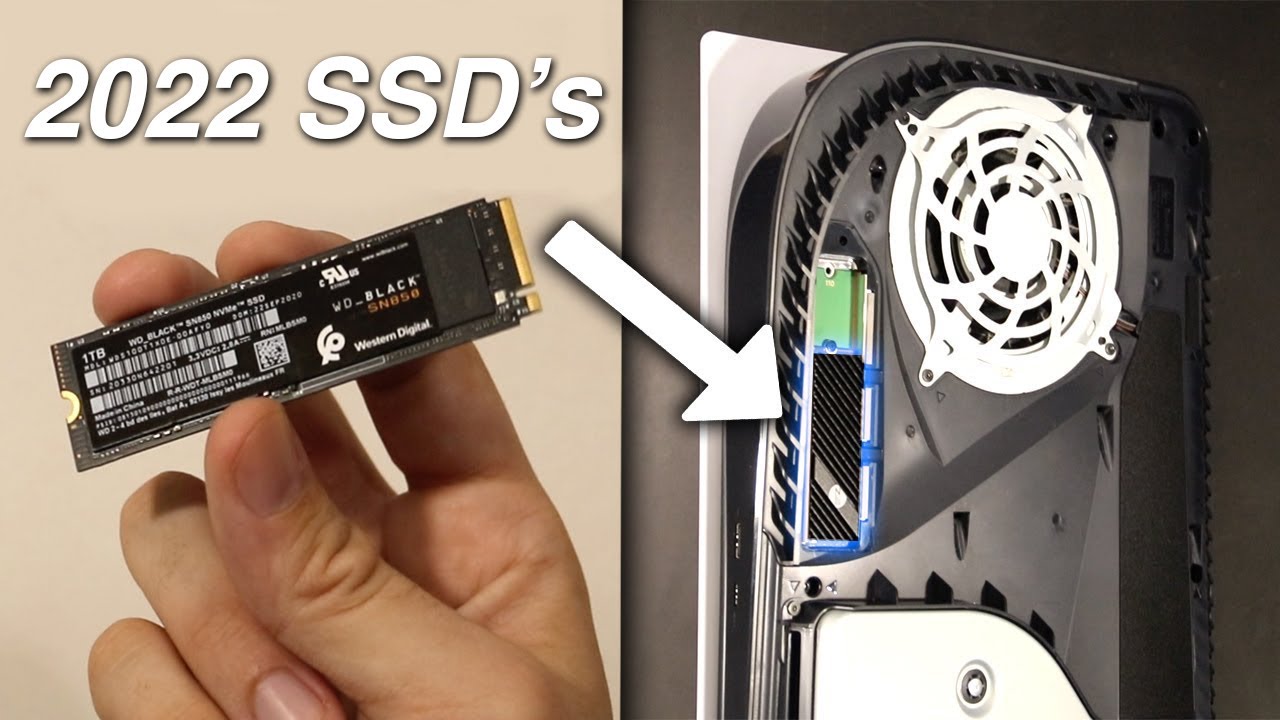
Adding extra storage solves a real problem. The PS5’s internal drive fills fast with big games. A proper M.2 SSD gives you more space and keeps load times short.
Upgrading is worth it when you want to store many PS5 titles or run large games without uninstalling. This section explains why and what you should expect when you decide how to add SSD to PS5.
PS5 SSD requirements and compatibility
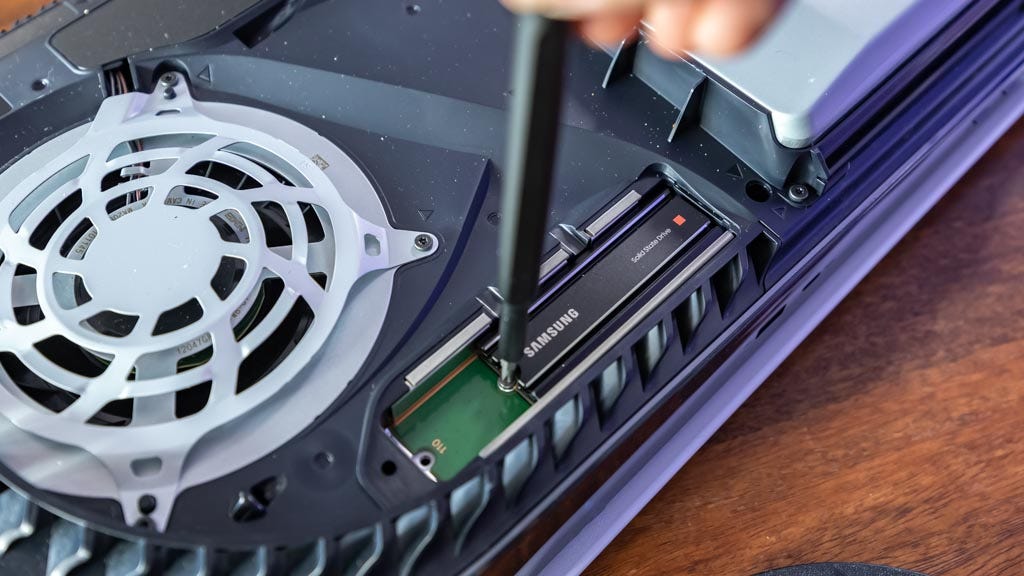
Sony lists clear requirements to ensure the PS5 accepts the drive. Use only M.2 NVMe SSDs that meet these specs:
- Form factor 2230, 2242, 2260, 2280, or 22110.
- PCIe 4.0 x4 NVMe interface for PS5 game storage.
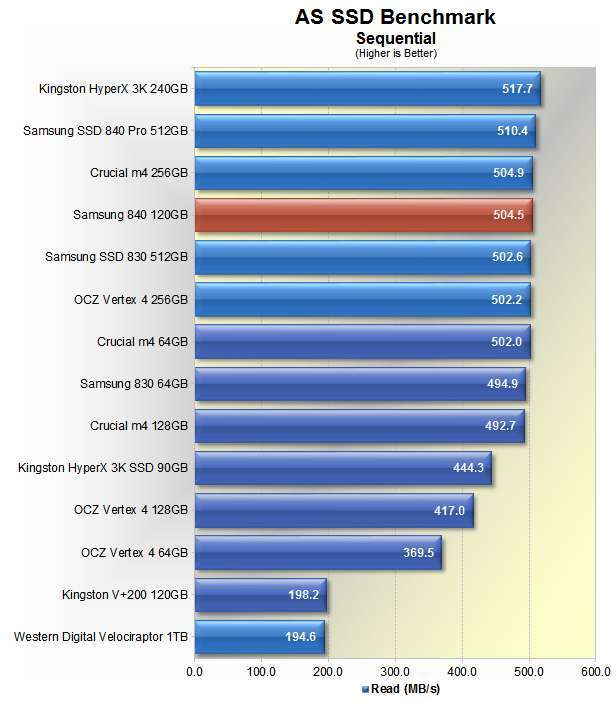
- Minimum sequential read speed of about 5,500 MB/s recommended.
- Heatsink: internal slot needs a low-profile heatsink within the allowed dimensions, or use a drive with an integrated heatsink.
Before buying, check the SSD’s read speed and whether it needs a separate heatsink. If you’re unsure, look for drives labeled “PS5 compatible.” This helps avoid compatibility trouble when you add SSD to PS5.

Tools and materials you'll need
- Phillips-head screwdriver, size #0 or #1 works well.
- Compatible M.2 NVMe SSD (meets PS5 specs).
- Low-profile heatsink if the drive does not include one.
- Clean, static-free workspace and soft cloth.
Have everything ready. Turn off and unplug your PS5 before you start. Small screws and the M.2 screw must be handled carefully when you add SSD to PS5.
Step-by-step: how to add SSD to PS5
Follow these steps slowly. Each step is short and clear.
- Power down the PS5 fully and unplug all cables. Wait 5 minutes.
- Place the PS5 on a flat, clean surface with the power port facing you.
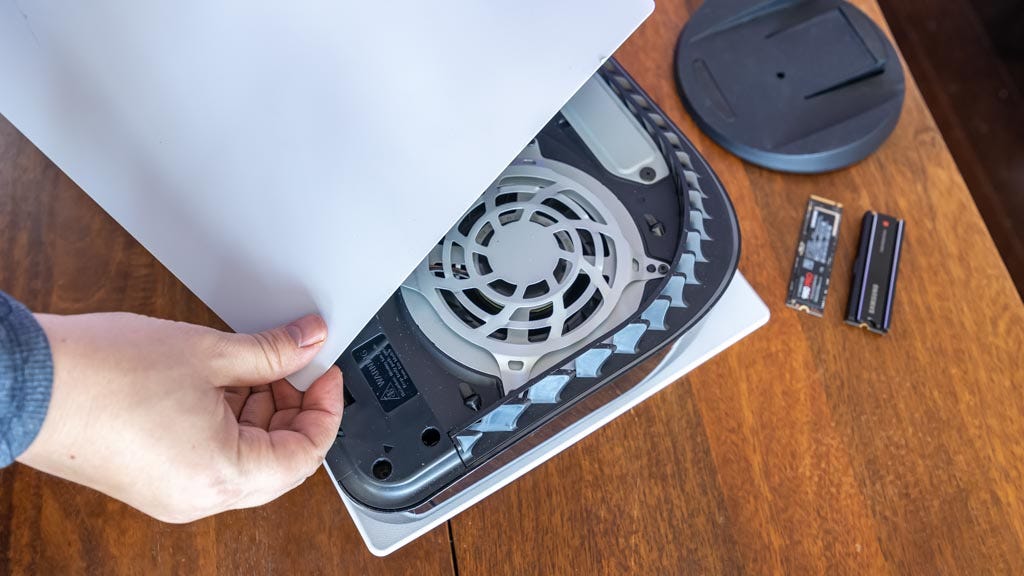
- Remove the left cover by lifting the corner and sliding it off.
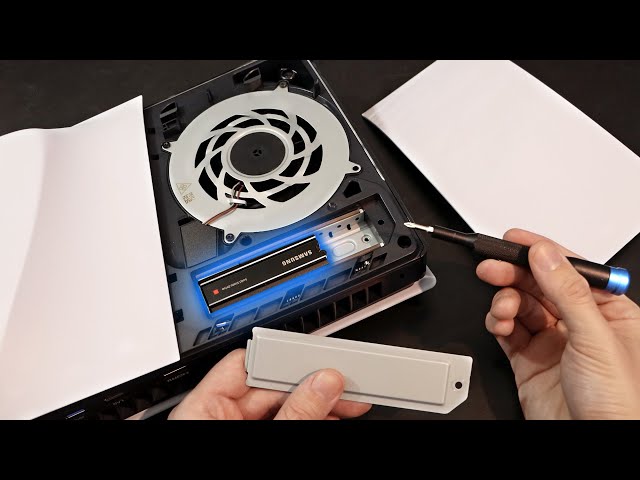
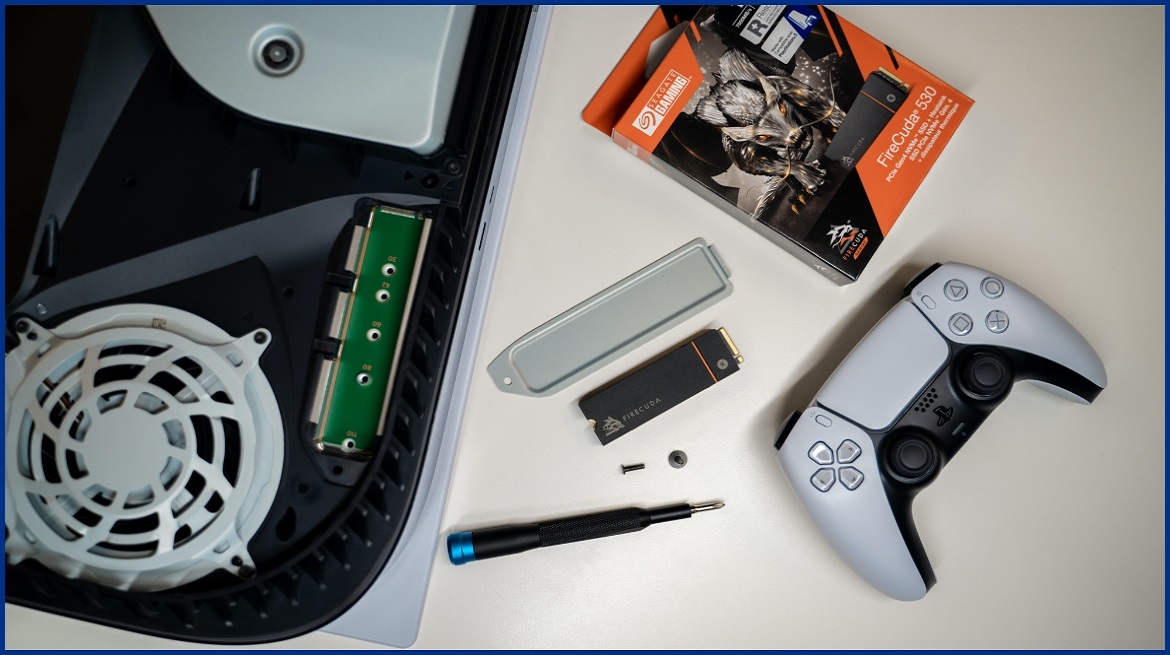
- Locate the M.2 expansion slot under the metal cover near the fan. Remove the slot cover screw.
- Remove the M.2 screw and spacer. Position the spacer for the correct drive length.
- Insert the M.2 NVMe SSD at a 30-degree angle into the slot. Press it down gently. Align it with the spacer and secure it with the screw.
- If the drive needs a heatsink, attach a low-profile heatsink per the manufacturer’s instructions before inserting the SSD or use a drive with an integrated heatsink.
- Reinstall the M.2 slot cover and screw. Slide the PS5 cover back on.
- Reconnect power and boot the PS5. The console will detect the new drive. Follow on-screen prompts to format it for games.
Repeat the steps carefully. When you add SSD to PS5, small mistakes like forcing the drive can cause problems. Take your time and keep screws safe.

How to format and manage your new SSD on PS5
Once installed, the PS5 prompts you to format the drive for game storage. Formatting is required to use the SSD for PS5 games.
- Go to Settings > Storage > Extended Storage.
- Select the new M.2 SSD and choose Format as Extended Storage.
- Move games by selecting a game > Options > Move to Extended Storage.
- To run PS5 games, store them on the M.2 drive in the PS5 format. PS4 titles can run from external USB drives too.
Always back up saved data to cloud or USB before major changes. Formatting erases data. That’s why preparation matters when you add SSD to PS5.
Performance, benefits, and limitations
An SSD upgrade brings clear benefits, but there are limits to know.
- Faster load times and smoother installs for PS5 games.
- More space = fewer deletions and more flexibility.
- Not all SSDs deliver the same real-world gains; PS5 relies on more than raw read speed.
- Some features, like certain fast-loading functions, may still depend on the PS5 internal SSD for peak performance.
Expect big storage gains and better convenience when you add SSD to PS5, but don’t expect every drive to match Sony’s internal SSD exactly.
Troubleshooting common issues
If the PS5 doesn’t detect the drive or shows errors, try these checks.
- Confirm the SSD meets PS5 specs and has a heatsink within size limits.
- Ensure the spacer and M.2 screw are correctly placed; a loose screw can stop detection.
- Reformat the drive via PS5 Settings if the system finds it but reports errors.
- Update PS5 firmware; some updates improve drive compatibility.
- If the drive overheats, use a different heatsink or an SSD with an integrated cooling solution.
Most problems stem from incorrect drive type or installation errors. Double-check specs before you buy and follow steps when you add SSD to PS5.

Personal tips and lessons from my experience
I’ve upgraded multiple PS5s and tested drives. Here are what I learned.
- Buy a drive that meets Sony’s read speed guideline. It saves headaches.
- Choose a pre-attached, low-profile heatsink. It makes installation easier.
- Keep the M.2 screw and spacer in a small container to avoid losing them.
- If you see slow installs, check for firmware updates on the SSD and PS5.
A calm, step-by-step approach worked best for me. When you add SSD to PS5, patience and the right parts are the keys to success.

Frequently Asked Questions of how to add ssd to ps5
Do I need a heatsink for my PS5 SSD?
Yes. The PS5 requires a heatsink inside the M.2 slot. Use a low-profile heatsink that fits Sony’s size limits or choose an SSD with an integrated heatsink.
Can I use a PCIe 3.0 SSD in the PS5?
You can physically install a PCIe 3.0 SSD, but it may not meet Sony’s speed recommendations and could limit performance for PS5 games.
How much storage should I get for PS5 games?
Choose at least 1 TB for a practical balance between cost and capacity. Heavy players may prefer 2 TB or larger to avoid frequent deletions.
Will installing an M.2 SSD void my PS5 warranty?
Opening the PS5 to install an approved M.2 SSD does not void the warranty in many regions if you follow Sony’s instructions. Check your local warranty terms to be sure.
Can I move PS5 games back to the internal SSD after installing an M.2 drive?
Yes. You can move games between internal storage and the M.2 SSD using Settings > Storage. Moving is simple and safe once both drives are formatted.
How do I know if my SSD is installed correctly?
The PS5 will detect the drive and prompt you to format it. If the drive appears in Settings > Storage and allows formatting, it is installed correctly.
Will game performance be identical on an M.2 SSD and internal PS5 SSD?
Not always. Many games run similarly, but some may rely on the internal SSD for peak speed. Expect small differences depending on the title and SSD model.
Conclusion
Adding an M.2 NVMe SSD is a practical way to expand your PS5 storage and keep load times low. Follow the compatibility rules, prepare the right tools, and proceed step by step when you add SSD to PS5. Start by picking a drive that meets Sony’s specs, install carefully, and format it through the PS5 menus. Take action today: pick a compatible SSD, set aside 20–30 minutes, and upgrade your console for smoother, more flexible gameplay. Leave a comment with your drive choice or questions below — I’ll help you troubleshoot.

Everett Ashford is a tech reviewer at mytechgrid.com specializing in SSDs, cameras, TVs, earbuds, headphones, and other consumer electronics. He provides honest, data-driven reviews based on hands-on testing and real-world performance analysis. Everett simplifies complex tech details to help readers make smart, confident buying decisions.