No. Apple earbuds do not only work with Apple products. AirPods can connect to many Android phones, Windows PCs, Chromebooks, smart TVs, and other Bluetooth devices.
The trade-off is that some Apple-only features may not work outside the Apple ecosystem. Siri, automatic device switching, and some battery tools may be limited or unavailable. Wired Apple earbuds are even simpler: compatibility depends mainly on the plug, port, and device support.
This guide explains what works, what does not, and how to connect Apple earbuds to non-Apple devices in the United States.


Which Apple earbuds can work with non-Apple devices?
Most Apple earbuds fall into two groups:
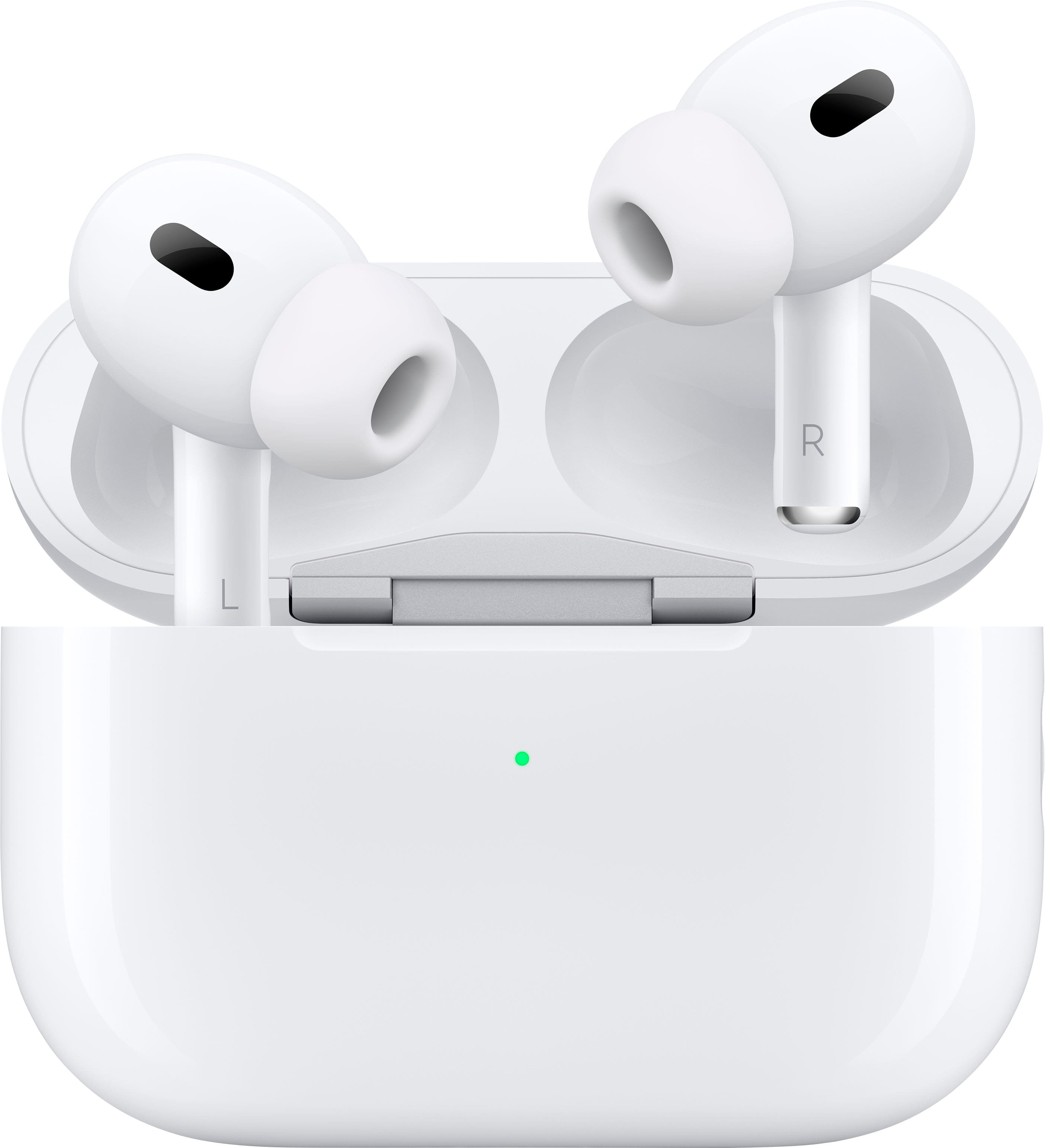
- AirPods: Wireless earbuds that use Bluetooth.
- EarPods: Wired earbuds with a 3.5 mm, Lightning, or USB-C connector.
The type of earbuds matters more than the Apple logo.
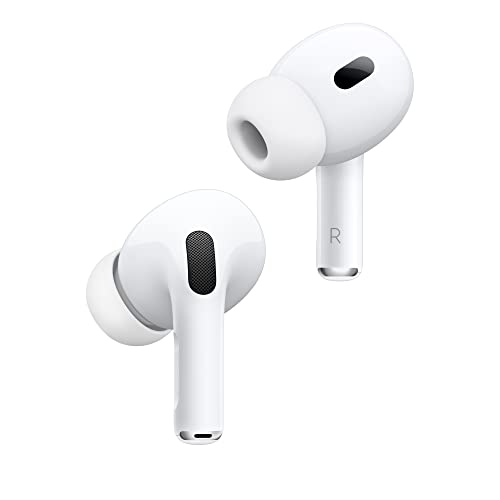
AirPods use Bluetooth
AirPods use Bluetooth to send sound from a phone, computer, tablet, or other device. Bluetooth is a common wireless standard, so AirPods can pair with many non-Apple products.
They can often work with:
- Android phones and tablets
- Windows laptops and desktop PCs
- Chromebooks
- Smart TVs with Bluetooth audio
- Some gaming devices
- Bluetooth-enabled cars and audio systems
Apple documents that AirPods can be used with non-Apple devices as Bluetooth headphones. Apple also states that some functions are limited when AirPods are used this way.
Wired EarPods depend on the connector
Apple has sold wired EarPods with different plugs:


| Earbud type | Devices it may work with | Main limit |
|---|---|---|
| 3.5 mm EarPods | Phones, computers, tablets, and audio players with a 3.5 mm jack | Many newer phones lack a headphone jack |
| Lightning EarPods | Compatible Apple devices with a Lightning port | Not a standard analog audio plug |
| USB-C EarPods | Devices with USB-C audio support | USB-C ports do not all support the same functions |
A 3.5 mm plug is usually the easiest option for cross-device use. Lightning EarPods are much more tied to compatible Apple hardware. USB-C EarPods may work with some Android phones, tablets, computers, and other devices, but support can vary by device.

How to connect AirPods to an Android phone
You can connect AirPods to an Android phone through the phone’s Bluetooth settings. You do not need an iPhone for the basic pairing process.
Follow these steps
- Open Settings on the Android phone.
- Select connected devices, Connections, or Bluetooth. The name can vary by phone brand.
- Turn on Bluetooth.
- Place both AirPods in their charging case.
- Open the case lid.
- Press and hold the setup button on the case until the status light flashes white. On some newer cases, the pairing control may be located on the front of the case.
- Look for the AirPods in the list of available Bluetooth devices.
- Tap the AirPods name.
- Accept the pairing request if the phone displays one.
The exact menu names may differ on Samsung Galaxy, Google Pixel, Motorola, OnePlus, and other Android phones.
Signs that pairing worked
After pairing, you should see the AirPods listed as connected. Audio from music, video, or a call should play through the earbuds.
If sound still comes from the phone, check the audio output menu. The AirPods may be connected for calls but not selected for media audio. Android often lets you turn Media audio and Phone calls on or off for a paired Bluetooth device.
If AirPods do not appear
Try these checks in order:
- Charge the AirPods and case.
- Keep the case close to the Android phone.
- Turn Bluetooth off and on again.
- Close the AirPods case, wait a few seconds, and reopen it.
- Remove the AirPods from another nearby device.
- Reset the AirPods and try pairing again.
- Install available updates for the Android phone.
To reset many AirPods models, place the earbuds in the case, close and reopen the lid, then hold the case setup button until the light changes from amber to white. The process can differ by model, so use Apple’s instructions for the exact AirPods version.

What AirPods features work without an iPhone?
Basic audio and calls usually work. Several Apple ecosystem features may not.
Features that commonly work
When paired with an Android phone or Windows PC, AirPods can usually provide:
- Music playback
- Video audio
- Phone calls
- Microphone input
- Play and pause controls
- Bluetooth volume control
- Automatic connection to the last paired device in some cases
The exact controls depend on the AirPods model and the device receiving the signal.
Features that may be limited or unavailable
AirPods may lose access to some functions outside Apple hardware, including:
- Siri
- Automatic switching between Apple devices
- Apple device settings for tap or press controls
- Optimized Battery Charging controls
- Find My integration
- Detailed battery status
- Ear detection settings
- Spatial Audio controls
- Head-tracking features
- Firmware update tools
This does not mean every feature fails on every non-Apple device. Support can vary by AirPods model, operating system, and third-party app. However, the smoothest setup comes from using AirPods with Apple devices because Apple controls both the earbuds and the operating system.
Siri is the clearest example
Siri is Apple’s voice assistant. It is built into Apple operating systems, not into AirPods as a general-purpose assistant.


When AirPods are paired with an Android phone, pressing or holding an AirPod may not start Siri. Some Android phones may respond to a different voice assistant, but that depends on the phone, its settings, and the AirPods model.
AirPods do not become ordinary wired earbuds
AirPods are wireless Bluetooth earbuds. They cannot play sound through a charging cable. The charging cable powers the case but does not turn AirPods into USB or wired headphones.
Do AirPods work with Windows PCs and laptops?
Yes. AirPods can work with a Windows PC or laptop that supports Bluetooth audio.
Windows pairing steps
- Open Settings.
- Select Bluetooth & devices.
- Turn Bluetooth on.
- Choose Add device.
- Select Bluetooth.
- Put the AirPods in pairing mode.
- Select the AirPods from the device list.
If the AirPods connect but sound does not play, open the Windows sound output menu and select the AirPods. For calls, you may also need to select the AirPods microphone in the meeting app.
Windows may show two audio profiles for a Bluetooth headset. A high-quality stereo mode is usually better for music. A hands-free mode may be used during calls, but sound quality can change because the microphone is active.
Do Apple wired EarPods work with Android phones?
Sometimes. The answer depends on the EarPods plug and the Android phone’s port.
3.5 mm EarPods
Apple EarPods with a 3.5 mm plug often work with Android phones that have a standard headphone jack. Audio playback usually works without special software.
The microphone and button controls may not work fully. This is because phone makers can use different wiring and control standards. A button that changes volume on one device may do nothing on another.
Lightning EarPods
Lightning EarPods are designed for devices that support Lightning audio accessories. They generally are not a direct match for Android phones, even when an adapter appears to fit.
A simple physical adapter may not solve the problem. The adapter must support the correct audio conversion and control signals. Some Android devices may also block or fail to recognize Lightning audio accessories.
USB-C EarPods
USB-C EarPods may work with a phone, tablet, laptop, or other device that supports USB-C digital audio. But USB-C is only the connector shape. Devices can differ in how they handle audio accessories.
Before buying or using USB-C EarPods with an Android device, check whether that device supports USB-C audio output. Also check whether the device supports microphone input and remote controls through USB-C.


Why do AirPods lose features on non-Apple products?
AirPods use standard Bluetooth audio for their basic functions. Apple adds extra features through its operating systems, device settings, account services, and accessory software.
This creates two layers of compatibility:
- Core Bluetooth compatibility: Lets the earbuds play sound and handle calls.
- Apple ecosystem compatibility: Adds features such as Siri, automatic switching, Find My, and deeper settings.
A non-Apple device can usually use the first layer. It may not support the second.
This is similar to using a printer from another brand. The printer may print through a standard connection, but special tools and settings may work only with the maker’s software.
Firmware updates can be a practical issue
AirPods receive firmware updates from Apple. Apple devices can manage this process more easily. If you use AirPods only with Android or Windows, you may not have the same built-in update path.
For that reason, an AirPods owner without an Apple device may need temporary access to a compatible Apple device or an Apple service location for certain support tasks. Check Apple’s current support instructions for the AirPods model in question.

Can you use AirPods with a Chromebook, tablet, or smart TV?
Usually, yes, if the device supports Bluetooth audio.
The general process is the same:
- Open the device’s Bluetooth settings.
- Put the AirPods into pairing mode.
- Select the AirPods from the available device list.
- Choose the AirPods as the audio output.
Smart TVs can be more limited. Some TVs support Bluetooth headphones but do not support Bluetooth microphones. Others may add a delay between the picture and sound.
Chromebooks generally support Bluetooth earbuds, but available controls can vary. A tablet may support AirPods in the same way as a phone, provided it has Bluetooth audio support.

Common problems when using Apple earbuds with non-Apple products
Most connection problems come from pairing, output selection, battery level, or device limits.
The earbuds connect but there is no sound
Check the active audio output. The device may still be sending sound to its speakers.
On Android, open the media output selector. On Windows, select the speaker icon and choose the AirPods. On a TV, open the sound output settings.


Only one AirPod works
Place both earbuds in the case and charge them. Then forget the AirPods in the device’s Bluetooth menu and pair them again.
If one earbud remains silent, clean the speaker mesh carefully with a dry, soft brush. Do not push liquid or sharp objects into the mesh.
The microphone does not work
Confirm that the app has microphone permission. Then select the AirPods as the input device if the app provides that option.
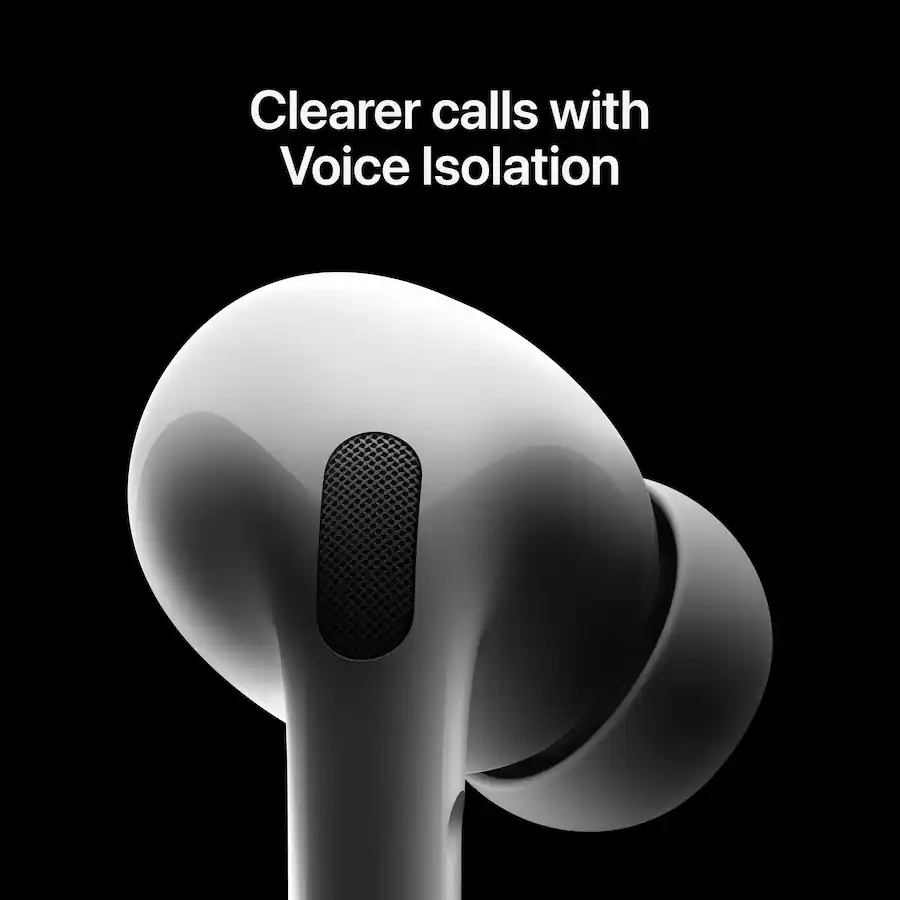
Some devices support AirPods for listening but handle the microphone poorly. This is a Bluetooth profile or operating system issue, not always a hardware fault.
The connection drops
Keep the earbuds near the source device. Turn off Bluetooth on devices that may try to connect to the AirPods. Also check for radio interference in crowded areas.
If the issue continues, remove the pairing record and pair the AirPods again.
Controls behave differently
AirPods controls are not guaranteed to work the same way on Android, Windows, or a smart TV. Basic play and pause may work, while voice assistant commands or custom gestures may not.
Are AirPods a good choice for Android users?
AirPods can be a reasonable choice for Android users who already own them or prefer their fit. They are less convenient for someone who wants deep settings, simple firmware updates, and full access to every feature.
Use this guide:
| Your main need | AirPods on a non-Apple device |
|---|---|
| Basic music and calls | Usually suitable |
| Siri and Apple voice controls | Not suitable |
| Automatic switching between Apple devices | Not available in the same way |
| Find My support | Limited or unavailable |
| Simple Bluetooth pairing | Usually suitable |
| Full settings and updates | Better with Apple hardware |
| Wired use | Depends on the plug and port |
The key trade-off is simple: AirPods can provide core Bluetooth audio outside Apple’s ecosystem, but Apple devices provide the broadest feature set.
If you already own AirPods, try pairing them before buying another set. If you are shopping specifically for an Android phone, compare Android-focused earbuds as well. They may offer better app support and controls on that phone.

Key takeaways
- AirPods work with many Android phones, Windows PCs, Chromebooks, tablets, and Bluetooth TVs.
- Basic music playback and calls usually work through Bluetooth.
- Siri, Find My, automatic switching, and some settings may not work outside Apple devices.
- 3.5 mm EarPods are usually the most broadly compatible wired option.
- Lightning and USB-C EarPods depend on the device port and audio support.
- Pairing problems are often fixed by charging the earbuds, entering pairing mode, selecting the correct output, or resetting the connection.
FAQs
Do AirPods work with Samsung phones?
Yes. AirPods can pair with Samsung Galaxy phones through Bluetooth. Music and calls should work, but Apple-only features may be limited.
Do AirPods work with Windows 11?
Yes. Pair them through Settings > Bluetooth & devices > Add device. Choose the AirPods as the output device after pairing.
Can AirPods connect to an Android phone and an iPhone?
Yes, but automatic switching works best among Apple devices signed in to the same Apple Account. You may need to select the AirPods manually when moving between Android and iPhone.
Do AirPods need Wi-Fi to work?
No. AirPods use Bluetooth for normal audio playback and calls. Some online features, such as voice assistant requests or streaming music, still need an internet connection through the connected device.
Can you use AirPods without an Apple ID?
Yes. An Apple ID is not required for basic Bluetooth pairing with Android, Windows, or other compatible devices. Apple account features are not needed for ordinary listening.
Conclusion
Apple earbuds do not require Apple products for basic use. AirPods can work as Bluetooth earbuds with many devices, while wired EarPods depend on their connector and the receiving device’s audio support.
Before pairing, check three things: the earbud type, the device connection method, and the features you need. If you only want music and calls, non-Apple compatibility is often enough. If you want Siri, Find My, automatic switching, and full settings, an Apple device is the better match.

Everett Ashford is a tech reviewer at mytechgrid.com specializing in SSDs, cameras, TVs, earbuds, headphones, and other consumer electronics. He provides honest, data-driven reviews based on hands-on testing and real-world performance analysis. Everett simplifies complex tech details to help readers make smart, confident buying decisions.