Turn on Bluetooth, place your Skullcandy earbuds in pairing mode, and select them from your device’s Bluetooth list.
Learning how to make Skullcandy earbuds discoverable is usually simple, but the exact button press can vary by model. This guide explains the standard pairing process, model differences, common mistakes, and reliable fixes when your earbuds do not appear.

What does “discoverable” mean on Skullcandy earbuds?
When Skullcandy earbuds are discoverable, they send a Bluetooth signal that nearby phones, tablets, and computers can detect. Your device then shows the earbuds in its Bluetooth menu, where you can tap their name to connect.
Discoverable mode is also called pairing mode. It is different from simply turning the earbuds on. Earbuds may be powered on but still connected to an old phone, which prevents a new device from finding them.
Most Skullcandy earbuds enter pairing mode automatically the first time you use them. After that, you may need to place them back in the case, remove them, or hold a button for a few seconds.
How to make Skullcandy earbuds discoverable
The steps below work for many Skullcandy wireless earbuds, including common models in the Dime, Indy, Sesh, Grind, and Push families. Small differences may exist, so check your model’s guide if these steps do not work.
Step 1: Charge the earbuds and case
Place both earbuds in the charging case. Make sure the case has enough battery to power the Bluetooth connection.
A low battery can cause weak or inconsistent pairing behavior. Charge the case for at least 15 minutes before troubleshooting.
Step 2: Turn on Bluetooth
On your phone or computer, open the Bluetooth settings.
For an iPhone:
- Open Settings.
- Tap Bluetooth.
- Turn Bluetooth on.
- Keep this screen open while pairing.
For an Android phone:
- Open Settings.
- Select Connected devices or Connections.
- Tap Bluetooth.
- Turn Bluetooth on.
- Choose Pair new device if needed.
For a Windows PC:
- Open Settings.
- Select Bluetooth & devices.
- Turn Bluetooth on.
- Click Add device.
- Choose Bluetooth.
For a Mac:
- Open the Apple menu.
- Select System Settings.
- Click Bluetooth.
- Leave the Bluetooth panel open.
Step 3: Remove both earbuds from the case
Take out both Skullcandy earbuds at the same time. On many models, the earbuds turn on and link to each other automatically.
Wait a few seconds. One earbud may flash a blue or red-and-blue light. This usually means it is searching for a device.
Step 4: Enter pairing mode
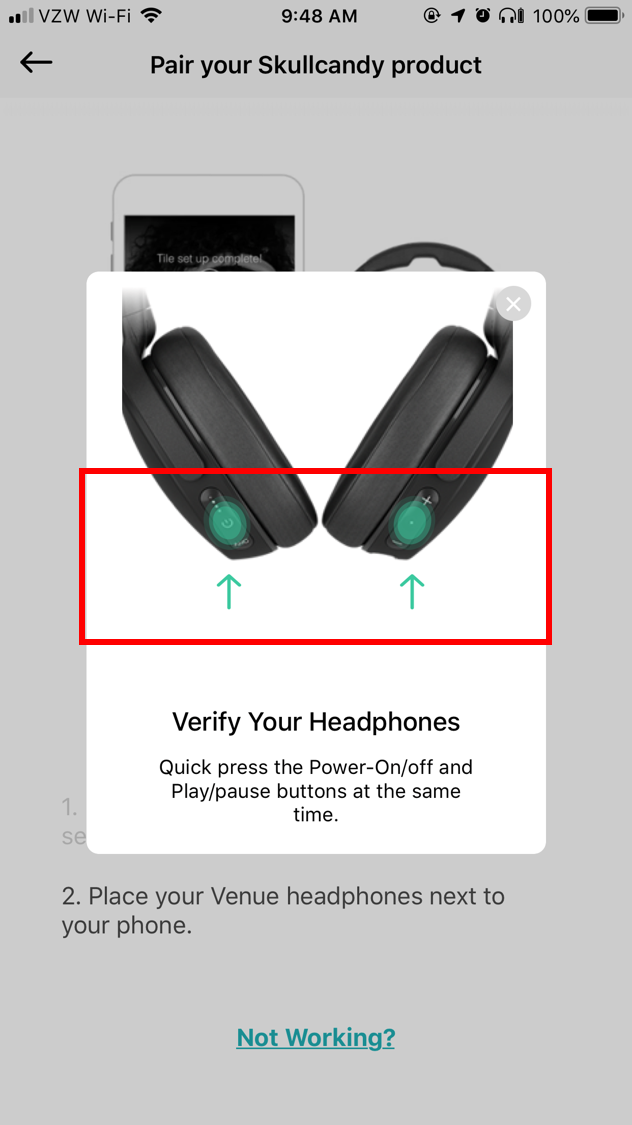
If the earbuds do not appear, press and hold the button or touch area on one or both earbuds. Hold it for about three to five seconds, or until the indicator light flashes in a pairing pattern.
Some models use the following general method:
- Place both earbuds in the case.
- Close the lid for a few seconds.
- Open the lid.
- Remove both earbuds.
- Press and hold the earbud button until the light flashes.
Do not tap the button repeatedly. Fast taps may control music or volume instead of starting pairing mode.
Step 5: Select the earbuds from the Bluetooth list
Look for a name such as:
• Skullcandy Dime
• Skullcandy Indy
• Skullcandy Sesh
• Skullcandy Grind
• Skullcandy Push
Tap or click the matching name. Wait for the status to change to Connected.
If two similar Skullcandy names appear, select the one that matches your model. Avoid selecting a device with a random name unless you know it belongs to your earbuds.
This basic process is the most reliable answer to how to make Skullcandy earbuds discoverable. In most cases, the key is placing the earbuds into pairing mode rather than only turning them on.
How to make specific Skullcandy earbuds discoverable
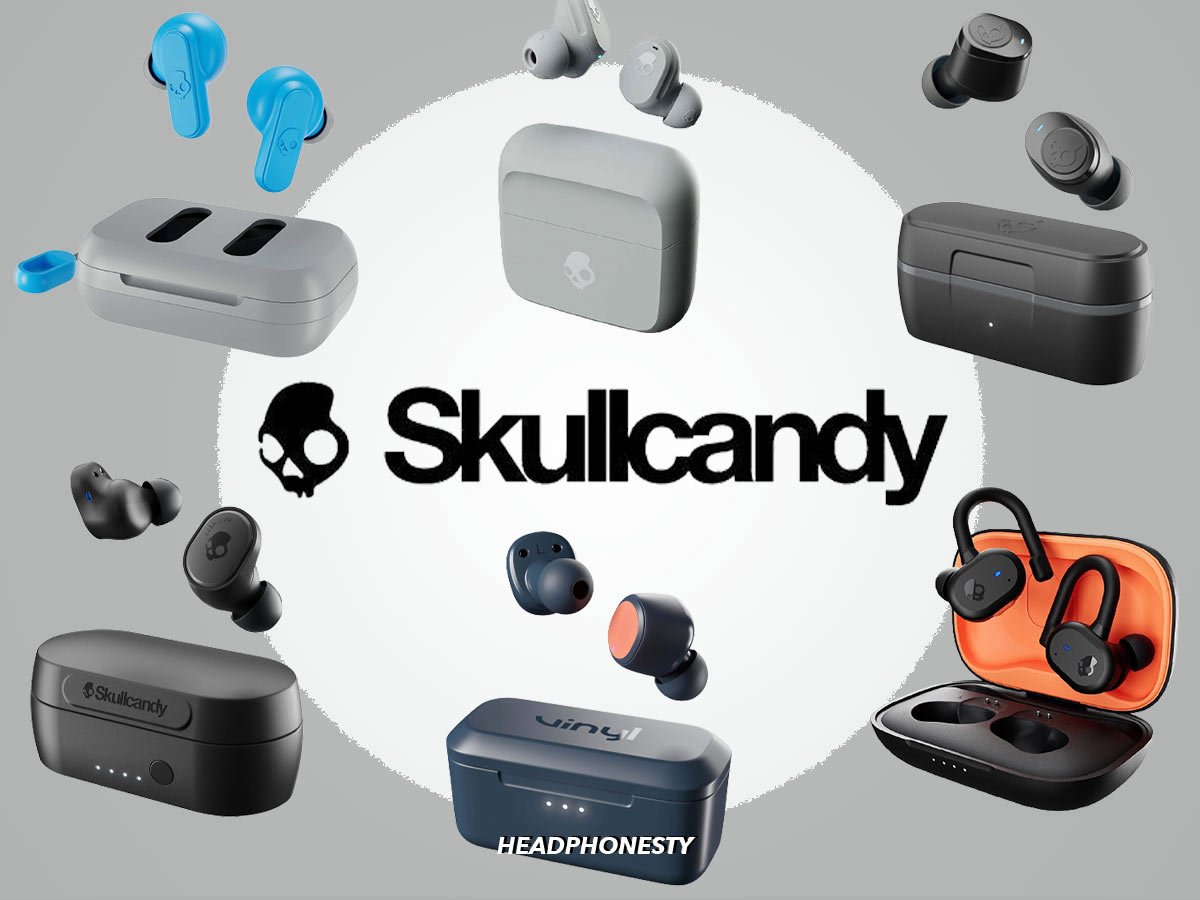
Skullcandy has released many earbuds over the years. Their controls are similar, but not identical. The model name is often printed inside the case, on the box, or in the companion app.
Skullcandy Dime earbuds
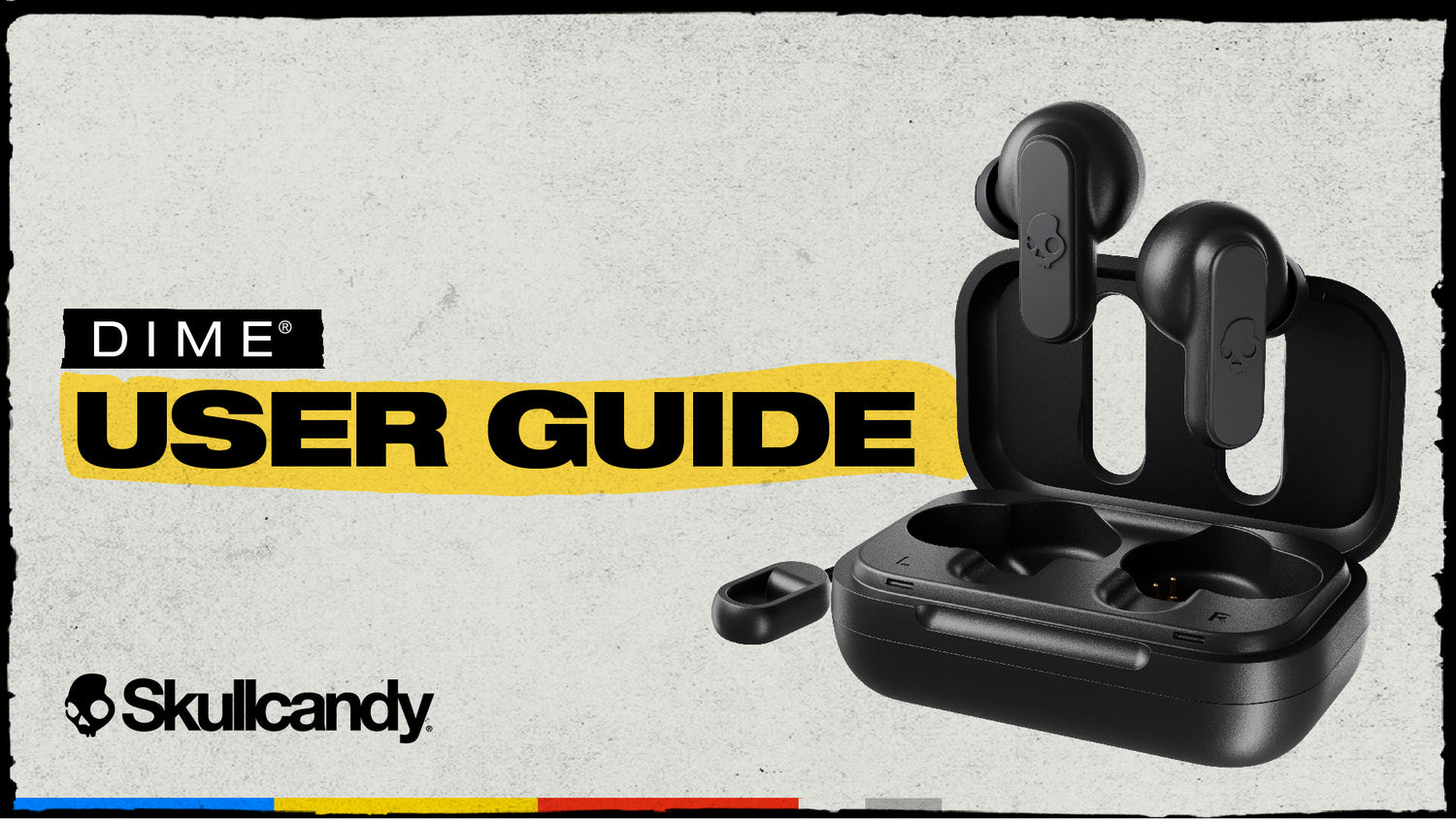
Place both Dime earbuds in the case, then remove them. If they do not enter pairing mode, press and hold the button on either earbud until the LED begins flashing.
Open your phone’s Bluetooth menu and look for the Dime model name. If the earbuds were paired with another phone, turn Bluetooth off on that old phone before trying again.
Skullcandy Indy earbuds
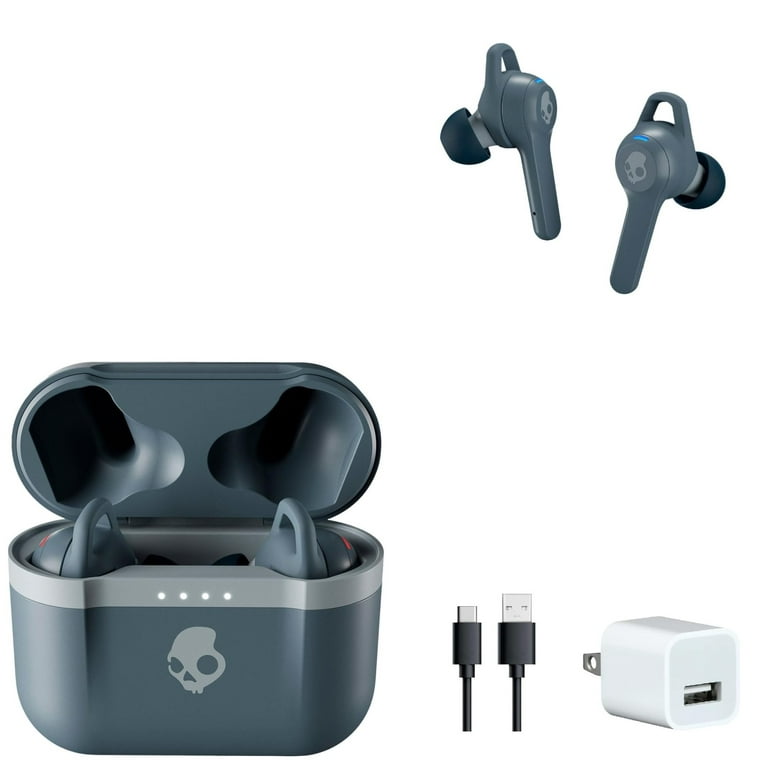
Remove both Indy earbuds from the case. Press and hold the touch or control area until the LED flashes blue and red, depending on the model and firmware.
Keep the earbuds close to your phone. Indy earbuds may reconnect to a previously used device, so disabling Bluetooth on that device can make the new pairing process easier.
Skullcandy Sesh earbuds
Place the earbuds in the case, close the lid, and then open it again. Remove both earbuds and hold the control button if they do not begin flashing.
Search for the Sesh name in your Bluetooth menu. If only one earbud works, reset the pair before trying to connect again.
Skullcandy Grind and Push earbuds
For Grind and Push models, remove the earbuds from the case and use the control button or touch panel to start pairing mode. Some versions may use the Skullcandy app for extra features, but your phone’s Bluetooth menu is still the main place to complete the first connection.
The safest method for how to make Skullcandy earbuds discoverable is to follow the light pattern and model instructions rather than guessing from the button shape.

How to make Skullcandy earbuds discoverable after they were paired before
Previously paired earbuds often reconnect to the last device automatically. This is convenient until you want to use them with a new phone, tablet, or laptop.
Try these steps:
- Turn off Bluetooth on nearby devices that used the earbuds before.
- Put both earbuds in the charging case.
- Close the lid for 10 seconds.
- Open the lid and remove both earbuds.
- Press and hold the earbud buttons until the lights flash.
- Open Bluetooth settings on the new device.
- Select the Skullcandy earbuds.
You can also remove the old Bluetooth connection. On iPhone, tap the information icon beside the earbuds and choose Forget This Device. On Android, tap the gear icon beside the device name and choose Forget or Unpair.
On Windows and macOS, remove the earbuds from the saved Bluetooth device list. Then restart pairing from the beginning.
A useful lesson from testing wireless earbuds is that Bluetooth remembers devices like a person remembers a familiar face. If the earbuds see the old phone first, they may ignore the new one.
Why your Skullcandy earbuds may not appear
Knowing how to make Skullcandy earbuds discoverable also means understanding why discovery can fail.
The earbuds are connected to another device
This is one of the most common causes. Turn Bluetooth off on nearby phones, tablets, smart TVs, and computers that may have connected to the earbuds.
The earbuds are not in pairing mode
Flashing lights usually indicate that the earbuds are ready to pair. A steady light or no light may mean they are connected, turned off, or low on power.
Only one earbud is active
If one earbud remains in the case, the pair may not enter the correct mode. Remove both earbuds and make sure both show signs of power.
The phone’s Bluetooth system is stuck
Turn Bluetooth off, wait 10 seconds, and turn it on again. If that fails, restart the phone or computer.
The charging contacts are dirty
Dust or skin oil can stop the earbuds from charging. Clean the metal contacts on the earbuds and inside the case with a dry cotton swab. Do not pour liquid into the case.
The earbuds are too far away
Keep the earbuds within a few feet of the device during setup. Bluetooth pairing can fail when walls, metal objects, or other wireless devices create interference.

How to reset Skullcandy earbuds
A reset clears saved connection data and often fixes pairing problems. The exact reset method varies by model, so use the instructions for your specific earbuds when possible.
A common reset process is:
- Forget the Skullcandy earbuds from your phone or computer.
- Turn off Bluetooth on nearby devices.
- Remove both earbuds from the case.
- Press and hold the control buttons on both earbuds.
- Continue holding until the lights flash or the earbuds power off.
- Place them back in the case.
- Remove them again.
- Turn on Bluetooth and search for the earbuds.
Some models require several button presses instead of a long press. If the common reset does not work, check the product support guide for your exact model.
Resetting is helpful, but it should not be the first step for every small problem. Try charging, forgetting the old connection, and entering pairing mode first. A reset removes saved settings, so you will need to pair the earbuds again.
How to make Skullcandy earbuds discoverable on an iPhone
First, open Settings and tap Bluetooth. Turn Bluetooth on, then place the earbuds in pairing mode.
When the Skullcandy name appears under Other Devices, tap it. The name should move to My Devices and show Connected.
If the earbuds do not appear, tap the information icon beside any old Skullcandy entry and select Forget This Device. Restart the iPhone if necessary, then repeat the pairing process.
Do not use the Skullcandy app as a replacement for Bluetooth pairing. The app may add features, updates, or controls, but the earbuds must first connect through the iPhone’s Bluetooth settings.
How to make Skullcandy earbuds discoverable on Android
Open Settings, then go to Bluetooth or Connected devices. Tap Pair new device if your phone does not begin scanning automatically.
Remove the earbuds from the case and hold the buttons until the indicator lights show pairing mode. Select the Skullcandy name when it appears.
Android menus differ between brands. Samsung, Google Pixel, Motorola, and OnePlus phones may use different labels, but the Bluetooth process remains nearly the same.
If the earbuds appear but fail to connect, choose Forget, restart Bluetooth, and pair again. Also check that Airplane mode is off.
How to make Skullcandy earbuds discoverable on a laptop
For Windows, open Bluetooth & devices and choose Add device. Select Bluetooth, then wait for the Skullcandy name to appear.
For a Mac, open System Settings, choose Bluetooth, and look under Nearby Devices. Click Connect beside the earbuds.
Keep the case and earbuds near the laptop. If the laptop has an older Bluetooth driver, update the operating system and restart the computer.
Some work laptops block Bluetooth pairing through company settings. If the earbuds work with a phone but not a managed laptop, the issue may be an administrator restriction rather than a problem with the earbuds.
Mistakes to avoid when pairing Skullcandy earbuds
Small habits can make pairing much easier.
• Do not search for the earbuds while they are still inside a closed case.
• Do not leave Bluetooth turned on for an old device nearby.
• Do not pair one earbud first unless the model instructions specifically require it.
• Do not hold the button for an unusually long time without watching the light.
• Do not assume every flashing light means the same thing across all models.
• Do not reset the earbuds before removing the old Bluetooth connection.
• Do not clean the charging contacts with water or sharp tools.
In my experience, the most common mistake is rushing the process. People open Bluetooth settings, see nothing, and immediately reset everything. A slower routine—charge, forget, enter pairing mode, then scan—usually solves the issue with less frustration.
Tips for a stronger Bluetooth connection
After learning how to make Skullcandy earbuds discoverable, use these habits to keep the connection stable:
• Keep your phone within about 30 feet in open space.
• Avoid placing the phone behind thick walls or inside a crowded bag.
• Keep the earbuds and case updated through the official Skullcandy app when updates are available.
• Charge the case before long trips.
• Remove unused Bluetooth devices from your phone’s saved list.
• Keep the earbuds clean and dry.
Bluetooth uses short-range radio signals. The advertised range is not a guarantee in every home, office, or outdoor area. Wi-Fi routers, metal surfaces, crowded wireless spaces, and physical barriers can reduce performance.
The Bluetooth Special Interest Group explains that Bluetooth range depends on device power, antenna design, surroundings, and the Bluetooth version. That is why two people may experience different results with the same earbud model.
How to make Skullcandy earbuds discoverable: quick checklist
Use this checklist when you need a fast fix:
- Charge the earbuds and case.
- Turn off Bluetooth on the old phone or laptop.
- Turn on Bluetooth on the device you want to use.
- Remove both earbuds from the case.
- Hold the buttons or touch controls until the LEDs flash.
- Search for the Skullcandy model name.
- Tap Connect.
- Forget the old connection if the earbuds do not appear.
- Reset the earbuds only if the earlier steps fail.
- Contact Skullcandy support if the earbuds still show no light or never enter pairing mode.
This checklist covers the usual answer to how to make Skullcandy earbuds discoverable without adding unnecessary steps.
Frequently asked questions about how to make Skullcandy earbuds discoverable
How do I put Skullcandy earbuds into pairing mode?
Remove both earbuds from the charging case and press or hold the control button until the LED flashes. Then open your phone or computer’s Bluetooth menu and select the Skullcandy model name.
Why are my Skullcandy earbuds not showing up on Bluetooth?
They may still be connected to another device, have low battery, or not be in pairing mode. Turn off Bluetooth on nearby devices, charge the earbuds, and repeat the pairing process.
How do I reset Skullcandy earbuds for pairing?
Forget the earbuds from your device, then use the model’s reset button sequence or place them in the case and hold the controls as directed in the product guide. After resetting, remove both earbuds and pair them again.
Can I connect Skullcandy earbuds to more than one device?
Some Skullcandy models support multipoint or similar connection features, while others support only one active Bluetooth connection. Check your model’s specifications because this feature is not available on every pair.
Do I need the Skullcandy app to make my earbuds discoverable?
No. You can usually make Skullcandy earbuds discoverable through your phone or computer’s Bluetooth settings. The app may provide firmware updates, equalizer controls, and extra features after the initial connection.
How close should my device be when pairing Skullcandy earbuds?
Keep the device within a few feet during the first pairing attempt. Once connected, many Bluetooth earbuds can work across a larger open-space range, but walls and interference may reduce that distance.
Conclusion
The easiest way to make Skullcandy earbuds discoverable is to charge them, turn on Bluetooth, remove both earbuds from the case, and hold the controls until the LEDs flash. If they do not appear, disconnect the old device, forget the saved Bluetooth connection, restart your phone, and reset the earbuds only when needed.
The exact button method depends on your Skullcandy model, but the basic pairing logic stays the same. Follow the checklist above, keep the earbuds close during setup, and check the model guide for unusual controls. If this guide helped, explore more device setup tips or share your pairing experience in the comments.

Everett Ashford is a tech reviewer at mytechgrid.com specializing in SSDs, cameras, TVs, earbuds, headphones, and other consumer electronics. He provides honest, data-driven reviews based on hands-on testing and real-world performance analysis. Everett simplifies complex tech details to help readers make smart, confident buying decisions.