If you use a Windows PC, Mac, PlayStation 5, or Xbox in the United States, you may wonder if a 4TB SSD is worth the cost. You probably do not need 4TB unless you store large games, 4K video, photos, work files, or several operating systems.
For many people, a 1TB or 2TB SSD gives better value. A 4TB SSD makes sense when you want more space, fewer upgrades, or a large working drive for media and creative work.
What does a 4TB SSD really give you?
A 4TB SSD provides about 4 trillion bytes of raw storage. The usable space is lower after formatting and system files.
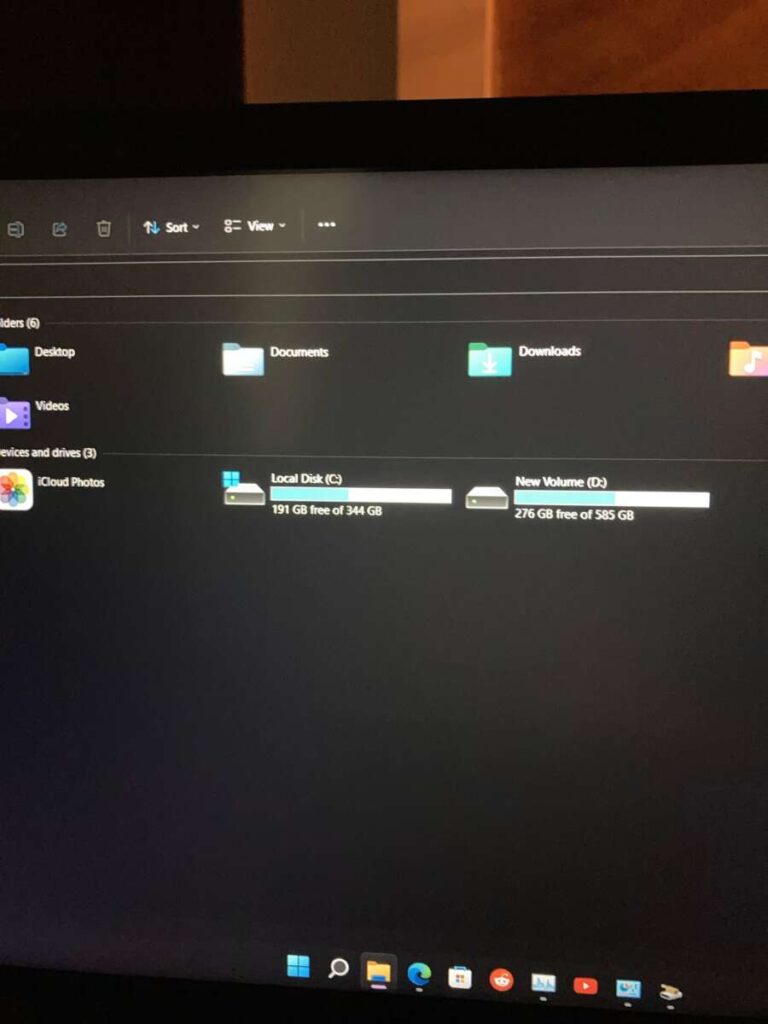
In practice, a new 4TB drive may show about 3.6TB of usable capacity. This difference comes from how drive makers and operating systems measure storage:


- Drive makers use decimal units.
- 1TB equals 1,000,000,000,000 bytes.
- Many operating systems calculate space with binary units.
- 1TiB equals 1,099,511,627,776 bytes.
- Formatting, file systems, and reserved space reduce the available amount further.
A 4TB SSD is still a large drive. It can hold:
- A large PC or console game library
- Hundreds of thousands of photos
- Many hours of high-quality video
- Large design, music, or engineering projects
- Several virtual machines
- A main system drive plus personal files
The exact amount depends on file size. A modern game may use 50GB, 100GB, or more. A single 4K video project can also consume hundreds of gigabytes.
SSD capacity compared
| Advertised capacity | Approximate usable space after formatting | Best fit |
|---|---|---|
| 500GB | About 450GB | Basic office work and light gaming |
| 1TB | About 900GB | Most home users and casual gamers |
| 2TB | About 1.8TB | Serious gaming and photo work |
| 4TB | About 3.6TB | Large libraries and media work |
| 8TB | About 7.2TB | Professional media, servers, and large archives |
These figures are estimates. The exact result varies by operating system, file system, and drive setup.
Who should buy a 4TB SSD?
A 4TB SSD is a good fit if you regularly run out of space or want one fast drive for several large tasks.
Choose 4TB if you store large game libraries
PC games are getting larger. High-resolution textures, downloadable content, and local shader files can take up a lot of room.
A 4TB SSD may suit you if you:


- Use Steam, Epic Games Store, Xbox on PC, or other launchers
- Keep many games installed at once
- Share one drive with several family members
- Play games with large mod packs
- Want to avoid deleting and reinstalling games
A 2TB drive may be enough for a smaller library. A 4TB model becomes more useful when you want 30 or more large games ready to play.
Do not buy a 4TB SSD only because it may improve game speed. Capacity and speed are separate features. A larger SSD is not automatically faster than a smaller one from the same product family.
Choose 4TB for video editing
Video work can quickly fill a drive. You may need space for:
- Camera files
- Proxy files
- Project files
- Preview renders
– Audio tracks - Exported videos
- Temporary cache files
A 4TB SSD can work well as an active project drive. However, it should not be your only copy of important footage. Use a separate backup drive or cloud backup.
For frequent 4K or 6K editing, you may need more than one drive:
- A fast SSD for current projects and cache files
- A larger HDD, NAS, or external drive for storage
- A separate backup location
This setup often costs less than using one very large SSD for everything.
Choose 4TB for photography and design work
RAW photos can use much more space than JPEG files. Layered Photoshop files, Lightroom catalogs, 3D models, and design assets also grow over time.
A 4TB SSD may be worthwhile if you:
- Take many RAW photos
- Keep several years of projects on your computer
- Use Adobe Lightroom, Photoshop, Capture One, or similar tools
- Work with large 3D scenes
- Need fast access to a large asset library
For basic photo storage, an SSD is not always the cheapest choice. A hard disk drive can offer more capacity per dollar for files you rarely open.
Who probably does not need 4TB?
A 4TB SSD may be unnecessary if your files are small or you use cloud storage.
A 1TB SSD is often enough for:
- Web browsing
- Microsoft 365 work
- School tasks
- Streaming
- Light photo editing
- A small game collection
A 2TB SSD is a strong middle option for many US households. It gives room for Windows or macOS, apps, personal files, and a useful game library without the higher price of 4TB.
You may also not need 4TB if you use:
- One main computer for office work
- Cloud storage for photos and documents
- An external drive for large files
- A network-attached storage system
- Streaming services instead of local media files
The right question is not, “Can I afford 4TB?” It is, “How much space will I use before I replace the drive?”
How much SSD storage do you need?
Estimate your needs by adding your current files, installed apps, games, and future growth.


Use this simple calculation:
Required capacity = current data + installed software + expected growth + free-space reserve
For example, imagine a gaming PC with:
- 250GB for Windows and apps
- 1,200GB for games
- 300GB for photos and documents
- 500GB of expected growth
- 300GB of free space
That total is 2,550GB. A 4TB SSD would provide comfortable room. A 2TB drive would be too small for this example.
Leave free space
Avoid filling an SSD to its limit. A nearly full drive can become harder to manage and may perform worse during heavy writes. The effect depends on the drive, workload, controller, and amount of free space.
A practical target is to keep about 10% to 20% free. This is not a universal rule, but it gives the operating system and SSD controller more working room.
For a 4TB drive, 10% free means keeping roughly 400GB unused. If your working files will fill the drive soon, buy more capacity or add another drive.
Is a 4TB SSD worth it for gaming?
A 4TB SSD can be worth it for gaming when capacity matters more than the lowest purchase price.
Modern consoles and PCs often require large installations. A 4TB drive lets you keep more titles installed, but it does not guarantee better frame rates. Gaming performance depends mainly on the system’s CPU, GPU, memory, game settings, and storage interface.
PC gaming
For a desktop PC, check:
- Whether the motherboard has an available M.2 slot
- Whether the slot supports NVMe or only SATA
- The supported PCIe generation
- Whether the drive needs a heatsink
- Whether your power supply and case allow another drive
A PCIe 4.0 NVMe SSD can work in many newer systems. It may also operate in an older slot at a lower supported speed. Check the motherboard manual before buying.
PlayStation 5
The PS5 uses a compatible M.2 NVMe SSD installed inside the console. Sony specifies requirements for capacity, interface, physical size, cooling, and read performance. Check the current official PlayStation M.2 SSD support page before buying.
A 4TB PS5 SSD may be useful if you own many digital games. It is not useful if the drive lacks the required size, speed, or heat-management features.
Xbox consoles
Xbox Series X and Series S use a proprietary storage expansion system for playing optimized games from expanded storage. A standard internal 4TB NVMe SSD is not a direct replacement for the official expansion card system.
Check Microsoft’s current requirements for your exact Xbox model. Do not assume that a normal desktop SSD will work as an internal or expansion drive.


Should you buy one 4TB SSD or two 2TB SSDs?
Two 2TB SSDs can be better than one 4TB model in some computers. One 4TB SSD can be simpler and may leave more motherboard slots free.
One 4TB SSD is better when:
- You want a simple setup
- Your computer has only one storage slot
- You want one large game or project library
- You use a laptop with one replaceable drive
- You want to avoid managing separate volumes
Two 2TB SSDs are better when:
- You want separate system and project drives
- Your motherboard has multiple M.2 slots
- You want to reduce the impact of one drive failure
- You need one drive for games and another for work
- Two smaller drives cost less than one 4TB model
Two drives do not create a backup by themselves. If both drives are in the same computer, theft, malware, power events, or hardware damage can affect both.
What should you check before buying a 4TB SSD?
Capacity is only one part of the decision. Check compatibility, endurance, warranty terms, and your workload.
1. Confirm the form factor
Common internal SSD types include:
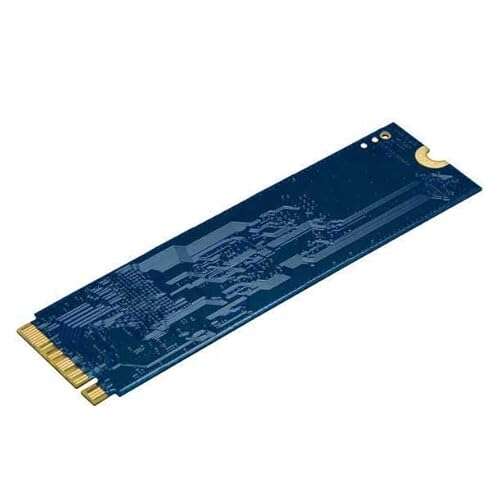
- M.2 2280: Common in desktop PCs and many laptops
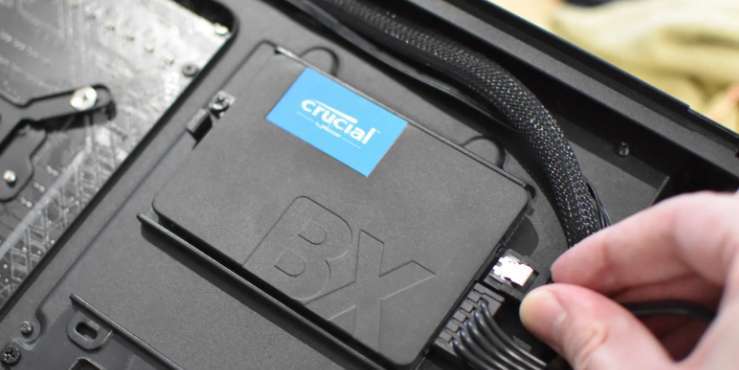
- 2.5-inch SATA: Used in older desktops and laptops
- M.2 2230: Used in some compact devices and handheld PCs
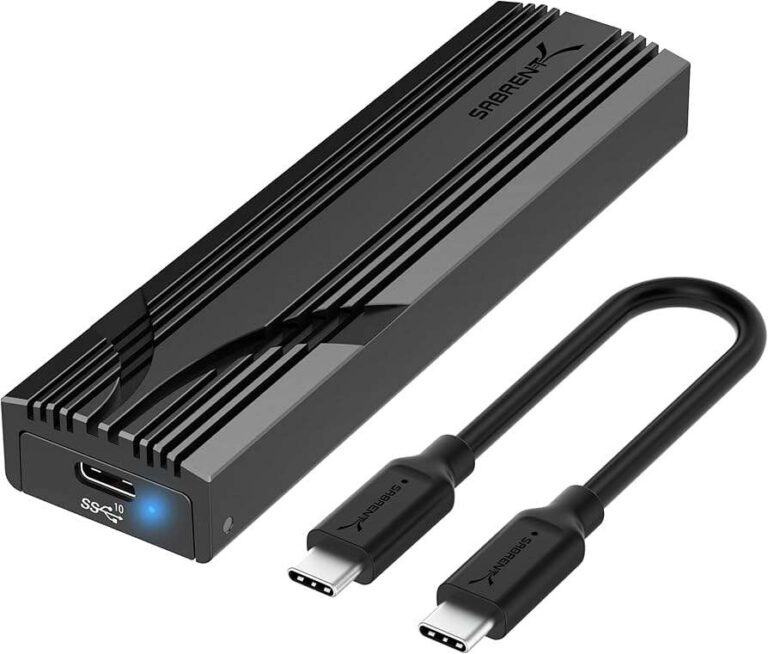
- External USB SSD: Works through a cable and enclosure
An M.2 drive will not fit every M.2 slot. Some devices support only a certain length or key type.
2. Confirm the interface
An NVMe SSD and a SATA SSD use different protocols. NVMe drives usually connect through PCI Express. SATA drives use the older SATA interface.
A high-end PCIe 5.0 SSD may work in some PCIe 4.0 systems, but it will not deliver PCIe 5.0 performance there. The computer controls the link speed.
3. Consider sustained writes
Short benchmark scores do not tell the whole story. Large file transfers and video exports can last long enough to exceed an SSD’s fast cache.
If your work includes frequent large writes, look for:
- A suitable sustained-write rating
- Adequate cooling
- A good warranty
- Endurance information, often listed as TBW
- Independent testing under a similar workload
TBW means terabytes written. It is a rating, not a promise that the drive will fail at that exact number.
4. Check the warranty and return policy
Drive warranties vary by model and region. Confirm:
- Warranty length
- TBW limit
- Whether data recovery is included
- The return period
- Whether the seller is authorized
A warranty may replace the hardware. It usually does not replace your lost files.
Can a 4TB SSD be your backup drive?
A 4TB SSD can store backups, but it should not be the only backup of important data.
SSDs have no moving parts, which can make them quiet and fast. They can still fail, become corrupted, be lost, or be damaged. Long-term storage also needs a clear backup plan and periodic checks.
For important photos, tax records, work files, or family videos, use the 3-2-1 backup approach:


- Keep three copies of important data
- Use at least two types of storage
- Keep one copy in another location
The Cybersecurity and Infrastructure Security Agency provides guidance on protecting data and preparing for ransomware. You can also follow your backup software maker’s recovery instructions.
Test a backup by restoring a few files. A backup that cannot be restored is not a dependable backup.
Common mistakes when buying a 4TB SSD
Avoid these errors:
Buying capacity without checking compatibility
A 4TB drive may not fit your laptop, console, or motherboard. Confirm the exact model and storage limits first.
Assuming bigger means faster
A 4TB SSD can be slower, faster, or similar to a 1TB model. Compare the interface, controller, NAND type, cache, and independent tests.
Using one drive for everything
A single drive is convenient, but a failure can affect your system, games, photos, and work at once.
Ignoring heat
Fast NVMe drives can produce heat during long transfers. A motherboard heatsink or compatible SSD heatsink may help, but it must fit without blocking other components.
Filling the drive completely
Keep free space for updates, temporary files, and normal system use. A full drive can also make file management harder.
Forgetting installation costs
If you use a desktop, installation is often simple. A laptop or console may require careful disassembly. Some upgrades can affect the warranty or require a system reinstall.
A simple 4TB SSD decision guide
| Your main use | Suggested capacity | Why |
|---|---|---|
| Office, school, and web use | 500GB–1TB | Most files are small |
| Everyday PC with some gaming | 1TB–2TB | Good balance of room and cost |
| Large PC game library | 2TB–4TB | Reduces constant installs |
| 4K video editing | 4TB or more | Projects and cache files grow fast |
| RAW photo and design work | 2TB–4TB | Depends on your archive size |
| Long-term file archive | HDD or NAS plus backup | Lower cost per TB |
| One laptop drive for everything | 2TB–4TB | Useful when upgrades are difficult |
| PS5 digital game library | 2TB–4TB compatible M.2 | Check Sony’s current rules |
| Xbox Series expansion | Model-specific expansion storage | Standard SSDs may not work |
These are starting points, not strict limits. Your file sizes and upgrade plans matter more than the label on the box.
Key Takeaways
- You do not need a 4TB SSD for basic office, school, or web use.
- A 1TB SSD is enough for many people.
- A 2TB SSD is often the best balance for gaming and general use.
- A 4TB SSD makes sense for large game libraries, video editing, photography, and long upgrade cycles.
- Check your computer or console before buying.
- Keep free space available.
- Do not treat one 4TB SSD as a complete backup plan.
Frequently Asked Questions
Is 4TB too much storage for a normal PC?
For basic work, 4TB is usually more than you need. A 1TB or 2TB SSD may cost less and still leave enough room for apps, documents, photos, and some games.
Is a 4TB SSD better than a 2TB SSD?
It is better only if you need the extra space. A 4TB model does not automatically provide higher speed or longer life. Compare the exact models and your workload.
How many games can a 4TB SSD hold?
It depends on game size. If the average game uses 80GB, a drive with about 3.6TB of usable space could hold roughly 45 games before allowing for the operating system, updates, and free space. This is only a planning estimate.
Is a 4TB SSD good for a laptop?
It can be, but first check the laptop’s drive size, interface, physical space, and manufacturer limits. Some laptops use one M.2 slot. Others use soldered storage that cannot be upgraded.
Should I get a 4TB SSD or an external hard drive?
Choose a 4TB SSD for speed, quiet operation, portability, and active files. Choose an external hard drive for lower-cost bulk storage and backups. Many people benefit from using both.
Do I need a heatsink for a 4TB NVMe SSD?
Not always. Light use may not require one. Long transfers, gaming PCs with limited airflow, and high-speed PCIe drives may benefit from a compatible heatsink. Check the drive maker’s guidance and your device’s available space.
Conclusion: Do you need a 4TB SSD?
Most people do not need a 4TB SSD, but it can be a smart purchase if you already use more than 1TB or expect rapid growth.
Choose 1TB for basic use, 2TB for a flexible everyday PC, and 4TB for large game libraries, creative work, or a computer that is difficult to upgrade. Before buying, check compatibility, keep room for free space, and plan a separate backup.
Start by checking how much space your current drive uses. If it is already above about 1.5TB, a 4TB SSD may give you useful breathing room. If it is below 500GB, a smaller and less expensive SSD is likely the better choice.

Everett Ashford is a tech reviewer at mytechgrid.com specializing in SSDs, cameras, TVs, earbuds, headphones, and other consumer electronics. He provides honest, data-driven reviews based on hands-on testing and real-world performance analysis. Everett simplifies complex tech details to help readers make smart, confident buying decisions.