Yes, an SSD improves performance by making startup, app loading, file access, and multitasking much faster.
Does an SSD improve performance in every computer? Not always, but it can transform a slow system when the hard drive is the main bottleneck. After testing systems with both hard disk drives and solid-state drives, I have seen boot times fall from minutes to seconds and everyday apps open with far less waiting. This guide explains where SSDs help most, where they do not, and how to choose the right upgrade.
How an SSD improves computer performance
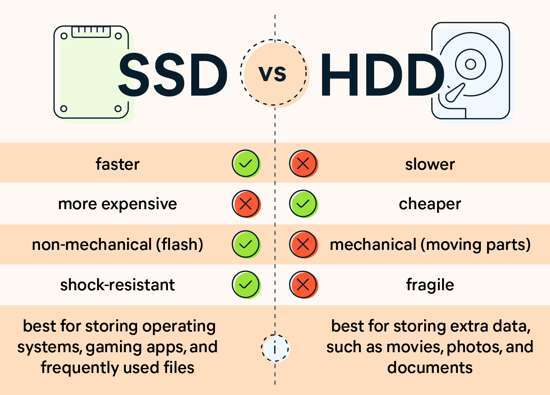
A solid-state drive stores data on flash memory chips. It has no spinning platters or moving read heads. A traditional hard disk drive, or HDD, must physically move parts to find files. That mechanical delay makes many tasks feel slow.
An SSD can access data almost instantly. This improves the speed of tasks that depend on storage, such as:
• Starting Windows or macOS
• Opening programs
• Loading game levels
• Searching files
• Installing updates
• Copying many small files
• Using virtual machines
• Switching between several apps
The result is not just a higher benchmark score. The whole computer feels more responsive. Menus open sooner, programs stop hanging, and routine tasks require less patience.
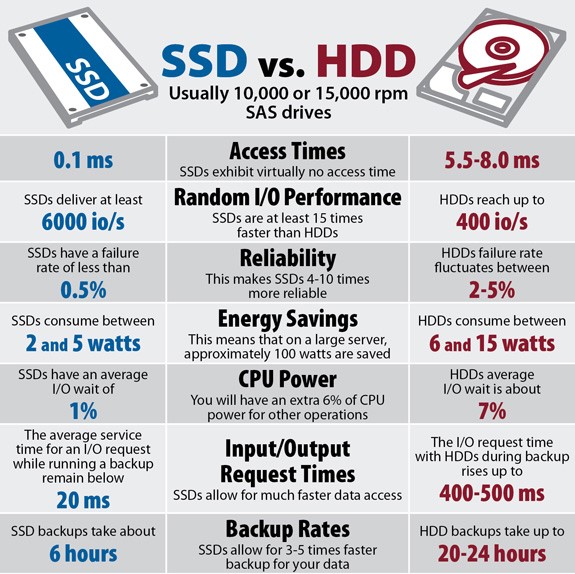
SSD speed compared with HDD speed
A typical 7,200 RPM HDD may offer sequential read speeds near 100 to 200 MB per second. A SATA SSD can often reach about 500 to 550 MB per second. Modern NVMe SSDs can exceed 3,000 MB per second, while newer PCIe 4.0 and PCIe 5.0 models can go much higher.
These figures describe sequential transfers, such as moving one large video file. Everyday computer use often involves many small, random reads. SSDs are especially strong in this area because they do not need to move a physical head between data locations.
This is why an older SATA SSD may feel much faster than an HDD, even though a high-end NVMe SSD has a higher advertised speed.
Which tasks benefit most from an SSD?
The biggest improvement appears in storage-heavy tasks. If your computer pauses while loading files, an SSD can remove much of that delay.
Here are common examples:
Faster startup and shutdown
An SSD can reduce system startup from one or two minutes to roughly 10 to 30 seconds, depending on the computer and installed software. Shutdown and restart times often improve as well.
A clean operating system install usually starts faster than an older installation filled with startup programs. Still, changing from an HDD to an SSD is often the largest single improvement for an aging computer.
Quicker application launches
Programs such as browsers, office suites, photo editors, and development tools load their files from storage. An SSD reduces the time needed to find and read those files.
The difference is easy to notice with large applications. A video editor or design program that takes 30 seconds to open on an HDD may open in only a few seconds on an SSD.
Better game loading
an SSD can shorten boot screens and level loading times. It may also reduce texture pop-in in some games that stream data during play.
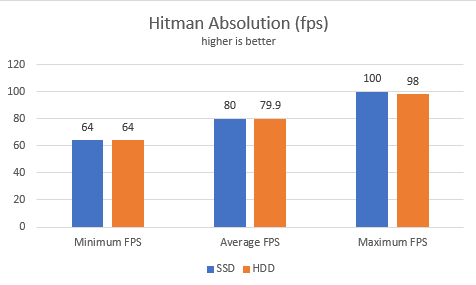
However, an SSD does not automatically increase frame rates. Your graphics card and processor control most frames per second. Some newer games also benefit from fast NVMe storage through technologies designed to stream game assets more efficiently.
Smoother multitasking
When memory becomes full, an operating system may use storage as virtual memory. This is much slower than physical RAM, but an SSD handles this job better than an HDD.
You may notice less severe freezing when switching between a browser, a document, and another large program. An SSD cannot replace RAM, but it can make low-memory situations less painful.
Faster file searches and transfers
SSDs make file indexing, folder browsing, and searches feel more immediate. They also copy files faster, especially when the transfer includes thousands of small files.
Large file transfers still depend on both drives, the connection type, and the source device. Copying from a slow external drive to a fast SSD will not reach the SSD’s maximum speed.

Does an SSD improve performance for gaming?
Yes, an SSD improves performance in gaming mainly by reducing load times. It can help a game start faster, load maps sooner, and move between menus with less waiting.
It usually does not provide a major frame-rate increase. Frames per second depend more on the graphics processing unit, central processing unit, memory, game settings, and display resolution.
An SSD can still improve the gaming experience in several ways:
• Shorter launch and loading screens
• Faster travel between large game areas
• Less texture delay in some open-world games
• Faster game updates and installations
• Reduced stutter caused by slow asset loading in certain titles
For a gaming PC, a 1 TB NVMe SSD is a practical starting point. It gives enough space for the operating system and several large games. If your budget is limited, a SATA SSD is still a strong upgrade from an HDD.
Does an SSD improve performance for laptops?
Does an SSD improve performance in a laptop? Yes, especially when the laptop uses a slow HDD. The improvement can make an older laptop feel new without replacing the processor.
Laptop users may notice faster startup, quicker app launches, and less noise. SSDs also use less power in many workloads because they do not spin a motor. This may help battery life, although the real result depends on the laptop, display, processor, and power settings.
SSDs are also more resistant to movement than HDDs. A laptop with an SSD is less likely to suffer mechanical drive damage from bumps while running. It is not damage-proof, so regular backups still matter.
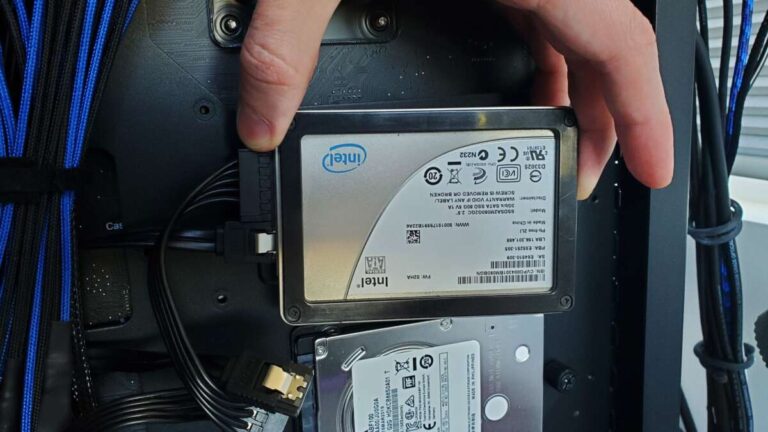
Before buying, check the laptop’s drive type and size. Some laptops use a 2.5-inch SATA drive, while others use an M.2 SATA or M.2 NVMe drive. These formats are not always interchangeable.
Does an SSD improve performance when you already have one?
The answer depends on the SSD you already use. Replacing a SATA SSD with a high-end NVMe SSD can improve large file transfers and some professional workloads, but the everyday difference may be small.
For normal browsing, email, office work, and casual gaming, both SATA and NVMe SSDs already feel fast. The jump from HDD to any good SSD is usually much larger than the jump from SATA SSD to premium NVMe SSD.
An upgrade may help more if you:
• Edit 4K or 8K video
• Work with large databases
• Compile large software projects
• Use virtual machines often
• Transfer large files every day
• Run demanding professional applications
• Need very high random input and output performance
In many cases, adding more RAM or upgrading the processor provides a better result than replacing a working SATA SSD.
SSD performance depends on more than advertised speed
Manufacturers often advertise peak sequential speeds. These numbers can look impressive, but they do not show the full user experience.
Real SSD performance depends on several factors:
Drive interface
SATA SSDs connect through the older SATA interface. NVMe SSDs use PCI Express and communicate through a faster protocol.
A PCIe 4.0 NVMe drive cannot reach its full potential in a PCIe 3.0 slot. It will usually work, but its speed will be limited by the older connection.
Drive capacity
Very small SSDs often have lower performance than larger models. A nearly full drive may also slow down because it has less free space for background maintenance.
Try to keep at least 10% to 20% of the drive free. This is not a strict rule for every model, but free space can help performance and system management.
NAND type and cache
SSDs use different types of NAND flash memory. Some drives use a fast cache to handle short transfers. Once that cache fills, sustained write speed may drop.
This matters when copying large video files or backing up hundreds of gigabytes. It matters less when opening a browser or starting a word processor.
Thermal throttling
NVMe SSDs can become hot during long transfers. When temperatures rise too far, the drive may reduce speed to protect itself.
A motherboard heat sink, good airflow, or a suitable aftermarket heat spreader can help. Many users do not need an elaborate cooler for ordinary office work.
Computer limitations
An SSD cannot fix every performance problem. A weak processor, low RAM, overheating, malware, or too many startup programs can still make a computer slow.
Storage is one part of the system. Think of it as the road between your files and your processor. A wider road helps, but traffic elsewhere can still cause delays.

SSD upgrade benefits and limitations
The main SSD upgrade benefits are speed, responsiveness, quiet operation, lower mechanical risk, and often better energy efficiency. These benefits are especially strong for computers that still use an HDD.
Still, an SSD has limits. It may not improve a task that is already limited by the processor or graphics card. It also costs more per gigabyte than a basic hard drive.
Main benefits
• Faster system startup
• Quicker program launches
• Shorter game loading times
• Better file search performance
• Smoother multitasking during storage access
• Silent operation
• Lower risk from mechanical shock
• Lower power use in many situations
Important limitations
• It may not increase gaming frame rates
• It cannot replace enough RAM
• It cannot repair an overheating processor
• Premium NVMe models may feel similar to SATA SSDs for basic use
• SSDs can fail without warning
• Data recovery may be difficult after a failure
• Some low-cost models have weak sustained write performance
One mistake I often see is choosing an SSD by speed alone. A reliable drive with a good warranty, enough capacity, and suitable endurance is often a better purchase than the fastest model on a product page.
How to choose the right SSD
Start by checking compatibility. Look at the computer’s manual or inspect the current drive before buying.
Use this simple process:
- Check whether the system supports 2.5-inch SATA, M.2 SATA, or M.2 NVMe storage.
- Confirm the physical size, such as M.2 2280.
- Check the maximum PCIe generation supported by the motherboard.
- Choose enough capacity for the operating system, programs, and personal files.
- Compare warranty length and endurance ratings.
- Read independent reviews that test sustained writes and temperatures.
- Plan how you will clone or reinstall the operating system.
- Back up important files before starting the upgrade.
For most home users, 1 TB offers a good balance. A 500 GB model can work for a basic office computer, but modern games and media files can fill it quickly. Professionals who handle video, photography, or large data sets may need 2 TB or more.
Avoid unknown drives with no clear warranty. A lower price is not useful if the drive has poor firmware, weak endurance, or unreliable support.
SATA SSD or NVMe SSD: Which is better?
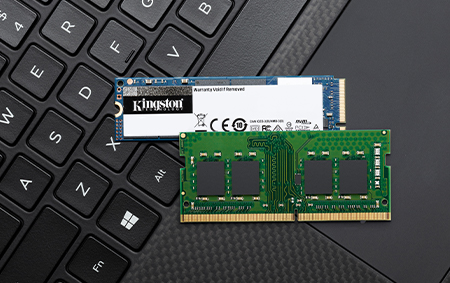
A SATA SSD is usually the best value for an older computer. It offers a huge improvement over an HDD and works with many desktops and laptops.
An NVMe SSD is better for newer systems and demanding workloads. It uses the PCIe interface and can deliver much higher sequential and random performance.
Choose a SATA SSD when:
• Your computer only supports SATA
• You want an affordable upgrade
• You mainly browse, work, or study
• You are replacing an old laptop drive
• You do not move large files often
Choose an NVMe SSD when:
• Your motherboard supports NVMe
• You edit video or large photos
• You use virtual machines
• You compile software often
• You want faster game and application storage
• The price difference is reasonable
For many people, the practical difference between a good SATA SSD and a good NVMe SSD is smaller than expected. The large improvement comes from leaving the HDD behind.
How to install an SSD and improve results
Installing an SSD can be simple, but careful preparation prevents data loss. Back up personal files to a separate drive or trusted cloud service first.
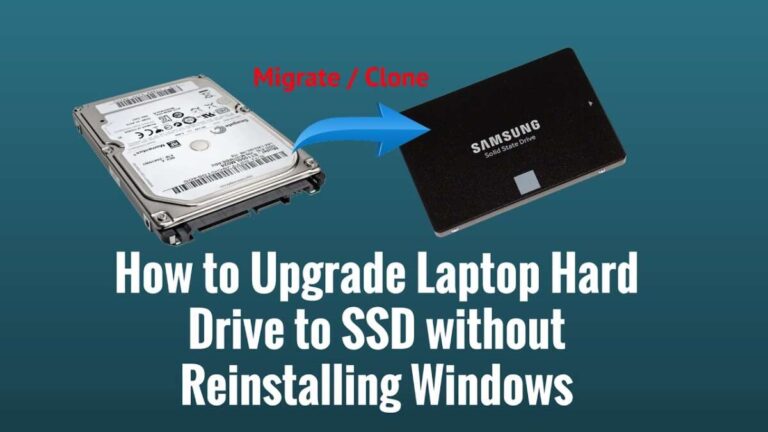
You can either clone the old drive or perform a fresh operating system installation. Cloning keeps your apps and settings. A clean installation removes old software and clutter, but it takes more time to set up.
After installation:
• Enable the correct storage mode in the system firmware when required
• Install motherboard and storage drivers
• Confirm that the operating system recognizes the full capacity
• Keep firmware updated when the manufacturer recommends it
• Leave free space on the drive
• Enable automatic backups
• Avoid unnecessary drive-optimization software
• Use the operating system’s built-in SSD optimization tools
Do not defragment an SSD like an HDD. Modern operating systems usually manage SSD maintenance automatically. They may send TRIM commands, which help the drive manage deleted data.
A common upgrade mistake is cloning a nearly full HDD to a smaller SSD. Check the amount of used space first. Delete unnecessary files or choose a larger drive before cloning.

How to measure SSD performance
You can measure storage performance with a disk benchmark, but numbers need context. A benchmark shows a controlled test, not exactly how every app will feel.
Useful measurements include:
• Sequential read speed
• Sequential write speed
• Random read and write performance
• Input/output operations per second
• Access time
• Temperature under load
• Performance after the cache fills
For everyday use, boot time and application launch time may tell you more than a peak speed number. Compare results under similar conditions, because background updates and free space can affect the test.
Also remember that copying a file between two fast SSDs tests both drives. If one drive is slow, the result reflects the slower device. Network speed, USB standards, and file size can also limit transfers.
Independent testing is valuable because it reveals sustained performance, power use, heat, and reliability. Manufacturer specifications are useful, but they do not tell the whole story.
SSD reliability, lifespan, and data safety
Modern SSDs can last for many years under normal consumer use. Their lifespan is often discussed through terabytes written, or TBW. This figure estimates how much data can be written before the drive reaches its rated endurance.
Most home users write far less data than they expect. Web browsing, office work, and gaming usually create modest write loads. Heavy video recording, surveillance, and database work place more stress on a drive.
No storage device is permanent. SSDs can fail because of controller faults, damaged flash memory, firmware problems, power issues, or simple electronic failure.
Protect your data with a backup plan:
• Keep at least one backup on a separate device
• Store another copy away from the computer
• Test that backups can be restored
• Use surge protection for desktop systems
• Replace aging drives before they become critical
• Monitor drive health, but do not treat it as a guarantee
Drive-health software can show wear estimates and warning signs. A healthy status does not promise that a drive will never fail, so backups remain essential.

Frequently Asked Questions About Does an SSD Improve Performance
Does an SSD make a computer faster?
Yes, an SSD makes storage-related tasks much faster. Startup, app launches, file searches, updates, and loading screens usually improve the most.
Does an SSD increase FPS in games?
Usually, no. An SSD mainly reduces loading times, while the graphics card and processor control most frame rates.
Is an NVMe SSD faster than a SATA SSD?
Yes, NVMe SSDs usually offer higher transfer speeds and lower latency. For basic tasks, however, the real-world difference may be small compared with the major improvement from upgrading an HDD to any SSD.
Will an SSD improve an old laptop?
Yes, replacing an old laptop HDD with an SSD can make the system feel much more responsive. Check the laptop’s drive format and capacity limits before buying.
Does an SSD improve performance if the computer has low RAM?
It can reduce the harsh slowdown caused by virtual memory, but it cannot replace RAM. Adding memory may provide a larger improvement if the system frequently runs out of available RAM.
How much faster is an SSD than an HDD?
The exact result depends on the hardware and workload. In general, an SSD provides much faster access times, quicker startup, and stronger random performance than a mechanical HDD.
Can an SSD slow down when it is full?
Yes, an SSD may lose performance when it has very little free space. Keeping roughly 10% to 20% available can help maintain performance, although the ideal amount varies by model.
Conclusion
Does an SSD improve performance? For computers with mechanical hard drives, the answer is a clear yes. An SSD can shorten startup times, speed up applications, reduce game loading, improve file access, and make an older system feel far more responsive.
The best upgrade depends on your computer and workload. Choose a compatible, reliable SSD with enough capacity, keep backups, and do not expect storage alone to fix limits caused by low RAM, a weak processor, or an aging graphics card.
If your computer still uses an HDD, an SSD is one of the most noticeable upgrades you can make. Check your system’s compatibility, compare trusted models, and share your upgrade experience in the comments.

Everett Ashford is a tech reviewer at mytechgrid.com specializing in SSDs, cameras, TVs, earbuds, headphones, and other consumer electronics. He provides honest, data-driven reviews based on hands-on testing and real-world performance analysis. Everett simplifies complex tech details to help readers make smart, confident buying decisions.