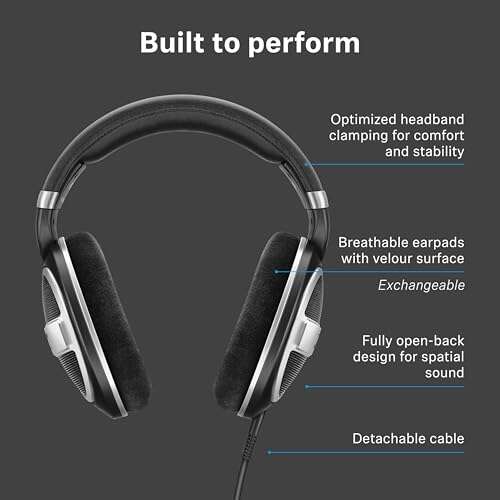
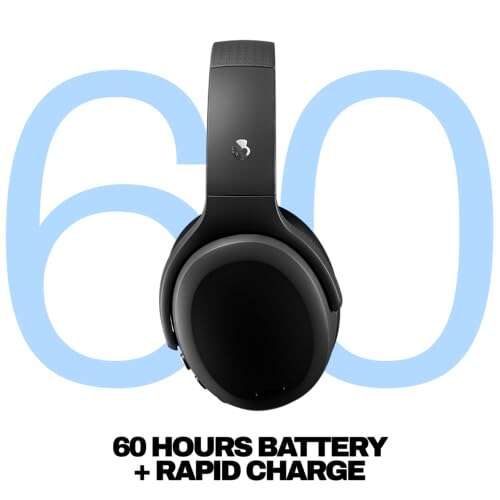
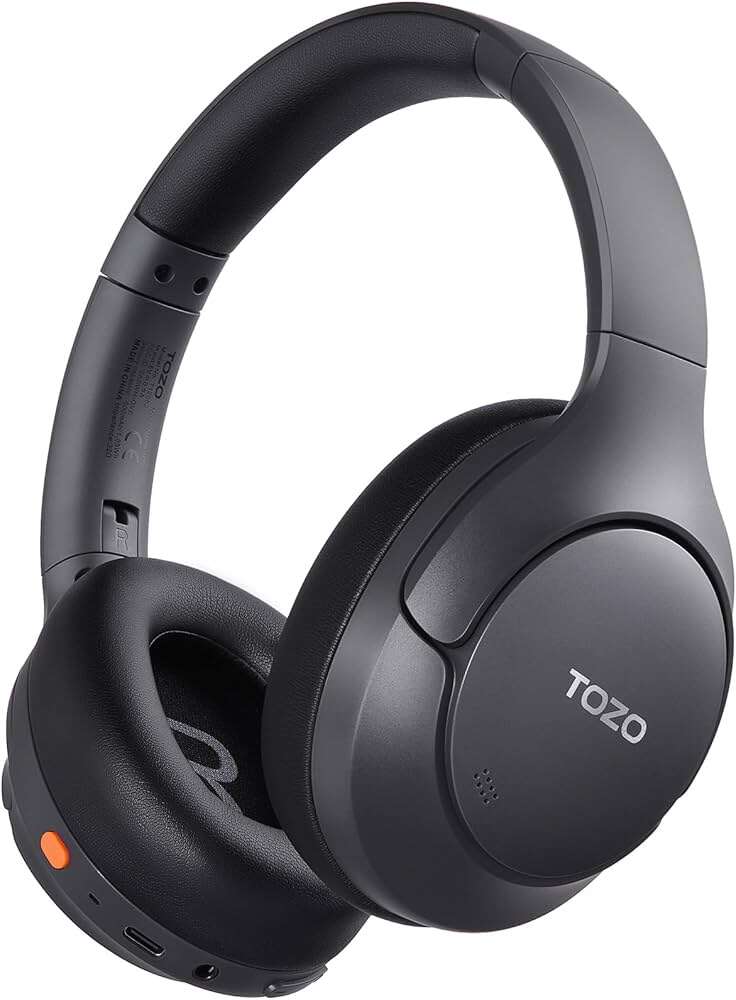
Yes. Most 3D audio formats can work with regular stereo headphones, including many wired earbuds, gaming headsets, and Bluetooth headphones. The headphones do not always need special “3D” hardware.
The main limit is not the headphone itself. It is the device, app, game, audio format, and software used to create the effect. Some features, such as head tracking, may need supported headphones with motion sensors.
For people in the United States, this means a standard pair of headphones may work with Dolby Atmos for Headphones, Windows Spatial Sound, Sony PlayStation 3D Audio, Apple spatial audio, or similar systems. However, the exact setup depends on the platform and service.


What does 3D audio mean?
3D audio is a broad term for sound that appears to come from different places around you. A sound may seem to come from the left, right, front, rear, above, or below.
Most headphone-based 3D audio is created with software. The software changes the timing, volume, and tone of each sound sent to the left and right ear. Your brain then uses those changes to estimate where the sound is located.
This process is often called binaural audio, virtual surround sound, or spatial audio. These terms overlap, but they do not always mean the same thing.
- Binaural audio uses two channels to create a three-dimensional effect.
- Virtual surround sound simulates speakers placed around the listener.
- Spatial audio is a wider term that may include surround sound, object-based audio, and head tracking.
- Object-based audio treats sounds as separate objects that can move through a virtual space.
- Head tracking changes the sound field when you turn your head.
A normal pair of stereo headphones can reproduce the left and right signals needed for many of these effects. The software does most of the work.

Will 3D audio work with normal headphones?
Yes, if the device or app processes the sound for headphones. A regular stereo headset can usually play a binaural or virtual surround signal.


The result depends on several factors:
- The source must contain spatial information. A game, movie, music service, or audio file must support a suitable format or effect.
- The playback device must process that format. A phone, computer, console, television, or app may need a spatial audio setting.
- The headphones must receive the correct signal. Some devices disable spatial processing when certain output modes are selected.
- The headphones must fit well. A poor seal can reduce bass and make positional effects less clear.
- Your hearing and preferences matter. Some listeners hear a strong 3D effect, while others hear a small change or dislike the altered sound.
Special 3D headphones are not usually required for software-based spatial audio. A headset marketed as “7.1” may simply include a software license or a built-in processing mode.
That does not mean every pair will sound equally good. Headphones with clear sound, low distortion, and a comfortable fit often make spatial effects easier to hear. Those qualities are useful, but they are not the same as formal 3D audio compatibility.
Wired and wireless headphones
Both wired and wireless headphones can support 3D audio.
Wired headphones often have fewer compatibility problems because the phone, computer, or console performs the processing. They may also have lower delay, which can help with gaming.
Bluetooth headphones can also work, but the device may send the processed stereo signal through Bluetooth. Some platforms or apps may limit advanced features, especially head tracking. Wireless delay can also be noticeable in games or video calls.
A USB gaming headset may include its own digital signal processor. In that case, the headset software may create the surround effect instead of the computer or console.

Which headphones support Dolby Atmos, Spatial Audio, and 3D sound?
The answer changes by platform. The table below shows the common pattern.
| Platform or feature | Can regular headphones work? | What may be required |
|---|---|---|
| Dolby Atmos for Headphones on Windows | Usually yes | Compatible Windows settings, app, or license |
| Dolby Atmos on Xbox | Usually yes | Supported console setting and, in some cases, a license |
| PlayStation 5 3D Audio | Yes for supported headphone output | Console 3D audio setting and calibration |
| Apple Spatial Audio | Often yes for Dolby Atmos playback | Compatible Apple device and app; head tracking needs supported hardware |
| Windows Sonic for Headphones | Yes | Windows spatial sound setting |
| Game-specific headphone surround | Often yes | The game, console, or headset software must support it |
| YouTube or ordinary stereo music | Not automatically | The content or app must provide a spatial effect |
These are general compatibility rules, not a guarantee for every model or software version. Companies can change support by device, operating system, app, region, or subscription plan.
For example, Microsoft documents Windows Sonic as a spatial sound option for headphones. Dolby Atmos for Headphones is also a software-based mode, so it does not require a special speaker layout inside the headset. Sony’s PlayStation 5 includes a 3D audio setting for headphone output and asks users to adjust the effect for their ears.
Apple separates some spatial audio features. Dolby Atmos playback can work through ordinary headphones on supported Apple devices and services. Dynamic head tracking, however, depends on compatible headphones or earbuds and device support.
Check the support page for your exact platform before buying a headset. Product names alone do not prove compatibility.

How to turn on 3D audio with headphones
Start with the device that plays the sound. The headphones may be compatible, but the spatial mode can remain off.


On a Windows PC
The exact menu names can change between Windows versions, but the usual process is:
- Connect the headphones.
- Select the headphones as the active sound output.
- Open Windows sound settings.
- Find the spatial sound option.
- Choose Windows Sonic for Headphones or an available Dolby Atmos option.
- Open the game or media app and check its own audio settings.
- Test a scene with clear movement from left to right or front to back.
Some Dolby features may require an app, purchase, trial, or supported license. A game may also have its own headphone surround mode. Do not enable several virtual surround systems at once unless the game specifically recommends it. Double processing can make voices sound hollow and positions less accurate.
On an Xbox console
Open the audio settings and look for the headphone or headset output mode. Xbox consoles can offer spatial sound options such as Windows Sonic, Dolby Atmos, or DTS formats, depending on the system and license.
Use one main spatial mode at a time. If the game has a separate 3D or headphone surround option, read its instructions before enabling both.
On a PlayStation 5
Connect the headphones, then open the console’s sound settings and find the 3D audio option for headphones. The PS5 provides adjustment controls so you can choose the profile that sounds most natural.
The best setting is not necessarily the one with the strongest echo. A good profile should make direction clear without making voices, music, or effects sound distant.
Some games use their own audio mix. In those cases, follow the game’s instructions and avoid stacking multiple surround modes.
On an iPhone, iPad, Mac, or Apple TV
Spatial audio support depends on the device, operating system, app, content, and headphones. In supported Apple services, look for the Dolby Atmos or Spatial Audio setting.
For dynamic head tracking, the headphones and source device must support that feature. Compatible AirPods and selected Beats models are designed for Apple’s head-tracked experience. Ordinary wired or Bluetooth headphones may still play a spatial mix, but they may not follow head movement.
If the effect sounds wrong, turn off head tracking and compare fixed spatial audio with ordinary stereo. This helps identify whether the problem is the mix or the motion feature.

How to tell whether 3D audio is working
Use a known test rather than relying on a product label. Good tests include a game with a sound source moving around the player, a spoken left-right channel test, or a film scene with clear overhead and rear effects.
You should hear some of the following:
- A sound moves smoothly from one side to the other.
- Footsteps or effects appear to come from a direction.
- Voices remain centered between the ears.
- Ambient sounds feel wider than ordinary stereo.
- Supported head tracking makes the sound field appear to stay in place when you turn your head.
The sound may not seem dramatic. Realistic spatial audio often sounds less like an obvious echo and more like a wider, more stable space.
To compare modes, use the same headphones and the same content. Switch between stereo and spatial audio without changing the volume. Louder sound can seem better even when it is only louder.


A useful test is:
- Play a supported game, movie, or audio track.
- Turn spatial audio on.
- Listen for a moving sound.
- Turn spatial audio off.
- Match the volume.
- Compare direction, clarity, and fatigue.
If you hear no change, the content may be ordinary stereo, the feature may be disabled, or another app may be controlling the output.

Why 3D audio may not work with your headphones
A lack of 3D effect does not always mean the headphones are incompatible. Check the signal path in this order.
The content is not spatial
Many songs, videos, podcasts, and games use standard stereo. Some software can simulate space from stereo content, but the result may be less precise than a mix created for spatial playback.
The wrong output is selected
Your computer or console may send sound to built-in speakers, a monitor, or another Bluetooth device. Confirm that the connected headphones are the active output.
Multiple surround modes are active
A console, headset app, game, and operating system may each apply processing. This can create a muddy or hollow sound.
Turn off every surround effect, then enable one mode. Compare the result.
The app does not support the feature
A device may support spatial audio at the system level while a particular app ignores it. Some apps also use their own audio engine and settings.
Look for options such as:
- Headphone audio
- Binaural audio
- 3D audio
- Spatial audio
- Headset surround
- Dolby Atmos
- Windows Sonic
- Object-based audio
Bluetooth introduces delay
Bluetooth headphones may play the effect correctly but add enough delay to feel disconnected from video or games. This is a timing problem, not necessarily a spatial audio problem.
Try wired headphones or a low-latency wireless mode if the device supports one.
The headphones do not fit well
Earbuds with a poor seal can lose bass and external isolation. Over-ear headphones that sit unevenly may also change the balance between your ears.
Adjust the ear tips, headband, or ear cup position. If one ear hears much less sound than the other, the problem may not be the audio setting.
The sound profile is distracting
Some virtual surround modes add reverb or change the frequency balance. A stronger effect is not always a more accurate effect.


If voices become unclear or you feel ear fatigue, use a less intense profile or return to stereo.

Does 3D audio improve gaming?
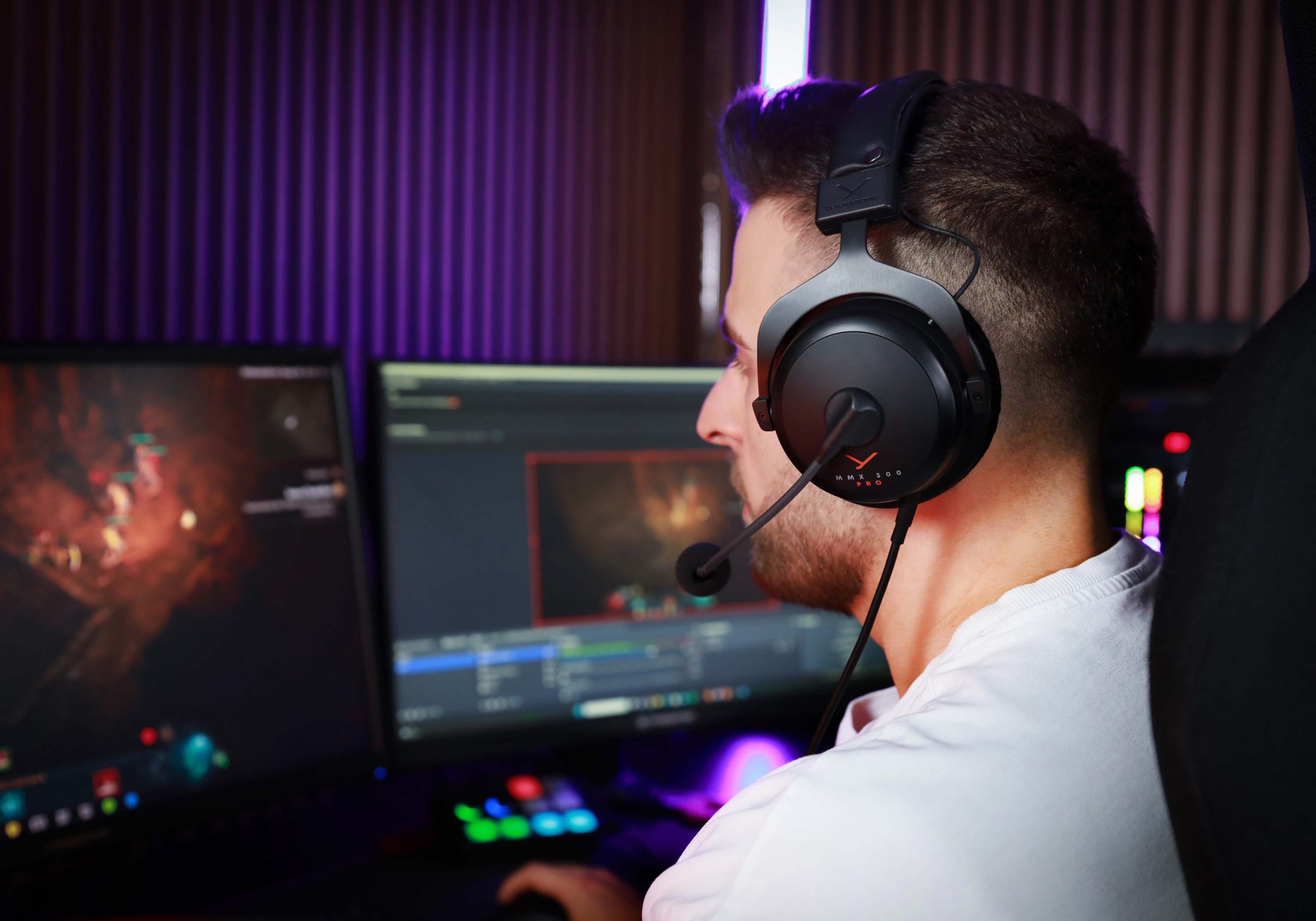
3D audio can help you judge direction and distance in games, but it does not guarantee a competitive advantage.
It may make it easier to notice:
- Footsteps outside your view
- Gunshots from a particular direction
- Vehicles approaching from behind
- Environmental sounds above or below you
- Movement through a room or corridor
The benefit depends on the game’s audio mix. A game with poor positional cues may not improve much when a surround mode is added.
For competitive gaming, consistency matters. Use the same audio mode while practicing and playing. Give yourself time to learn how the sound positions relate to the game world. Keep the volume at a safe level; louder sound does not create better direction cues.
Also consider microphone monitoring, chat balance, comfort, and delay. A headset with impressive surround branding may still be a poor choice if it causes delay or makes speech hard to understand.
Is 3D audio better than stereo?
Neither mode is always better. Spatial audio can improve location cues, while stereo may sound cleaner and more natural for music or ordinary video.
Use spatial audio when:
- You play a game designed with positional sound.
- You watch content mixed for Dolby Atmos or another spatial format.
- You want a wider sense of space.
- You like the effect after comparing it at the same volume.
Use stereo when:
- The spatial mode adds echo or muffles speech.
- You listen to music that sounds more natural without processing.
- The content is not designed for the selected format.
- You experience delay, discomfort, or listening fatigue.
The best setting is the one that preserves clear speech and useful direction without adding distracting effects.

Common mistakes to avoid
Avoid these mistakes when setting up 3D audio:
- Assuming a “7.1” label means the headset has real physical surround speakers.
- Enabling spatial processing in the headset, operating system, game, and console at the same time.
- Comparing modes at different volume levels.
- Testing with content that only contains ordinary stereo.
- Expecting every Bluetooth headset to support head tracking.
- Buying a new headset before checking the settings on the device you already own.
- Using very high volume to hear small positional details.
- Treating a stronger echo as proof of better 3D sound.
Before replacing your headphones, test the current pair with a known spatial source and one software mode. That simple check can show whether the limitation comes from the headphones or the device.

Frequently asked questions
Do you need special headphones for 3D audio?
Usually, no. Regular stereo headphones can reproduce many software-generated 3D audio effects. Special headphones may be needed for features such as dynamic head tracking, device-specific controls, or a built-in processing system.
Does 3D audio work with Bluetooth headphones?
Often, yes. The device can process spatial audio and send the result as a stereo Bluetooth signal. However, Bluetooth may add delay, and advanced features such as head tracking may require a supported headphone model.
Does 3D audio work with wired earbuds?
Yes, wired earbuds can play binaural, virtual surround, and many spatial audio formats. Fit matters because a loose earbud seal can reduce the clarity of the effect.
Does Dolby Atmos work with any headphones?
Dolby Atmos for Headphones is designed to work with ordinary headphones when the supporting device, app, and license are available. Compatibility still depends on the platform and software version.
Is 3D audio the same as noise cancellation?
No. Noise cancellation reduces outside sound. 3D audio changes how playback sounds in space. A headphone can have noise cancellation without spatial audio, or spatial audio without noise cancellation.
Can 3D audio damage hearing?
The spatial effect itself is not the main risk. Excessive volume can damage hearing, whether the sound is stereo or spatial. Keep the volume as low as practical and take breaks during long listening sessions.
Conclusion
3D audio usually works with any decent pair of stereo headphones because the device or app creates the spatial effect. You do not normally need special 3D hardware.
The important checks are the audio source, platform support, headphone connection, and active sound settings. Start with the headphones you already own, enable one spatial mode, and test it with content designed to show direction.
If the sound becomes hollow, delayed, or tiring, stereo may be the better choice. Spatial audio is useful when it improves clarity and positioning—not simply when it creates the biggest effect.

Everett Ashford is a tech reviewer at mytechgrid.com specializing in SSDs, cameras, TVs, earbuds, headphones, and other consumer electronics. He provides honest, data-driven reviews based on hands-on testing and real-world performance analysis. Everett simplifies complex tech details to help readers make smart, confident buying decisions.