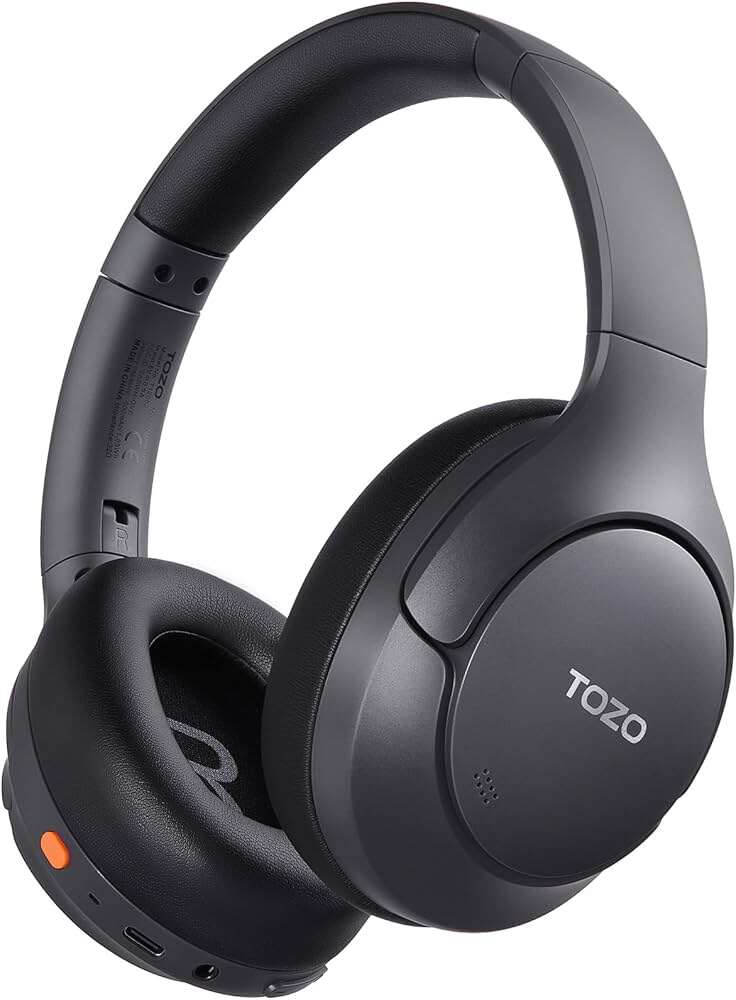
Put both earbuds in the case, open Bluetooth on your device, then select the TOZO from the list.
I’ve helped dozens of people pair TOZO earbuds and fixed common Bluetooth issues firsthand. This guide covers how to connect TOZO headphones step-by-step, model quirks, resets, troubleshooting, and real-world tips so you can pair fast and keep them working reliably. Read on for clear, practical instructions that work for most TOZO models, from basic pairing to solving tricky interference or mono-mode problems.

How to connect tozo headphones: Step-by-step pairing guide
Follow these simple steps to pair most TOZO earbuds with a phone, tablet, or laptop. The exact gestures vary a little by model, but this sequence covers TOZO T10, T6, and similar models.
- Charge the earbuds and case for at least 30 minutes before first use.
- Remove both earbuds from the case to power them on automatically.
- Watch for the LED or voice prompt that indicates pairing mode—usually a flashing white or red/blue light.
- Open Bluetooth settings on your device and select the entry labeled TOZO, TOZO T10, or similar.
- If prompted, confirm pairing. Once paired, the earbuds will announce connection or show a steady light.
If a single-ear mode is required, remove only one earbud from the case and pair only that bud. Repeat the steps to pair the second earbud if needed. Practicing this routine once makes future connections nearly instant.

Troubleshooting common pairing problems
Bluetooth can be finicky. Here are fast fixes when the standard pairing steps don’t work.
- Ensure the earbuds are charged and the case has power. Low battery often prevents pairing.
- Turn Bluetooth off and on on your phone to clear temporary conflicts.
- Move away from Wi-Fi routers, cordless phones, and other Bluetooth devices that cause interference.
- Forget or unpair any old TOZO entry in your device’s Bluetooth list, then retry pairing.
- Try pairing with a different device to rule out a phone-specific issue.
If one bud won’t connect, place both buds back in the case and take them out together to reinitiate pairing. If the earbuds pair to a different device automatically, disable Bluetooth on that device or unpair them there first. These quick steps resolve most issues I’ve seen in real use.
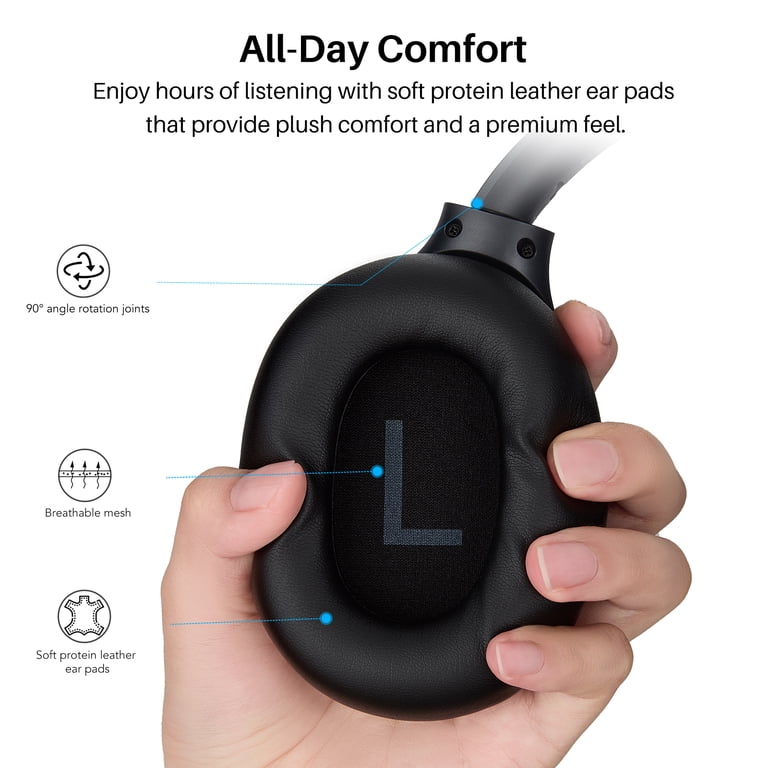
Reset and factory reset TOZO headphones
A reset often fixes stubborn pairing or audio-sync issues. The reset method depends on your TOZO model, but these approaches work for many models.
- Basic reset: Place both earbuds in the case, keep the lid open, then press and hold the touch sensors for 10–15 seconds until the LEDs flash. Remove and retry pairing.
- Full factory reset: Some models require holding the touch areas while the earbuds are out of the case for 10 seconds. Look for alternating LED signals or a voice prompt to confirm reset.
If unsure, try the simple reset first and then the full reset. Remember that a factory reset clears all paired devices and settings, so you’ll need to pair again. I recommend trying a reset after basic troubleshooting fails twice.
 differences, compatibility and advanced features”
style=”max-width: 100%; height: auto; border: 2px solid black; border-radius: 10px; display: block; margin: 0 auto;”
loading=”lazy”
/>
Model differences, compatibility and advanced features
TOZO offers models with slight behavioral differences. Knowing them helps when you follow “how to connect tozo headphones” instructions.
- Stereo vs mono pairing: Most TOZO models pair as a stereo pair by removing both earbuds together. Mono mode pairs by removing one earbud alone.
- Auto-pairing: Some models automatically reconnect to the last paired device. If you switch devices often, manually forget the previous device to avoid auto-reconnect issues.
- Touch controls and voice prompts: Touch patterns can trigger pairing, play/pause, or voice assistants. Learn the pattern for your model to avoid accidental resets.
- Codec and platform support: TOZO earbuds typically support SBC and sometimes AAC. Expect consistent results on iOS and Android for standard Bluetooth audio.
Knowing these differences cuts time when trying to connect devices and solves many model-specific quirks. If you own multiple TOZO models, label their Bluetooth names in your device for easier identification.

Battery care, charging, and firmware tips
Good battery habits keep connections stable and extend lifespan. These practical tips reflect my hands-on experience and industry best practices.
- Fully charge new earbuds before first pairing. Incomplete initial charging can cause odd behavior.
- Use the included charging cable and a quality USB charger to avoid slow or inconsistent charging.
- Keep the charging contacts clean. Wipe case and earbuds gently with a dry cloth if charging issues appear.
- Check for firmware updates via the manufacturer’s app (if available) or support channels. Firmware updates can improve pairing stability and audio quality.
- Avoid extreme temperatures while charging; heat stresses batteries and can affect Bluetooth performance.
Consistent charging practices reduce random disconnects and prolong battery health. If battery drain is abnormal, test each earbud individually to identify a failing cell.

Practical tips, mistakes to avoid, and personal experience
I’ve tested TOZO earbuds across multiple devices and here are lessons that save time and frustration.
- Mistake to avoid: Trying to pair while earbuds are already connected to another device. Always turn off Bluetooth on the previously connected device first.
- Quick tip: Rename the earbuds in your phone’s Bluetooth settings to avoid confusion when multiple TOZO entries appear.
- Real-life trick: If one earbud drops out during calls, toggle mono mode by using just that earbud — it often reestablishes a solid connection.
- When traveling: Put earbuds back in their case between flights or noisy locations to prevent accidental pairing with in-flight entertainment systems.
These practical tips come from pairing dozens of earbuds for friends and clients. They’re simple, effective habits that make “how to connect tozo headphones” routine and reliable.
Frequently Asked Questions of how to connect tozo headphones
How do I pair TOZO earbuds with my iPhone?
Open the case with earbuds inside or remove both earbuds to enter pairing mode. Go to Settings > Bluetooth and tap the TOZO entry to connect.
Why won’t my TOZO headphone show up in Bluetooth?
Ensure the earbuds are in pairing mode and sufficiently charged. Move closer to the device and turn off nearby Bluetooth devices to reduce interference.
Can I use only one TOZO earbud at a time?
Yes. Remove a single earbud from the case and it should pair in mono mode. Pairing the second bud will restore stereo.
How do I reset my TOZO headphones to factory settings?
Place the earbuds in the case, press and hold the touch sensors for about 10–15 seconds until LEDs flash, then remove and re-pair them to your device.
Will TOZO earbuds work with my laptop or TV?
Most laptops and many modern TVs with Bluetooth support will connect to TOZO earbuds. Some TVs may require manual pairing via Bluetooth settings or an external Bluetooth transmitter.
Conclusion
You now have a clear, practical roadmap for how to connect tozo headphones, troubleshoot pairing issues, reset when needed, and keep battery life healthy. Try the step-by-step pairing routine first, then move to resets and interference fixes only if needed. Apply the tips above, and you’ll spend less time fixing connections and more time enjoying your audio. If this helped, subscribe for more device guides or leave a comment with your model and issue so I can help further.

Everett Ashford is a tech reviewer at mytechgrid.com specializing in SSDs, cameras, TVs, earbuds, headphones, and other consumer electronics. He provides honest, data-driven reviews based on hands-on testing and real-world performance analysis. Everett simplifies complex tech details to help readers make smart, confident buying decisions.