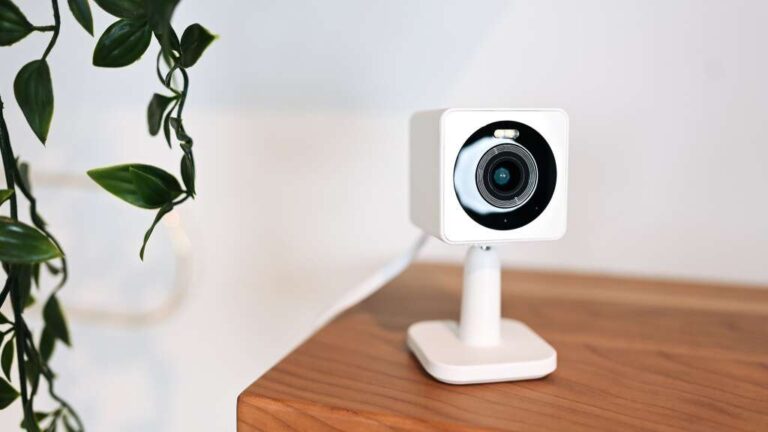
PC camera on a digital camera means the camera can work as a webcam when connected to a computer.
The phrase “what does PC camera mean on a digital camera” can seem confusing because it does not describe a special photo type. It usually refers to a webcam mode that sends live video to a computer through USB. This guide explains how the mode works, what you need, and why it may not work with every camera.
What does PC camera mean on a digital camera?
When a digital camera shows “PC Camera,” it means the camera can act like a computer webcam. It captures live video through its lens and sends that video to a computer for video calls, online classes, live streams, or recordings.
In simple terms, the camera becomes an input device, much like a built-in laptop camera. The computer may detect it as a webcam or video device instead of treating it as a normal photo camera.
The exact meaning can vary by brand. On older compact cameras, “PC Camera” may require special software or a camera driver. On newer models, the feature may use USB Video Class, often called UVC, which allows many computers to recognize the camera without extra software.
It is important to understand that PC camera mode does not mean the camera is browsing the internet. It also does not mean the camera is only used to transfer photos. It means the camera is sending a live video feed to a connected computer.

How PC camera mode works
A digital camera has a lens, image sensor, processor, and USB connection. In PC camera mode, these parts work together to create a live video stream.
The process usually looks like this:
- The lens captures the scene.
- The image sensor changes light into digital data.
- The camera processor turns that data into a video signal.
- The USB cable sends the signal to the computer.
- A video app, such as Zoom or Skype, uses the camera feed.
Think of the process as a small video pipeline. The camera gathers the picture, the processor prepares it, and the computer displays it.
Some cameras send the video through a standard webcam format. Others need a brand-specific driver. This is why one camera may work as soon as you plug it in, while another may only work with old software.
The camera may also reduce its image quality in PC camera mode. A camera that takes sharp 20-megapixel photos may send only 720p or 1080p video. Live video needs a steady stream of data, so the camera often uses different settings than it uses for still photos.
PC camera mode versus USB photo transfer
Many people confuse PC camera mode with normal USB file transfer. They are different functions.
USB photo transfer lets you copy stored pictures and videos from the camera’s memory card to your computer. The camera behaves like a storage device.
PC camera mode sends a live picture from the lens. It does not usually give the computer access to your saved photos.
Here is the difference:
| Camera mode | Main purpose | What the computer sees |
|---|---|---|
| PC Camera | Live video | Webcam or video device |
| USB Storage | Move files | Memory card or camera storage |
| PictBridge | Print photos | Connected printer |
| HDMI Output | Send live video | Display or capture device |
If you select the wrong USB option, your video app may not see the camera. For example, choosing “Mass Storage” may only open the camera’s folders. Choosing “PC Camera” may provide the live feed instead.
This distinction is one of the most useful answers to what does PC camera mean on a digital camera. It identifies a live-view connection, not a file-management connection.

How to use a digital camera as a PC camera
The setup depends on the camera model, but the general steps are similar.
1. Check the camera manual
Look for terms such as:
• PC Camera
• Webcam
• USB Streaming
• Live Streaming
• UVC
• Computer Video
• Webcam Utility
The manual should explain whether the feature works with Windows, macOS, or both. It may also list supported video apps and USB cable types.
2. Charge the battery
Webcam use can drain a small camera battery quickly. Charge the battery fully before a long call or stream.
Some cameras support external power through a USB adapter or a dummy battery. This is safer for long sessions because the camera does not shut down in the middle of a meeting.
3. Connect the correct USB cable
Use a cable that supports data. Some inexpensive USB cables only provide power and cannot carry video or data.
Connect the cable directly to the computer when possible. A low-quality hub may cause connection problems, dropped video, or power limits.
4. Select PC camera mode
Turn on the camera and open its USB settings. Choose PC Camera, Webcam, or a similar option.
Some cameras ask you to select the mode before connecting the cable. Others show the option after the computer detects the camera.
5. Choose the camera in your video app
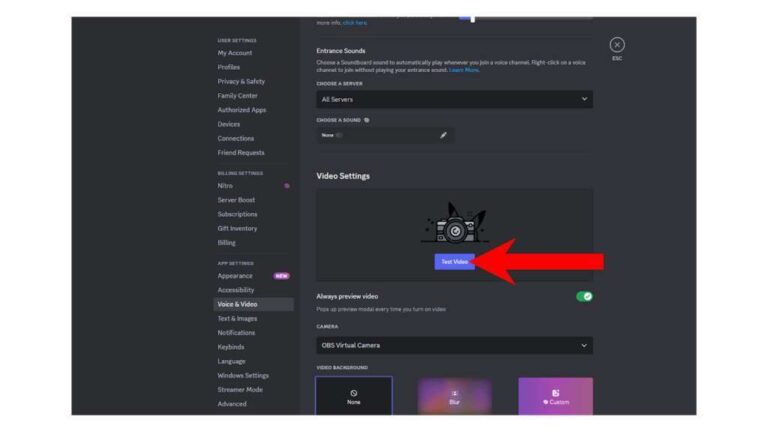
Open your meeting or streaming app. Go to its camera settings and select the digital camera from the list.
You may need to close other apps that are using the webcam. A camera usually cannot send its feed to several programs at the same time.
6. Test sound separately
PC camera mode often sends video only. The camera’s built-in microphone may not work through USB, even if the camera has one.
For better sound, use a headset, USB microphone, or separate audio interface. Clear sound often improves a video call more than a sharper picture does.

What you need for a reliable setup
A successful PC camera setup needs more than a camera and a cable. Check these basic parts before troubleshooting.
• A digital camera with webcam or PC camera support
• A compatible USB data cable
• A charged battery or continuous power source
• A computer with a working USB port
• A video app that allows camera selection
• A current camera driver or utility, when required
• Good lighting in front of the subject
• A stable stand or tripod
Older cameras may use mini USB or a special connector. Newer models often use USB-C, but USB-C alone does not guarantee webcam support.
A USB-C port can carry power, files, or video. The camera’s internal software must also support live webcam output.
If the camera has no PC camera mode, check whether it has clean HDMI output. With a USB HDMI capture device, the camera may still work as a webcam. This method costs more, but it often provides better quality and wider compatibility.
Benefits of using a digital camera as a PC camera
A digital camera can offer several advantages over a built-in laptop webcam.
Better image quality
Many digital cameras have larger image sensors and better lenses. They can produce a cleaner image, especially in low light.
A larger sensor can also create a softer background. This helps separate your face from a busy room.
More control
A digital camera may let you adjust:
• Exposure
• White balance
• Focus
• Zoom
• Picture style
• Frame rate
• Image brightness
These controls help you create a more consistent image. A laptop webcam often makes all these choices automatically.
Flexible camera placement
You can place the camera at eye level, farther away, or at a more flattering angle. A tripod can keep the frame steady during meetings or lessons.
Better lens options
Some interchangeable-lens cameras let you use a wide lens for a desk setup or a longer lens for a softer background. This gives you more creative control than a fixed webcam lens.
Useful for streaming and teaching
A PC camera setup can work well for product demonstrations, music lessons, cooking videos, and live presentations. It can make a simple home setup look more polished.
Limitations and common problems
PC camera mode is useful, but it is not perfect. Understanding its limits can save time.
The camera may not be recognized
The computer may fail to detect the camera because:
• The camera does not support webcam output
• The USB cable only supports charging
• The wrong USB mode is selected
• A required driver is missing
• The camera battery is too low
• Another app is using the camera
• The USB port or hub is faulty
Try a different cable and USB port first. Then restart both the camera and the computer.
The camera may turn off
Many cameras have an automatic sleep timer. This feature saves battery during normal photo use, but it can interrupt a long video call.
Look for settings such as Auto Power Off, Sleep, or Eco Mode. Some models do not allow these settings to be disabled during PC camera use.
Video quality may be limited
A camera may take high-resolution photos but send low-resolution live video. The camera’s webcam mode may be limited to 480p, 720p, or 1080p.
The quality also depends on the video app, USB connection, lighting, and computer performance.
Heat can build up
Long video sessions may make the camera warm. Heat is more likely when the display stays on, the camera is powered continuously, or the room is warm.
Keep the camera in a well-ventilated place. Do not cover its vents or place it in direct sunlight.
Autofocus may hunt
Autofocus can move back and forth when the subject changes position. This creates distracting shifts in sharpness.
For a desk call, face the camera, use good light, and consider manual focus if the subject will stay in one place.
Audio may be weak
The camera may have a basic microphone, or the PC camera mode may not transmit audio at all. A separate microphone is usually the better choice.
In real use, people forgive a slightly soft image. They are less forgiving when voices sound distant or unclear.
PC camera mode, webcam utility, and HDMI capture
There are three common ways to use a digital camera with a computer.
Built-in PC camera mode
This is the simplest method. You connect the camera by USB and select its webcam mode.
It works best when the camera supports a standard video class connection. Older models may need special software.
Manufacturer webcam utility
Some camera brands offer software that turns selected cameras into webcams. The software may provide better control than the basic PC camera mode.
Depending on the model, the utility may send video through USB but use the computer’s microphone for sound. It may also limit resolution or frame rate.
HDMI capture
Some cameras send a clean video signal through HDMI. An HDMI capture device converts that signal into a webcam feed for the computer.
This option can provide strong image quality, but it requires more equipment. You need a suitable HDMI cable, capture device, power source, and camera with a clean output.
PC camera mode is usually the easiest option. HDMI capture is often the more flexible option for serious streaming.
Tips for better PC camera video
A good camera cannot fix poor lighting or a weak setup. These simple changes often make a large difference.
-
Put light in front of your face. A window or lamp behind you can make your face look dark.
-
Place the camera near eye level. This creates a natural angle and avoids an unflattering view from below.
-
Use a tripod or stable stand. A shaky camera can make even sharp video look poor.
-
Clean the lens. Fingerprints can create haze and reduce contrast.
-
Lock focus when possible. This prevents the camera from changing focus during a call.
-
Use a simple background. A clean background keeps attention on you.
-
Test the frame before the meeting. Check your headroom, lighting, and camera selection.
-
Use headphones or a separate microphone. This can prevent echo and improve speech clarity.
-
Disable automatic sleep settings when safe. Keep an eye on heat during long sessions.
-
Keep the camera close to the computer. A shorter cable often reduces connection problems.
During hands-on testing of camera setups, the most common mistake is not image quality. It is choosing the wrong USB mode or using a power-only cable. Checking those two points first can solve many problems in minutes.
Is PC camera mode safe for the camera?
Using PC camera mode is generally safe when you follow the manufacturer’s instructions. The main concerns are heat, battery drain, and long periods of continuous operation.
Do not use a damaged battery or a loose power adapter. Stop the session if the camera becomes unusually hot, shows an error, or shuts down repeatedly.
A camera designed for still photos may have limits on continuous video use. Read the manual before using it for several hours at a time.
Also think about privacy. A digital camera connected as a webcam can show everything in front of its lens. Close the video app when you finish and disconnect the camera if you do not need it.
How to troubleshoot PC camera problems
Use this checklist when the computer does not show the camera.
-
Turn off the camera and computer.
-
Connect the camera directly to the computer with a known data cable.
-
Charge the camera or connect approved external power.
-
Select PC Camera or Webcam mode in the camera menu.
-
Open the computer’s camera settings and check whether the device appears.
-
Close Zoom, Teams, browser tabs, and other apps that may use the camera.
-
Install the current camera utility or driver if the manual requires one.
-
Try another USB port.
-
Test the camera in a basic video app.
-
Check the camera maker’s support page for model-specific limits.
If the camera only appears as a storage drive, it may not support USB webcam output. If it has HDMI output, a capture device may be the only practical solution.
Frequently asked questions about what does PC camera mean on a digital camera
What does PC camera mean on a digital camera?
PC camera means the digital camera can send live video to a computer and work like a webcam. It is different from transferring saved photos through USB.
Can every digital camera work as a PC camera?
No. The camera must support PC camera, webcam, USB streaming, or a similar feature. A camera without USB video support may need an HDMI capture device instead.
Does PC camera mode transfer sound too?
Not always. Some cameras send video only, while others may send video and audio through USB. Check the camera manual and select a separate microphone if the camera audio is unavailable.
Why does my computer not recognize the PC camera?
The cause may be a wrong USB mode, faulty cable, missing driver, low battery, or unsupported camera model. Try a different data cable, select the webcam mode, and test another USB port.
Is PC camera mode the same as webcam mode?
In most cases, yes. Both terms usually describe using the digital camera as a live video source for a computer.
Can I use PC camera mode for Zoom or Google Meet?
Yes, if the computer and app recognize the camera as a video device. Open the app’s settings and select the digital camera as the video source.
Can I use a digital camera as a webcam without USB?
Yes, if the camera has a clean HDMI output and you use an HDMI capture device. Some wireless systems may also work, but they can add delay and may require special software.
Does PC camera mode reduce photo quality?
No. It does not change the quality of photos saved in the camera. Live video may use a lower resolution because it is optimized for real-time transmission.
Conclusion
The answer to what does PC camera mean on a digital camera is simple: it is a mode that lets the camera provide live video to a computer like a webcam. It is not the same as copying photos, and it may require a special driver, compatible cable, or HDMI capture device.
Start by checking the camera manual, selecting the correct USB mode, and using a reliable data cable. Add good lighting, stable power, and a separate microphone for a smoother setup. If your camera supports PC camera mode, test it before your next call or stream and explore its settings to get the best picture.

Everett Ashford is a tech reviewer at mytechgrid.com specializing in SSDs, cameras, TVs, earbuds, headphones, and other consumer electronics. He provides honest, data-driven reviews based on hands-on testing and real-world performance analysis. Everett simplifies complex tech details to help readers make smart, confident buying decisions.