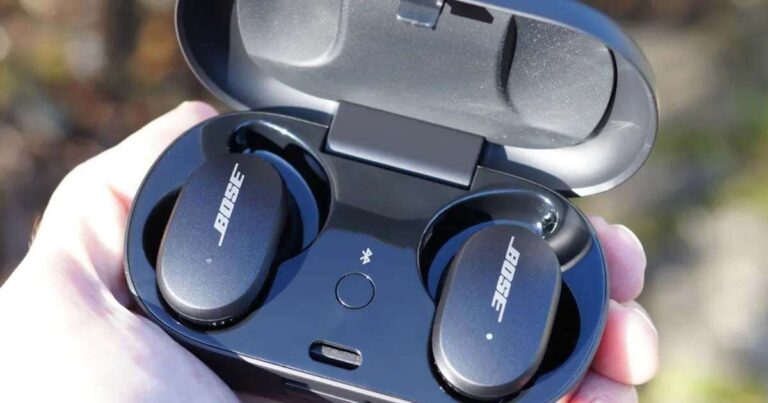
Use the Bose Music app, keep your earbuds charged, and install updates over a stable Wi-Fi connection.
Knowing how to update Bose earbuds helps you get better sound, stronger connections, and important bug fixes. Most current Bose models update through the Bose Music app, while some older models may use Bose’s computer-based updater. This guide explains both methods, common errors, safety tips, and practical steps that help the process finish without trouble.
Why You Should Update Bose Earbuds
A firmware update is software that improves the internal functions of your earbuds. It can fix bugs, improve Bluetooth performance, refine noise cancellation, and add support for newer phones or app features.
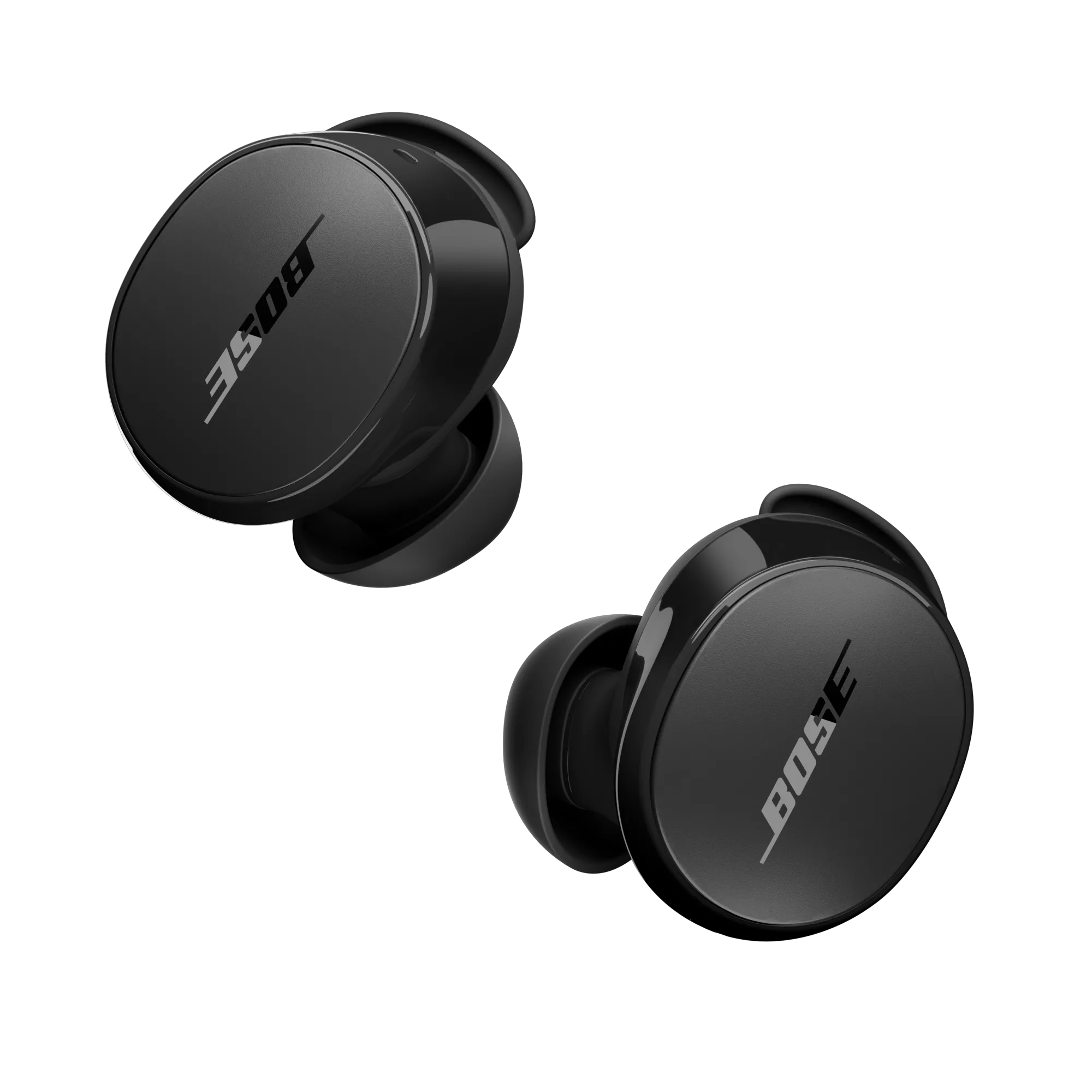
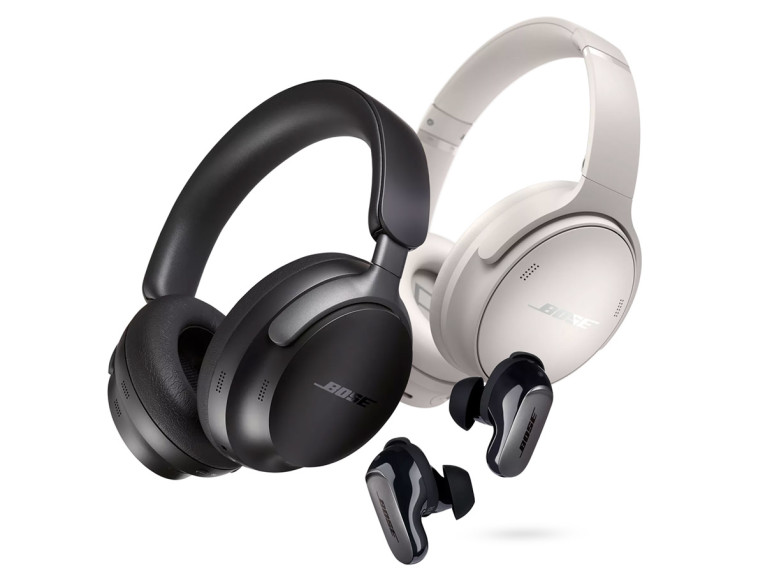
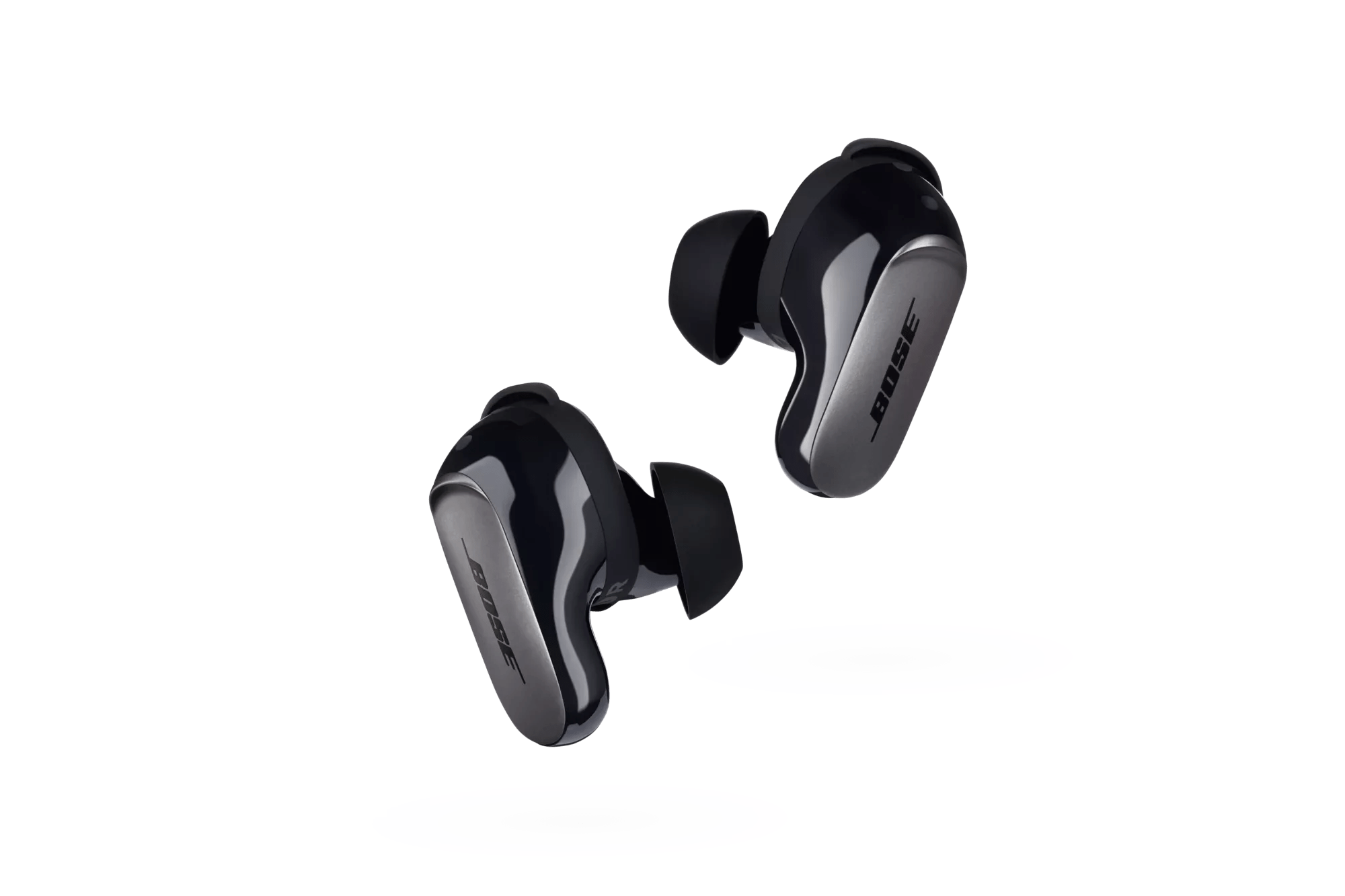
Bose does not release an update for every model on a fixed schedule. An update may appear when Bose identifies a problem or improves a feature. Your Bose QuietComfort Ultra Earbuds, QuietComfort Earbuds II, Sport Earbuds, or another model may receive different firmware from other Bose products.
Learning how to update Bose earbuds is useful for several reasons:
• It may reduce random Bluetooth drops.
• It can fix charging or connection problems.
• It may improve touch controls or button response.
• It can improve compatibility with iPhone and Android devices.
• It helps keep the Bose Music app and earbuds working together.
• It may improve audio performance or noise control.
Updates cannot repair physical damage, worn batteries, or blocked charging contacts. They also do not always create a noticeable sound change. Think of an update as routine maintenance, much like updating the software on your phone.
Before You Start the Update
Good preparation makes how to update Bose earbuds much easier. Most failed updates happen because the earbuds lose power, the phone changes networks, or the app cannot maintain a steady connection.
Check these points before starting:
• Charge both earbuds to at least 50 percent.
• Charge the case if your model uses a charging case.
• Connect your phone to reliable Wi-Fi.
• Turn on Bluetooth.
• Keep the earbuds close to your phone.
• Close music, video, and battery-saving apps.
• Confirm that the Bose Music app is installed and updated.
• Remove the earbuds from your ears and place them in the case if the app asks you to do so.
Do not start an update while traveling in a car, walking outside, or using a weak public Wi-Fi network. A moving phone or poor connection can interrupt the process.
It is also wise to note your current settings. Write down your equalizer, shortcut, and noise-control preferences if they are important to you. Most updates keep these settings, but app changes or resets can sometimes remove custom choices.
In my experience with earbud troubleshooting, patience matters more than speed. Many users tap buttons because the progress bar appears frozen. That can turn a normal update into a real problem. Give the app time to work before closing it.

How to Update Bose Earbuds With the Bose Music App
The Bose Music app is the easiest method for most newer Bose wireless earbuds. It works with many popular models, including the QuietComfort Ultra Earbuds and QuietComfort Earbuds II.
Follow these steps:
-
Open the Bose Music app on your iPhone or Android phone.
-
Sign in to your Bose account if the app requests it.
-
Turn on Bluetooth and place the earbuds near your phone.
-
Open the charging case, or remove the earbuds if your model requires this.
-
Select your earbuds from the product list.
-
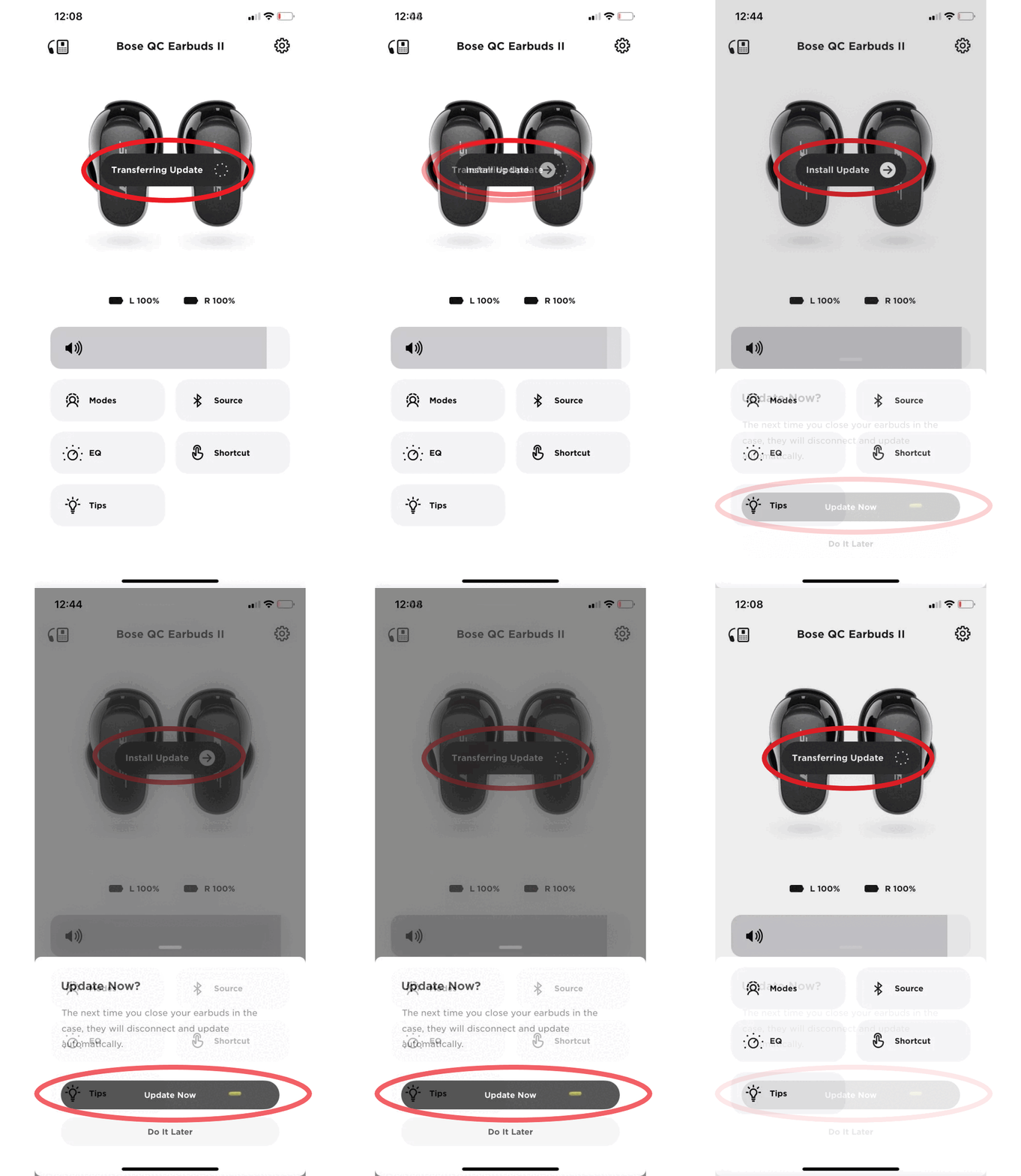
Look for an update message on the product screen.
-
Tap Update, Install, or a similar button.
-
Follow the instructions shown in the app.
-
Keep the phone and earbuds close together until the update finishes.
-
Place the earbuds in the case when the app tells you to do so.
The exact words may differ by model and app version. Some updates install automatically in the background. Others show a clear notification and ask for your approval.
During the update, the earbuds may disconnect from Bluetooth. This is normal. Do not remove them from the case, force-close the app, or turn off your phone unless the app specifically tells you to do so.
After the update finishes, wait a few minutes before testing the earbuds. Play audio, check both sides, and test the controls. If you use noise cancellation, switch between Quiet and Aware modes to confirm that each setting works.
This is the core process for how to update Bose earbuds through the official mobile app. It is usually safer than using unknown firmware files or unofficial software.
How to Update Bose Earbuds With a Computer
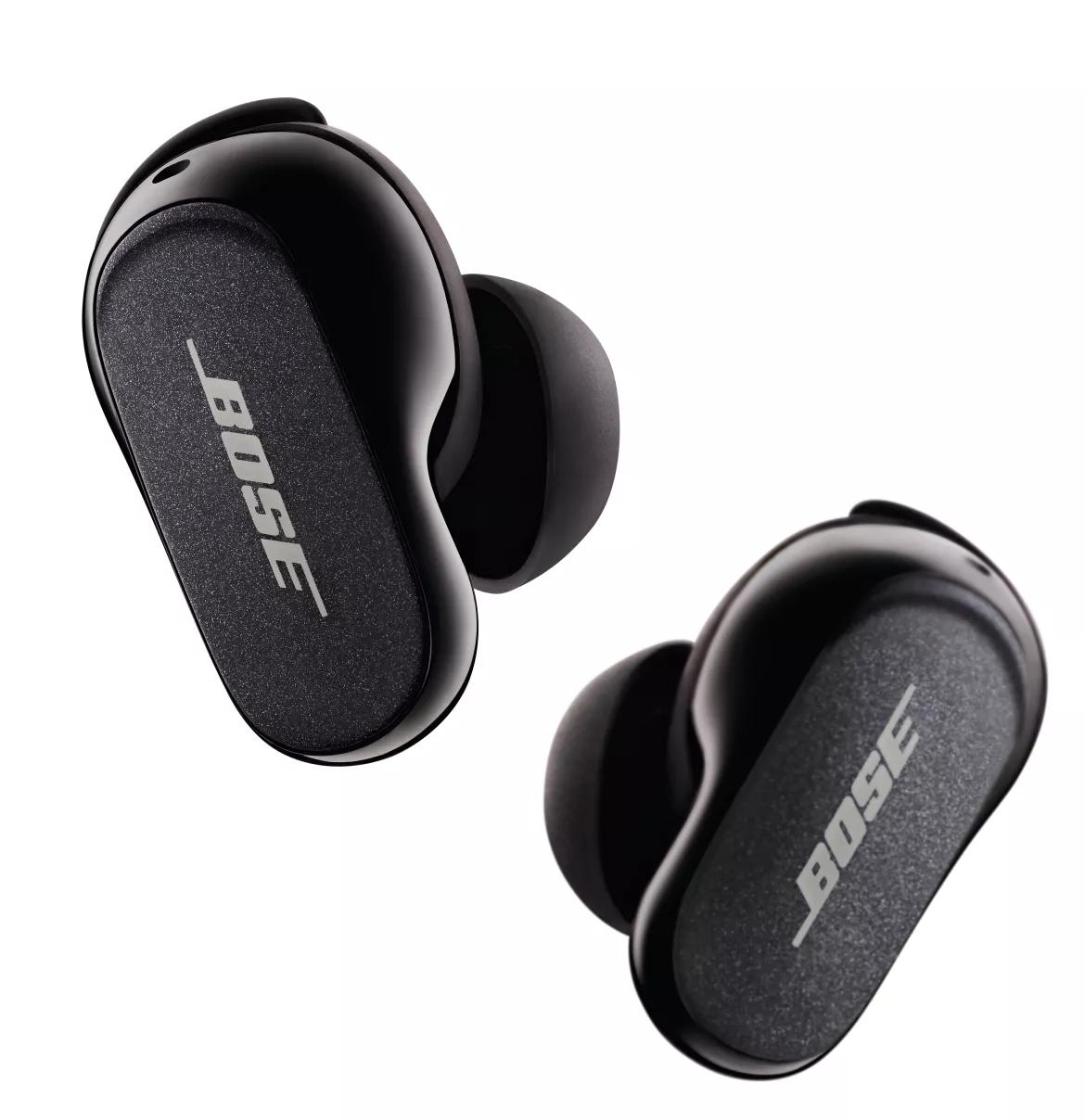
Some older Bose earbuds and headphones may support a computer-based update tool. This method is useful when the Bose Music app does not detect an available update or when your model is not fully supported in the app.
The process may vary, but these are the usual steps:
-
Open a supported web browser on a Windows PC or Mac.
-
Visit Bose’s official product support or updater page.
-
Connect the charging case or earbuds with a compatible USB cable.
-
Allow the updater to identify the product.
-
Review the available firmware information.
-
Start the update if one is offered.
-
Keep the device connected until the updater confirms completion.
Use the cable supplied with the product when possible. Some USB cables provide power only and cannot transfer data. If the updater does not recognize your earbuds, try another cable or USB port.
This method may not work for every Bose model. Newer earbuds may rely mainly on the Bose Music app. Avoid downloading firmware from forums, file-sharing sites, or third-party tools. An incorrect file can make the product unusable and may create a security risk.
If you are unsure which method applies, search the official Bose support page using your exact model name. “Bose earbuds” is too broad because each product can have different update instructions.

How to Check the Bose Earbuds Firmware Version
Checking the firmware version helps confirm whether how to update Bose earbuds worked correctly. It also helps support staff identify your software if you need assistance.
To check the version in the Bose Music app:
-
Open the Bose Music app.
-
Select your earbuds.
-
Tap the Settings icon.
-
Open Product Information, Technical Info, or a similar menu.
-
Find the firmware or software version.
The menu name can change after an app update. If you do not see the version, update the Bose Music app first and reconnect the earbuds.
Compare the displayed version with the latest version listed on the official support page for your exact model. Do not compare your version with a different product. The QuietComfort Earbuds II and QuietComfort Ultra Earbuds, for example, use different firmware even though both support noise cancellation.
A successful update may not change the version immediately. Close and reopen the app, place the earbuds in the case, and reconnect them. If the new version still does not appear, restart the phone and check again.
What to Do If a Bose Earbud Update Fails
An update can fail because of low battery, weak Wi-Fi, an outdated app, or a temporary Bluetooth error. A failed update does not always mean the earbuds are damaged.
Try these steps in order:
• Place both earbuds in the charging case.
• Connect the case to power.
• Close and reopen the Bose Music app.
• Restart your phone.
• Turn Bluetooth off and on again.
• Move closer to the Wi-Fi router.
• Update the Bose Music app from the App Store or Google Play.
• Remove the earbuds from the phone’s Bluetooth list, then pair them again.
• Check the charging contacts for dust or moisture.
• Try the update again after the earbuds have charged.
Do not repeatedly start the update if the app shows a clear error. First read the message and follow its instructions. Some errors require a reset, while others need a different cable or support assistance.
If your earbuds seem frozen, place them in the case and close the lid for about 30 seconds. Then open the lid and reconnect them. This simple step often clears a temporary connection issue.
A factory reset is a later option, not the first one. A reset can remove paired devices and personal settings. Use it only after ordinary troubleshooting fails and after checking the instructions for your exact model.
How to Reset Bose Earbuds Before Updating
Resetting can help when the Bose Music app cannot find the earbuds, but the reset method varies by model. Do not assume that instructions for one Bose product apply to another.
Before resetting, remember:
• Your saved Bluetooth connections may be erased.
• Custom settings may return to their defaults.
• You may need to sign in to the Bose Music app again.
• The earbuds should have enough charge.
• You should check the model-specific Bose instructions first.
For many Bose earbuds, a reset involves placing the earbuds in the case, connecting the case to power, or holding a button for a set time. The exact action depends on the product. Follow the official guide for your model instead of guessing.
After resetting, remove the old Bose device from your phone’s Bluetooth settings. Open the Bose Music app and add the earbuds as a new product. Then try the firmware update again.
One common mistake is resetting the earbuds but leaving the old Bluetooth connection active. The phone may reconnect to an incomplete pairing, which makes the problem look worse. Starting with a clean pairing gives the app a better chance to detect the product.
Common Mistakes to Avoid
Knowing what not to do is an important part of how to update Bose earbuds. Firmware installation is usually simple, but careless interruptions can create avoidable issues.
Avoid these mistakes:
• Do not turn off Bluetooth during the update.
• Do not switch to another Wi-Fi network.
• Do not let the phone enter low-power mode.
• Do not open and close the case again and again.
• Do not press random buttons if the app appears slow.
• Do not use an unknown USB cable for a computer update.
• Do not install firmware meant for another Bose model.
• Do not rely on a nearly empty phone battery.
• Do not update while the earbuds are wet.
If the progress bar does not move for several minutes, check the app message before taking action. Some stages involve transferring and verifying files, so the screen may appear inactive.
A useful habit is to update at home with the phone plugged in. This removes two common risks: a low phone battery and an unstable connection. It also gives you time to test the earbuds after the installation.
How Long Does a Bose Earbuds Update Take?
Most updates finish within several minutes, but the time depends on the firmware size, phone, Wi-Fi speed, and product model. A slow progress bar does not automatically mean the update has failed.
Allow extra time if:
• The app is downloading the update first.
• Your Wi-Fi signal is weak.
• The earbuds need to restart during installation.
• The app is updating more than one Bose device.
• The charging case has a low battery.
Keep the earbuds near the phone and leave the app open. If the update has shown no progress for an unusually long time and no message appears, restart the app only after confirming that the earbuds are safely in the case or that the updater gives you permission.
Afterward, check audio from both earbuds. Listen for sound balance, test the microphone on a call, and switch noise-control modes. These quick checks can reveal a connection issue before you leave home.
Benefits and Limits of Bose Earbud Firmware Updates
Firmware updates offer useful improvements, but they are not a cure for every earbud problem. Understanding the limits helps you set realistic expectations.
Possible benefits include:
• More reliable Bluetooth pairing.
• Better communication between the earbuds and charging case.
• Fixes for app or control errors.
• Improved microphone behavior.
• Compatibility improvements for newer phones.
• Changes to sound, noise cancellation, or transparency features.
Possible limits include:
• An update cannot restore a worn-out battery.
• It cannot remove dirt from charging contacts.
• It may not improve sound for every listener.
• It cannot fix water damage or a broken speaker.
• Some features may depend on the phone or app version.
• Firmware changes may differ between regions and models.
Bose may also change how a feature works without making a major difference that you can hear. For example, an update may improve stability rather than add a new listening mode. That is still valuable because stable earbuds are more useful than earbuds with many features that disconnect.
Tips for Keeping Bose Earbuds Working Well
Updating is only one part of earbud care. A few small habits can protect battery life and reduce connection problems.
• Wipe the earbuds with a soft, dry cloth.
• Keep the charging contacts clean and dry.
• Store the earbuds in their case when you are not using them.
• Avoid extreme heat, cold, and moisture.
• Keep the Bose Music app current.
• Charge the case before long trips.
• Remove old Bluetooth pairings that you no longer use.
• Check the ear tip fit if sound or noise cancellation seems weak.
Earwax and dust can block speaker openings and make an update appear to have changed the sound. Clean the outer surfaces gently, but do not push a sharp object into the speaker mesh.
If one earbud plays more quietly than the other after an update, test the earbuds with a second device. This separates a phone setting from an earbud problem. Also check left-right balance and accessibility settings on the phone.
Frequently Asked Questions About How to Update Bose Earbuds
How do I update Bose earbuds?
Open the Bose Music app, select your earbuds, and follow the update message on the product screen. Keep the earbuds charged, connected, and close to the phone until the process ends.
Do Bose earbuds update automatically?
Some Bose earbuds can receive updates through the Bose Music app when an update becomes available. Automatic behavior depends on the model, app settings, and Bose’s current software system, so checking the app is the most reliable method.
Can I update Bose earbuds without the Bose Music app?
Some older Bose products may support a computer-based updater through a USB connection. Newer models often rely on the Bose Music app, so check the official instructions for your exact model before choosing another method.
Why will my Bose earbuds not update?
Low battery, weak Wi-Fi, an outdated app, or a poor Bluetooth connection can stop an update. Charge the earbuds, restart the phone and app, keep the devices close, and try again.
How long does it take to update Bose earbuds?
Many updates finish in several minutes, but download speed and model differences can change the timing. Do not interrupt the process just because the progress bar moves slowly.
Will updating Bose earbuds erase my settings?
A normal firmware update usually keeps your settings and pairings, but this can vary by model and software version. A factory reset is more likely to erase saved devices and custom preferences.
Can I use my Bose earbuds during an update?
You should not use the earbuds during installation. Keep them near the phone and follow the app’s instructions until the update is complete.
How do I know whether my Bose earbuds are updated?
Open the Bose Music app and check the Product Information or Technical Info section. The firmware version shown there should match the latest version listed for your exact Bose model.
Conclusion
The safest way to update Bose earbuds is through the Bose Music app, with a charged case, strong Wi-Fi, and a stable Bluetooth connection. Older models may use a computer updater, but the correct method depends on the exact product.
Prepare first, avoid interruptions, and troubleshoot in a calm order if the update fails. Check your firmware version afterward and test sound, controls, microphone quality, and noise cancellation. Use these steps today, then explore your model’s official support guide or share your update experience in the comments.

Everett Ashford is a tech reviewer at mytechgrid.com specializing in SSDs, cameras, TVs, earbuds, headphones, and other consumer electronics. He provides honest, data-driven reviews based on hands-on testing and real-world performance analysis. Everett simplifies complex tech details to help readers make smart, confident buying decisions.