For most users, a 500GB to 1TB SSD hits the sweet spot for speed and space.
I’ve spent years testing drives, building PCs, and advising people on storage choices, so I’ll walk you through exactly how much SSD do I need for your situation. This guide breaks down real-world use cases, trade-offs between capacity and cost, upgrade strategies, and practical tips to squeeze the most value from your SSD investment. Read on and you’ll know what size to buy, why, and how to plan for future needs.

Understanding SSDs: capacity, performance, and practical limits
Solid-state drives replace spinning disks with flash memory. They deliver much faster boot times, app launches, and file transfers. But SSDs come in many sizes, speeds, and form factors, and capacity is just one part of the decision.
Capacity measures how much data you can store. Performance depends on interface type (SATA, NVMe), NAND type, and controller. Cost per gigabyte rises as drives get faster and smaller. When people ask how much SSD do I need, they often confuse speed needs with storage needs. The right balance depends on what you store and how you use your machine.
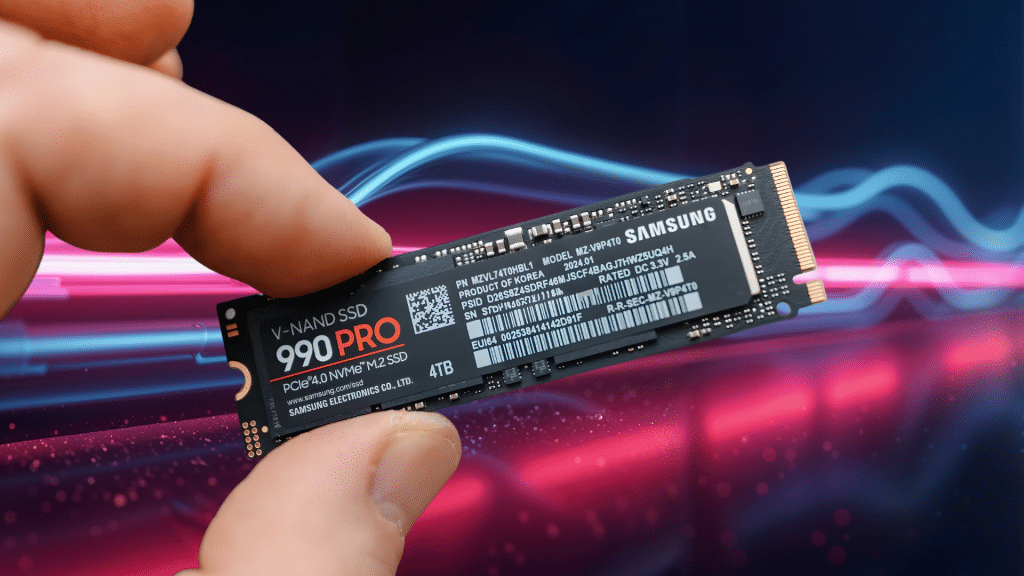
How much SSD do I need? Quick guidelines by user type
Below are practical recommendations by user profile. These are general; adjust if you keep lots of large files or multiple games.
-
Casual user, web browsing, streaming, light apps
- 256GB to 512GB is often enough. Keep the OS and apps on SSD and use cloud for photos.
-
Student or office worker
- 512GB gives room for documents, a few apps, and school projects without constant cleanup.
-
Power user, many apps, multitasking
- 1TB provides headroom for productivity apps, virtual machines, and local caches.
-
Gamer
- 1TB to 2TB recommended if you install many modern games. Games can be 50–150GB each.
-
Creative professional (video editing, photography, music production)
- 1TB minimum. 2TB+ for heavy video work or large RAW photo libraries.
-
Developer (containers, VMs, SDKs)
- 1TB is comfortable. 2TB if you run many VMs or large local databases.
-
Home server, NAS, or media library
- Consider a hybrid: small NVMe for OS (256–512GB) and larger SATA SSDs or HDDs for mass storage. For pure SSD NAS, 2TB+ drives are common.
-
Laptop with limited bays
- Buy bigger capacity upfront. Upgrading laptops later can be harder.
When deciding how much SSD do I need, think about current files plus growth for 2–3 years. If you expect growth, opt for the next tier up to avoid migrating later.
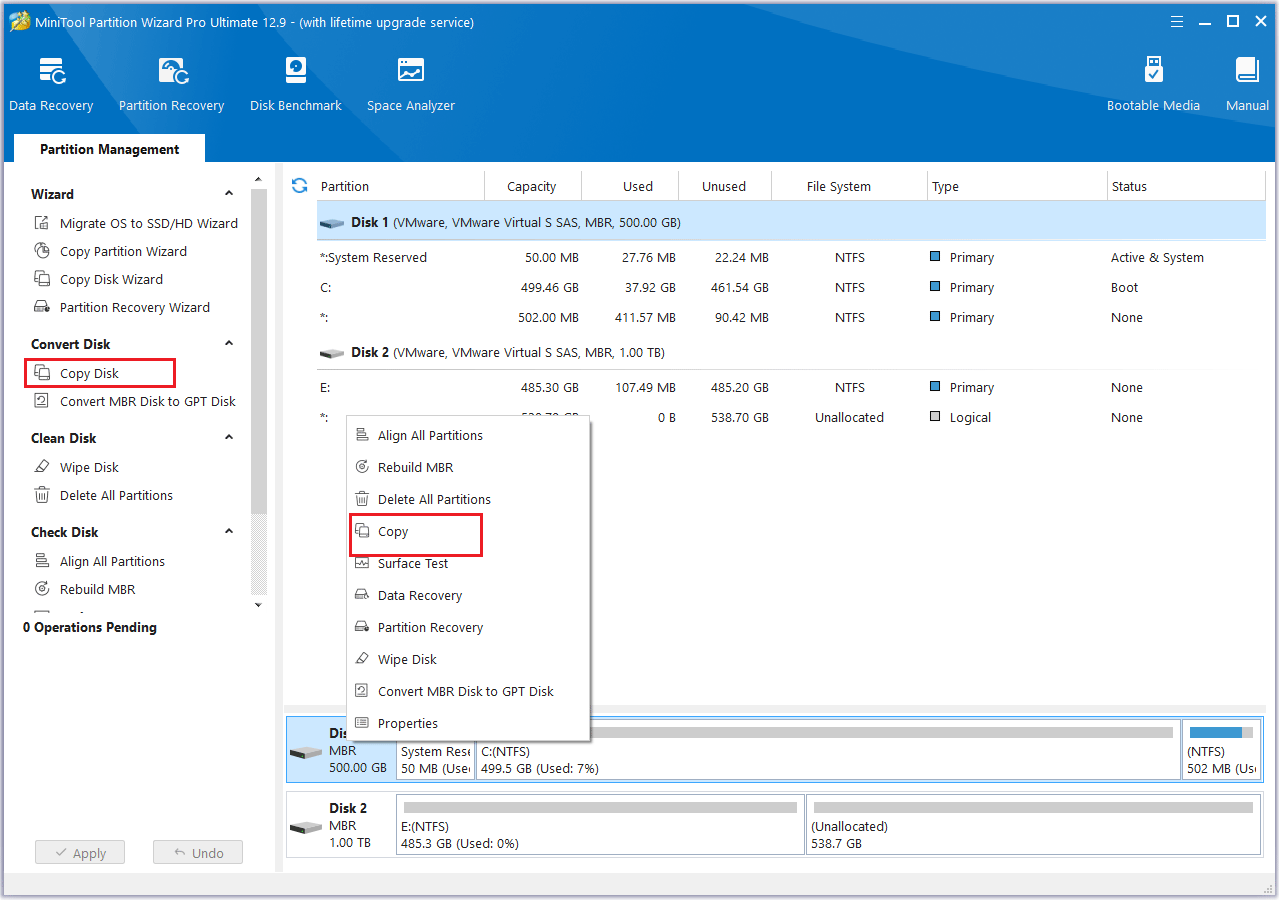
Factors that determine how much SSD do I need
Storage needs depend on multiple factors. Evaluate these for an informed choice.
-
File types and sizes
- Video and raw photos use the most space. Documents and streaming content use much less.
-
Number of installed apps and games
- Some apps are small; modern games are large. Count consistently used titles.
-
Temporary files and caches
- Editing software and browsers store large caches. Factor in scratch and cache size.
-
Backup strategy
– If you back up locally, you’ll need more space. Cloud backup reduces local demand. -
Drive lifespan and overprovisioning
- SSDs need free space to maintain speed and endurance. Leaving 10–20% free is healthy.
-
Budget and upgrade path
- Lower capacity costs less now but may force a costly upgrade later. Check upgrade ease for your device.
Estimate: total active data + 20% free space + expected 12–24 months of new data. That gives a practical SSD size target. Repeat the question to yourself: how much SSD do I need if I add a new camera, game, or project this year?

Picking form factor and interface: SATA, NVMe, M.2, and PCIe
Not all SSDs are equal. Interface affects speed and price, not raw capacity.
-
SATA SSDs
- Slower than NVMe but cheaper. Common in 256GB–4TB sizes. Good for budget upgrades.
-
NVMe (PCIe) SSDs
- Much faster for boot, load, and heavy workloads. Available in 250GB–4TB commonly.
-
M.2 drives
- Small stick form; can be NVMe or SATA. Check your laptop/desktop compatibility.
-
U.2 and PCIe add-in cards
- For workstations and servers requiring high endurance and throughput.
If your question is “how much SSD do I need for performance?” understand that capacity does not equal speed. A 512GB NVMe will be faster than a 2TB SATA in many tasks. Balance capacity, interface, and budget.

Saving space: strategies to reduce how much SSD you need
You can lower storage needs with tactics. These let you buy a smaller SSD while keeping a smooth workflow.
-
Use cloud storage for photos, old files, and archives
- Move seldom-accessed items off local drives.
-
External drives for archive or media
- Store large video libraries or backups externally.
-
Offload games you’re not currently playing
- Reinstall when you want to play; many launchers support quick reinstalls.
-
Use selective sync
- Sync only recent folders to your device.
-
Clean and compress
- Periodic cleanup, deduplication, and compression save space.
-
Configure scratch and cache locations
- Point large temp files to a secondary drive to avoid filling the SSD.
These steps change the answer to “how much SSD do I need?” by lowering your immediate storage footprint.

Budget planning and upgrade paths — real examples from my workbench
I’ve advised clients across budgets. Here are real setups and lessons.
-
Budget laptop upgrade for a student
- Replaced a 128GB HDD with a 512GB SATA SSD. Result: instant responsiveness and sufficient space for school files. Lesson: small upgrade can make an old laptop usable again.
-
Gamer desktop build
- Primary 1TB NVMe for OS and favorite games, plus 2TB SATA for archives and less-played titles. Lesson: split workloads by drive type.
-
Freelance video editor
- Bought a 2TB NVMe for active projects and a 6TB external HDD for older archives. Lesson: fast local workspace plus cheap mass storage is cost-effective.
-
Developer workstation
- 1TB NVMe for OS, code, and VMs. Kept Docker volumes on a secondary NVMe partition. Lesson: separate heavy I/O workloads to avoid contention.
A common mistake: buying the smallest affordable SSD and then running out of space within months. If you ask “how much SSD do I need?” think medium-term and plan for growth.
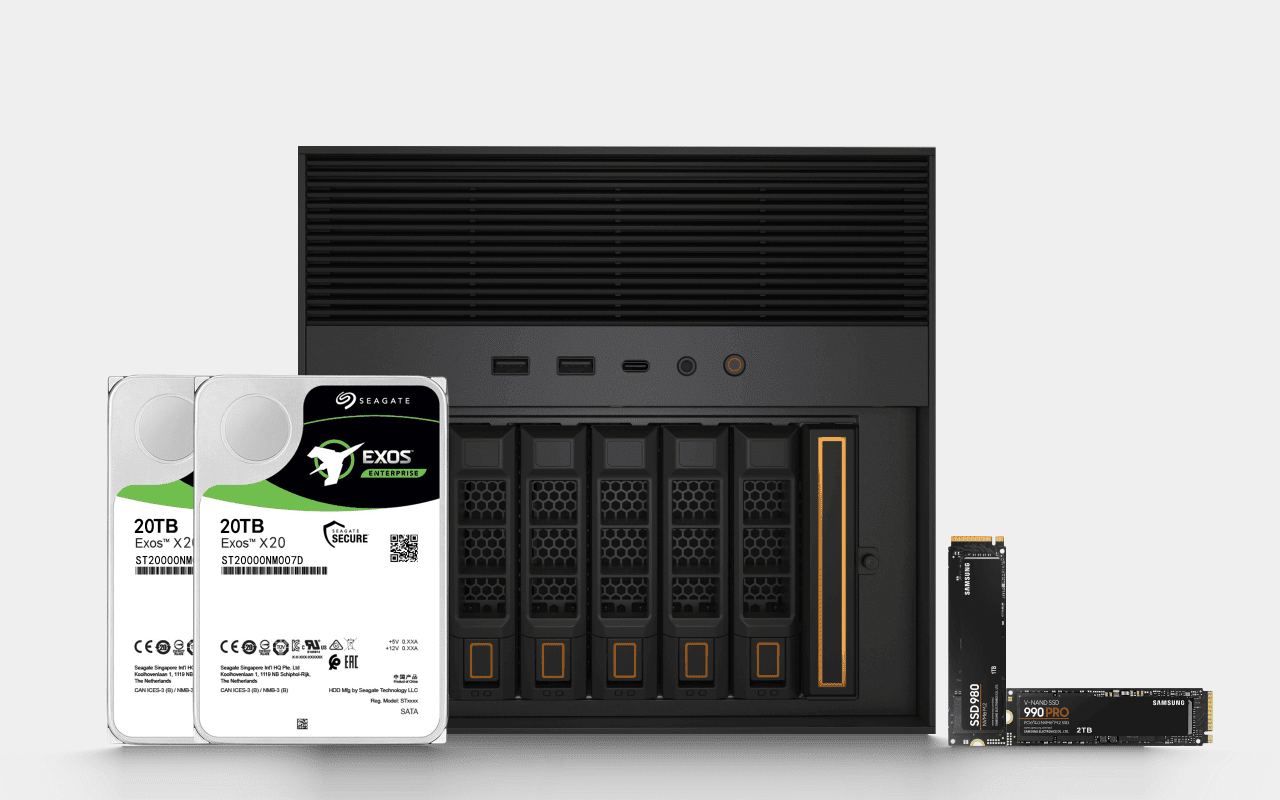
Installation, migration, and maintenance tips
Follow these steps for a smooth SSD upgrade and long-term health.
- Back up everything before swapping drives.
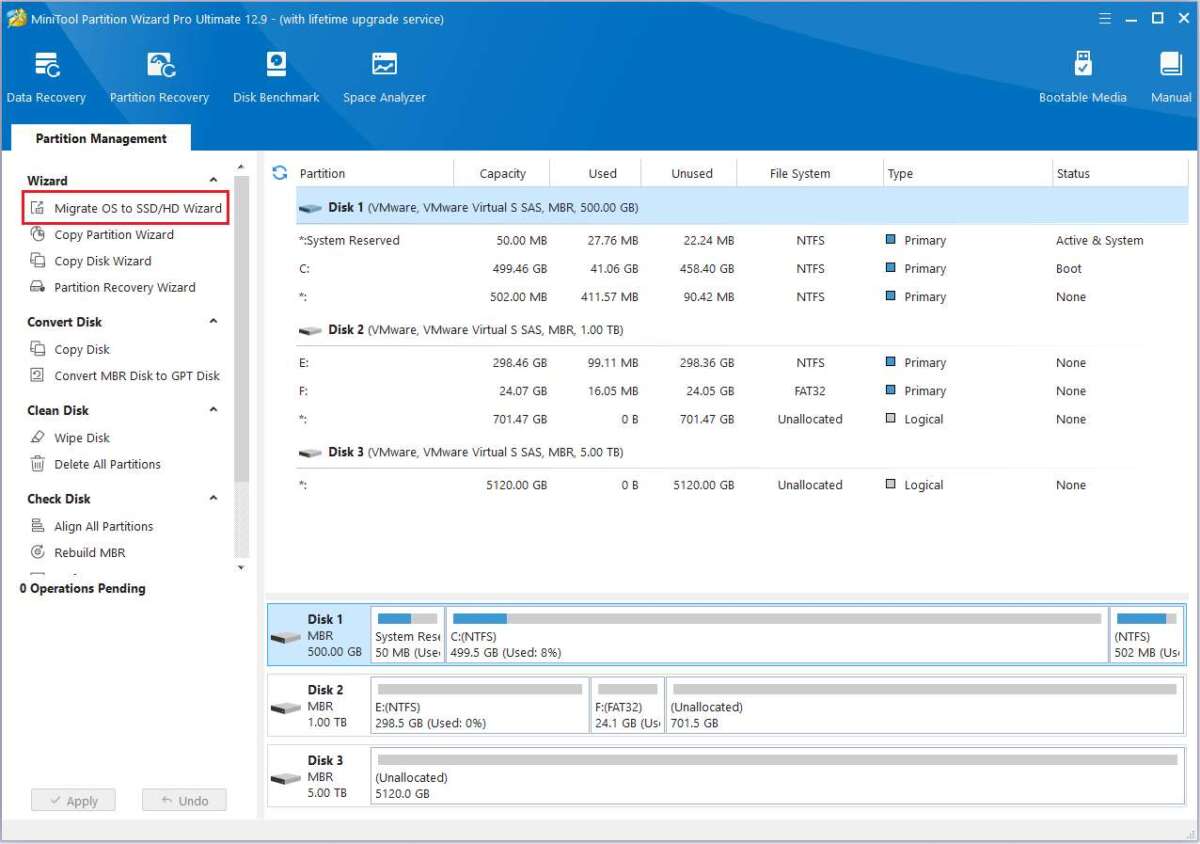
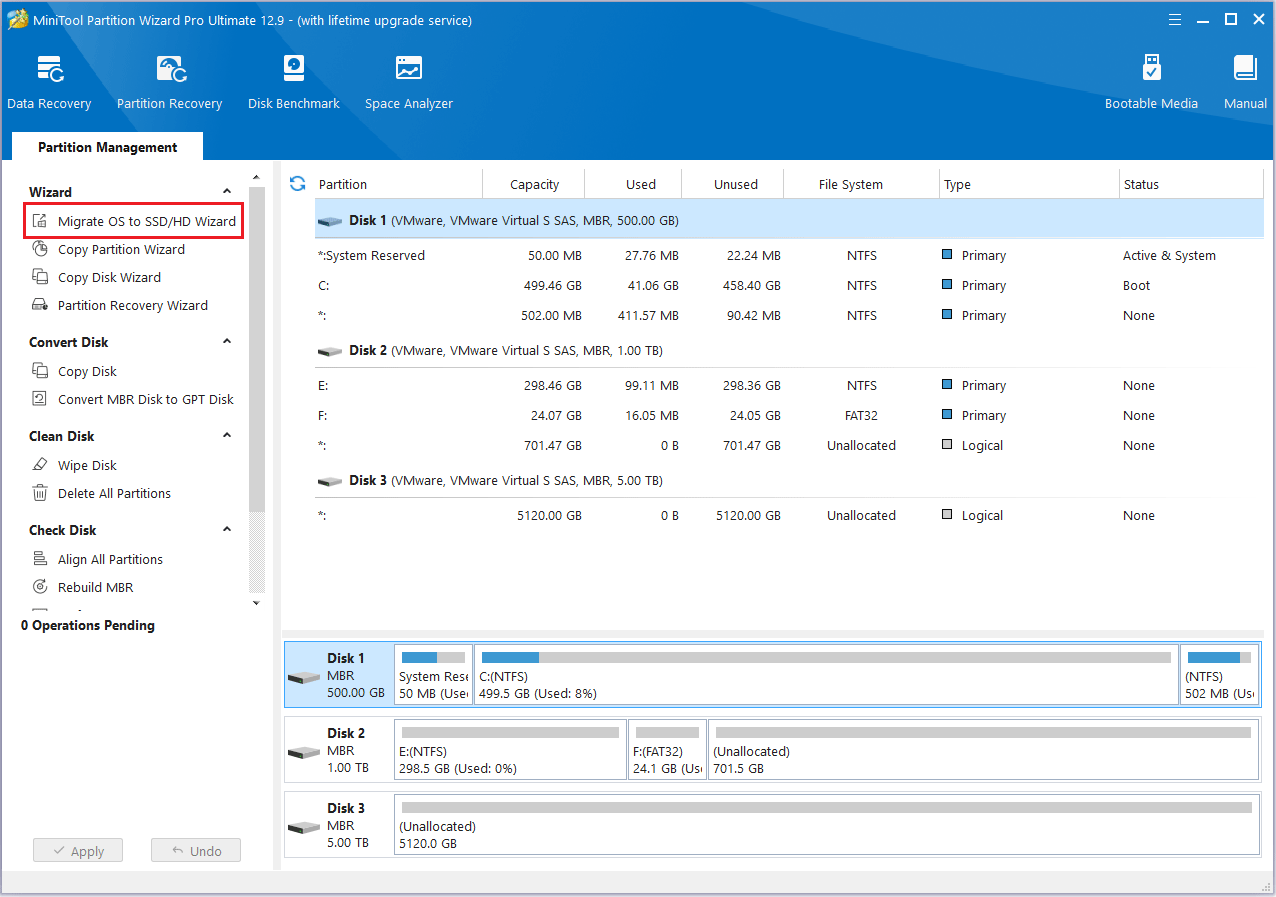
- Clone or do a fresh OS install depending on cleanliness.
- Enable TRIM in your OS to maintain performance.
- Leave 10–20% free space for overprovisioning.
- Keep firmware updated from your SSD maker.
- Monitor drive health with SMART tools occasionally.
If you migrate, a fresh OS install often yields the best feel. Cloning is faster but can carry old clutter. These practical steps answer “how much SSD do I need” by ensuring your chosen drive performs well across its lifespan.
People also ask (PAA-style)
How much SSD do I need for gaming?
For gaming, aim for at least 1TB if you play multiple modern titles. Many games are large, so 1TB lets you keep a healthy library without constant reinstalls.
How much SSD do I need for video editing?
Start with 1TB for light editing; choose 2TB or more for 4K projects and active scratch disks. Fast NVMe helps editing performance as well as capacity.
Is 256GB SSD enough?
256GB is okay for light users and secondary devices, but it fills quickly if you install many programs or games. Use cloud or external storage to compensate.
Frequently Asked Questions of how much ssd do i need
What is the minimum SSD size I should consider?
For modern use, 512GB is a practical minimum for most users to avoid frequent cleaning. Laptops with upgrade limits may need 1TB upfront.
Will a bigger SSD make my computer faster?
Larger SSDs often have better sustained performance, but interface and SSD type (NVMe vs SATA) matter more than raw capacity. Speed gains are most noticeable when using NVMe drives.
Can I use an external SSD instead of upgrading internal storage?
Yes. External SSDs are great for archives, games, and media. They can’t always replace internal speed for boot and system tasks but are practical for extra space.
How do I estimate future SSD needs?
Track current storage use and add expected growth for apps, media, and projects for 1–3 years. Add ~20% overhead for system caches and wear-leveling.
Should I buy two smaller SSDs or one large SSD?
One large SSD is simpler and often cheaper per GB. Two drives let you separate OS and data for performance and easier backups. Choose by workload and available bays.
Conclusion
Choosing the right SSD size comes down to honest assessment of your files, apps, and growth plans. Aim for a balance: enough capacity to work comfortably today, plus room to grow for the next couple years. If you’re unsure, lean toward 1TB for laptops and desktops—it's a practical sweet spot for most users.
Take action now: check your current storage use, estimate two years of growth, and pick a drive that fits your workflow and budget. If you have specific needs or want help choosing a model, leave a comment with your device and use case.

Jamie Lee is a seasoned tech analyst and writer at MyTechGrid.com, known for making the rapidly evolving world of technology accessible to all. Jamie’s work focuses on emerging technologies, product deep-dives, and industry trends—translating complex concepts into engaging, easy-to-understand content. When not researching the latest breakthroughs, Jamie enjoys exploring new tools, testing gadgets, and helping readers navigate the digital world with confidence.