SSDs are used to store and access data much faster and more reliably than hard drives.
I’ve worked with storage tech for years, and I’ll walk you through precisely what is ssd used for, why it matters, and how to pick and use one wisely. This guide blends clear tech explanations, practical examples, and real-world tips so you can decide when an SSD makes sense for your laptop, desktop, server, or external drive.
What is an SSD and why it matters?
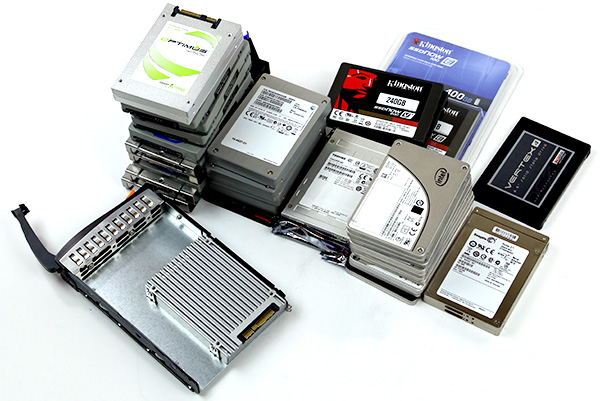
An SSD, or solid-state drive, stores data using flash memory rather than spinning disks. It has no moving parts, so it boots systems, opens files, and loads apps much faster than traditional hard drives.
People searching for what is ssd used for want to know how it will improve their devices. SSDs shorten boot times, speed up application launches, and make systems feel more responsive. They are now the standard for modern laptops and many desktops.
How SSDs work
SSDs store bits in NAND flash memory cells. A controller manages reads, writes, and wear leveling. Interfaces like SATA and NVMe govern how fast data moves between the SSD and your computer.
Key technical points in plain language:
- NAND flash stores data in cells. Cells are grouped into pages and blocks. Writing happens at the page level; erasing happens at the block level.
- Controllers handle error correction and distribute writes to extend lifespan.
- NVMe over PCIe gives much higher speed and lower latency than SATA.
If you’re wondering what is ssd used for at a technical level, the answer is simple: any task that benefits from quick random reads and writes, low latency, and consistent performance. For example, NVMe SSDs dramatically speed up large file transfers and heavy multitasking.

Main uses of SSDs
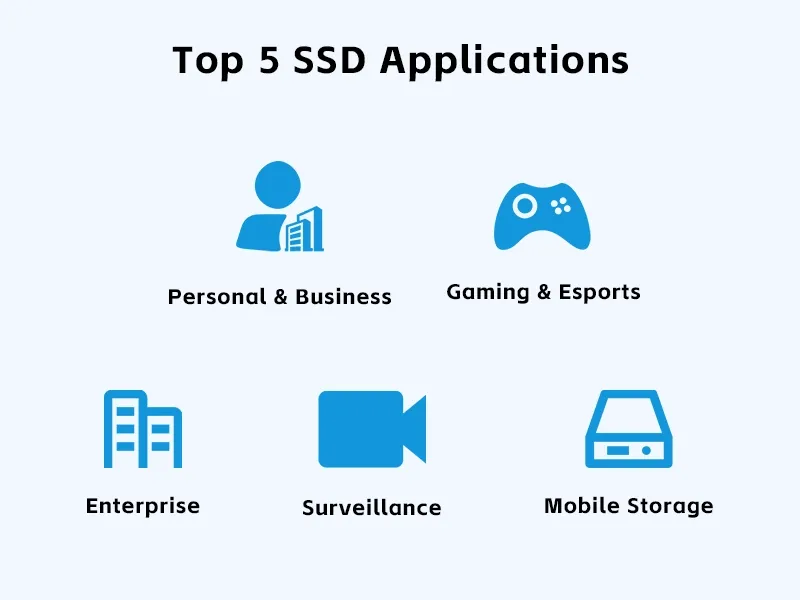
SSDs fit many roles. Here are the most common:
- Operating system drive
- Use an SSD for your OS to cut boot and app load times dramatically.
- Gaming drive
- Games install and load faster on SSDs. Large game worlds stream smoother.
- Content creation
- Video editors and photo pros use SSDs for fast scrubbing, caching, and exports.
- Databases and virtualization
- Databases get better I/O performance. Virtual machines start and run more efficiently.
- Cache and scratch space
- Use SSDs as cache layers for slower storage. Photo and video apps use SSD scratch disks.
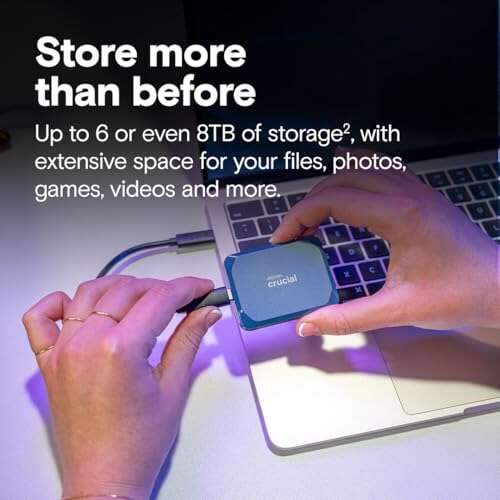
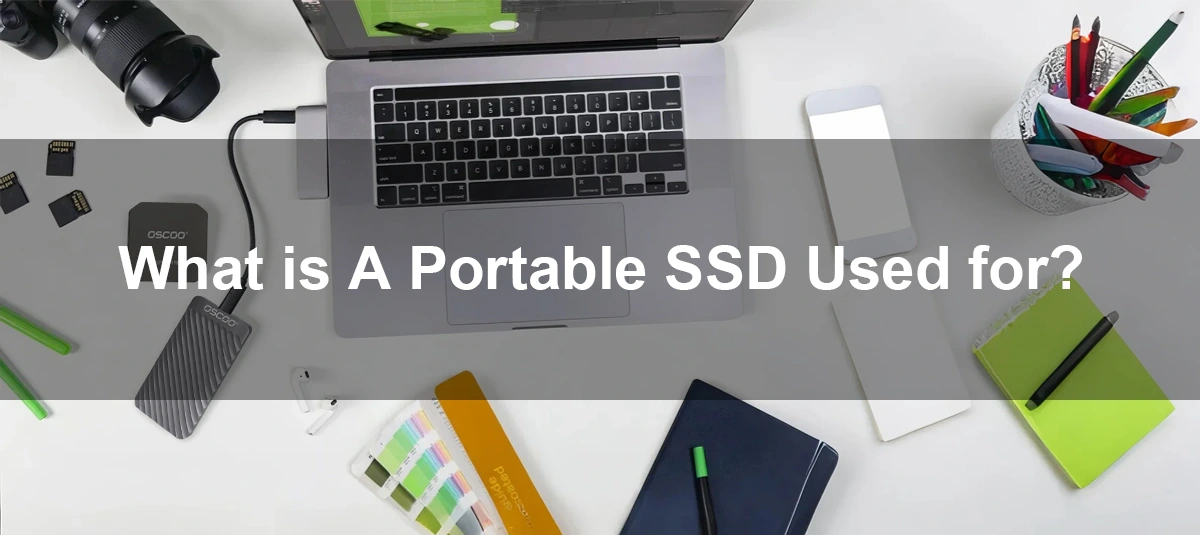
- Portable and external storage
- External SSDs are small, fast, and shock resistant for backups and media on the go.
- Embedded systems and IoT
- SSDs in small form factors serve industrial devices and edge compute.
When people ask what is ssd used for, these real-world roles are what they mean: faster boots, better app performance, improved game loading, smoother editing, and more reliable mobile storage.
Benefits of SSDs
SSDs offer clear advantages:
- Speed improvements
- Faster boot times and app loads. Random I/O speed is where SSDs shine.
- Durability
- No moving parts equals better shock resistance and fewer mechanical failures.
- Lower power and less heat
- Especially important for laptops and small systems.
- Silent operation
* No spinning disks or heads means near-silent performance. - Smaller form factors
- M.2 and NVMe drives save space inside laptops and compact builds.
If your main question is what is ssd used for to gain speed, the benefits above explain why many users upgrade from HDDs to SSDs first.

Limitations and things to watch
SSDs are not perfect. Know the trade-offs:
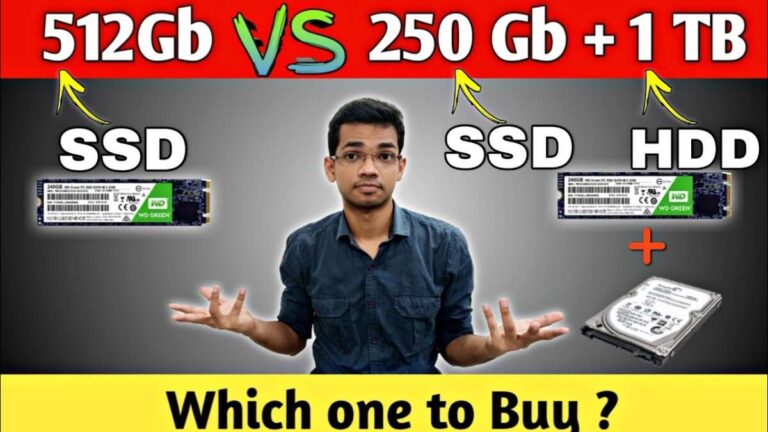
- Cost per gigabyte
- SSDs still cost more than HDDs for the same capacity, though prices keep falling.
- Write endurance
- Flash cells wear out over many write cycles. Manufacturers rate drives by TBW (terabytes written).
- Data recovery can be harder
- When an SSD fails, recovery is often more difficult and sometimes impossible.
- Performance variation
- Some budget drives slow down under heavy sustained writes.
- Compatibility
- Older systems may not support NVMe M.2 or need BIOS updates.
Understanding these limits helps answer what is ssd used for in a balanced way. Use SSDs for speed-critical tasks and pairing with HDDs for bulk storage when cost matters.
Choosing the right SSD for your needs
Pick an SSD by matching it to your use case. Consider these factors:
- Interface and form factor
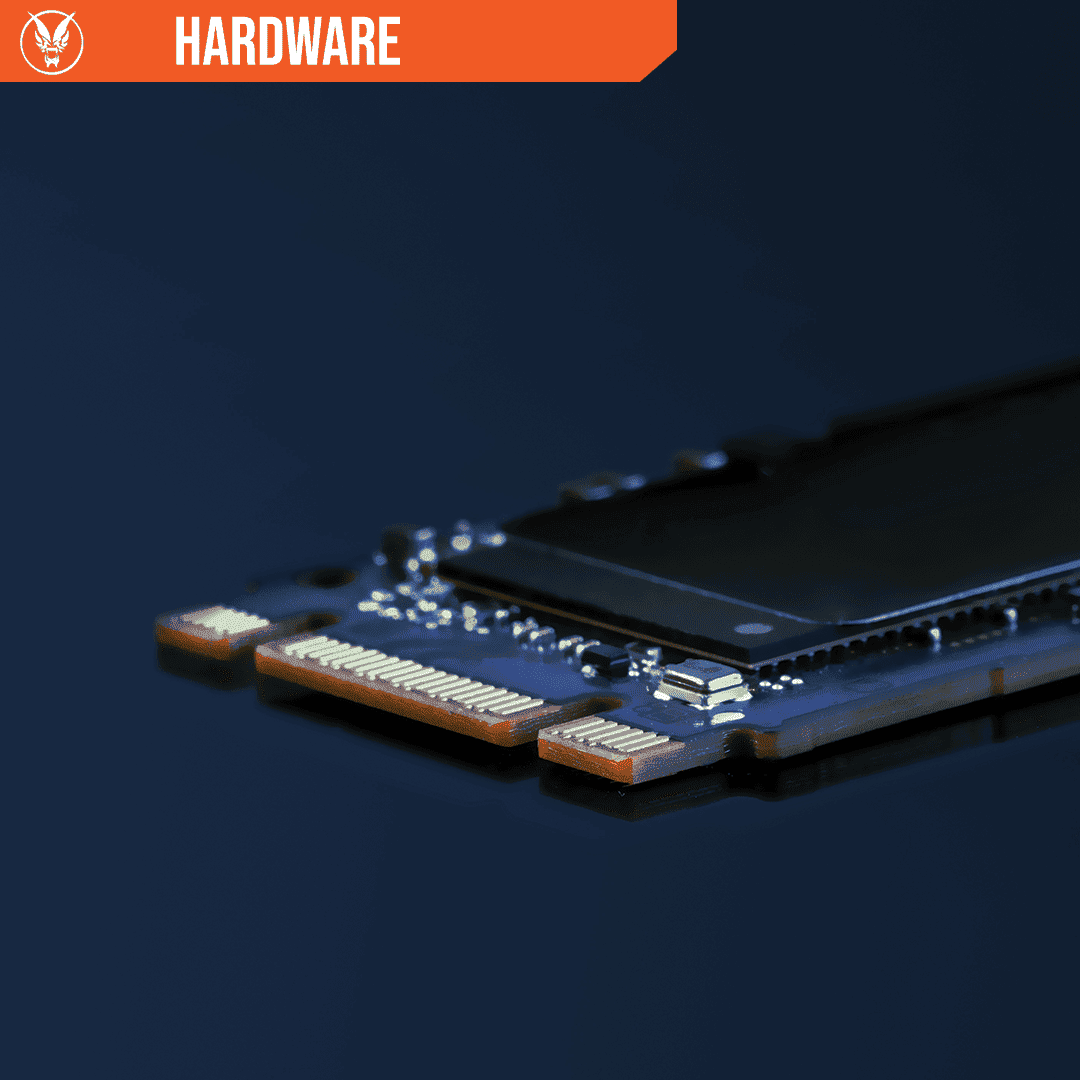
- NVMe M.2 is best for peak performance. SATA is fine for budget upgrades and older systems.
- Capacity
- 500 GB is common for OS and apps. 1 TB+ is better for games and media work.
- Endurance and warranty
- Look for TBW ratings and multi-year warranties for heavy write workloads.
- Controller and NAND type
- TLC is common and cost-effective. QLC is cheaper but has lower endurance. DRAM vs DRAM-less affects sustained speed.
- Brand reliability and firmware support
- Choose vendors with good firmware update policies and support.
If you're still asking what is ssd used for in your setup, match your choice to whether you need top speed (NVMe), higher capacity (SATA or HDD combo), or low cost (QLC drives for read-heavy use).
Installing and maintaining an SSD
Installation and upkeep are straightforward:
- Physical install
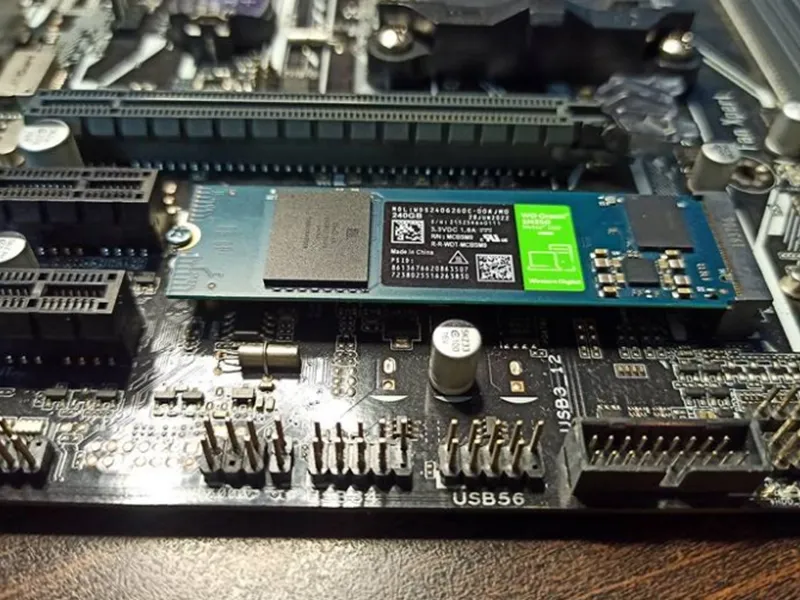
- For laptops, replace the drive or add an M.2. For desktops, plug into the M.2 slot or SATA port.
- Cloning vs fresh install
- Cloning copies your system, but a fresh OS install often gives the cleanest performance.
- System settings
- Enable AHCI in BIOS for SATA SSDs. Use NVMe drivers when available. Make sure TRIM is enabled in the OS.
- Firmware updates and drivers
- Check the manufacturer for firmware updates to fix bugs and boost performance.
- Backups
- Regular backups are essential. SSDs can fail without mechanical warning, so maintain an external backup strategy.
These steps tell you exactly what is ssd used for in practice: a fast, reliable main drive—if you install and maintain it correctly.

Personal experience and practical tips
I upgraded an older laptop to an NVMe SSD. Boot time dropped from two minutes to under twenty seconds. Apps opened instantly. The machine felt new again.
Lessons I learned:
- Always back up before cloning or swapping drives.
- Enable TRIM and check BIOS settings first; otherwise, drives may not perform optimally.
- Don’t skimp on a power-loss protection feature for server or heavy write use.
If you’re wondering what is ssd used for in everyday life, my simple tip is this: use an SSD for the OS and apps, and add larger HDDs or cloud storage for file archives.

Frequently Asked Questions of what is ssd used for(make it h2 tag)
What is ssd used for in a laptop?
SSDs act as the system drive to speed up boot times and app launches. They also extend battery life and improve shock resistance in portable devices.
Can an SSD replace an HDD for storage?
Yes. SSDs can replace HDDs for most uses, but they cost more per gigabyte, so many users pair an SSD with an HDD for capacity and speed balance.
How does an SSD improve gaming performance?
SSDs cut game load times and reduce texture pop-in by delivering data faster. They rarely improve frame rates but greatly enhance overall responsiveness.
Are SSDs reliable for backups?
SSDs are reliable, but backups should still be kept on separate media or in the cloud. SSD failures can be sudden, so redundancy matters.
How long do SSDs last?
Drive life depends on usage and TBW ratings. For normal consumer use, a modern SSD often lasts many years before endurance becomes a concern.
Do I need a special interface for an NVMe SSD?
Your motherboard must support M.2 NVMe slots or an adapter. BIOS updates and NVMe drivers may be required for older systems.
Will an SSD speed up video editing?
Yes. SSDs speed up timeline scrubbing, caching, and export times. For large projects, use high-capacity NVMe drives or a RAID setup for sustained throughput.
Conclusion
SSDs are used for faster, quieter, and more responsive storage across laptops, desktops, servers, and external drives. They deliver clear day-to-day benefits for operating systems, gaming, content creation, and database work, while trading higher cost per gigabyte and endurance considerations.
Takeaway: if you want a noticeable speed boost, start by putting your OS and key apps on an SSD. Back up your data, pick the right interface, and keep firmware and drivers updated. Try an SSD upgrade and you’ll likely notice one of the most impactful hardware improvements you can make.
Ready to boost your system? Consider which device needs speed most, then test an SSD upgrade. Share your experience or questions below — I’ll help you pick the best drive.

Everett Ashford is a tech reviewer at mytechgrid.com specializing in SSDs, cameras, TVs, earbuds, headphones, and other consumer electronics. He provides honest, data-driven reviews based on hands-on testing and real-world performance analysis. Everett simplifies complex tech details to help readers make smart, confident buying decisions.