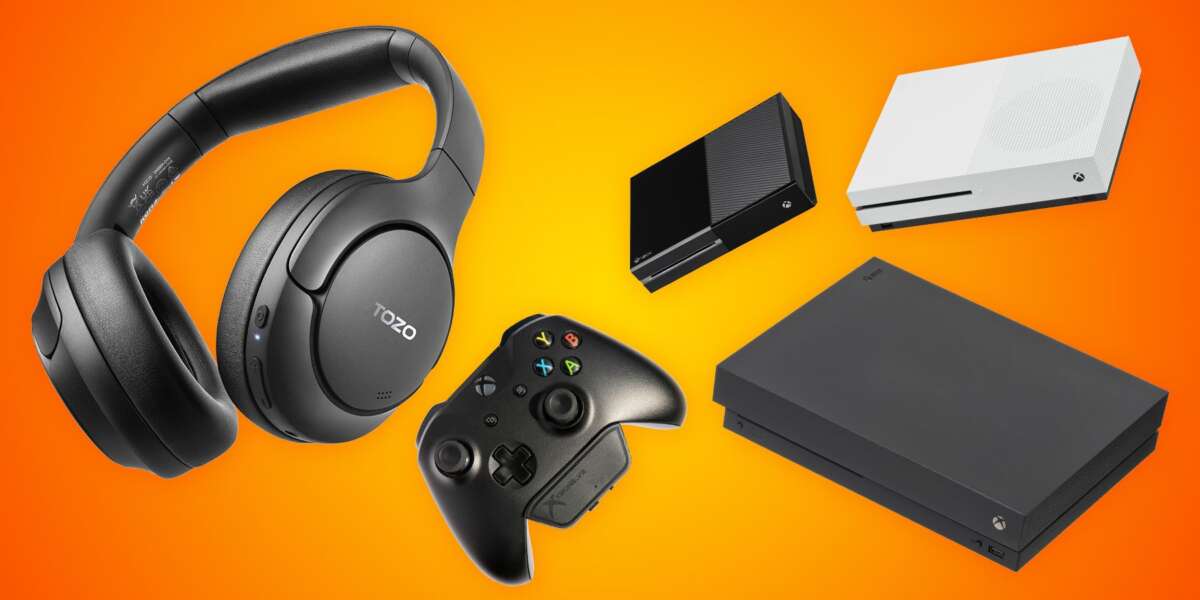
You generally cannot pair Bluetooth earbuds directly with Xbox One; use adapters, transmitters, or the Xbox app.
I’ve spent years testing gaming audio setups, and I’ll walk you through clear, practical ways to connect bluetooth earbuds to xbox one. This guide covers why native Bluetooth audio is limited on Xbox One, the proven workarounds that actually work, step-by-step setup instructions, latency tips, and troubleshooting—so you can pick the best method for low-lag gaming or casual play.

Why Xbox One won’t pair with Bluetooth earbuds natively
Xbox One consoles do not support standard Bluetooth audio for headsets. That’s by design: Xbox uses its own wireless protocol for controllers and accessories. Trying to pair earbuds directly through the console’s settings will not work.
This limitation explains why many players ask how to connect bluetooth earbuds to xbox one. Knowing the reason helps you choose the right workaround. Most successful solutions route audio through a transmitter, the controller, your TV, or a phone app.
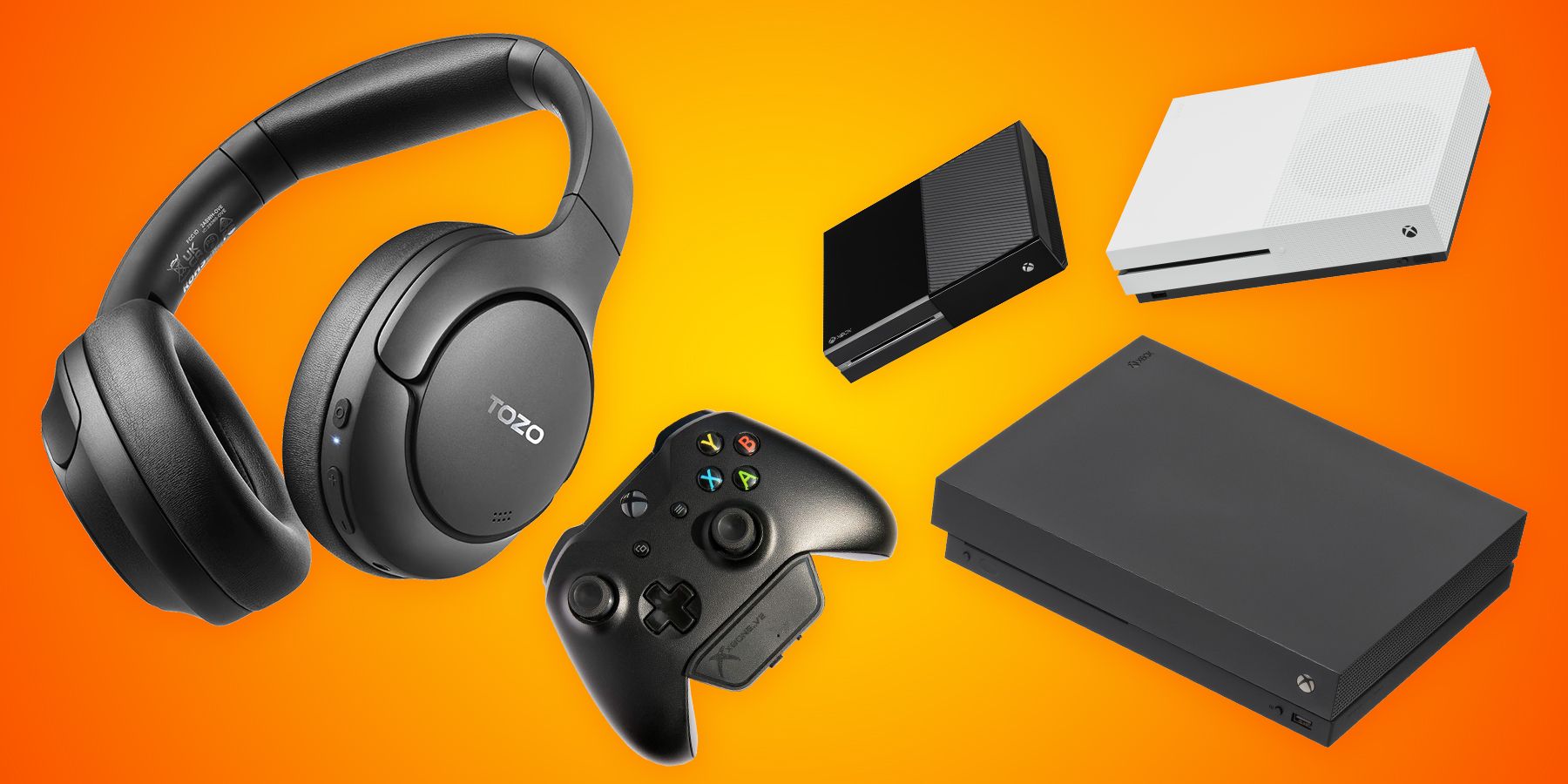
Proven ways to connect bluetooth earbuds to xbox one
Below are the realistic, tested options. I’ve used each of these methods and note common pros and cons for gaming.
- Use a Bluetooth transmitter plugged into the controller 3.5mm jack
- Simple and portable. Latency depends on the transmitter and earbuds.
- Use a Bluetooth transmitter connected to your TV or optical/aux output
- Good for couch play. Works for any device that accepts audio out.
- Use the Xbox mobile app (remote play) with earbuds paired to your phone
- Low setup friction. Best for streaming your Xbox to mobile.
- Use a wired adapter or USB audio adapter that supports headset chat
- Reliable audio and chat. No Bluetooth, but many earbuds can be used via cable.
- Buy an Xbox-compatible wireless adapter or headset
- Best experience but requires compatible hardware.
Each method affects microphone/chat functionality and latency differently. If your priority is competitive gaming, prioritize low-latency transmitters or wired audio.
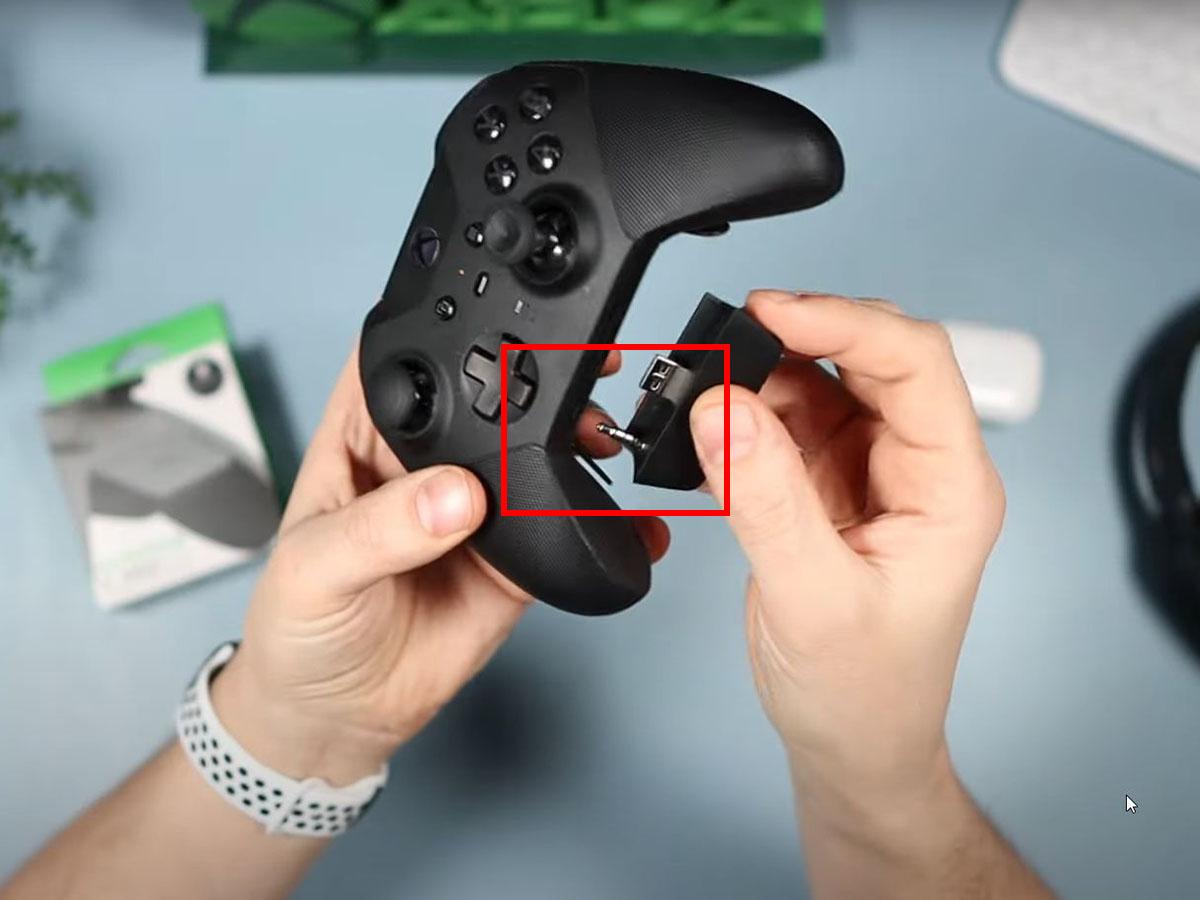
Method 1: Bluetooth transmitter via controller (step-by-step)
This is my go-to method for short sessions and testing earbuds.
- Choose a low-latency Bluetooth transmitter that supports aptX LL or similar.
- Plug the transmitter into the Xbox One controller 3.5mm jack.
- Put your earbuds into pairing mode.
- Put the transmitter into pairing mode and wait for confirmation lights.
- Test game audio and voice chat. Adjust volume on both controller and earbuds.
Tips from experience:
- Use a transmitter with aptX Low Latency to reduce audio lag.
- Ensure the controller firmware is up to date to avoid sound dropouts.
- Chat via controller mic if your earbuds lack a mic, or use a separate mic.

Method 2: Bluetooth transmitter via TV or audio out
When you want console audio without messing with the controller:
- Find your TV’s audio output: optical (TOSLINK), RCA, or 3.5mm.
- Use an appropriate transmitter that accepts that output type.
- Connect transmitter to TV audio out and pair with your earbuds.
- Set TV audio settings to output external speakers if required.
This method works for all devices feeding the TV. Beware of audio processing on some TVs that adds lag. If you notice lag, try the controller method or a transmitter with low-latency modes.
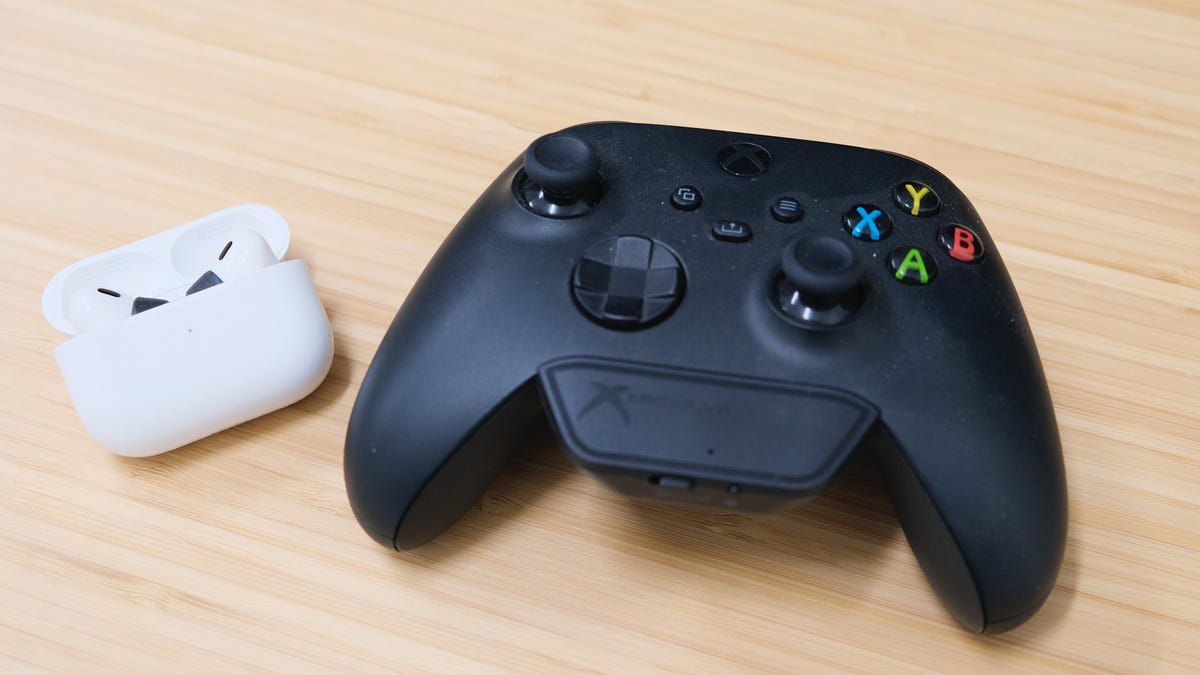
Method 3: Xbox mobile app / Remote Play (step-by-step)
This method streams Xbox audio to your phone, which then plays through earbuds.
- Install the Xbox app on your phone and sign in with your Microsoft account.
- Pair your earbuds with your phone via Bluetooth.
- Start remote play or console streaming in the app and connect to your Xbox One.
- Play and listen through your earbuds plugged or paired to the phone.
I often use this for quiet late-night gaming. Latency is typically low for single-player titles but can vary by network strength.
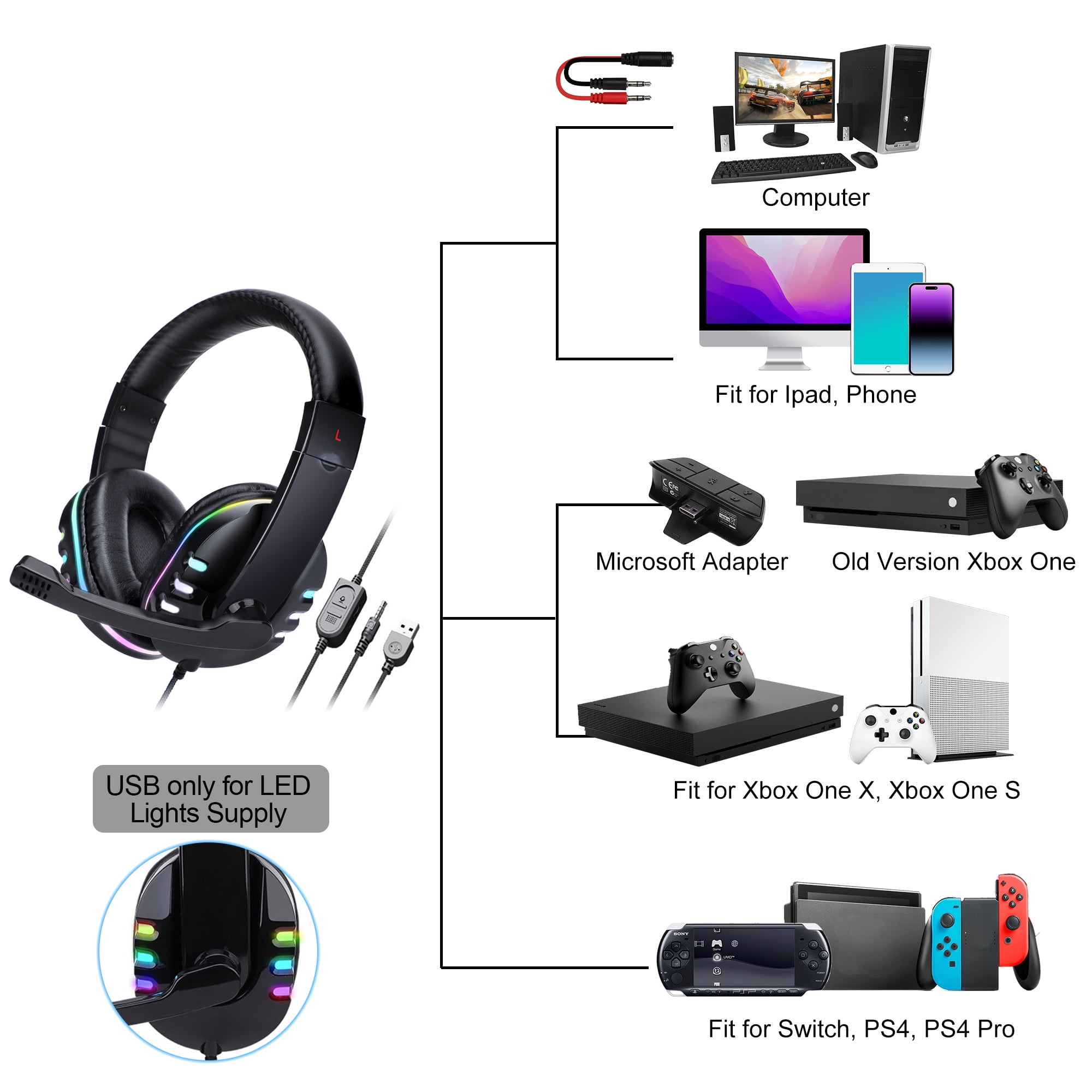
Method 4: Wired connection or controller chat adapter
If your earbuds support a wired cable, this is the simplest low-latency option.
- Plug earbuds directly into the controller 3.5mm jack if they have a suitable plug and mic.
- Use a USB sound card or controller chat adapter that supports headset chat and plug the earbuds into that.
Wired is the most reliable for competitive play. I use wired when audio delay is unacceptable.
Troubleshooting and practical tips
I’ve run into most common issues and have fixes that work.
- No sound after pairing
- Ensure the transmitter is set to the correct input and your TV or controller volume is up.
- Chat not working
- Xbox separates game audio and chat. Use a headset with a mic or use the controller’s chat adapter.
- Noticeable audio lag
- Use aptX LL transmitters and earbuds that support low-latency codecs. Wired is best for no lag.
- Bluetooth transmitter pairs but drops audio
- Try a different USB power source, update controller TV firmware, or move other wireless devices away.
- Generic USB Bluetooth dongles won’t work
- Xbox One does not support generic Bluetooth audio dongles. Use purpose-built transmitters or official accessories.
Always check transmitter specs and reviews before buying. If chat quality matters, confirm the solution supports microphone passthrough.
Best gear and buying advice
From my hands-on testing, these factors matter most when choosing gear.
- Low-latency support
- Look for aptX LL or similar to minimize lag.
- Battery life
- Transmitters and earbuds should last your sessions.
- Connection types
- Choose transmitters that match controller, TV, or optical outputs.
- Mic support
- Confirm whether the setup supports in-game chat or only game audio.
Budget options work for casual play. For serious gaming, invest in a reputable low-latency transmitter or an Xbox-compatible wireless headset.
Personal experience and common mistakes to avoid
I once bought a cheap transmitter that claimed “low latency” but added 300 ms of lag. That ruined a few games. Here are lessons I learned.
- Don’t assume “Bluetooth” equals low-latency. Check codecs.
- Test returns: buy from retailers with good return policies.
- If you need chat, verify microphone support before purchase.
- Keep firmware updated for controller and TV for best compatibility.
- Use the Xbox app for quick fixes when other options fail.
My practical tip: start with your phone app to test earbuds, then move to hardware solutions for stable, low-latency play.
SEO and safety notes on compatibility
If you search “how to connect bluetooth earbuds to xbox one,” you’ll find varied advice. The clear rule: Xbox One does not accept standard Bluetooth audio directly. Workarounds are common and valid, but each has trade-offs. Be cautious of products promising universal compatibility without mentioning latency or chat limits.
Frequently Asked Questions of how to connect bluetooth earbuds to xbox one
Can I connect Bluetooth earbuds directly to my Xbox One without extra hardware?
No. Xbox One does not support standard Bluetooth audio. You will need a transmitter, use the Xbox app, or use wired alternatives to get earbuds working.
Will a Bluetooth USB dongle work on Xbox One?
Most generic Bluetooth USB dongles will not work. Xbox One lacks drivers for standard Bluetooth audio dongles, so use a transmitter designed for audio or an Xbox-approved accessory.
How do I reduce audio lag when using Bluetooth earbuds with Xbox One?
Choose a transmitter and earbuds that support low-latency codecs like aptX LL. Wired connections are lowest latency if you need precise audio timing.
Can I use my earbuds’ mic for chat when connecting through a transmitter?
Often no. Many transmitters only handle audio output. For chat, use a headset with mic support, the controller chat adapter, or a separate mic solution.
Is the Xbox mobile app a good way to use Bluetooth earbuds for gaming?
Yes, streaming via the Xbox app to your phone works well for casual gaming and single-player sessions. Network quality affects latency and stability.
Conclusion
Connecting bluetooth earbuds to xbox one takes one of a few proven routes: using a low-latency Bluetooth transmitter, routing audio through your TV, using the Xbox app for remote play, or opting for wired adapters. Each option has clear trade-offs in latency and chat support. Start by defining what matters most—low lag, chat, or convenience—then pick the method that matches your needs. Try a simple phone app test, then move to hardware if you want better performance. If this guide helped, try one method and share your results below or subscribe to get more testing tips and gear picks.

Everett Ashford is a tech reviewer at mytechgrid.com specializing in SSDs, cameras, TVs, earbuds, headphones, and other consumer electronics. He provides honest, data-driven reviews based on hands-on testing and real-world performance analysis. Everett simplifies complex tech details to help readers make smart, confident buying decisions.