SSDs use flash memory for fast access; HDDs use spinning platters for larger, cheaper storage.
I’ve spent years building and repairing PCs and laptops, and I’ll walk you through what’s the difference between ssd and hard drive in clear, practical terms. This guide explains how each drive works, real-world speed and reliability differences, cost trade-offs, and which choice fits your needs — all in plain language so you can decide with confidence.
How SSDs and HDDs work — the core technical difference
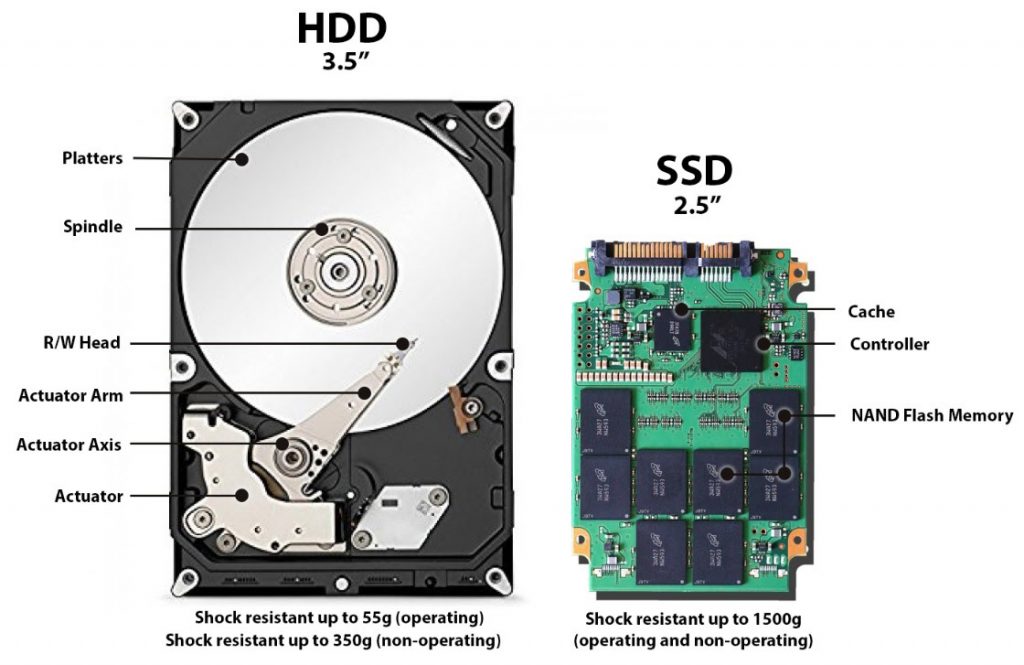
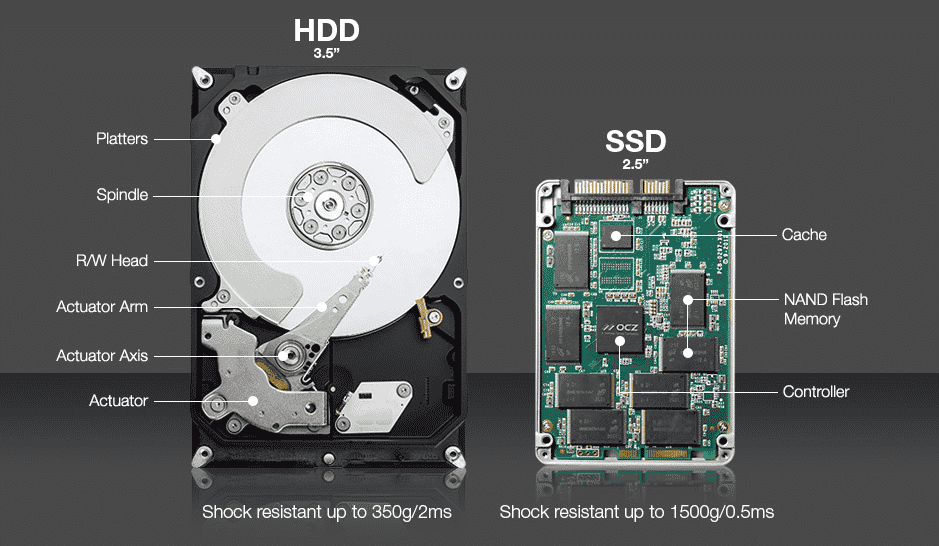
Solid-state drives and hard disk drives store your files, but they do it very differently. An SSD stores data on NAND flash memory. That means no moving parts. A hard drive stores data on magnetic platters that spin. A read/write head moves across the platters to access data.
Key components and what they mean
- SSD components: flash memory chips, a controller, firmware, and often a DRAM cache. The controller manages data and wear leveling.
- HDD components: spinning platters, actuator arm, read/write head, and a motor to spin the plates.
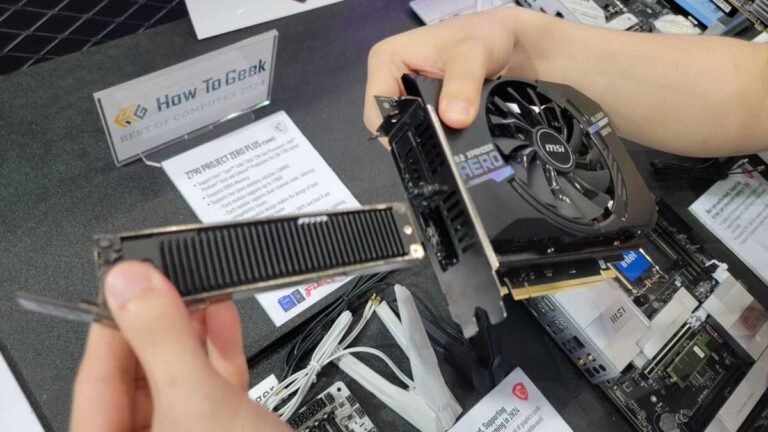
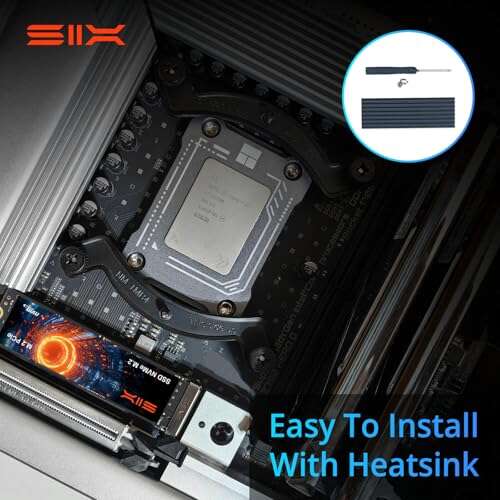
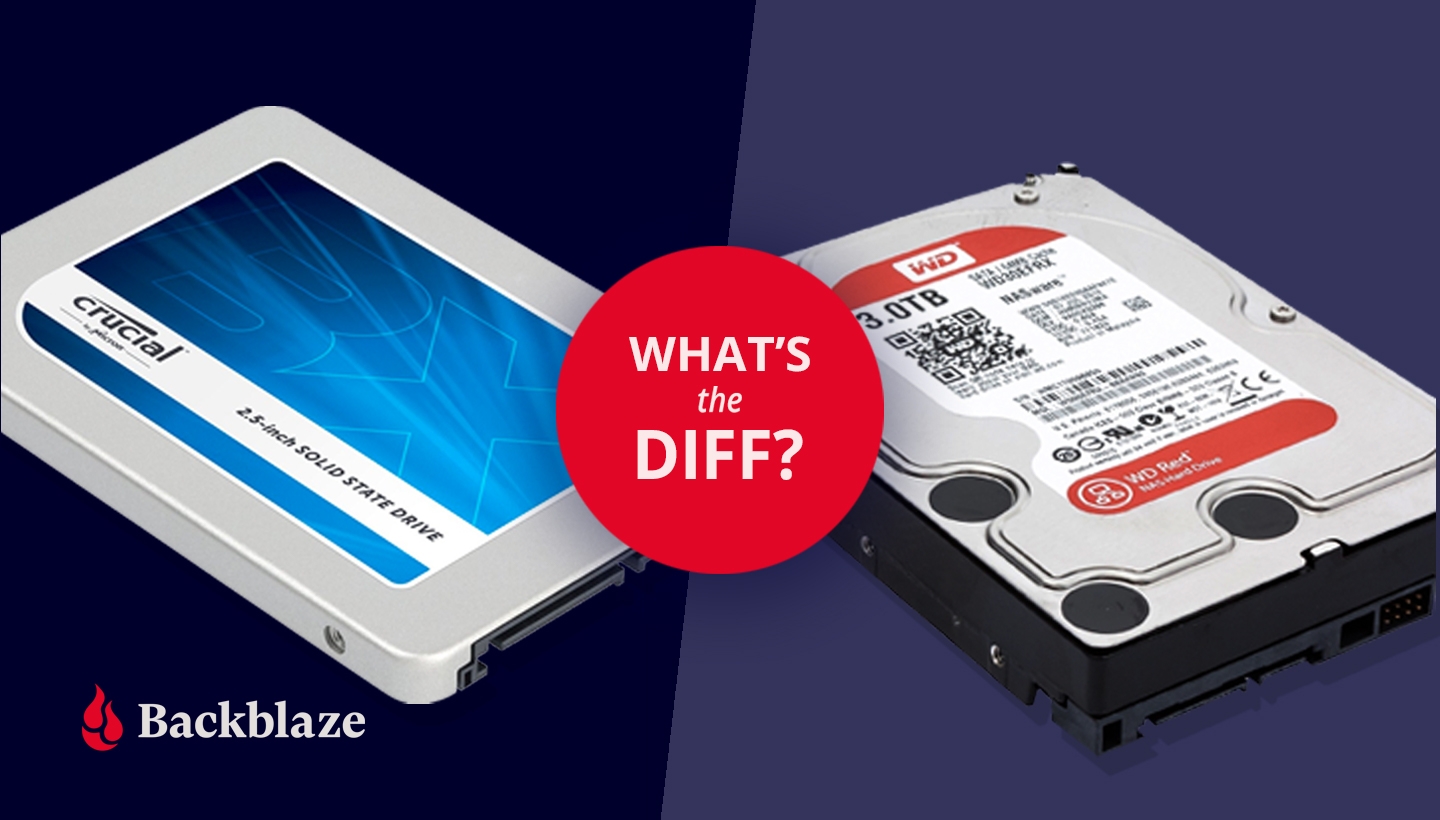
- Form factors: SSDs come as SATA, NVMe (M.2), and PCIe cards. HDDs come mostly as 2.5-inch and 3.5-inch drives.
Why that difference matters
- No moving parts in SSDs means faster access and better shock resistance.
- Moving parts in HDDs mean mechanical limits on speed and vulnerability to shock.
In short, the basic physical difference directly creates the performance and reliability gaps people ask about when they wonder what's the difference between ssd and hard drive.
How data is read and written (brief)
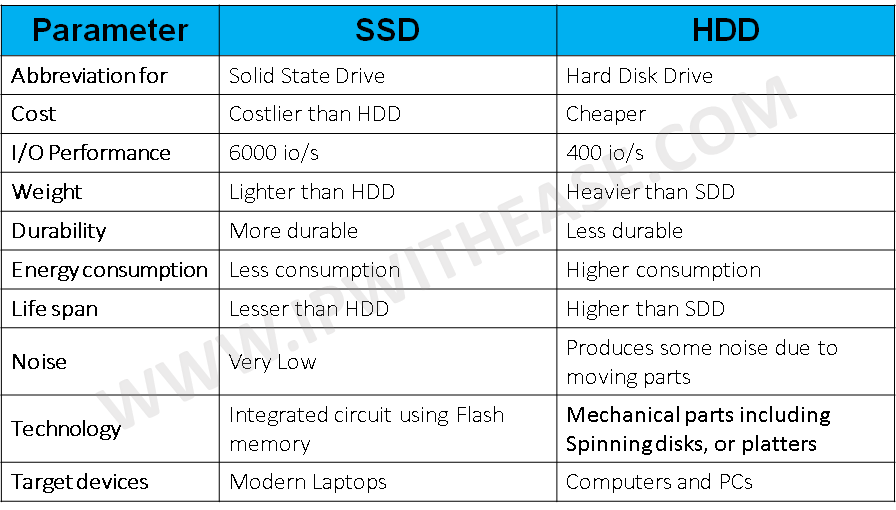
- SSDs read and write electrically. Access times are measured in microseconds.
- HDDs read and write mechanically. Access times are measured in milliseconds.
This gap explains major speed differences you'll notice every day.

Performance: speed, boot times, and real-world use
Speed is where SSDs shine. Boot times, app load times, and file transfers are far faster on SSDs than HDDs.
What to expect in everyday tasks
- Boot and startup: SSDs typically boot in 10–30 seconds. HDDs often take 30–90 seconds or more.
- App launches: Programs open almost instantly on SSDs. On HDDs they lag, especially with many small files.
- File transfer: SSDs sustain higher throughput and handle many small files much better than HDDs.
Why numbers don’t tell the whole story
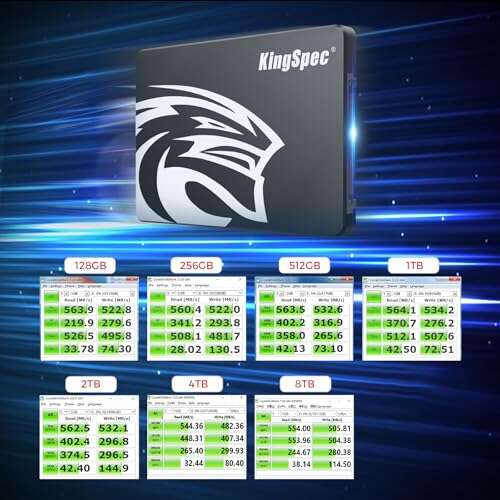
- Sequential speed matters for big files. NVMe SSDs can push gigabytes per second.
- Random I/O matters for the OS and many small files. SSDs have huge advantages here.
- For bulk archival of large files, HDD throughput can still be acceptable for many users.
Personal note: On one laptop upgrade I moved the OS to a small SSD and kept a large HDD for media. The machine felt years newer just from faster app switching and booting. That experience captures why people ask what's the difference between ssd and hard drive when they want a faster system.
Durability and reliability
SSD durability differs from HDD durability in character and failure modes.
SSDs
- No moving parts. Better shock and vibration resistance.
- Wear-limited: NAND cells can only endure a finite number of write cycles.
- Modern SSDs include wear-leveling, TRIM support, and high TBW (terabytes written) ratings.
HDDs
- Mechanical parts can fail due to shock, wear, or age.
- Bad sectors can appear over time.
- Long-term spin-up/spin-down can be stressful.
Practical reliability tips
- For daily use and laptops, SSDs often outlast HDDs because they tolerate drops and travel shocks.
- For long-term cold storage, HDDs can be a cost-effective option if kept powered and in good conditions.
- Always back up. Both drive types can and do fail.
I’ve seen SSDs fail after heavy write workloads and HDDs fail after simple drops. Both types need backups and monitoring tools. That’s an important part of answering what's the difference between ssd and hard drive for real users.

Capacity and cost
Cost per gigabyte is the main area where HDDs still win.
Price and size trends
- HDDs: cheaper per gigabyte. Easy to get multi-terabyte drives for desktop storage.
- SSDs: more expensive per gigabyte, but prices have fallen and capacity has grown rapidly.
- Hybrid approach: Many people use a smaller SSD for OS and apps and a large HDD for data.
Choosing by budget and need
- If you need tons of storage for media and backups on a tight budget, HDDs are sensible.
- If you need speed and responsiveness, invest in an SSD for the system drive.
- If budget allows, NVMe SSD for system and a large HDD for files is a balanced setup.
When deciding what's the difference between ssd and hard drive for your wallet, think cost per gigabyte and how much speed you value.
Power, heat, and noise
Operational characteristics differ in ways you’ll notice.
Power and battery life
- SSDs use less power, especially NVMe and modern SATA drives. This helps laptop battery life.
- HDDs use more power when spinning and during seeks.
Heat and noise
- SSDs generate less heat and are silent.
- HDDs make audible noise and produce more heat under load.
If you build or buy a thin laptop, SSDs are often required because they produce less heat and no noise. That practical point often defines the user's choice when they ask what's the difference between ssd and hard drive for mobile devices.

Choosing the right drive: use cases and recommendations
Match the drive to the task. Here are practical pairings.
Recommended setups
- Everyday laptop: NVMe or SATA SSD as primary drive for OS and apps.
- Desktop for productivity: NVMe SSD for active projects, HDD for backups and large files.
- Gaming: NVMe SSD for faster load times; HDD for bulk storage of older titles.
- Media server or backup: High-capacity HDDs for archives; RAID or multiple backups advised.
- External storage: HDD for cheap mass storage; external SSD for fast portable editing.
Questions to ask yourself
- Do I value speed or capacity more?
- Am I on a budget or do I need top performance?
- Do I travel and need shock resistance?
Choosing wisely means weighing those answers while understanding what's the difference between ssd and hard drive in cost, speed, and durability.
Upgrading and installation tips — avoid common mistakes
If you plan to upgrade, these tips save time and headaches.
Before you start
- Check form factor: 2.5-inch SATA vs M.2 NVMe vs PCIe.
- Verify interface support in your computer BIOS/UEFI.
- Back up all data before cloning or swapping drives.
Installation tips
- Use the vendor’s migration tool or a trusted cloning app to move your OS.
- If cloning to a larger SSD, expand partitions after cloning. If cloning to a smaller SSD, reduce source partitions first.
- Enable TRIM on SSDs and ensure proper alignment of partitions.
Common mistakes I’ve seen
- Cloning a running system without disabling hibernation and page file can cause errors.
- Buying an NVMe SSD but plugging it into a SATA-only slot.
- Forgetting firmware updates and leaving drives with old controllers.
Following these steps prevents many headaches and clarifies what's the difference between ssd and hard drive in real upgrade scenarios.

PAA-style quick questions (short answers)
What’s the real speed boost moving from HDD to SSD?
- You’ll see dramatically faster boot and app load times. Real-world tasks often feel 2–10x faster depending on the drive type.
Can I put my OS on an external SSD?
- Yes. Modern USB 3.1/3.2 or Thunderbolt external SSDs can host an OS. Performance depends on the interface speed.
Do NVMe SSDs matter for everyday office work?
- NVMe helps with heavy file moves and large projects. For basic office tasks, SATA SSDs already feel very fast.
Frequently Asked Questions of what's the difference between ssd and hard drive
What is the main difference between an SSD and an HDD?
The main difference is physical: SSDs use flash memory with no moving parts, while HDDs use spinning magnetic platters and a moving head. This leads to differences in speed, durability, and noise.
Are SSDs faster than HDDs for gaming?
Yes. SSDs reduce game load times and level streaming delays. Games installed on SSDs often feel smoother and load far quicker than on HDDs.
How long do SSDs last compared to HDDs?
SSD lifespan depends on write workloads and TBW ratings, while HDD lifespan depends on mechanical wear and environment. With normal use, both can last many years; backups remain essential.