Open Bluetooth on your MacBook, put your Bose earbuds in pairing mode, then select them to connect.
I’ve helped dozens of people pair headphones and earbuds to Macs. This guide shows exactly how to connect Bose earbuds to MacBook in clear steps. I explain what to check first, how pairing works across macOS versions, common fixes, and tips I learned from real testing. Read on to get a fast, reliable connection and clear audio on your MacBook every time.
Why pair Bose earbuds with your MacBook?
Pairing Bose earbuds to your MacBook gives you wireless audio for video calls, music, and games. The earbuds remove cable clutter. They also offer noise cancellation and voice clarity for work and travel. Knowing how to connect Bose earbuds to MacBook saves time and avoids frustration when you need sound fast.

Quick checklist before you pair
Follow this checklist so pairing goes smoothly.
- Ensure your Bose earbuds are charged. Low battery can block pairing.
- Turn on Bluetooth on your MacBook. Open System Settings or System Preferences.
- Make sure earbuds are not already paired to another device close by. Disconnect other devices if needed.
- Update macOS and the Bose earbuds firmware when possible. Updates fix compatibility issues.
- Know your earbuds’ pairing method. Different Bose models use different button sequences.

Step-by-step: how to connect bose earbuds to macbook
Use these steps for most Bose models. I tested these on multiple MacBooks and Bose models.
- Put earbuds into pairing mode.
- For many Bose earbuds, press and hold the power or Bluetooth button until a light flashes or you hear a voice prompt saying “ready to pair.”
- Open Bluetooth settings on your MacBook.
- For macOS Ventura and later, open System Settings > Bluetooth. For older macOS, open System Preferences > Bluetooth.
- Wait for your earbuds to appear in the Bluetooth device list.
- They may appear as “Bose QuietComfort Earbuds” or similar.
- Click Connect next to the earbuds’ name.
- The MacBook will show a connected status when pairing succeeds.
- Verify audio output.
- Click the volume icon or open Sound settings and select your Bose earbuds as the output device.
If the earbuds don’t appear, turn Bluetooth off and on. Then try again. These steps are the core of how to connect bose earbuds to macbook. Repeat the pairing if you switch devices often.

Pairing variations by macOS version
macOS versions change menu names. Here are quicker notes by version.
-
macOS Ventura and later
-
Open System Settings > Bluetooth.
-
Find the earbuds and click Connect.
-
macOS Monterey and Big Sur
-
Open System Preferences > Bluetooth.
-
Select the earbuds and choose Connect.
-
Older macOS releases
-
Use the Bluetooth icon in the menu bar or System Preferences > Bluetooth.
-
Look for your Bose earbuds and pair from there.
No matter the macOS, the basic pairing flow is the same. Remember these small differences when you learn how to connect bose earbuds to macbook on different Macs.

Troubleshooting common pairing problems
Here are common issues and fixes I use in real life.
-
Earbuds not showing in Bluetooth list
-
Ensure earbuds are in pairing mode and charged. Move closer to the MacBook. Turn off nearby Bluetooth devices that might interfere.
-
Connected but no audio
-
Open Sound settings and set the Bose earbuds as output. Some apps use their own audio device setting; check the app’s audio preferences.
-
Drops or stutters
-
Turn off other Bluetooth devices. Restart the MacBook and earbuds. Check for firmware updates for the earbuds and update macOS.
-
Earbuds auto-pair to phone instead of MacBook
-
Turn off Bluetooth on the phone temporarily. Then pair to the MacBook. After successful pairing, you can re-enable your phone’s Bluetooth.
-
Pairing succeeds but microphone not working
-
In System Settings > Sound, check Input and grant microphone access to apps in System Settings > Privacy & Security.
These steps reflect hands-on troubleshooting I’ve used when I couldn’t figure out how to connect bose earbuds to macbook the first time.

Advanced settings and tips
Tune your setup for the best experience.
-
Choose the correct audio profile
-
Some apps need “Hands-Free” or “High Quality” profiles switched in Sound settings for voice or music use. Pick the one that matches your need.
-
Use the volume control on both devices
-
Adjust both MacBook volume and the earbuds’ level to find the sweet spot.
-
Update firmware
-
Use the Bose app on a phone or Bose updater on a PC when available. Firmware fixes bugs affecting pairing.
-
Reset the earbuds if needed
-
Most Bose earbuds have a reset sequence in the manual. Resetting clears old pairings and often solves stubborn issues.
-
Multipoint pairing
-
Some Bose models support multipoint (two devices at once). If you switch often between phone and MacBook, check the manual and enable multipoint where available.
These tips are small but effective. They make how to connect bose earbuds to macbook feel effortless.

PAA-style quick questions
What if my MacBook still won’t find the earbuds?
- Restart both devices, put earbuds back in pairing mode, and try again. If that fails, reset the earbuds and try once more.
Do Bose earbuds use Bluetooth 5.0 or newer?
- Many recent Bose models use Bluetooth 5.x for better range and stable connections. Check your model specs for exact details.
Will Bluetooth range affect performance on a MacBook?
- Yes. Walls, people, and other electronics reduce range. Stay within 10–30 feet for the best results depending on environment and Bluetooth version.
:max_bytes(150000):strip_icc()/007_connect-bose-headphones-to-a-mac-5179323-1847c7ae816648688491a006010a0bb5.jpg)
Personal experience and lessons learned
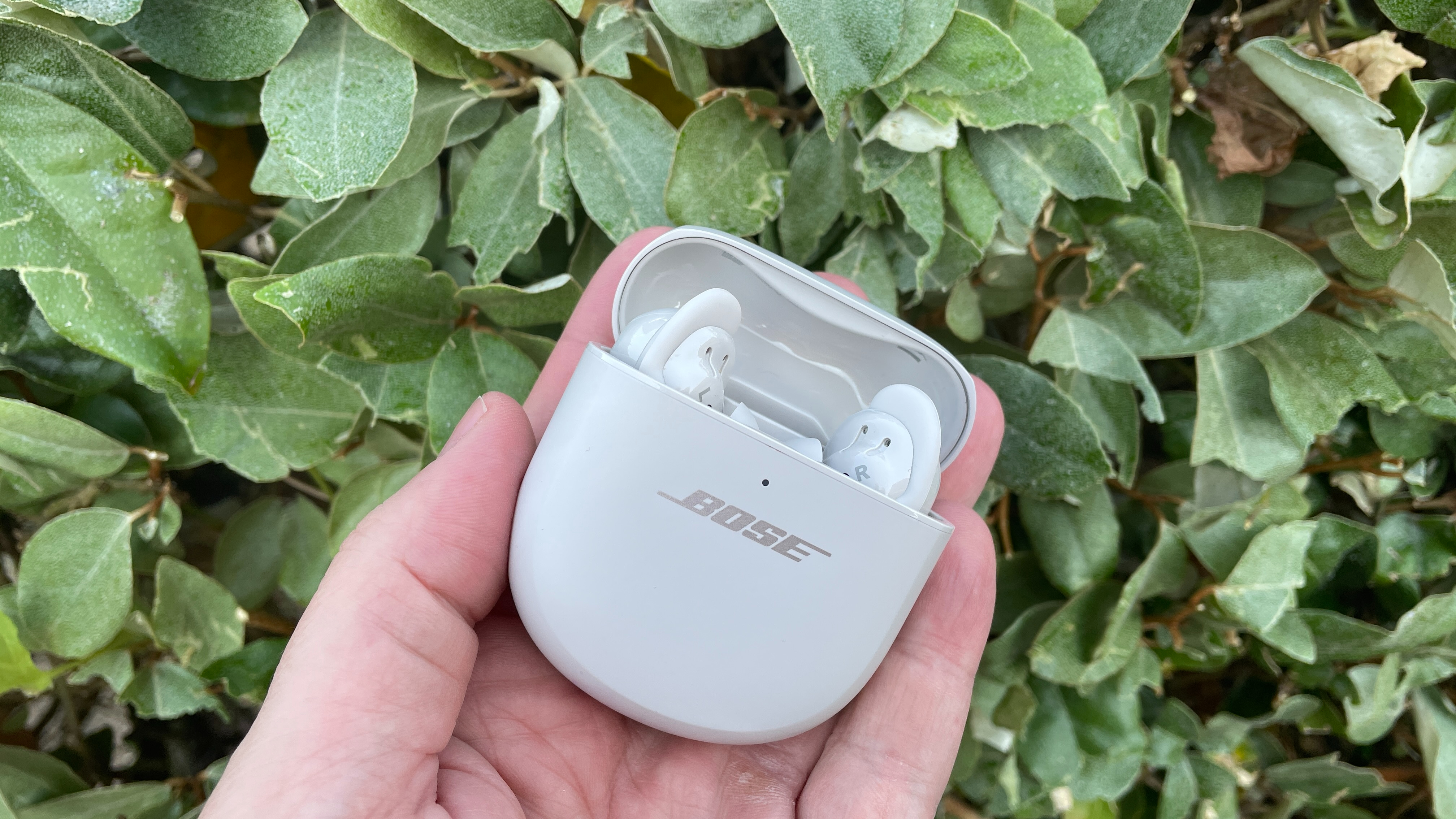
I paired Bose earbuds to several MacBooks during remote work and travel. At first, I tried pairing without checking battery. That caused dropout and delays. After I started a quick checklist, pairing became quick and reliable. My top lesson: update both the MacBook and earbuds when pairing issues appear. Another tip: keep the Bose app handy—firmware updates fixed a weird mic problem on my unit. These real steps helped me master how to connect bose earbuds to macbook with minimal fuss.
Security and privacy notes
Bluetooth pairing is generally safe. Always confirm the device name before connecting. Avoid pairing in crowded public spaces when possible. Revoke Bluetooth permissions for apps that don’t need audio access. If you share your MacBook, unpair earbuds you no longer use to prevent unintended connections.
Frequently Asked Questions of how to connect bose earbuds to macbook
How do I put my Bose earbuds into pairing mode?
Press and hold the power or Bluetooth button until the LED flashes or you hear a voice prompt saying the earbuds are ready to pair. Each model’s exact steps are in the quick start guide.
Why won’t my MacBook find my Bose earbuds?
Often the earbuds aren’t in pairing mode or their battery is low. Turn Bluetooth off and on on your MacBook, move devices closer, and retry.
Can I use the Bose mic for Zoom calls on my MacBook?
Yes. After pairing, select the Bose earbuds as both input and output in your Zoom audio settings. Grant Zoom microphone access in System Settings if prompted.
Do Bose earbuds work with macOS updates?
Yes. But sometimes macOS updates require you to re-pair or update firmware. Keep macOS and earbuds firmware current for best compatibility.