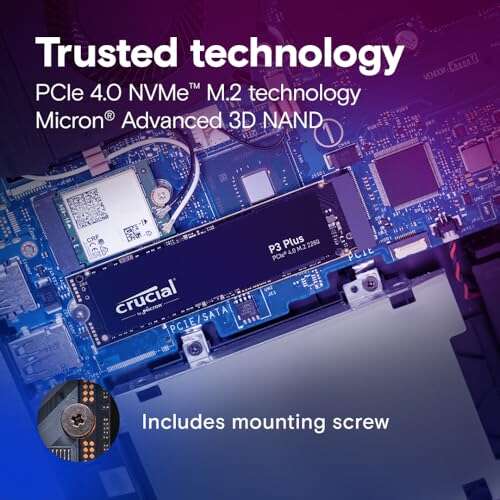
A modern PC can support multiple SSDs — typically several internal drives plus many external ones.
I have built and upgraded dozens of PCs. I will explain exactly how many SSD can a PC have, why limits exist, and how to add more drives safely. Read on to learn practical limits, real-world workarounds, and step-by-step tips so you can expand storage with confidence.

Understanding SSD types, form factors, and why limits matter
There are several SSD types. Each uses different connectors and space inside a case. Common types are SATA 2.5-inch, M.2 NVMe, and U.2. Each type affects how many SSDs you can install.
Why the question how many ssd can a pc have matters:
- It tells you whether your motherboard supports more drives.
- It affects performance and cooling needs.
- It helps plan backups and RAID arrays.
Short story from my experience: I once upgraded a video editor’s PC. The board had two M.2 slots and six SATA ports. We used two M.2 NVMe for OS and cache and added four SATA SSDs for project storage. That setup handled heavy edits with no slowdowns. This shows planning hardware and cooling matters.

Theoretical limits vs practical limits for how many ssd can a pc have
Motherboards define theoretical slots. A PC’s chipset and CPU lanes set an upper bound. In theory, you can attach dozens of SSDs if you add expansion cards and enclosures. Practically, the number you can use well depends on:
- Available SATA ports.
- M.2 slots on the motherboard.
- Free PCIe lanes for adapters.
- Power supply capacity and case space.
- Cooling and airflow.
Typical desktop builds:
- Small budget board: 1–2 SSDs internal.
- Mid-range board: 3–6 SSDs internal.
- High-end workstation: 6–12+ SSDs internal with expansion.
So when asking how many ssd can a pc have, expect practical ranges rather than a single maximum. Plan by counting ports and lines on the board.
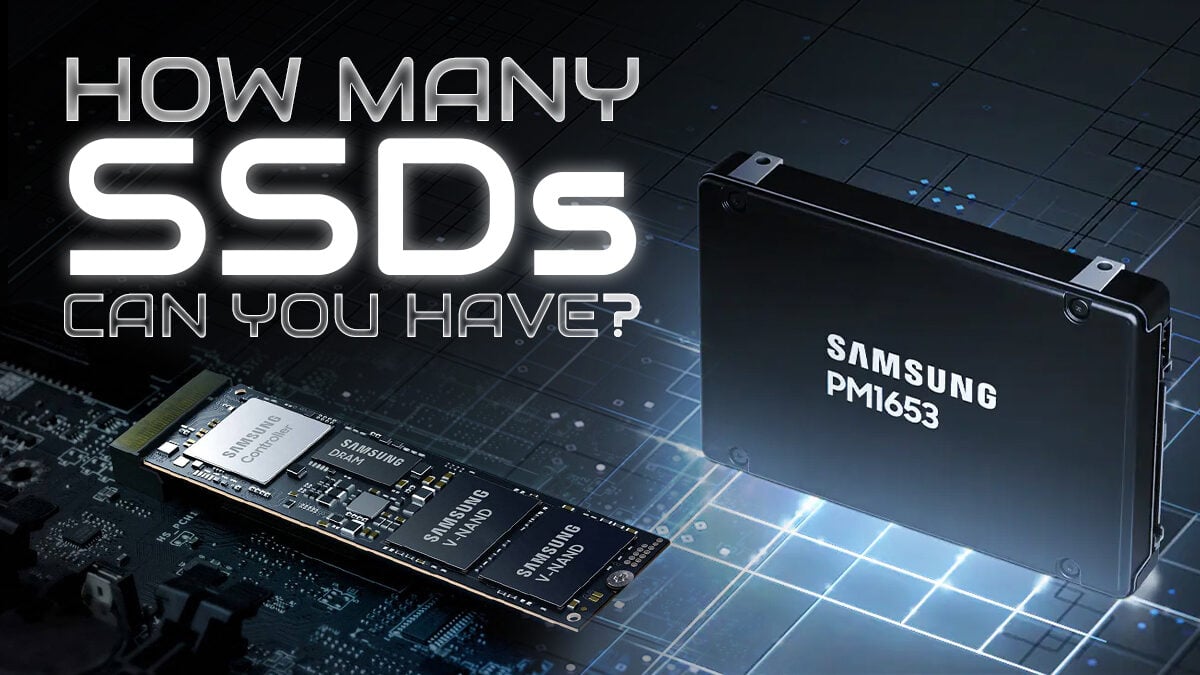
Slots and interfaces that determine how many SSDs a PC can have
Different ports matter. Each port type uses resources differently.
SATA ports
- Use SATA cables to connect 2.5-inch SSDs.
- Common on most motherboards.
- Count ports to know how many SATA SSDs you can add.
M.2 slots
- Plug directly into the motherboard.
- Support SATA or NVMe depending on the slot.
- Many boards offer 1–4 M.2 slots.
PCIe lanes and NVMe
- NVMe SSDs use PCIe lanes for speed.
- Each drive can use x4 lanes. CPU and chipset limit lanes.
- Using many NVMe drives may need extra PCIe expansion cards.
U.2 and SAS
- Found in servers and some workstations.
- Support hot-swap trays and many drives via backplanes.
When you total these, you get the realistic count for how many ssd can a pc have. Always check your motherboard manual for supported combos and lane sharing rules.
Expansion options to increase how many SSDs a PC can have
If onboard slots are not enough, use these options.
PCIe adapter cards
- Plug into PCIe slots and add multiple M.2 NVMe drives.
- Require available PCIe lanes and space.
- Good for high-performance expansion.
SAS/SATA controller cards
- Add many SATA ports.
- Often used in servers or workstation builds.
External enclosures and docking stations
– Use USB 3.1/3.2 or Thunderbolt.
- Offer easy expansion without opening the PC.
- Great for backups or additional storage pools.
RAID enclosures and NAS
- Provide many drive bays in a single unit.
- Connect via network or dedicated host bus adapters.
- Ideal for centralized storage and redundancy.
Using these methods, the answer to how many ssd can a pc have can jump from a handful to dozens, depending on needs and budget.
Performance, power, and thermal considerations when adding SSDs
Adding many SSDs is not just about fitting them physically.
Performance
- NVMe drives offer high speed but share PCIe lanes.
- Adding many NVMe drives can reduce per-drive bandwidth if lanes are limited.
Power
- SSDs use less power than HDDs, but many drives add up.
- Ensure the power supply can handle the load and peak currents.
Thermals
- NVMe SSDs can throttle when hot.
- Provide airflow or heatsinks for M.2 drives.
- Keep case airflow balanced if you add multiple drives.
These practical limits guide how many ssd can a pc have while still performing reliably.
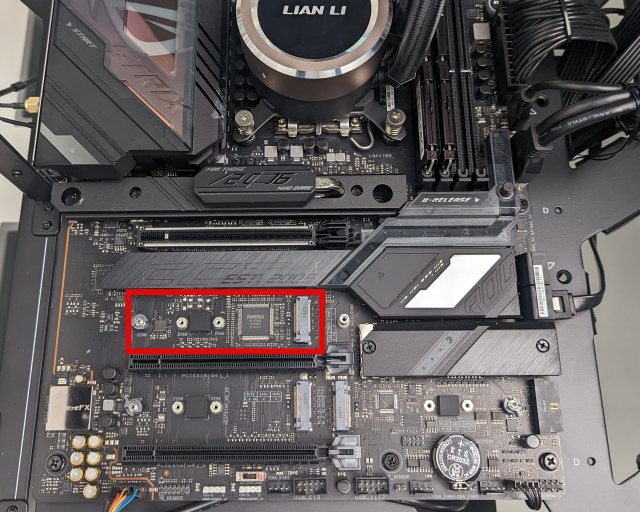
Compatibility checklist and installation tips for adding SSDs
Before you buy drives, follow this checklist.
Step 1: Check motherboard manual
- Count SATA and M.2 connectors.
- Note which M.2 slots share SATA lanes or PCIe lanes.
Step 2: Review CPU and chipset PCIe lanes
- Ensure you have lanes for additional NVMe drives or PCIe cards.
Step 3: Plan physical placement and cooling
- Leave space for airflow around M.2 and 2.5-inch drives.
- Use dedicated heatsinks for hot NVMe drives.
Step 4: Power and cabling
- Ensure SATA power connectors or use adapters.
- Use quality cables and route them for airflow.
Step 5: Software setup
- Update BIOS/UEFI and enable NVMe support.
- Configure RAID or storage pools if needed.
From my builds, the most common mistake is ignoring lane sharing. I once installed an M.2 drive that disabled some SATA ports. Always confirm before purchase.

Common trade-offs when scaling storage and how to choose
More SSDs means more complexity. Consider these trade-offs.
Cost vs performance
- NVMe is faster but costlier per GB.
- SATA SSDs are cheaper and still fast for many tasks.
Simplicity vs expandability
- Onboard drives are simple.
- Adding RAID enclosures or PCIe cards adds complexity and maintenance.
Reliability vs capacity
- RAID can improve speed or redundancy.
- Backups are still essential; RAID is not a substitute.
Decide based on your workflow. For gaming, two fast SSDs may suffice. For editing large video files, more high-capacity SSDs or a NAS makes sense.

PAA-style questions embedded (brief answers)
Q: Can I mix SATA and NVMe SSDs in one PC?
- Yes. Most systems support both types simultaneously, but check for lane sharing and BIOS settings.
Q: Will adding many SSDs slow my PC?
- Not directly. But if NVMe drives share PCIe lanes or the CPU is limited, individual drive speeds can drop.
Q: Do SSDs need special cooling?
- M.2 NVMe drives benefit from airflow or heatsinks to avoid thermal throttling.

Frequently Asked Questions of how many ssd can a pc have
How many SSDs can I install on a standard consumer motherboard?
Most consumer motherboards allow 2–6 internal SSDs using a mix of M.2 and SATA connections, depending on model and chipset.
Can I add unlimited SSDs using PCIe expansion cards?
You can add many SSDs with PCIe cards, but you are limited by available PCIe lanes, case space, power, and cooling.
Does adding more SSDs affect system performance?
Adding SSDs does not reduce system performance broadly, but NVMe drives may share PCIe lanes and see lower bandwidth if lanes are saturated.
Is it safe to mix SSD brands and models in a single system?
Mixing brands is safe for storage, but performance and lifespan will vary. For RAID arrays, match drives for best results.
Can I run all drives as bootable drives?
Only a limited number of drives are practical as boot drives. Most systems can boot from SATA or NVMe, but keep your OS on the fastest drive for best results.
Do SSDs require special drivers or firmware updates?
Most modern OSes support SSDs natively. Firmware updates from drive manufacturers can improve stability and performance and are recommended.
Will my power supply handle many SSDs?
SSDs have low power draw, but many drives plus GPUs and CPUs can strain a PSU. Calculate total system power to be safe.
Conclusion
You can fit more SSDs into a PC than you might think. The exact answer to how many ssd can a pc have depends on your motherboard, available PCIe lanes, case space, power, and cooling. Start by counting onboard SATA and M.2 slots, then plan expansions with PCIe adapters or external enclosures if you need more. My practical advice: prioritize a fast NVMe for your OS, use SATA SSDs for bulk storage, and always check lane sharing in the manual. Take one step at a time, test performance, and back up your data.
Try a small expansion first. If you liked this guide, subscribe for more PC build tips, or leave a comment about your setup and questions.

Everett Ashford is a tech reviewer at mytechgrid.com specializing in SSDs, cameras, TVs, earbuds, headphones, and other consumer electronics. He provides honest, data-driven reviews based on hands-on testing and real-world performance analysis. Everett simplifies complex tech details to help readers make smart, confident buying decisions.